Welcome to Jetson ORIN NANO SUPER repository
当製品の日本語版マニュアル資料は、こちらからご取得ください。
2.Install large model dialogue platform
Open WebUI
Open WebUI1. Environmental requirements2. Docker construction2.1. Official installation of Docker2.2. Add access permissions3. Open WebUI installation4. Open WebUI and run4.1. Administrator account4.2. Register and log in4.3 User Interface5. Model dialogue5.1. Switch model5.2. Demonstration: LLaVA6. Common Problems6.1. Close Open WebUI6.2. Common ErrorsUnable to start Open WebUIService connection timeout
Demo Environment
Development board: Jetson Orin series motherboard
SSD: 128G
Tutorial Scope
| Motherboard Model | Supported |
|---|---|
| Jetson Orin NX 16GB | √ |
| Jetson Orin NX 8GB | √ |
| Jetson Orin Nano 8GB | √ |
| Jetson Orin Nano 4GB | √ |
Open WebUI is an open source project that aims to provide a simple and easy-to-use user interface (UI) for managing and monitoring open source software and services.
xxxxxxxxxxWhen using Open WebUI, there is a high probability that the dialogue will be unresponsive or timeout. You can try restarting Open WebUI or using the Ollama tool to run the model!
1. Environmental requirements
Host and Conda installation of Open WebUI: Node.js >= 20.10, Python = 3.11:
| Environment construction method | Difficulty (relatively) |
|---|---|
| Host | High |
| Conda | Medium |
| Docker | Low |
Tutorial demonstrates Docker installation of Open WebUI.
2. Docker construction
2.1. Official installation of Docker
If Docker is not installed, you can use the script to install Docker in one click.
- Update local package lists
xxxxxxxxxxsudo apt update
- Upgrading installed packages
xxxxxxxxxxsudo apt upgrade
- Download and run the script
Download the get-docker.sh file and save it in the current directory.
xxxxxxxxxxsudo apt install curl
xxxxxxxxxxcurl -fsSL https://get.docker.com -o get-docker.sh
Run the get-docker.sh script file with sudo privileges.
xxxxxxxxxxsudo sh get-docker.sh
2.2. Add access permissions
Add system current user access rights to Docker daemon: You can use Docker commands without using sudo command
xxxxxxxxxxsudo usermod -aG docker $USERnewgrp docker
3. Open WebUI installation
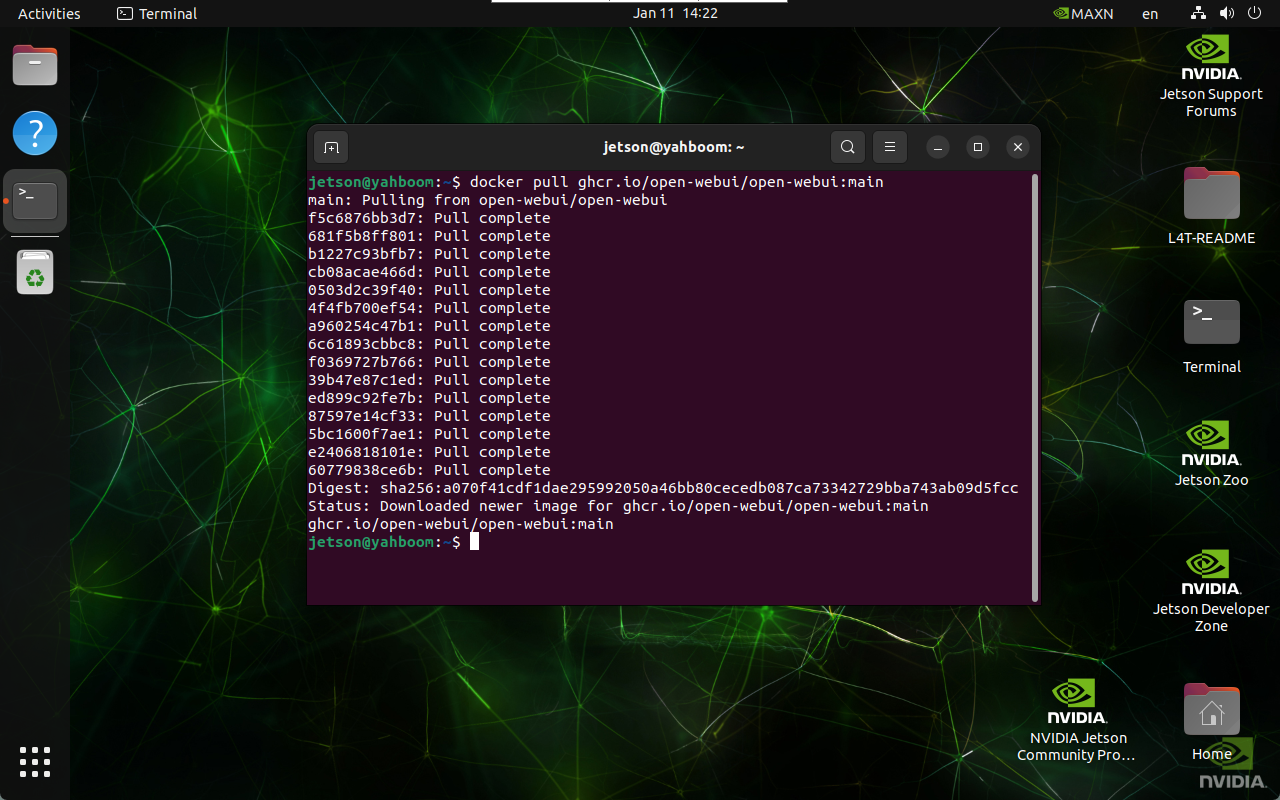
For systems with Docker installed, you can directly enter the following command in the terminal: The image is the result of the pull
xxxxxxxxxxdocker pull ghcr.io/open-webui/open-webui:main
4. Open WebUI and run
Enter the following command in the terminal to start the specified Docker:
xxxxxxxxxxdocker run --network=host -v open-webui:/app/backend/data -e OLLAMA_BASE_URL=http://127.0.0.1:11434 --name open-webui --restart always ghcr.io/open-webui/open-webui:main
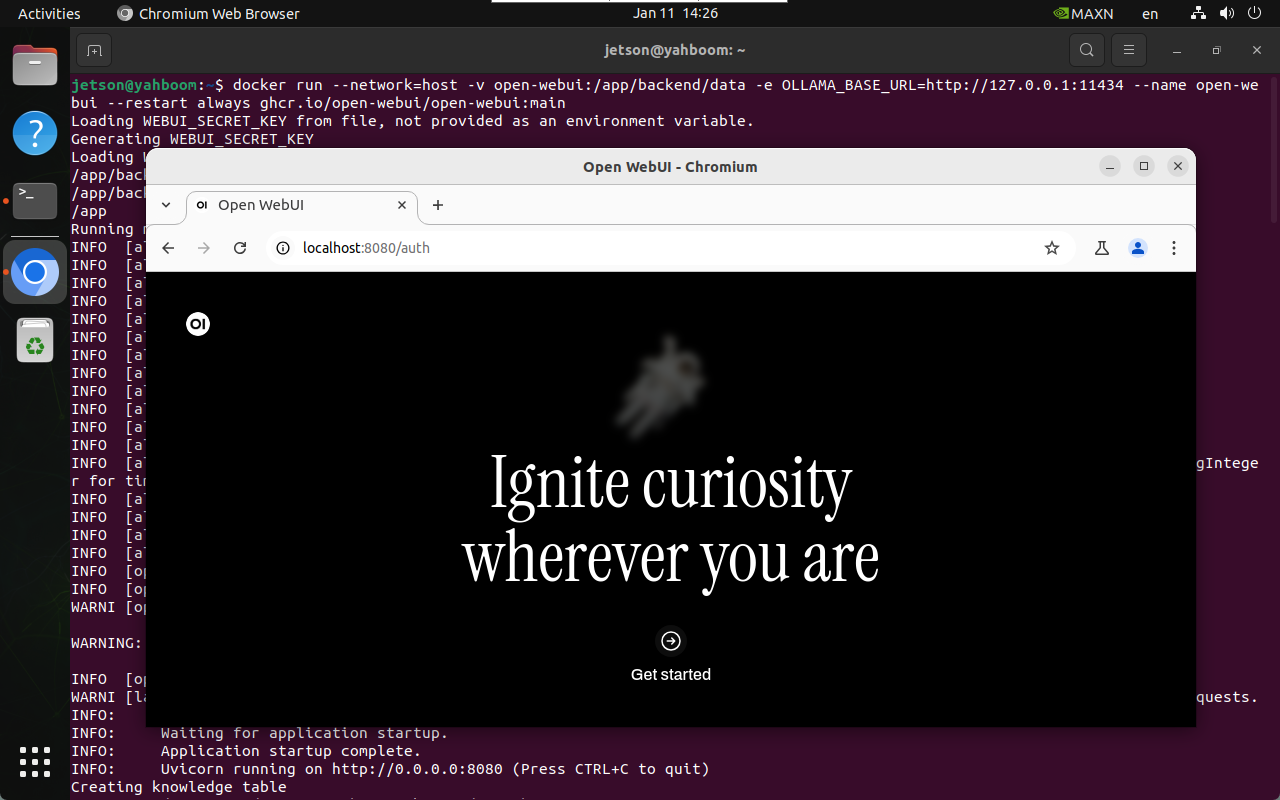
After successful startup, use the following URL to access the browser:
xxxxxxxxxxhttp://localhost:8080/
The same LAN can use the motherboard IP:8080 to access:
xAssuming the motherboard IP: 192.168.2.105, we can access it through 192.168.2.105:8080
4.1. Administrator account
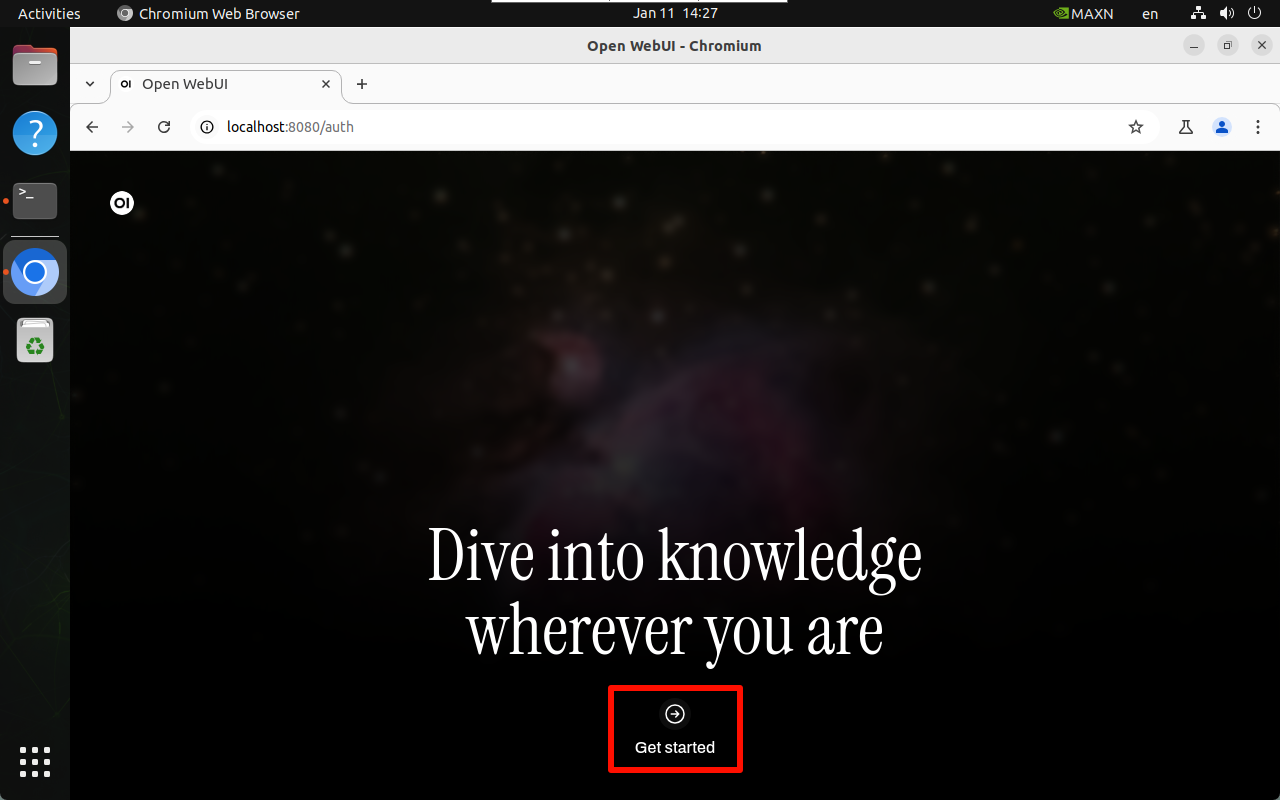
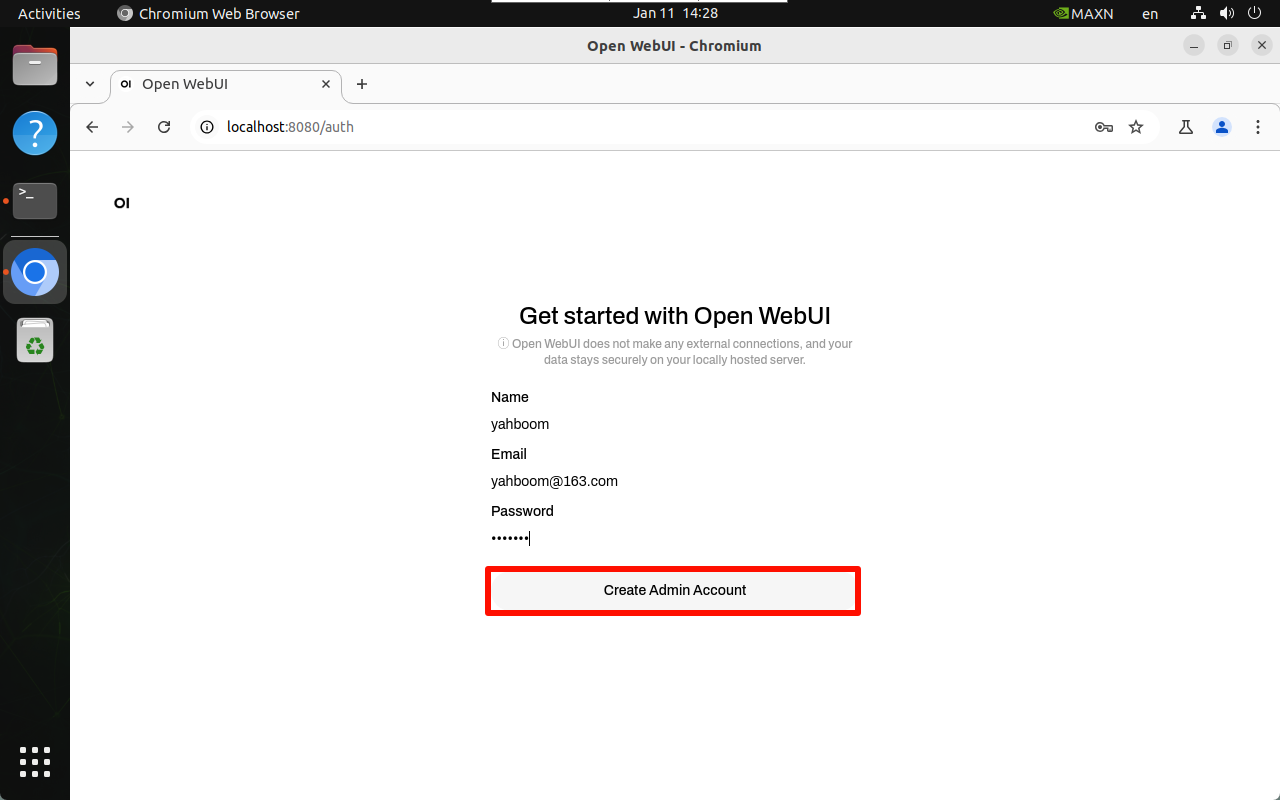
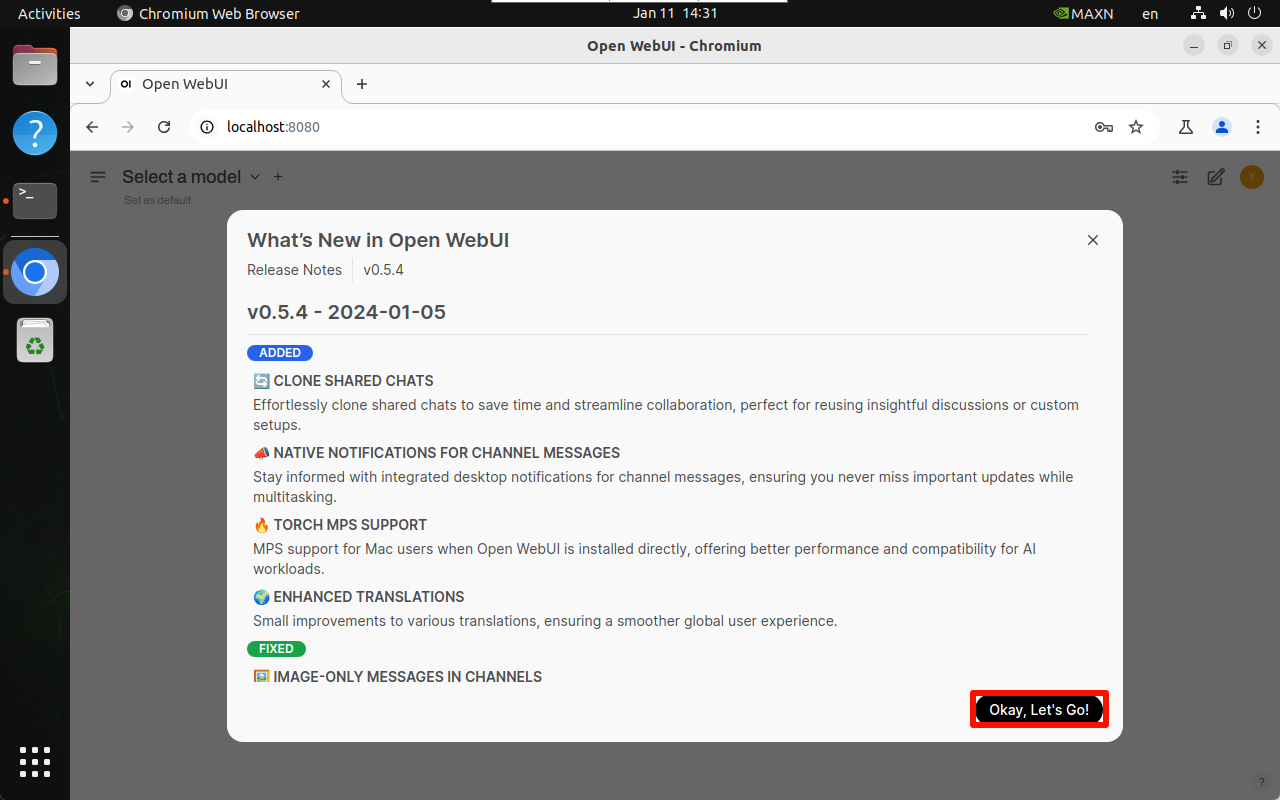
You need to register an account for the first time. This account is an administrator account. You can fill in the information as required!
xSince all the contents of our mirror have been set up and tested, users can directly log in with our registered account:Username: yahboomEmail: yahboom@163.comPassword: yahboom
4.2. Register and log in
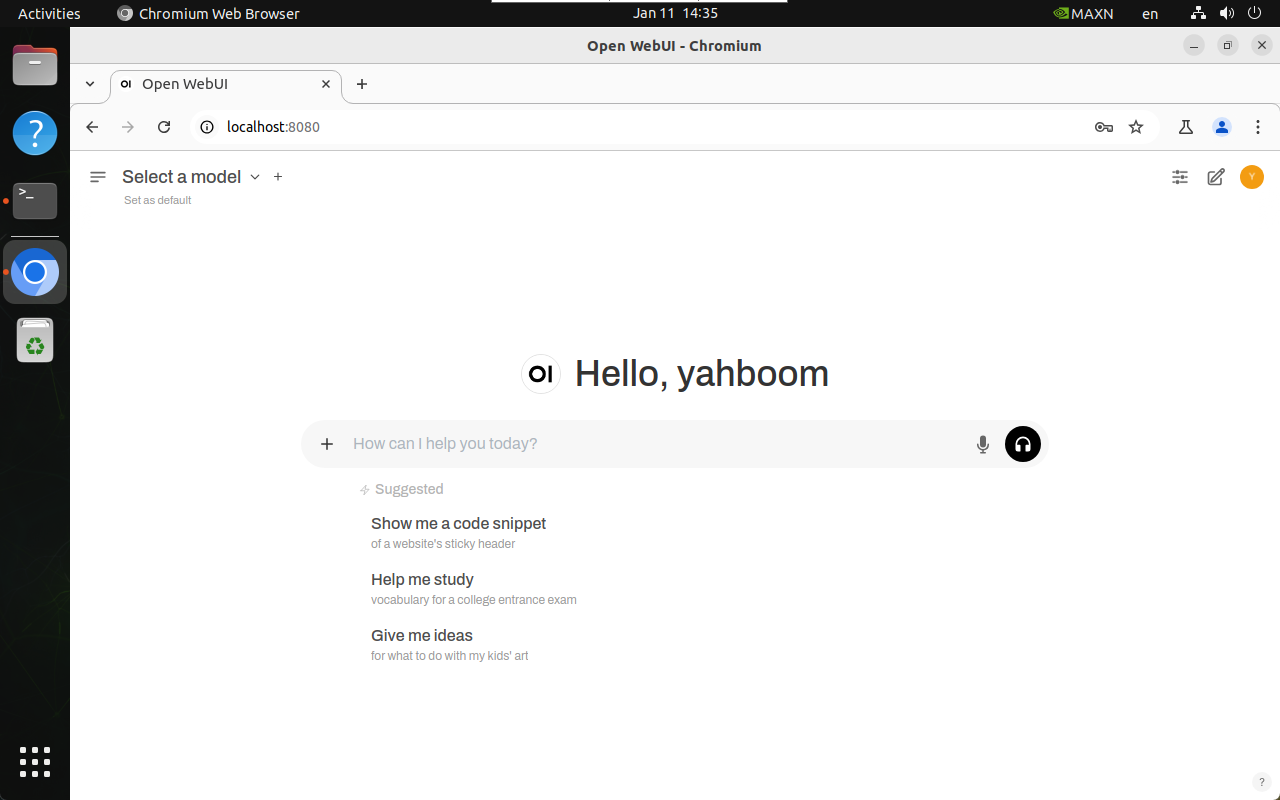
4.3 User Interface
5. Model dialogue
Using Open WebUI for dialogue will be slower than using the Ollama tool directly, and may even cause timeout service connection failure. This is related to the memory of the Jetson motherboard and cannot be avoided!
xUsers with ideas can switch to other Linux environments to build the Ollama tool and Open WebUI tool for dialogue
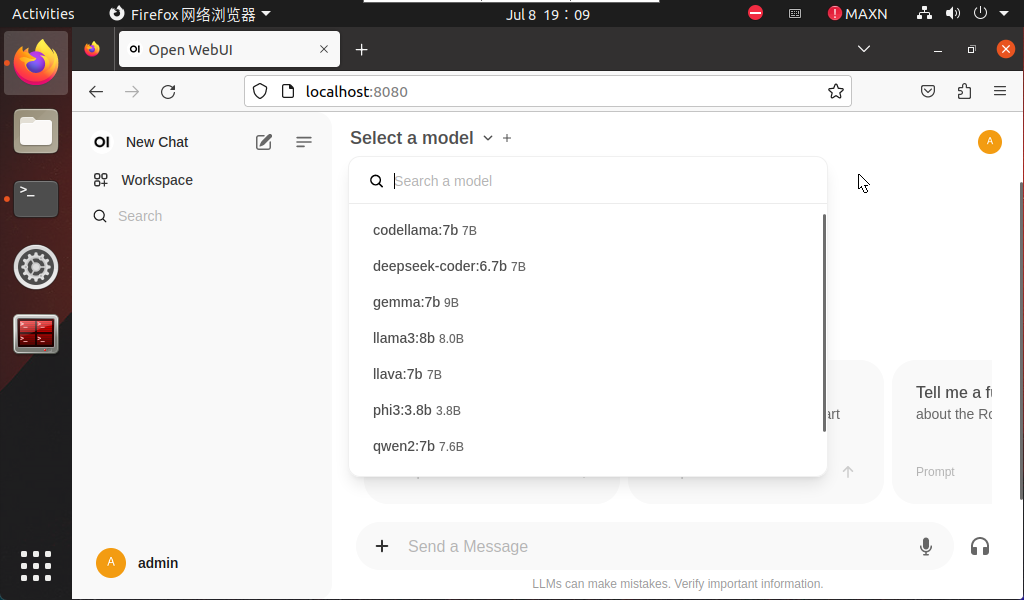
5.1. Switch model
Click Select a model to select a specific model for dialogue.
xThe model pulled by ollama will be automatically added to the Open WebUI model option. Refresh the web page and the new model will appear!
5.2. Demonstration: LLaVA
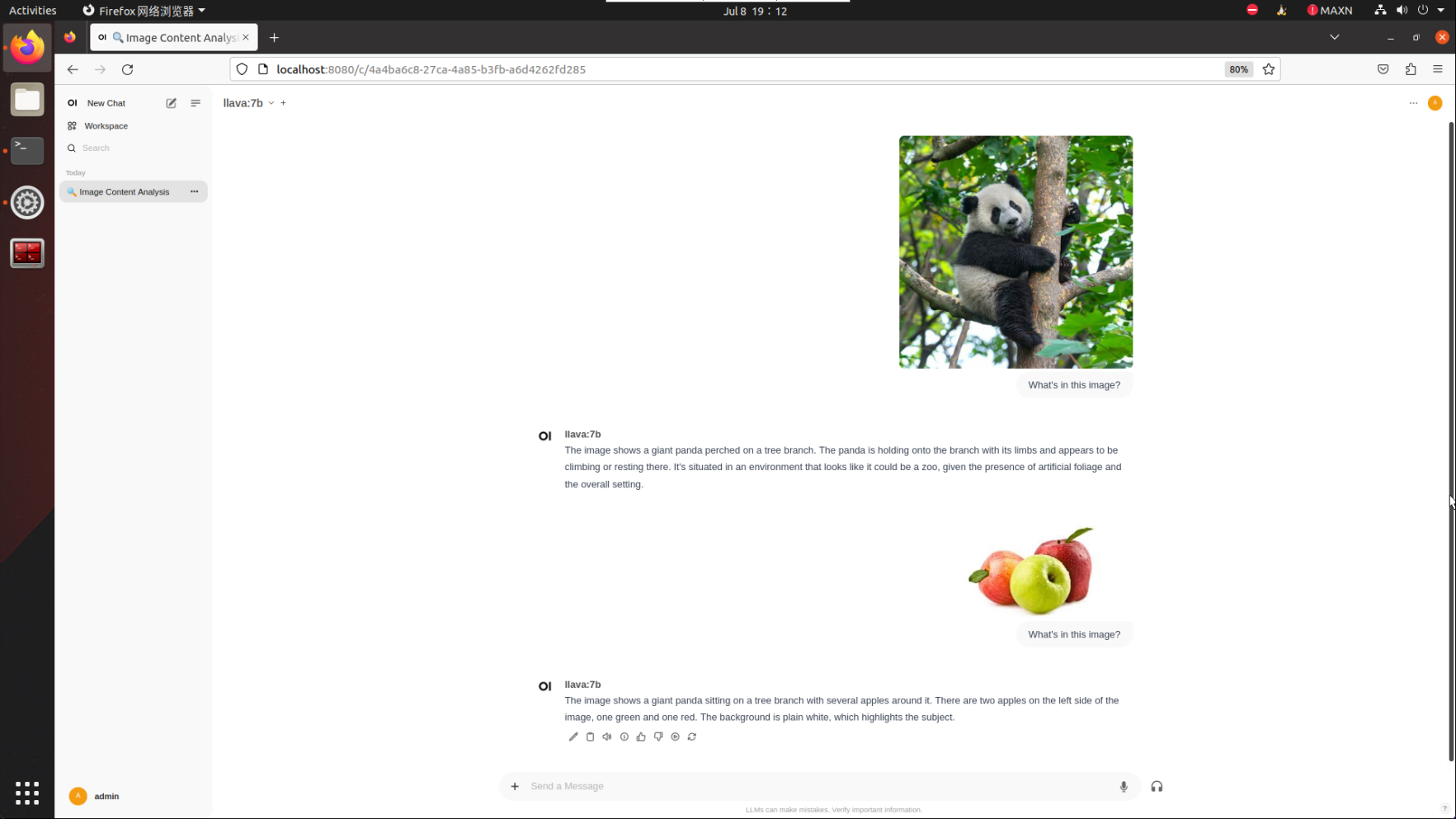
The LLaVA case demonstrated requires 8G or even more than 8G to run. Users can use other cases to test the Open WebUI dialogue function!
xxxxxxxxxxWhat's in this image?
6. Common Problems
6.1. Close Open WebUI
Close the automatically started Open WebUI.
- View the running Docker
xxxxxxxxxxdocker ps
- Close the running Docker
xxxxxxxxxxdocker stop [CONTAINER ID] # Example docker stop 5f42ee9cf784
- View the stopped container
xxxxxxxxxxdocker ps -a
- Clean up the stopped container
xxxxxxxxxxdocker rm [CONTAINER ID] # Example docker rm 5f42ee9cf784
Clean up all stopped containers:
xxxxxxxxxxdocker container prune
6.2. Common Errors
Unable to start Open WebUI
- docker: Error response from daemon: Conflict. The container name "/open-webui" is already in use by container "cfc05c84f8e38b290337e7178c76fd1c49076f94b11ed3d49d9448be72b7f20f". You have to remove (or rename) that container to be able to reuse that name.
Solution: Close Open WebUI once and restart!
Service connection timeout
- Open WebUI: Server Connection Error
Close Open WebUI once and restart, then ask again or run the model with the Ollama tool to ask questions!