Welcome to Jetson ORIN NANO SUPER repository
当製品の日本語版マニュアル資料は、こちらからご取得ください。
01. Peripheral Hardware Configuration
OpenClaw Peripheral Hardware Configuration
OpenClaw Peripheral Hardware Configuration1. Course Overview2. Hardware Default Configuration File Description2.1 Configuration File Location2.2 Current Configuration File Coverage3. DHT Current Configuration Features3.1 Verification Method4. RGB Default Configuration4.1 Verification Method5. OpenClaw Firmware Serial Port Default Configuration (Servo Verification)5.1 Current Default Values5.2 Modification Example5.3 Verification Method6. OLED Default Configuration6.1 Current Default Values6.2 Scenarios Suitable for Modification6.3 Common Modification ItemsModify ResolutionModify I2C AddressModify Rotation Direction6.4 Verification Method7. Camera Hardware Configuration7.1 Configuration7.2 Check Port7.3 Photo Verification Method
1. Course Overview
This course will introduce OpenClaw's default hardware configuration files before use, focusing on how to modify the underlying default parameters based on the actual peripherals you have, and completing basic verification.
Use underlying commands to verify whether modifications take effect
2. Hardware Default Configuration File Description
2.1 Configuration File Location
OpenClaw's current hardware default configuration file is located at:
/home/jetson/hardware_hal_demo/hardware_config.pyIf you are just following the accompanying tutorials and using the factory hardware, you usually don't need to modify it.
2.2 Current Configuration File Coverage
hardware_config.py currently mainly contains three types of default configurations:
OpenClaw firmware serial port default parameters
OLED default parameters
CSI camera or USB camera
These default values will be read by underlying command-line tools, for example:
rgboledopenclaw_adapterCAMERA_DEFAULTS
Note:
DHT and RGB are currently driven directly through OpenClaw firmware
OLED is driven through the mainboard I2C pins
CSI camera/USB camera needs to check hardware connection
3. DHT Current Configuration Features
3.1 Verification Method
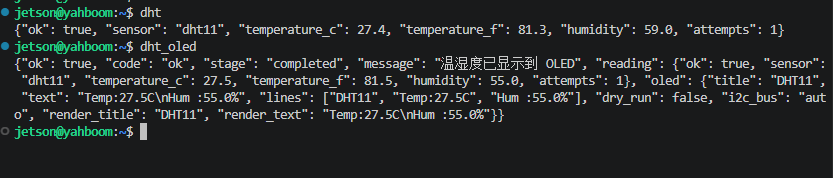
xxxxxxxxxxdht #Get sensor datadht_oled #Display sensor data to OLEDNormal terminal input, you can see OLED displaying temperature and humidity data
4. RGB Default Configuration
4.1 Verification Method
After saving, run in terminal:
xxxxxxxxxxrgb color --color red #All turn redrgb effect --effect breathe --color blue --speed 5 #Blue breathing lightNormal terminal input, you can see RGB lights displaying normally

5. OpenClaw Firmware Serial Port Default Configuration (Servo Verification)
5.1 Current Default Values
Current OpenClaw firmware serial port default parameters are:
port="/dev/ttyTHS1"baudrate=115200
5.2 Modification Example
Edit configuration file:
xxxxxxxxxxhome/jetson/hardware_hal_demo/hardware_config.pySwap the Orin motherboard for,for example:
xxxxxxxxxx"port": "/dev/ttyTHS1","baudrate": 115200,5.3 Verification Method
After saving, it is recommended to first use servo or RGB underlying commands for testing, for example:
xxxxxxxxxxrgb color --color green Or:
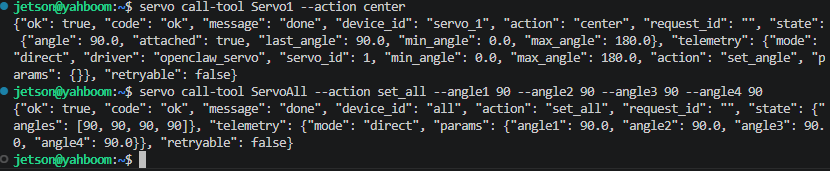
xxxxxxxxxxservo call-tool Servo1 --action center #Servo 1 center to 90 degrees# All servos return to center positionservo call-tool ServoAll --action set_all --angle1 90 --angle2 90 --angle3 90 --angle4 90If the command can return normally and control peripherals normally, it indicates the serial port link is available.
6. OLED Default Configuration
6.1 Current Default Values
Current OLED default parameters mainly include:
width=128height=32interface="i2c"i2c_bus="auto"i2c_bus_candidates=[1, 0, 7, 8]i2c_address=0x3Crotate=0invert=Falsecontrast=255
6.2 Scenarios Suitable for Modification
It is recommended to modify OLED default values in the following situations:
You are using an OLED with different resolution
I2C address is not
0x3CScreen orientation needs to be flipped
6.3 Common Modification Items
Modify Resolution
For example, change:
xxxxxxxxxx"width": 128,"height": 32,To:
xxxxxxxxxx"width": 128,"height": 64,Modify I2C Address
For example, change:
xxxxxxxxxx"i2c_address": 0x3C,To:
xxxxxxxxxx"i2c_address": 0x3D,Modify Rotation Direction
For example, change:
xxxxxxxxxx"rotate": 0,To:
xxxxxxxxxx"rotate": 180,6.4 Verification Method
After saving, run in terminal:
xxxxxxxxxxoled text --text 'Hello OpenClaw' oled clear If OLED can display and clear normally, it indicates configuration has taken effect.

7. Camera Hardware Configuration
7.1 Configuration
Prerequisite is to ensure CSI camera is connected. The current CSI camera pipeline mainly works through the following two entry points:
If using USB camera, you can modify the configuration of this file:
xxxxxxxxxx/home/jetson/hardware_hal_demo/hardware_config.py
x# Camera default configuration# backend: "csi" uses Jetson CSI camera; "usb" uses USB cameraCAMERA_DEFAULTS = { "backend": "usb", "usb_device": "/dev/video0", "usb_format": "auto", "width": 1280, "height": 720, "framerate": 30, "flip_method": 2, "sensor_id": 0,}
Camera CLI command path,
xxxxxxxxxx/home/jetson/hardware_hal_demo/cli/seewhat7.2 Check Port
Terminal input,
xxxxxxxxxxls /dev/video*
Normally, CSI camera can see one device video0, USB camera can see video0 and video1 devices,

7.3 Photo Verification Method
Terminal input command, first directly test photo capture pipeline:
xxxxxxxxxxseewhat call-tool SeeWhat
If photo capture is successful, you will usually see output files in the following directory:
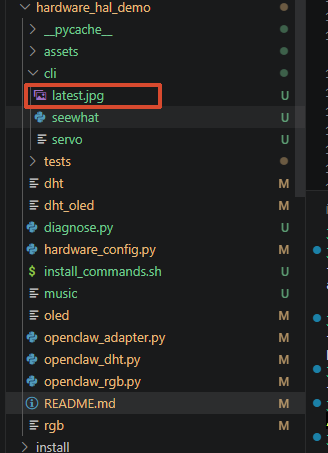
xxxxxxxxxx/home/jetson/hardware_hal_demo/cli/latest.jpg