yahboom
HomeLearn
Solution
Blog
Online Store
About Us
EN/中文
Jetson ORIN NANO SUPER📖
01.Get started
  • 01. Learning route
  • 02. Get started quickly
  • 03. System Update Notesnew
  • 04. Disable automatic updates and troubleshooting issues
  • 05. Notes on Jetson Orin Nano Official Kitnew
02.Jetson basic course
  • 01.Jetson board introduction
  • 02.Write Jetson original system
  • 03.Installing Jetson environment
  • 04.Backup SSD system
  • 05.Restore initial image system
  • 06.Write SUPER original system(optional)
  • 07.Write SUPER boot (optional)
  • 08. SSD expansion
  • 09.Jetpack old system upgraded to Yahboom SUPER factory system
  • 10.Write the system onto your own solid-state drive
03.Basic setting course
  • 01.Basic knowledge
  • 02.Network configuration
  • 03.SSH remote login
  • 04.VNC remote control
  • 05.Remote file transfer
  • 06.Jtop tool
  • 07.Exchange space expansion
  • 08.Use VSCode
  • 09.Use VMware
04.GPIO control course
  • 01.GPIO description
  • 02.GPIO library installation
  • 03.GPIO reading
  • 04.GPIO output
  • 05.Serial communication
  • 06.I2C communication
05.Vision basic course
  • 01.CSI camera preview
  • 02.USB camera preview
  • 03.Use Jupyter Lab
  • 04.Use JetCam
06.OpenCV basic course
  • 01.Image reading
  • 02.Image saving
  • 03.Image modification
  • 04.Image scaling
  • 05.Image cropping
  • 06.Image translation
  • 07.Image mirroring
  • 08.Image grayscale conversion
  • 09.Image binarization
  • 10.Image edge detection
  • 11.Add line segments
  • 12.Add rectangles
  • 13.Add circular shape
  • 14.Add ellipses
  • 15.Add polygons
  • 16.Add Text
  • 17.Preview USB camera image
  • 18.Preview CSI camera image
07.Vision advanced course
01.Environment construction
  • 01.TensorFlow
  • 02.PyTorch
  • 03.Torchvision
02.DeepStream development
  • 01.DeepStream environment
  • 02.Four types of detection(traffic)
03.YOLO11 development
  • 01.YOLO environment construction
  • 02.CLI use
  • 03.Object detection
  • 04.Instance segmentation
  • 05.Pose estimation
  • 06.Image classification
  • 07.Oriented object detection
  • 08.Model conversion
  • 09.Dataset annotation
  • 10.Model training conversion
  • 11.Model prediction
04.Mediapipe development
  • 01.Mediapipe environment
  • 02.Hand detection
  • 03.Face detection
  • 04.Face effects
  • 05.3D object recognition
  • 06.Virtual brush
  • 07.Gesture recognition
  • 08.Finger control
  • 09.Posture estimation
  • 10.Face mask
  • 11.Overall detection
  • 12.Green scene removal(Human)
05.QR code recognition
  • QR code recognition
06.YOLO26 development
  • 01.YOLO environment constructionnew
  • 02.CLI usenew
  • 03.Object detectionnew
  • 04.Instance segmentationnew
  • 05.Pose estimationnew
  • 06.Image classificationnew
  • 07.Oriented object detectionnew
  • 08.Model conversionnew
  • 09.Dataset annotationnew
  • 10.Model training conversionnew
  • 11.Model predictionnew
08.Docker basic course
  • 01.Docker introduction
  • 02.Docker installation
  • 03.Docker command
  • 04.Docker usage
  • 05.Docker interaction
09.ROS1-Melodic
01.ROS1 basic course
  • 01. Introduction to ROS
  • 02. Project file structure
  • 03. Common commands and tools
  • 04. Publisher
  • 05. Subscribers
  • 06. Customize topic messages and use
  • 07. Client
  • 08. Server
  • 09. Customize service messages and usage
  • 10. TF release and monitoring
02.ROS1 vision course
  • 00.Must read before running
  • 01.Camera preview
  • 02.QR code
  • 03.Human posture estimation
  • 04.Target detection
  • 05.AR vision
  • 06.Opencv application
  • 07.ROS+Opencv basics
  • 08.Mediapipe development
10.ROS2-Humble
01.ROS2 basic course
  • 01.Introduction to ROS2
  • 02.ROS2 install Humble
  • 03.ROS2 development environment
  • 04.ROS2 workspace
  • 05.ROS2 function package
  • 06.ROS2 node
  • 07.ROS2 topic communication
  • 08.ROS2 service communication
  • 09.ROS2 action communication
  • 10.ROS2 custom interface message
  • 11.ROS2 parameter service case
  • 12.ROS2 meta-function package
  • 13.ROS2 distributed communication
  • 14.ROS2 DDS
  • 15.ROS2 time related API
  • 16.ROS2 common command tools
  • 17.ROS2 rviz2 use
  • 18.ROS2 rqt toolbox
  • 19.ROS2 Launch startup file configuration
  • 20.ROS2 recording and playback tool
  • 21.ROS2 URDF model
  • 22.ROS2 Gazebo simulation platform
  • 23.ROS2 TF2 coordinate transformation
02.ROS2 vision course
  • 01.Camera preview (USB)
  • 02.Camera preview (CSI)
  • 03.Camera calibration (USB)
  • 04.Camera calibration (CSI)
  • 05.AR vision (USB)
  • 06.AR vision (CSI)
11.Offline AI model coursenew
Offline large model (Text Interaction)
  • 1.AI large model environment deployment
  • 2.Install large model dialogue platform
  • 3.Meta Al Llama3.2 model
  • 4.Alibaba Cloud Qwen3 model
  • 5.Microsoft Phi-4-mini model
  • 6.DeepSeek DeepSeek-R1 model
  • 7.Alibaba Cloud Qwen2.5v visual multimodal large model
  • 8.Google Gemma3 visual multimodal large model
  • 9.Lava visual multimodal large model
  • 10.MiniCPM-V visual multimodal large model
  • 11.Multimodal visual understand application
  • 12.Multimodal text image application
  • 13.Multimodal video analysis application
  • 14.Multi module visual position application
  • 15.Multimodal table scanning application
  • 16.Multimodal autonomous agent application
Offline large model (Voice Interaction)
  • 0.Voice interaction hardware connection (ReadMe)
  • 1.Offline speech to text (ASR)
  • 2.Offline text to speech (TTS)
  • 3.AI large model voice interaction
  • 4.Multimodal visual understand speech interaction
  • 5.Multimodal text and graphics application
  • 6.Multimodal video analysis application
  • 7.Multi module visual position application
  • 8.Multimodal table scanning application
  • 9.Multimodal autonomous proxy application
  • 10.AI large model offline voice assistant
12.Online AI model coursenew
Online large model (Text Interaction)
  • 1.OpenRouter large model API aggregation platform
  • 2.Multimodal visual understand application
  • 3.Multimodal visual localization application
  • 4.Multimodal table scanning application
  • 5.Multimodal autonomous proxy application
Online large model (Voice Interaction)
  • 0.Voice interaction hardware connection (ReadMe)
  • 1.Online speech to text (ASR)
  • 2.Online text to speech (TTS)
  • 3.AI large model voice interaction
  • 4.Multimodal visual understand speech interaction
  • 5.Multi module visual position application
  • 6.Multimodal table scanning application
  • 7.Multimodal autonomous proxy application
  • 8.AI large model online voice assistant
13.NVIDIA lsaac ROS coursenew
  • 1.Build lsaac ROS environment
  • 2.Deep segmentation
  • 3.DNN stereoscopic depth
  • 4.Free space segmentation
  • 5.Image distortion processing
  • 6.Image segmentation
  • 7.3D scene reconstruction and mapping
  • 8.Object detection
  • 9.3D attitude estimation
  • 10.Visual SLAM
14.OpenClaw Deployment and Basic Usagenew
  • 01.OpenClaw Quick Start on Jetson Platform
  • 02.OpenClaw Deployment
  • 03.OpenClaw WhatsApp Plugin Application
  • 04.OpenClaw WebChat Interaction
  • 05.OpenClaw TUI Interaction
  • 06.OpenClaw Tools Introduction
  • 07.OpenClawGate Gateway User Manual
  • 08.OpenClaw Features Overview
  • 09.OpenClawHub Introduction (Skill Installation)
  • 10.OpenClaw Application - File Management
  • 11.OpenClaw Application - Camera
  • 12.OpenClaw Application - Browser Control
  • 13.OpenClaw Application - Script Execution
  • 14.OpenClaw Application - AI Programming (Peripheral & GPIO Control)
  • 15.OpenClaw Application - Dedicated AI Assistant
  • 16.OpenClaw Web Search Capability Configuration
15.OpenClaw Advanced Developmentnew
1.Preparation Before Use
  • 01. Peripheral Hardware Configuration
  • 02. OpenClaw API-KEY Configuration
  • 03. OpenClaw Model Switching
  • 04. OpenClaw Prompts
  • 05. AI Voice Interaction Configuration
  • 06. Three Dialogue Configuration Tests
2.OpenClaw AI Programming Peripheral Control
  • 1. Servo Control
  • 2. RGB Strip
  • 3. OLED Display
  • 4. Temperature and Humidity Sensor
  • 5. Camera Application
  • 6. AI Script Peripheral Control
3.OpenClaw Peripheral Integration Applications
  • 1. Plant Care Assistant
  • 2. AI Calorie Estimation
  • 3. AI Rock Paper Scissors Game
  • 4. AI Pet
  • 5. AI Weather Station
  • 6. Temperature and Humidity Dashboard
  • 7. Scheduled Tasks
Download
  • System_File
  • VM_File
  • 3D_Model_File
  • DataSheet_File
  • Software_Tools
  • Code
  • Instruction_Manual
  • ROS2_Basic_VM
Download ZIP

Welcome to Jetson ORIN NANO SUPER repository

当製品の日本語版マニュアル資料は、こちらからご取得ください。

03. OpenClaw Model Switching

OpenClaw Model Switching

OpenClaw Model Switching1. Course Content2. Temporary Session Model Switching2.1 Open TUI Session2.2 Use /model to Switch Session Model3. Switch Default Model3.1 Switch via CLI3.2 Switch via Configuration File4. Add Model Options List4.1 Add Models via Configuration File4.2 Model Reference Format Specification5. Appendix: CLI Command Quick Reference

1. Course Content

This course will systematically introduce OpenClaw's model selection mechanism and three methods for switching models.

2. Temporary Session Model Switching

2.1 Open TUI Session

  • Terminal input

openclaw tui

2.2 Use /model to Switch Session Model

CommandDescription
/modelView available model list, select and switch model
  • Type /model in the session box and press Enter. For example, here we select to switch to bailian/qwen3.5-plus. Use keyboard up/down keys to select model, then press Enter

image-20260429145505062


3. Switch Default Model

3.1 Switch via CLI

The simplest way is to use CLI command to directly set the default model:

  • Here we use switching to bailian/qwen3.6-plus model as an example

xxxxxxxxxx
openclaw models set bailian/qwen3.6-plus

image-20260427191836217

3.2 Switch via Configuration File

  • Edit openclaw.json configuration file to modify Agent's default model

    xxxxxxxxxx
    nano $HOME/.openclaw/openclaw.json
    # Or use your preferred editor, such as vim, code, etc.

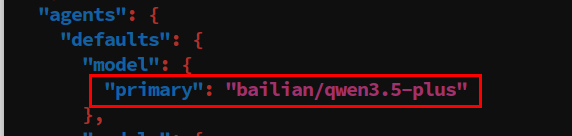
In openclaw.json, specify the default primary model through the agents.defaults.model.primary configuration item:

xxxxxxxxxx
{
  "agents": {
    "defaults": {
      "model": {
        "primary": "bailian/qwen3.5-plus"
      }
    }
  }
}

image-20260427191242855


  • Verify if configuration takes effect:

xxxxxxxxxx
openclaw models status

image-20260427191401751


4. Add Model Options List

  • agents.defaults.models is OpenClaw's allowed list/catalog that controls the range of usable models. When this configuration item is set, users can only use models contained in the list. This list serves as the model range control basis for both the /model command and session overrides.

4.1 Add Models via Configuration File

Configure agents.defaults.models in openclaw.json and add required models to the allowed list:

xxxxxxxxxx
"agents": {
    "defaults": {
      "model": {
        "primary": "bailian/qwen3.5-plus"
      },
      "models": {
        "bailian/qwen3.5-plus": {},
        "bailian/MiniMax-M2.5": {},
        "bailian/glm-4.7": {}
      },
      "workspace": "/home/jetson/.openclaw/workspace",
      "compaction": {
        "mode": "safeguard",
        "memoryFlush": {
          "enabled": false
        }
      }
    }
  }
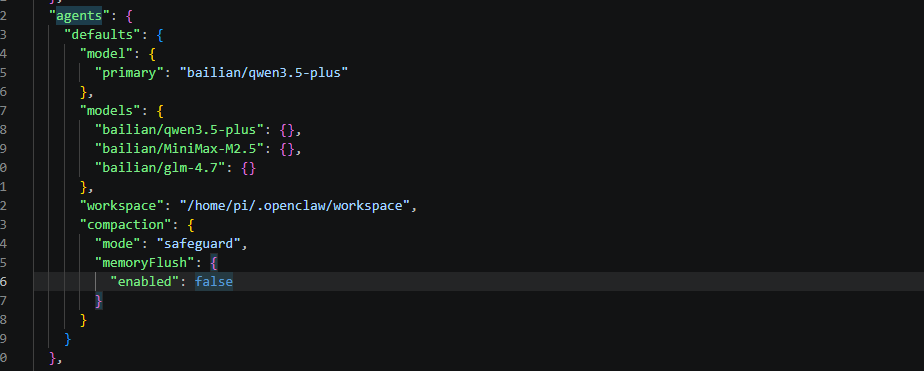
image-20260429145631764


4.2 Model Reference Format Specification

In OpenClaw, all model references use a unified format:

xxxxxxxxxx
provider/model-id

Examples:

Model ReferenceDescription
anthropic/claude-opus-4-6Anthropic's Claude Opus model
anthropic/claude-sonnet-4-6Anthropic's Claude Sonnet model
openai/gpt-5.4OpenAI's GPT-5.4 model
openrouter/moonshotai/kimi-k2Model ID itself contains slash

Note: If the model ID itself contains / (e.g., moonshotai/kimi-k2), you must provide the complete reference in the format openrouter/moonshotai/kimi-k2.


5. Appendix: CLI Command Quick Reference

CommandPurpose
openclaw onboardNew user guidance, helps quickly complete initial configuration
openclaw models listView all configured model list
openclaw models statusView current model configuration status details
/modelView available model list in chat
/model statusView current model status details in chat


OpenClaw API-KEY Configuration
OpenClaw Prompts

COMPANY

  • About us
  • Team Style
  • Blog

LEARNING & EXPLORATION

  • Tutorials
  • Edge AI hardware
  • Educational robots
  • Embedded intelligent hardware

WHERE TO BUY

  • Yahboom Online Store
  • Amazon
  • Alibaba
  • AliExpress
  • Mercado

TECHNOLOGY SUPPORT

  • Email: support@yahboom.com

BE A DISTRIBUTOR

  • Email: sales@yahboom.com
QR Code
QR Code

Copyright © 2017-2026 Yahboom. All Rights Reserved.

EN/中文