yahboom
HomeLearn
Solution
Blog
Online Store
About Us
EN/中文
RDK S100(P) Board📖
0. RDK S100(P) Developer Kit
  • 1. RDK S100(P) Official Tutorial
1. Introduction to RDK S100(P) Development Board
  • 1.1 Introduction to the RDK S100(P) Development Board
  • 1.2 Install Operating System
  • 1.3 Interface Descriptions
  • 1.4 Accessory installation
  • 1.5 Camera Expansion Board
  • 1.6 MCU Port Expansion Board
  • 1.7 Precautions for using 15.6-inch screens
2. Basic Settings Course
  • 2.1 Network Configuration
  • 2.2 Remote Login
  • 2.3 System Update
  • 2.4 Boot Auto-Start Configuration
  • 2.5 RDK Exclusive Command Usage
  • 2.6 Linux Command Usage
  • 2.7 Example of GPIO read and write operations
  • 2.8 Using USB Camera
  • 2.9 Using MIPI Camera
  • 2.10 SSD mounting
  • 2.11 Binocular camera depth algorithm
3. TogetheROS.Bot Vision Applications
  • 1. About TogetheROS. Bot
  • 2. System Installation
  • 3. Object Detection(YOLO)
  • 4. Image Classification(mobilenetv2)
  • 5. Image Segmentation(mobilenet_unet)
  • 6. Perception Algorithm(BEV)
  • 7. Human Detection and Tracking (Ultralytics YOLO Pose)
4.Offline AI model course
Offline large model (Text Interaction)
  • 1. AI large model environment deployment
  • 2. Install large model dialogue platform
  • 3. Meta AI Llama 3.2 model
  • 4. Alibaba Cloud Qwen3 model
  • 5. Microsoft Phi-4 mini model
  • 6. DeepSeek - DeepSeek-R1 model
  • 7. Alibaba Cloud Qwen2.5vl Visual Multimodal Large Model
  • 8. Google Gemma3 Visual Multimodal Large Model
  • 9. Lava Visual Multimodal Large Model
  • 10. MiniCPM-V Visual Multimodal Large Model
  • 11. Multimodal visual understand application
  • 12. Multimodal text to image application
  • 13. Multimodal visual localization application
  • 14. Multimodal table scanning application
  • 15. Multimodal Autonomous Agent Applications
Offline large model (Voice Interaction)
  • 0. Voice Interaction Hardware Connection (Must Read)
  • 1. Offline speech-to-text (ASR)
  • 2. Offline Text-to-Speech (TTS)
  • 3.AI large model voice interaction
  • 4. Multimodal visual understanding voice interaction
  • 5. Multimodal Text-to-Image application
  • 6. Multimodal video analytics application
  • 7. Multimodal visual localization application
  • 8. Multimodal table scanning application
  • 9. Multimodal autonomous agent application
  • 10. AI Large Model Offline Voice Assistant
5.Online AI model course
Online large model (Text Interaction)
  • 1.OpenRouter large model API aggregation platform
  • 2.Multimodal visual understand application
  • 3.Multimodal visual localization application
  • 4.Multimodal table scanning application
  • 5.Multimodal autonomous agent application
Online large model (Voice Interaction)
  • 0.Voice interaction hardware connection (ReadMe)
  • 1.Online speech to text (ASR)
  • 2.Online text to speech (TTS)
  • 3.AI large model voice interaction
  • 4.Multimodal visual understand speech interaction
  • 5.Multimodal visual localization application
  • 6.Multimodal table scanning application
  • 7.Multimodal autonomous proxy application
  • 8.AI large model online voice assistant
6.YOLO26 tutorials
  • 01.YOLO26 environment
  • 02.CLI use
  • 03.Object detection
  • 04.Instance segmentation
  • 05.Pose estimation
  • 06.Image classification
  • 07.Oriented object detection
  • 08.Model conversion
  • 09.Dataset annotation
  • 10.Model training - conversion
  • 11.Model prediction
7.OpenClaw Advanced Development
  • 1.OpenClaw Deployment
  • 2.OpenClaw WhatsApp Plugin Application
  • 3.OpenClaw WebChat Interaction
  • 4.OpenClaw TUI Interaction
  • 5.OpenClaw Tools Introduction
  • 6.OpenClawGate Gateway User Manual
  • 7.OpenClaw Features Overview
  • 8.OpenClawClawHub Introduction (Skill Installation)
  • 9.OpenClaw Application - File Management
  • 10.OpenClaw Application - Camera
  • 11.OpenClaw Application - Browser Control
  • 12.OpenClaw Application - Script Execution
  • 13.OpenClaw Application - AI Programming (Peripheral & GPIO Control)
  • 14.OpenClaw Application - Dedicated AI Assistant
  • 15.OpenClaw Web Search Capability Configuration
8.ROS2 basic course
  • 1.Introduction to ROS2
  • 2.ROS2 install Humble
  • 3.ROS2 development environment
  • 4.ROS2 workspace
  • 5.ROS2 function package
  • 6.ROS2 node
  • 7.ROS2 topic communication
  • 8.ROS2 service communication
  • 9.ROS2 action communication
  • 10.ROS2 custom interface message
  • 11.ROS2 parameter service case
  • 12.ROS2 meta-function package
  • 13.ROS2 distributed communication
  • 14.ROS2 DDS
  • 15.ROS2 time related API
  • 16.ROS2 common command tools
  • 17.ROS2 rviz2 use
  • 18.ROS2 rqt toolbox
  • 19.ROS2 Launch startup file configuration
  • 20.ROS2 recording and playback tool
  • 21.ROS2 URDF model
  • 22.ROS2 Gazebo simulation platform
  • 23.ROS2 TF2 coordinate transformation
Download
  • Annex_File
  • Code
Download ZIP

Welcome to RDK S100(P) Board repository

20.ROS2 recording and playback tool

20. ROS2 Recording and Playback Tool

1. Introduction to Recording and Playback Tools

Bag2, a commonly used recording and playback tool in ROS2, is used to record topic data. We can use this command to store topic data as a file. Later, we can directly publish the topic data in the bag file without starting a node.

This tool is very useful when developing a real robot. For example, we can record topic data when the robot encounters a problem. After recording, we can publish it multiple times for testing and experimentation, or share the topic data with others to verify algorithms.

We will try using the bag tool to record topic data and replay it.

2. Usage Tutorial

2.1. Start the topic node to record

For example, the talker in the ros2 demo:

xxxxxxxxxx
ros2 run demo_nodes_py talker

2.2. Recording

/topic-name is the topic name

xxxxxxxxxx
# Record a single topic
ros2 bag record /topic-name
# Record multiple topics
ros2 bag record topic-name1 topic-name2
# Record all topics
ros2 bag record -a

Other Options

-o name Customize the output file name

xxxxxxxxxx
ros2 bag record -o file-name topic-name

-s Storage format

Currently only supports sqllite3; others are available with extensions.

2.3. Viewing Recorded Topic Information

Before playing a video, you can view relevant information about the video through the file information, such as the time, size, type, and number of topic records.

xxxxxxxxxx
# Assume the recorded file is rosbag2_2023_10_31-07_58_23
ros2 bag info rosbag2_2023_10_31-07_58_23

2.4. Play and View

2.4.1. Play

Next, we can replay the data using the following command.

xxxxxxxxxx
ros2 bag play rosbag2_2023_10_31-07_58_23

2.4.2. View

Use the ros2 topic command to view the data.

xxxxxxxxxx
ros2 topic echo /chatter

2.4.3. Playback Options

  1. Play at Multiple Speeds -r

The -r option modifies the playback speed. For example, the -r value, for example, 10 means 10x speed, playing the topic ten times faster.

xxxxxxxxxx
ros2 bag play rosbag2_2023_10_31-07_58_23 -r 10
  1. Loop Playback -l

This is for looping a single song.

xxxxxxxxxx
ros2 bag play rosbag2_2023_10_31-07_58_23 -l
  1. Play a Single Topic
xxxxxxxxxx
ros2 bag play rosbag2_2023_10_31-07_58_23 --topics /chatter

3. Example

3.1. Running the talker node

xxxxxxxxxx
ros2 run demo_nodes_py talker

3.2. Recording

xxxxxxxxxx
# Record all topics
ros2 bag record -a

image-20231031162153843

How do I stop recording? Simply press Ctrl+C in the terminal to interrupt the recording.

You will then find a folder named rosbag2_2023_10_31-08_21_21 in the terminal.

Open the folder to see its contents.
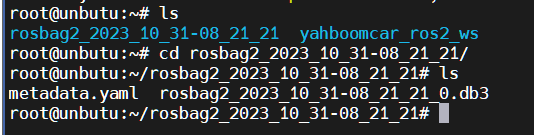
image-20231031162443246

This completes the recording.

3.3. Play and View

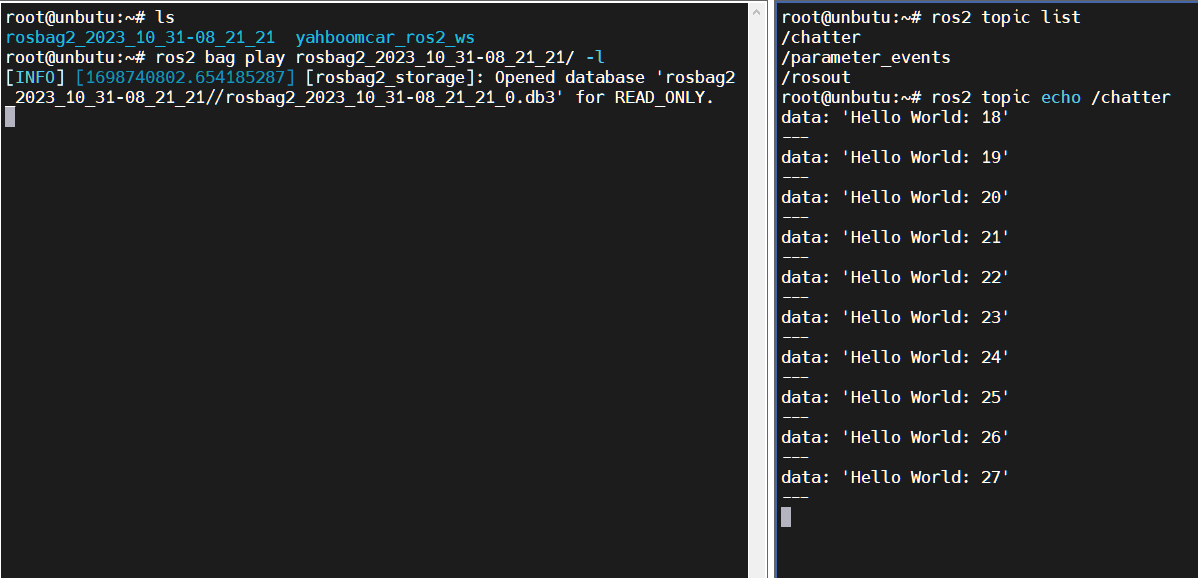
Here we loop the playback.

xxxxxxxxxx
ros2 bag play rosbag2_2023_10_31-07_58_23 -l

Open another terminal to view the topic:

xxxxxxxxxx
ros2 topic echo /chatter

image-20231031162719003

ROS2 Launch startup file configuration
ROS2 URDF model

COMPANY

  • About us
  • Team Style
  • Blog

LEARNING & EXPLORATION

  • Tutorials
  • Edge AI hardware
  • Educational robots
  • Embedded intelligent hardware

WHERE TO BUY

  • Yahboom Online Store
  • Amazon
  • Alibaba
  • AliExpress
  • Mercado

TECHNOLOGY SUPPORT

  • Email: support@yahboom.com

BE A DISTRIBUTOR

  • Email: sales@yahboom.com
QR Code

Copyright © 2017-2026 Yahboom. All Rights Reserved.

EN/中文