Welcome to RDK S100(P) Board repository
15.OpenClaw Web Search Capability Configuration
Configuring Web Search Capabilities
Why Configure Web Search Capabilities?
While OpenClaw's local models are powerful, their knowledge is static, containing only the data available at the time of their training. This means:
- ❌ They cannot answer questions about the latest news and events.
- ❌ They do not know what the weather is like today.
- ❌ They cannot look up specific information on demand.
- ❌ They cannot access the most up-to-date technical documentation.
By configuring web search capabilities, OpenClaw can:
- ✅ Search the internet for information in real-time.
- ✅ Retrieve the latest news and updates.
- ✅ Query real-time data (weather, stock prices, etc.).
- ✅ Access the newest technical documentation and tutorials.
- ✅ Conduct in-depth research and fact-checking.
In this section, we will configure OpenClaw's web search capabilities. OpenClaw supports various search engines; the default web_search tool utilizes the Brave API. However, as of the publication of this tutorial, the Brave API has discontinued its free tier; therefore, we will use Tavily Web Search as an alternative.
Tavily Web Search is a search engine specifically optimized for AI agents, providing structured search results.
Prerequisites
Before you begin, please ensure the following:
- ✅ OpenClaw is installed and running correctly.
- ✅ At least one model (either a local Ollama model or a cloud-based model) has been configured.
- ✅ You have an active internet connection.
- ✅ You have a valid email address (required to register for Tavily).
Step 1: Obtain a Tavily API Key
Tavily is an AI-optimized search engine that offers a free usage tier, providing 1,000 free searches per month—which is more than sufficient for typical daily use. (Policies are subject to change; specific quotas are based on actual limits.)
1.1 Visit the Tavily Website
Open the following URL in your browser: https://tavily.com

1.2 Sign Up for an Account
Click the "Sign Up" or "Register" button on the page:
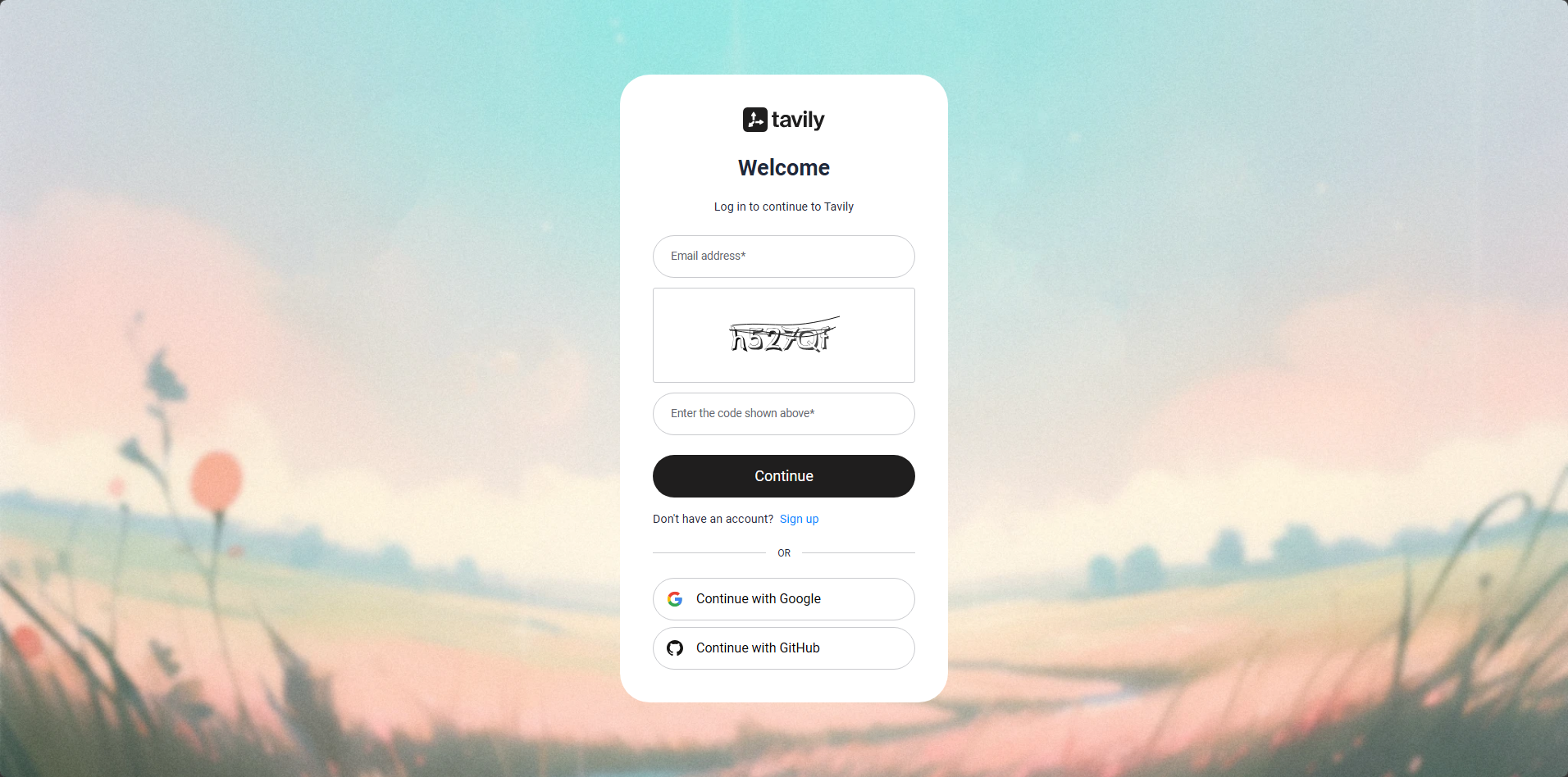
Fill in your registration details:
- Email Address: Enter your valid email address.
- Code: The graphical verification code.
Click "Continue" to create your account.
1.3 Verify Your Email
Tavily will send a verification email to your inbox. Open your email client, locate the email from Tavily, and click the verification link. Once successfully verified, you will be automatically redirected to the Tavily dashboard.
1.4 Obtain Your API Key
After logging in, navigate to the "API Keys" page:
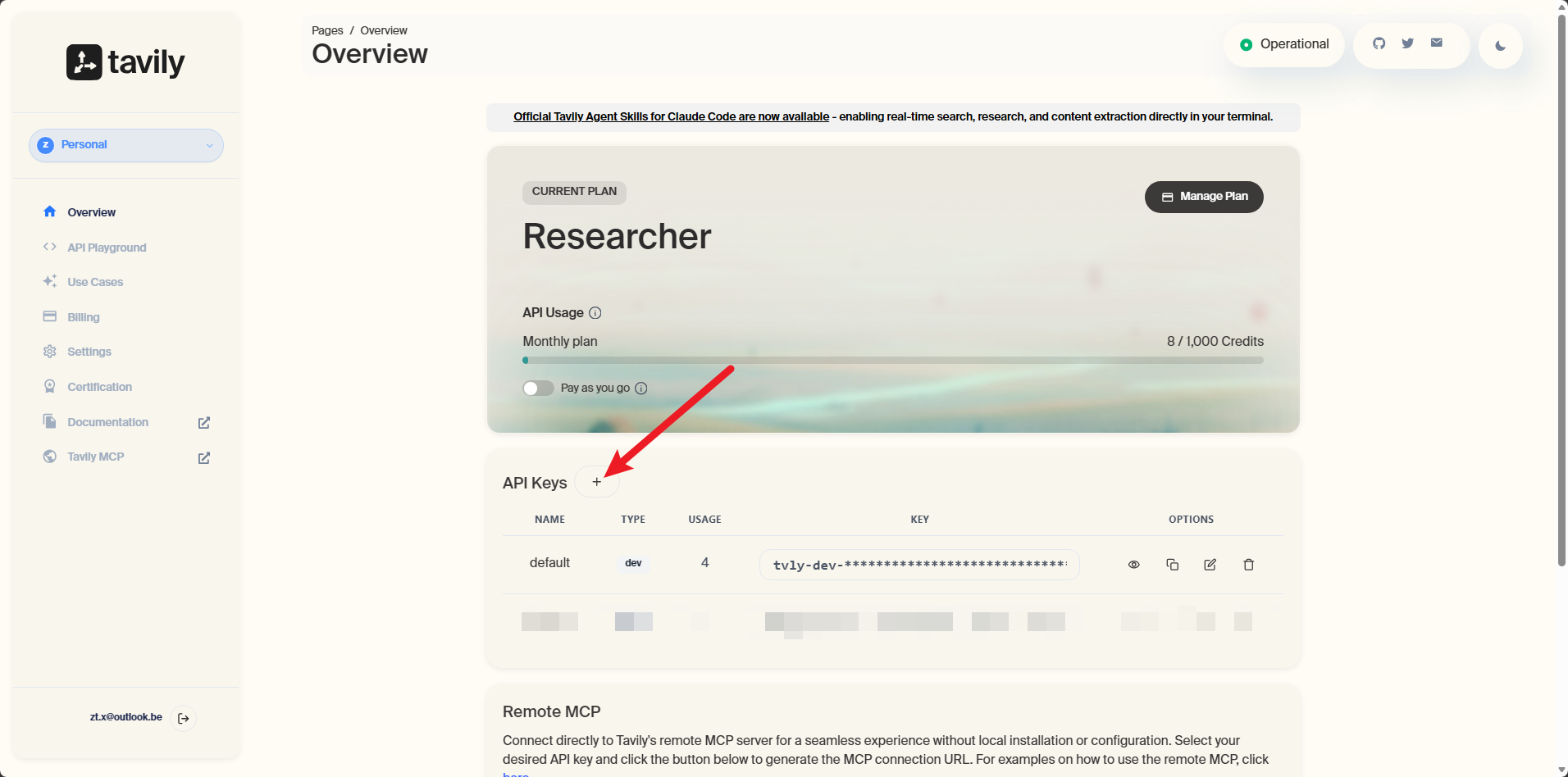
You will see an API key displayed, formatted similarly to this:
tvly-xxxxxxxxxxxxxxxxxxxxxxxxxxxxxxxxxxxxxxxx
⚠️ Important Note:
- Please keep this key secure and do not share it with anyone else.
- Do not commit this key to code repositories or public platforms.
Copy this API key; we will need it later.
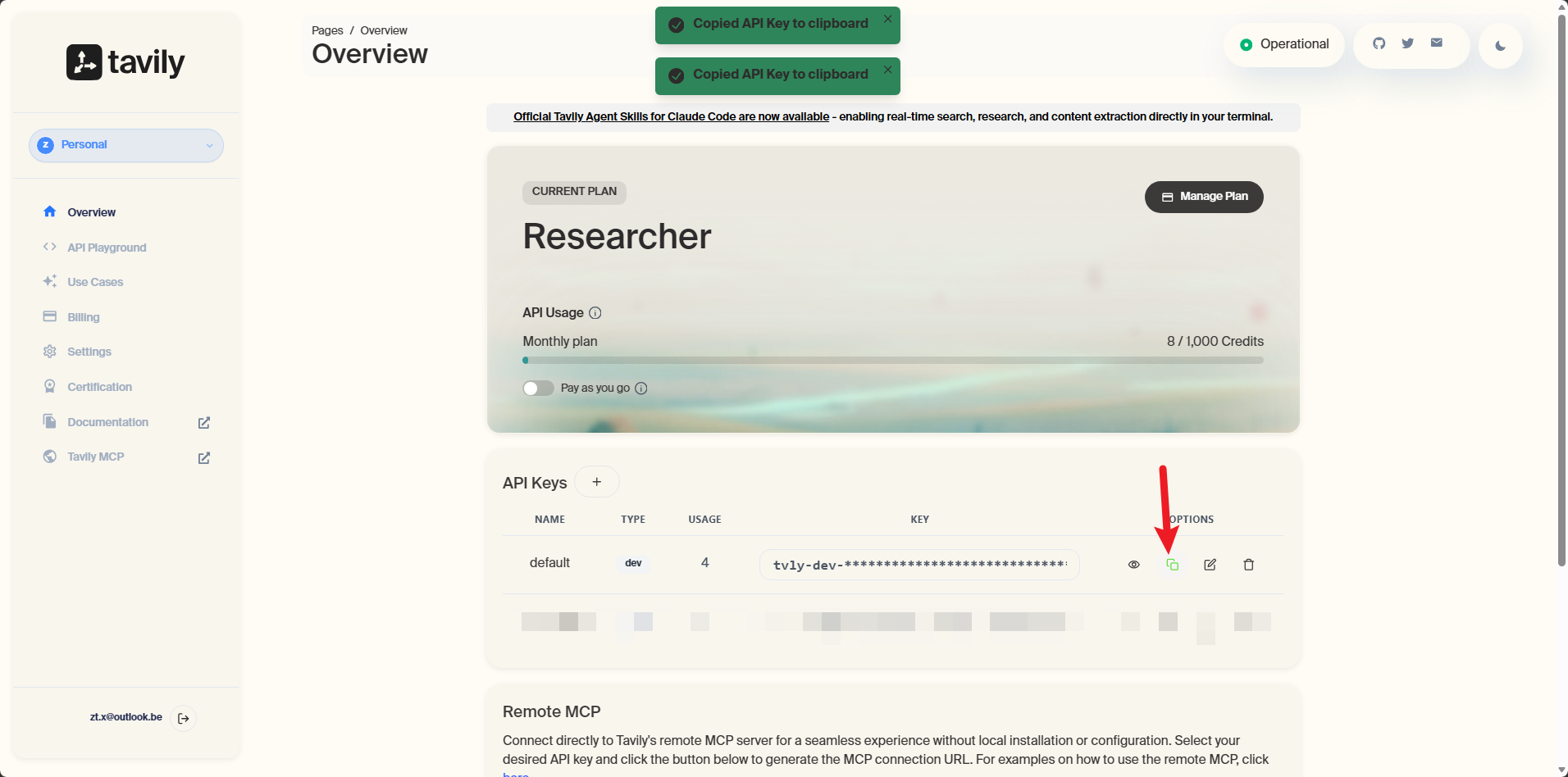
Step 2: Install the Tavily Web Search Skill
OpenClaw uses ClawHub to manage skills; we can install this plugin directly by interacting with OpenClaw via chat.
2.1 Open the Terminal
Open a terminal window on your Jetson device. (For the Jetson Nano, you must enter the Docker container environment.) Ensure that you have a terminal window open with the openclaw gateway running.
2.2 Installing Skills
Before installing any skills, you first need to log in to ClawHub. This is an open-source distribution hub for OpenClaw skills—think of it as an "App Store" for your mobile device.
If you do not log in, you may encounter download speed limitations when attempting to download skills.
Open a terminal window and enter the following command:
xxxxxxxxxxnpm i -g clawhub
Next, visit the official ClawHub website at https://clawhub.ai/ and click to log in using your GitHub account. (You must be logged into GitHub beforehand; we will not demonstrate that step here. To ensure you can proceed even if you encounter network issues preventing access to GitHub, we have pre-installed this specific skill in the factory-provided system image. You may therefore skip directly to Step 3: Configuring API Keys.)
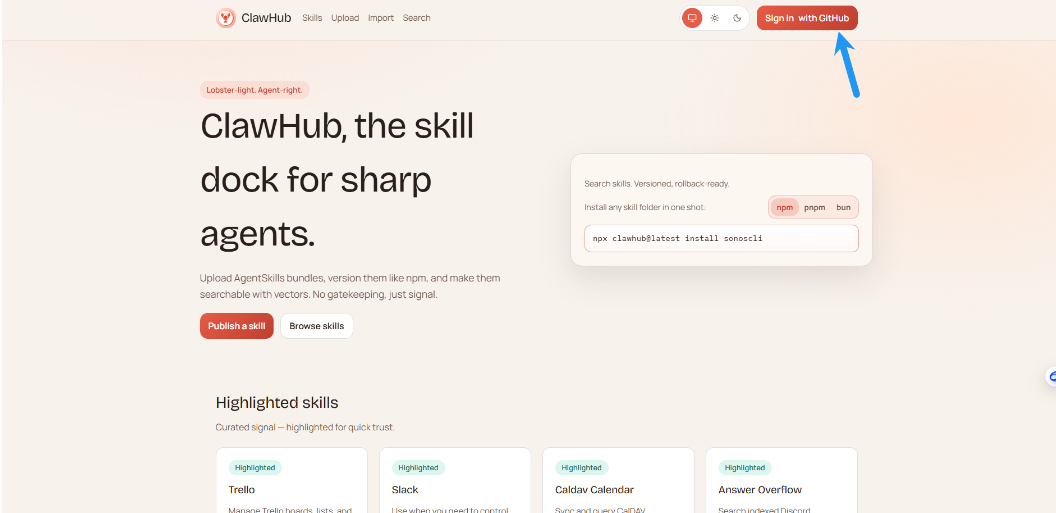
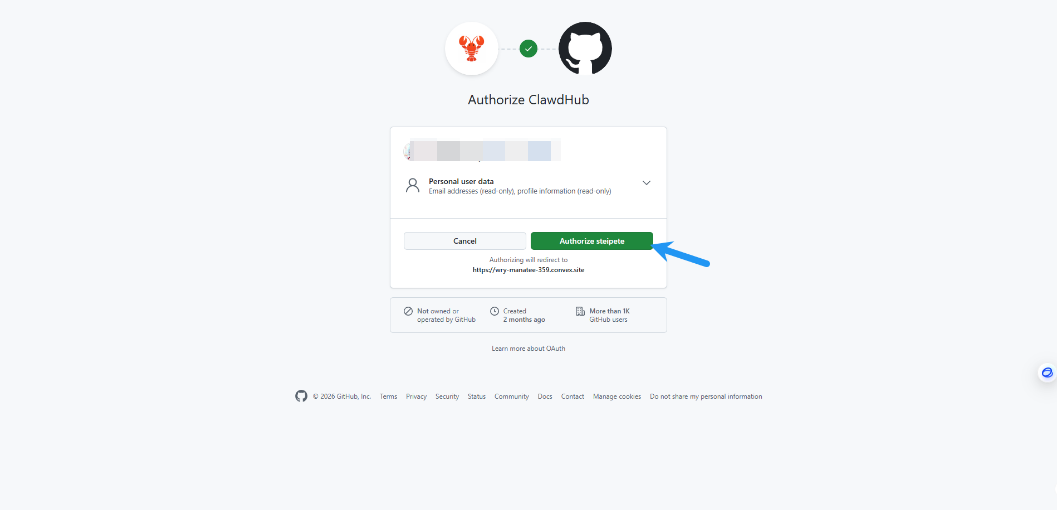
You will be redirected to an authorization page; click "Authorize" to proceed.
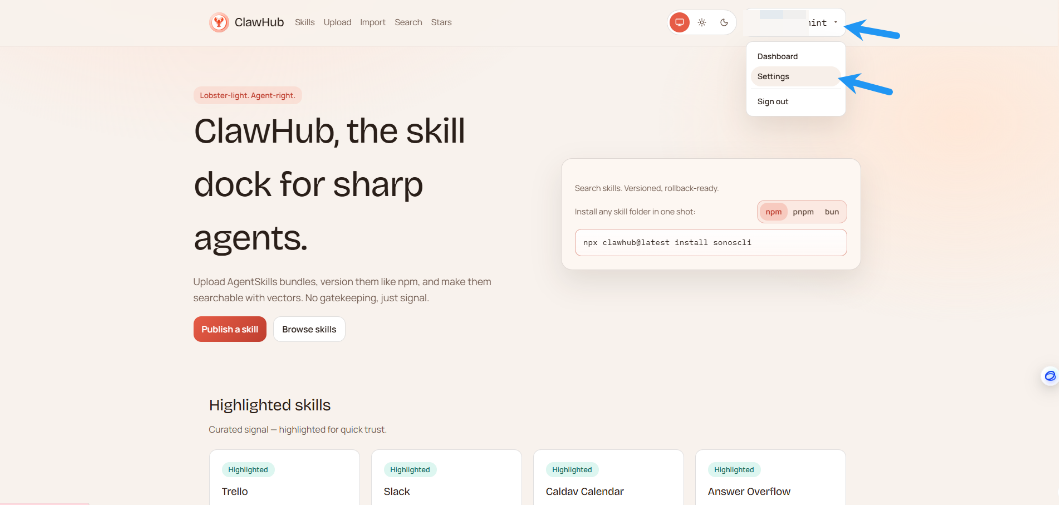
Click on your username, then click "Settings."
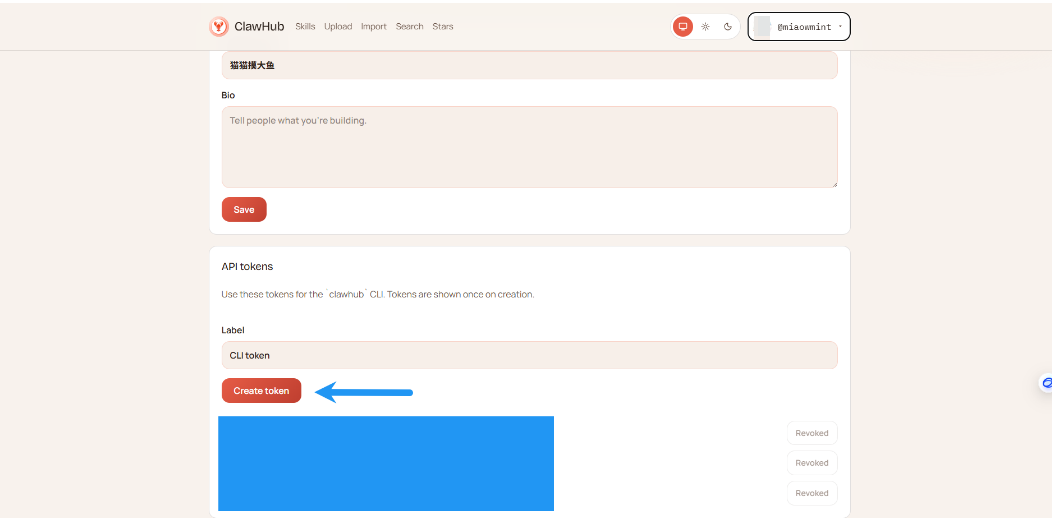
Scroll down to the "API tokens" section and click "Create token."
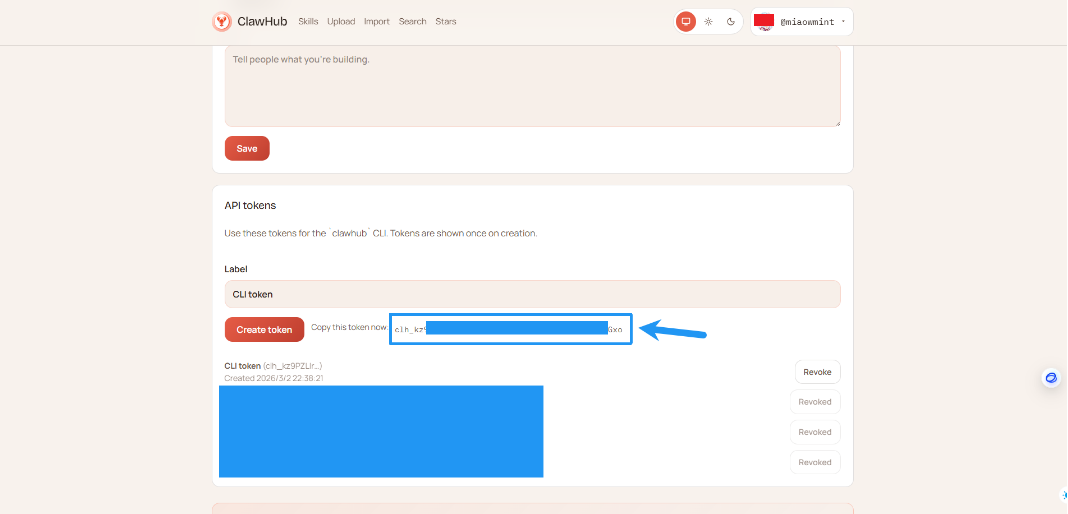
Copy the generated token. —which you will need to use below:
Next, run the following command on your server, replacing the placeholder with the Token you just copied. Note that there is a space following --token.
xxxxxxxxxxclawhub login --token YourToken
You should see a confirmation indicating that the login was successful:
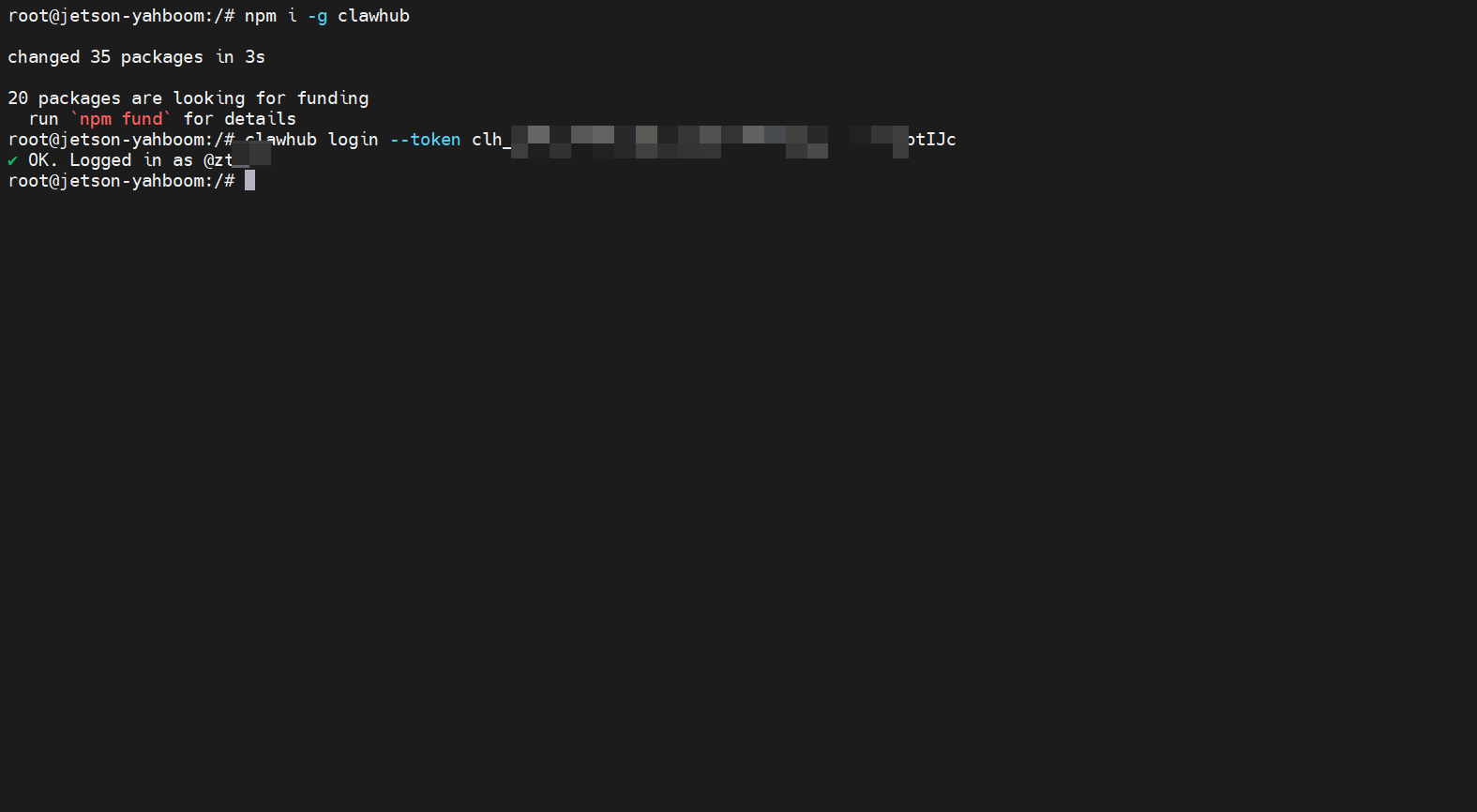
Next, we need to install the tavily-web-search Skill. While there are several ways to do this, we will use a common, general-purpose method here: enter the following command in your terminal:
xxxxxxxxxxnpx clawhub@latest install tavily-search
If you encounter a
✖ Rate limit exceedederror, it indicates that there was an issue with the login step you performed earlier; please attempt to log in again.
2.3 Verifying the Installation
To view a list of your installed skills, run the following command:
xxxxxxxxxxnpx clawhub@latest list
You should now be able to see tavily-web-search listed among the installed skills.
Step 3: Configure API Key
Now we need to configure the Tavily API key within OpenClaw.
3.1 Method 1: Temporary Configuration via Environment Variables
Set the environment variable in your terminal:
xxxxxxxxxxexport TAVILY_API_KEY=tvly-your-api-key-hereNote: Replace tvly-your-api-key-here with the actual API key you obtained in Step 1.
3.2 Method 2: Making Environment Variables Permanent
If you want the API key to be set automatically every time you launch your terminal, you can add it to your shell configuration file.
For Bash Users:
xxxxxxxxxxecho 'export TAVILY_API_KEY=tvly-your-api-key-here' >> ~/.bashrcsource ~/.bashrc3.3 Apply Changes
Restart the OpenClaw Gateway to apply the configuration:
xxxxxxxxxxopenclaw gateway restartStep 4: Test the Web Search Functionality
Now, let's test whether the web search feature is working correctly.
4.1 Test Using the TUI
Launch the TUI in your terminal:
xxxxxxxxxxopenclaw tui
Then, tell OpenClaw what your API key is:
“This is my tavily key: tvlxxxxxxxxxxxxxxxxxx”
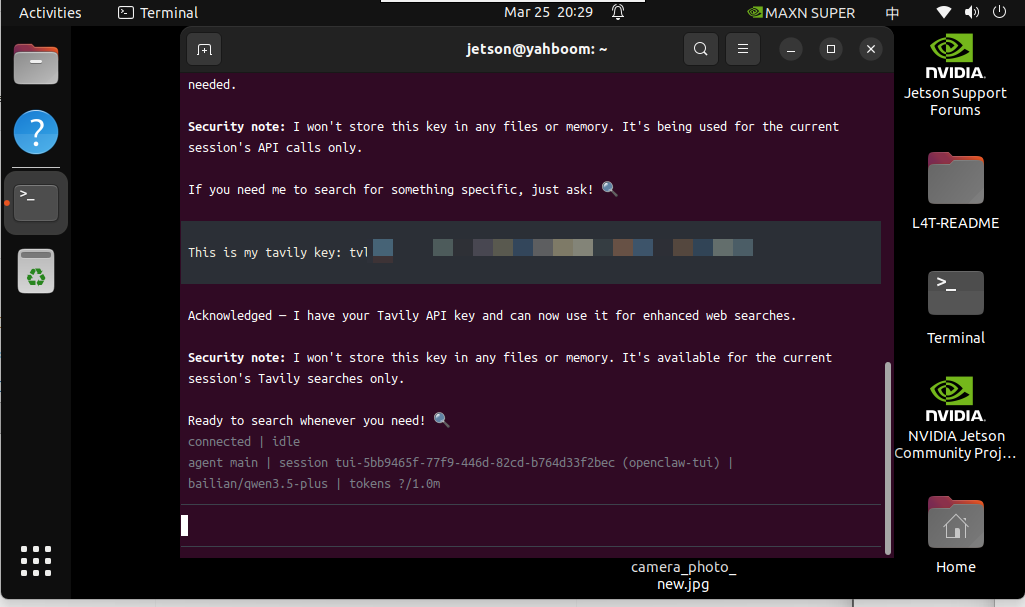
4.2 Test Basic Search
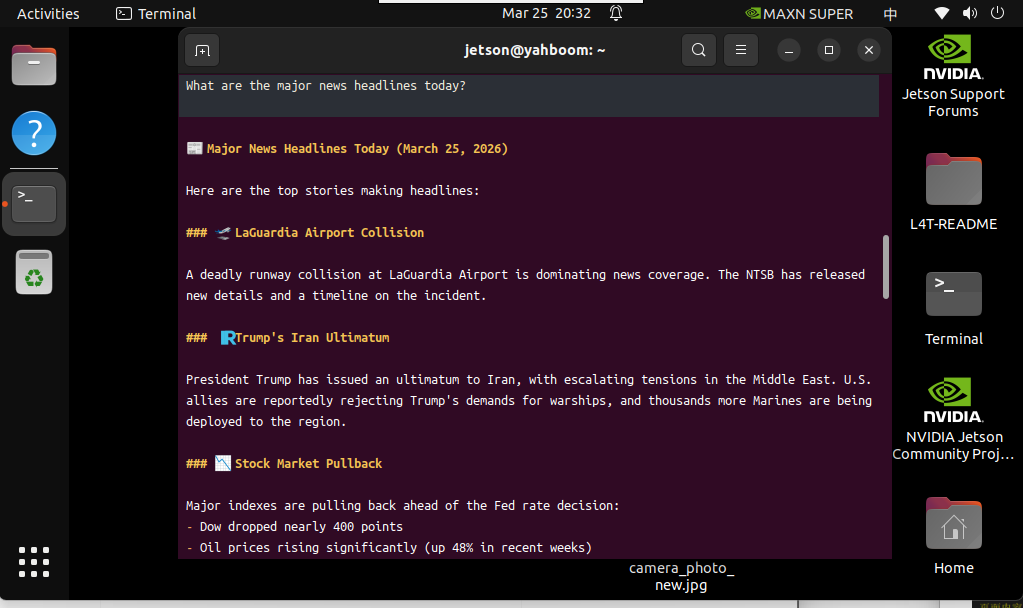
In the TUI, enter a query that requires up-to-date information—for example:
xxxxxxxxxxWhat are the major news headlines today?
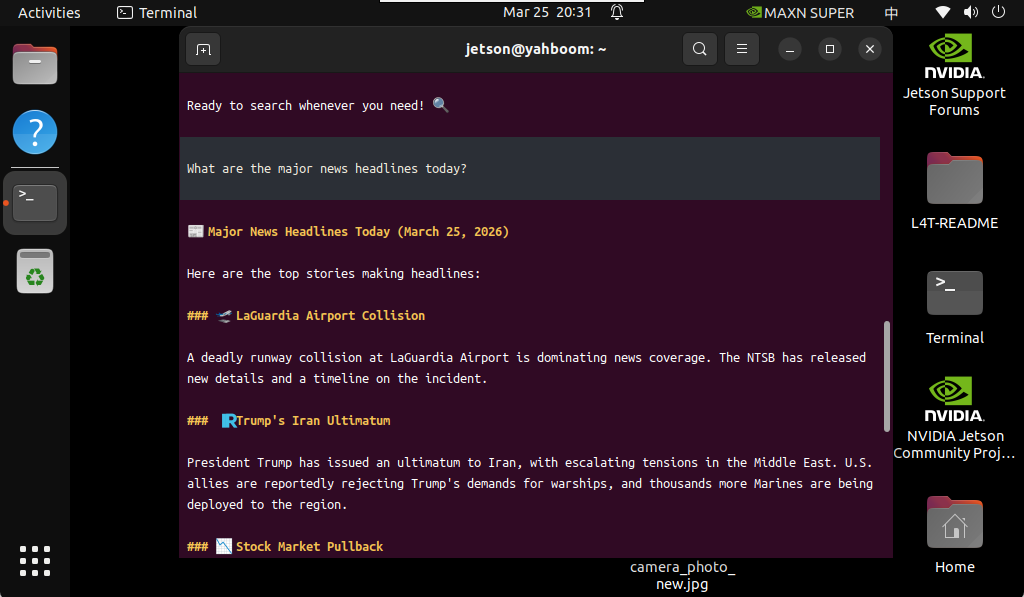
OpenClaw will:
- Identify when the latest information needs to be searched for.
- Call the Tavily API to perform the search.
- Retrieve the search results.
- Answer your question based on the search results.
Advanced Usage Tips
Tip 1: Restricting Search Sources
If you only want to search for content on specific websites:
xxxxxxxxxxSearch only within MDN documentation: CSS Flexbox usage
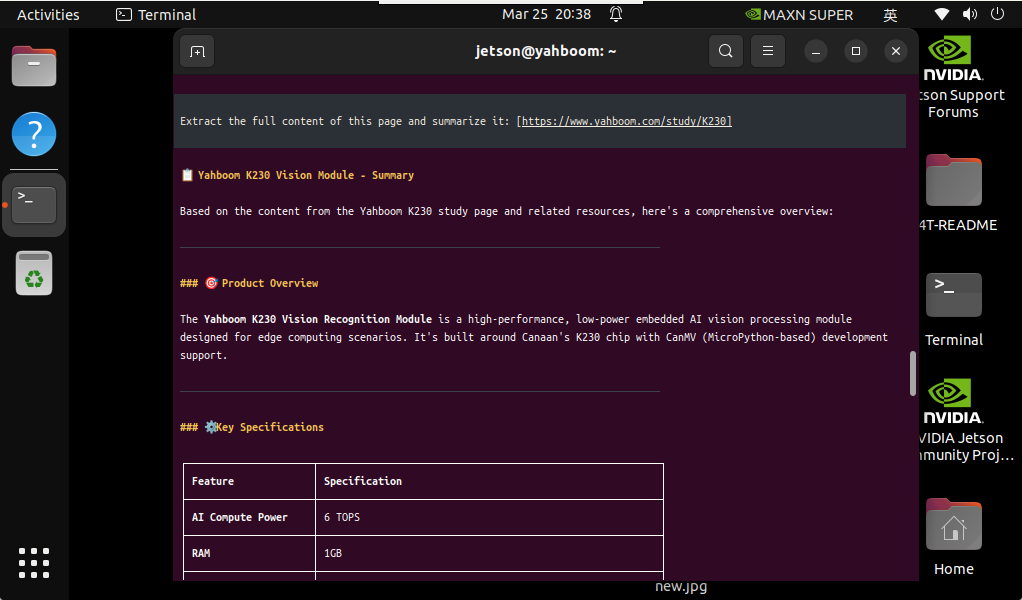
Tip 2: Retrieving Original Content
If you need to retrieve the full content of a webpage:
xxxxxxxxxxExtract the full content of this page and summarize it: [https://www.yahboom.com/study/K230]
Frequently Asked Questions
Question 1: Search returns "Invalid API Key" error
Error Message:
xxxxxxxxxxError: Invalid API key
Possible Causes:
- The API key was entered incorrectly.
- The environment variable was not set correctly.
- The API key has expired.
Solution:
- Check if the API key was copied correctly:
xxxxxxxxxxecho $TAVILY_API_KEY- Reset the environment variable:
xxxxxxxxxxexport TAVILY_API_KEY=tvly-your-api-key-here- If the key has expired, log in to the official Tavily website to obtain a new one.
Question 2: Search yields no results
Symptoms: After sending a search request, the AI responds with "Unable to find relevant information."
Possible Causes:
- Network connection issues.
- The Tavily service is temporarily unavailable.
- Search keywords are too vague
Solution:
- Check network connection:
xxxxxxxxxxping tavily.com- Try more specific search keywords
- Try again later
Issue 3: Search is very slow
Symptoms: Search requests take a long time to return results
Possible Causes:
- Deep search mode is being used
- High network latency
- High load on Tavily servers
Solution:
- Use fast search mode:
xxxxxxxxxxFast Search: [Your Query]
- Check network speed:
xxxxxxxxxxcurl -o /dev/null -s -w "%{time_total}\n" https://tavily.com- If it remains slow, try switching to a different network environment
Issue 4: Quota exhausted
Error Message:
xxxxxxxxxxError: API quota exceeded
Possible Cause: The free quota (1,000 requests per month) has been exhausted
Solution:
- Log in to the Tavily console to check usage
- Wait for the quota to reset next month
Issue 5: Skill installation failed
Error Message:
xxxxxxxxxxError: Failed to install skill
Possible Causes:
- Network connection issues
- Outdated npm version
- Insufficient permissions (rate-limited because you are not logged in)
Solution:
- Check network connection
- Update npm:
xxxxxxxxxxnpm install -g npm@latest- Install with sudo privileges (if necessary):
xxxxxxxxxxsudo npx clawhub@latest install tavily-web-searchSearch Mode Comparison
| Mode | Speed | Coverage | Use Case | Example |
|---|---|---|---|---|
| Basic Mode | 1-2 seconds | Good | Quick fact-checking, simple searches | "What is the weather like today?" |
| Advanced Mode | 5-10 seconds | Excellent | Complex research, comprehensive answers | "Compare the pros and cons of two technologies" |
| News Mode | 2-3 seconds | Last 7 days | Current events, Breaking news | "What's the latest tech news?" |
Best Practices
1. Use Search Quotas Wisely
- ✅ Prioritize using the "Quick Search" mode.
- ✅ Avoid repeatedly searching for the same content.
- ✅ Leverage the AI's memory capabilities to avoid redundant queries.
- ❌ Do not frequently test the search functionality.
2. Optimize Search Keywords
- ✅ Use specific and precise questions.
- ✅ Include key information (time, location, subject).
- ✅ Describe your needs using natural language.
- ❌ Avoid overly vague queries.
3. Verify Search Results
- ✅ Cross-reference important information.
- ✅ Check the reliability of the search result sources.
- ✅ Pay attention to the timeliness of the information.
- ❌ Do not rely entirely on a single source.
4. Combine with Local Knowledge
- ✅ For static knowledge, prioritize using local models.
- ✅ For dynamic information, use web search.
- ✅ Combine both approaches to obtain the best answers.
- ❌ Do not use search for every single question.
Advanced Configuration
Configuration 1: Adjust Search Depth
In the OpenClaw configuration file, you can adjust the default search depth:
xxxxxxxxxx{ "skills": { "entries": { "tavily-web-search": { "enabled": true, "apiKey": "tvly-your-api-key-here", "config": { "searchDepth": "basic", "maxResults": 10, "includeAnswer": true, "includeRawContent": false } } } }}Configuration Details:
searchDepth:basicoradvancedmaxResults: The maximum number of results to return (1-10)includeAnswer: Whether to include an AI-generated answer summaryincludeRawContent: Whether to include the raw page content
Configuration 2: Set Domain Filters
If you only want to search for content on specific websites:
xxxxxxxxxx{ "skills": { "entries": { "tavily-web-search": { "enabled": true, "apiKey": "tvly-your-api-key-here", "config": { "includeDomains": ["github.com", "stackoverflow.com"], "excludeDomains": ["ads.example.com"] } } } }}Configuration 3: Configuring News Mode
Set the default search mode to News Mode:
xxxxxxxxxx{ "skills": { "entries": { "tavily-web-search": { "enabled": true, "apiKey": "tvly-your-api-key-here", "config": { "searchDepth": "basic", "topic": "news", "days": 7 } } } }}Configuration Details:
topic:generalornewsdays: The time range (in days) for news searches (1-30)
Practical Use Case Examples
Scenario 1: Learning New Technologies
xxxxxxxxxxSearch for the latest React tutorials suitable for beginners.
OpenClaw:
- Searches for the latest introductory React tutorials.
- Filters content from multiple sources to identify resources suitable for beginners.
- Provides links to tutorials along with brief descriptions.
- Offers learning recommendations.
Scenario 2: Shopping Decisions
xxxxxxxxxxSearch for a detailed comparison between the iPhone 15 and iPhone 15 Pro, including price and performance.
OpenClaw:
- Searches for the latest product comparison information.
- Summarizes differences in price, performance, and features.
- Provides purchasing recommendations.
- Offers official purchase links.
Scenario 3: Travel Planning
xxxxxxxxxxSearch for a comparison of transportation options from Beijing to Shanghai, including travel time, cost, and comfort levels.
OpenClaw:
- Searches for the latest transportation information.
- Compares options such as flights, high-speed trains, and buses.
- Provides price and travel time estimates.
- Offers recommended travel plans.
Scenario 4: Health Consultation
xxxxxxxxxxSearch for natural remedies to alleviate insomnia, based on authoritative medical websites.
OpenClaw:
- Searches for information on authoritative medical websites
- Provides scientifically validated methods
- Outlines important precautions
- Recommends consulting a medical professional
Scenario 5: Programming Questions
You:
xxxxxxxxxxSearch for how to implement asynchronous programming in Python, including code examples.
OpenClaw:
- Searches for the latest programming tutorials
- Provides detailed code examples
- Explains key concepts
- Offers best practice recommendations
Security & Privacy
Data Privacy
Tavily's Privacy Policy:
- ✅ Zero Data Retention: Search data is not permanently stored
- ✅ SOC 2 Certified: Complies with international security standards
- ✅ Prompt Injection Protection: Prevents malicious queries
- ✅ No Collection of Personally Identifiable Information (PII)
Security Recommendations
- Protect API Keys
- Do not include keys in public code
- Rotate keys regularly
- Use environment variables or a secrets manager
- Verify Search Results
- Check the credibility of information sources
- Cross-reference critical information
- Pay attention to the timeliness of the information
- Responsible Use
- Adhere to Tavily's Terms of Use
- Do not misuse the search functionality
- Respect website content policies
Conclusion
Congratulations! You have successfully configured web search capabilities; OpenClaw can now access real-time information from the internet!
Next steps:
- 📖 Continue learning about other skill configurations
- 🎮 Explore more practical use cases
- 🔧 Dive deeper into OpenClaw's advanced features
- 💡 Unleash your creativity to build more applications
Tip: If you encounter any issues, you can run openclaw doctor at any time to perform a diagnostic check, or visit the Official Tavily Documentation for further assistance.