Welcome to RDK S100(P) Board repository
2. System Installation
TogetheROS.Bot Environment Setup
TogetheROS.Bot supports installation on the RDK with Ubuntu 20.04/22.04 system. Installing through DEB packages on Ubuntu system is simple and recommended for users who want to experience it initially.
1.Environment Setup
Before installing tros.b, it is recommended to upgrade the RDK system image to the latest version.
If the image has already been installed, you can upgrade it by running the commands sudo apt update and sudo apt upgrade.
Friendly Reminder:
- If you have installed system version 1.x, you need to upgrade to version 2.x.
- For instructions on how to check your system version number, please see [FAQs](https://d-robotics.github.io/rdk_doc/FAQ/applications_and_examples)。**
2. Installing TogetheROS.Bot
2.1 Installing and Upgrading TogetheROS.Bot via apt
Prerequisites
- The Environment Setup has been completed.
- The RDK system has been installed.
- The RDK can access the internet normally.
- The RDK can be accessed remotely via SSH.
Note:
- The 2.x version of tros.b only supports 2.x system images. The 1.x version of tros.b (https://developer.d-robotics.cc/api/v1/fileData/TogetherROS/index.html) only supports 1.x systems.
- If you are using a 1.x system image, you need to upgrade your system (https://d-robotics.github.io/rdk_doc/Robot_development/quick_start/preparation) to version 2.x.
- For instructions on how to check your system and tros.b version numbers, please see the FAQs (https://d-robotics.github.io/rdk_doc/FAQ/applications_and_examples). **
| Dependencies | 1.x tros.b | 2.x tros.b |
|---|---|---|
| 1.x System Image | √ | x |
| 2.x System Image | x | √ |
Installing tros.b
Note: The RDK IP used here is 192.168.2.59. You need to replace it with your own RDK IP during installation.
Log in to RDK:
xxxxxxxxxxssh root@192.168.2.59Install the tros.b package:
- Foxy
- Humble
xxxxxxxxxxsudo apt updatesudo apt install tros-humbleNote: If you encounter the error E: Unmet dependencies. Try 'apt --fix-broken install' with no packages (or specify a solution).' after running the installation command, please execute the commandapt --fix-broken install` to install the related dependencies before installing tros.b.
After the installation is complete, check the files in the /opt directory
xxxxxxxxxxroot@ubuntu:/userdata# ls /opt/hobot trosThe tros.b is installed in the /opt directory.
Upgrade tros.b
Taking RDK installation as an example, the upgrade method for x86 Ubuntu is the same as that for RDK.
Login to RDK:
xxxxxxxxxxssh root@192.168.2.59Upgrade tros.b deb package:
xxxxxxxxxxsudo apt updatesudo apt upgrade
Check the current tros.b version of Foxy
Humble
Open a terminal and type
apt show tros-humblein the command line.
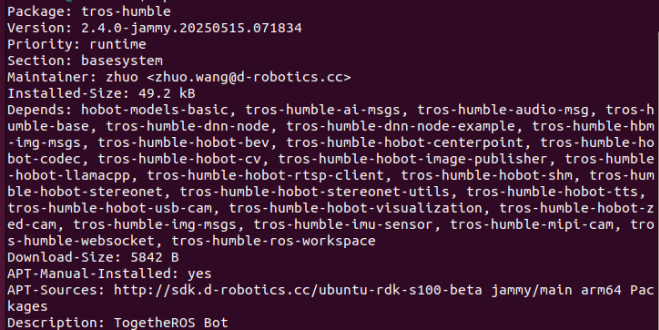
You can see that the current tros.b version has been upgraded to 2.4.0.
Note:
- The version number
Versiondisplayed in the query is the actual version oftros.binstalled. This example uses version2.4.0. - For detailed release information on
tros.b, please see [Release History].(https://d-robotics.github.io/rdk_doc/Robot_development/quick_start/changelog)。
2.2Install from source code
Prerequisites:
- The development machine can access the D-Robotics organization on GitHub.
- Docker is installed on the development machine.
Compiling tros.b
1 Using Dockerfiles
This part of the operation is all done on the development machine.
- Foxy
- Humble
xxxxxxxxxx## Create a directorycd /mnt/data/kairui.wang/testmkdir -p cc_ws/tros_ws/src## Obtain the Docker for cross-compilationwget http://archive.d-robotics.cc/TogetheROS/cross_compile_docker/pc_tros_ubuntu22.04_v1.0.0.tar.gz## Load the Docker imagesudo docker load --input pc_tros_ubuntu22.04_v1.0.0.tar.gz ## Check the corresponding image ID for pc_trossudo docker images## Launch Docker and mount the directorysudo docker run -it --entrypoint="/bin/bash" -v PC local directory: Docker directory imageID, here is an example using:sudo docker run -it --entrypoint="/bin/bash" -v /mnt/data/kairui.wang/test:/mnt/test 4cbdb9d61e19
2 Obtaining the tros.b Source Code
This part of the operation is all completed within the Docker container on the development machine.
Here, we take the /mnt/test directory in the Docker container as an example.
- Foxy
- Humble
x
cd /mnt/test/cc_ws/tros_ws## Obtain the configuration filegit clone https://github.com/D-Robotics/robot_dev_config.git -b develop ## Execute cd robot_dev_config and use the "git tag --list" command to view the available release versions## Use the "git reset --hard [tag number]" command to specify the release version. For detailed instructions, refer to the "Compile Specific Version tros.b" section on this page## Pull the source codevcs-import src < ./robot_dev_config/ros2_release.repos
The directory structure of the entire project is as follows:
xxxxxxxxxx├── cc_ws│ ├── sysroot_docker│ │ ├── etc│ │ ├── lib -> usr/lib│ │ ├── opt│ │ └── usr│ └── tros_ws│ ├── robot_dev_config│ └── src
The tros_ws/robot_dev_config path contains the configuration and script files needed for code fetching, compilation, and packaging. The tros_ws/src path stores the fetched code. The sysroot_docker path contains the header files and libraries required for cross-compilation, corresponding to the / directory of the RDK. For example, the path for the media library in sysroot_docker is sysroot_docker/usr/lib/hbmedia/, while the path in the RDK is /usr/lib/hbmedia/.
During compilation, the installation path of sysroot_docker is specified through the CMAKE_SYSROOT macro in the robot_dev_config/aarch64_toolchainfile.cmake compilation script.
3 Cross-Compilation
All of these operations are performed inside the docker on the development machine.
x
## Compile tros.b version X3 using build.shbash ./robot_dev_config/build.sh -p X3## Compile tros.b version RDK Ultra using build.sh.bash ./robot_dev_config/build.sh -p Rdkultra## Compile tros.b version X5 using build.shbash ./robot_dev_config/build.sh -p X5## Compile tros.b version S100 using build.shbash ./robot_dev_config/build.sh -p S100
After successful compilation, a message will prompt: N packages compiled and passed.
If using minimal_build.sh for minimal compilation, you can further compress the deployment package size by executing ./minimal_deploy.sh -d "install_path".
Install tros.b
Copy the compiled directory to the RDK and rename it as tros. Here, we place the deployment package in the /opt/tros directory to be consistent with the deb installation directory.
Compile the specified version tros.b
In the section Compile, in the step 2 Obtain the Code, the default is to fetch the latest version of tros.b source code. If you need to get a specific release version of the source code, you need to make the following modifications:
x
## Get the configuration filegit clone https://github.com/D-Robotics/robot_dev_config.git -b develop cd robot_dev_config## View available release versionsgit tag --list## Switch to the specified version number, here we take tros.b 2.0.0 as an examplegit reset --hard tros_2.0.0cd ..## Pull codevcs-import src < ./robot_dev_config/ros2_release.repos3.Using ROS2 package
Prerequisite: TogetheROS.Bot installed successfully
The interfaces of tros.b and the ROS2 Foxy/Humble version are fully compatible and can reuse the ROS2 rich tool package. Here we take the installation and use of the ROS2 foxy version ros-foxy-image-transport as an example to introduce how to use the ROS package in tros.b.
3.1Installing ROS2 package
3.1.1When adding the ROS apt source s.b, the ROS apt source is automatically added, so there is no need to add it manually.
Update apt repository
xxxxxxxxxxsudo apt update
3.1.2 Install packages
- Foxy
- Humble
xxxxxxxxxxsudo apt install ros-humble-image-transportsudo apt install ros-humble-image-transport-plugins
3.2Using ROS2 package
- Foxy
- Humble
xxxxxxxxxxsource /opt/tros/humble/setup.bashros2 run image_transport list_transports
The running result is as follows, showing the supported image formats by image_transport package.
xxxxxxxxxxroot@ubuntu:/opt/tros# ros2 run image_transport list_transportsDeclared transports:image_transport/compressedimage_transport/compressedDepthimage_transport/rawimage_transport/theoraDetails:----------"image_transport/compressed" - Provided by package: compressed_image_transport - Publisher: This plugin publishes a CompressedImage using either JPEG or PNG compression. - Subscriber: This plugin decompresses a CompressedImage topic.----------"image_transport/compressedDepth" - Provided by package: compressed_depth_image_transport - Publisher: This plugin publishes a compressed depth images using PNG compression. - Subscriber: This plugin decodes a compressed depth images.----------"image_transport/raw" - Provided by package: image_transport - Publisher: This is the default publisher. It publishes the Image as-is on the base topic. - Subscriber: This is the default pass-through subscriber for topics of type sensor_msgs/Image.----------"image_transport/theora" - Provided by package: theora_image_transport - Publisher: This plugin publishes a video packet stream encoded using Theora. - Subscriber: This plugin decodes a video packet stream encoded using Theora.