Welcome to RDK S100(P) Board repository
06.Image classification
Image Classification
Image Classification1. Model Introduction2. Image Classification: ImageEffect Preview3. Image Classification: VideoEffect Preview4. Image Classification: Real-time Detection4.1. USB CameraEffect Preview4.2. CSI CameraEffect PreviewReferences
Use Python to demonstrate Ultralytics: Image classification effects on images, videos, and real-time detection.
1. Model Introduction
Image classification is the simplest of the three tasks, involving classifying an entire image into one of a set of predefined categories.
The output of an image classifier is a single class label and confidence score. Image classification is very useful when you only need to know which category an image belongs to, without needing to know the position or exact shape of objects in that category.
2. Image Classification: Image
Use yolo26n-cls_ncnn_model to predict images in the ultralytics26 folder (not images that come with ultralytics).
Enter the code folder:
cd /home/sunrise/ultralytics26/yahboom_demo
Run the code:
xxxxxxxxxxpython3 04.classification_image.py
Effect Preview
YOLO recognition output image location: /home/sunrise/ultralytics26/output/
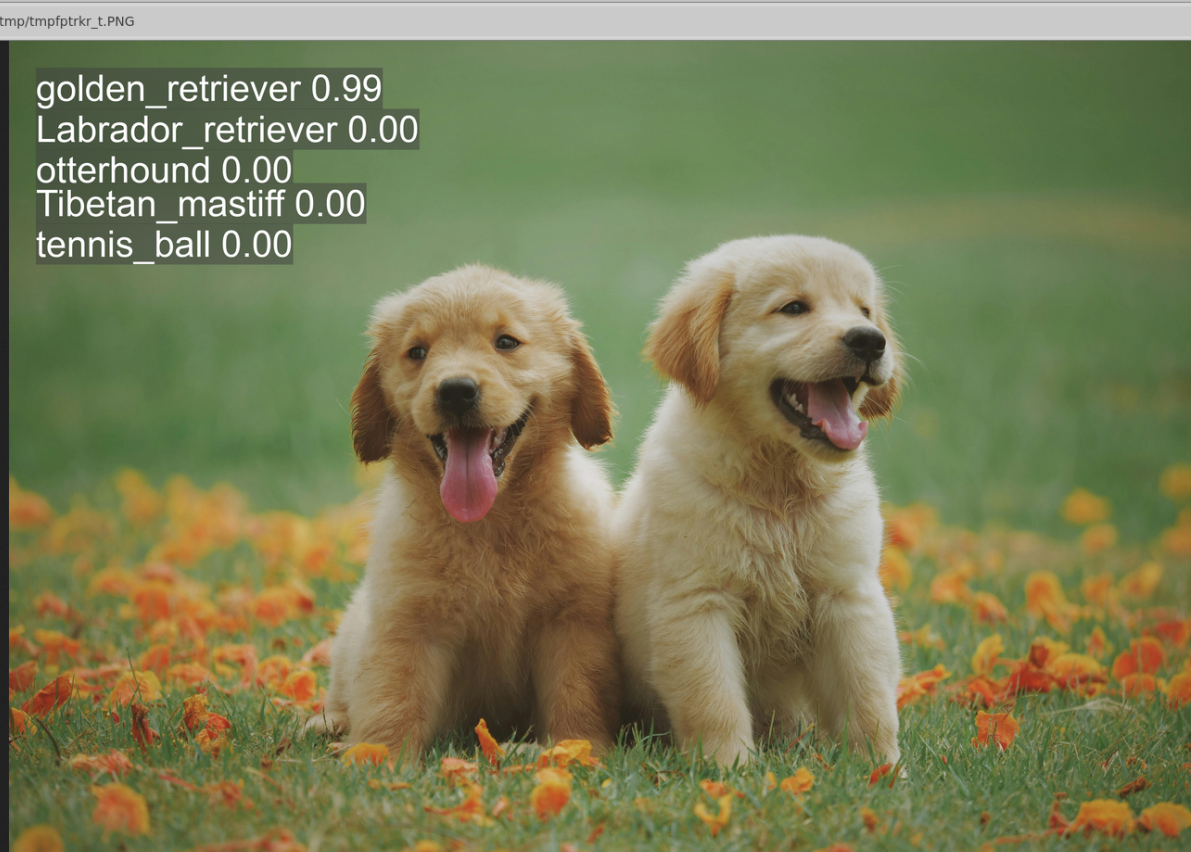
Example code:
xfrom ultralytics import YOLO# Load a model#model = YOLO("/home/sunrise/ultralytics26/yolo26n-cls.pt")model = YOLO("/home/sunrise/ultralytics26/yolo26n-cls_ncnn_model")# Run batched inference on a list of imagesresults = model("/home/sunrise/ultralytics26/assets/dog.jpg") # return a list of Results objects# Process results listfor result in results: # boxes = result.boxes # Boxes object for bounding box outputs # masks = result.masks # Masks object for segmentation masks outputs # keypoints = result.keypoints # Keypoints object for pose outputs probs = result.probs # Probs object for classification outputs # obb = result.obb # Oriented boxes object for OBB outputs result.show() # display to screen result.save(filename="/home/sunrise/ultralytics26/output/dog_output.jpg") # save to disk3. Image Classification: Video
Use yolo26n-cls_ncnn_model to predict videos in the ultralytics26 folder (not videos that come with ultralytics).
Enter the code folder:
xxxxxxxxxxcd /home/sunrise/ultralytics26/yahboom_demo
Run the code:
xxxxxxxxxxpython3 04.classification_video.py
Effect Preview
YOLO recognition output video location: /home/sunrise/ultralytics26/output/
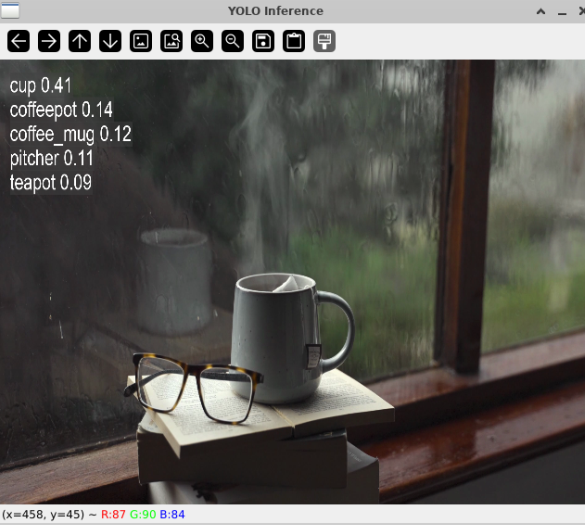
Example code:
xxxxxxxxxximport cv2from ultralytics import YOLO# Load the YOLO model#model = YOLO("/home/sunrise/ultralytics26/yolo26n-cls.pt")model = YOLO("/home/sunrise/ultralytics26/yolo26n-cls_ncnn_model")# Open the video filevideo_path = "/home/sunrise/ultralytics26/videos/cup.mp4"cap = cv2.VideoCapture(video_path)# Get the video frame size and frame rateframe_width = int(cap.get(cv2.CAP_PROP_FRAME_WIDTH))frame_height = int(cap.get(cv2.CAP_PROP_FRAME_HEIGHT))fps = int(cap.get(cv2.CAP_PROP_FPS))# Define the codec and create a VideoWriter object to output the processed videooutput_path = "/home/sunrise/ultralytics26/output/04.cup_output.mp4"fourcc = cv2.VideoWriter_fourcc(*'mp4v') # You can use 'XVID' or 'mp4v' depending on your platformout = cv2.VideoWriter(output_path, fourcc, fps, (frame_width, frame_height))# Loop through the video frameswhile cap.isOpened(): # Read a frame from the video success, frame = cap.read() if success: # Run YOLO inference on the frame results = model(frame) # Visualize the results on the frame annotated_frame = results[0].plot() # Write the annotated frame to the output video file out.write(annotated_frame) # Display the annotated frame cv2.imshow("YOLO Inference", cv2.resize(annotated_frame, (640, 480))) # Break the loop if 'q' is pressed if cv2.waitKey(1) & 0xFF == ord("q"): break else: # Break the loop if the end of the video is reached break# Release the video capture and writer objects, and close the display windowcap.release()out.release()cv2.destroyAllWindows()4. Image Classification: Real-time Detection
4.1. USB Camera
Use yolo26n-cls_ncnn_model to predict USB camera feed.
Enter the code folder:
xxxxxxxxxxcd /home/sunrise/ultralytics26/yahboom_demo
Run the code: Click on the preview window and press the 'q' key to terminate the program!
xxxxxxxxxxpython3 04.classification_camera_usb.py
Effect Preview
YOLO recognition output video location: /home/sunrise/ultralytics26/output/
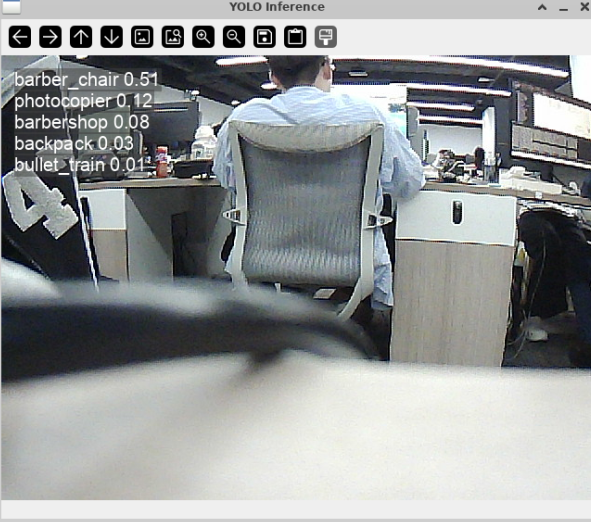
Example code:
xxxxxxxxxximport cv2from ultralytics import YOLO# Load the YOLO model#model = YOLO("/home/sunrise/ultralytics26/yolo26n-cls.pt")model = YOLO("/home/sunrise/ultralytics26/yolo26n-cls_ncnn_model")# Open the cammeracap = cv2.VideoCapture(0)cap.set(6, cv2.VideoWriter.fourcc('M', 'J', 'P', 'G'))cap.set(cv2.CAP_PROP_FRAME_WIDTH, 640)cap.set(cv2.CAP_PROP_FRAME_HEIGHT, 480)# Get the video frame size and frame rateframe_width = int(cap.get(cv2.CAP_PROP_FRAME_WIDTH))frame_height = int(cap.get(cv2.CAP_PROP_FRAME_HEIGHT))fps = int(cap.get(cv2.CAP_PROP_FPS))# Define the codec and create a VideoWriter object to output the processed videooutput_path = "/home/sunrise/ultralytics26/output/04.classification_camera_usb.mp4"fourcc = cv2.VideoWriter_fourcc(*'mp4v') # You can use 'XVID' or 'mp4v' depending on your platformout = cv2.VideoWriter(output_path, fourcc, fps, (frame_width, frame_height))# Loop through the video frameswhile cap.isOpened(): # Read a frame from the video success, frame = cap.read() if success: # Run YOLO inference on the frame results = model(frame) # Visualize the results on the frame annotated_frame = results[0].plot() # Write the annotated frame to the output video file out.write(annotated_frame) # Display the annotated frame cv2.imshow("YOLO Inference", cv2.resize(annotated_frame, (640, 480))) # Break the loop if 'q' is pressed if cv2.waitKey(1) & 0xFF == ord("q"): break else: # Break the loop if the end of the video is reached break# Release the video capture and writer objects, and close the display windowcap.release()out.release()cv2.destroyAllWindows()4.2. CSI Camera
Use yolo26n-cls_ncnn_model to predict CSI camera feed.
Enter the code folder:
xxxxxxxxxxcd /home/sunrise/ultralytics26/yahboom_demo
Run the code: Click on the preview window and press the 'q' key to terminate the program!
xxxxxxxxxxpython3 04.classification_camera_csi.py
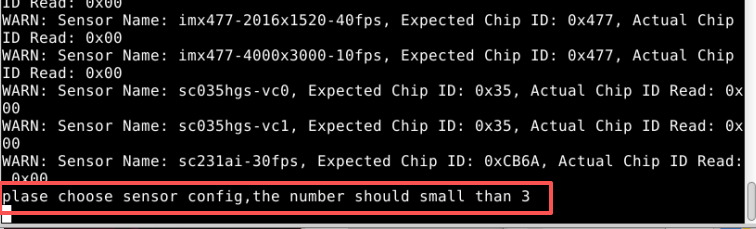
When this prompt appears in terminal, press 2 and then Enter.
Effect Preview
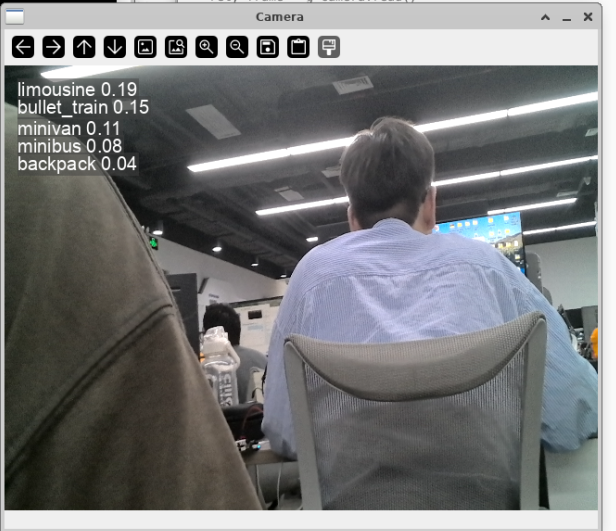
Example code:
xxxxxxxxxximport cv2import sysfrom hobot_vio import libsrcampyimport numpy as npfrom ultralytics import YOLOfps = 30w = 1920h = 1080cam = libsrcampy.Camera()ret = cam.open_cam(0, 0, fps, w, h)# Load the YOLO11 model#model = YOLO("/home/sunrise/ultralytics26/yolo26n-cls.pt")model = YOLO("/home/sunrise/ultralytics26/yolo26n-cls_ncnn_model")# Set up video outputoutput_path = "/home/sunrise/ultralytics26/output/04.classification_camera_csi.mp4"fourcc = cv2.VideoWriter_fourcc(*'mp4v')out = cv2.VideoWriter(output_path, fourcc, 30, (640, 480))while True: img_bytes = cam.get_img(1) yuv = np.frombuffer(img_bytes, dtype=np.uint8).reshape(-1, w) frame = cv2.cvtColor(yuv, cv2.COLOR_YUV2BGR_NV12) # Run YOLO11 inference on the frame results = model(frame) # Visualize the results on the frame annotated_frame = results[0].plot() # Display the resulting frame cv2.imshow("Camera", annotated_frame) # Break the loop if 'q' is pressed if cv2.waitKey(1) == ord("q"): break# Release resources and close windowsout.release()cv2.destroyAllWindows()