Welcome to RDK S100(P) Board repository
03.Object detection
Object Detection
Object Detection1. Model Introduction2. Object Prediction: ImageEffect Preview3. Object Prediction: VideoEffect Preview4. Object Prediction: Real-time Detection4.1. USB CameraEffect Preview4.2. CSI CameraEffect PreviewReferences
Use Python to demonstrate Ultralytics: Object Detection effects on images, videos, and real-time detection.
1. Model Introduction
Object detection is a task that involves identifying the location and class of objects in images or video streams.
The output of an object detector is a set of bounding boxes that surround objects in the image, along with class labels and confidence scores for each box. If you need to identify objects of interest in a scene but don't need to know the exact position or precise shape of the objects, object detection is a good choice.
2. Object Prediction: Image
Use yolo26n_ncnn_model to predict images in the ultralytics26 folder.
Enter the code folder:
cd /home/sunrise/ultralytics26/yahboom_demo
Run the code:
xxxxxxxxxxpython3 01.detection_image.py
Effect Preview
YOLO recognition output image location: /home/sunrise/ultralytics26/output/
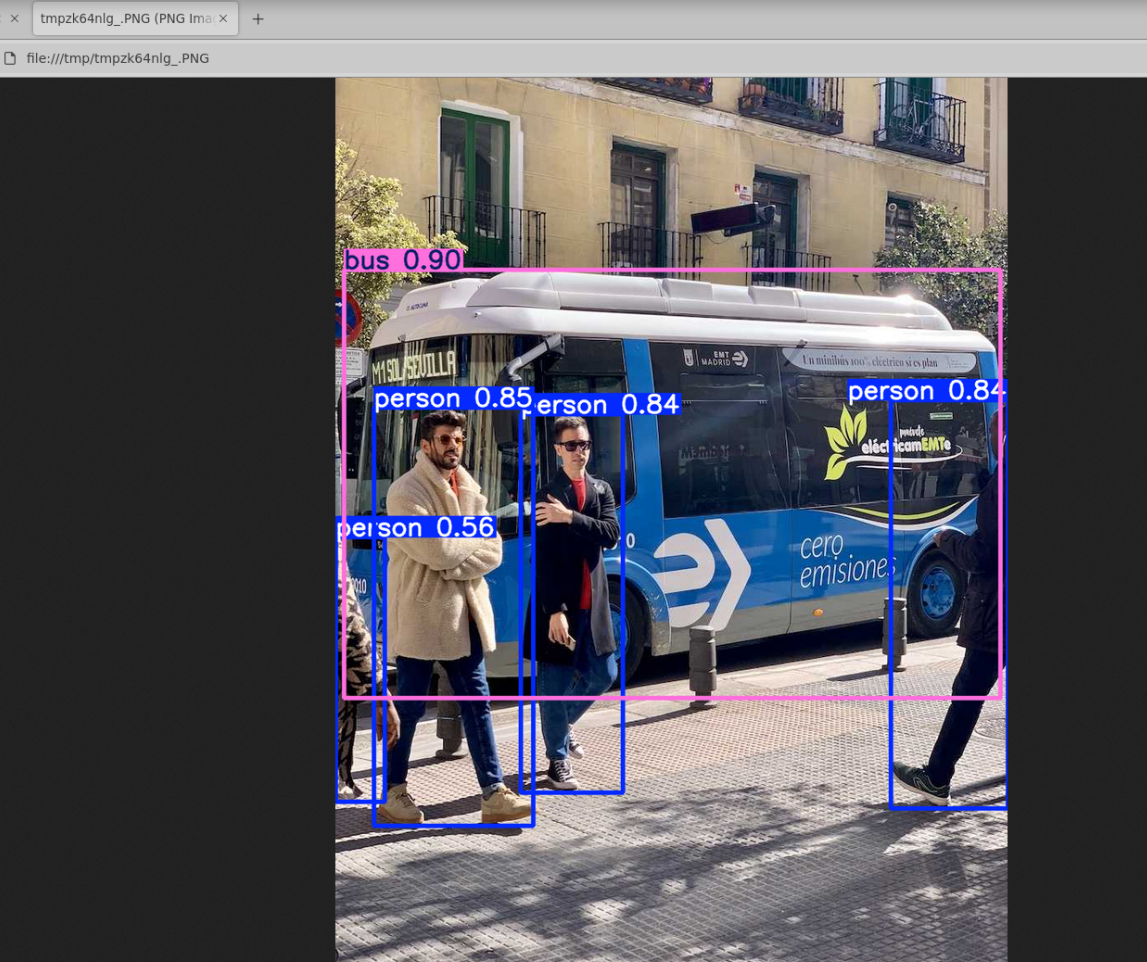
Example code:
xfrom ultralytics import YOLO# Load a modelmodel = YOLO("/home/sunrise/ultralytics26/yolo26n_ncnn_model")# model = YOLO("/home/sunrise/ultralytics26/yolo26n.pt")# Run batched inference on a list of imagesresults = model("/home/sunrise/ultralytics26/assets/bus.jpg") # return a list of Results objects# Process results listfor result in results: boxes = result.boxes # Boxes object for bounding box outputs # masks = result.masks # Masks object for segmentation masks outputs # keypoints = result.keypoints # Keypoints object for pose outputs # probs = result.probs # Probs object for classification outputs # obb = result.obb # Oriented boxes object for OBB outputs result.show() # display to screen result.save(filename="/home/sunrise/ultralytics26/output/bus_output.jpg") # save to disk3. Object Prediction: Video
Use yolo26n_ncnn_model to predict videos in the ultralytics26 folder (not videos that come with ultralytics).
Enter the code folder:
xxxxxxxxxxcd /home/sunrise/ultralytics26/yahboom_demo
Run the code:
xxxxxxxxxxpython3 01.detection_video.py
Effect Preview
YOLO recognition output video location: /home/sunrise/ultralytics26/output/
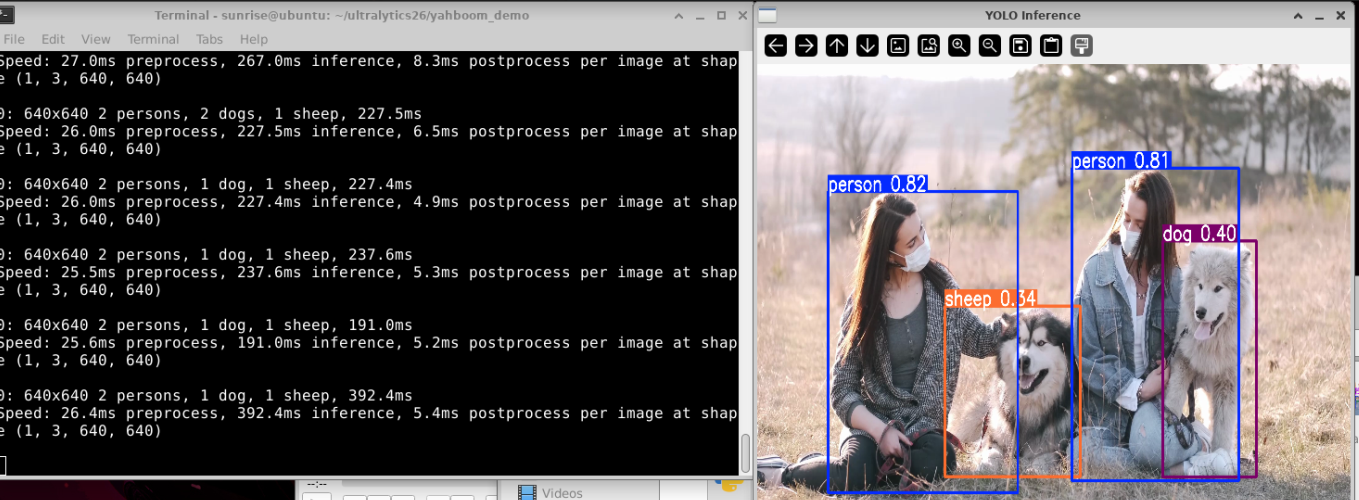
Example code:
xxxxxxxxxximport cv2from ultralytics import YOLO# Load the YOLO modelmodel = YOLO("/home/sunrise/ultralytics26/yolo26n_ncnn_model")# model = YOLO("/home/sunrise/ultralytics26/yolo26n.pt")# Open the video filevideo_path = "/home/sunrise/ultralytics26/videos/people_animals.mp4"cap = cv2.VideoCapture(video_path)# Get the video frame size and frame rateframe_width = int(cap.get(cv2.CAP_PROP_FRAME_WIDTH))frame_height = int(cap.get(cv2.CAP_PROP_FRAME_HEIGHT))fps = int(cap.get(cv2.CAP_PROP_FPS))# Define the codec and create a VideoWriter object to output the processed videooutput_path = "/home/sunrise/ultralytics26/output/01.people_animals_output.mp4"fourcc = cv2.VideoWriter_fourcc(*'mp4v') # You can use 'XVID' or 'mp4v' depending on your platformout = cv2.VideoWriter(output_path, fourcc, fps, (frame_width, frame_height))# Loop through the video frameswhile cap.isOpened(): # Read a frame from the video success, frame = cap.read() if success: # Run YOLO inference on the frame results = model(frame) # Visualize the results on the frame annotated_frame = results[0].plot() # Write the annotated frame to the output video file out.write(annotated_frame) # Display the annotated frame cv2.imshow("YOLO Inference", cv2.resize(annotated_frame, (640, 480))) # Break the loop if 'q' is pressed if cv2.waitKey(1) & 0xFF == ord("q"): break else: # Break the loop if the end of the video is reached break# Release the video capture and writer objects, and close the display windowcap.release()out.release()cv2.destroyAllWindows()4. Object Prediction: Real-time Detection
4.1. USB Camera
Use yolo26n_ncnn_model to predict USB camera feed.
Enter the code folder:
xxxxxxxxxxcd /home/pi/ultralytics26/yahboom_demo
Run the code: Click on the preview window and press the 'q' key to terminate the program!
xxxxxxxxxxpython3 01.detection_camera_usb.py
Effect Preview
YOLO recognition output video location: /home/pi/ultralytics26/output/
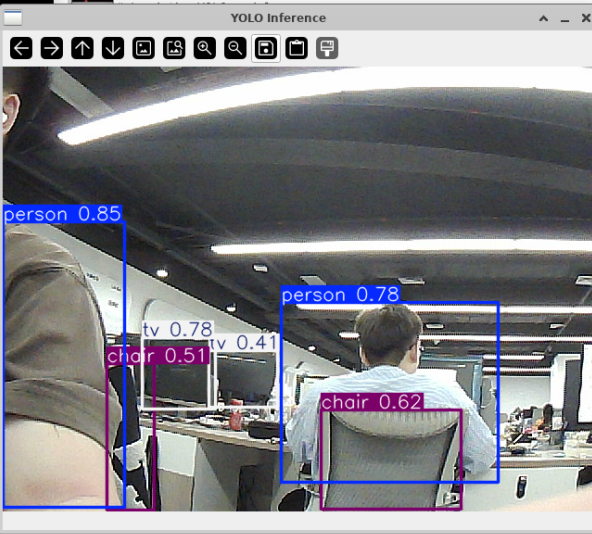
Example code:
xxxxxxxxxximport cv2from ultralytics import YOLO# Load the YOLO modelmodel = YOLO("/home/sunrise/ultralytics26/yolo26n_ncnn_model")# model = YOLO("/home/sunrise/ultralytics26/yolo26n.pt")Open the camera:cap = cv2.VideoCapture(0)cap.set(6, cv2.VideoWriter.fourcc('M', 'J', 'P', 'G'))cap.set(cv2.CAP_PROP_FRAME_WIDTH, 640)cap.set(cv2.CAP_PROP_FRAME_HEIGHT, 480)# Get the video frame size and frame rateframe_width = int(cap.get(cv2.CAP_PROP_FRAME_WIDTH))frame_height = int(cap.get(cv2.CAP_PROP_FRAME_HEIGHT))fps = int(cap.get(cv2.CAP_PROP_FPS))# Define the codec and create a VideoWriter object to output the processed videooutput_path = "/home/sunrise/ultralytics26/output/01.detection_camera_usb.mp4"fourcc = cv2.VideoWriter_fourcc(*'mp4v') # You can use 'XVID' or 'mp4v' depending on your platformout = cv2.VideoWriter(output_path, fourcc, fps, (frame_width, frame_height))# Loop through the video frameswhile cap.isOpened(): # Read a frame from the video success, frame = cap.read() if success: # Run YOLO inference on the frame results = model(frame) # Visualize the results on the frame annotated_frame = results[0].plot() # Write the annotated frame to the output video file out.write(annotated_frame) # Display the annotated frame cv2.imshow("YOLO Inference", cv2.resize(annotated_frame, (640, 480))) # Break the loop if 'q' is pressed if cv2.waitKey(1) & 0xFF == ord("q"): break else: # Break the loop if the end of the video is reached break# Release the video capture and writer objects, and close the display windowcap.release()out.release()cv2.destroyAllWindows()4.2. CSI Camera
Use yolo26n_ncnn_model to predict CSI camera feed.
Enter the code folder:
xxxxxxxxxxcd /home/sunrise/ultralytics26/yahboom_demo
Run the code: Click on the preview window and press the 'q' key to terminate the program!
xxxxxxxxxxpython3 01.detection_camera_csi.py
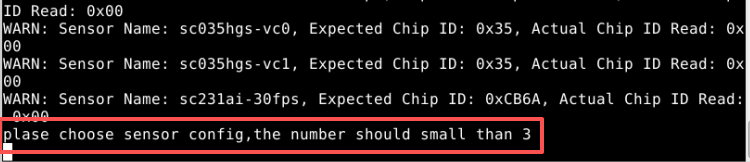
When this prompt appears in the terminal, press 2 and then Enter.
Effect Preview
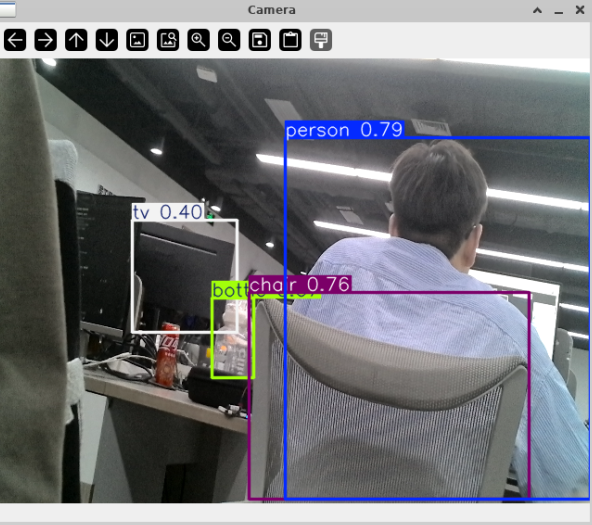
Example code:
xxxxxxxxxximport cv2import sysfrom hobot_vio import libsrcampyimport numpy as npfrom ultralytics import YOLOfps = 30w = 1920h = 1080cam = libsrcampy.Camera()ret = cam.open_cam(0, 0, fps, w, h)# Load the YOLO modelmodel = YOLO("/home/sunrise/ultralytics26/yolo26n_ncnn_model")# model = YOLO("/home/sunrise/ultralytics26/yolo26n.pt")# Set up video outputoutput_path = "/home/sunrise/ultralytics26/output/01.detection_camera_csi.mp4"fourcc = cv2.VideoWriter_fourcc(*'mp4v')out = cv2.VideoWriter(output_path, fourcc, 30, (640, 480))while True: # img_bytes = cam.get_img(1) yuv = np.frombuffer(img_bytes, dtype=np.uint8).reshape(-1, w) frame = cv2.cvtColor(yuv, cv2.COLOR_YUV2BGR_NV12) # Run YOLO11 inference on the frame results = model(frame) # Visualize the results on the frame annotated_frame = results[0].plot() # Display the resulting frame cv2.imshow("Camera", annotated_frame) # Break the loop if 'q' is pressed if cv2.waitKey(1) == ord("q"): breakout.release()cv2.destroyAllWindows()