Welcome to RDK X5 MagicBox repository
4.srpi-config user guide
srpi-config Configuration Tool User Guide
srpi-config Configuration Tool User GuideIntroductionSystem OptionsDisplay OptionsInterface OptionsPerformance OptionsLocalisation OptionsAdvanced OptionsUpdateAbout srpi-configFinish button
The srpi-config configuration tool is only applicable to the RDK X3 and RDK X3 Module development boards and is not suitable for the RDK Ultra development board.
Introduction
srpi-config is a system configuration tool. To open the configuration tool, type the following command in the command line:
xxxxxxxxxxsudo srpi-config
sudois a command for privilege management. It is necessary to enter it here in order to have root privileges for configuration management. The default sunrise account does not have permission to modify system files.
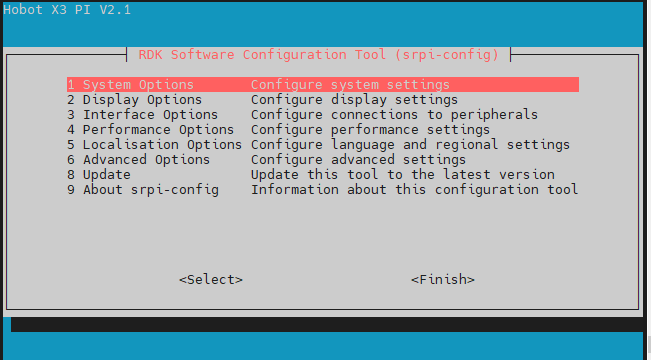
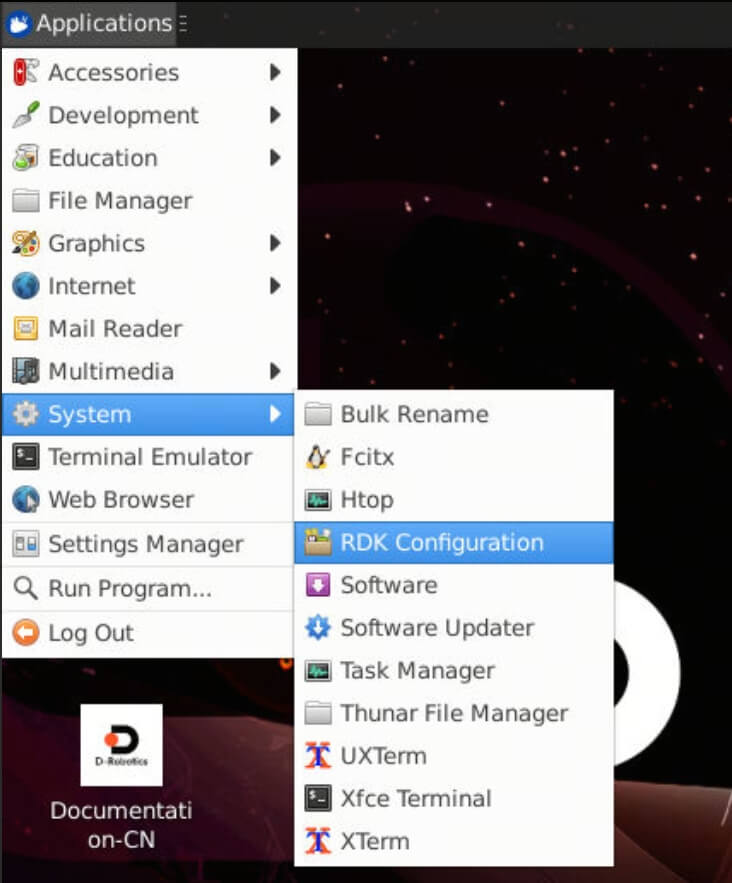
If you are using a desktop system, you can find the RDK Configuration application in the menu for configuration. It will also open a configuration terminal similar to the image above.
System Options
The System Options menu allows you to configure changes to various parts such as Wi-Fi network, user password, hostname, system login mode, browser selection, and some system-level changes.
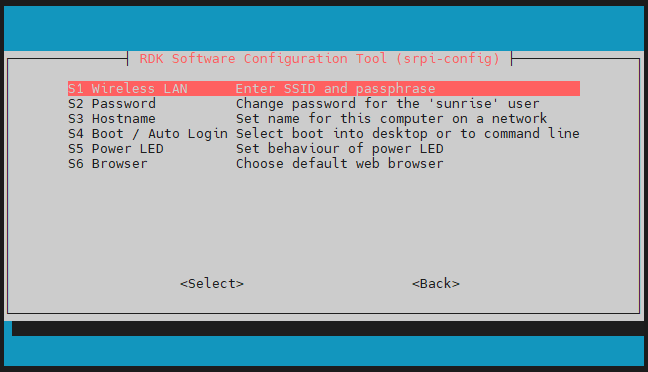
Wireless LAN
Set the
SSIDandpasswordfor the wireless network.Password
Change the default user password. The default account is
sunrise.Hostname
Set the visible name of the current device on the network.
Boot / Auto login
Choose whether to boot to console or desktop, and whether automatic login is required. If automatic login is chosen, it will be logged in with the default account
sunrise.Power LED
If the model of RDK allows, you can change the behavior of the power LED in this option. The default is off or flashing.
Browser
If using a desktop system, you can set the default browser. If not configured,
firefoxis used by default, and users can install thechromiumbrowser with the commandsudo apt install chromium.
Display Options
Display options menu.
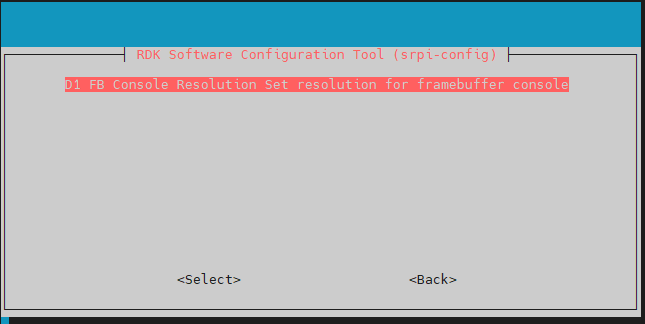
FB Console Resolution
Supports setting the HDMI display resolution in
Serversystem andconsolemode.
[Only X5 supports]
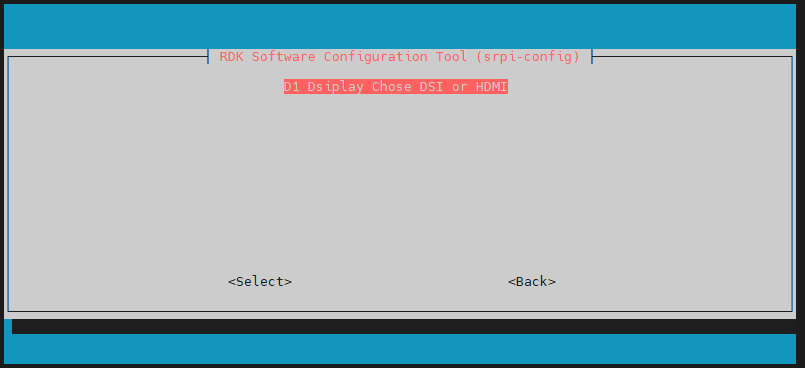
Dsiplay Chose DSI or HDMI
Support switching between
DSIandHDMIdisplay.
Interface Options
Interface options menu, with the following options to enable/disable: SSH, VNC, SPI, I2C, I2S, Serial, etc.
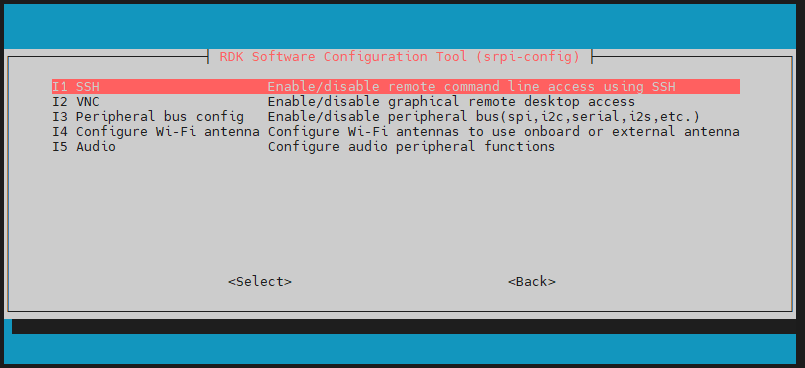
SSH
Use SSH to enable/disable remote login to
RDK. By default, the SSH option is enabled.VNC
Enable/disable X11vnc virtual network computing server.
VNC (Virtual Network Console) is an abbreviation for Virtual Network Console. It is a remote control software that can be enabled when remotely accessing the desktop system.
Peripheral bus config
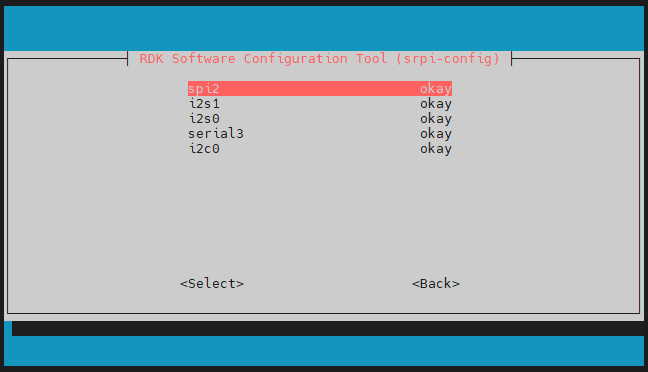
Enable/disable SPI, I2C, Serial Port, I2S and other interfaces on the 40-pin interface. This configuration directly modifies the
statusof the corresponding bus in the device tree file and takes effect after reboot. [X5] X5 has added a PWM interface; In the table below, each row of interfaces uses the same pins and can only have one function in effect. When all interfaces in a row are dsiable, the pins are gpio function pins| fun1 | fun2 | | ---- | ---- | | serial3 | i2c5 | | i2c0 | pwm2 | | spi2 | pwm0 | | spi2 | pwm1 | | i2c1 | pwm3 |
Configure Wi-Fi antenna
Switch Wi-Fi antenna mode, supports setting to use onboard or external antenna.
Currently supported in RDK X3 V2.1 RDK X5.
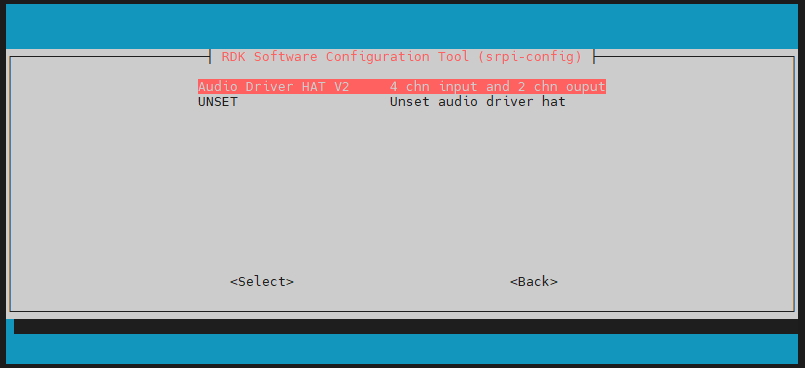
- Audio Install and uninstall audio adapter board Possible supported audio adapters include Audio Driver HAT V1, Audio Driver HAT V2, and WM8960 Audio HAT. Different hardware may also support different audio adapters
Performance Options
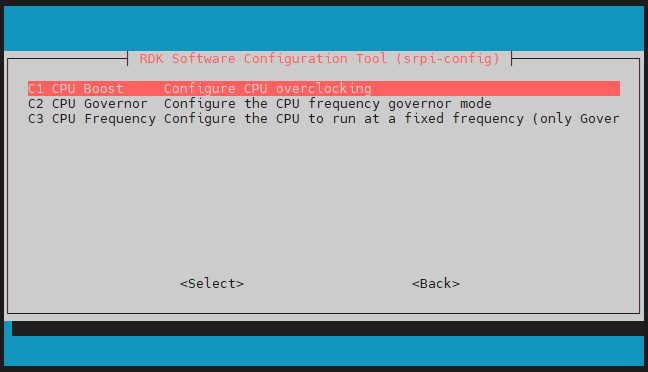
Performance options, including overclocking, CPU operating mode and frequency settings, adjusting ION memory size, etc.
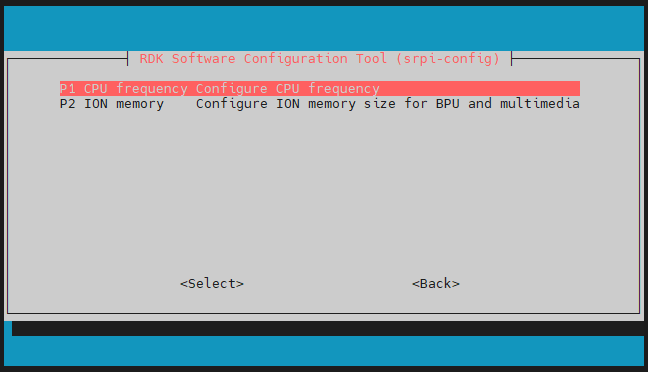
- CPU frequency
Use this tool to overclock the CPU of the RDK. It is generally not recommended to enable this option, but you can try modifying it if sufficient cooling measures are in place.
ION memory
Use this option to configure the common size of ION memory.
ION memory is a physical memory space reserved for the BPU, image, and video multimedia functions. The default configuration size is 672MB. If you need to run large algorithm models or decode multiple videos at the same time, adjust the memory size according to specific needs.
Localisation Options
Localisation options provide the following choices: local language, time zone, and keyboard layout.
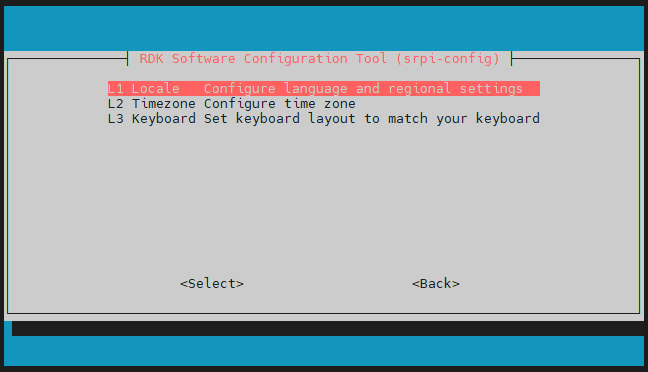
Locale
Select a locale, such as configuring Chinese environment
zh_CN.UTF-8. Restart to take effect.Time Zone
Select your local time zone, starting from the region, for example, Asia, and then choose a city, like Shanghai. Type a letter to jump to that point in the alphabet.
Keyboard
Reading all keyboard types may take a long time to display. Changes usually take effect immediately but may require a restart.
Advanced Options
Advanced options allow you to configure disk expansion, network proxy settings, and more.
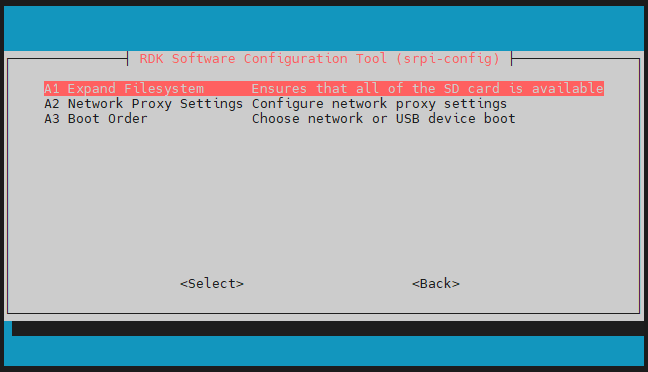
Expand Filesystem
This option expands the installation to fill the entire TF card, providing more space for the file system.
If the system is copied from another system that has already been initialized and configured, the capacity of the
TFcard may not be automatically adjusted to the current TF card. Use this feature to conveniently complete the expansion.
Network Proxy Settings
Configure the network proxy settings.
Boot Order
The RDK X3 module supports booting the system from eMMC and SD cards. This option is used to switch the boot mode.
Update
Update the srpi-config tool to the latest version.
About srpi-config
Information about srpi-config
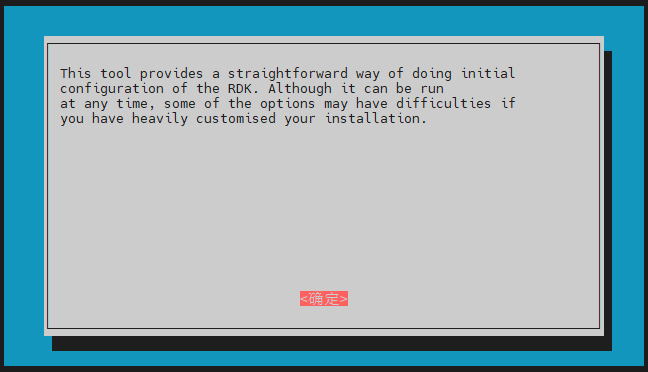
Choosing this option will display the following information:
Finish button
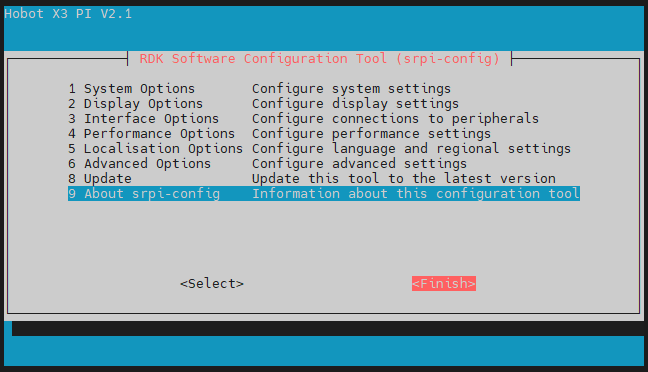
After making the changes, select the Finish button. The system will ask if you want to restart. It is recommended to restart when using it for the first time.