yahboom
HomeLearn
Solution
Blog
Online Store
About Us
EN/中文
RDK X5 MagicBox📖
1.RDK MagicBox
  • 1. RDK MagicBox Official Materials
  • 2. Troubleshooting boot failure
  • 3. Linux memory query
2.RDK MagicBox Introduction
  • 1. Introduction to RDK MagicBox
  • 2. Write System File
  • 3. Hardware Interface Description
3.RDK MagicBox User Guide
1. Quick Start
  • Quick Start
2. Basic Peripheral Usage
  • Basic Peripheral Usage
3. Algorithm Development
  • 1. Stereo Depth Estimation
  • 2. Gesture Interaction
  • 3. Voice Interaction
4.RDK MagicBox Basic Settings
  • 1.Network configuration
  • 2.Remote login
  • 3.Update system
  • 4.srpi-config user guide
  • 5.config. txt configuration file
  • 6.Self-startup setting
  • 7.RDK exclusive command usage
  • 8.Linux command usage
  • 9.GPIO readwrite operation
  • 10.Image classification algorithm
  • 11.Use USB camera
  • 12.MIPI Camera Usage
5.RDKX5 Magicbox Basic Development Course
For C language
  • 1. Camera Image Acquisition and Display
  • 2. Camera Image Local Saving
  • 3. Camera Image Acquisition and Encoding
  • 4. Video File Decoding and Display
  • 5. RTSP Stream Decoding
  • 6. VPS Scaling Example
  • 7. Target Detection Algorithm — focs
  • 8. Target Detection Algorithm — YOLOv5s
  • 9. Using CAN
For Python language
  • 1. Prerequisites Before Using Pin Functions
  • 2. Using GPIO
  • 3. Using PWM
  • 4. Use serial port
  • 5. Using I2C
  • 6. Using SPI
For Linux Development
  • Linux Development Guide
6.Online AI Model Course
Online AI Model Course(Text Interaction)
  • 0. Preparation before use
  • 1. OpenRouter Large Model API Aggregation Platform
  • 2. Multimodal Visual Understanding Application
  • 3. Multimodal Visual Positioning Application
  • 4. Multimodal Table Scanning Application
  • 5. Multimodal Autonomous Agent Application
Online AI Model Course(Voice Interaction)
  • 1. Online Speech‑to‑Text (ASR)
  • 2. Online Text‑to‑Speech (TTS)
  • 3. AI Large Model Voice Interaction
  • 4. Multimodal Visual Voice Interaction
  • 5. Multimodal Visual Positioning Application
  • 6. Multimodal Table Scanning Application
  • 7. Multimodal Autonomous Agent Application
  • 8. AI Large Model Online Voice Assistant
7.OpenClaw Embodied AI Development
  • 1. Introduction to OpenClaw
  • 2. OpenClaw Deployment
  • 3. OpenClaw Whatsapp Plugin Application
  • 4. OpenClaw WebChat Interaction
  • 5. OpenClaw TUI Interaction
  • 6. OpenClaw Tool Introduction
  • 7. OpenClawGate Gateway User Manual
  • 8. OpenClaw Plugin Feature Introduction
  • 9. OpenClaw ClawHub Introduction (skill installation)
  • 10. OpenClaw Application - File Management
  • 11. OpenClaw Application - Camera
  • 12. OpenClaw Application - Browser Control
  • 13. OpenClaw Application - Script Execution
  • 14. OpenClaw Application - AI‑programmed Status Light Control
  • 15. OpenClaw Application - AI‑programmed Servo Control
  • 16. OpenClaw Application - Dedicated AI Assistant
8.ROS2 Basic Tutorial
  • 1.Introduction to ROS2
  • 2.ROS2 install Humble
  • 3.ROS2 development environment
  • 4.ROS2 workspace
  • 5.ROS2 function package
  • 6.ROS2 node
  • 7.ROS2 topic communication
  • 8.ROS2 service communication
  • 9.ROS2 action communication
  • 10.ROS2 custom interface message
  • 11.ROS2 parameter service case
  • 12.ROS2 meta-function package
  • 13.ROS2 distributed communication
  • 14.ROS2 DDS
  • 15.ROS2 time related API
  • 16.ROS2 common command tools
  • 17.ROS2 rviz2 use
  • 18.ROS2 rqt toolbox
  • 19.ROS2 Launch startup file configuration
  • 20.ROS2 recording and playback tool
  • 21.ROS2 URDF model
  • 22.ROS2 Gazebo simulation platform
  • 23.ROS2 TF2 coordinate transformation
Download
  • Code
  • Software_tools
  • SystemFile
Download ZIP

Welcome to RDK X5 MagicBox repository

11. OpenClaw Application - Camera

Application - Camera

Verify that OpenClaw has been configured.

Enter the root environment (if OpenClaw was installed under the root directory using root privileges).

xxxxxxxxxx
sudo su

Start the Gateway. (Typically, the Gateway starts automatically, so running this command is not required.)

xxxxxxxxxx
openclaw gateway

Interact via the TUI terminal interface.

xxxxxxxxxx
openclaw tui

Alternatively, open the chat interface directly, or access it via WhatsApp.
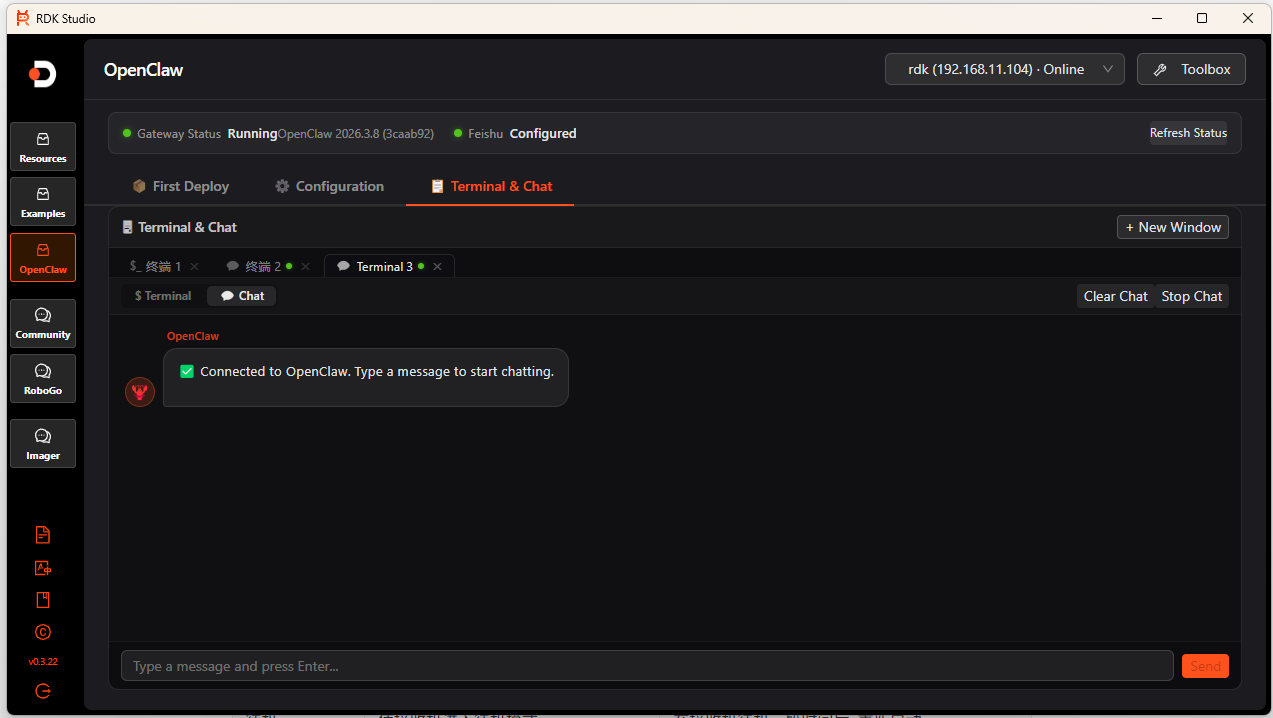
image-20260319115603612

Enter interaction commands.

Take a photo and then send this photo to me.
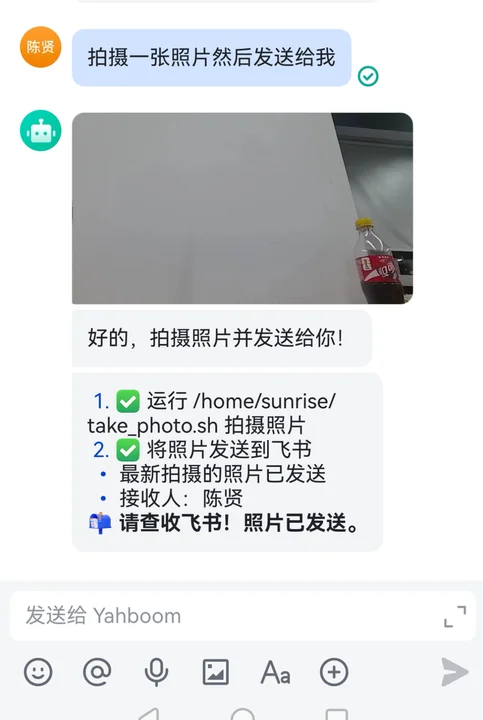
23aaf82b31c84ec0947bd2f32f18c94a

OpenClaw Application - File Management
OpenClaw Application - Browser Control

COMPANY

  • About us
  • Team Style
  • Blog

LEARNING & EXPLORATION

  • Tutorials
  • Edge AI hardware
  • Educational robots
  • Embedded intelligent hardware

WHERE TO BUY

  • Yahboom Online Store
  • Amazon
  • Alibaba
  • AliExpress
  • Mercado

TECHNOLOGY SUPPORT

  • Email: support@yahboom.com

BE A DISTRIBUTOR

  • Email: sales@yahboom.com
QR Code

Copyright © 2017-2026 Yahboom. All Rights Reserved.

EN/中文