yahboom
HomeLearn
Solution
Blog
Online Store
About Us
EN/中文
Rider Pi Robot📖
0.Quick Start
  • 0. Notes (Must Read)new
  • 1.APP control experience
  • 2.Web page image transmission controlnew
  • 3.Manual
1.RPi Basic course
  • 1.SSH remote login
  • 2.VNC remote login desktop
  • 3. Remote file transfer
  • 4. JupyterLab environment construction and use
  • 5. Write system image
  • 6. Connect to WiFi
  • 7. Close startup programs(MustRead)
  • 8. Raspberry Pi system expansion
2.Car basic control course
  • 1. Car screen display control
  • 2. Car recording audio
  • 3. Car plays audio
  • 4. Car recording video
  • 5. Car plays video
  • 6. RGB light control
  • 7. Car attitude angle reading
  • 8. Read the battery level of the car
3.Car motion control
  • 1. Car forward and backward
  • 2. Car rotation movement
  • 3. Adjust car height
  • 4. Adjust car posture
  • 5. Car self-stabilization mode
  • 6. Car squats and shakes
4.Open Source CV
A. Getting started with OpenCV
  • 1. Introduction to OpenCV
  • 2. OpenCV image reading and display
  • 3. OpenCV image writing
  • 4. OpenCV Image Quality
  • 5.OpenCV pixel operations
B. OpenCV geometric transformation
  • 1. Image scaling
  • 2. Image cutting
  • 3. Image translation
  • 4. Image mirroring
  • 5. Affine Transformation
  • 6. Image Rotation
  • 7. Perspective Transformation
C. OpenCV image processing and drawing text segments
  • 1. Grayscale processing
  • 2. Image Binarization
  • 3. Edge Detection
  • 4. Line drawing
  • 5. Rectangle and circle drawing
  • 6. Text and picture drawing
D. Image beautification
  • 1. Color Image Histogram
  • 2. Histogram Equalization
  • 3. Image repair
  • 4. Brightness enhancement
  • 5. Skin whitening
  • 6. Gaussian mean filtering
  • 7. Median Filter
5.AI Visual recognition course
  • 1. Camera driver tutorial
  • 2. Color recognition
  • 3. HSV value test
  • 4. Object Recognition
  • 5. QR code recognition
  • 6. Human face mask
  • 7. License Plate Recognition
  • 8. Human Pose Estimation
  • 9. Object Detection
  • 10.Yolo detection
  • 11. Face Detection
  • 12. Face effects
  • 13. 3D Object Recognition
  • 14. Paintbrush
  • 15. Finger recognition
  • 16. Gesture Recognition
  • 17.Facial Recognitionnew
  • 18.Emotion Recognitionnew
  • 19.Motion Detectionnew
6.AI Visual interaction course
  • 1. Color tracking
  • 2. Color follows
  • 3. QR code recognition action
  • 4. Face tracking
  • 5. Finger control
  • 6. Gesture following
  • 7. Gesture control car
  • 8. Human Body Followingnew
7. AI Large Model Interaction
  • 0.Principles of Large AI Models
  • 1.Large model premise use configuration
  • 2.Q&A(For cm5)
  • 3.Q&A and ChatGPT(For cm4)
  • 4.Speech recognition
  • 5.Picture to Text
  • 6.Embodied intelligence
Download
  • APP(iOS/Android)
  • System_File
  • Code
  • Hareware_Info
  • AI_Model_File
  • 3D_Model_File
  • Instruction_Manual
Download ZIP

Welcome to Rider Pi Robot repository

2. Image cutting

2. Image cutting

2. Image cutting2.1. Image cutting2.2. Actual effect display


2.1. Image cutting

Image cutting first reads the image, and then obtains the pixel area in the array. In the following code, select the shape area X: 300-500 Y: 500-700. Note that the image size is 800*800, so the selected area should not exceed this resolution.

2.2. Actual effect display

Code path:

/home/pi/Rider-pi_class/4.Open Source CV/B.Geometric_Transformations/02_Image_Cropping.ipynb

​x
​
import cv2
img = cv2.imread('yahboom.jpg', 1)
​
dst = img[500:700,300:500]  #这里选取矩形区域X:300-500  Y:500-700 Here we select a rectangular area X: 300-500 Y: 500-700
​
#cv2.imshow('image',dst)
#cv2.waitKey(0)
xxxxxxxxxx
#bgr8转jpeg格式 bgr8 to jpeg format
import enum
import cv2
​
def bgr8_to_jpeg(value, quality=75):
    return bytes(cv2.imencode('.jpg', value)[1])
xxxxxxxxxx
import ipywidgets.widgets as widgets
​
image_widget1 = widgets.Image(format='jpg', )
image_widget2 = widgets.Image(format='jpg', )
​
# display the container in this cell's output
display(image_widget1)
display(image_widget2)
​
img1 = cv2.imread('yahboom.jpg',1)
​
image_widget1.value = bgr8_to_jpeg(img1)  #原始图像 The original image
image_widget2.value = bgr8_to_jpeg(dst)   #剪切的图像 cropped image
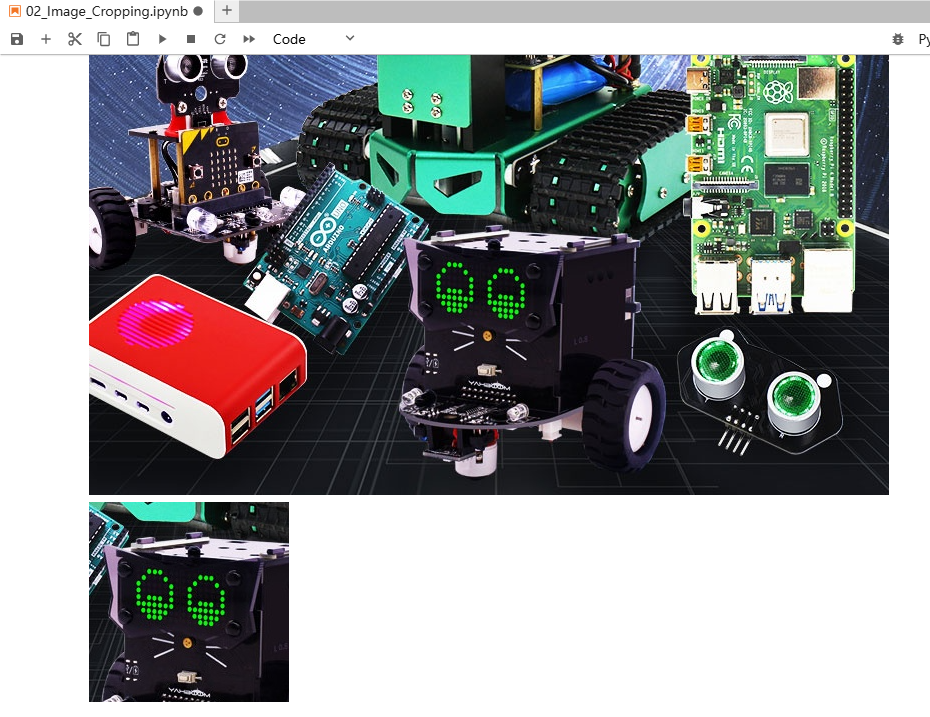
Image scaling
Image translation

COMPANY

  • About us
  • Team Style
  • Blog

LEARNING & EXPLORATION

  • Tutorials
  • Edge AI hardware
  • Educational robots
  • Embedded intelligent hardware

WHERE TO BUY

  • Yahboom Online Store
  • Amazon
  • Alibaba
  • AliExpress
  • Mercado

TECHNOLOGY SUPPORT

  • Email: support@yahboom.com

BE A DISTRIBUTOR

  • Email: sales@yahboom.com
QR Code

Copyright © 2017-2026 Yahboom. All Rights Reserved.

EN/中文