yahboom
HomeLearn
Solution
Blog
Online Store
About Us
EN/中文
Rider Pi Robot📖
0.Quick Start
  • 0. Notes (Must Read)new
  • 1.APP control experience
  • 2.Web page image transmission controlnew
  • 3.Manual
1.RPi Basic course
  • 1.SSH remote login
  • 2.VNC remote login desktop
  • 3. Remote file transfer
  • 4. JupyterLab environment construction and use
  • 5. Write system image
  • 6. Connect to WiFi
  • 7. Close startup programs(MustRead)
  • 8. Raspberry Pi system expansion
2.Car basic control course
  • 1. Car screen display control
  • 2. Car recording audio
  • 3. Car plays audio
  • 4. Car recording video
  • 5. Car plays video
  • 6. RGB light control
  • 7. Car attitude angle reading
  • 8. Read the battery level of the car
3.Car motion control
  • 1. Car forward and backward
  • 2. Car rotation movement
  • 3. Adjust car height
  • 4. Adjust car posture
  • 5. Car self-stabilization mode
  • 6. Car squats and shakes
4.Open Source CV
A. Getting started with OpenCV
  • 1. Introduction to OpenCV
  • 2. OpenCV image reading and display
  • 3. OpenCV image writing
  • 4. OpenCV Image Quality
  • 5.OpenCV pixel operations
B. OpenCV geometric transformation
  • 1. Image scaling
  • 2. Image cutting
  • 3. Image translation
  • 4. Image mirroring
  • 5. Affine Transformation
  • 6. Image Rotation
  • 7. Perspective Transformation
C. OpenCV image processing and drawing text segments
  • 1. Grayscale processing
  • 2. Image Binarization
  • 3. Edge Detection
  • 4. Line drawing
  • 5. Rectangle and circle drawing
  • 6. Text and picture drawing
D. Image beautification
  • 1. Color Image Histogram
  • 2. Histogram Equalization
  • 3. Image repair
  • 4. Brightness enhancement
  • 5. Skin whitening
  • 6. Gaussian mean filtering
  • 7. Median Filter
5.AI Visual recognition course
  • 1. Camera driver tutorial
  • 2. Color recognition
  • 3. HSV value test
  • 4. Object Recognition
  • 5. QR code recognition
  • 6. Human face mask
  • 7. License Plate Recognition
  • 8. Human Pose Estimation
  • 9. Object Detection
  • 10.Yolo detection
  • 11. Face Detection
  • 12. Face effects
  • 13. 3D Object Recognition
  • 14. Paintbrush
  • 15. Finger recognition
  • 16. Gesture Recognition
  • 17.Facial Recognitionnew
  • 18.Emotion Recognitionnew
  • 19.Motion Detectionnew
6.AI Visual interaction course
  • 1. Color tracking
  • 2. Color follows
  • 3. QR code recognition action
  • 4. Face tracking
  • 5. Finger control
  • 6. Gesture following
  • 7. Gesture control car
  • 8. Human Body Followingnew
7. AI Large Model Interaction
  • 0.Principles of Large AI Models
  • 1.Large model premise use configuration
  • 2.Q&A(For cm5)
  • 3.Q&A and ChatGPT(For cm4)
  • 4.Speech recognition
  • 5.Picture to Text
  • 6.Embodied intelligence
Download
  • APP(iOS/Android)
  • System_File
  • Code
  • Hareware_Info
  • AI_Model_File
  • 3D_Model_File
  • Instruction_Manual
Download ZIP

Welcome to Rider Pi Robot repository

3. QR code recognition action

QR code recognition action

1. Experimental purpose

Drive the car to recognize the QR code and perform corresponding actions according to the information in the QR code.

2. Experimental path source code

Enter the car system and end the car program Then enter the terminal

/home/pi/Rider-pi_class/6.AI Visual Interaction Course/3. QR code recognition/
python3 qrcode_sport.py

3. Experimental phenomenon

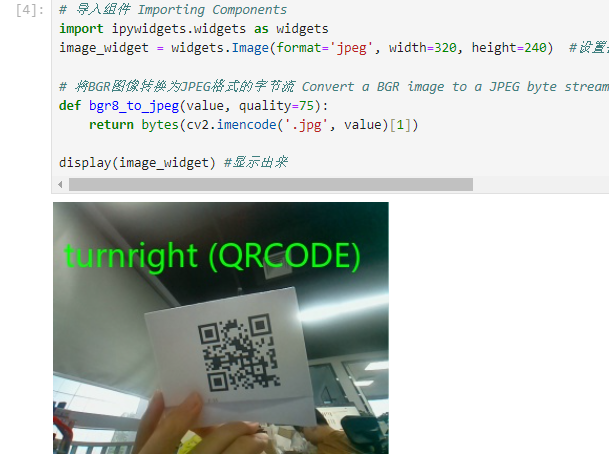
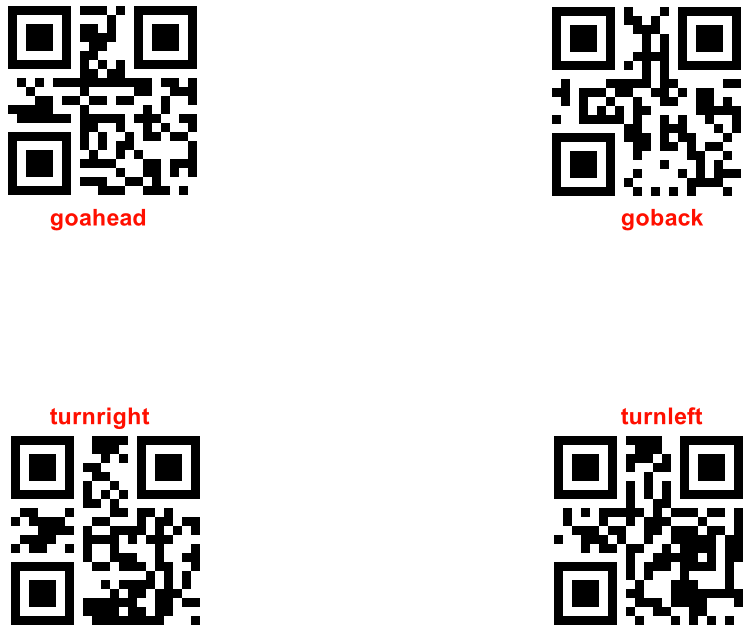
After running the source code, you can see that the car can recognize the information of the QR code and display the result of the QR code. The car will also perform corresponding actions according to the QR code image-2024112100002
QR codes that can be recognized in this tutorialimage-2024112100003
4. Main source code analysis

​x
import pyzbar.pyzbar as pyzbar
​
def cv2AddChineseText(img, text, position, textColor=(0, 255, 0), textSize=30):
    if (isinstance(img, np.ndarray)):  
        img = Image.fromarray(cv2.cvtColor(img, cv2.COLOR_BGR2RGB))
    draw = ImageDraw.Draw(img)
    fontStyle = ImageFont.truetype(
        "/home/pi/model/msyh.ttc", textSize, encoding="utf-8")
    draw.text(position, text, textColor, font=fontStyle)
    return cv2.cvtColor(np.asarray(img), cv2.COLOR_RGB2BGR)
​
 
font = cv2.FONT_HERSHEY_SIMPLEX 
cap=cv2.VideoCapture(0)
cap.set(3,320)
cap.set(4,240)
if(not cap.isOpened()):
    print("[camera.py:cam]:can't open this camera")
​
while(True):
    barcodeData = ""
    ret, img = cap.read() 
    img_ROI_gray = cv2.cvtColor(img, cv2.COLOR_BGR2GRAY)
    barcodes = pyzbar.decode(img_ROI_gray) 
    for barcode in barcodes:
        barcodeData = barcode.data.decode("utf-8")
        barcodeType = barcode.type
        text = "{} ({})".format(barcodeData, barcodeType)
        img=cv2AddChineseText(img,text, (10, 30),(0, 255, 0), 30)
        print("[INFO] Found {} barcode: {}".format(barcodeType, barcodeData))
​
    
    b,g,r = cv2.split(img)
    img = cv2.merge((r,g,b))
    imgok = Image.fromarray(img)
    display.ShowImage(imgok)
​
    r,g,b = cv2.split(img)
    img1 = cv2.merge((b,g,r))
    cv2.imshow("image1",img1)
​
​
    if(barcodeData == "goahead"):
        g_car.rider_move_x(0.5,0.2) #前进0.2s
    elif(barcodeData == "goback"):
        g_car.rider_move_x(-0.5,0.2) #后退0.2s
​
    elif(barcodeData == "turnright"):
        g_car.rider_turn(-200,0.2) #右转0.2s
    elif(barcodeData == "turnleft"):
        g_car.rider_turn(200,0.2) #左转0.2s
​
    elif(barcodeData == "updown"):
        g_car.rider_periodic_z(2) 
        time.sleep(2.5)#蹲起2.5s
        g_car.rider_periodic_z(0) 
​
    elif(barcodeData == "shake"):
        g_car.rider_periodic_roll(2) #左右晃动2.5s
        time.sleep(2.5)
        g_car.rider_periodic_roll(0)
​
### If you want to add more QR code recognition information
### You can add it here, using the elif statement.    
    ### 如果想要添加更多的二维码识别信息
    ### 可以添加在这,使用elif语句即可。
​
​
    if (cv2.waitKey(1)) == ord('q'):
        break
    if button.press_b():
        break
​
cap.release()
​

Through the source code, we can see that the car uses the camera to identify, displays the identified QR code results on the car's screen and the computer's screen, and lets the car run the actions corresponding to the code.

Color follows
Face tracking

COMPANY

  • About us
  • Team Style
  • Blog

LEARNING & EXPLORATION

  • Tutorials
  • Edge AI hardware
  • Educational robots
  • Embedded intelligent hardware

WHERE TO BUY

  • Yahboom Online Store
  • Amazon
  • Alibaba
  • AliExpress
  • Mercado

TECHNOLOGY SUPPORT

  • Email: support@yahboom.com

BE A DISTRIBUTOR

  • Email: sales@yahboom.com
QR Code
QR Code

Copyright © 2017-2026 Yahboom. All Rights Reserved.

EN/中文