Welcome to DOFBOT-Ultra repository
2. MoveIt Usage
MoveIt Usage
Please ensure that the web control program backend process is not running in the background. To close it, refer to the [Get Started Quickly - 2. Access the Terminal] section in [Disable the Auto-Start Web Control Backend Process]. After closing, please restart DofbotUltra!!!
MoveIt Usage1. Usage Environment2. Launch MoveIt3. Custom Pose3.1. Set Pose3.2. Plan Motion3.3. Execute Motion4. Preset Poses4.1. Arm Poses4.1.1. Set Pose4.1.2. Plan and Execute Pose4.2. Gripper Poses4.2.1. Set Pose4.2.2. Plan and Execute Pose4.3. Planning Options
1. Usage Environment
Motherboard: VMware Workstation virtual machine Ubuntu 22.04 image
ROS2: Humble
2. Launch MoveIt
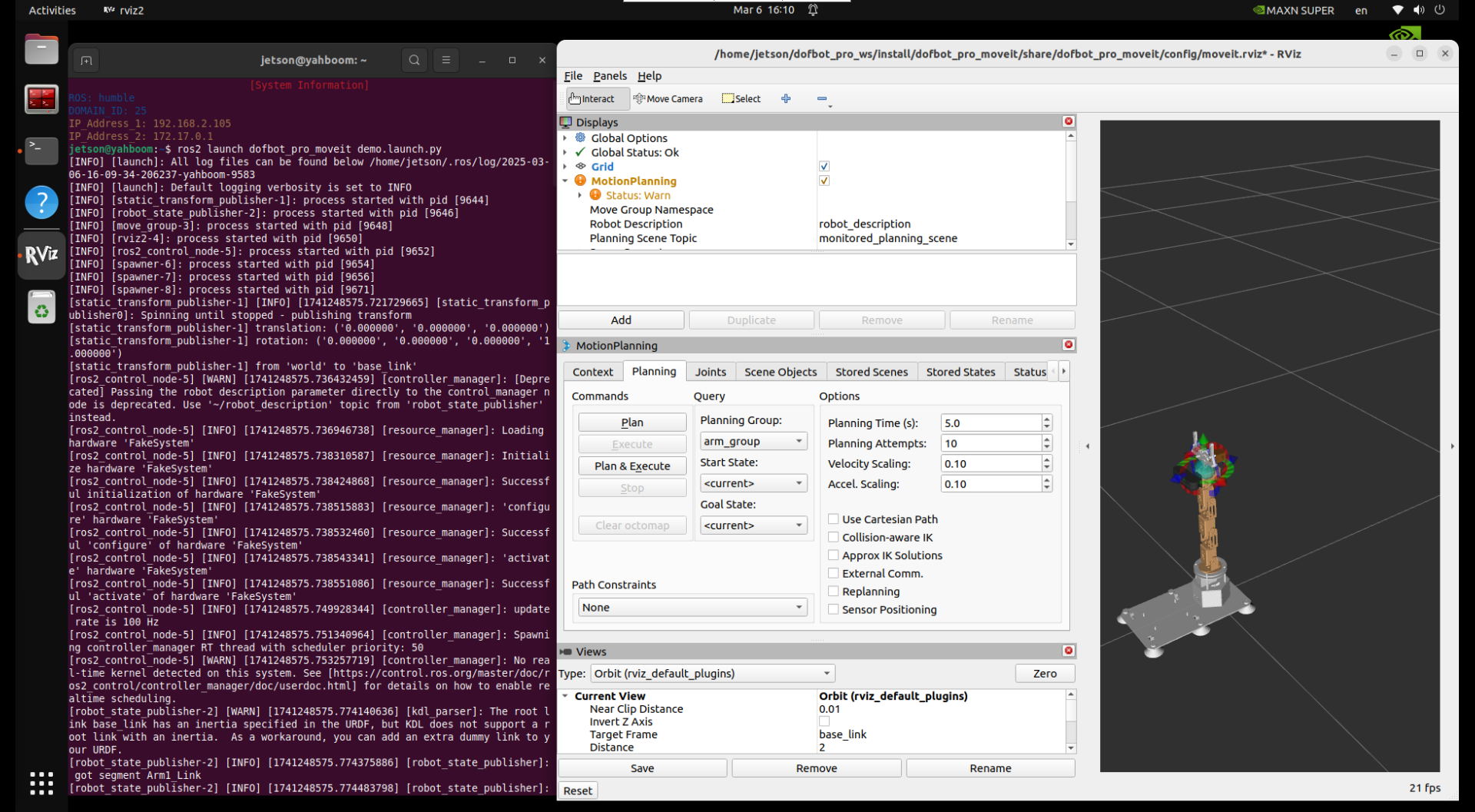
ros2 launch dofbot_ultra_moveit demo.launch.py
3. Custom Pose
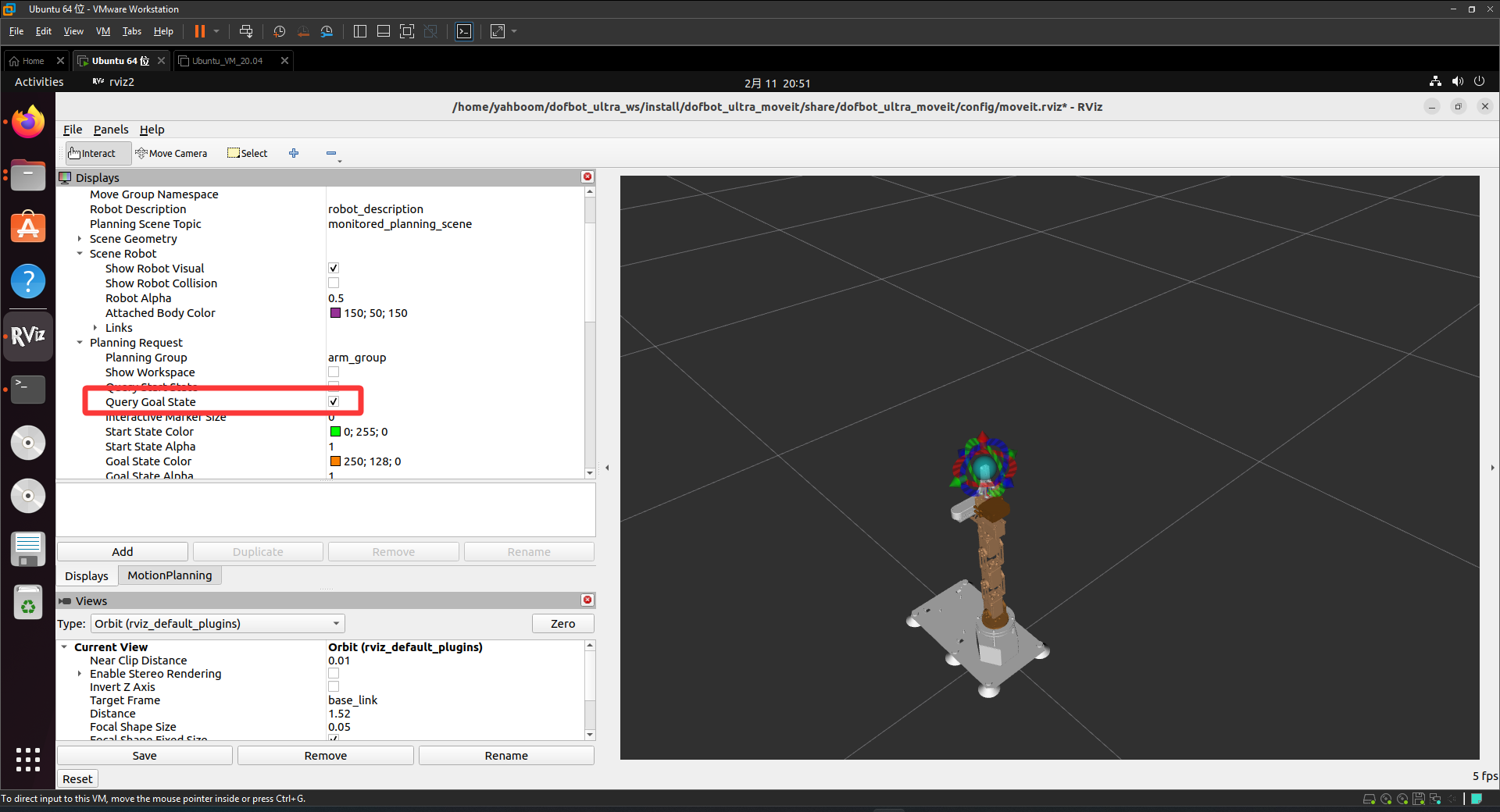
First, open the simulated arm's Display --> MotionPlanning --> Planning Request
3.1. Set Pose
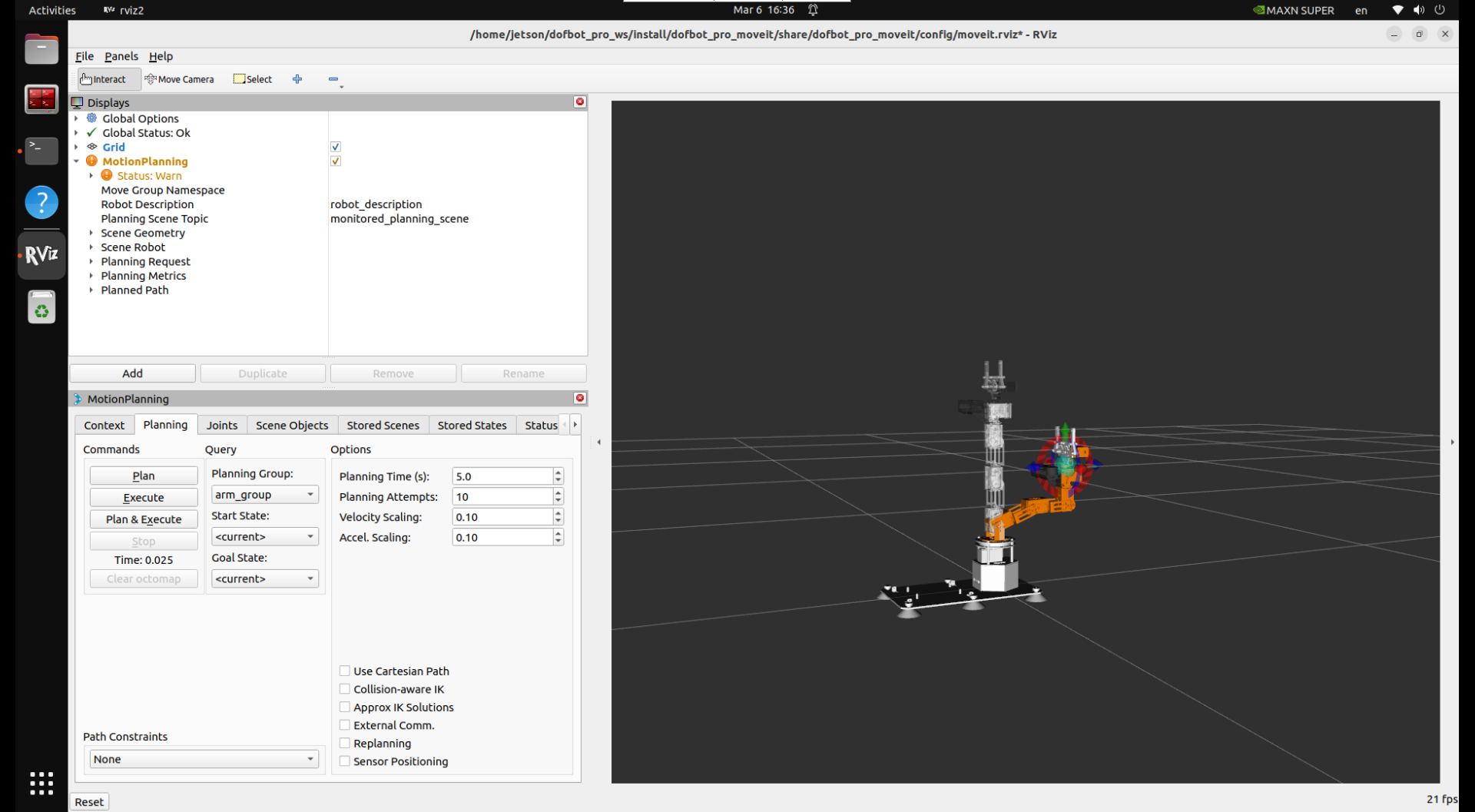
Control the arm pose by dragging the trajectory ball on the arm in RViz. The trajectory ball is a newly added sphere on the arm, and the yellow arm is the target state.
Note: The arm will only change its pose if the dragged trajectory ball is within a reachable position. (By default, MoveIt's IK inverse kinematics is very strict.)
If you find no change, you can enable the Approx IK Solutions option in the panel. When this option is enabled, the arm will be allowed to reach positions near the dragged ball (rather than the exact coordinate position), i.e., reachable points near the ball.
3.2. Plan Motion
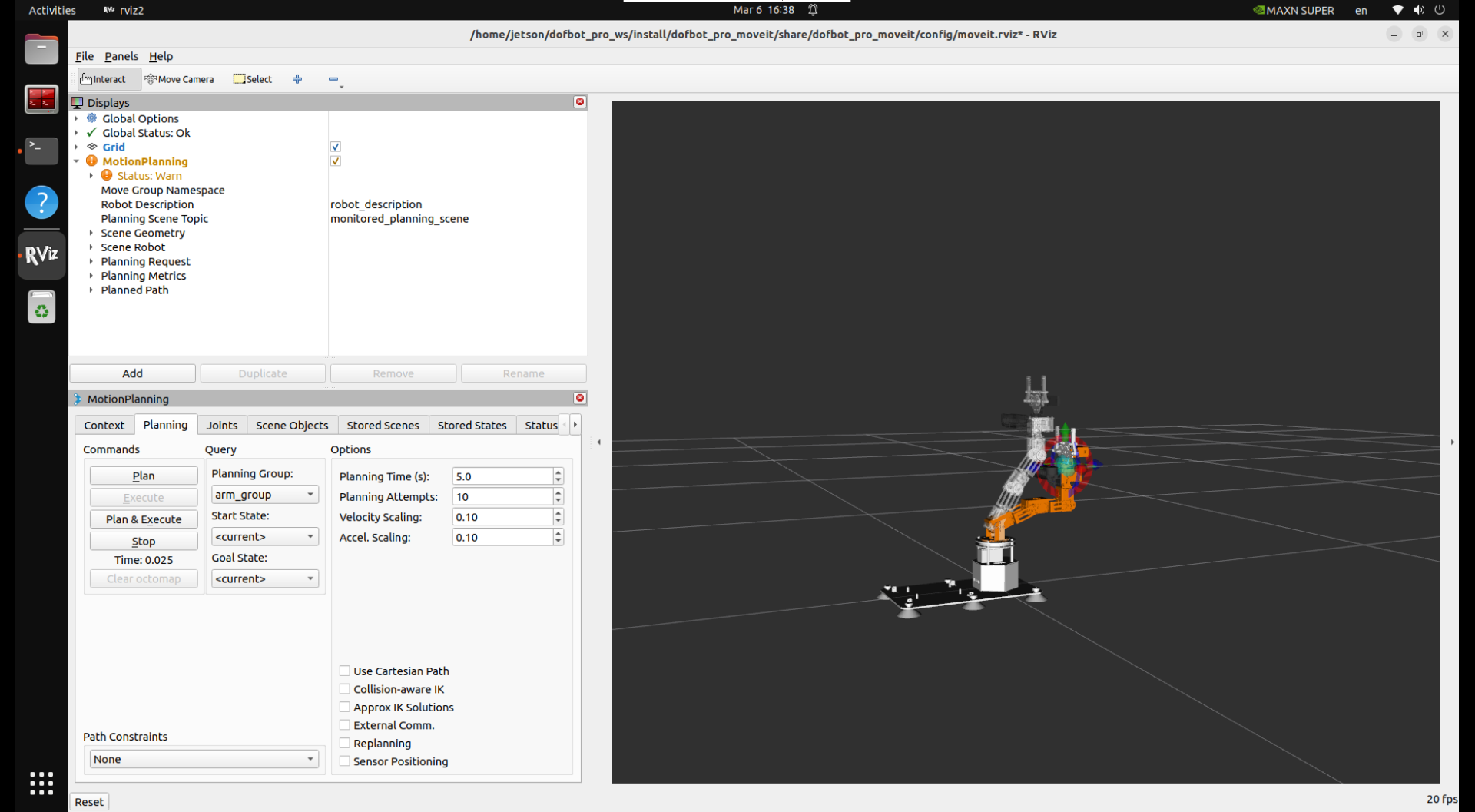
Click MotionPlanning → Planning → Plan to plan the arm motion to the specified pose.
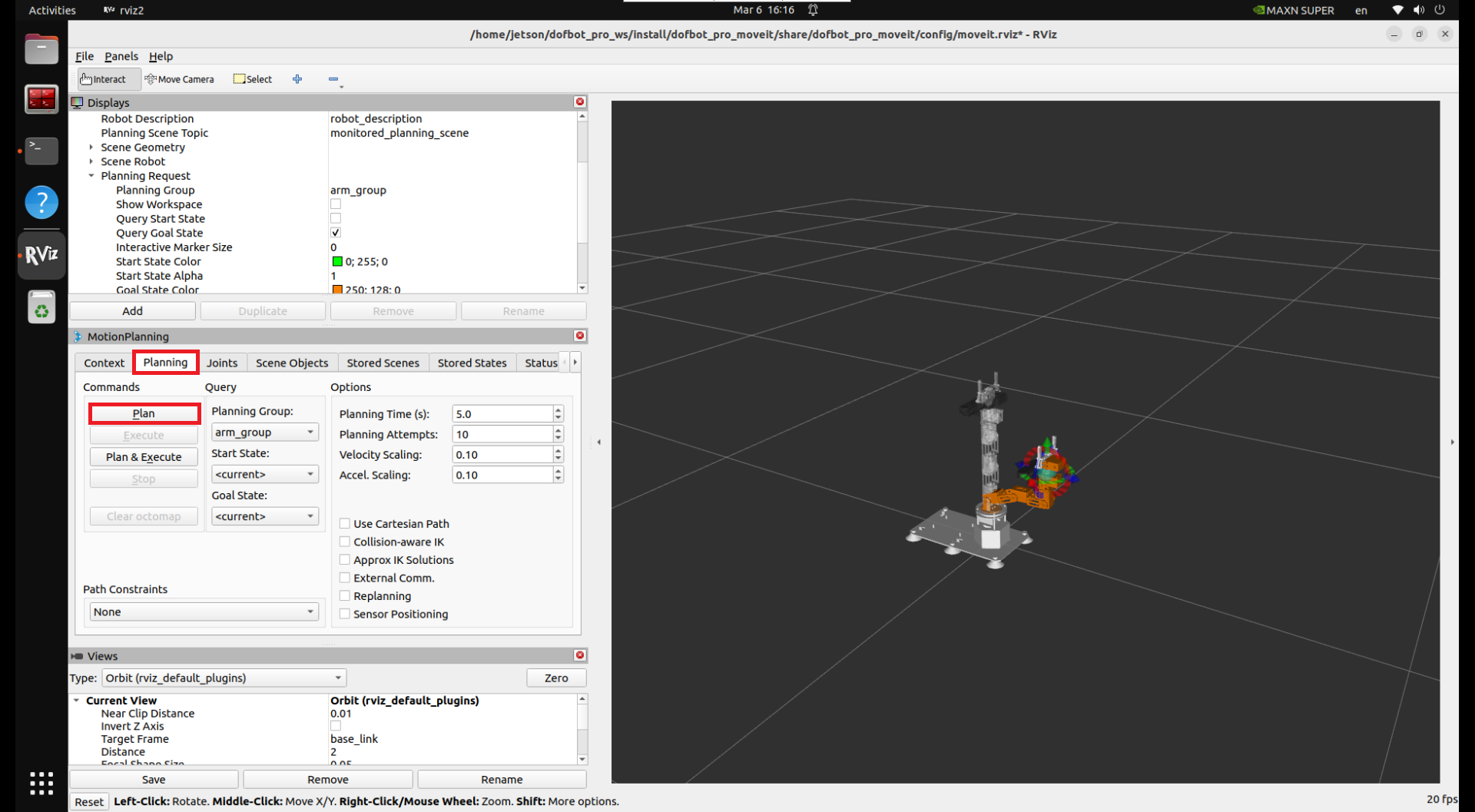
Start Planning Motion
The ghost image of the arm is the planned motion. If the loop planning path option is not set, the arm will repeatedly plan the path.
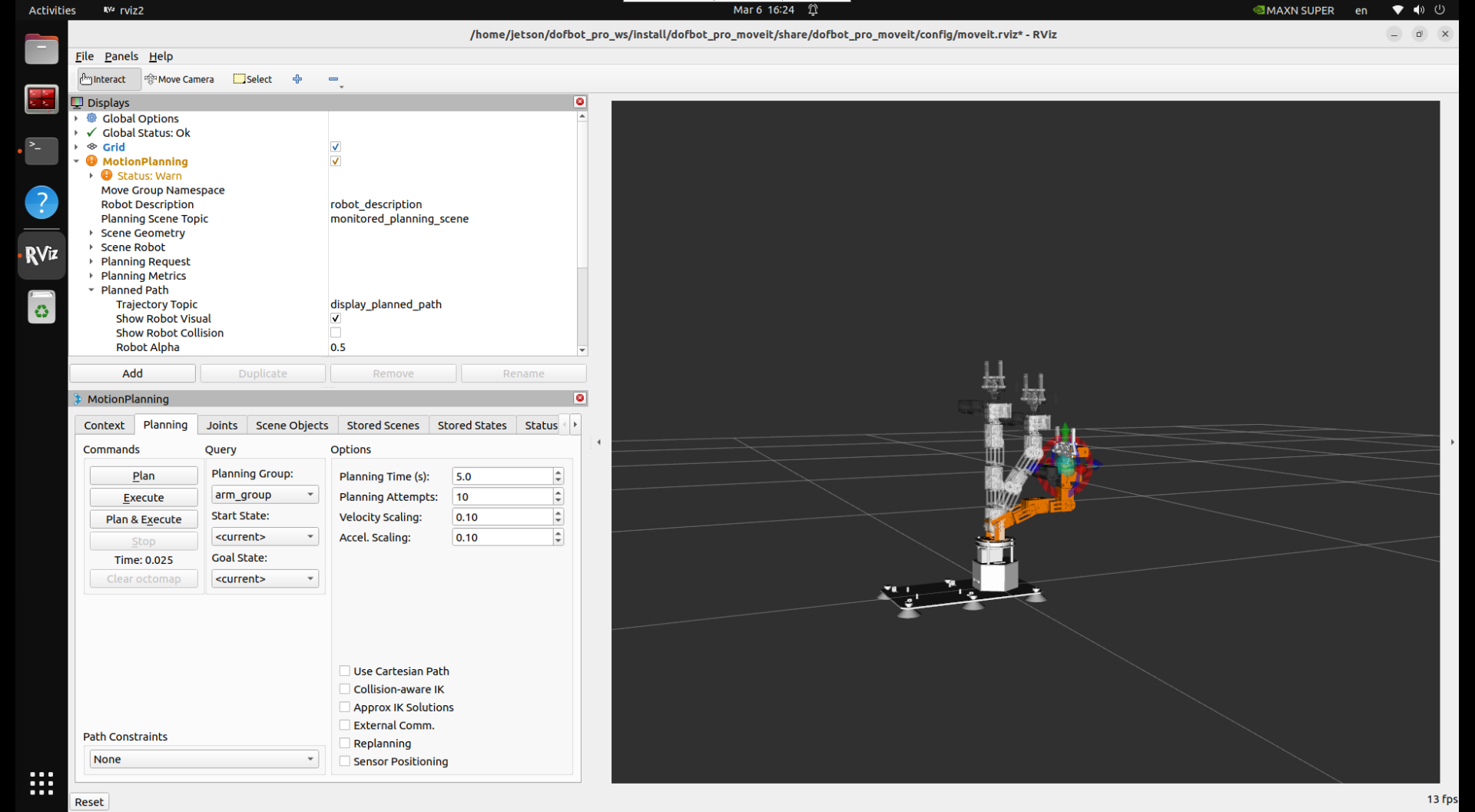
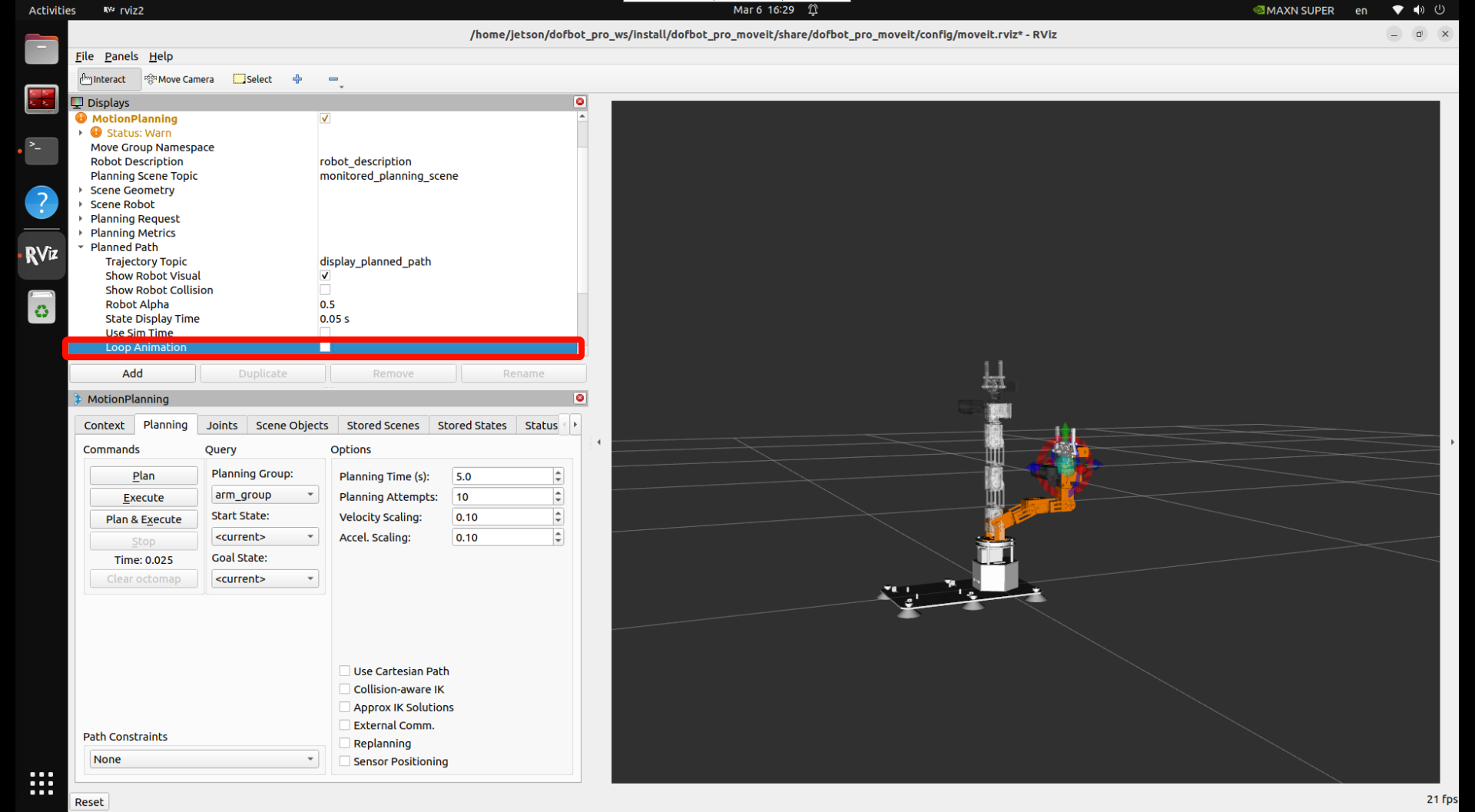
Disable loop planning path: After disabling, the arm will only plan the path once to the specified pose.
3.3. Execute Motion
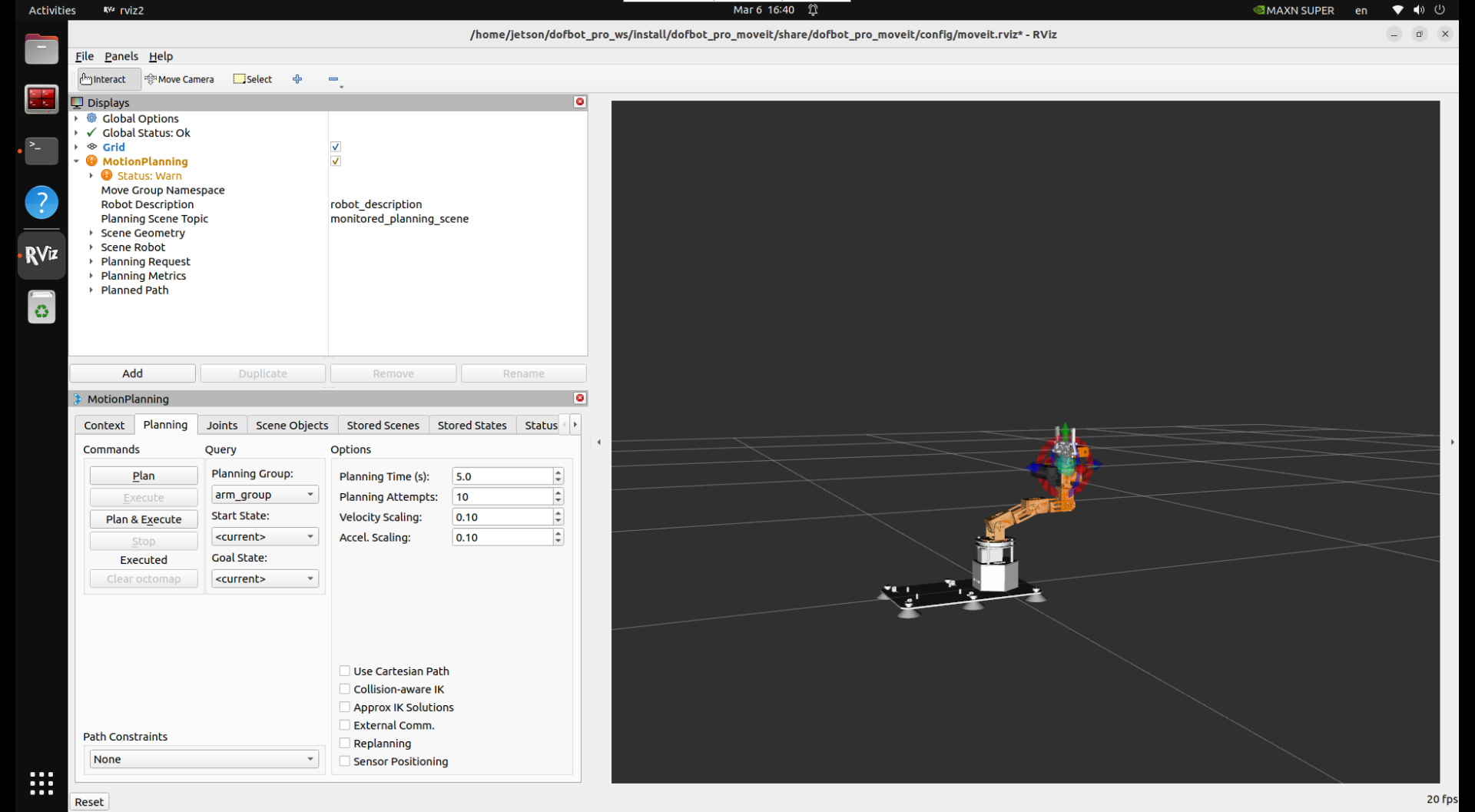
Click MotionPlanning → Planning → Execute to make the arm move to the specified pose.
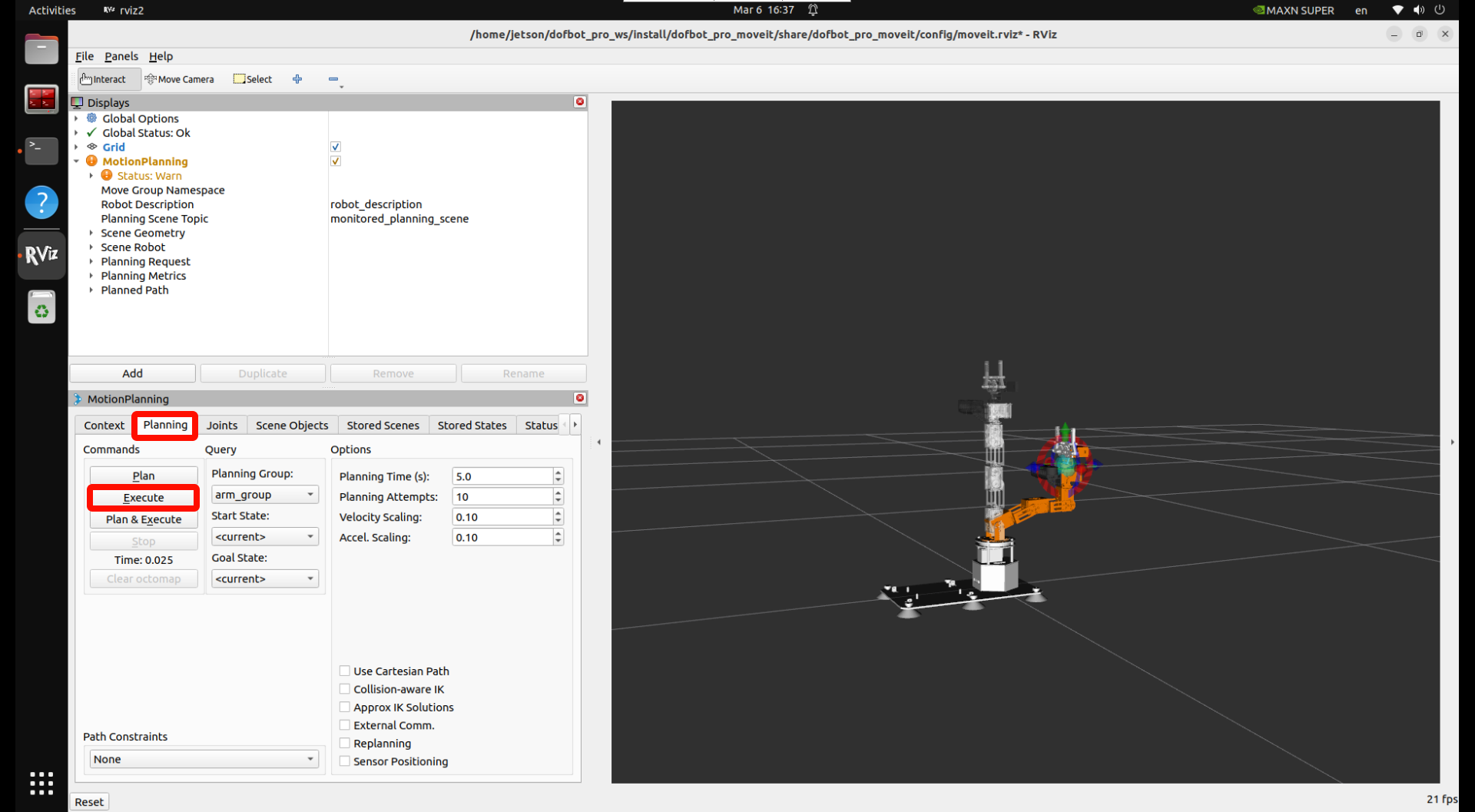
Start Executing Motion
After clicking the execute option, the arm will move to the target state until it coincides.
4. Preset Poses
Preset poses are the poses set in MoveIt Setup Assistant.
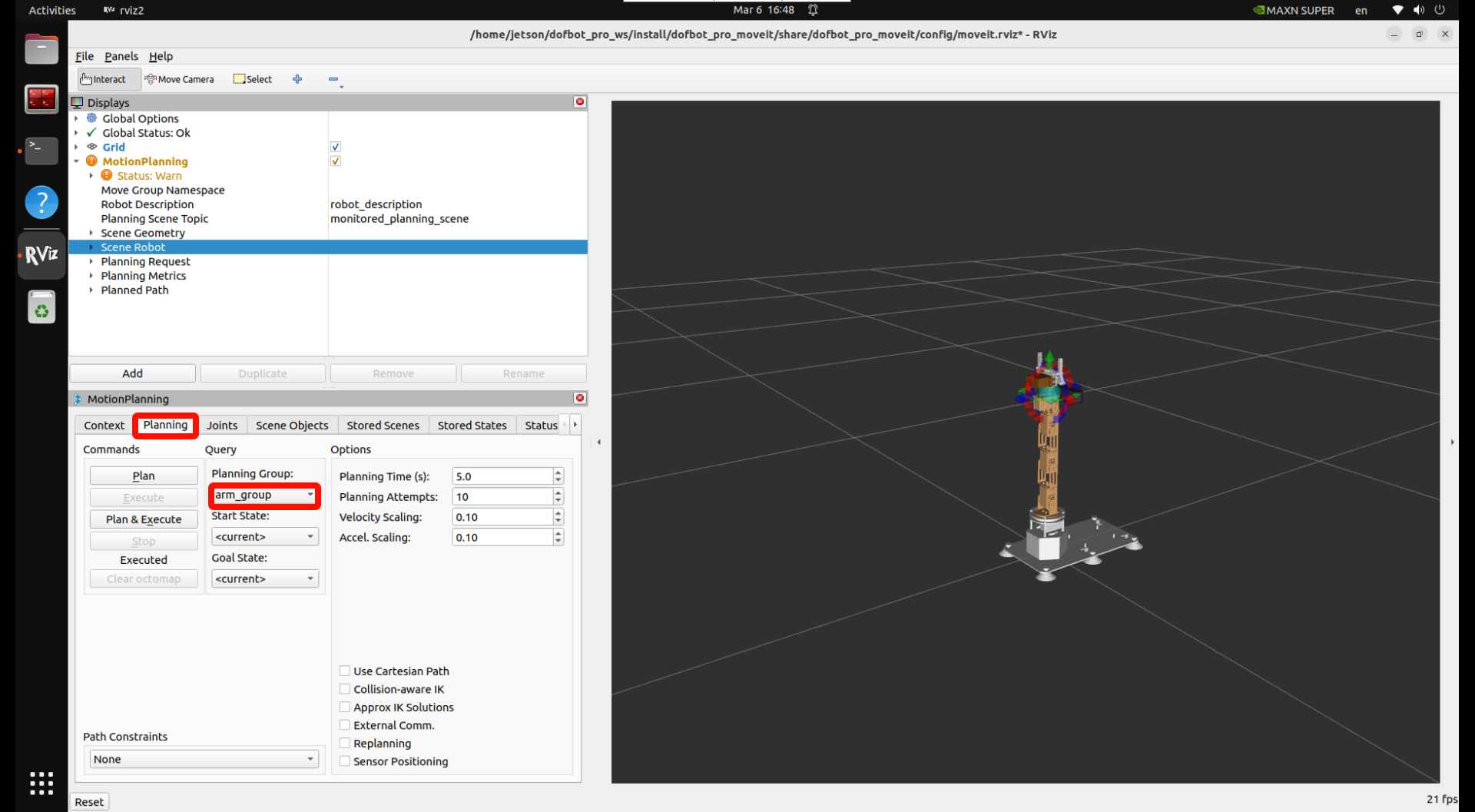
In MotionPlanning → Planning → Planning Group, you can set the planning group: arm or gripper.
In MotionPlanning → Planning → Start State, you can set the planning start pose.
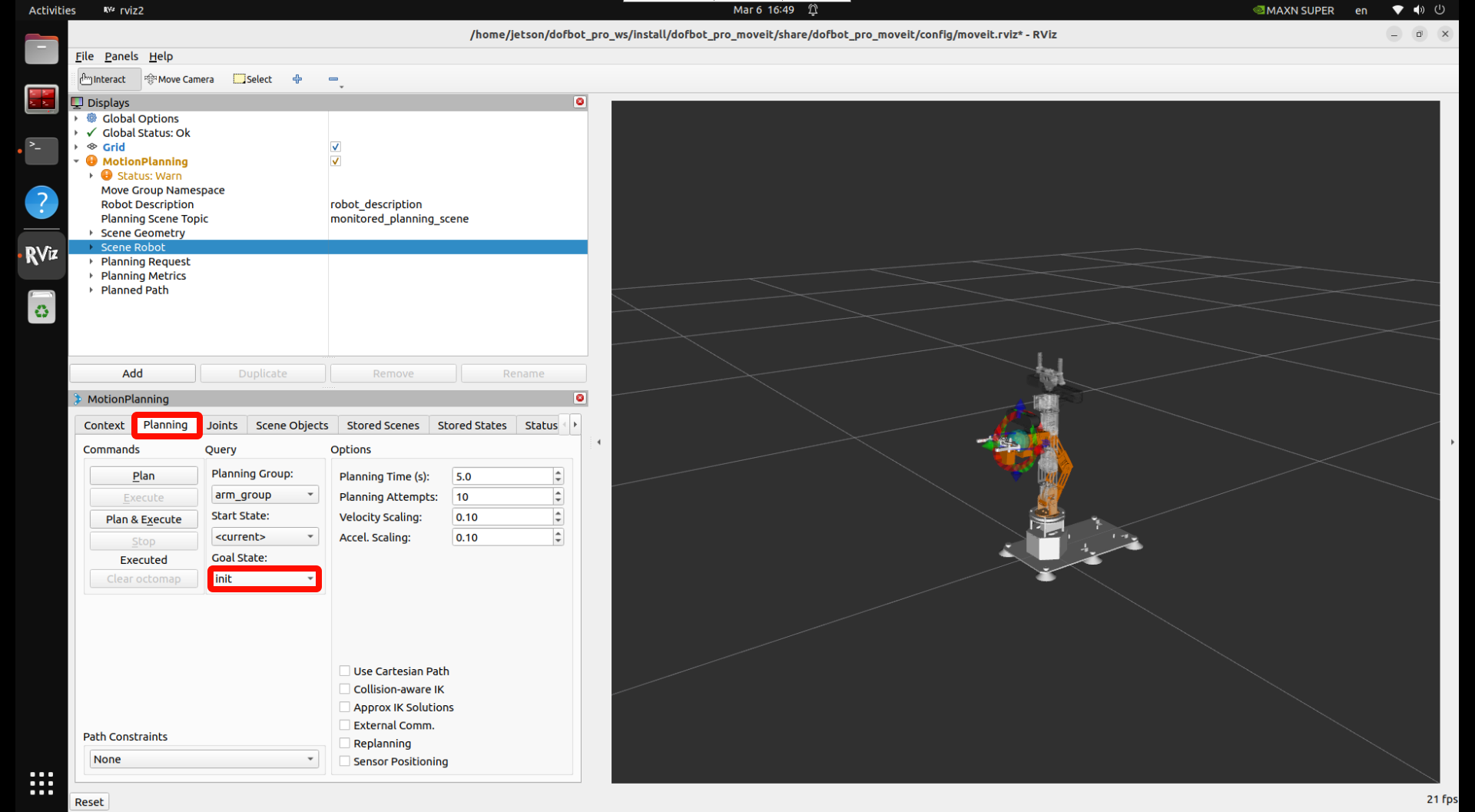
In MotionPlanning → Planning → Goal State, you can set the planning goal pose.
4.1. Arm Poses
In MotionPlanning → Planning → Planning Group, set the planning group: arm_group.
4.1.1. Set Pose
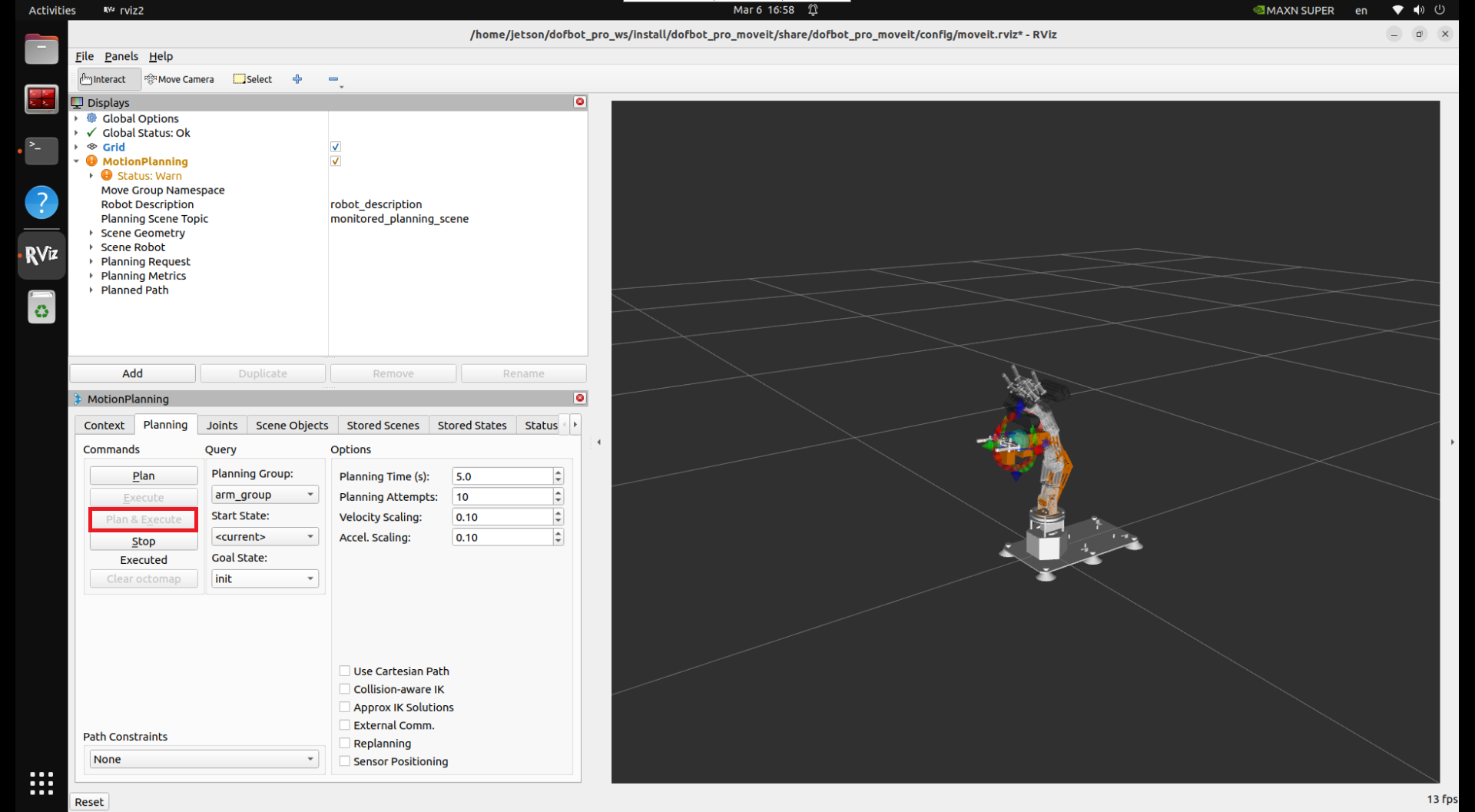
In MotionPlanning → Planning → Goal State, set the planning goal pose: init
4.1.2. Plan and Execute Pose
Click MotionPlanning → Planning → Plan & Execute to make the arm plan and execute to the specified pose.
4.2. Gripper Poses
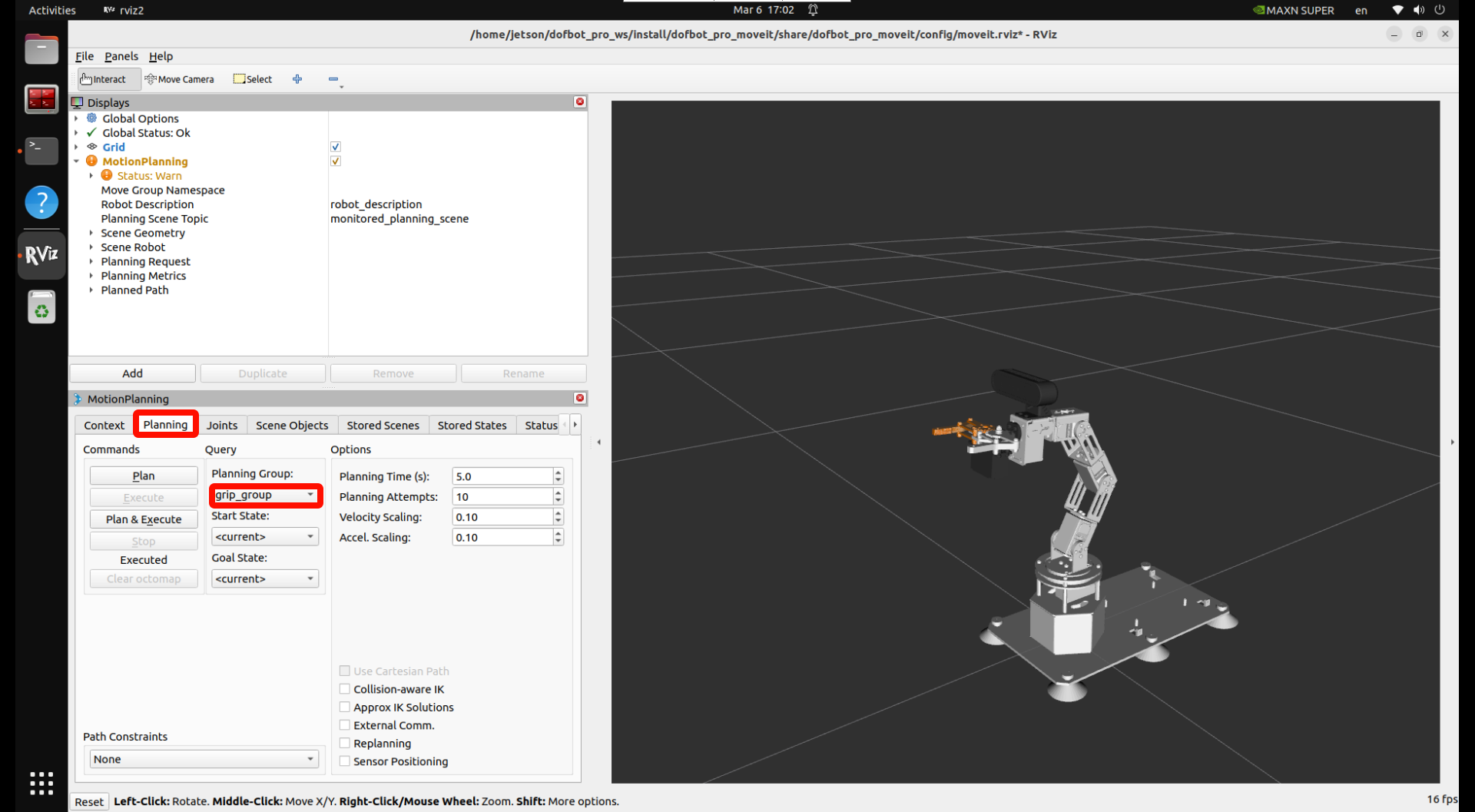
In MotionPlanning → Planning → Planning Group, set the planning group: grip_group.
4.2.1. Set Pose
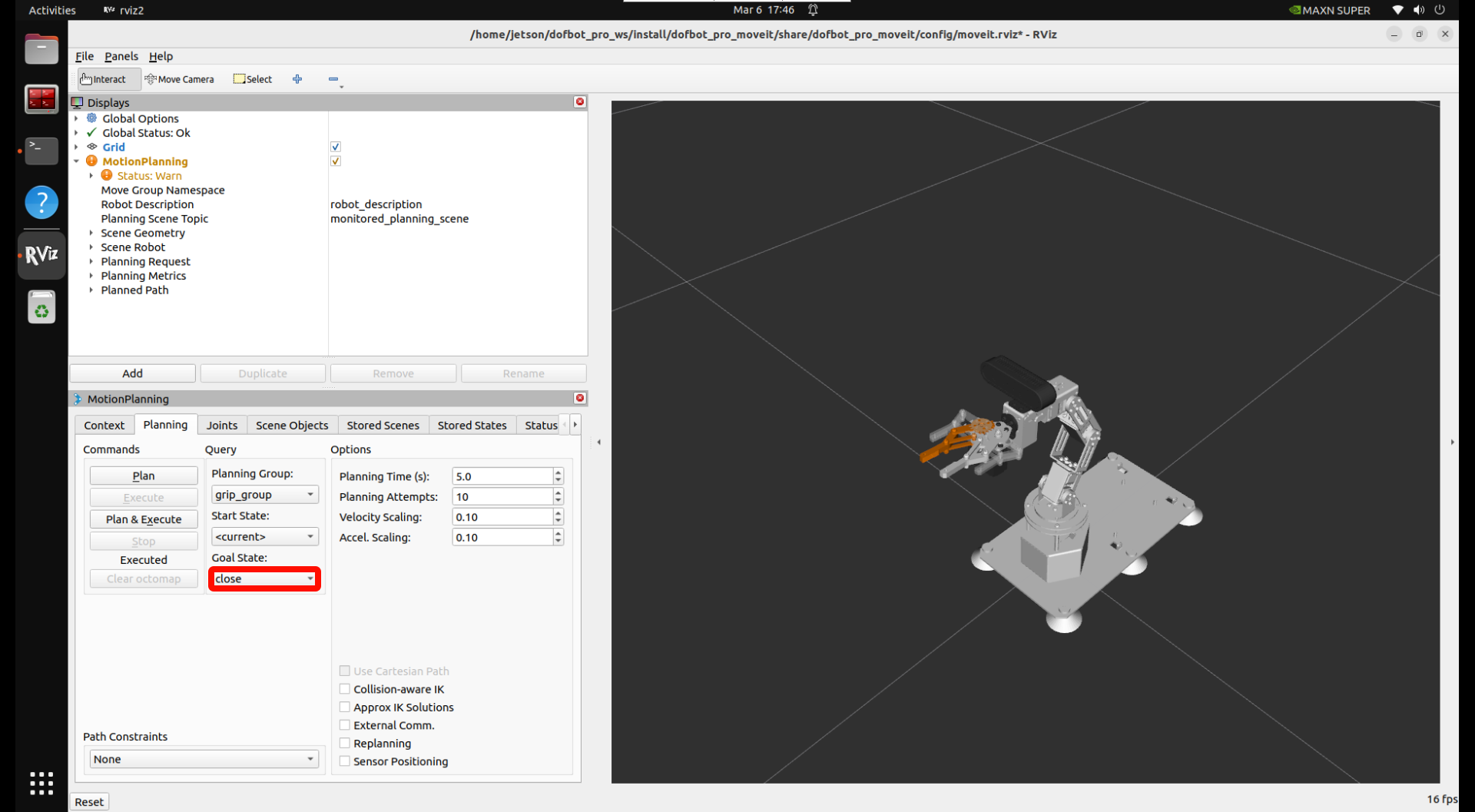
In MotionPlanning → Planning → Goal State, set the planning goal pose: close
4.2.2. Plan and Execute Pose
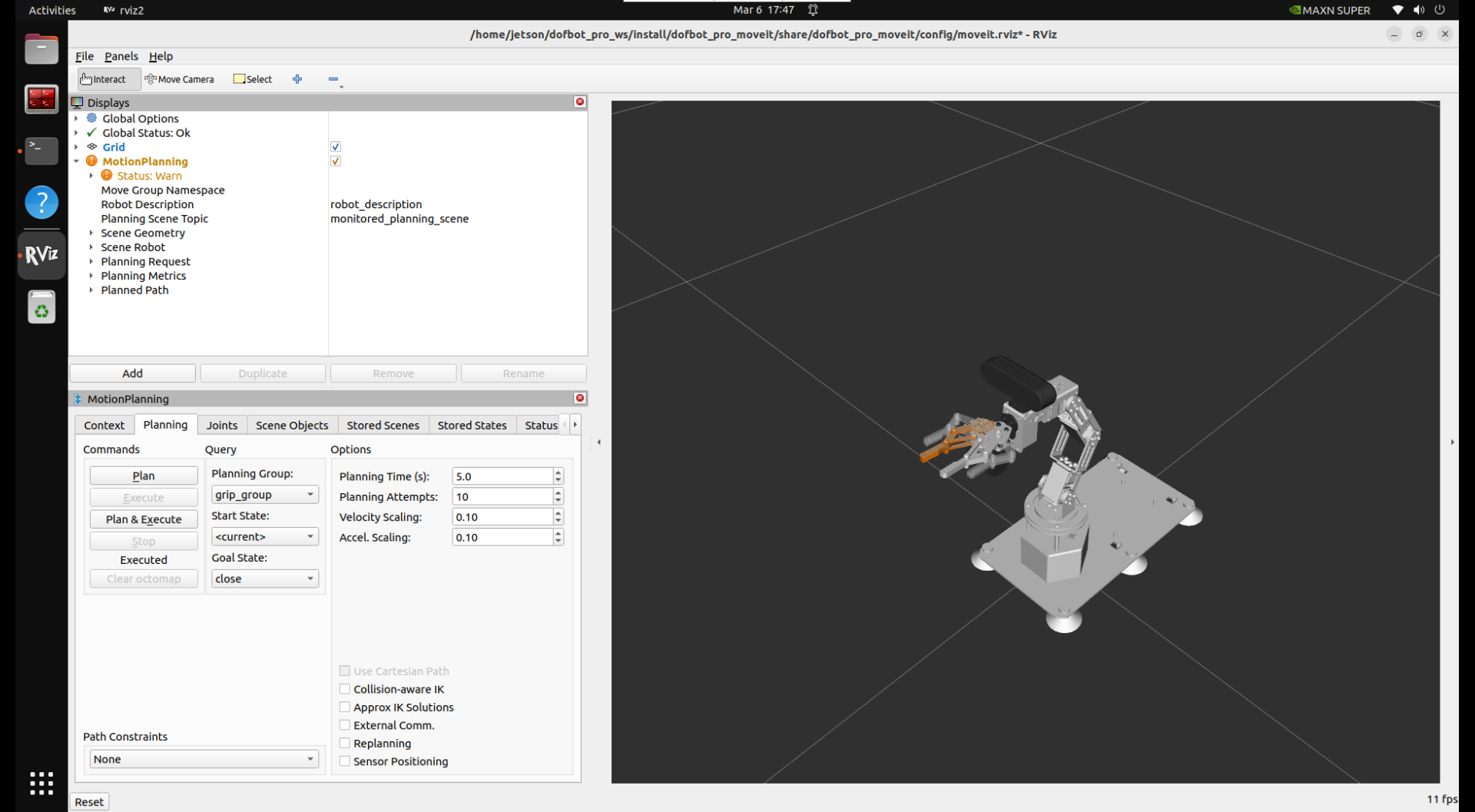
Click MotionPlanning → Planning → Plan & Execute to make the gripper plan and execute to the specified pose.
4.3. Planning Options
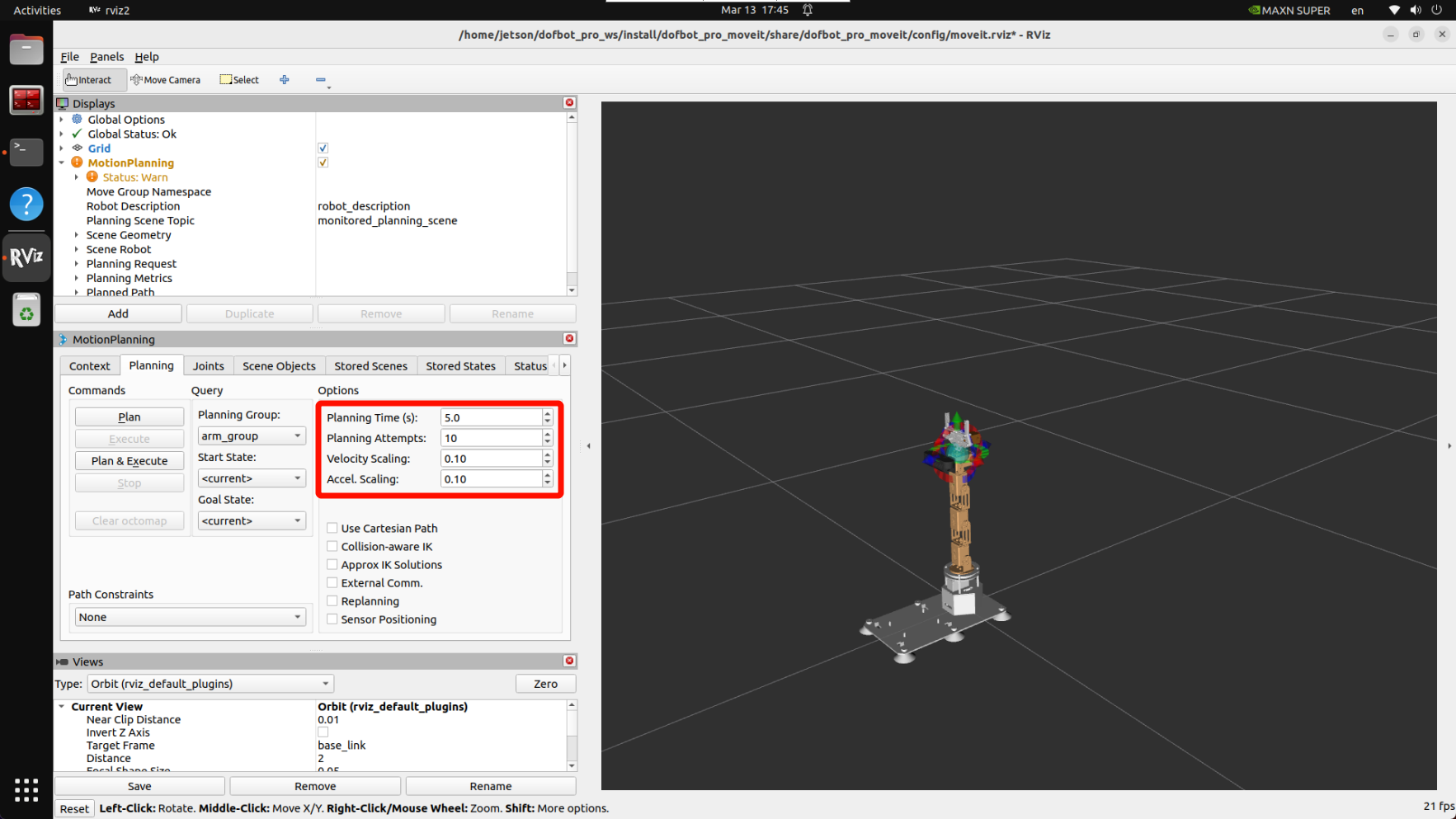
MotionPlanning → Planning → Options allows you to control Planning Time, Planning Attempts, Velocity Scaling, and Accel. Scaling.