Welcome to DOFBOT-Ultra repository
7. Oriented Bounding Boxes Object Detection
Oriented Bounding Boxes Object Detection
Please ensure that the web control program backend process is not running in the background. To close it, refer to the [Get Started Quickly - 2. Access the Terminal] section in [Disable the Auto-Start Web Control Backend Process]. After closing, please restart DofbotUltra!!!
Oriented Bounding Boxes Object Detection1. Model Introduction2. Oriented Bounding Boxes Object Detection: ImagePreview3. Oriented Bounding Boxes Object Detection: VideoPreview4. Oriented Bounding Boxes Object Detection: Real-time Detection4.1. USB CameraPreview4.2. CSI CameraPreviewReferences
Demonstrating Ultralytics Oriented Bounding Boxes Object Detection effects on images, videos, and real-time detection using Python.
1. Model Introduction
Oriented bounding box object detection, also called oriented object detection, goes a step further than standard object detection by introducing an additional angle to more accurately locate objects in an image.
The output of an oriented object detector is a set of rotated bounding boxes that precisely enclose objects in the image, along with class labels and confidence scores for each bounding box. Oriented bounding boxes are especially useful when objects appear at different angles, such as in aerial imagery, where traditional axis-aligned bounding boxes may include unnecessary background.
In simple terms, oriented object detection can use rotated boxes to precisely enclose rotated objects, thereby reducing unnecessary background areas and improving detection accuracy.
2. Oriented Bounding Boxes Object Detection: Image
Use yolo26n-obb.pt to predict images in the ultralytics project (non-ultralytics built-in images).
Navigate to the code folder:
cd /home/pi/ultralytics/ultralytics/yahboom_demo_26
Run the code:
xxxxxxxxxxpython3 05.obb_image.py
Preview
yolo recognition output image location: /home/pi/ultralytics/ultralytics/output/
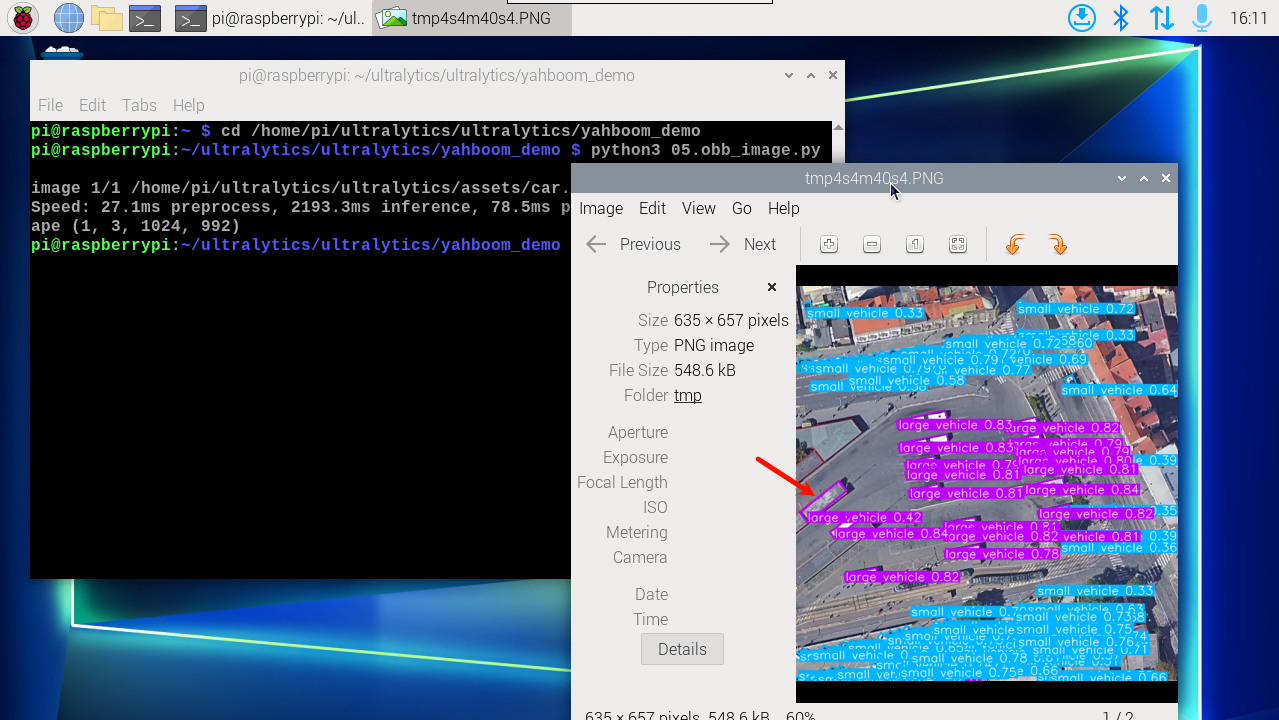
Sample code:
xfrom ultralytics import YOLO
# Load a modelmodel = YOLO("/home/pi/ultralytics/ultralytics/yolo26n-obb.pt")
# Run batched inference on a list of imagesresults = model("/home/pi/ultralytics/ultralytics/assets/car.jpg") # return a list of Results objects
# Process results listfor result in results: # boxes = result.boxes # Boxes object for bounding box outputs # masks = result.masks # Masks object for segmentation masks outputs # keypoints = result.keypoints # Keypoints object for pose outputs # probs = result.probs # Probs object for classification outputs obb = result.obb # Oriented boxes object for OBB outputs result.show() # display to screen result.save(filename="/home/pi/ultralytics/ultralytics/output/car_output.jpg") # save to disk3. Oriented Bounding Boxes Object Detection: Video
Use yolo26n-obb.pt to predict videos in the ultralytics project (non-ultralytics built-in videos).
Navigate to the code folder:
xxxxxxxxxxcd /home/pi/ultralytics/ultralytics/yahboom_demo_26
Run the code:
xxxxxxxxxxpython3 05.obb_video.py
Preview
yolo recognition output video location: /home/pi/ultralytics/ultralytics/output/
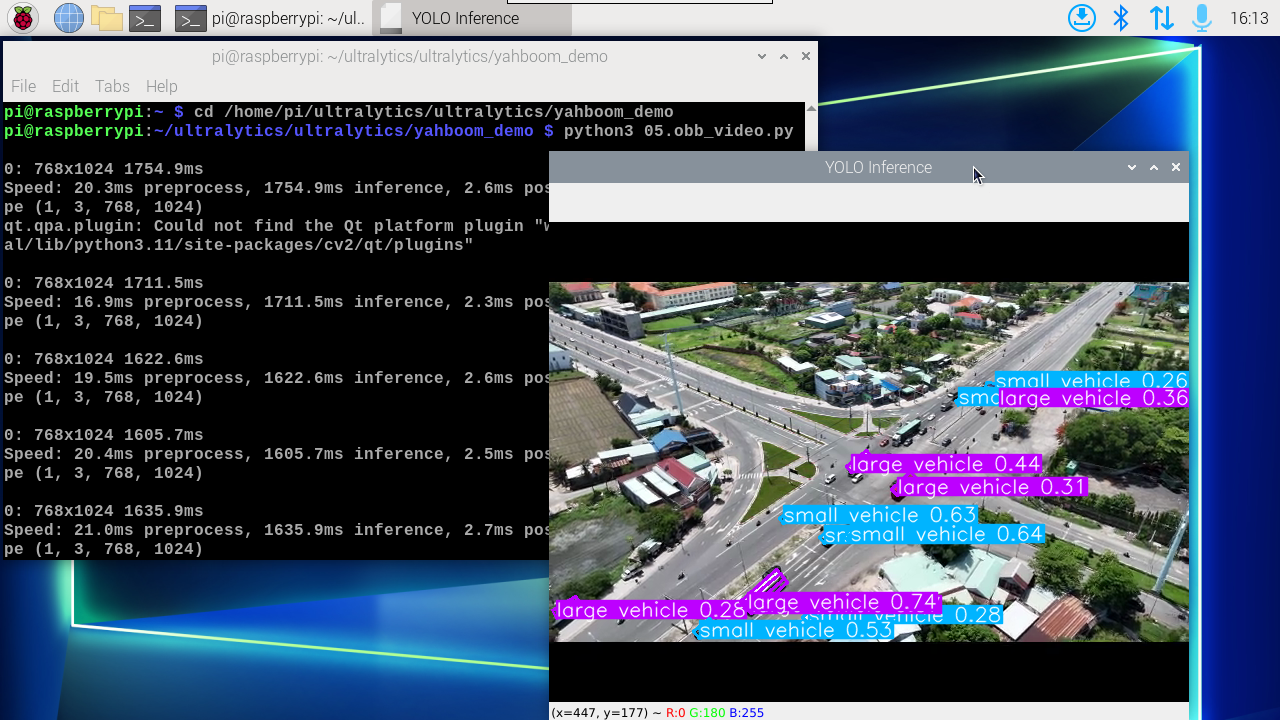
Sample code:
xxxxxxxxxximport cv2from ultralytics import YOLO
# Load the YOLO modelmodel = YOLO("/home/pi/ultralytics/ultralytics/yolo26n-obb.pt")
# Open the video filevideo_path = "/home/pi/ultralytics/ultralytics/videos/street.mp4"cap = cv2.VideoCapture(video_path)
# Get the video frame size and frame rateframe_width = int(cap.get(cv2.CAP_PROP_FRAME_WIDTH))frame_height = int(cap.get(cv2.CAP_PROP_FRAME_HEIGHT))fps = int(cap.get(cv2.CAP_PROP_FPS))
# Define the codec and create a VideoWriter object to output the processed videooutput_path = "/home/pi/ultralytics/ultralytics/output/05.street_output.mp4"fourcc = cv2.VideoWriter_fourcc(*'mp4v')  # You can use 'XVID' or 'mp4v' depending on your platformout = cv2.VideoWriter(output_path, fourcc, fps, (frame_width, frame_height))
# Loop through the video frameswhile cap.isOpened():    # Read a frame from the video    success, frame = cap.read()
    if success:        # Run YOLO inference on the frame        results = model(frame)            # Visualize the results on the frame        annotated_frame = results[0].plot()            # Write the annotated frame to the output video file        out.write(annotated_frame)            # Display the annotated frame        cv2.imshow("YOLO Inference", cv2.resize(annotated_frame, (640, 480)))            # Break the loop if 'q' is pressed        if cv2.waitKey(1) & 0xFF == ord("q"):            break    else:        # Break the loop if the end of the video is reached        break# Release the video capture and writer objects, and close the display windowcap.release()out.release()cv2.destroyAllWindows()
4. Oriented Bounding Boxes Object Detection: Real-time Detection
4.1. USB Camera
Use yolo26n-obb.pt to predict USB camera feed. (For demonstration purposes, the tutorial points the camera at the original video used for OBB detection.)
Navigate to the code folder:
xxxxxxxxxxcd /home/pi/ultralytics/ultralytics/yahboom_demo_26
Run the code: Click on the preview window, press the q key to terminate the program!
xxxxxxxxxxpython3 05.obb_camera_usb.py
Preview
yolo recognition output video location: /home/pi/ultralytics/ultralytics/output/
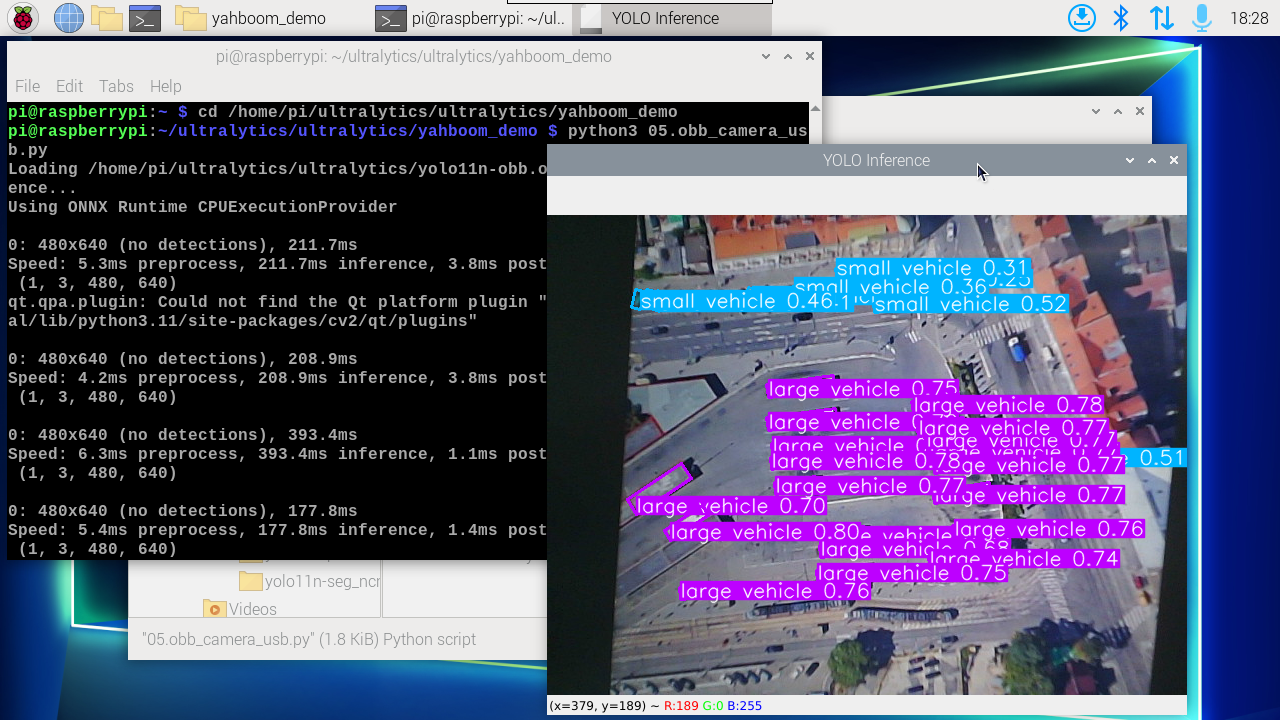
Sample code:
xxxxxxxxxximport cv2from ultralytics import YOLO
# Load the YOLO modelmodel = YOLO("/home/pi/ultralytics/ultralytics/yolo26n-obb.pt")
# Open the cammeracap = cv2.VideoCapture(0)
# Get the video frame size and frame rateframe_width = int(cap.get(cv2.CAP_PROP_FRAME_WIDTH))frame_height = int(cap.get(cv2.CAP_PROP_FRAME_HEIGHT))fps = int(cap.get(cv2.CAP_PROP_FPS))
# Define the codec and create a VideoWriter object to output the processed videooutput_path = "/home/pi/ultralytics/ultralytics/output/05.obb_camera_usb.mp4"fourcc = cv2.VideoWriter_fourcc(*'mp4v')  # You can use 'XVID' or 'mp4v' depending on your platformout = cv2.VideoWriter(output_path, fourcc, fps, (frame_width, frame_height))
# Loop through the video frameswhile cap.isOpened():    # Read a frame from the video    success, frame = cap.read()
    if success:        # Run YOLO inference on the frame        results = model(frame)            # Visualize the results on the frame        annotated_frame = results[0].plot()            # Write the annotated frame to the output video file        out.write(annotated_frame)            # Display the annotated frame        cv2.imshow("YOLO Inference", cv2.resize(annotated_frame, (640, 480)))            # Break the loop if 'q' is pressed        if cv2.waitKey(1) & 0xFF == ord("q"):            break    else:        # Break the loop if the end of the video is reached        break# Release the video capture and writer objects, and close the display windowcap.release()out.release()cv2.destroyAllWindows()
4.2. CSI Camera
Use yolo26n-obb.pt to predict CSI camera feed.
Navigate to the code folder:
xxxxxxxxxxcd /home/pi/ultralytics/ultralytics/yahboom_demo_26
Run the code: Click on the preview window, press the q key to terminate the program!
xxxxxxxxxxpython3 05.obb_camera_csi.py
Preview
yolo recognition output video location: /home/pi/ultralytics/ultralytics/output/
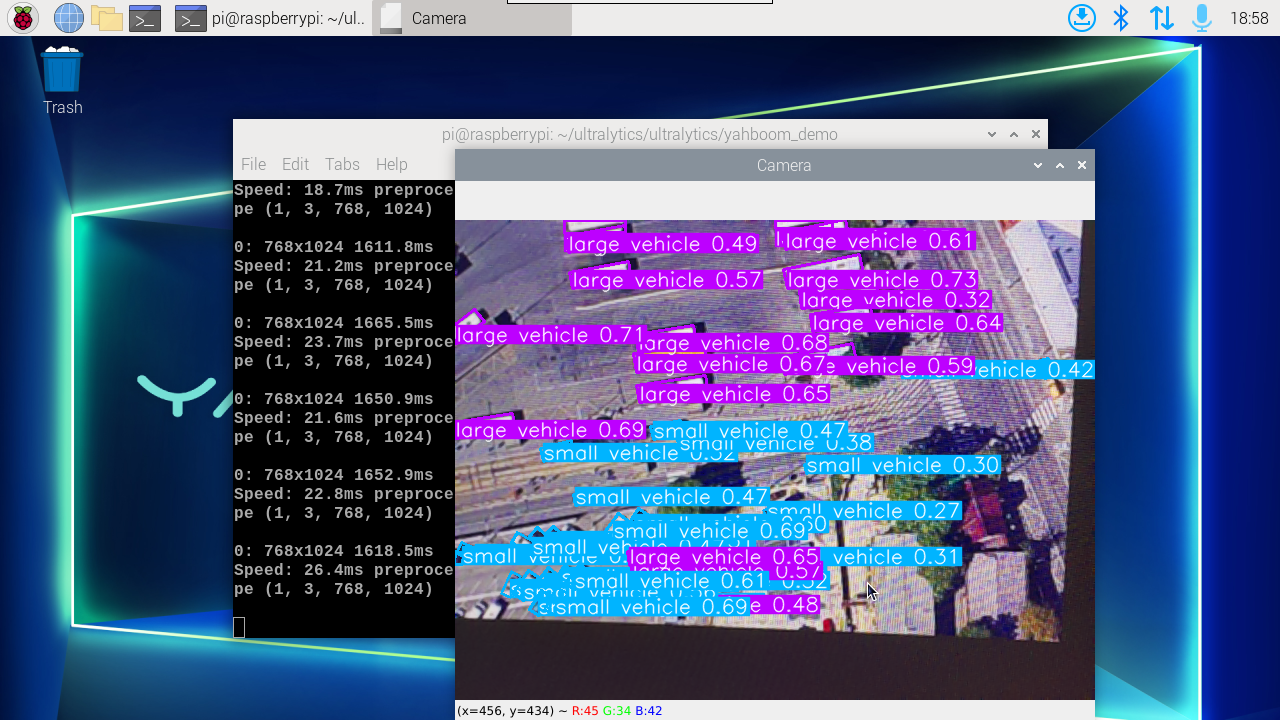
Sample code:
xxxxxxxxxximport cv2from ultralytics import YOLOfrom jetcam.csi_camera import CSICamera
# Load the YOLO modelmodel = YOLO("/home/pi/ultralytics/ultralytics/yolo26n-obb.pt")
# Open the camera (CSI Camera)cap = CSICamera(capture_device=0, width=640, height=480)
# Get the video frame size and frame rateframe_width = 640frame_height = 480fps = 30
# Define the codec and create a VideoWriter object to output the processed videooutput_path = "/home/pi/ultralytics/ultralytics/output/05.obb_camera_csi.mp4"fourcc = cv2.VideoWriter_fourcc(*'mp4v')  # You can use 'XVID' or 'mp4v' depending on your platformout = cv2.VideoWriter(output_path, fourcc, fps, (frame_width, frame_height))
# Loop through the video frameswhile True:    # Read a frame from the camera    frame = cap.read()
    if frame is not None:        # Run YOLO inference on the frame        results = model(frame)            # Visualize the results on the frame        annotated_frame = results[0].plot()            # Write the annotated frame to the output video file        out.write(annotated_frame)            # Display the annotated frame        cv2.imshow("YOLO Inference", cv2.resize(annotated_frame, (640, 480)))            # Break the loop if 'q' is pressed        if cv2.waitKey(1) & 0xFF == ord("q"):            break    else:        # Break the loop if no frame is received (camera error or end of stream)        print("No frame received, breaking the loop.")        break
# Release the video capture and writer objects, and close the display windowcap.release()out.release()cv2.destroyAllWindows()