Welcome to DOFBOT-Ultra repository
2. CLI Usage
CLI Usage
Please ensure that the web control program backend process is not running in the background. To close it, refer to the [Get Started Quickly - 2. Access the Terminal] section in [Disable the Auto-Start Web Control Backend Process]. After closing, please restart DofbotUltra!!!
CLI Usage1. Download Source Code (Skip this step if using the Yahboom official image)2. Using CLI for Prediction2.1. CLI Usage Syntax2.2. Image PredictionResult Preview3.3. Video PredictionResult Preview3.4. Real-time PredictionReferences
1. Download Source Code (Skip this step if using the Yahboom official image)
git clone https://github.com/ultralytics/ultralytics.git
2. Using CLI for Prediction
CLI (Command-Line Interface) is a way for users to interact with a computer or software program by typing text commands to run programs or perform tasks, rather than clicking icons or buttons in a graphical user interface (GUI).
2.1. CLI Usage Syntax
xyolo TASK MODE ARGSWhere TASK (optional) is one of [detect, segment, classify, pose, obb]MODE (required) is one of [train, val, predict, export, track, benchmark]ARGS (optional) are any number of custom 'arg=value' pairs like 'imgsz=320' that override defaults.
2.2. Image Prediction
Use yolo11n.pt to predict images that come with the ultralytics project. If the system does not find the corresponding model file in the directory where the command is run, it will automatically download it (if unable to download, you can manually copy the model into it).
Enter the project folder:
xxxxxxxxxxcd /home/pi/ultralytics/ultralytics/
Use yolo11n.pt to detect images in the target folder and output results:
xxxxxxxxxxyolo predict model=yolo11n source='/home/pi/ultralytics/ultralytics/assets'
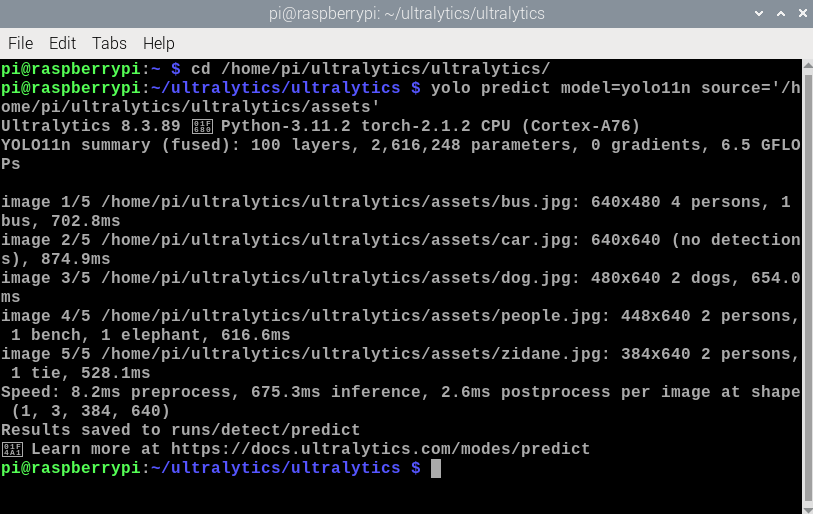
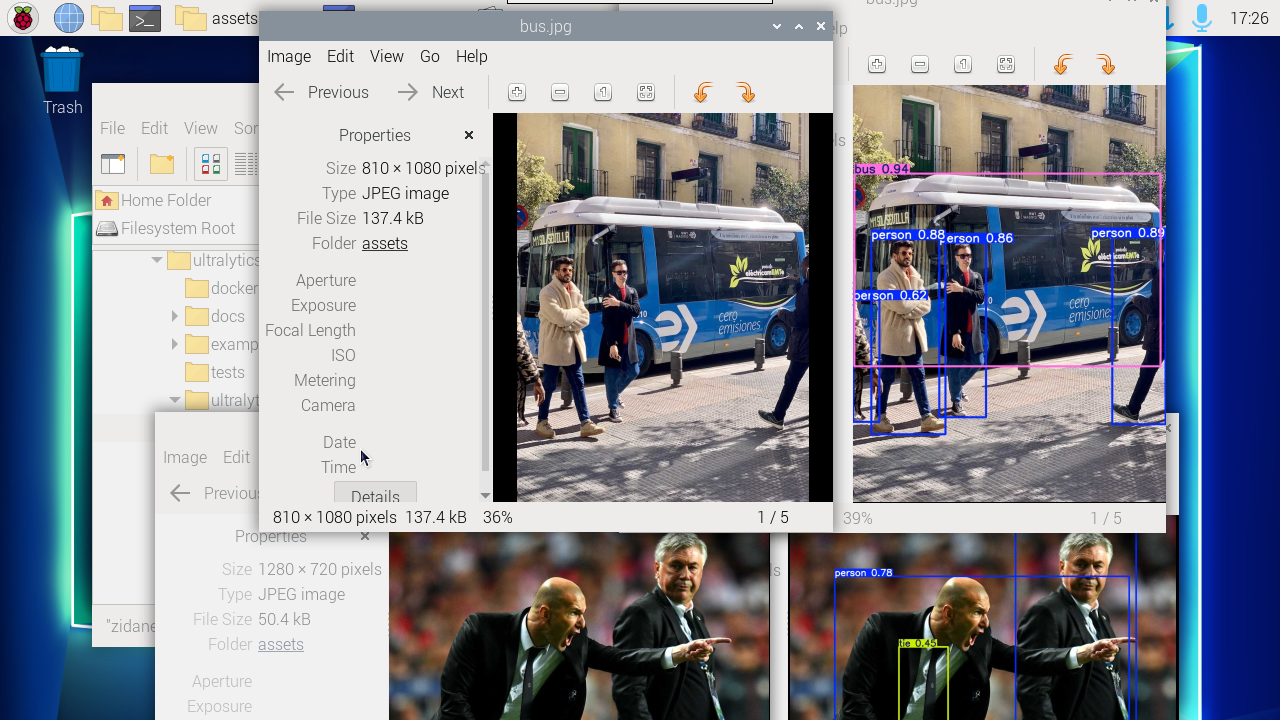
Result Preview
YOLO recognition output video location: /home/pi/ultralytics/ultralytics/runs/detect;
Each time it runs, predict under this folder increments by 1 automatically.
3.3. Video Prediction
Use yolo11n.pt to predict videos under the ultralytics project (not ultralytics built-in videos). If the system does not find the corresponding model file in the directory where the command is run, it will automatically download it (if unable to download, you can manually copy the model into it).
Enter the project folder:
xxxxxxxxxxcd /home/pi/ultralytics/ultralytics
Use yolo11n.pt to detect videos in the target folder and output results:
xxxxxxxxxxyolo predict model=yolo11n source='/home/pi/ultralytics/ultralytics/videos'
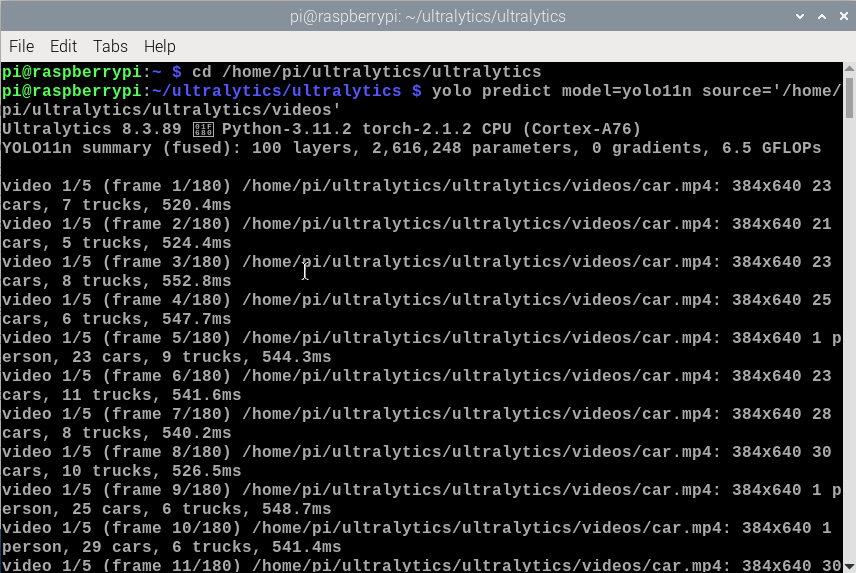
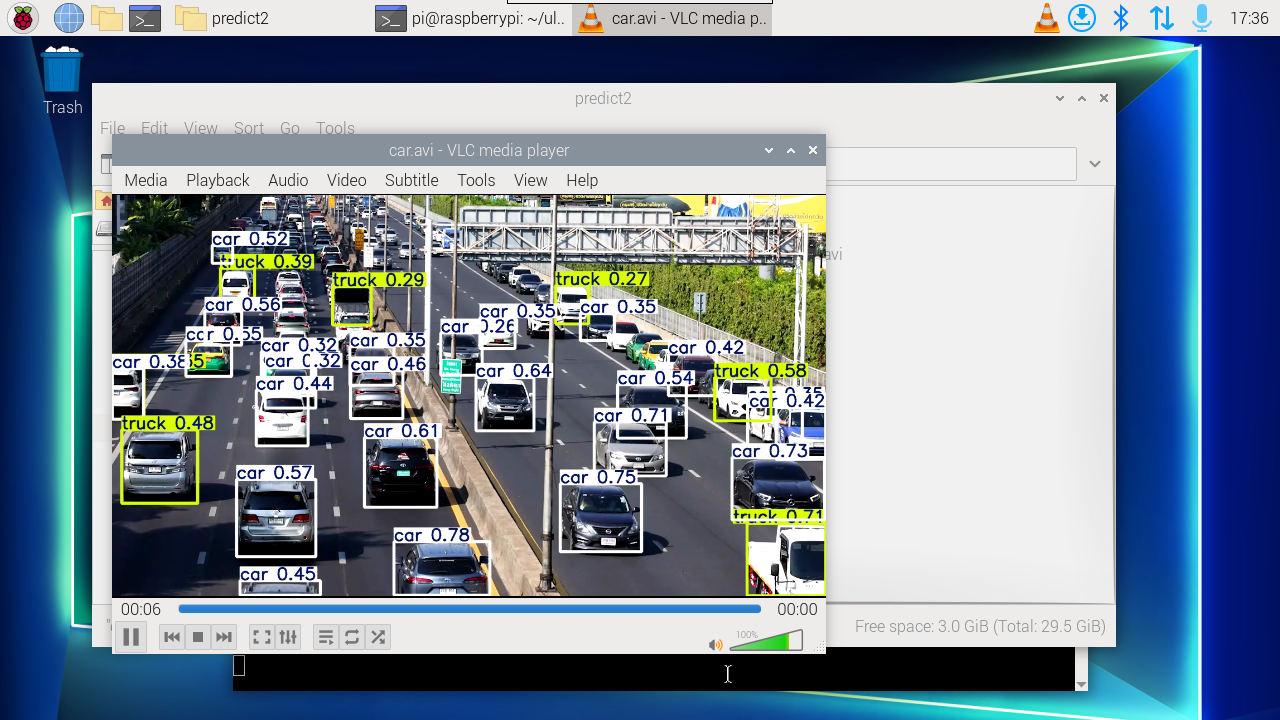
Result Preview
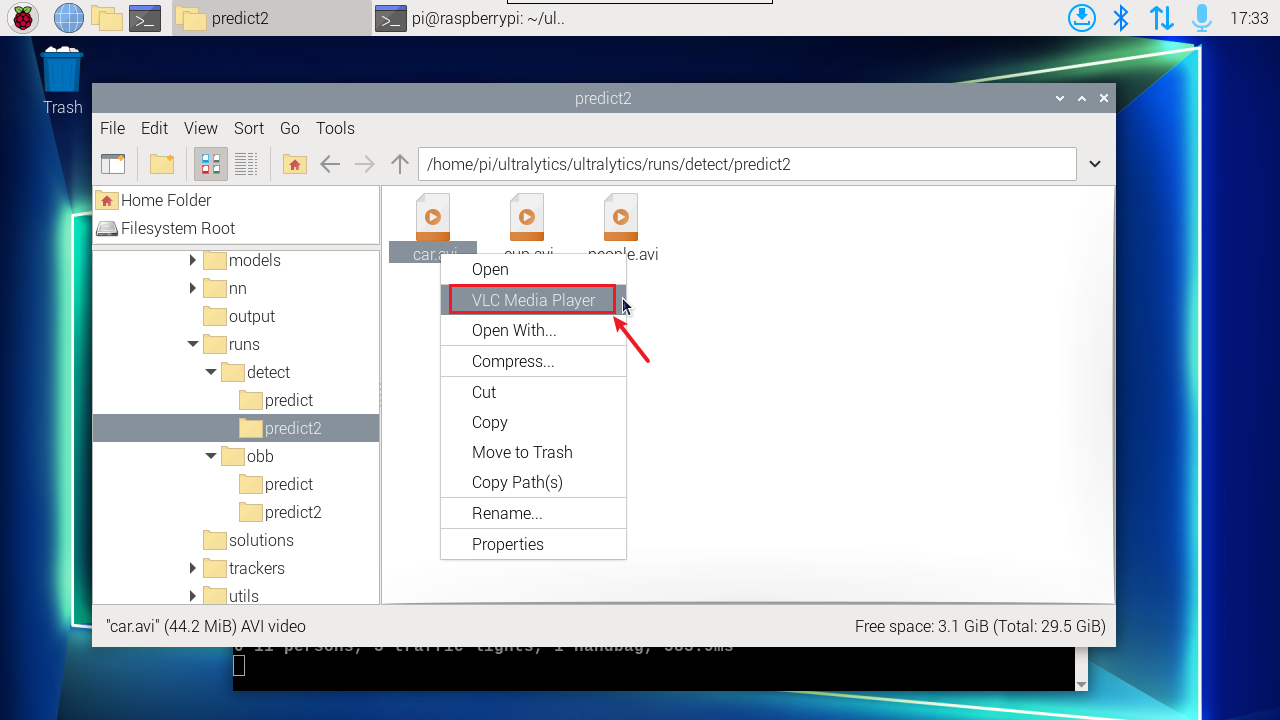
YOLO recognition output video location: /home/pi/ultralytics/ultralytics/runs/detect
Each time it runs, predict under this folder increments by 1 automatically.
You can use the pre-installed VLC application on the Raspberry Pi to view videos.
3.4. Real-time Prediction
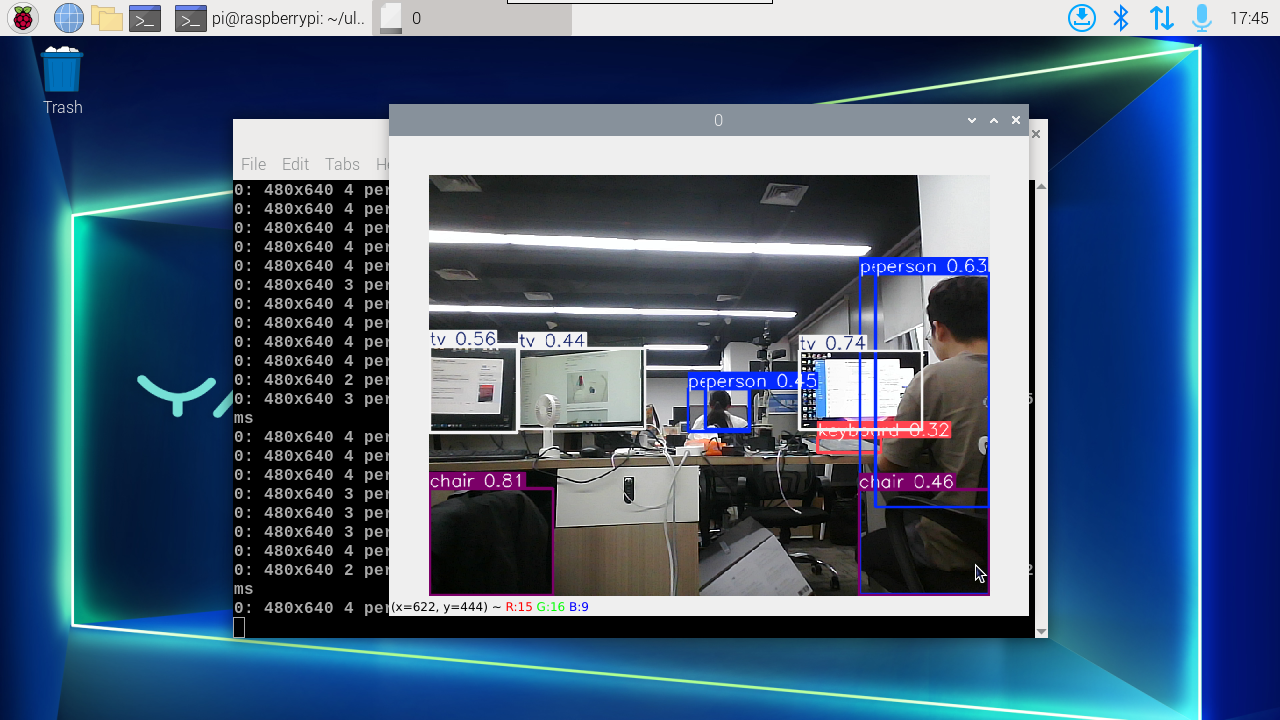
Use yolo11n.pt to predict the USB camera feed. If the system does not find the corresponding model file in the directory where the command is run, it will automatically download it (if unable to download, you can manually copy the model into it).
Enter the project folder:
xxxxxxxxxxcd /home/pi/ultralytics/ultralytics
Use yolo11n.pt to detect the camera feed and output results. Currently, only USB cameras can directly use CLI for real-time prediction. No relevant information has been found for using CSI cameras as a direct input source.
xxxxxxxxxxyolo predict model=yolo11n.pt source=0 save=False show # Object Detection# Instance Segmentation: yolo predict model=yolo11n-seg.pt source=0 save=False show# Image Classification: yolo predict model=yolo11n-cls.pt source=0 save=False show# Pose Estimation: yolo predict model=yolo11n-pose.pt source=0 save=False show# Oriented Object Detection: yolo predict model=yolo11n-obb.pt source=0 save=False show
Click on the terminal and press "Ctrl + C" to terminate the program!
Parameter Description
model: Specifies the YOLO model
source: Specifies the recognition source. Multiple cameras can switch by changing the number.
save=False: Disables saving results
show: Real-time display