Welcome to DOFBOT-Ultra repository
10. MoveIt Collision Detection
MoveIt Collision Detection
Please ensure that the web control program backend process is not running in the background. To close it, refer to the [Get Started Quickly - 2. Access the Terminal] section in [Disable the Auto-Start Web Control Backend Process]. After closing, please restart DofbotUltra!!!
MoveIt Collision Detection1. Usage Environment2. Drive Real Robot2.1. Start Real Robot2.2. Start MoveIt23. Collision Detection3.1. Visualization3.2. Launch Command
1. Usage Environment
Motherboard: VMware Workstation virtual machine Ubuntu 22.04 image
ROS2: Humble
2. Drive Real Robot
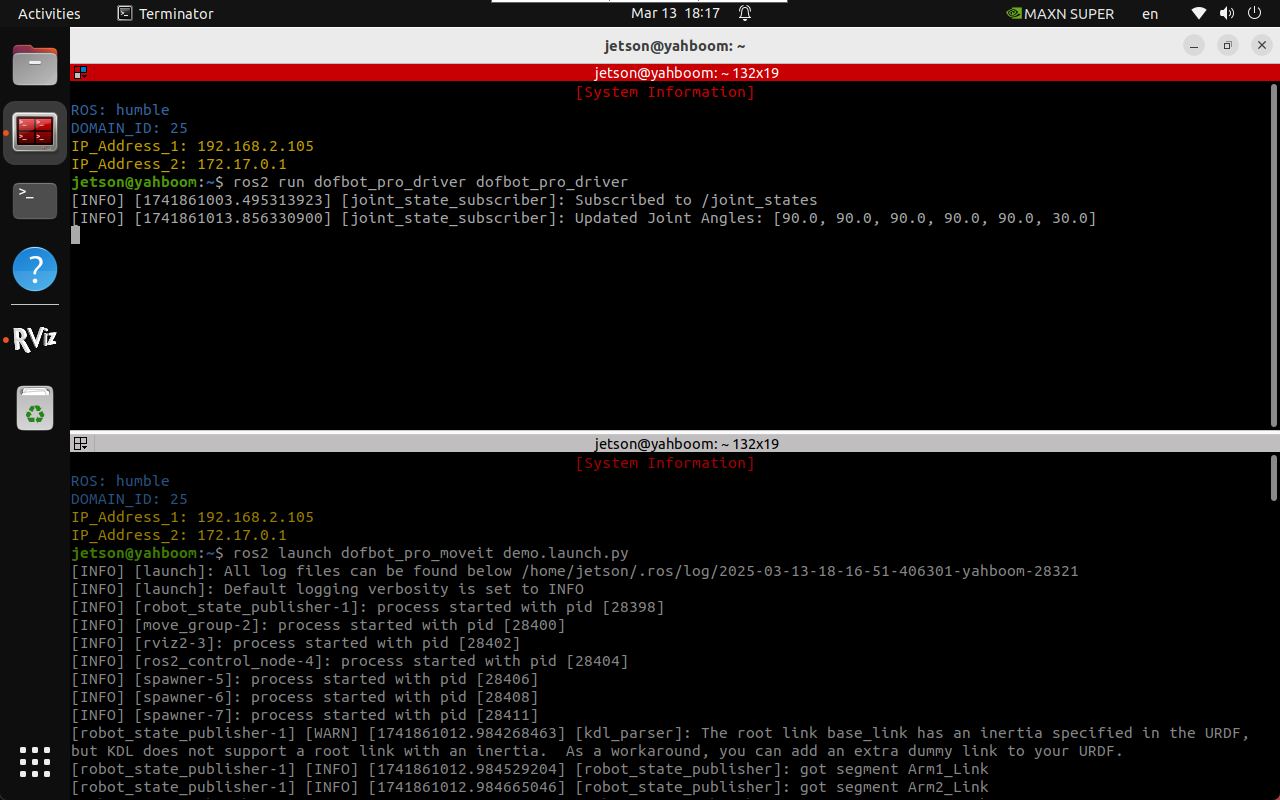
Driving the real robot is accomplished by subscribing to the MoveIt2 /joint_states topic, converting the joint state information of the arm into control commands for the real robot.
Note: Since the real robot does not have obstacle avoidance functionality, some poses may hit obstacles. Therefore, planned arm motions should be as reasonable as possible and avoid positions with obstacles.
(It is recommended to use preset poses for demonstrating driving the real robot.)
2.1. Start Real Robot
ros2 run dofbot_ultra_driver dofbot_ultra_driver
2.2. Start MoveIt2
xxxxxxxxxxros2 launch dofbot_ultra_moveit demo.launch.py
3. Collision Detection
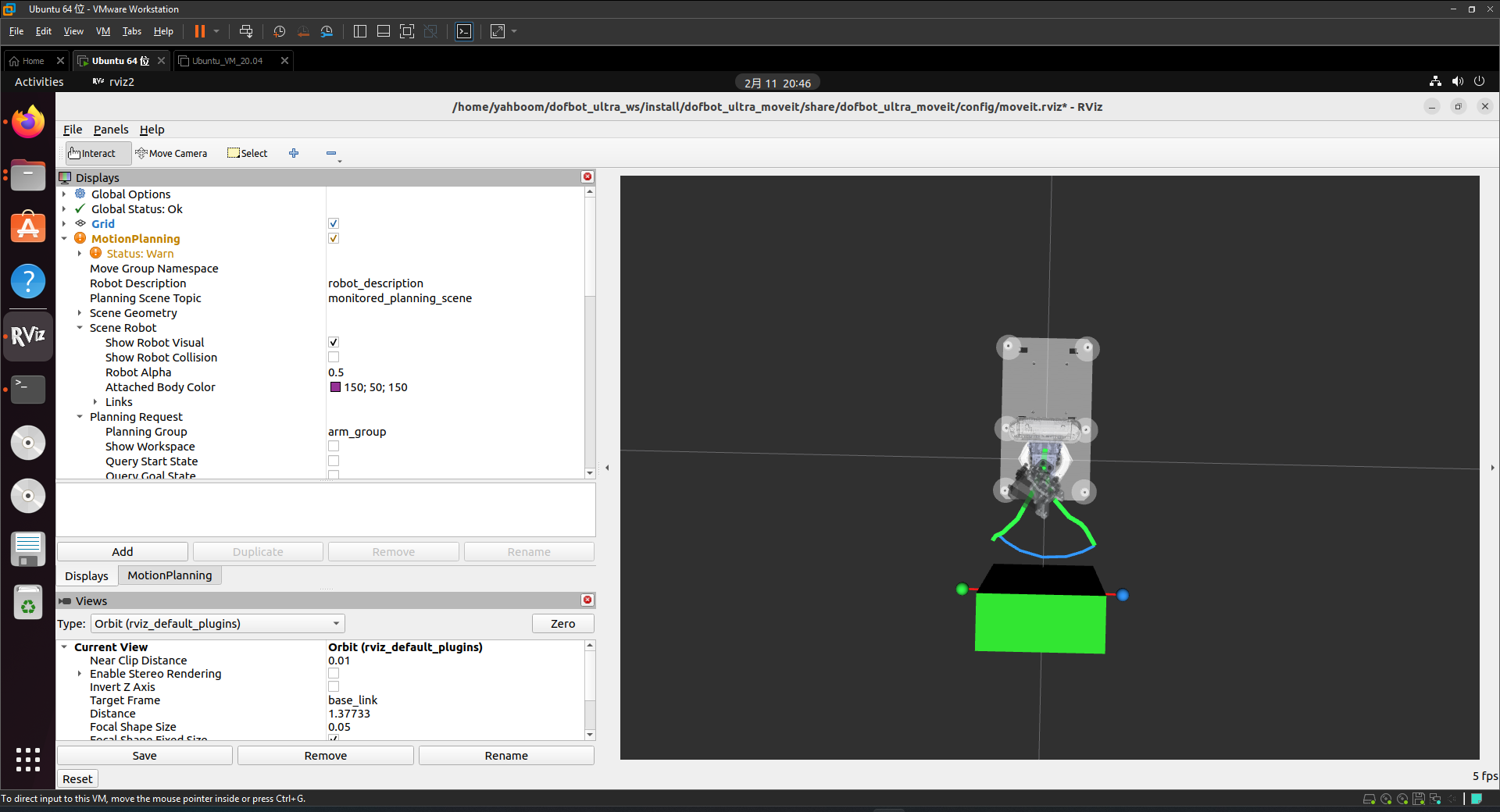
After the program runs, RViz2 will add a cuboid obstacle next to the arm. The arm will plan to the program's target position, and the entire planning and execution process will automatically avoid the obstacle.
3.1. Visualization
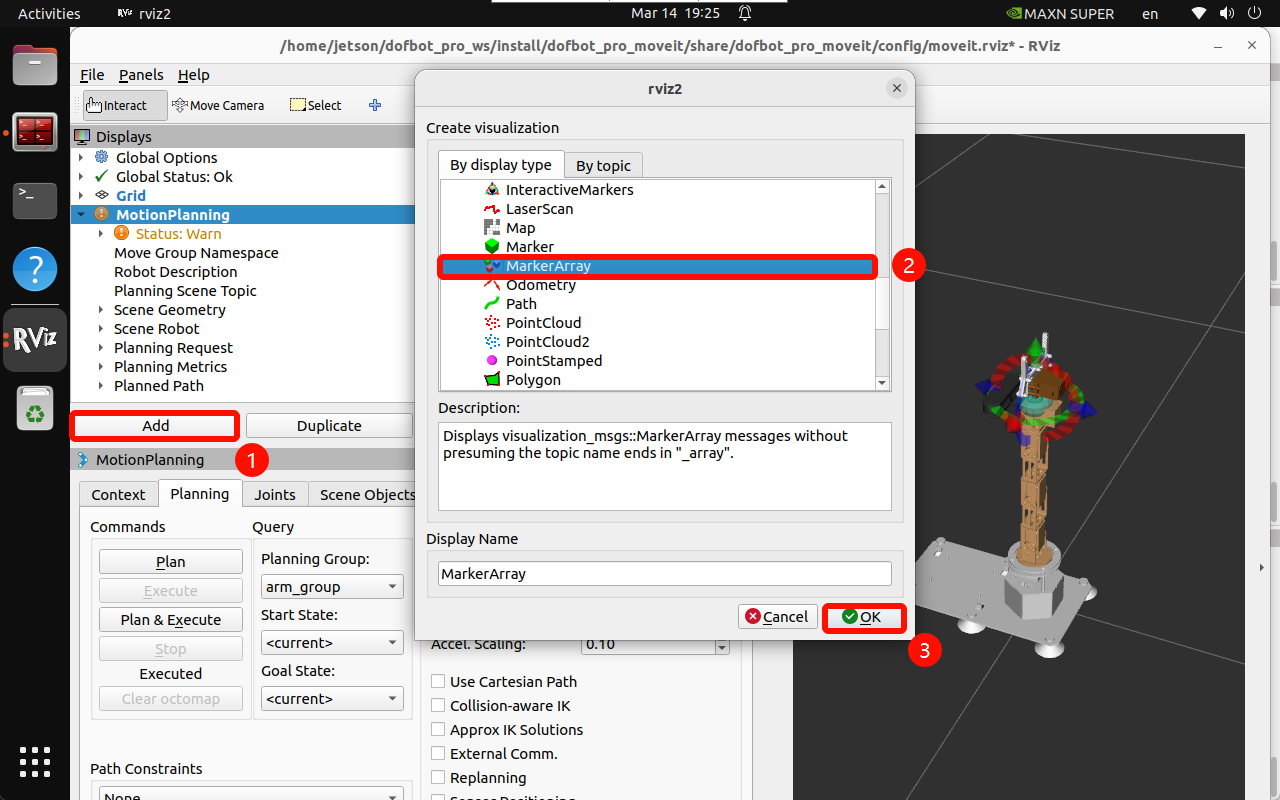
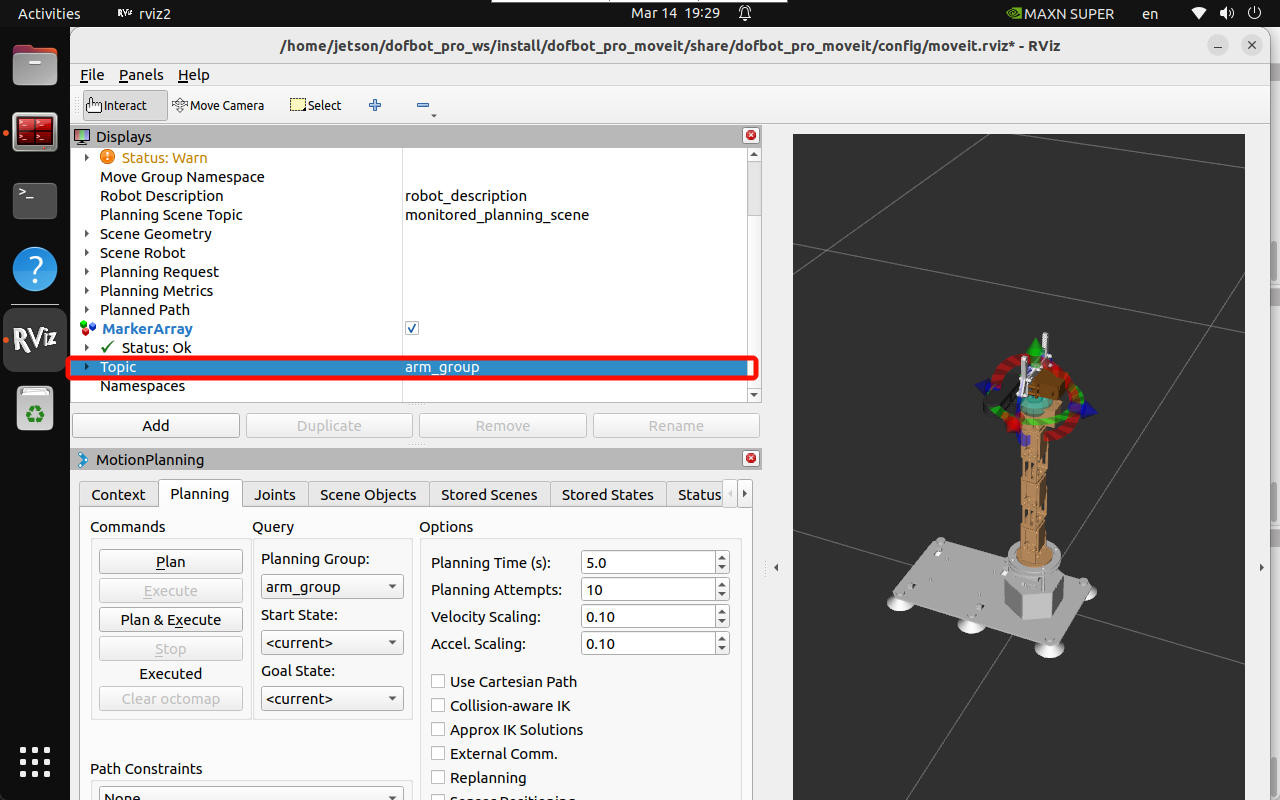
Before running the launch command, you need to add the MarkerArray plugin in RViz2 to display the planned path. MarkerArray needs to select the arm_group topic.
3.2. Launch Command
After MoveIt has successfully loaded and You can start planning now! appears, run the following command:
xxxxxxxxxxros2 run dofbot_ultra_moveit obstacle_avoidance
The arm will automatically avoid the cuboid and plan and execute to the specified position.
The code will generate a green cube (obstacle). The three lines in the scene (green, blue, red) represent:
Red line: Straight line from start to end (passes through the obstacle)
Blue line: Trajectory planned without obstacles (ARM5_Link)
Green line: Trajectory planned with obstacles (ARM5_Link)
The small balls at the two ends of the red line represent the start and end points respectively.
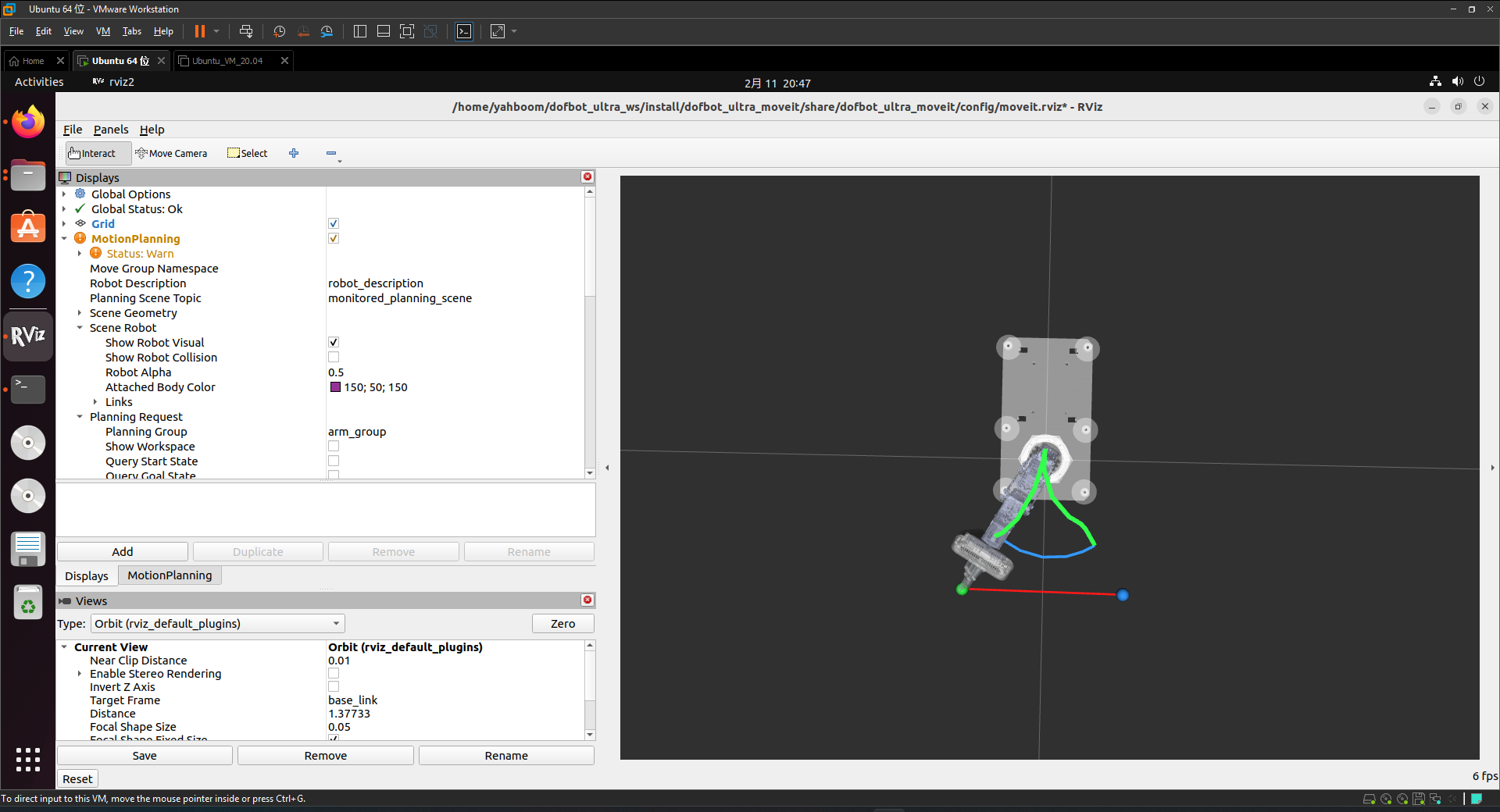
After the motion is complete, the obstacle disappears.