Welcome to DOFBOT-Ultra repository
9. Dataset Annotation
Dataset Annotation
Please ensure that the web control program backend process is not running in the background. To close it, refer to the [Get Started Quickly - 2. Access the Terminal] section in [Disable the Auto-Start Web Control Backend Process]. After closing, please restart DofbotUltra!!!
Dataset Annotation1. Dataset Collection1.1. Image Extraction1.2. Dataset Paths2. Label Studio Usage2.1. Label Studio Installation2.2. Starting Label Studio2.2.1. Shared Folder Permissions2.2.2. Start Label Studio2.2.3. Accessing Label StudioHost MachineSame Local NetworkFirst Use3. Dataset Annotation3.1. Create Project3.2. Project Name3.3. Import Training Set3.4. Label Configuration3.5. Dataset Annotation3.6. Export Dataset3.7. Dataset Directory Structure3.8. Dataset Configuration FileReferences
For recognizing specific objects or improving object recognition accuracy, users need to train their own models. Dataset collection and annotation are indispensable parts of this process.
1. Dataset Collection
Note: For recognition in specific scenarios, users can use a camera to record videos of objects from various angles, then extract images from the video as a training set.
1.1. Image Extraction
Here is a simple example: extract one frame every 15 frames from a video as a dataset.
ximport cv2import os
# Path to the input video filevideo_file = '/home/pi/ultralytics/ultralytics/data/yahboom_data/orange_video/orange.mkv'
# Path to the output folder to save the framesoutput_folder = '/home/pi/ultralytics/ultralytics/data/yahboom_data/orange_pic'
# Check if the output folder exists, if not, create itif not os.path.exists(output_folder): os.makedirs(output_folder)
# Open the video file using OpenCVcap = cv2.VideoCapture(video_file)
# Get the total number of frames in the videototal_frames = int(cap.get(cv2.CAP_PROP_FRAME_COUNT))
# Get the frames per second (fps) of the videofps = cap.get(cv2.CAP_PROP_FPS)
# Frame counter to keep track of the current frame numberframe_number = 0
# Define the interval for extracting frames (every 15th frame)frame_interval = 15
# Initialize a new counter for saved frames (starting from 1)saved_frame_number = 1
while True: ret, frame = cap.read() # If the frame is not successfully read, exit the loop if not ret: break
# Save every 15th frame if frame_number % frame_interval == 0: # Format the frame number starting from 1 (e.g., 1.png, 2.png) image_name = f'{saved_frame_number}.png' image_path = os.path.join(output_folder, image_name)
# Save the current frame as a PNG image cv2.imwrite(image_path, frame) print(f'Saving frame {frame_number}/{total_frames} as {image_name}')
# Increment the saved frame counter saved_frame_number += 1
# Increment the frame counter for the video frame_number += 1
# Release the video capture objectcap.release()
# Print message when processing is completeprint("Video processing complete! Every 15th frame saved as an image!")1.2. Dataset Paths
Example video: /home/pi/ultralytics/ultralytics/data/yahboom_data/orange_video
Example images: /home/pi/ultralytics/ultralytics/data/yahboom_data/orange_pic
2. Label Studio Usage
Label Studio is an open-source data labeling platform for data annotation and labeling task management, supporting various types of data input and annotation formats.
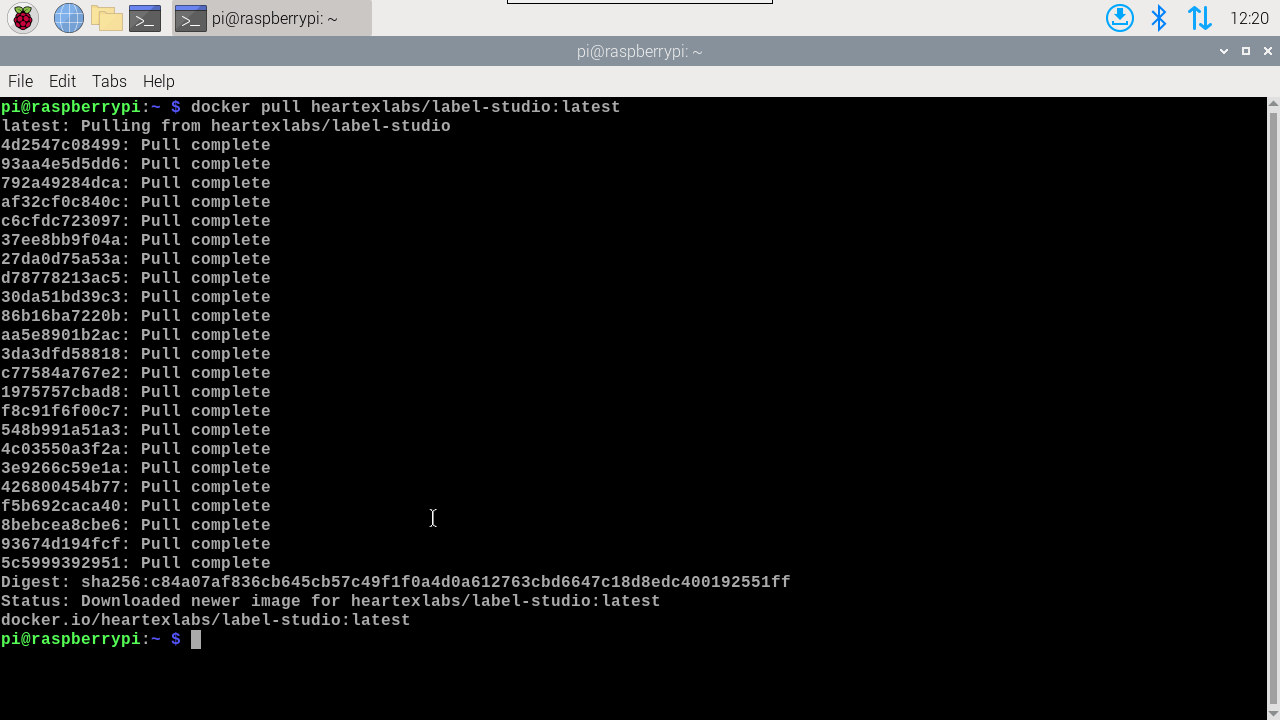
2.1. Label Studio Installation
xxxxxxxxxxdocker pull heartexlabs/label-studio:latest
2.2. Starting Label Studio
2.2.1. Shared Folder Permissions
Share the prepared dataset to the folder corresponding to Label Studio:
xxxxxxxxxxsudo chmod 777 /home/pi/ultralytics/ultralytics/data/
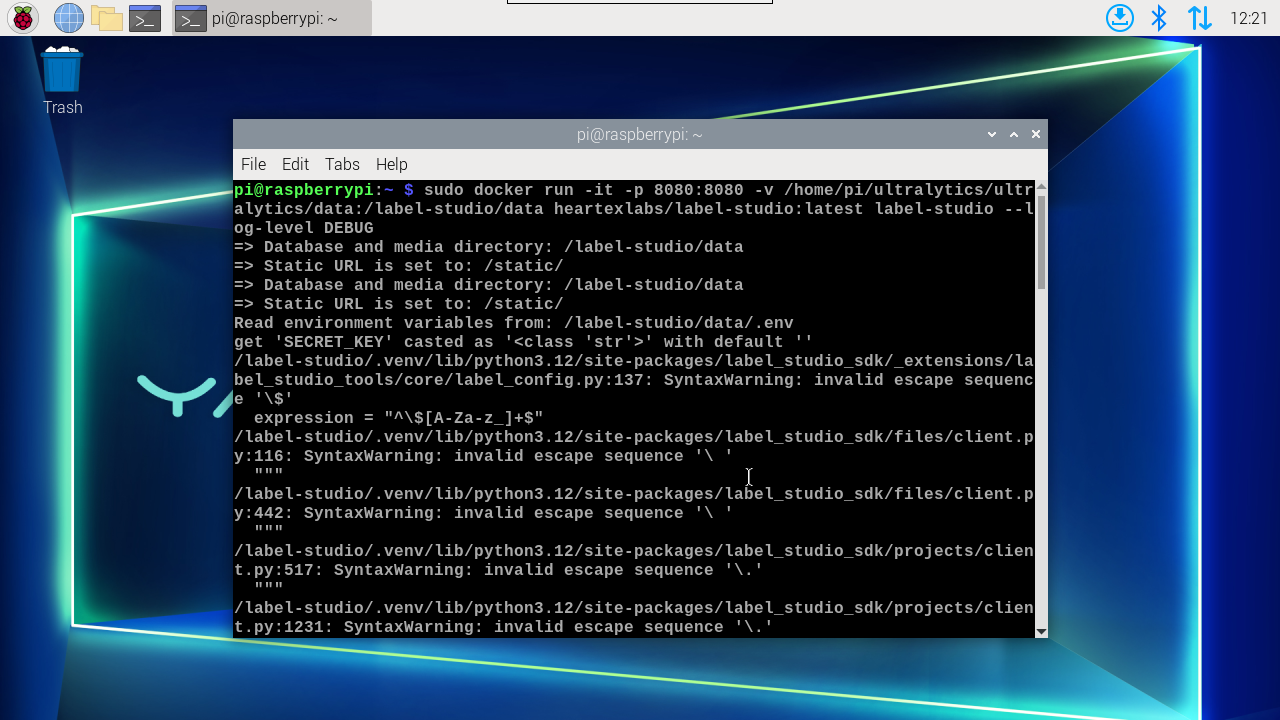
2.2.2. Start Label Studio
xxxxxxxxxxsudo docker run -it -p 8080:8080 -v /home/pi/ultralytics/ultralytics/data:/label-studio/data heartexlabs/label-studio:latest label-studio --log-level DEBUG
2.2.3. Accessing Label Studio
Host Machine
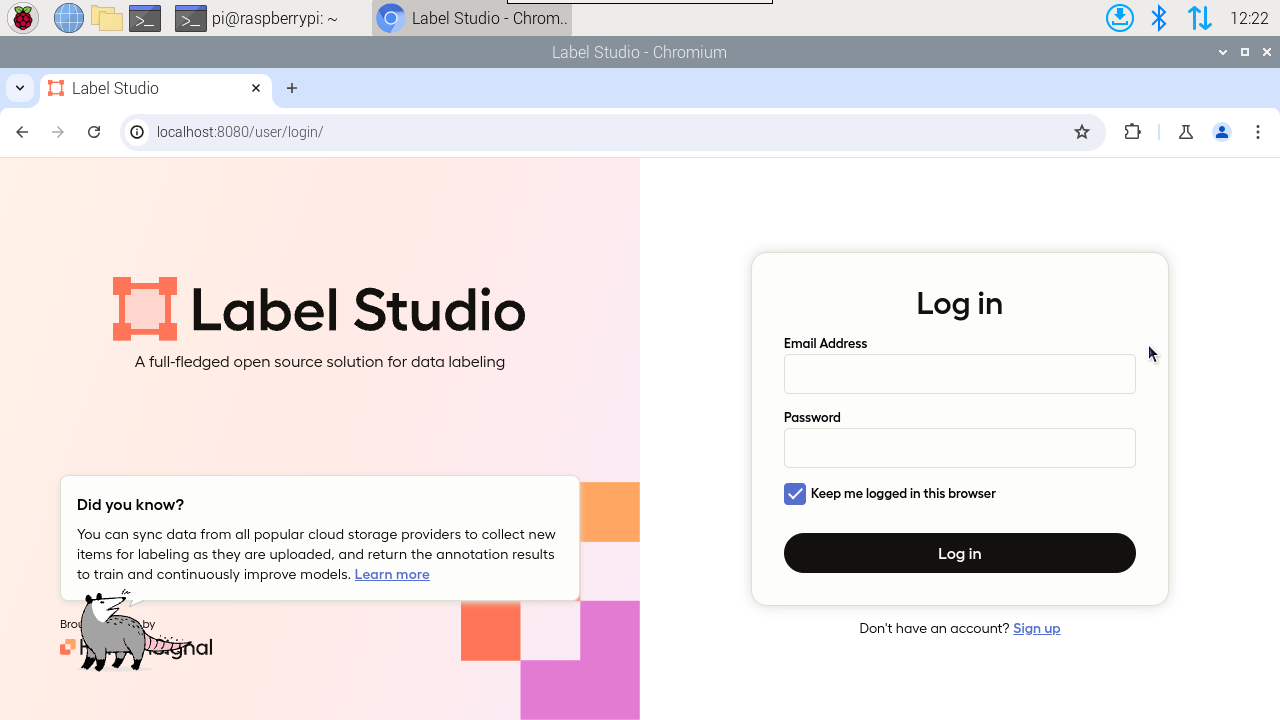
Access method for Pi Orin series development boards. On first access, you need to enter a username and password.
xxxxxxxxxxhttp://localhost:8080/
Same Local Network
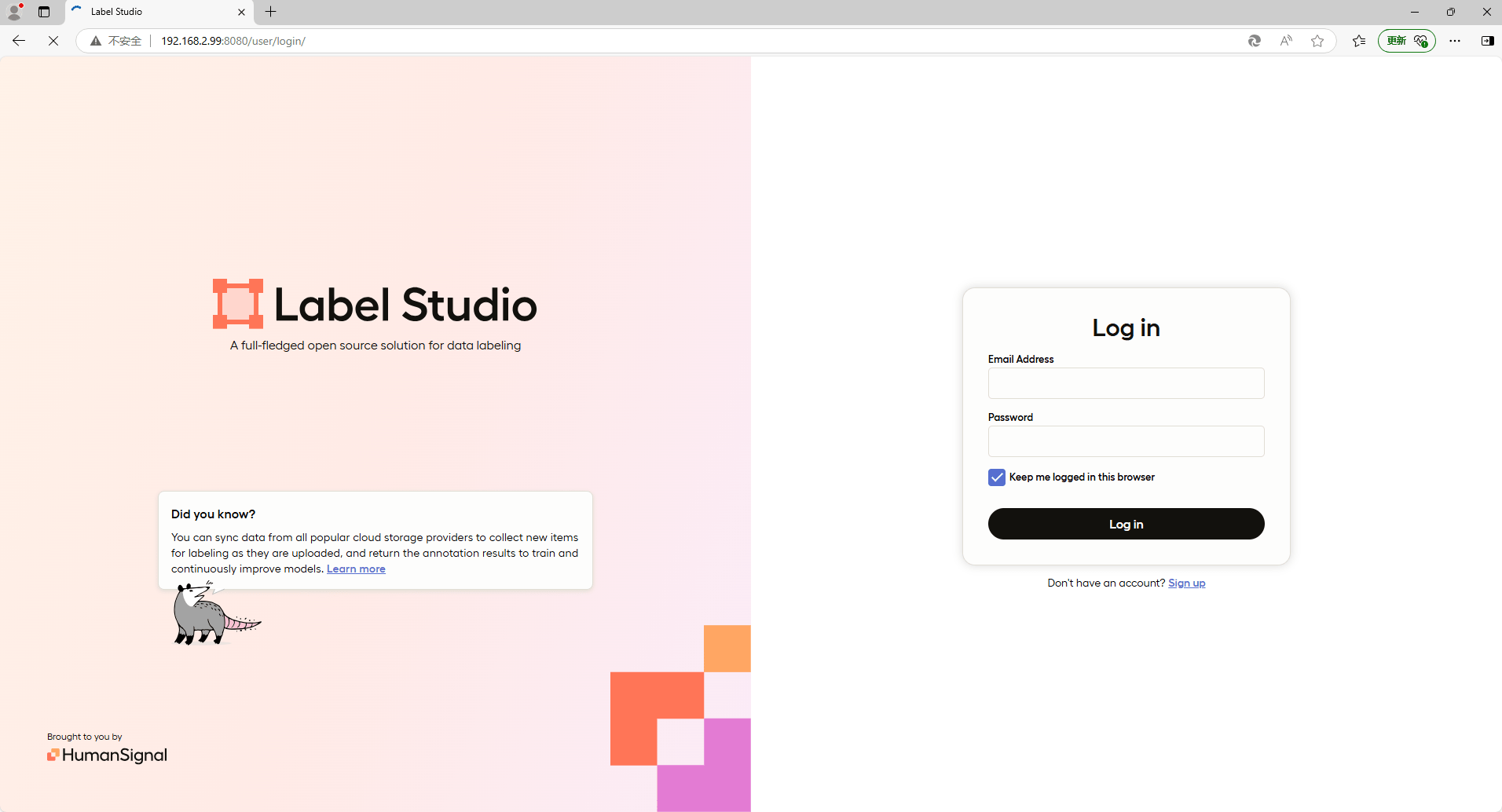
Devices on the same local network can access via the board's IP:8080.
xxxxxxxxxxhttp://board_IP:8080/ # e.g.: http://192.168.2.99:8080/
First Use
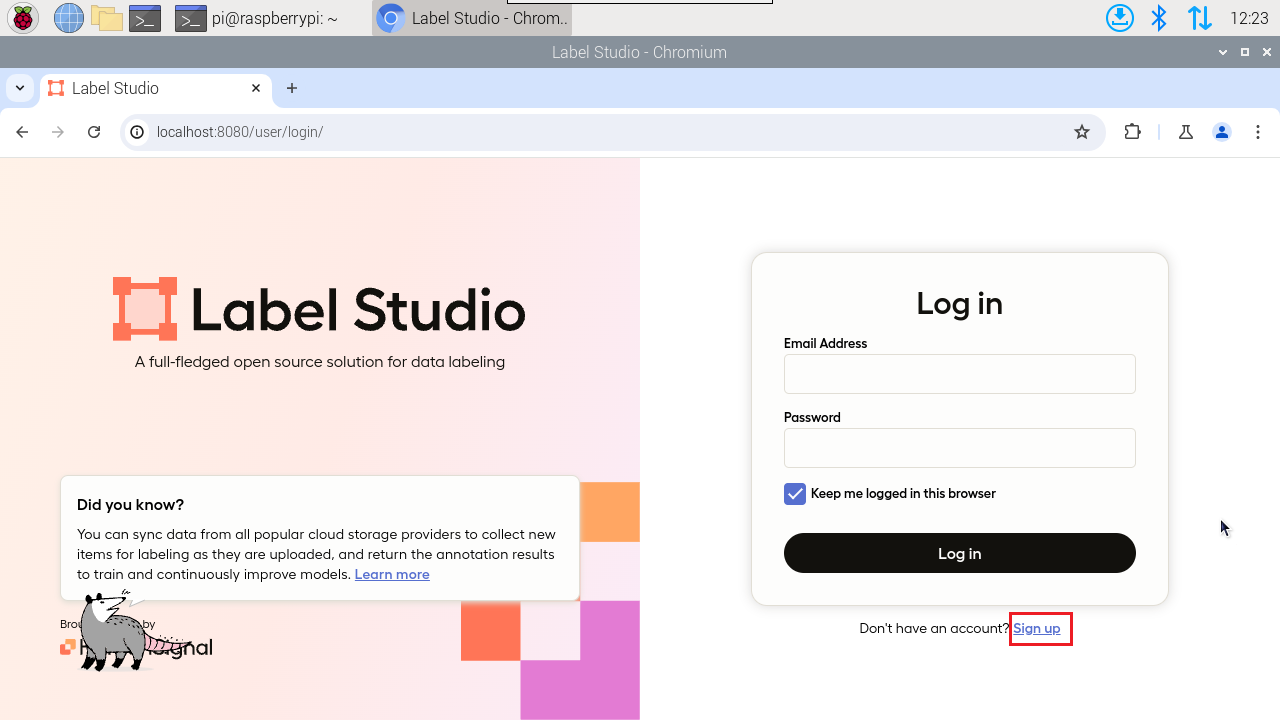
First-time users need to register and log in with an account. Factory default account information (the account info is fictitious):
xxxxxxxxxxAccount: yahboom@163.comPassword: yahboom@163.com
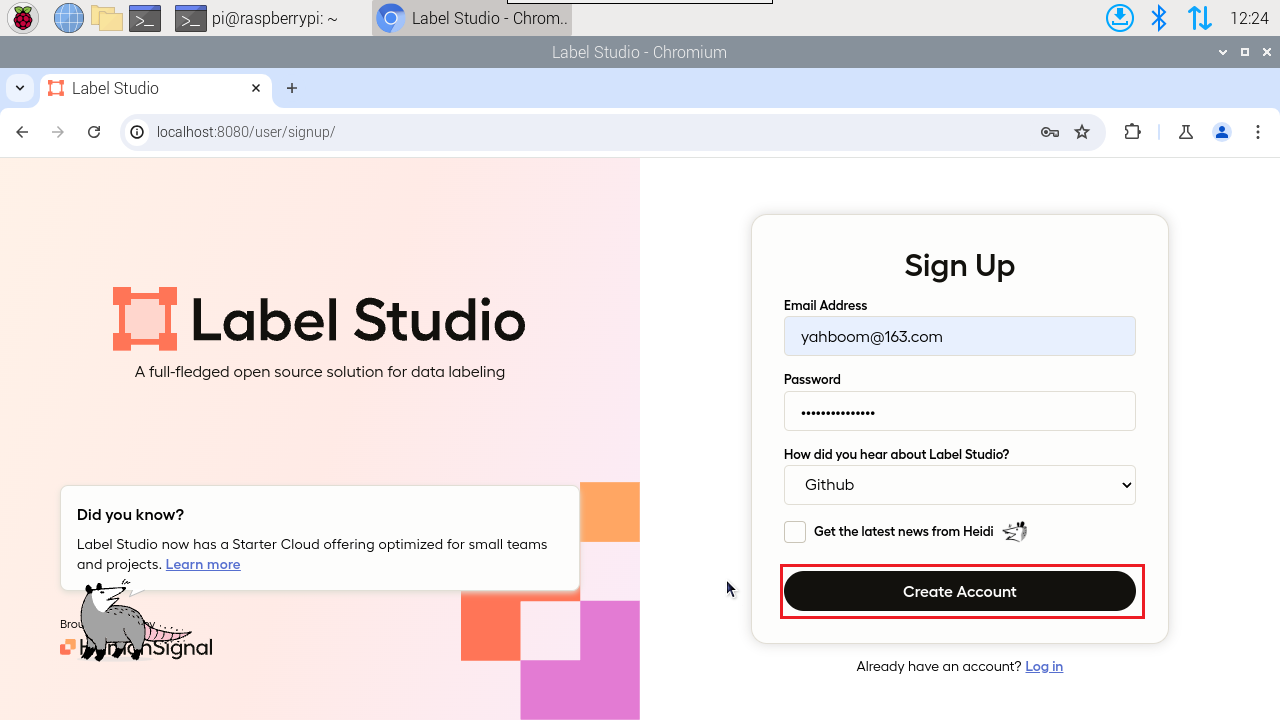
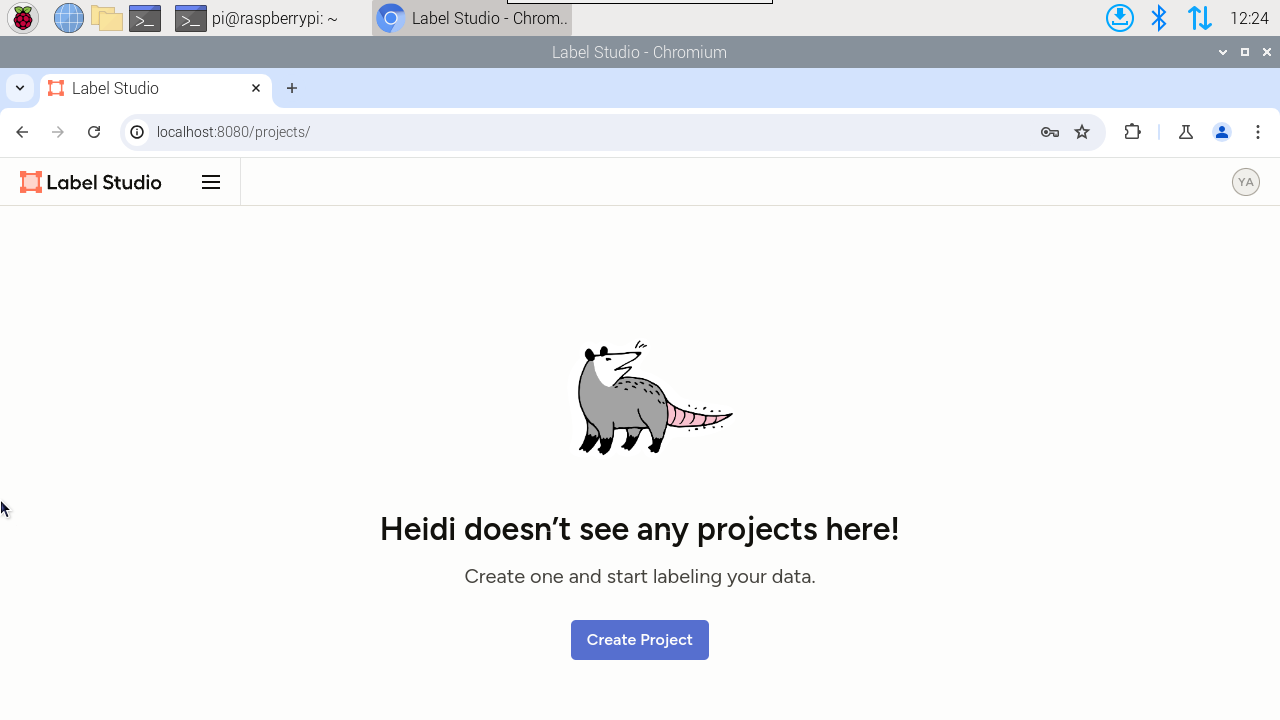
After registration, the website will automatically log in:
3. Dataset Annotation
The demonstration dataset is on the board, so access Label Studio from the board.
3.1. Create Project
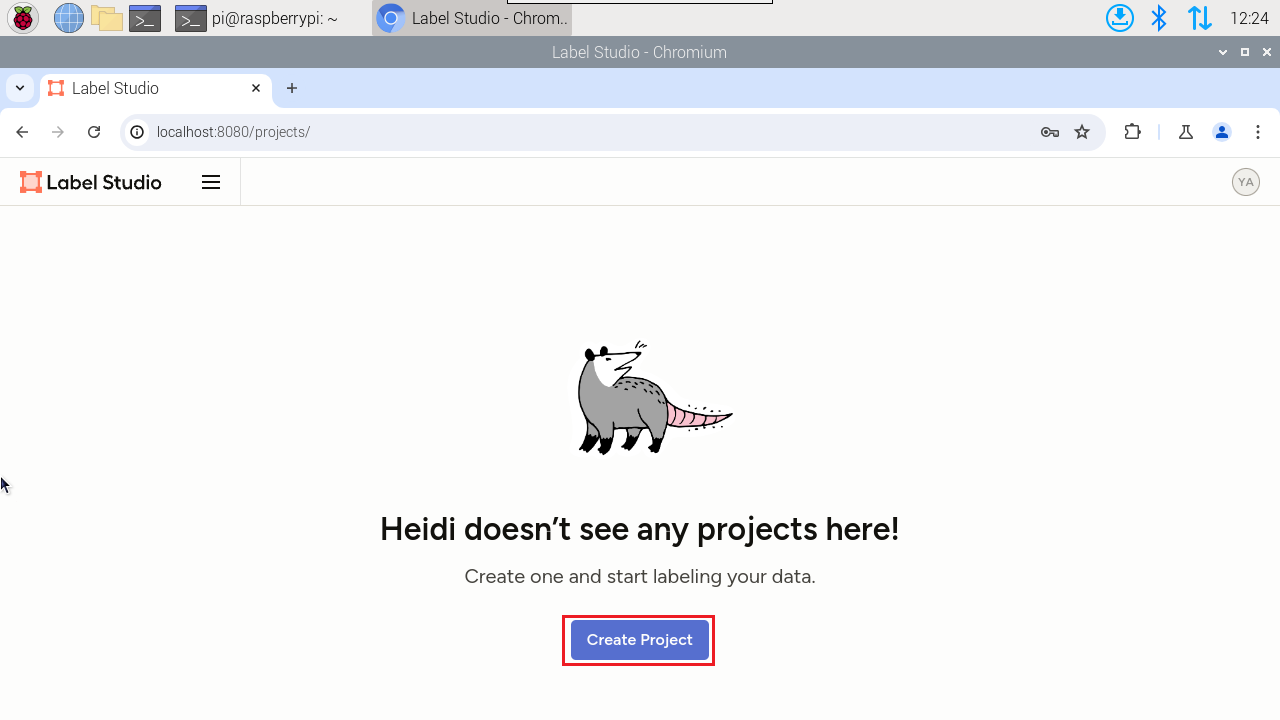
3.2. Project Name
The project name can be named arbitrarily based on your training set:
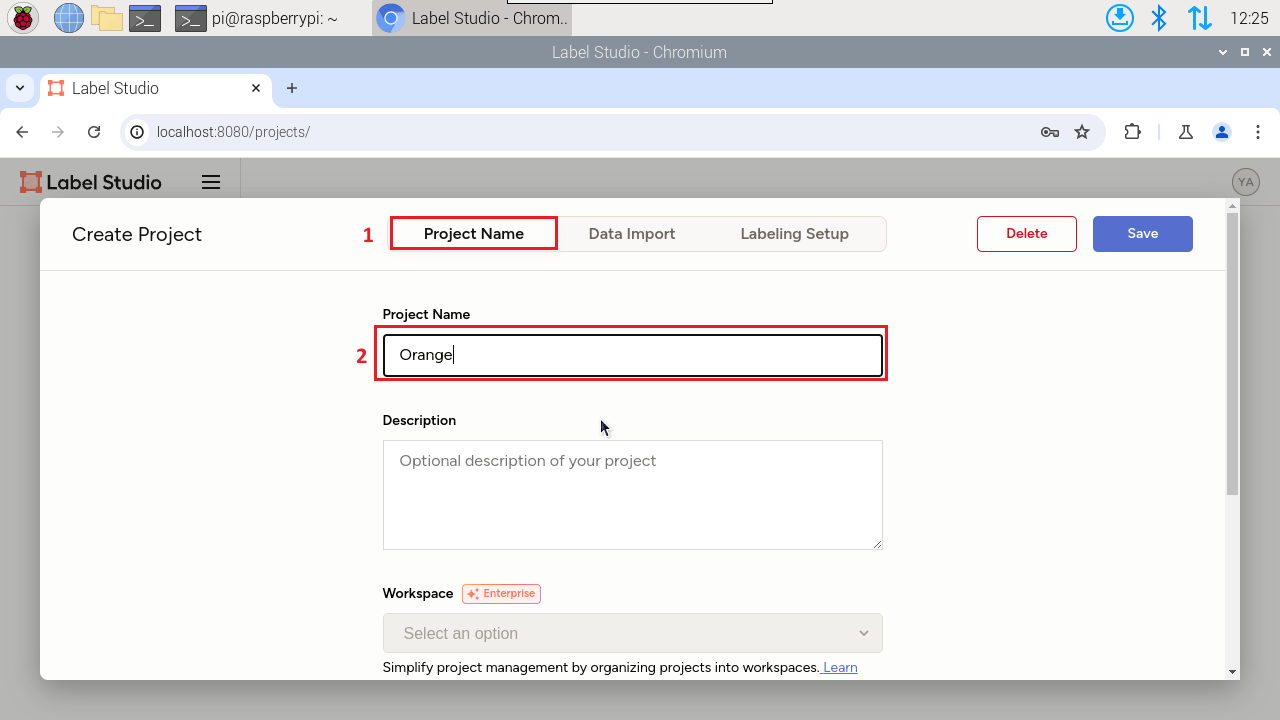
3.3. Import Training Set
Manually import the prepared dataset. Do not import too many images at once. It is recommended to select 50-100 images each time, then import multiple times.
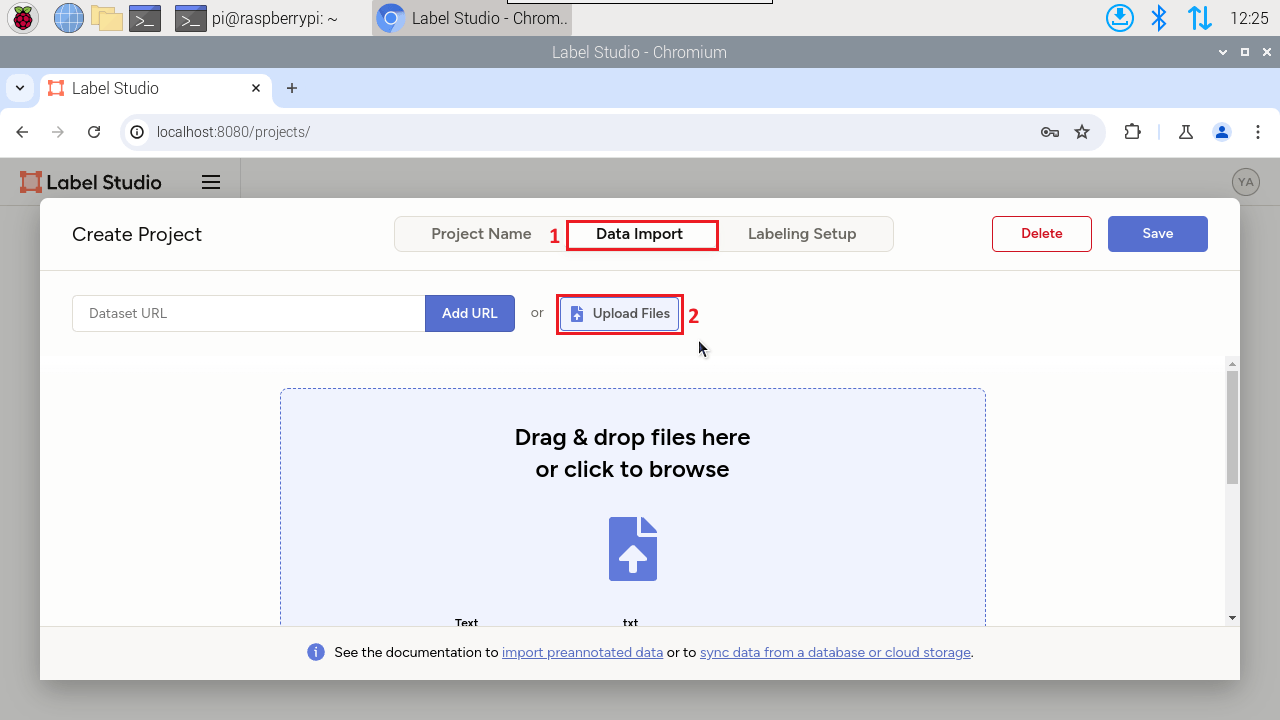
3.4. Label Configuration
We are demonstrating recognition of oranges, so choose "Object Detection."
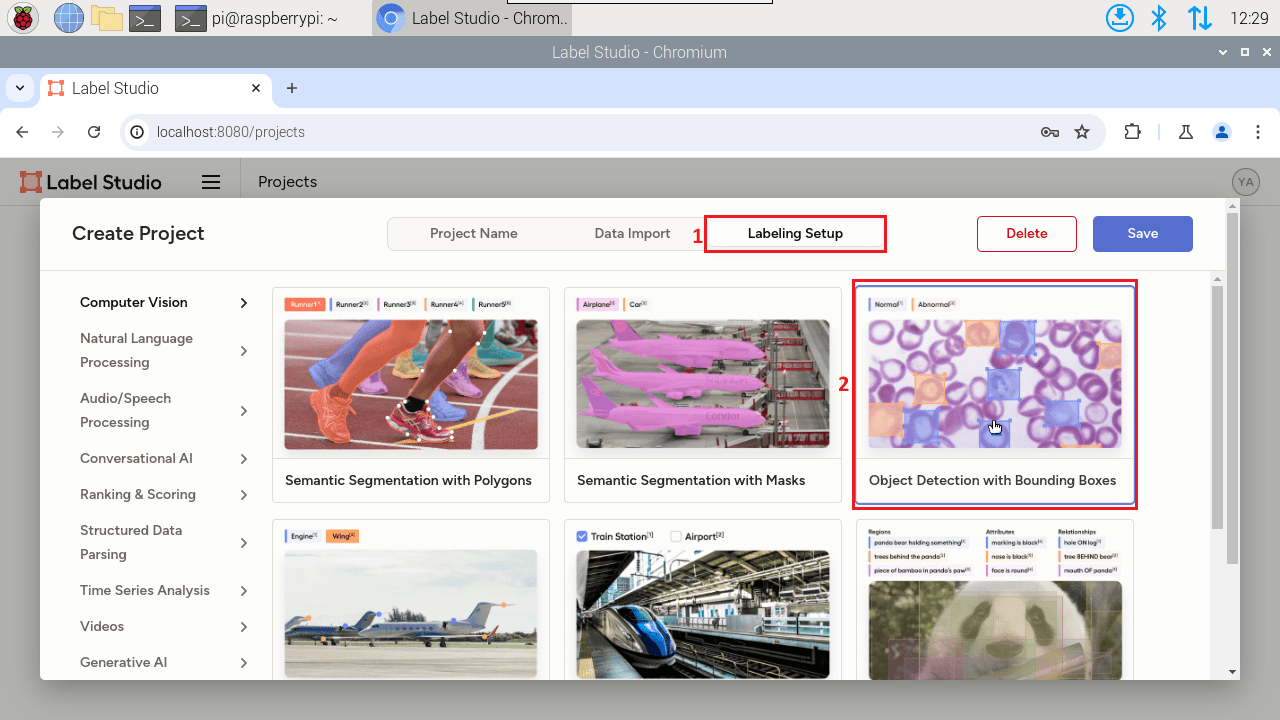
Delete the built-in labels:
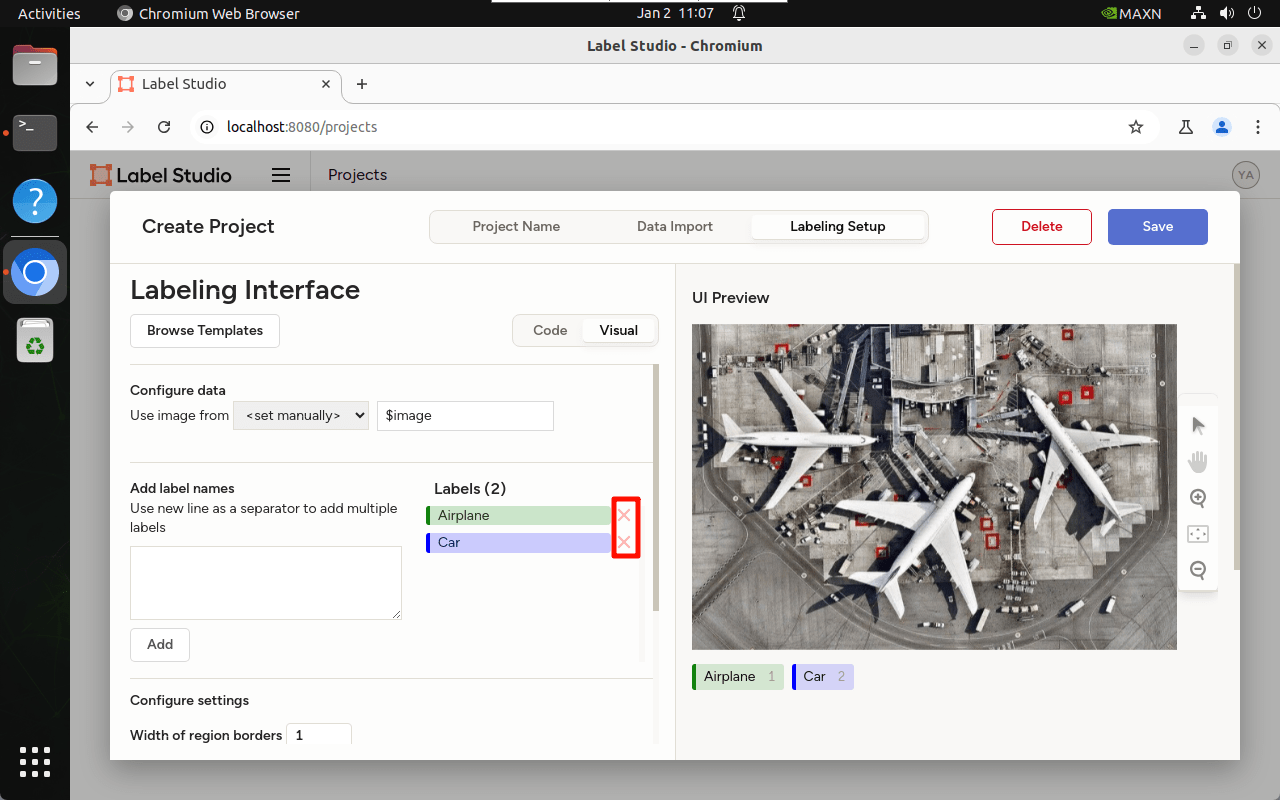
Add new labels:
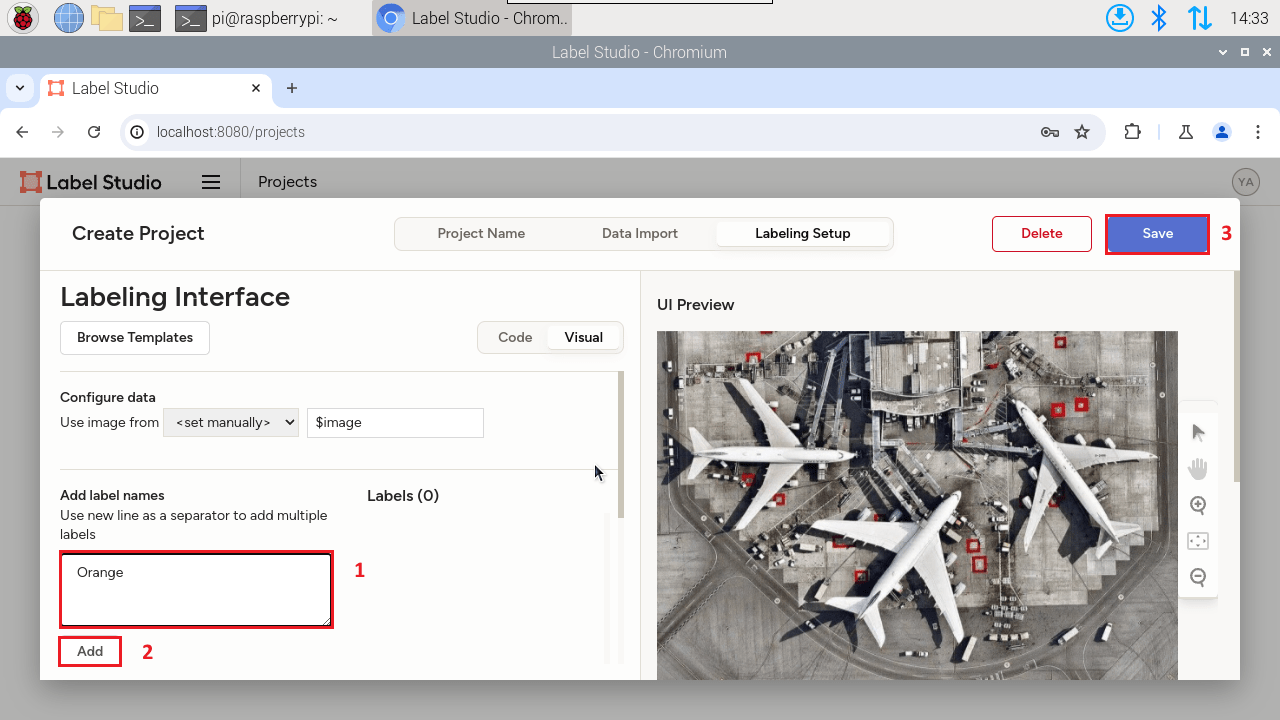
3.5. Dataset Annotation
Click "Label All Tasks":
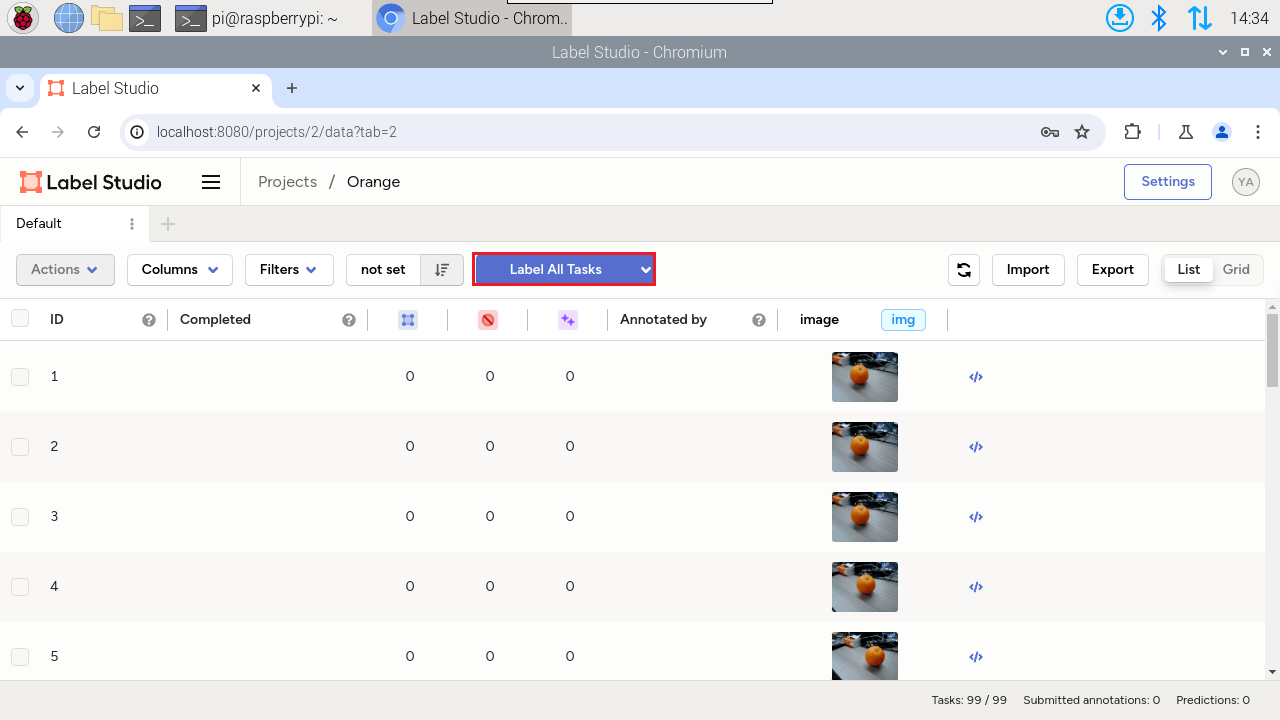
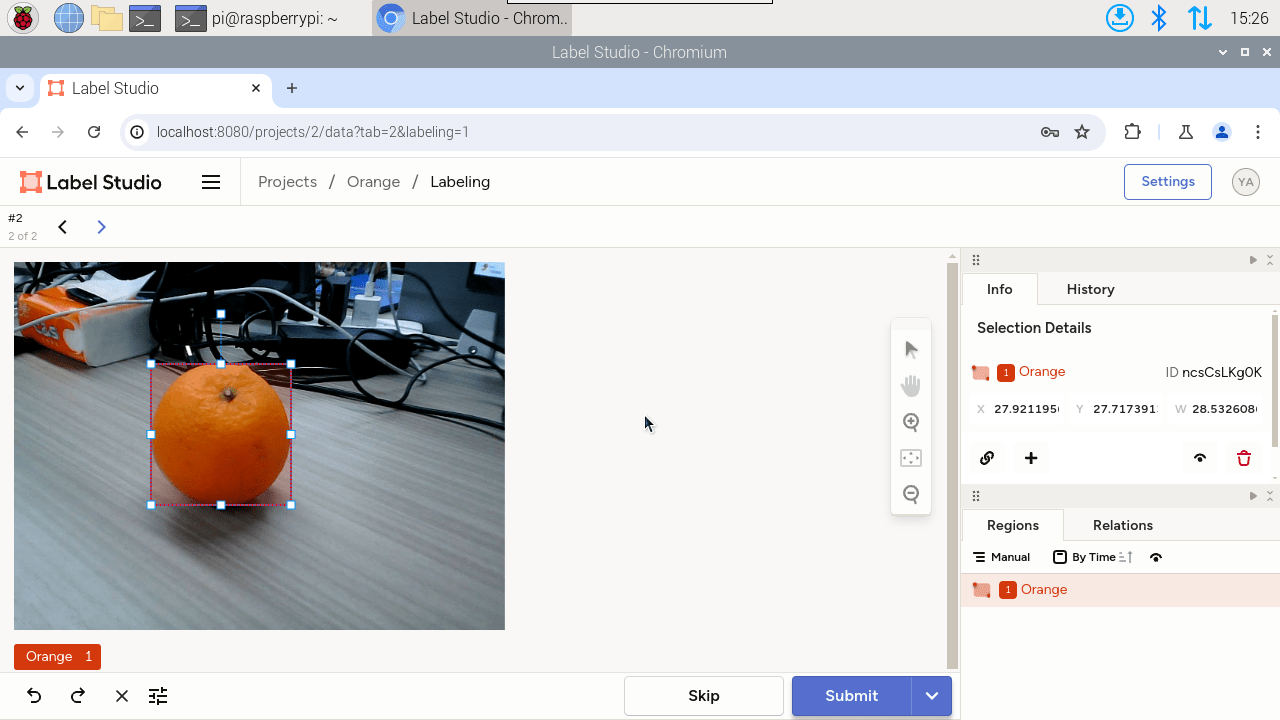
Annotation steps: First click the "Orange" label, then use the mouse to draw a box around the corresponding orange in the image. After finishing, click Submit to proceed to the next image.
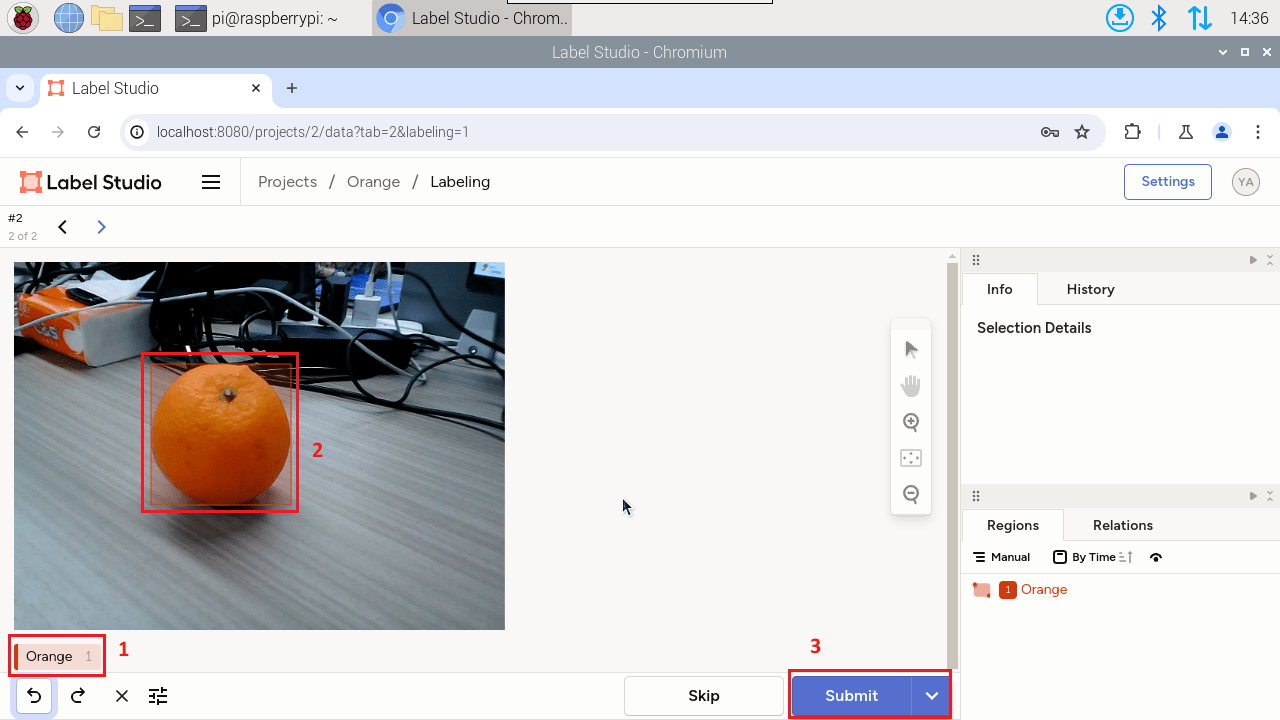
If the selected object is not a complete orange, you can click the drawn box and readjust the positions of each edge:
3.6. Export Dataset
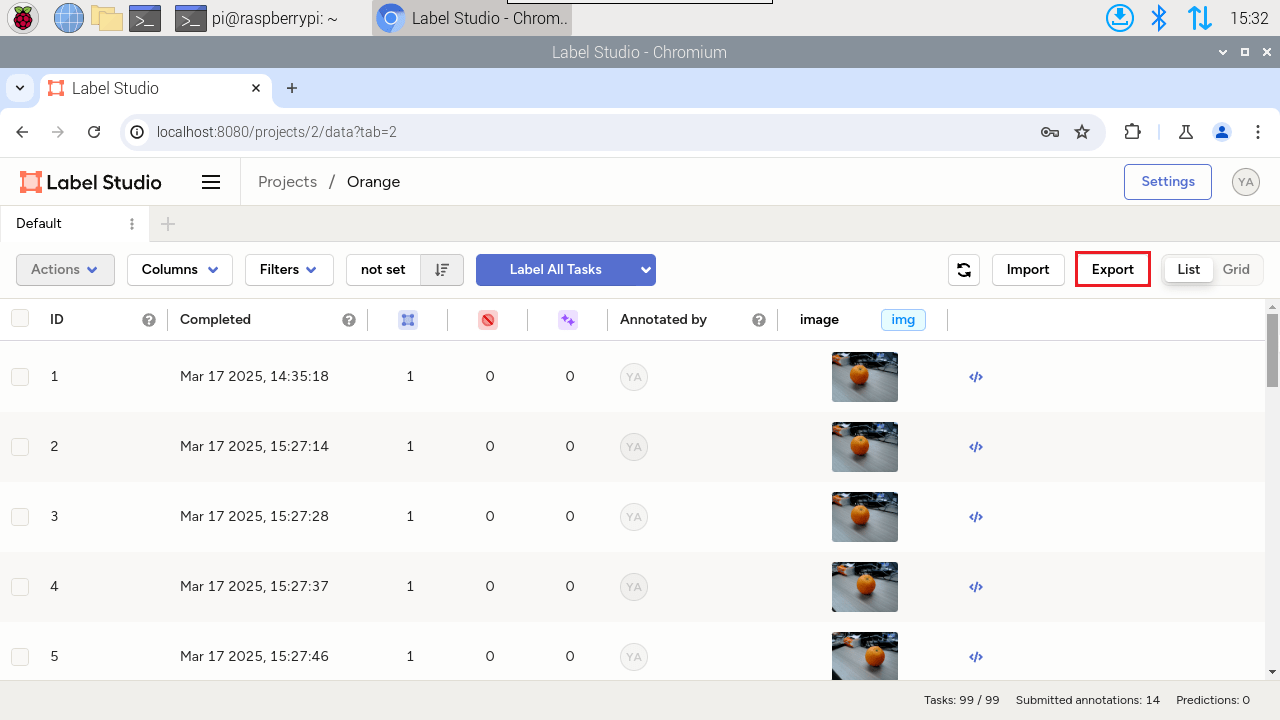
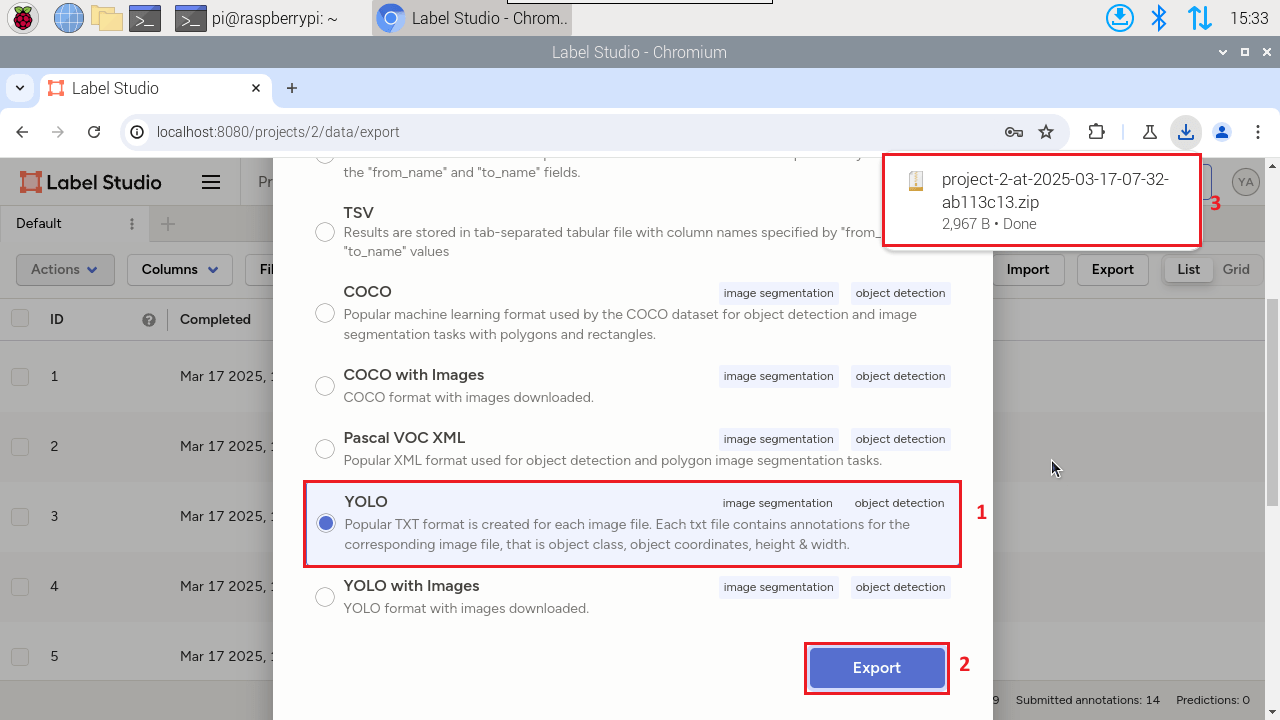
Select YOLO format for export. The browser will automatically download a compressed package.
3.7. Dataset Directory Structure
The directory structure of the compressed package exported using Label Studio:
xxxxxxxxxx.├── images├── labels├── classes.txt└── notes.json
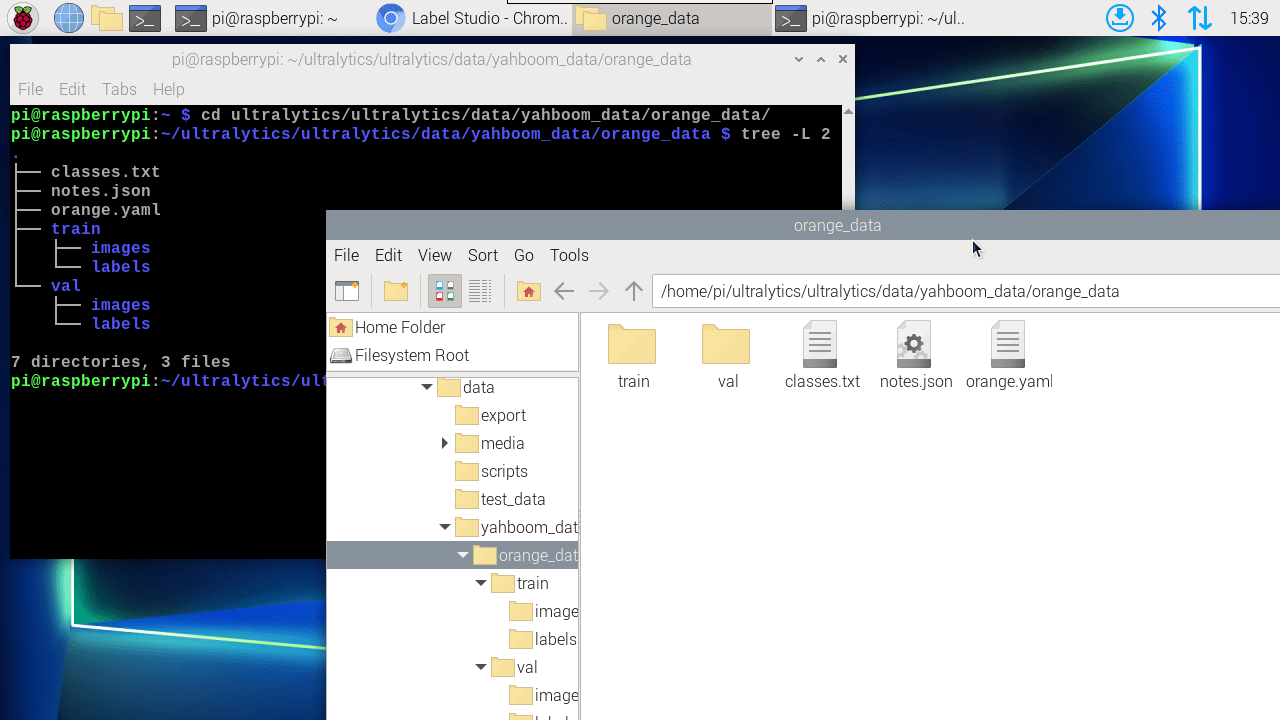
We need to split the images and labels exported by Label Studio into train (training set) and val (validation set), with a ratio of approximately 8:2. The images and labels in both train and val need to correspond one-to-one by name.
xxxxxxxxxx.├── classes.txt├── notes.json├── train│ ├── images│ └── labels└── val├── images└── labels
3.8. Dataset Configuration File
Contains the paths for the training set and validation set, as well as the number and names of classes.
xxxxxxxxxxpath: /home/pi/ultralytics/ultralytics/data/yahboom_data/orange_datatrain: train/imagesval: val/imagesnc: 1# Classesnames:0: Orange