Welcome to Self-balancing Robot Car repository
03.Get started quickly
Get started quickly
Get started quickly1. BalanceBot2. Assemble the balance car3. Download the programDevice connectionProgram download4. Program startup5. Bluetooth Remote ControlBluetooth ConnectionMain control interfacePID debuggingWaveform display
The tutorial demonstrates how to quickly experience the Bluetooth remote control function of the balance car.
1. BalanceBot
Use the mobile browser to scan the QR code to download the BalanceBot APP (only supports Android)
2. Assemble the balance car
Follow the assembly video to check whether all the hardware of the balance car is installed and connected correctly.
3. Download the program
Device connection
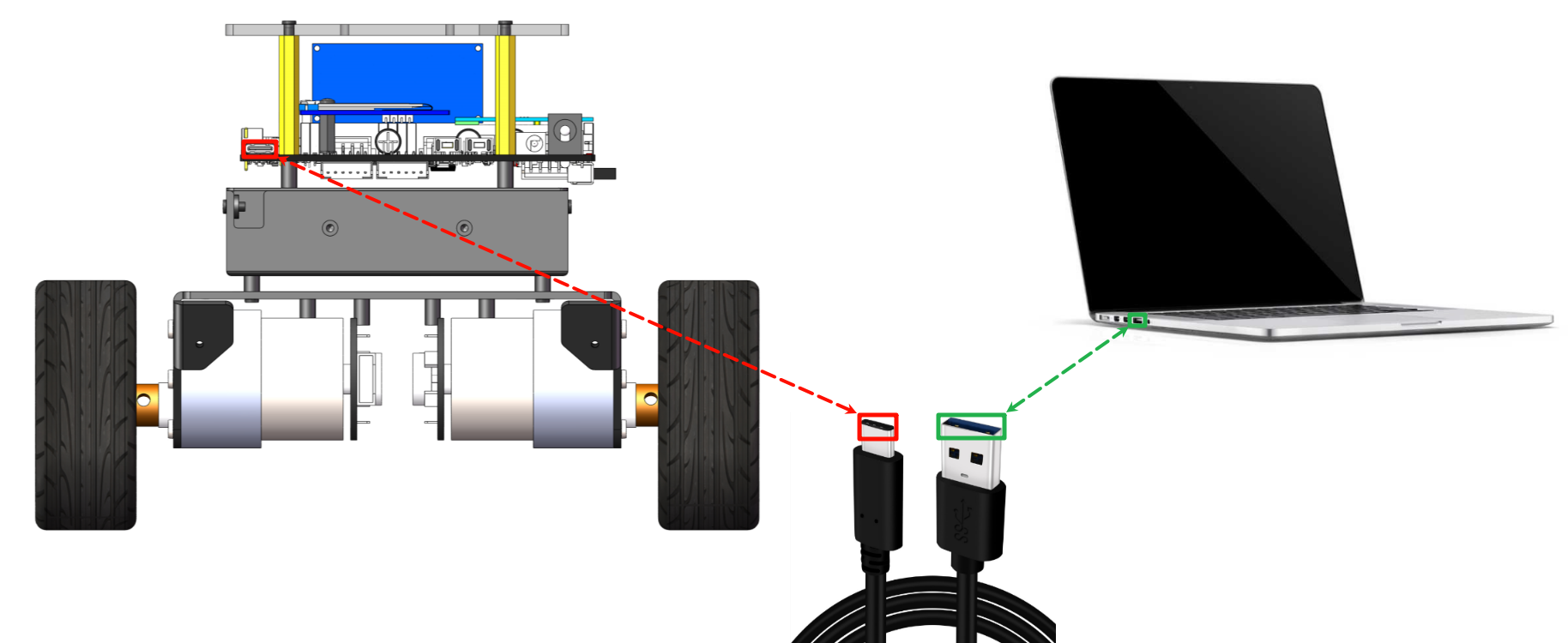
Use a Type-C data cable to connect the computer USB port and the Type-C burning port of the development board:
Program download
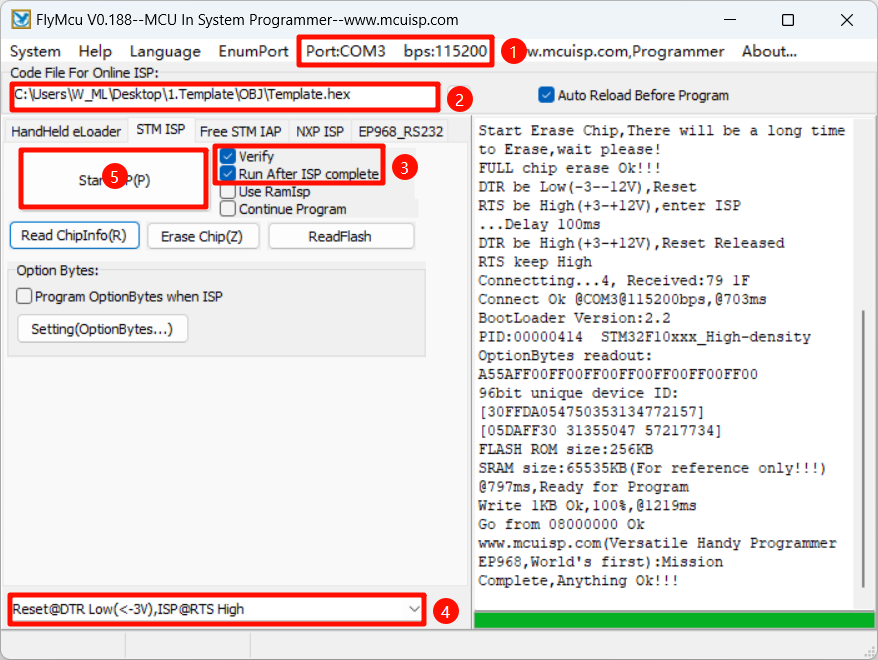
Burn the stm32_Balance_Car_L.hex file of the Large program project to the development board through the FlyMCU software: The stm32_Balance_Car_L.hex file is located in the OBJ folder of the project.
xxxxxxxxxxProduct supporting documents software path: Attachment → Software tools → FlyMcu.zipProduct supporting documents source code path: Attachment → Source code summary → 0. Large program → 1. Standard library (keil)
4. Program startup
After the program is downloaded to the development board, turn on the power switch of the expansion board; after the program is started, the OLED will display the current function mode.
Mode Switch
Turning any motor tire can switch the mode selection.
Mode Selection
KEY1 button is used to confirm the mode selection and control startup.
Function Mode Description
Note: Quick Start only demonstrates the Bluetooth control function. Other function modes require the installation of corresponding expansion accessories. For detailed usage, please refer to the [Advanced Balance Car Play] tutorial.
| Function Mode | Description |
|---|---|
| 1.Standard Mode | Standard Mode: Bluetooth Control |
| 2.UT Follow | Ultrasonic Follow Mode |
| 3.UT Avoid | Ultrasonic Obstacle Avoidance Mode |
| 4.Load Movement | Loading Mode: Bluetooth Control |
| 5.Handle Control | 2.4G Wireless Handle Control Mode |
| 6.IR Track | Four-way Line Patrol Mode |
| 7.Adv IR Track | High Difficulty Four-way Line Patrol Mode |
| 8.K210 QR Rec | K210 QR Code Recognition Mode |
| 9.K210 Track | K210 Line Patrol Mode |
| 10.K210 Follow | K210 Follow Mode |
| 11.K210 Self Learn | K210 Self-Learning Mode |
| 12.K210 Num Rec | K210 Number Recognition Mode |
| 13.LiDAR Avoid | Radar Obstacle Avoidance Mode |
| 14.LiDAR Follow | Radar Follow Mode |
| 15.LiDAR Guard | Radar Guard Mode |
| 16.LiDAR Patrol | Radar Patrol Mode |
| 17.LiDAR StrLine1 | Radar Straight Line Mode |
| 18.LiDAR StrLine2 | Radar Along Wall Mode |
| 19.CCD Track | CCD Track Mode |
| 20.EM Track | Electromagnetic Track Mode |
5. Bluetooth Remote Control
Before using Bluetooth remote control, we need to install the BalanceBot APP.
Bluetooth Connection
When you open the BalanceBot APP for the first time, it will automatically search and connect to nearby Bluetooth devices. We need to bring the phone close to the robot, and the BalanceBot APP will automatically connect; if the connection is successful, a "Connection Successful" prompt will appear.
If no search is found, you can click the Bluetooth search and connection options in turn.
xxxxxxxxxxNote: The mobile phone needs to turn on the Bluetooth function and allow the Bluetooth remote control APP related permissions
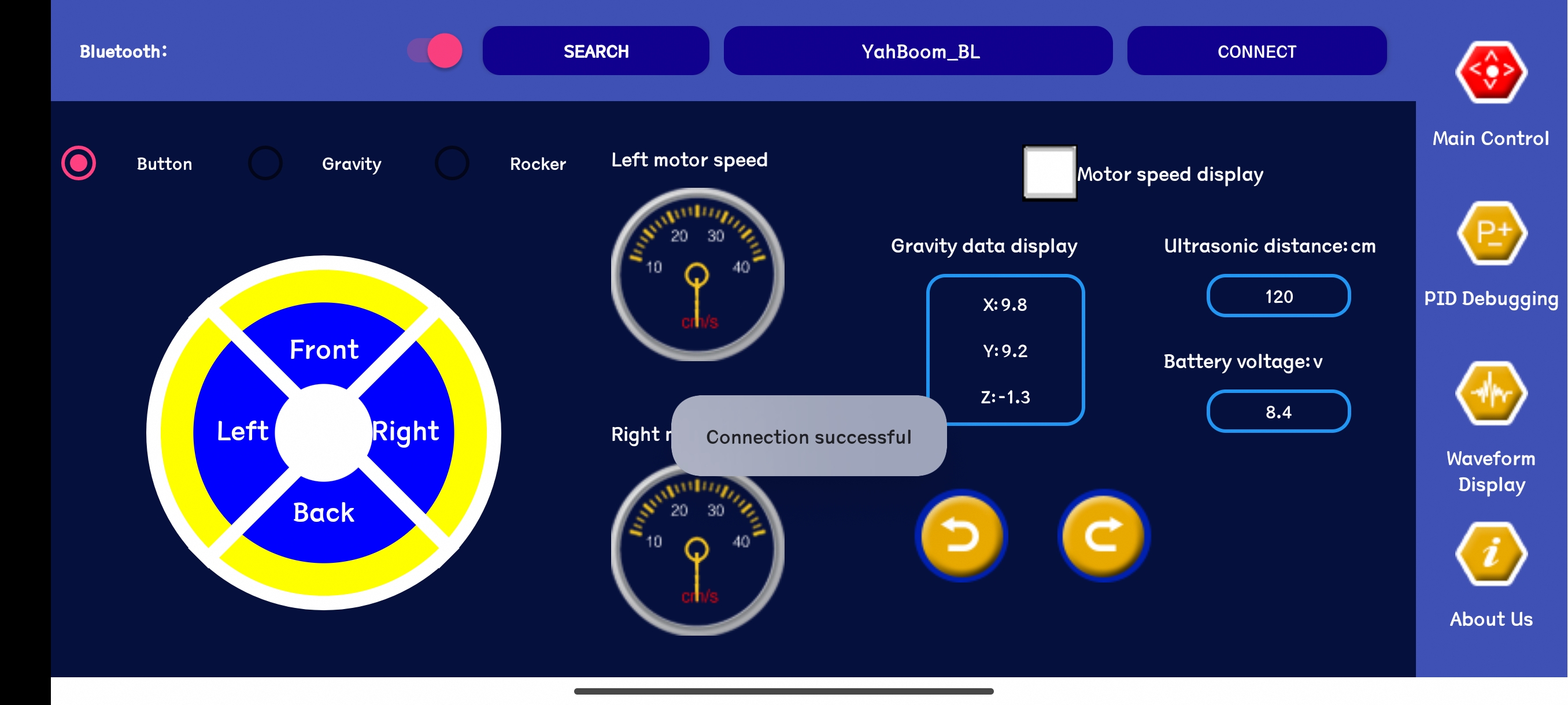
Main control interface
Used for basic control and data display of the balance car.
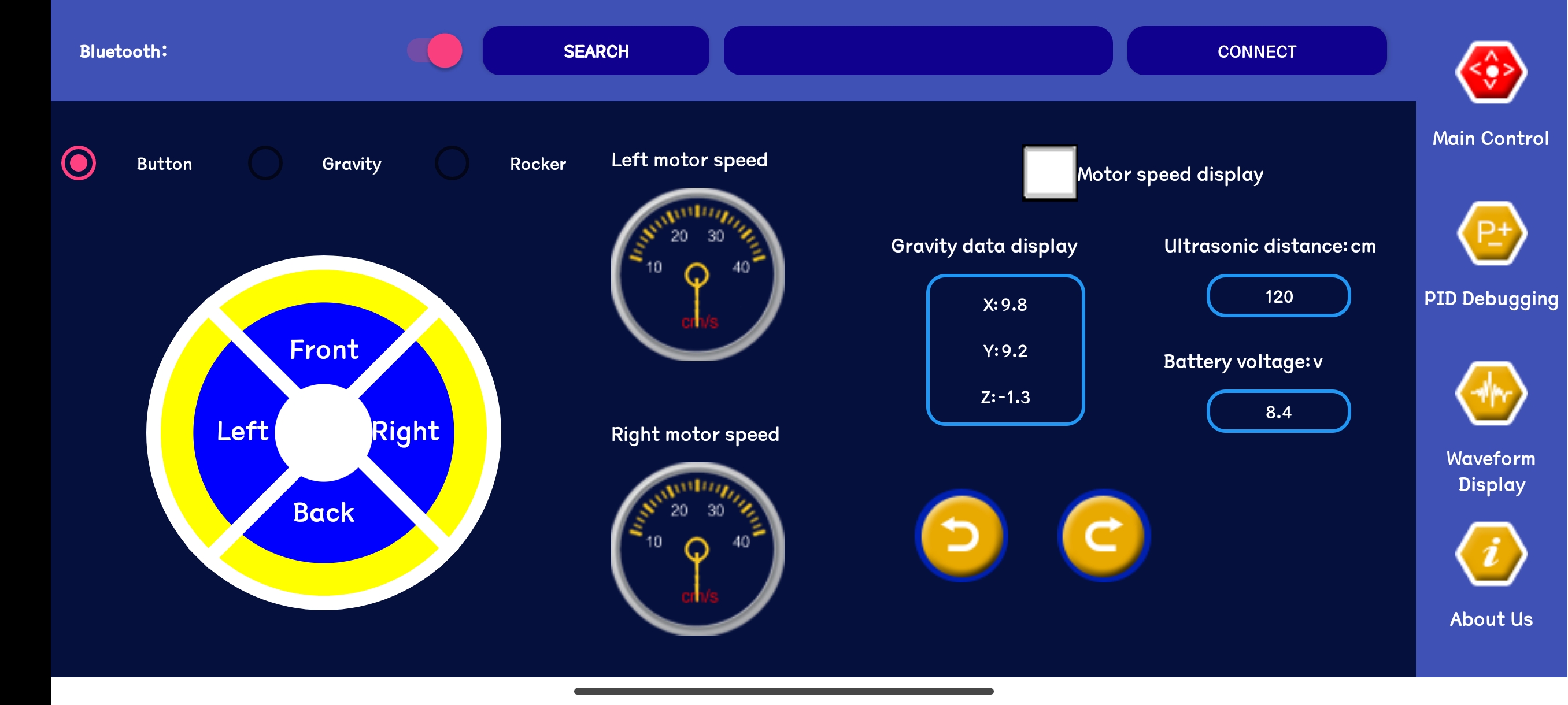
Direction control
The main control interface can control the movement of the balance car through buttons, gravity and joysticks.
Data display
The main control interface will automatically obtain gravity, ultrasonic distance, battery voltage, and left and right motor speed display.
PID debugging
Used for online query and adjustment of PID parameters to achieve the best effect.
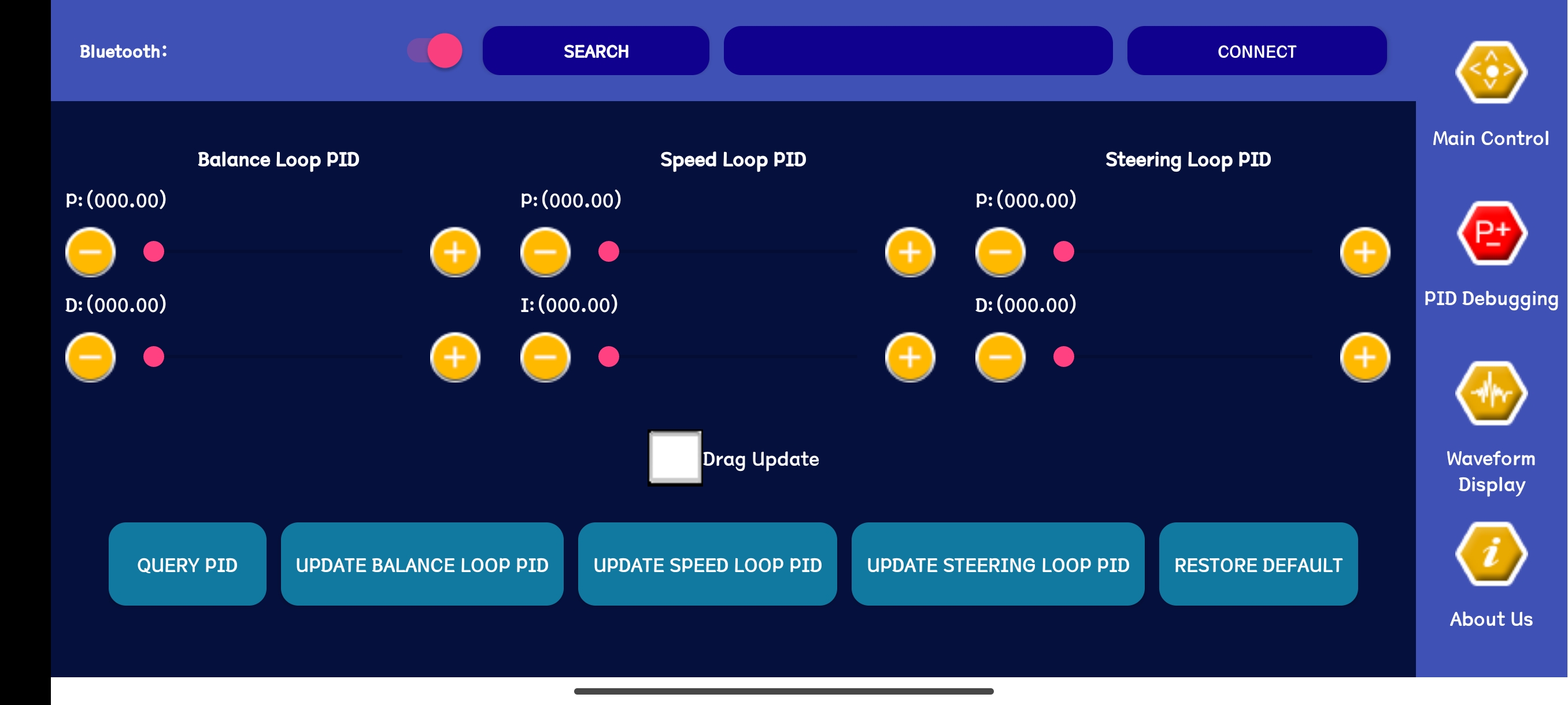
Vertical ring
Adjust the vertical ring PD parameters, support dragging and keystrokes to update data.
Speed ring
Adjust the speed ring PI parameters, support dragging and keystrokes to update data.
Steering ring
Adjust the steering ring PD parameters, support dragging and keystrokes to update data.
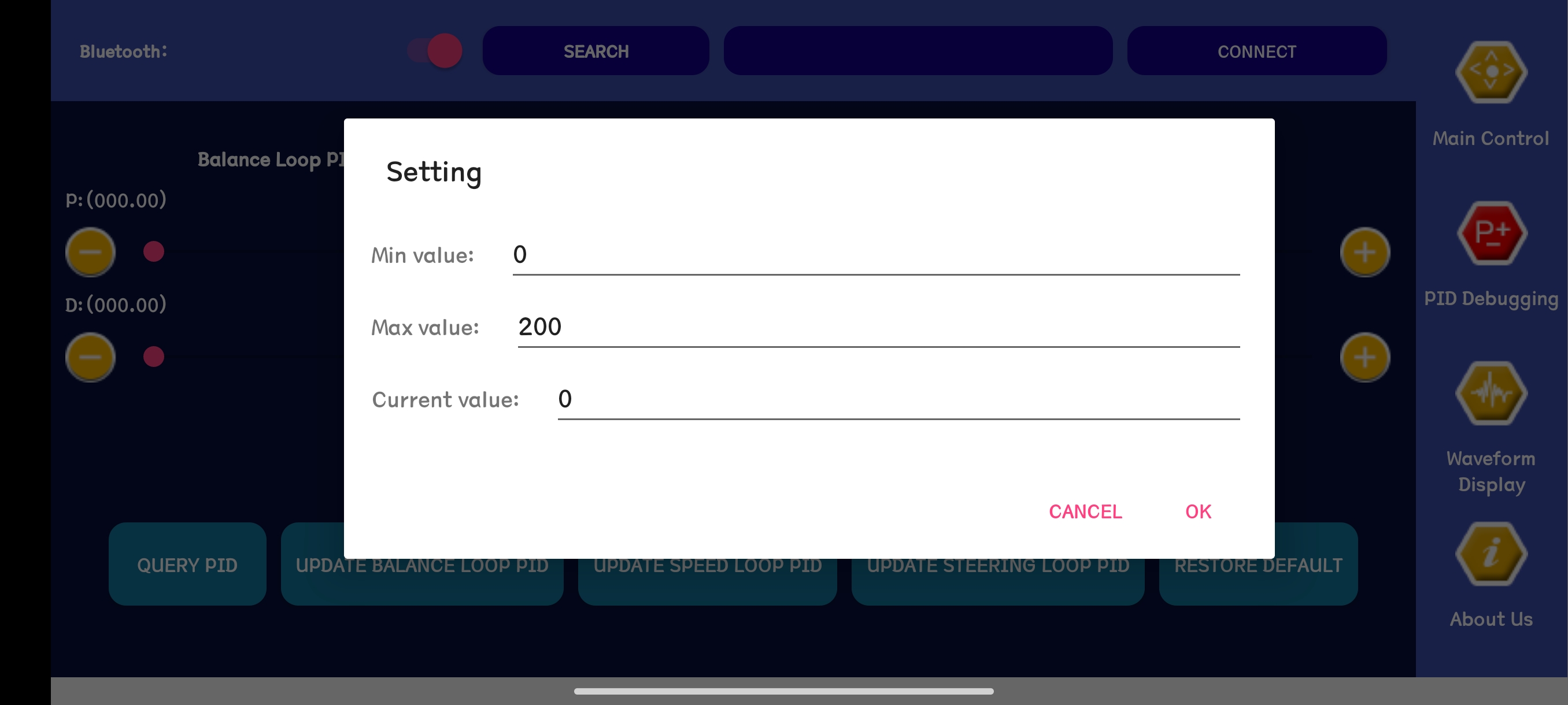
PID parameter range
Click the P, I, D options on the interface to adjust the adjustment range of each PID parameter.
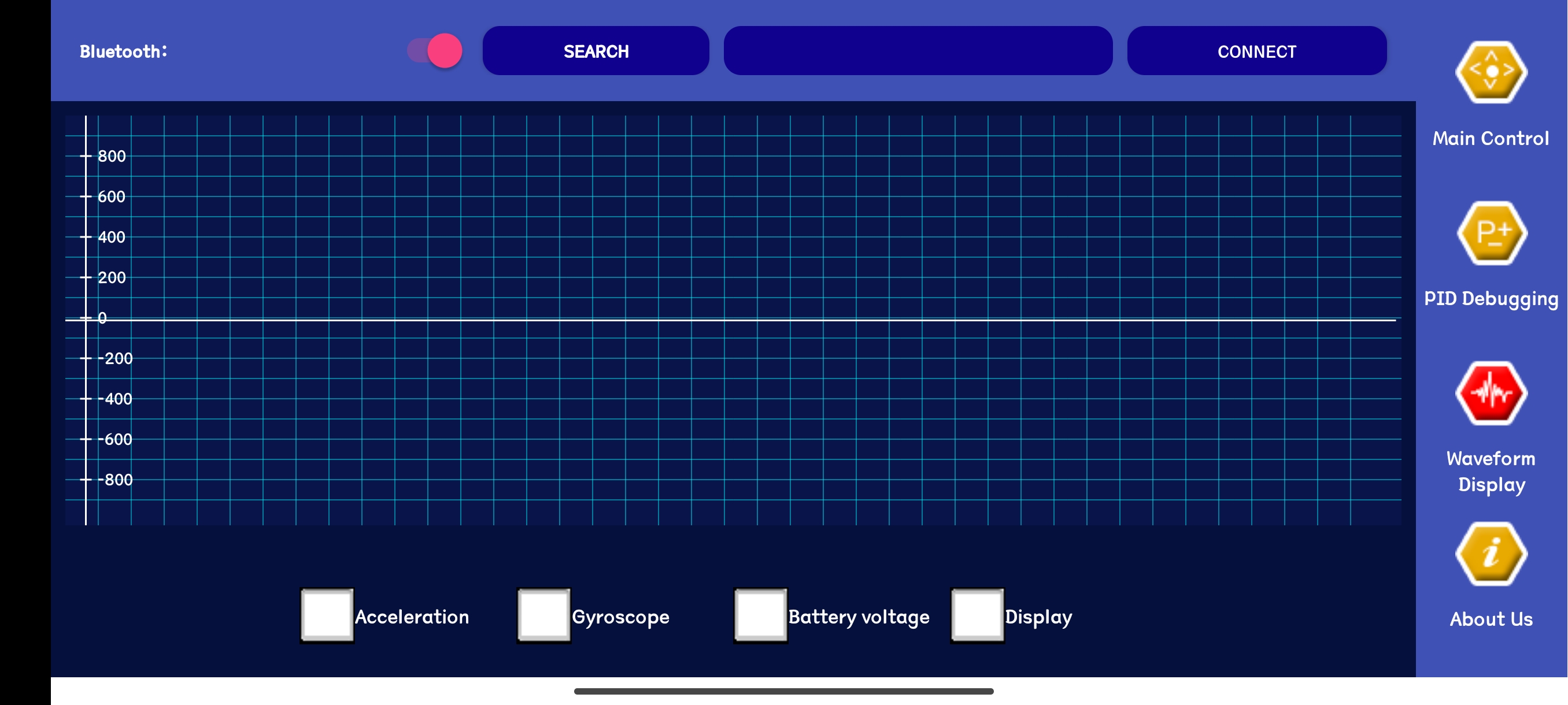
Waveform display
Check the corresponding option to display the dynamic changes of acceleration, gyroscope, and battery voltage data.