Welcome to NUWA-HP60C Depth Camera repository
1. Environment Construction
1. Environment Construction
Note: The environment of the supporting virtual machine has been built, so there is no need to build it again. Here is the work that needs to be done on a new motherboard or a new virtual machine.
The configuration of the virtual machine environment is as follows:
Ubuntu20.04 + ROS-Noetic+ OpenCV 4.2+Python3.8
1.1. Install related dependencies
Terminal input,
sudo apt install libgflags-dev ros-$ROS_DISTRO-image-geometry ros-$ROS_DISTRO-camera-info-manager ros-$ROS_DISTRO-image-transport ros-$ROS_DISTRO-image-publisher libgoogle-glog-dev libusb-1.0-0-dev libeigen3-dev1.2. Create a ROS workspace
Take the creation of a workspace named orbbec_ws in the ~ directory as an example.
Input in terminal,
xxxxxxxxxxmkdir -p ~/ascam_ws/srcUnzip the source code folder, copy the folder in src to ~/ascam_ws/src, and then input the following command to compile,
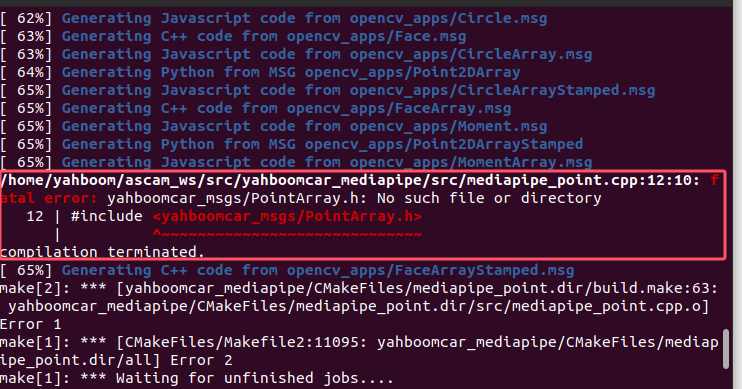
xxxxxxxxxxcd ~/ascam_wscatkin_makeIf the following error appears during compilation, please run the compilation command several times. Until the compilation is successful.
After the compilation is complete, enter the following command to open and edit the ~/.bashrc file,
xxxxxxxxxxecho "source ~/ascam_ws/devel/setup.bash" >> ~/.bashrcRefresh the environment,
xxxxxxxxxxsource ~/.bashrc1.3, Install the camera udev rule file
Terminal input,
xxxxxxxxxxcd ~/ascam_ws/src/ascamera/scriptssudo chmod 777 create_udev_rules.shsudo bash create_udev_rules.sh
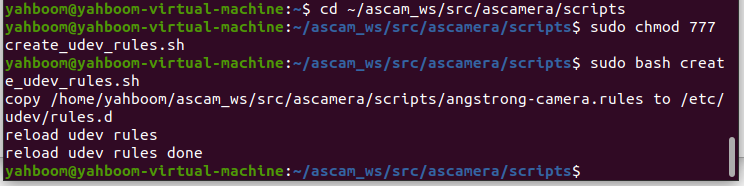
The above picture indicates that the installation is successful. After the installation is complete, it is best to restart.
1.4, Use the camera
Terminal input,
xxxxxxxxxx#Start the cameraroslaunch ascamera hp60c.launch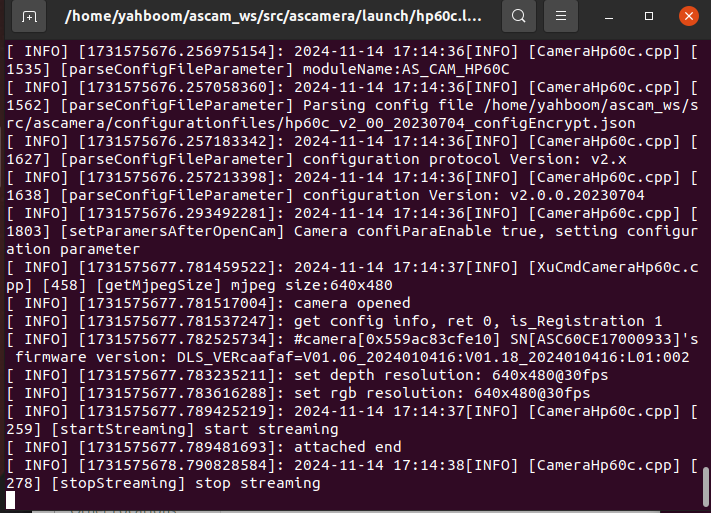
Use rviz to view the image, then open a terminal and input,
xxxxxxxxxxrviz
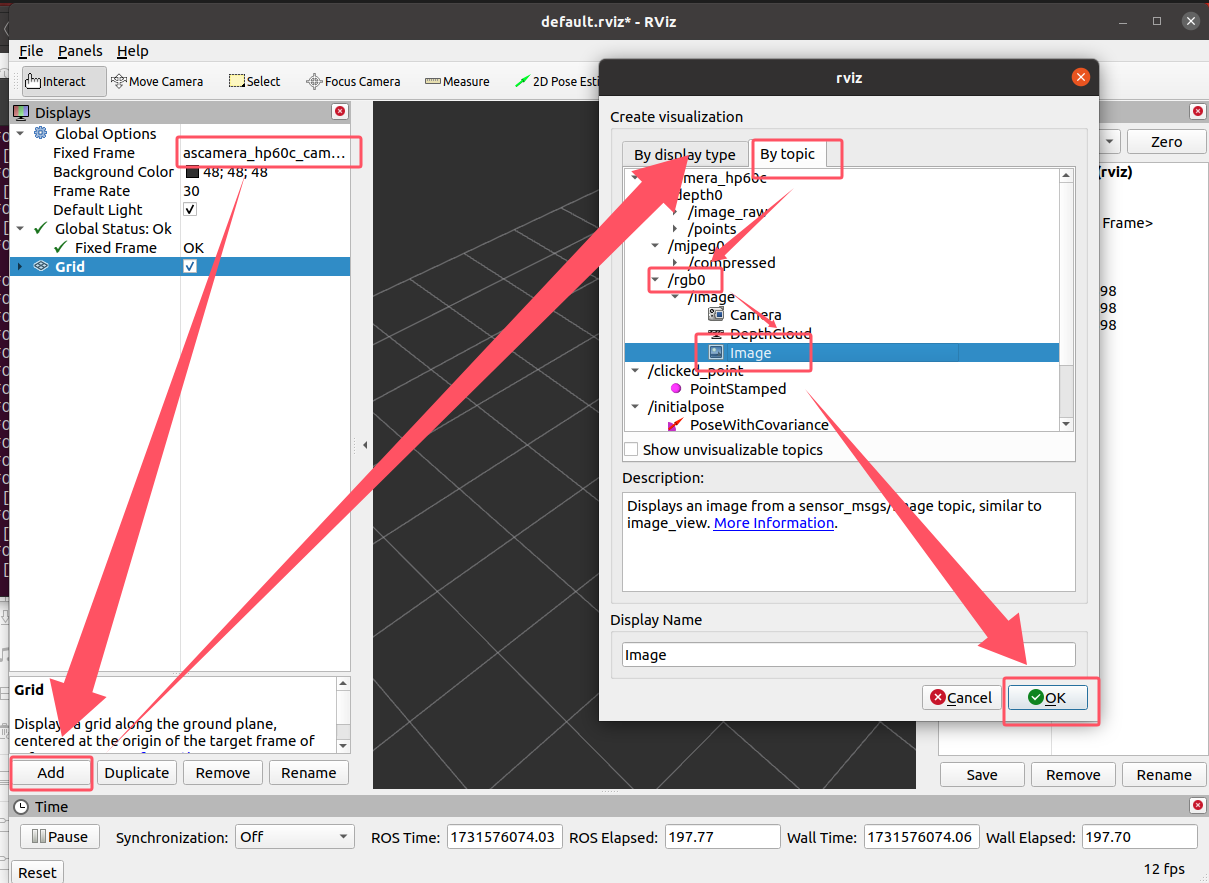
Change Fixed Frame to ascamera_hp60c_camera_link_0, then add the Image display plug-in as shown in the figure below, and select the color image display in the Image Topic column: /ascamera_hp60c/rgb0/image
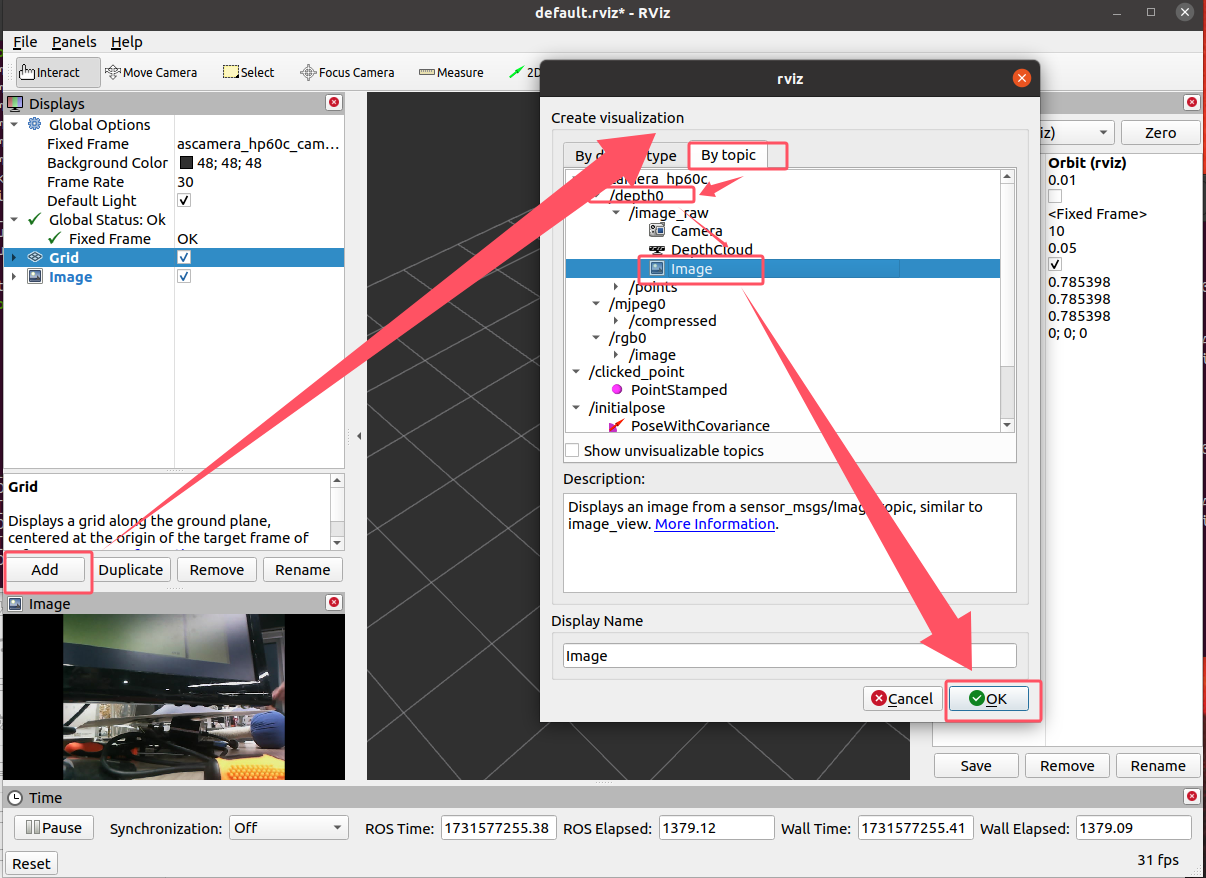
As shown below, also in Image Select the depth image to be displayed in the Topic column: /ascamera_hp60c/depth/image_raw
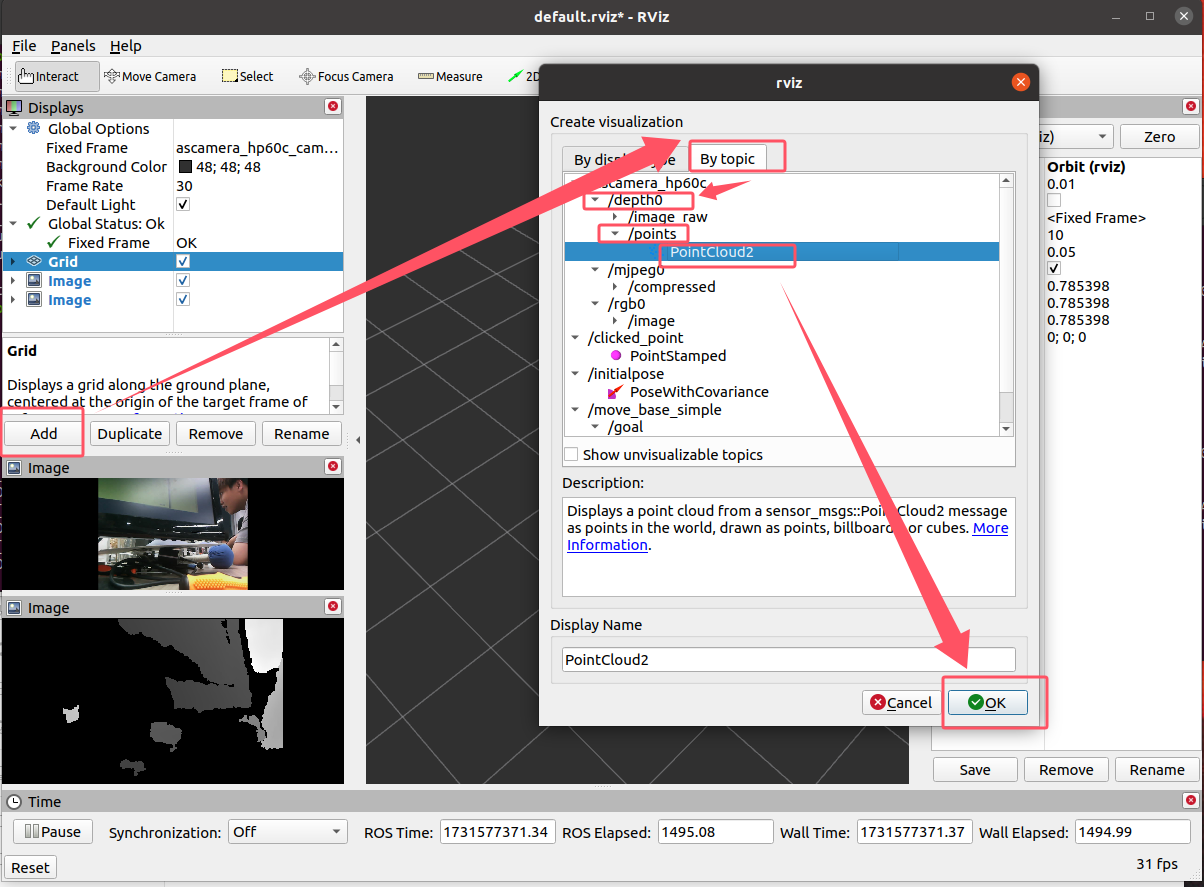
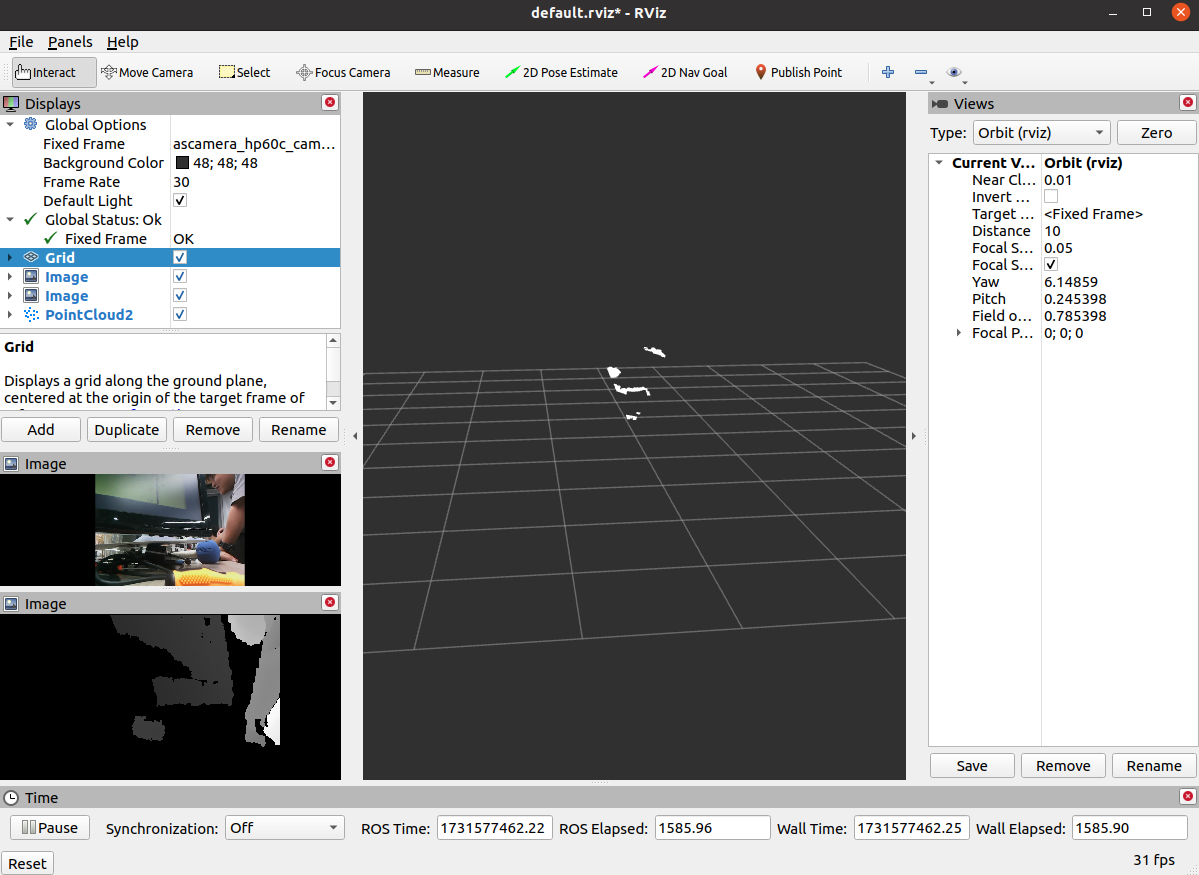
View the depth point cloud