Welcome to NUWA-HP60C Depth Camera repository
5. ORBSLAM2 Basics
5. ORBSLAM2 Basics
5. ORBSLAM2 Basics5.1. Introduction ORB-SLAM is mainly used for monocular SLAM;5.2, Official Case5.2.1, Dataset Location5.2.2, Monocular Test5.2.4, Binocular Test5.2.5, RGBD test5.3, ORB_SLAM2 ROS2 camera test5.3.1, monocular test
Official website: http://webdiis.unizar.es/~raulmur/orbslam/
TUM Dataset: http://vision.in.tum.de/data/datasets/rgbd-dataset/download
KITTI Dataset: http://www.cvlibs.net/datasets/kitti/eval_odometry.php
EuRoC Dataset: http://projects.asl.ethz.ch/datasets/doku.php?id=kmavvisualinertialdatasets
orb_slam2_ros: http://wiki.ros.org/orb_slam2_ros
ORB-SLAM: https://github.com/raulmur/ORB_SLAM
ORB-SLAM2: https://github.com/raulmur/ORB_SLAM2
ORB-SLAM3: https://github.com/UZ-SLAMLab/ORB_SLAM3
5.1. Introduction ORB-SLAM is mainly used for monocular SLAM;
ORB-SLAM2 version supports monocular, binocular and RGBD interfaces;
ORB-SLAM3 version adds IMU coupling and supports fisheye cameras.
All steps of ORB-SLAM are unified Use the ORB feature of the image. ORB feature is a very fast feature extraction method with rotation invariance and can be constructed with pyramids to achieve scale invariance. Using a unified ORB feature helps the SLAM algorithm in feature extraction and tracking, key The steps of frame selection, 3D reconstruction, and closed-loop detection are consistent. The system is also robust to violent movements and supports wide-baseline closed-loop detection and relocalization, including fully automatic initialization. system, so it can calculate the trajectory of the camera in real time and generate a sparse 3D reconstruction of the scene.
Based on ORB-SLAM, ORB-SLAM2 contributes:
1) The first open source SLAM system for monocular, binocular and RGBD cameras, including loop closure, relocalization and map reuse.
2) RGBD results show that through Using BA can achieve more accuracy than ICP or minimization based on photometric and depth errors.
3) By using the far and near points in the stereo, as well as monocular observations, the stereo results are more accurate than direct stereo SLAM algorithms.
4 ) Light positioning mode can effectively reuse maps.
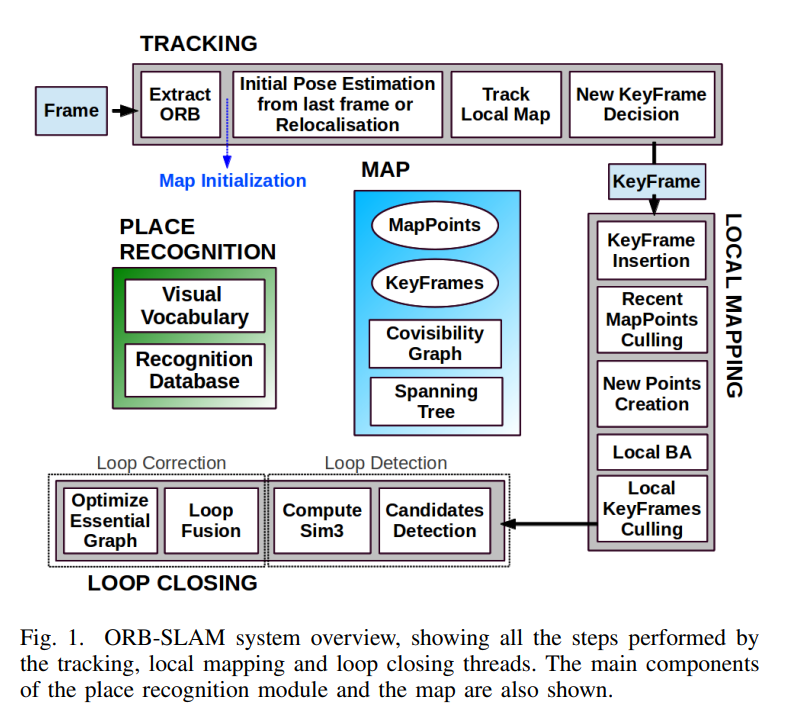
ORB-SLAM2 includes modules common to all SLAM systems: tracking, mapping, relocalization, and loop closing. The following figure is ORB -The process of SLAM2.
5.2, Official Case
Note: The virtual machine has been configured with the orbsalm environment and can be run directly. If it is on other platforms, you need to set up the environment in advance before running.
5.2.1, Dataset Location
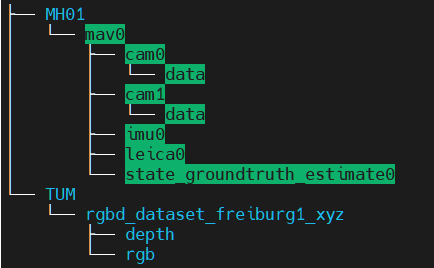
/home/yahboom/orbslam2/ORB_SLAM2/data
The EuRoC MH01 dataset and TUM rgbd_dataset_freiburg1_xyz dataset were downloaded.
If you need other datasets, you can download them from the following address:
xxxxxxxxxxTUM Dataset: http://vision.in.tum.de/data/datasets/rgbd-dataset/downloadKITTI Dataset: http://www.cvlibs.net/datasets/kitti/eval_odometry.phpEuRoC Dataset: http://projects.asl.ethz.ch/datasets/doku.php?id=kmavvisualinertialdatasets
5.2.2, Monocular Test
Here, take the EuRoC dataset as an example and enter the ORB_SLAM2 directory:
xxxxxxxxxxcd /home/yahboom/orbslam2/ORB_SLAM2
Run the following command:
xxxxxxxxxxExamples/Monocular/mono_euroc Vocabulary/ORBvoc.txt Examples/Monocular/EuRoC.yaml data/MH_01_easy/mav0/cam0/data Examples/Monocular/EuRoC_TimeStamps/MH01.txt
The successful operation interface is as shown below,
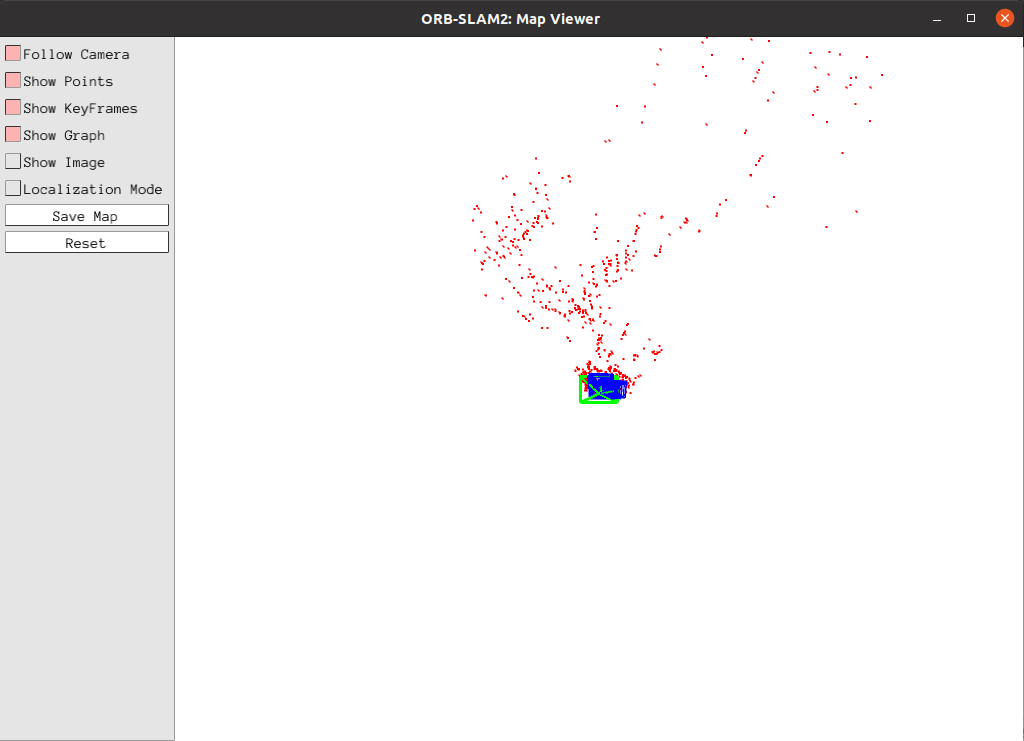
The blue box is the key frame, the green box is the camera orientation, the black point is the saved point, and the red point is the point currently seen by the camera.
Click [Show Image] to view the image.
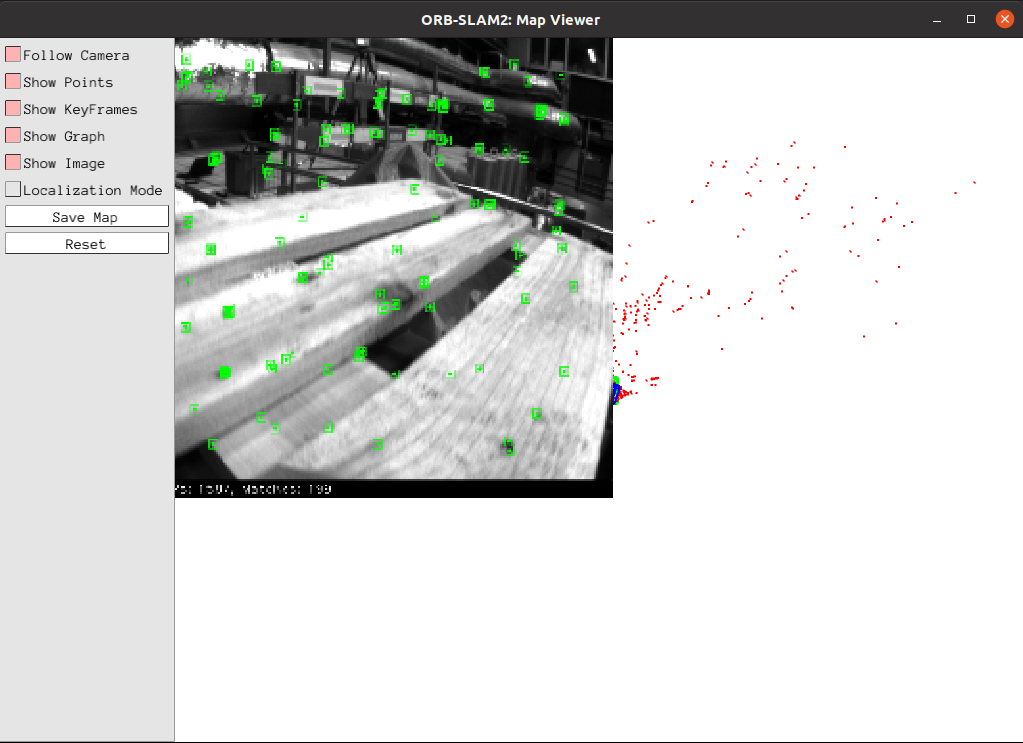
After the test, the keyframe is saved to the KeyFrameTrajectory.txt file in the current directory:
xxxxxxxxxx# Timestamp Position (x y z) + Posture (x y z w)1341847980.722988 -0.0000464 0.0001060 0.0000110 -0.0000183 0.0001468 -0.0000286 1.0000000
5.2.4, Binocular Test
Here, take the EuRoC dataset as an example, enter the ORB_SLAM2 directory, and run the following command:
xxxxxxxxxxcd /home/yahboom/orbslam2/ORB_SLAM2
Run the following command,
xxxxxxxxxxExamples/Stereo/stereo_euroc Vocabulary/ORBvoc.txt Examples/Stereo/EuRoC.yaml data/MH_01_easy/mav0/cam0/data data/MH_01_easy/mav0/cam1/data Examples/Stereo/EuRoC_TimeStamps/MH01.txtThe successful operation interface is as follows:
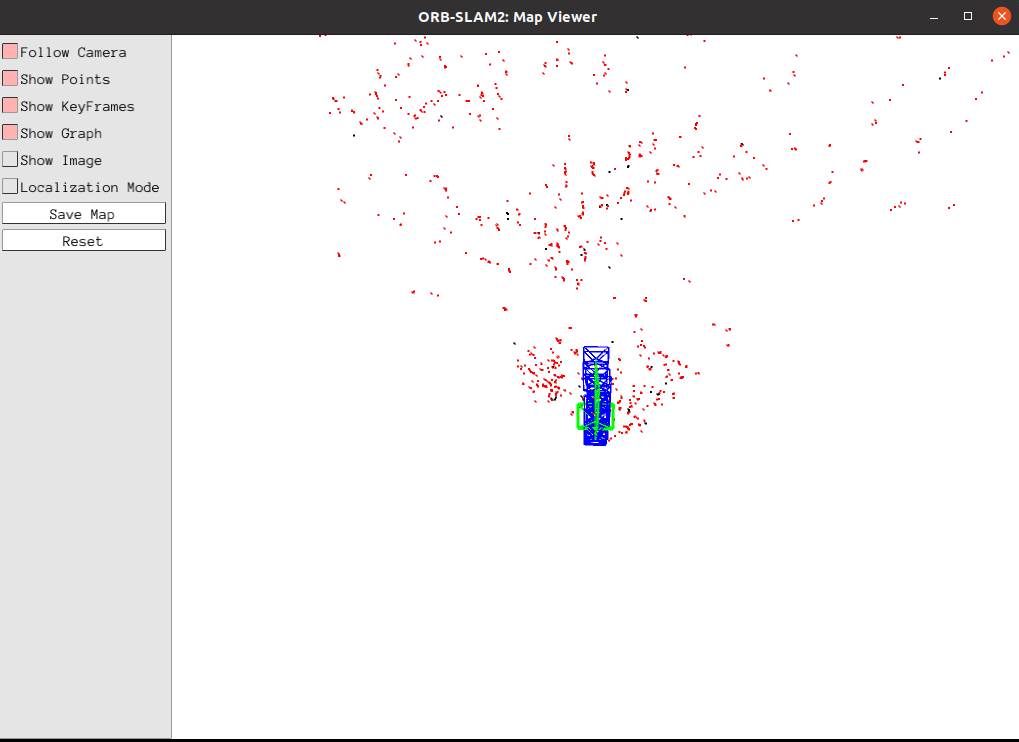
The blue frame is the key frame, the green frame is the camera direction, the black dot is the saved point, and the red dot is the point currently seen by the camera.
Click [Show Image] to view the image.
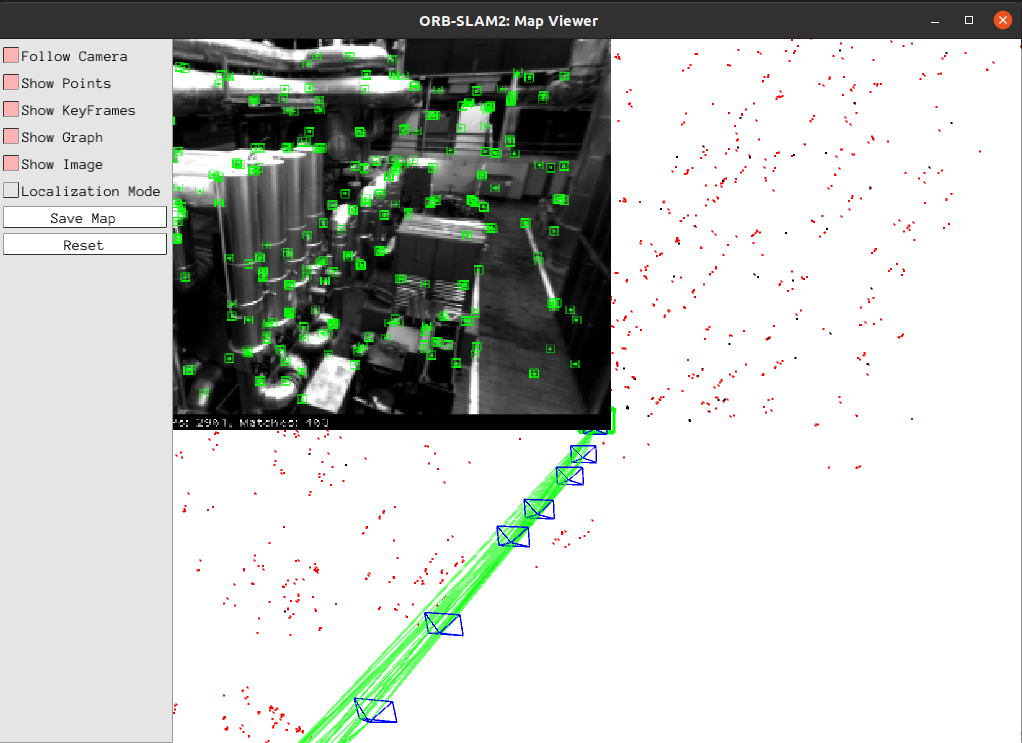
After the test, the keyframe is saved to the CameraTrajectory.txt file in the current directory
xxxxxxxxxx# Timestamp Position (x y z) + Posture (x y z w)1403636597.963556 -0.020445164 0.127641633 0.107868195 -0.136788622 -0.074876986 -0.044620439 0.986757994
5.2.5, RGBD test
Enter the ORB_SLAM2 directory and enter the following command:
xxxxxxxxxxcd /home/yahboom/orbslam2/ORB_SLAM2
Run the following command,
xxxxxxxxxxExamples/RGB-D/rgbd_tum Vocabulary/ORBvoc.txt Examples/RGB-D/TUM1.yaml data/rgbd_dataset_freiburg3_long_office_household data/rgbd_dataset_freiburg3_long_office_household/associations.txt
The successful operation interface is as follows:
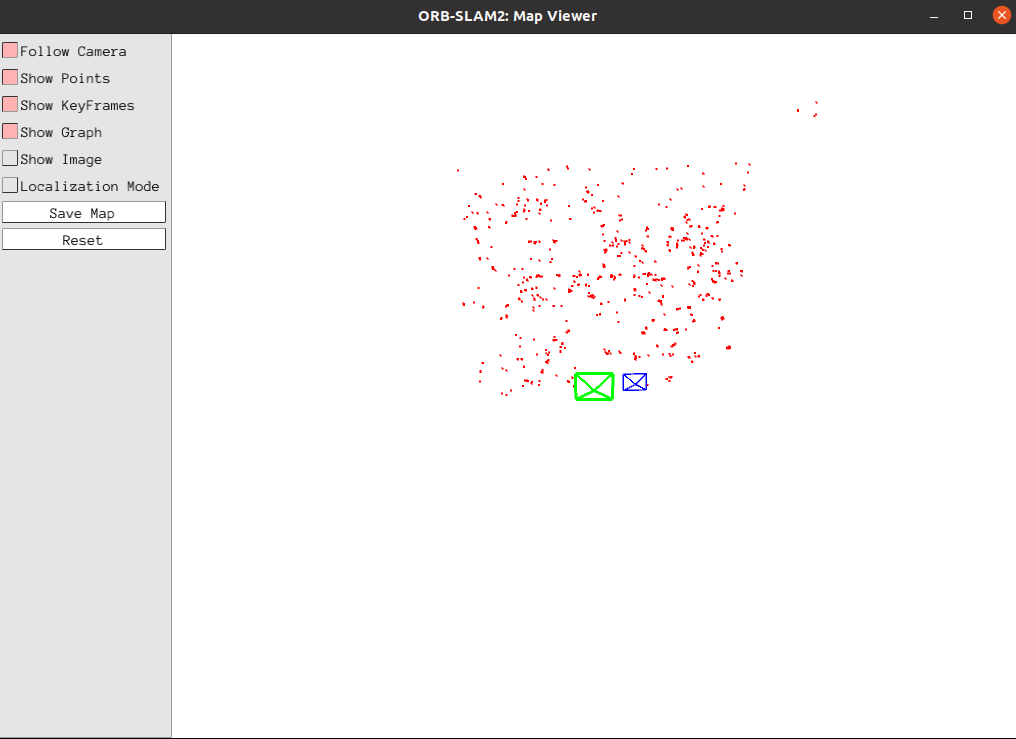
Click [Show Image] to view the image.
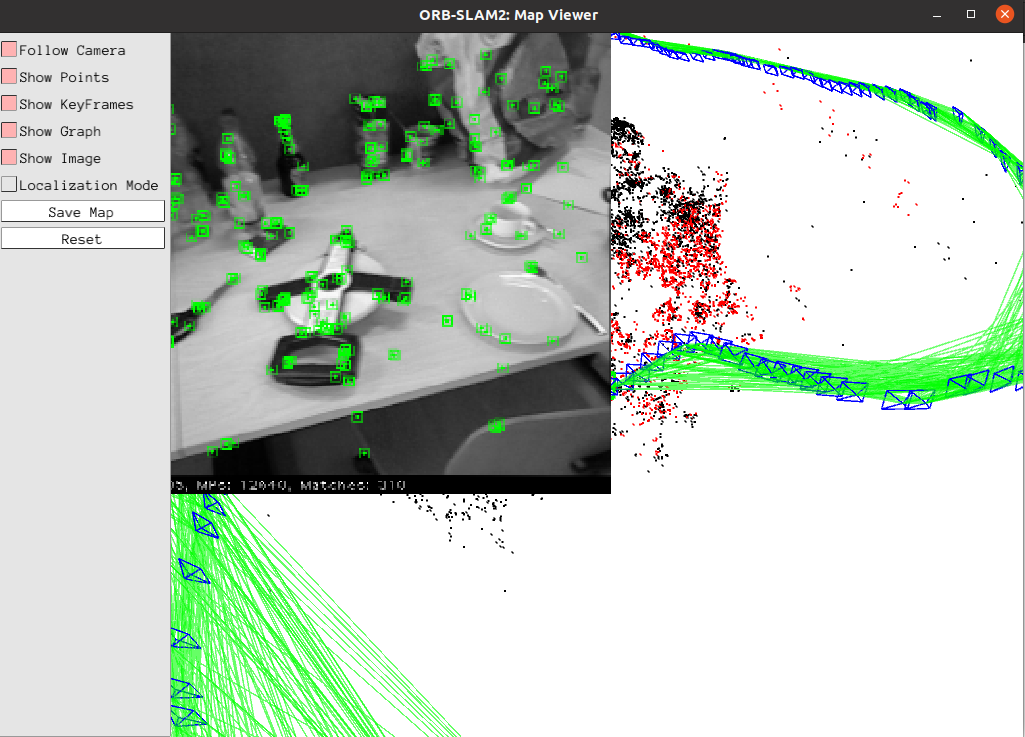
CameraTrajectory.txt and KeyFrameTrajectory.txt will also be saved after the run
5.3, ORB_SLAM2 ROS2 camera test
5.3.1, monocular test
Start camera ORB_SLAM2 test
xxxxxxxxxx# Start the camera: Here only the camera's RGB image is used (equivalent to a monocular camera)ros2 launch ascamera hp60c.launch.py# Start the orbslam noderos2 launch yahboomcar_slam orbslam_ros_launch.py ••orb_slam_type:=mono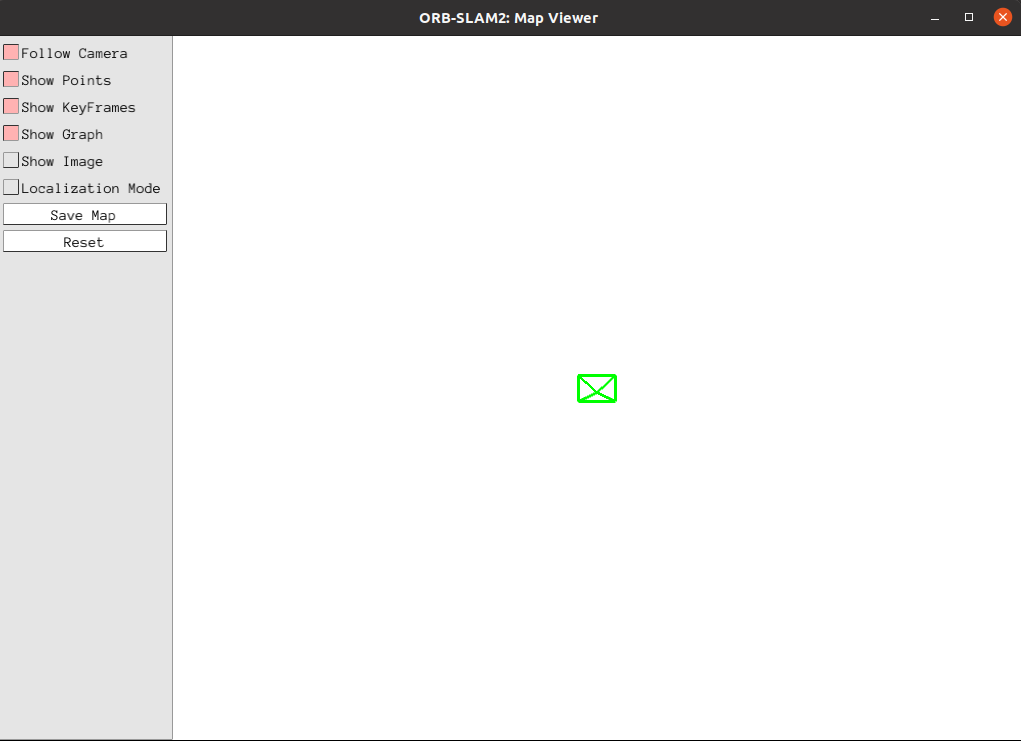
When the command is executed, there is only a green box in the [ORB_SLAM2:Map Viewer] interface, and the [ORB_SLAM2:Current Frame] interface is trying to initialize. At this time, slowly move the camera up, down, left, and right to find feature points in the picture and initialize slam.
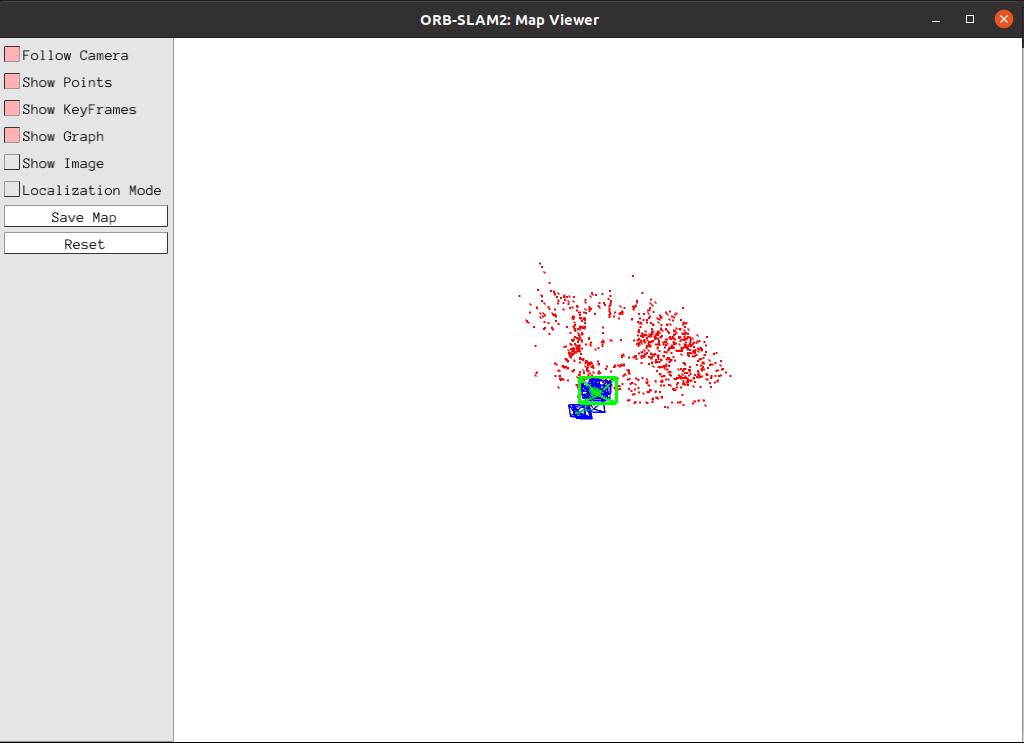
Click [Show Image] to view the image.
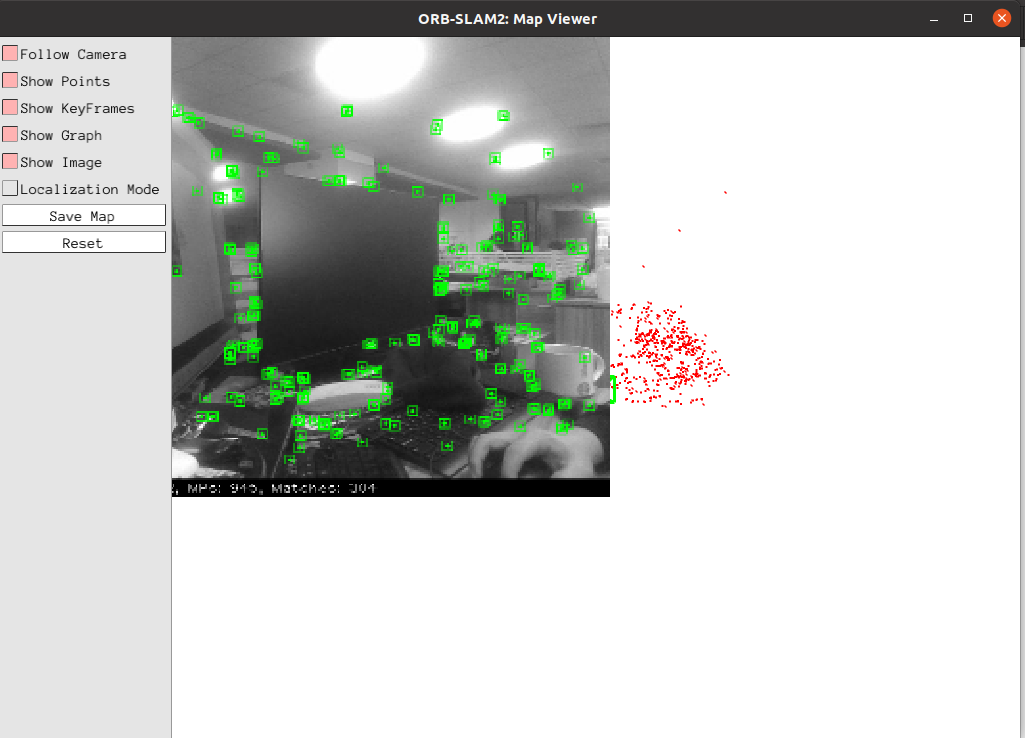
After the test, the keyframe is saved in the KeyFrameTrajectory.txt file in the following directory:
xxxxxxxxxx~/ascam_ros2_ws/src/ros2-ORB_SLAM2/src//monocular/KeyFrameTrajectory.txt
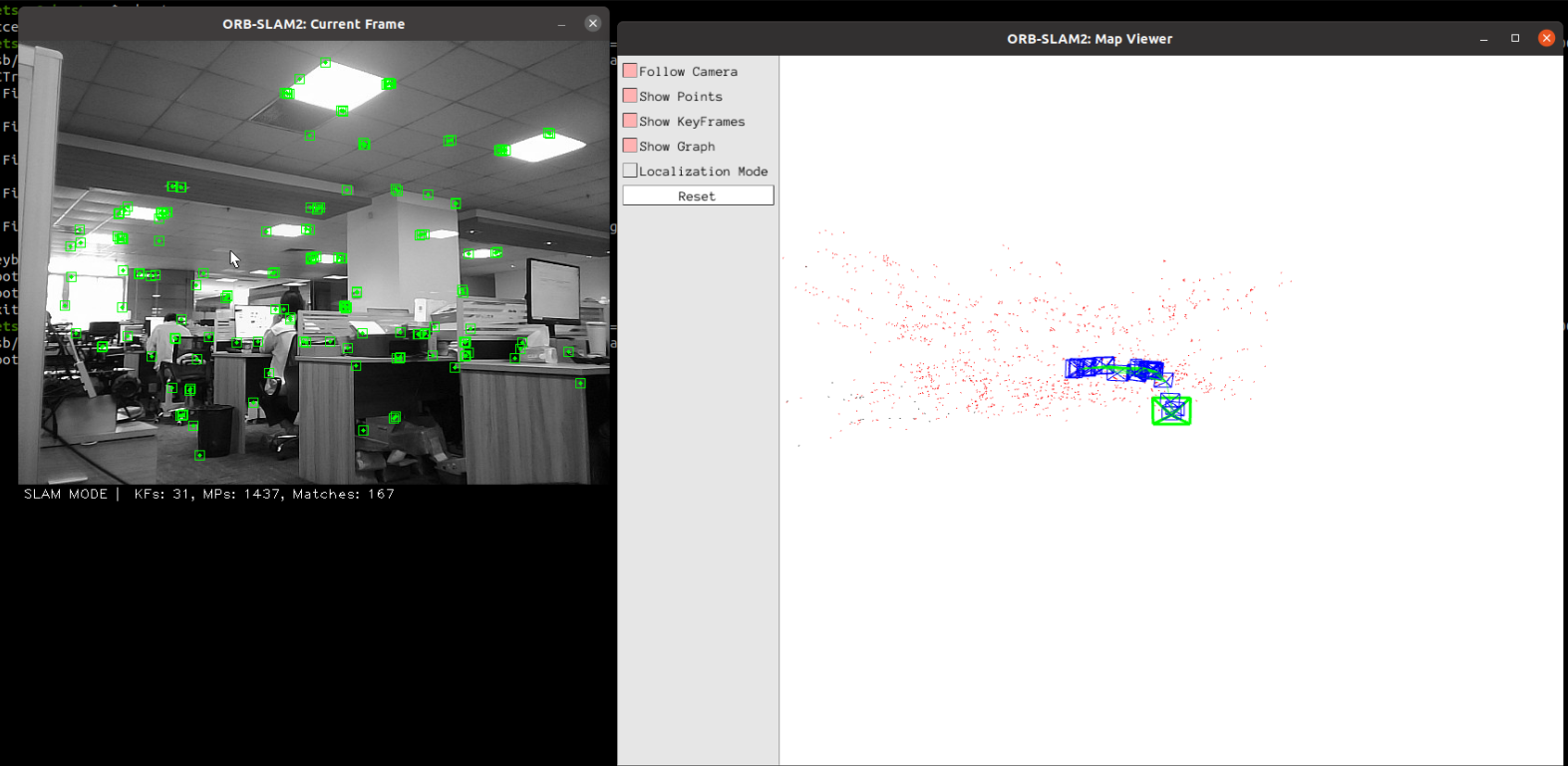
As shown in the figure above, enter the [SLAM MODE] mode at this time. When running the monocular, each frame of the image must be continuously acquired to locate the camera. If the pure positioning mode [Localization Mode] in the upper left figure is selected, the camera will not be able to find its own position and must start acquiring keyframes again.