Welcome to NUWA-HP60C Depth Camera repository
25. Simple Filter
25. Simple Filter
25.1. Use
Source launch file path: /opt/ros/noetic/share/opencv_apps/launch
Step 1: Start the camera
roslaunch ascam_visual opencv_apps.launch img_flip:=false
- img_flip parameter: whether the image needs to be flipped horizontally, the default is false.
The [usb_cam-test.launch] file opens the [web_video_server] node by default, and you can directly use the [IP:8080] web page to view the image in real time.
Step 2: Start the simple filtering function of Opencv_apps
xxxxxxxxxxroslaunch opencv_apps smoothing.launch # Simple filterEach function case will have a parameter [debug_view], Boolean type, whether to use Opencv to display the image, the default is displayed.
If you don't need to display, set it to [False], for example
xxxxxxxxxxroslaunch opencv_apps smoothing.launch debug_view:=FalseHowever, after starting in this way, some cases may not be displayed in other ways, because in the source code, some [debug_view] is set to [False], which will turn off image processing.
25.2, Display method
- rqt_image_view
Enter the following command and select the corresponding topic
xxxxxxxxxxrqt_image_view
- opencv
The system displays by default, and no processing is required.
- Web viewing
(Under the same LAN) Enter IP+port in the browser, for example:
xxxxxxxxxx192.168.2.116:8080
For specific IP, use your current virtual machine IP.
25.3, Effect display
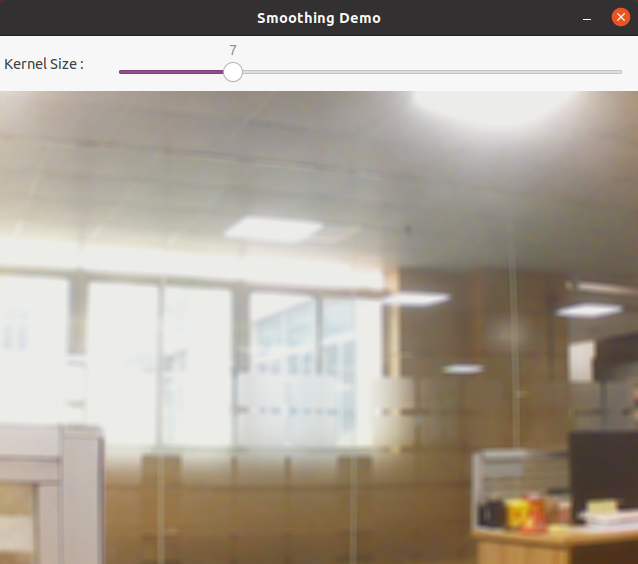
You can move the slider to see the filtered image,