Welcome to NUWA-HP60C Depth Camera repository
3.Harris corner detection
3.Harris corner detection
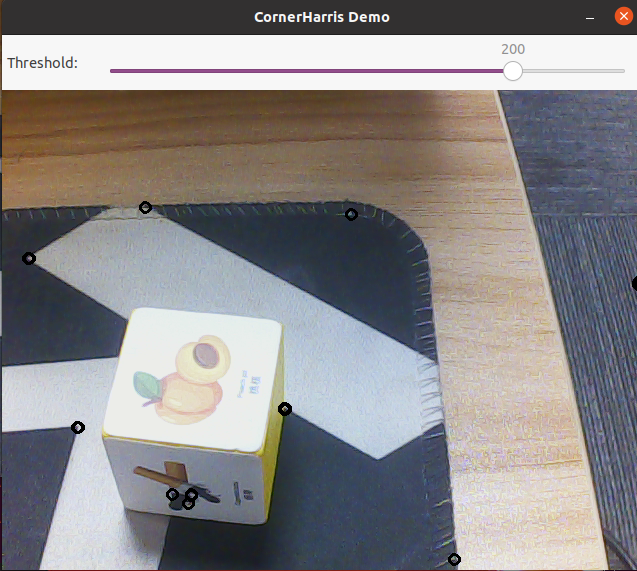
Corner points are widely used in image processing, such as image matching (FPM feature point matching), camera calibration, etc. The basic idea of the algorithm is to use a fixed window to slide in any direction on the image, and compare the grayscale change of pixels in the window before and after sliding. If there is a large grayscale change in sliding in any direction, then we can think that there is a corner point in the window.
3.1. Use
Source launch file path: /opt/ros/noetic/share/opencv_apps/launch
Step 1: Start the camera
roslaunch ascam_visual opencv_apps.launch img_flip:=false
- img_flip parameter: whether the image needs to be flipped horizontally, the default is false.
The [usb_cam-test.launch] file opens the [web_video_server] node by default, and you can directly use the [IP:8080] web page to view the image in real time.
Step 2: Start the corner detection function of Opencv_apps
xxxxxxxxxxroslaunch opencv_apps corner_harris.launch # harris corner detectionEach function case will have a parameter [debug_view], Boolean type, whether to use Opencv to display the image, displayed by default.
If you do not need to display, set it to [False], for example
xxxxxxxxxxroslaunch opencv_apps corner_harris.launch debug_view:=FalseHowever, after starting in this way, some cases may not be displayed in other ways, because in the source code, some [debug_view] is set to [False], which will turn off the image processing.
3.2, Display method
- rqt_image_view
Enter the following command and select the corresponding topic
xxxxxxxxxxrqt_image_view
- opencv
The system displays by default, no processing is required.
- Web viewing
(Under the same LAN) Enter IP+port in the browser, for example:
xxxxxxxxxx192.168.2.116:8080
For specific IP, use your current virtual machine IP.
3.3, Effect display
You can see that the camera will mark the corners of the captured image.