Welcome to ROSMASTER A1 repository
5.Angular velocity calibration
Angular velocity calibration
This lesson uses the Raspberry Pi as an example. For Raspberry Pi and Jetson-Nano boards, you need to open a terminal on the host computer and enter the command to enter the Docker container. Once inside the Docker container, enter the commands mentioned in this lesson in the terminal. For instructions on entering the Docker container from the host computer, refer to [01.Robot Configuration and Operation Guide] -- [5.Enter Docker (For JETSON Nano and RPi 5)]. For Orin and RDK boards, simply open the terminal and enter the commands mentioned in this lesson.
1. Program Description
Run the program and adjust the parameters using the dynamic parameter adjuster to calibrate the car's angular velocity. To visually demonstrate the angular velocity calibration, give the command to move the car forward 1 meter and observe the actual distance traveled, checking if it falls within the error range.
2. Starting the Program
2.1 Starting Commands
For the Raspberry Pi 5 and jetson nano controller, you must first enter the Docker container. For the Orin and RDK controller, this is not necessary.
Entering the Docker container (see [Docker Course] --- [4. Docker Startup Script] for steps).
All the following commands must be executed within the same Docker container in the Docker terminal.** (see [Docker Course] --- [3. Docker Commit and Multiple Terminal Entry] for steps.)
Start the chassis data, enter the command in the terminal.
ros2 launch yahboomcar_bringup yahboomcar_bringup_A1_launch.py
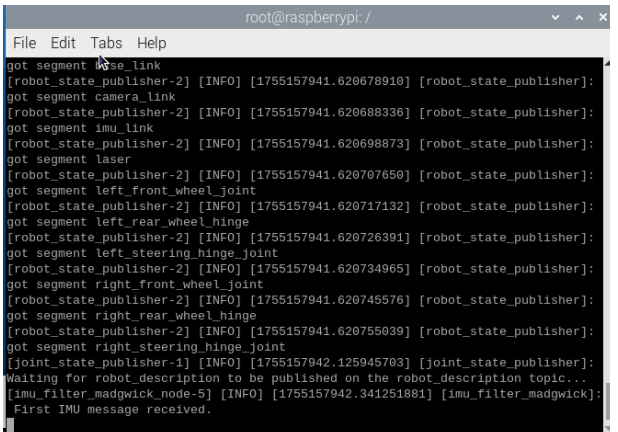
xxxxxxxxxxros2 run yahboomcar_bringup calibrate_angular_A1
The following image is displayed successfully.

If the runtime error message indicates that no TF transformations are available, press Ctrl+C to exit the program and run it again.
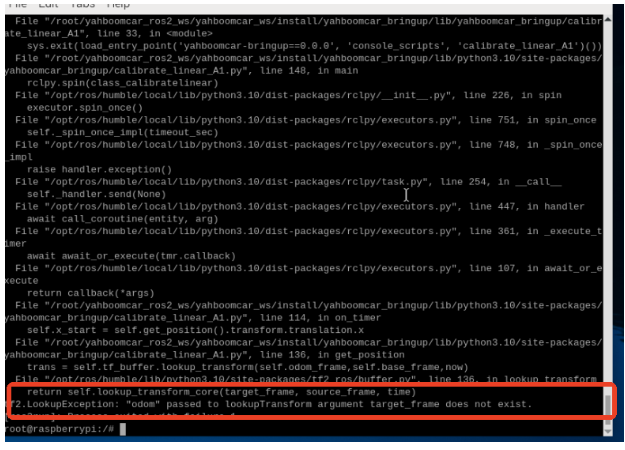
Open the dynamic parameter adjuster and run the following command in the terminal:
xxxxxxxxxxros2 run rqt_reconfigure rqt_reconfigure
Click the calibrate_angular node in the node options on the left:
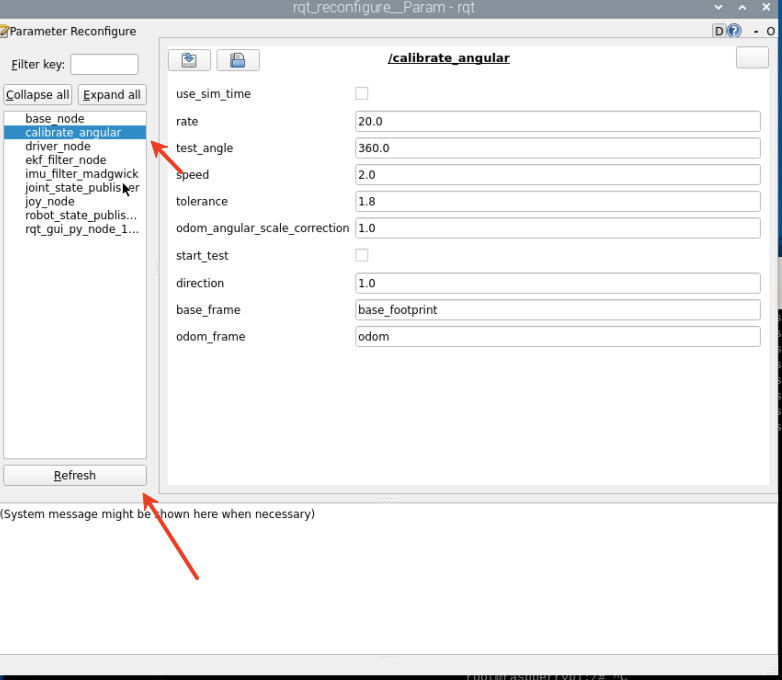
Note: The above nodes may not appear when you first open the application. Click Refresh to see all nodes. The calibrate_angular node displayed is the node for calibrating angular velocity.
Other parameters in the rqt interface are described below:
- test_angle: The angle used for the calibration test. Here, a 360-degree rotation is tested.
- speed: The angular velocity.
- tolerance: The tolerance for error.
- odom_angular_scale_correction: The linear velocity scale factor. If the test results are unsatisfactory, adjust this value.
- start_test: Test on/off.
- base_frame: The name of the base coordinate system.
- odom_frame: The name of the odometry coordinate system.
2.2. Start Calibration
In the rqt_reconfigure interface, select the calibrate_angular node. Click the box to the right of the start_test node to begin calibration.
After clicking start_test, calibration begins. The car will monitor the TF transformations of base_footprint and odom, calculate the theoretical rotation angle, and issue a stop command when the error is less than the tolerance.
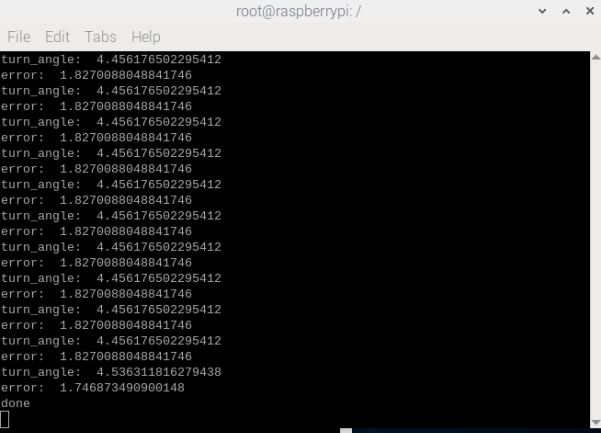
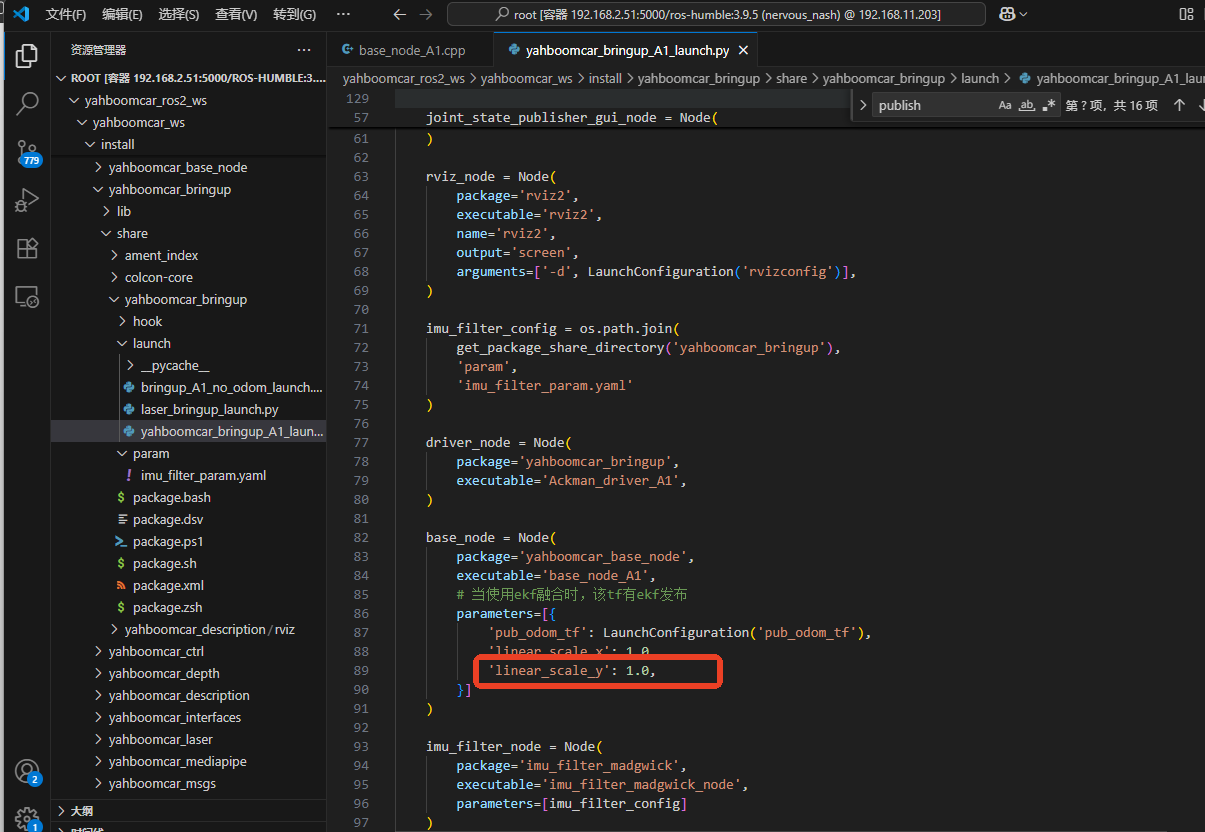
After the test is complete, remember the value of [odom_angular_scale_correction] and modify it to the linear_scale_y parameter in yahboomcar_bringup_A1_launch.py.
3. View the Node Relationship Graph
Open a terminal and enter the command:
xxxxxxxxxxros2 run rqt_graph rqt_graph
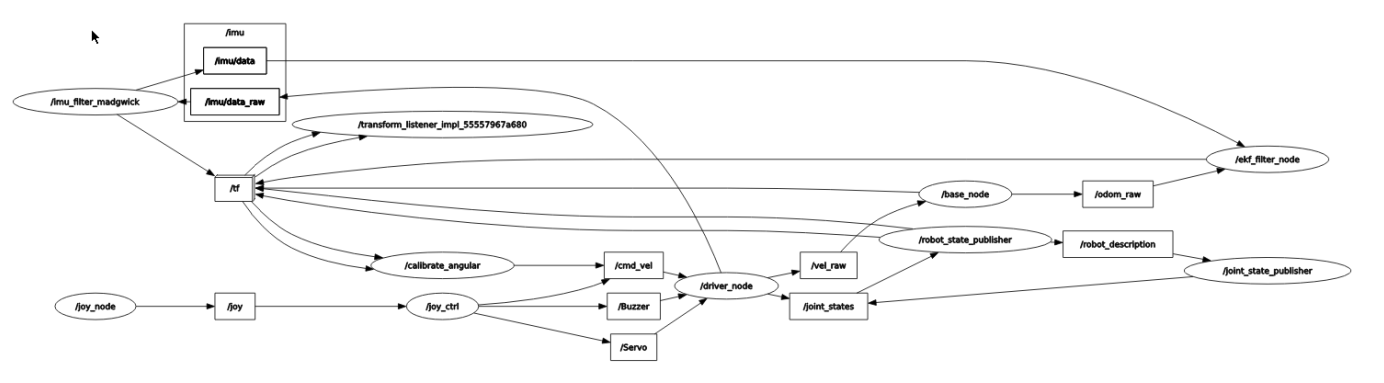
In the above node relationship graph:
- The imu_filter node is responsible for filtering the chassis's raw IMU data /imu/data and publishing the filtered data /imu/data.
- The /ekf_filter_node node subscribes to the chassis's raw odometry data /odom_raw and filtered IMU data /imu/data, performs data fusion, and publishes the data to the /odom topic.
- The calibrate_angular node monitors the TF transformation between odom->base_footprint and publishes the /cmd_vel topic to control the robot's chassis movement.
4. Core Source Code Analysis
This program primarily utilizes TF to monitor coordinate transformations. By monitoring the coordinate transformation between base_footprint and odom, the robot can determine "how far I've walked" or "how many degrees I've turned."
Code path:
xxxxxxxxxx~/yahboomcar_ros2_ws/yahboomcar_ws/src/yahboomcar_bringup/yahboomcar_bringup/calibrate_angular_A1.py
Among them, the implementation of monitoring tf coordinate transformation is the get_odom_angle method in the Calibrateangular class:
xdef get_odom_angle(self): try: now = rclpy.time.Time() rot = self.tf_buffer.lookup_transform( self.base_frame, self.odom_frame, now, timeout=rclpy.duration.Duration(seconds=1.0)) cacl_rot = PyKDL.Rotation.Quaternion(rot.transform.rotation.x, rot.transform.rotation.y, rot.transform.rotation.z, rot.transform.rotation.w) #print("cacl_rot: ",cacl_rot) angle_rot = cacl_rot.GetRPY()[2] #print("angle_rot: ",angle_rot) except (LookupException, ConnectivityException, ExtrapolationException): # self.get_logger().info('transform not ready') returnThe on_timer (timer callback function) method in the Calibrateangular class is used to determine the rotation angle of the robot chassis and control the chassis movement:
xxxxxxxxxxdef on_timer(self): self.start_test = self.get_parameter('start_test').get_parameter_value().bool_value self.odom_angular_scale_correction = self.get_parameter('odom_angular_scale_correction').get_parameter_value().double_value self.test_angle = self.get_parameter('test_angle').get_parameter_value().double_value self.test_angle = radians(self.test_angle) #角度转成弧度 self.speed = self.get_parameter('speed').get_parameter_value().double_value move_cmd = Twist() self.test_angle *= self.reverse #self.test_angle *= self.reverse #self.error = self.test_angle - self.turn_angle if self.start_test: self.error = self.turn_angle - self.test_angle if abs(self.error) > self.tolerance : #move_cmd.linear.x = 0.2 move_cmd.angular.z = copysign(self.speed, self.error) #print("angular: ",move_cmd.angular.z) self.cmd_vel.publish(move_cmd) self.odom_angle = self.get_odom_angle() self.delta_angle = self.odom_angular_scale_correction * self.normalize_angle(self.odom_angle - self.first_angle) #print("delta_angle: ",self.delta_angle) self.turn_angle += self.delta_angle print("turn_angle: ",self.turn_angle,flush=True) #self.error = self.test_angle - self.turn_angle print("error: ",self.error,flush=True) self.first_angle = self.odom_angle #print("first_angle: ",self.first_angle) else: self.error = 0.0 self.turn_angle = 0.0 print("done",flush=True) self.first_angle = 0 self.reverse = -self.reverse self.start_test = rclpy.parameter.Parameter('start_test',rclpy.Parameter.Type.BOOL,False) all_new_parameters = [self.start_test] self.set_parameters(all_new_parameters) else: self.error = 0.0 self.cmd_vel.publish(Twist()) self.turn_angle = 0.0 self.start_test = rclpy.parameter.Parameter('start_test',rclpy.Parameter.Type.BOOL,False) all_new_parameters = [self.start_test] self.set_parameters(all_new_parameters)