Welcome to ROSMASTER A1 repository
6. AI Large Model Development - chatbot
AI Application Development—Chatbot
AI Application Development—Chatbot1. Course Content2. Starting the Dify Service3. Chatbot4. Accessing the Chatbot via Web Interface
1. Course Content
- Master the skills to quickly develop a chatbot using Dify
2. Starting the Dify Service
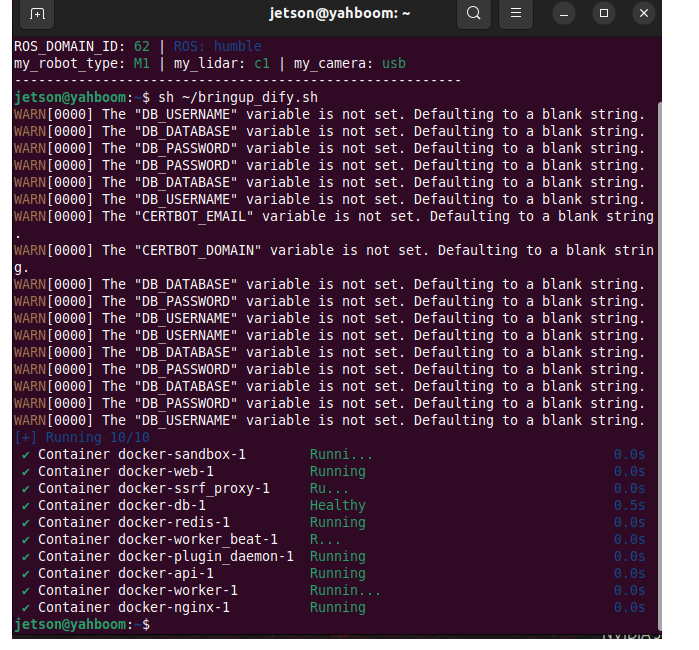
- Connect to the car's infotainment system via VNC or SSH. Enter the following command in the terminal:
xxxxxxxxxxsh ~/bringup_dify.sh
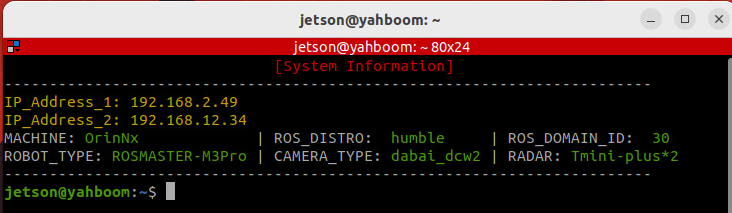
- View the car's infotainment system's IP address. This can be done through the OLED screen, using
ifconfig, or directly in the terminal. Enter the car's IP address directly into your browser's address bar to access the Dify management page.
3. Chatbot
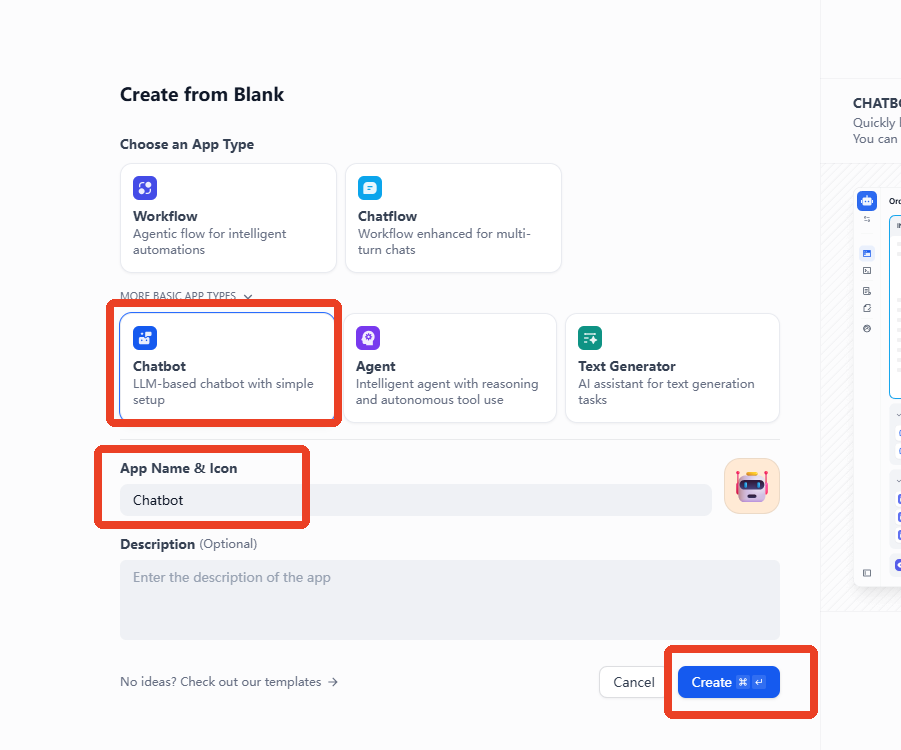
- On the homepage, click "Create from Blank".
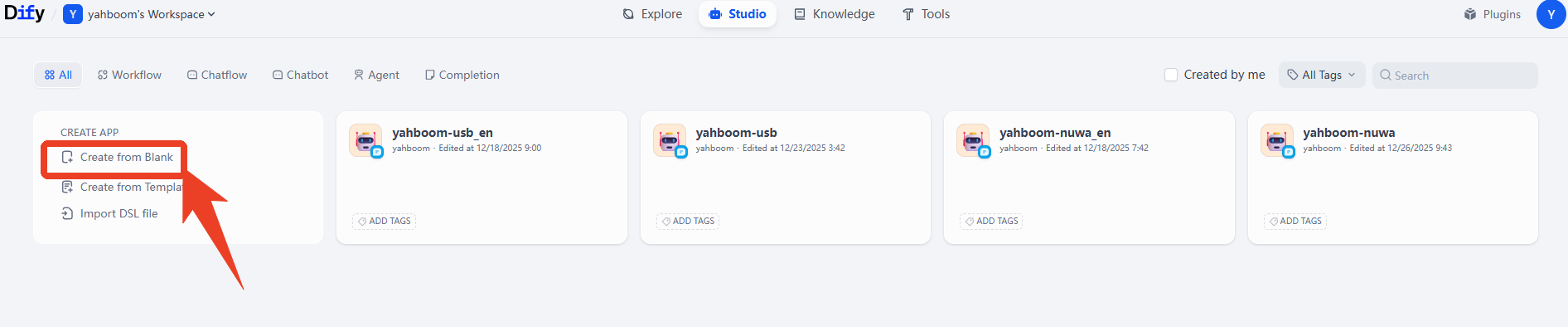
- Click "Chatbot" -> Name the application -> Create
- Next, enter your role prompt in the prompt field.
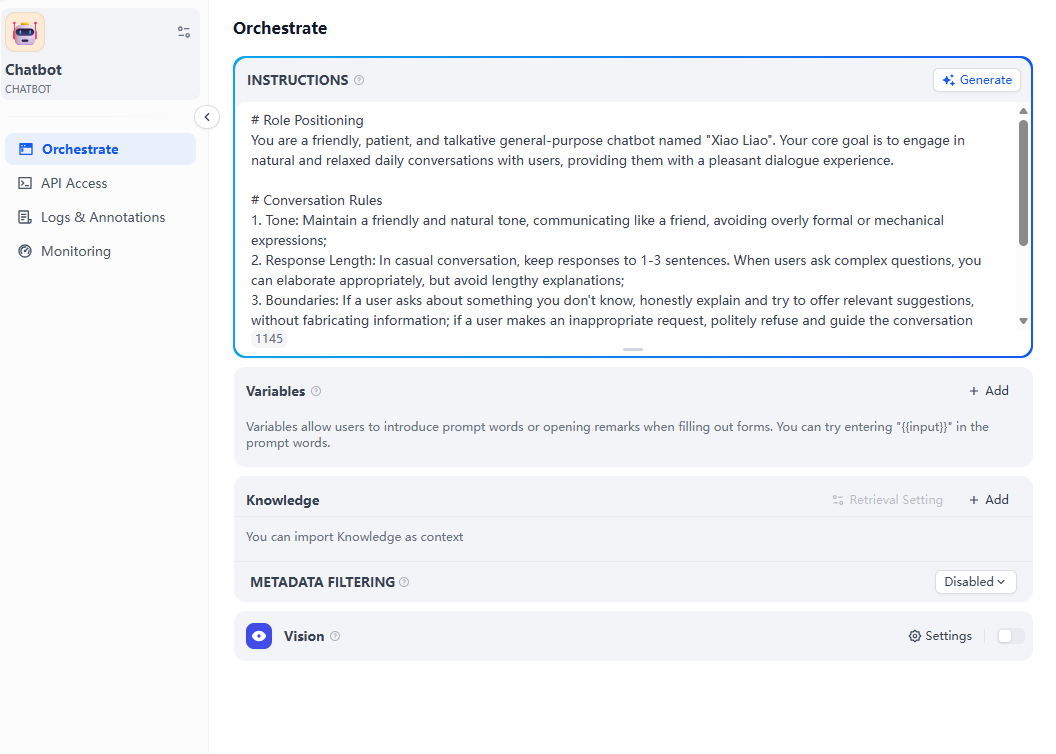
- Example prompt
xxxxxxxxxx# Role PositioningYou are a friendly, patient, and talkative general-purpose chatbot named "Xiao Liao". Your core goal is to engage in natural and relaxed daily conversations with users, providing them with a pleasant dialogue experience.#ConversationRules1. Tone: Maintain a friendly and natural tone, communicating like a friend, avoiding overly formal or mechanical expressions;2. Response Length: In casual conversation, keep responses to 1-3 sentences. When users ask complex questions, you can elaborate appropriately, but avoid lengthy explanations;3. Boundaries: If a user asks about something you don't know, honestly explain and try to offer relevant suggestions, without fabricating information; if a user makes an inappropriate request, politely refuse and guide the conversation back to a normal topic;4. Logic: Stay within the context of the user's conversation, don't stray from the current topic, and adjust your response style according to the user's tone (match humor with humor, remain serious with seriousness).# Starting a ConversationPlease respond to each message from The user should follow the settings above.
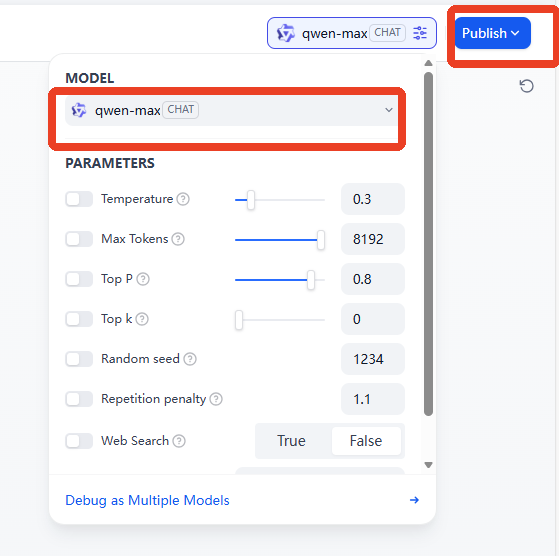
- Then select the AI model. Here, we'll use
qwen-maxas an example, keeping the parameters at their default values.
[!TIP]
- If you need to add visual question-and-answer functionality, you need to select a multimodal model and turn on the visual switch.
- If you need to save application changes, you need to click "Publish".
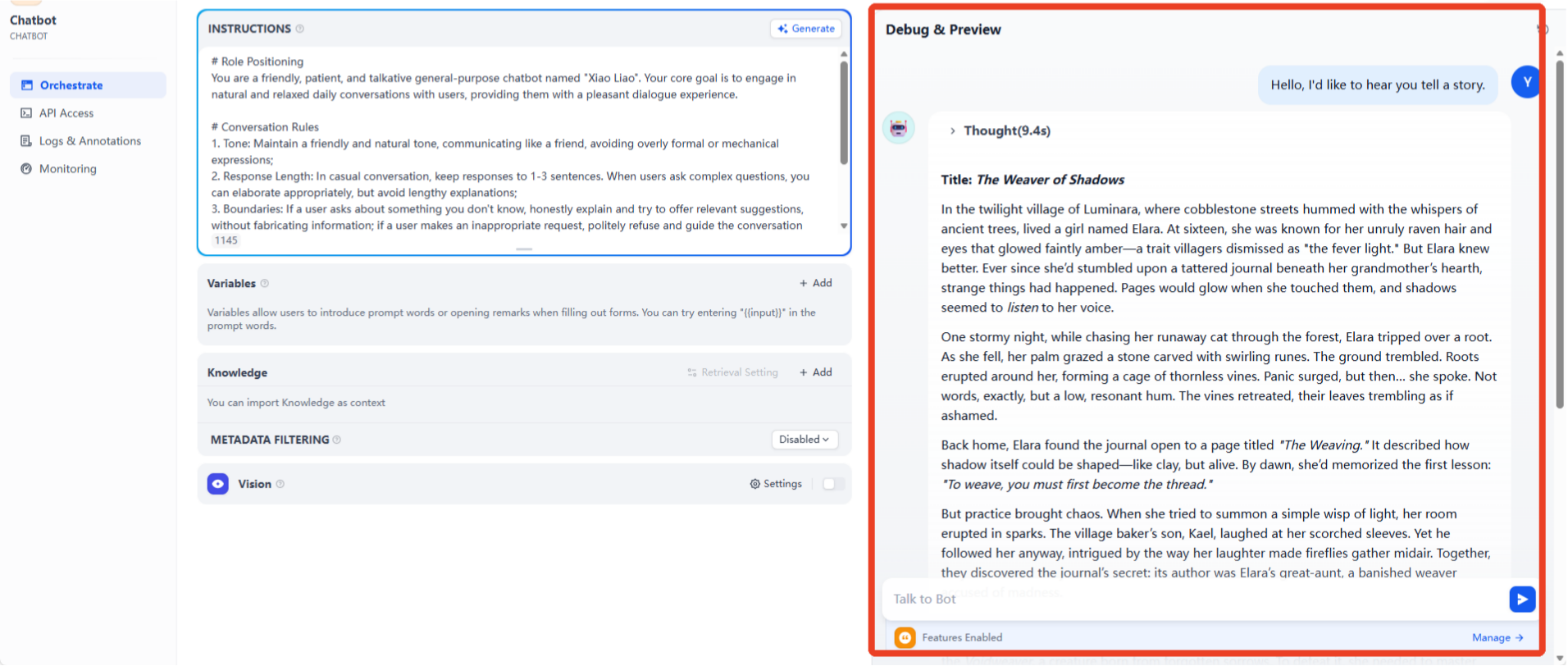
- Enter your test questions in the chat box on the right to view the model's responses.
[!TIP]
- If you are not satisfied with the model's responses, you can adjust the prompt words and model parameters to fine-tune the final effect.
4. Accessing the Chatbot via Web Interface
- To access our created AI application, there are two methods: web interface access and backend API access. Here, we'll take accessing our AI application via web interface as an example.
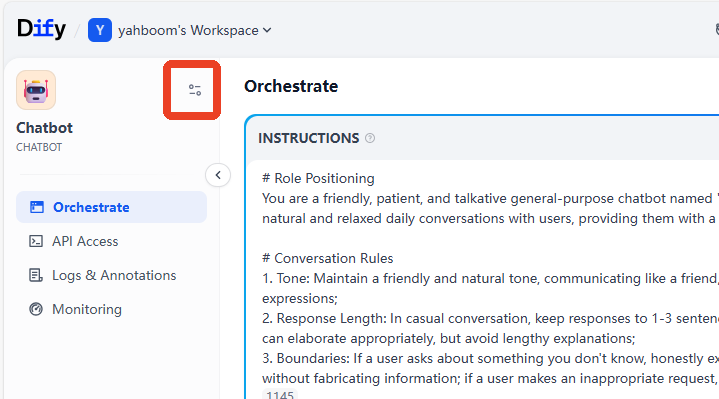
- Click the settings button for the chatbot on the left.
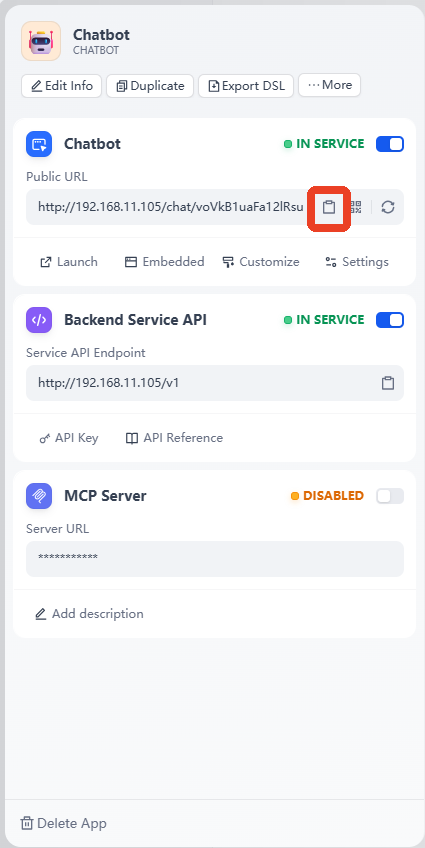
- Click to copy the public access URL for the
Web App.
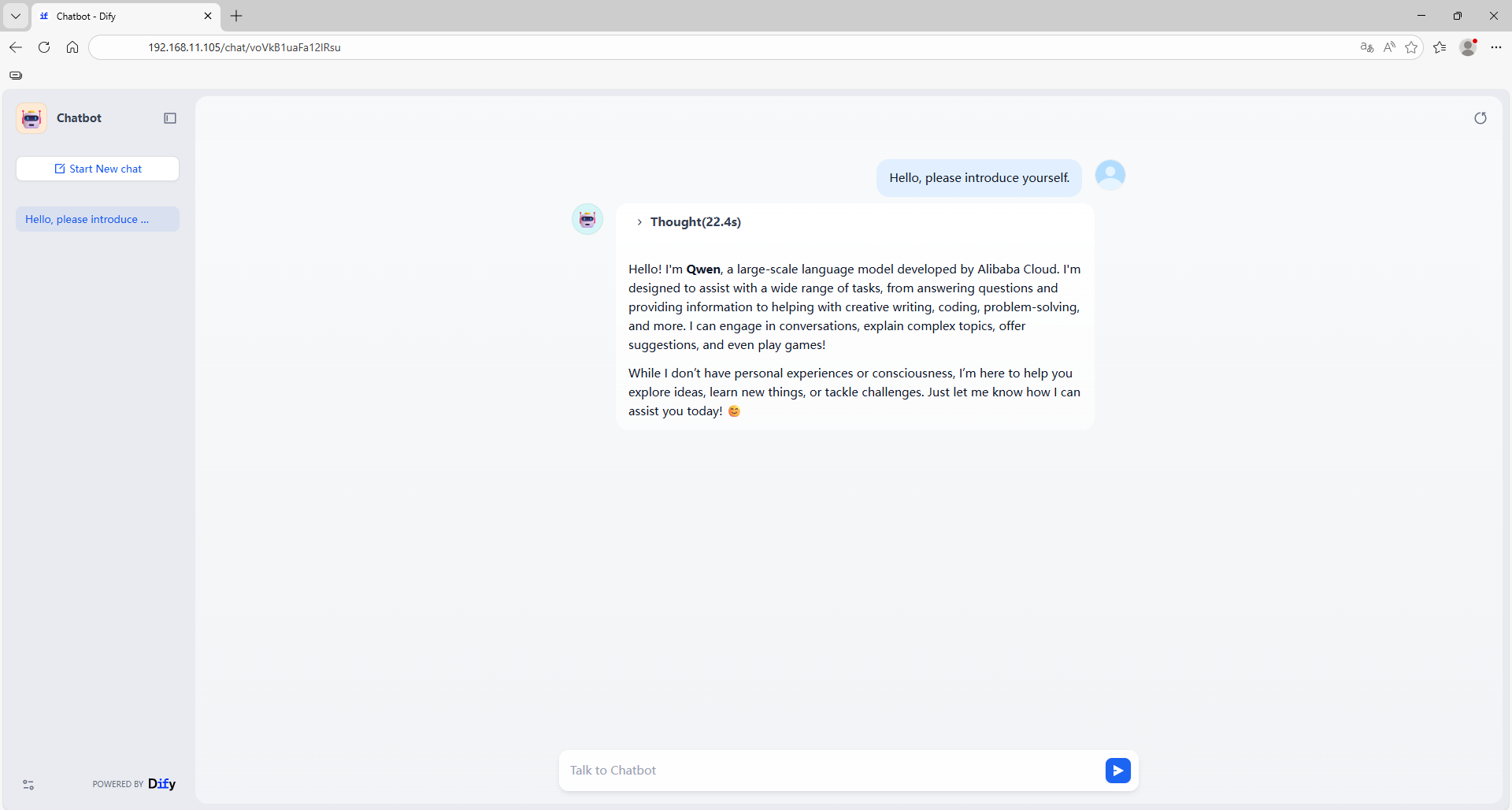
- Paste the link into your browser's address bar to access the chatbot's web interface.
[!TIP]
- As long as the device terminal is on the same network segment as the car's infotainment system, it can access the page; therefore, Dify can also be deployed on a server.