Welcome to ROSMASTER A1 repository
14.Visual tracking autonomous driving
Visual tracking autonomous driving
Visual tracking autonomous driving1. Program Functionality2. Program Code Reference Path3. Program Startup3.1. Startup Commands3.2 Dynamic Parameter Adjustment4. Core Code4.1. lineFollow.py4.2、follow_common.py
1. Program Functionality
After starting the program, the servo gimbal will default to pointing downward, and the default tracking color is red. Press the
r/Rkey to enter color selection mode. Within the line area on the screen, use the mouse to select a color. Releasing the mouse button automatically loads the processed image. Press theSpacebarto enter line-following mode. If the robot encounters an obstacle during operation, it will stop and a buzzer will sound. Press theq/Qkey to exit the program. The remote controller'sR2key has the [Pause/Start] function for this gameplay.
2. Program Code Reference Path
~/yahboomcar_ros2_ws/yahboomcar_ws/src/yahboomcar_astra/yahboomcar_astra/follow_line.py~/yahboomcar_ros2_ws/yahboomcar_ws/src/yahboomcar_astra/yahboomcar_astra/common/follow_common.py
follow_line.py
Mainly performs trajectory recognition and motion control, calculating the car's steering speed based on the deviation from the recognized color trajectory.
follow_common.py
Contains core visual processing algorithms:
- color_follow class: Implements color recognition and trajectory extraction
- simplePID class: Implements the PID control algorithm
- Image processing tools (ManyImgs function): Multi-image mosaic display
3. Program Startup
3.1. Startup Commands
For PI5/JETSON NANO controllers, you need to enter a Docker container first; for RDK X5 and Orin boards, this is not required.
Enter the Docker container (see the Docker section [3. Docker Commit and Multi-Terminal Entry] for steps).
Enter the following in the terminal:
xxxxxxxxxx# Start the car chassis and handle joy nodesros2 launch yahboomcar_bringup laser_bringup_launch.py# Start the visual tracking programros2 run yahboomcar_astra follow_line 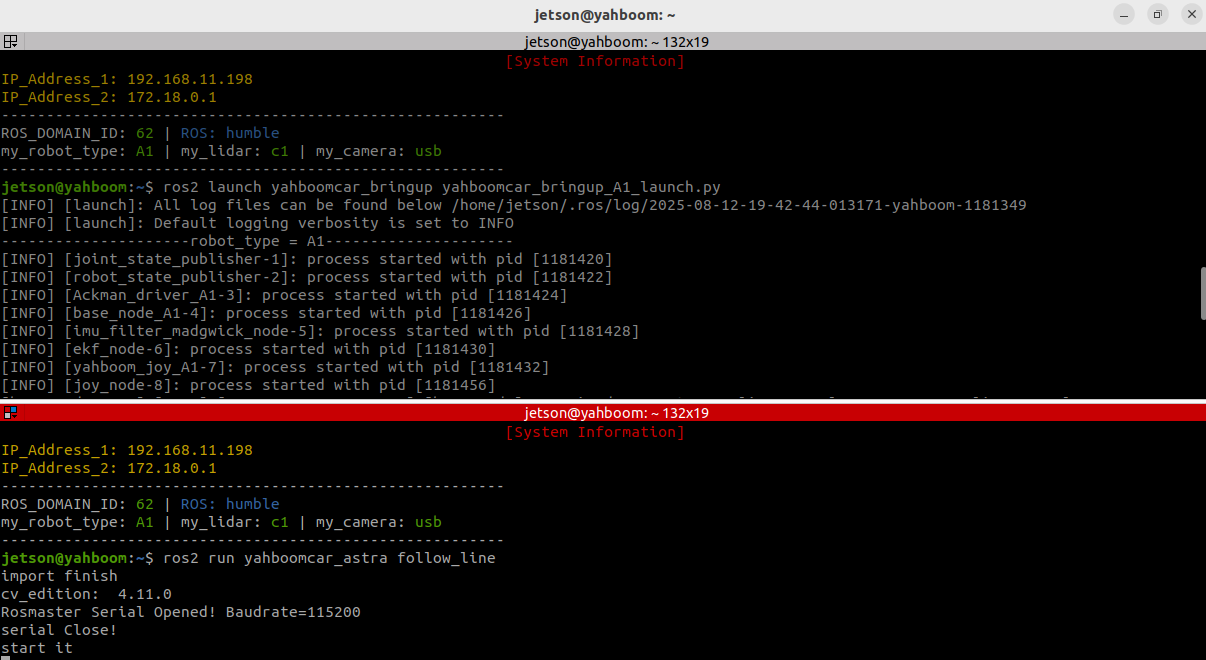
After running the program, the following screen will appear. Taking the Green Line patrol as an example,
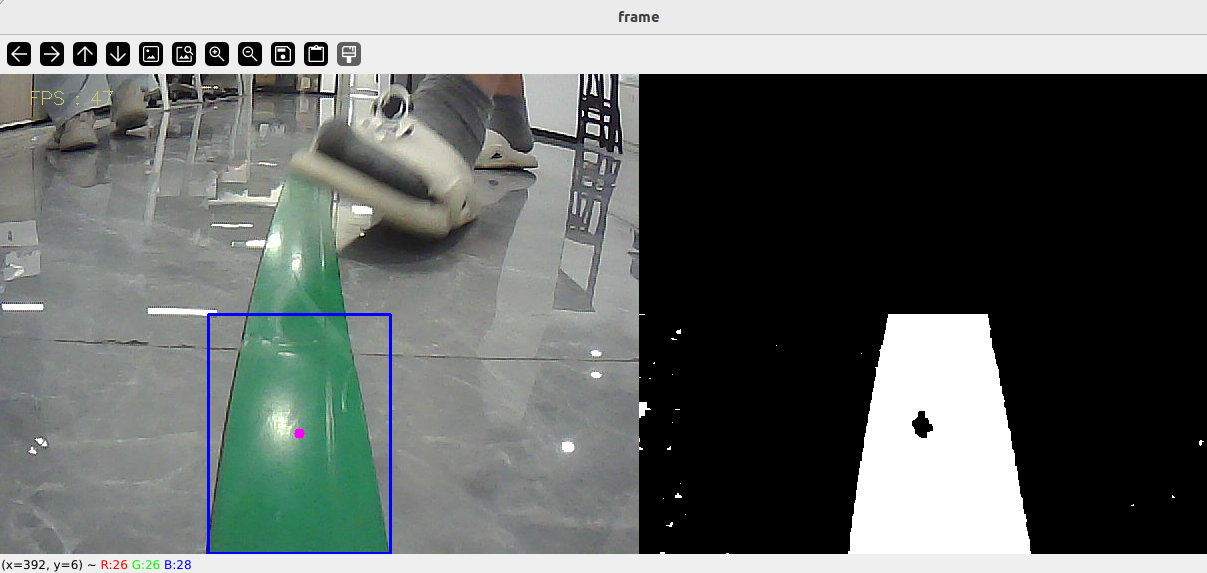
When you start the program, the previous HSV values will be used by default. You will need to select a new color. Press the r/R key on your keyboard to enter color selection mode. Use your mouse to select an area (this area can only have one color).
(The HSV values in the parameter file ~/yahboomcar_ros2_ws/yahboomcar_ws/src/yahboomcar_astra/yahboomcar_astra/colorfollowHSV.text will be loaded by default.)
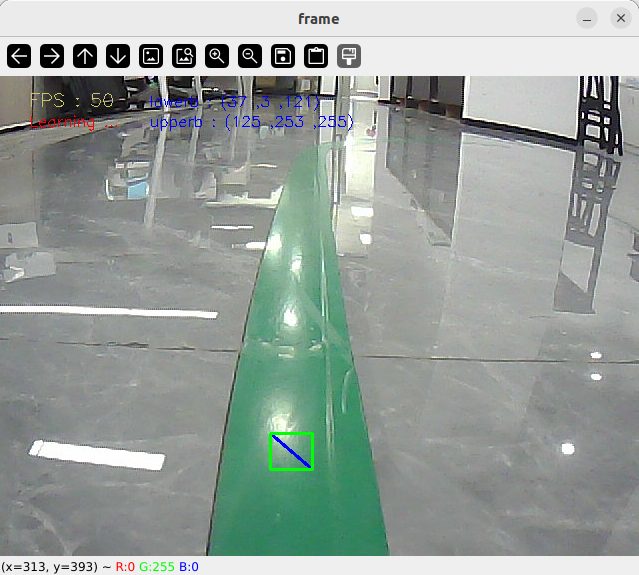
After making this selection, the effect will be as shown below.
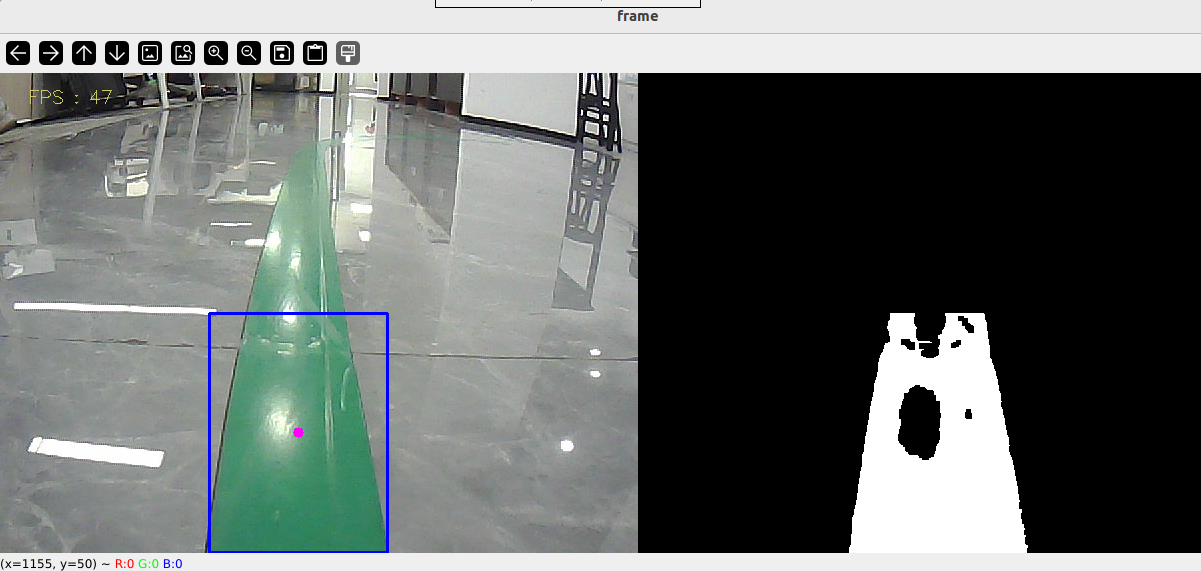
Then, press the spacebar to start calculating the speed, and the car will automatically patrol the line. If it encounters an obstacle during patrol, it will stop and the buzzer will start beeping.