Welcome to Building:bit Superkit repository
2.APP control
Bluetooth APP remote control
Bluetooth APP remote control1. Learning objectives2. Building blocks3. Motor wiring4. Programming5. Experimental phenomenon5.1 Download APP5.2 APP remote controlAPP interface function introduction:
1. Learning objectives
In this course, we mainly learn how to use MakeCode graphical programming to realize Bluetooth APP remote control of Pretty car.
2. Building blocks
For the steps of building blocks, please refer to the installation drawings of [Assembly Course]--[Pretty car] in the materials or the building block installation album.
3. Motor wiring
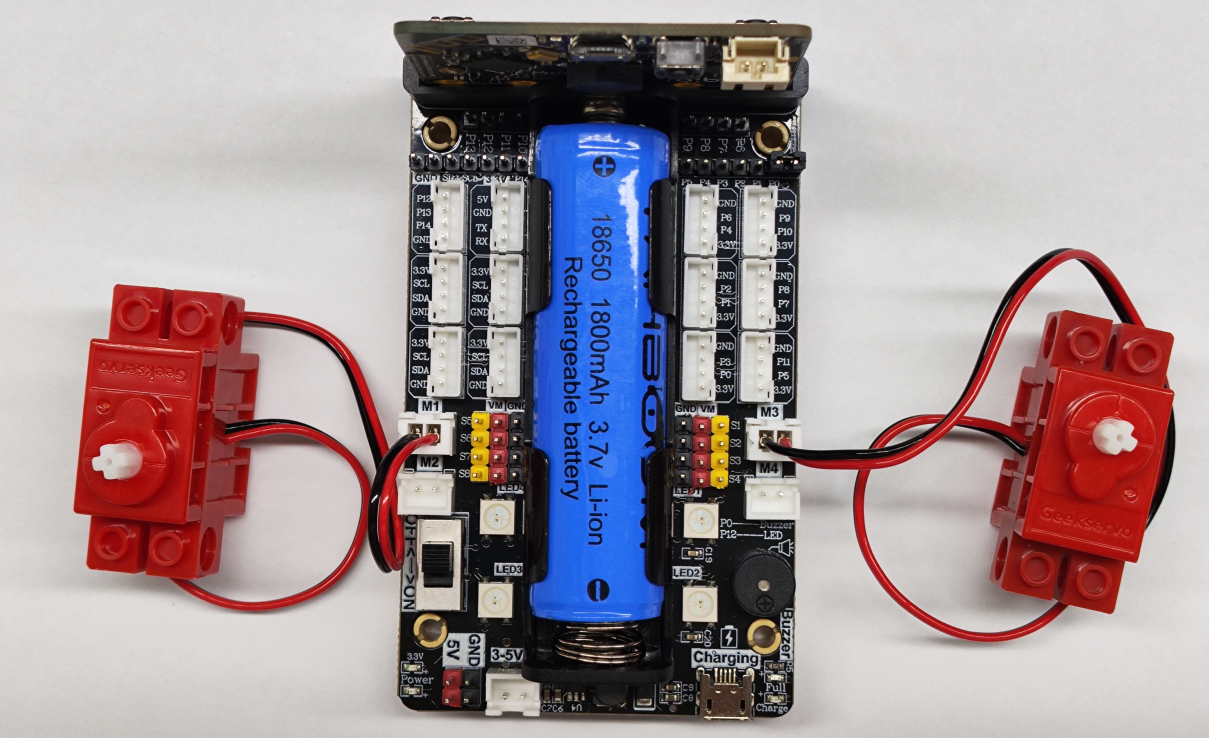
The motor wiring on the left side of the car is inserted into the M1 interface of the Super:bit expansion board, and the black line is close to the battery side;
The motor wiring on the right side of the car is inserted into the M3 interface of the Supe:rbit expansion board, and the black line is close to the battery side;
As shown below:
4. Programming
Method 1 Online programming:
First, connect micro:bit to the computer via a USB data cable, and the computer will pop up a U disk. Click the URL in the U disk: https://makecode.microbit.org/ to enter the programming interface. Then, add the Yahboom smart software packagehttps://github.com/YahboomTechnology/SuperBitLibV2 to start programming.
Method 2 Offline programming:
Open the offline programming software MakeCode and enter the programming interface. Click [New] and add the Yahboom smart software package https://github.com/YahboomTechnology/SuperBitLibV2 to start programming.
For the summary program of this course, please open the Pretty car.hex we provide in the MakeCode programming interface to view it.
5. Experimental phenomenon
5.1 Download APP
Android users please use the mobile browser to scan the following QR code to download and install the APP;
Apple users please use the hand camera to scan the QR code to download and install the APP.
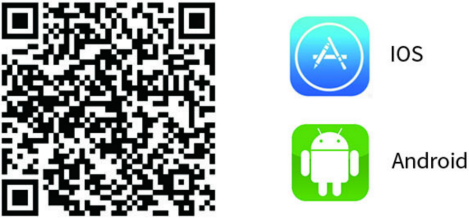
! Note: During the installation or use of the APP, if the mobile phone prompts that any permissions need to be obtained, please select "Agree".
5.2 APP remote control
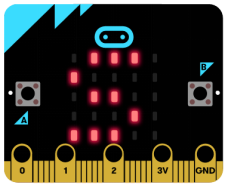
1) After the program is successfully downloaded, turn on the power switch of the car, and the micro:bit dot matrix will display the "S" pattern, as shown in the figure below, which is the state of Bluetooth not connected.
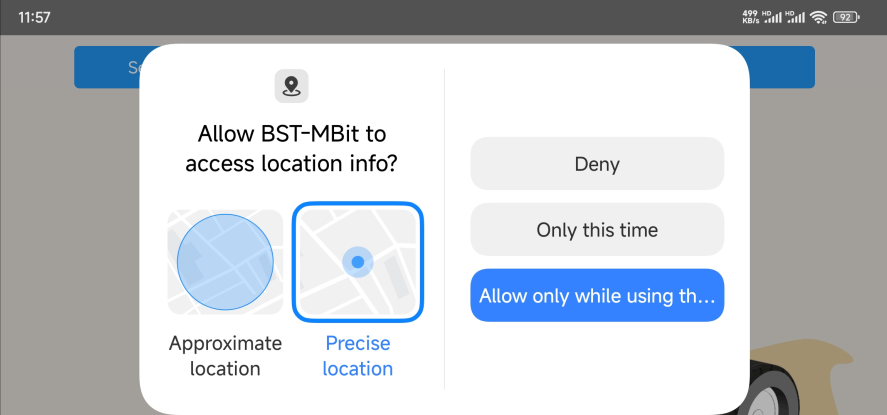
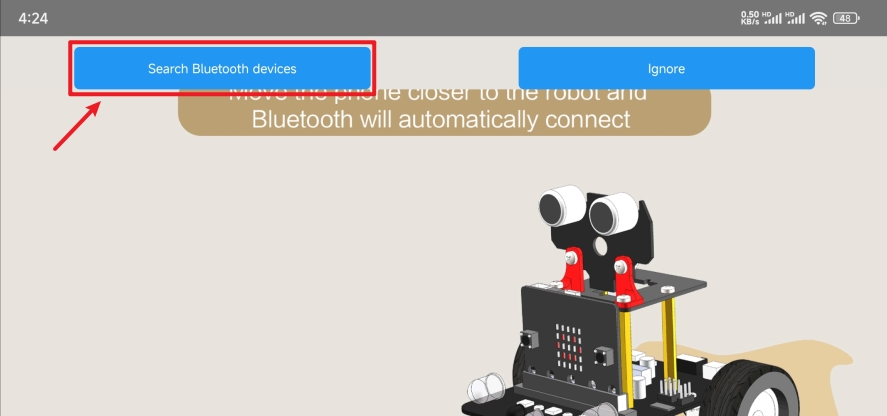
2) Turn on the Bluetooth of your mobile phone and open our APP. You can see the interface as shown below. Click Allow APP to use location information.
3) After the mobile phone is close to the car and waits for a while, the Bluetooth will automatically connect; if it is not automatically connected, we can click [Search Bluetooth devices] to search for the device to connect.
After the Bluetooth is successfully connected, a smiley face pattern will be displayed on the micro:bit dot matrix; if the Bluetooth is disconnected, a crying face pattern will be displayed on the dot matrix.
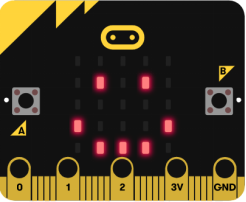
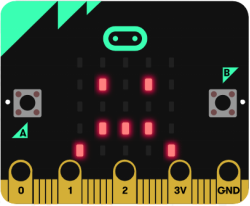
[Bluetooth successful connection status] [Bluetooth disconnection status]
APP interface function introduction:
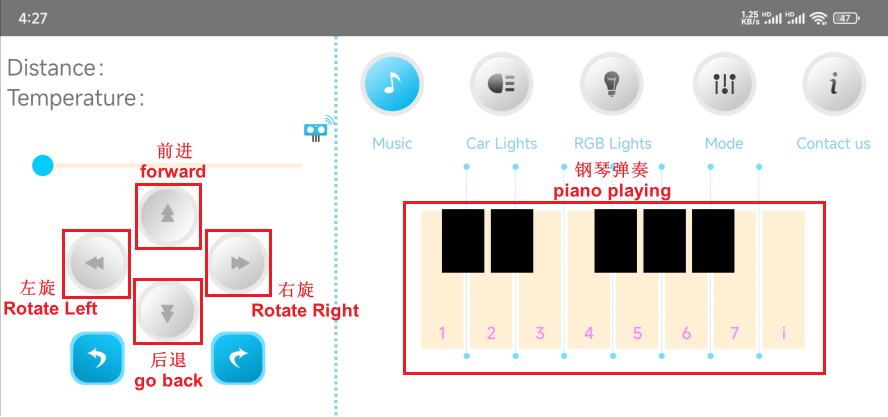
Main control interface:
- The forward button controls the car to move forward;
- The backward button controls the car to move backward;
- The left turn button controls the car to rotate left;
- The right button controls the car to rotate right;
- Press the piano key to hear the buzzer play different tones.
Car light interface:
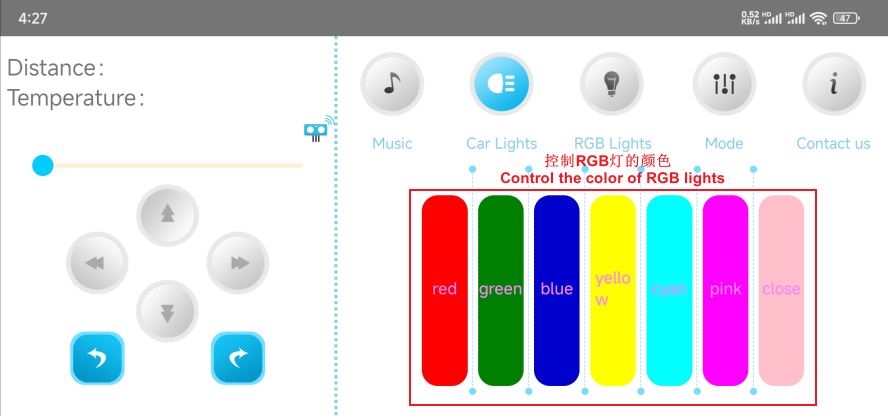
RGB light interface:
Due to the upgrade of micro:bit V2 motherboard, the Bluetooth code control has deleted the RGB light control and changed to dot matrix display.
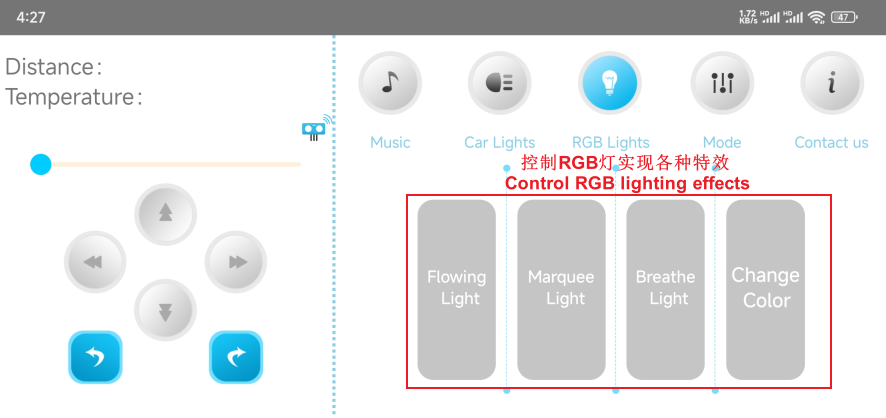
The buttons under the mode option have not yet defined any functions.