Welcome to Building:bit Superkit repository
2.Freestyle advance
Freestyle advance
Freestyle advance1. Learning Objectives2. Building Blocks3. Motor Wiring4. Code Analysis5. Write and download the program6. Experimental phenomenon
1. Learning Objectives
In this course, we mainly learn how to use Python programming to make the water monster move forward.
2. Building Blocks
For the building block steps, please refer to the installation drawings of [Assembly course]-[Freestyle] or the building block installation album in the materials.
3. Motor Wiring
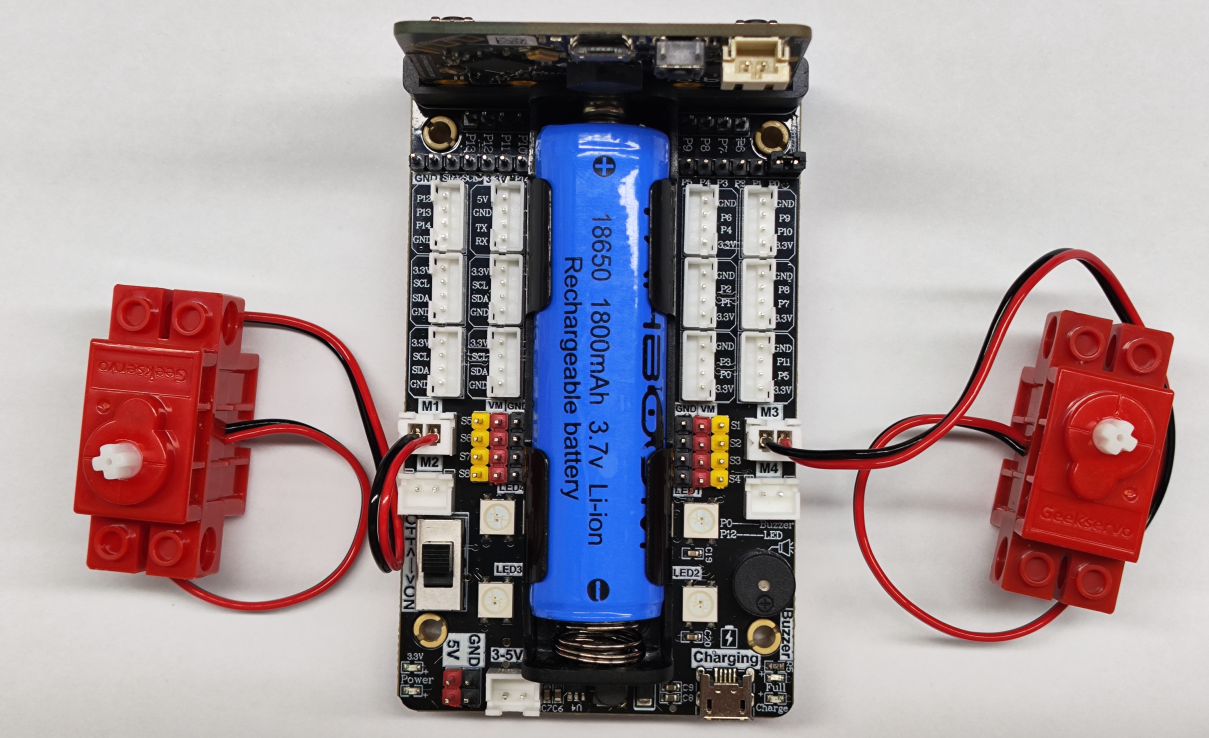
The motor wiring on the left side of the car is inserted into the M1 interface of the Super:bit expansion board, and the black line is close to the battery side;
The motor wiring on the right side of the car is inserted into the M3 interface of the Super:bit expansion board, and the black line is close to the battery side;
As shown below:
4. Code Analysis
For the program of this course, please see the Freestyle advance.py file.
from microbit import *import superbitFirst, import the library needed for this lesson from microbit: the superbit library is dedicated to the superbit expansion board.
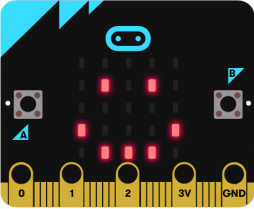
xxxxxxxxxxdisplay.show(Image.HAPPY)display.show(Image.HAPPY): Display a smiley face pattern on the microbit dot matrix;
xxxxxxxxxxwhile True:superbit.motor_control(superbit.M1, -255, 0)while True: infinite loop
superbit.motor_control(superbit.M1, -255, 0): The motor of the M1 interface reverses at a speed of 255, and the water monster moves forward;
5. Write and download the program
- Open the Mu software and enter the code in the editing window. Note! All English and symbols should be entered in English mode, use the Tab key (tab key) for indentation, and the last line ends with a blank program.
- Click the thumb 'Check' button to check if there are any errors in our code. If a cursor or underline appears on a line, it means a syntax error. Please check and modify it. If there is no error, there will be a prompt in the lower left corner that there is no problem with the detection.
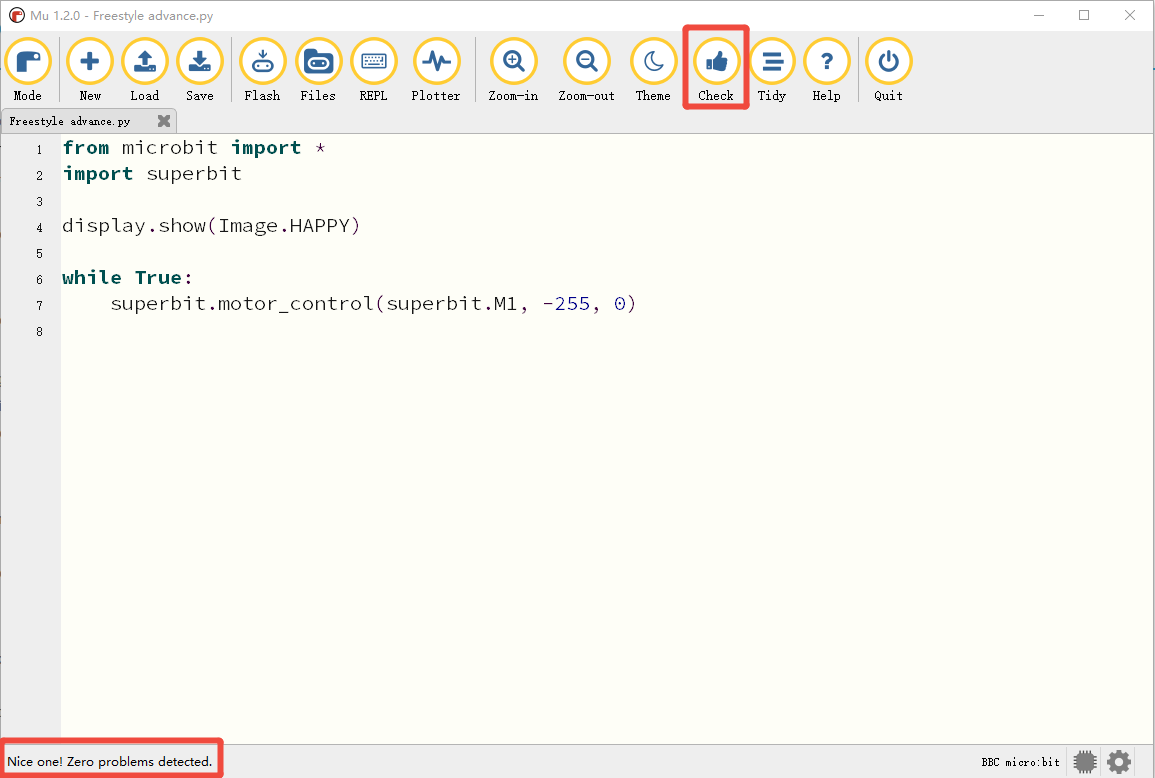
- Click the 'REPL' button to check if the Superbit library has been downloaded. If not, please refer to [Preparation before class] --> [2.4 Python Programming Guide].
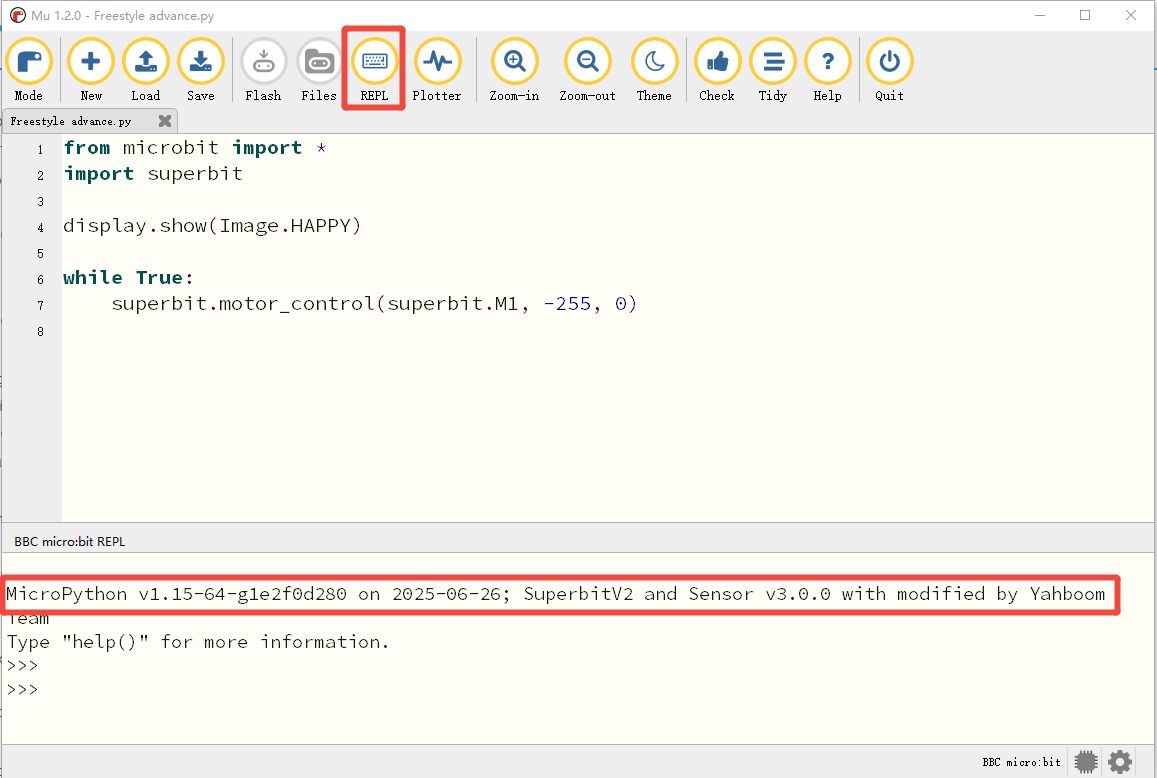
- After the program is written, connect the computer and microbit mainboard with a microUSB data cable, please click the 'Flash' button to download the program to the micro:bit mainboard. (You need to click the 'REPL' button again to turn off the import library file function before you can download the program normally).
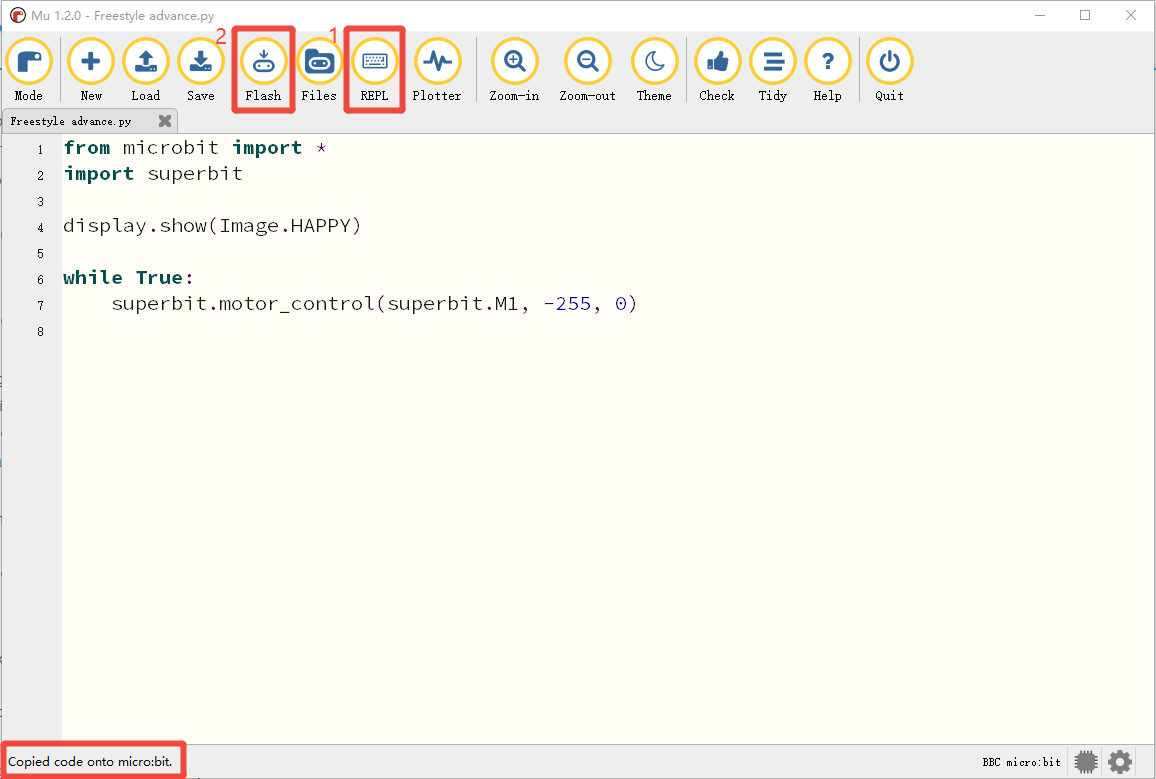
- If the download fails, please confirm whether the microbit is properly connected to the computer via the microUSB data cable and the Superbit Python library has been imported.
6. Experimental phenomenon
After the program is downloaded successfully, turn on the power switch, and a smiley face pattern will be displayed on the micro:bit dot matrix, as shown in the figure below, and the paddling monster will keep moving forward.
If you need to restart, press the reset button on the back of the micro:bit motherboard.