Welcome to Building:bit Superkit repository
4.Micro:bit handle control
Micro:bit handle control
Micro:bit handle control1. Learning objectives2. Building blocks3. Motor wiring4. Programming4.1 Add expansion package4.2 Building blocks used4.3 Add new variables4.4 Combined blocks5. Experimental phenomenon
1. Learning objectives
In this course, we mainly learn how to use MakeCode graphical programming to realize the control of Changing Face by the microbit handle.
2. Building blocks
For the building blocks steps, please refer to the installation drawings of [Assembly Course]--[Changing Face] in the materials or the building blocks installation book.
3. Motor wiring
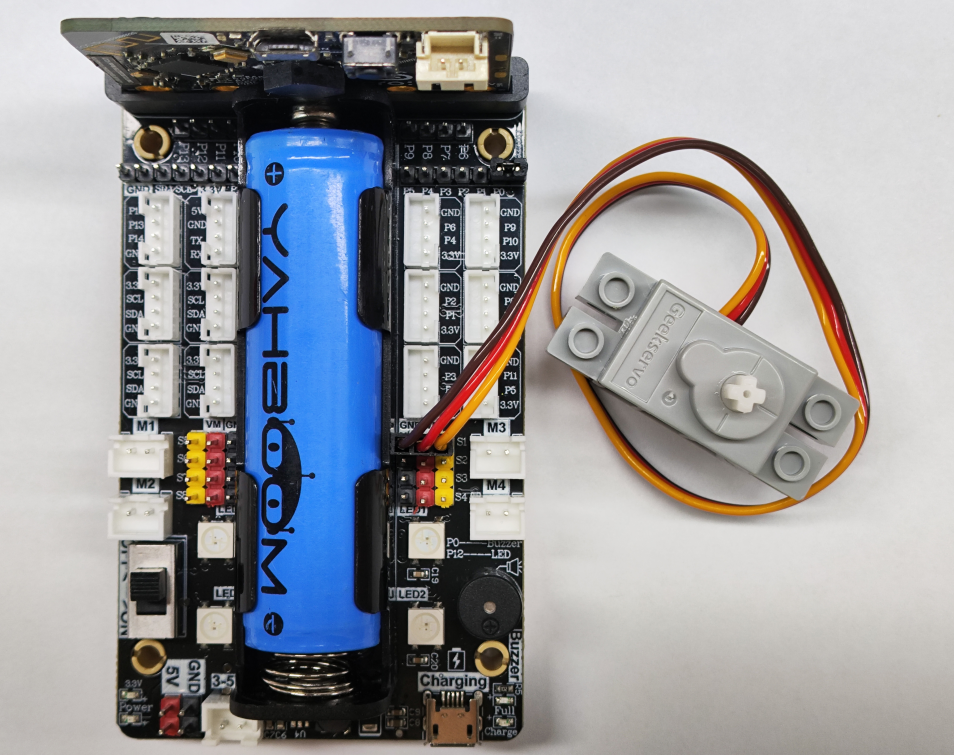
Insert the building blocks servo wiring into the S1 interface of the Super:bit expansion board, and the orange servo wiring into the yellow pin of S1.
As shown in the figure below:
! Notes:
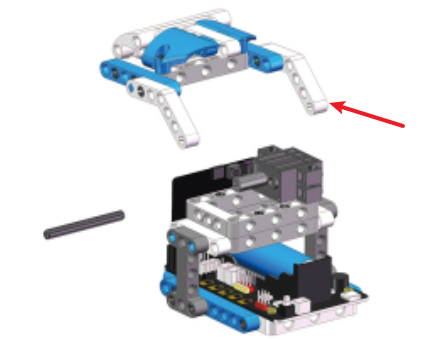
When taking the course related to the building block servo for the first time, we need to remove the white building blocks installed on the servo and upload the program of this course to the micro:bit; then turn on the power switch of the Super:bit expansion board and wait for the building block servo to turn to the initial position; then, we can turn off the power, adjust the Changing Face mask to the closed state, as shown in the figure below, and then install the building blocks. (If you have used the Changing Face and servo-related programs before, you can skip this step)
4. Programming
Method 1 Online Programming:
First, connect the micro:bit to the computer via a USB data cable, and a U disk will pop up on the computer. Click the URL in the U disk: https://makecode.microbit.org/ to enter the programming interface. Then, add the Yabo smart software package to program.
Method 2 Offline Programming:
Open the offline programming software MakeCode and enter the programming interface. Click [New] and add the Yahboom smart software package to start programming.
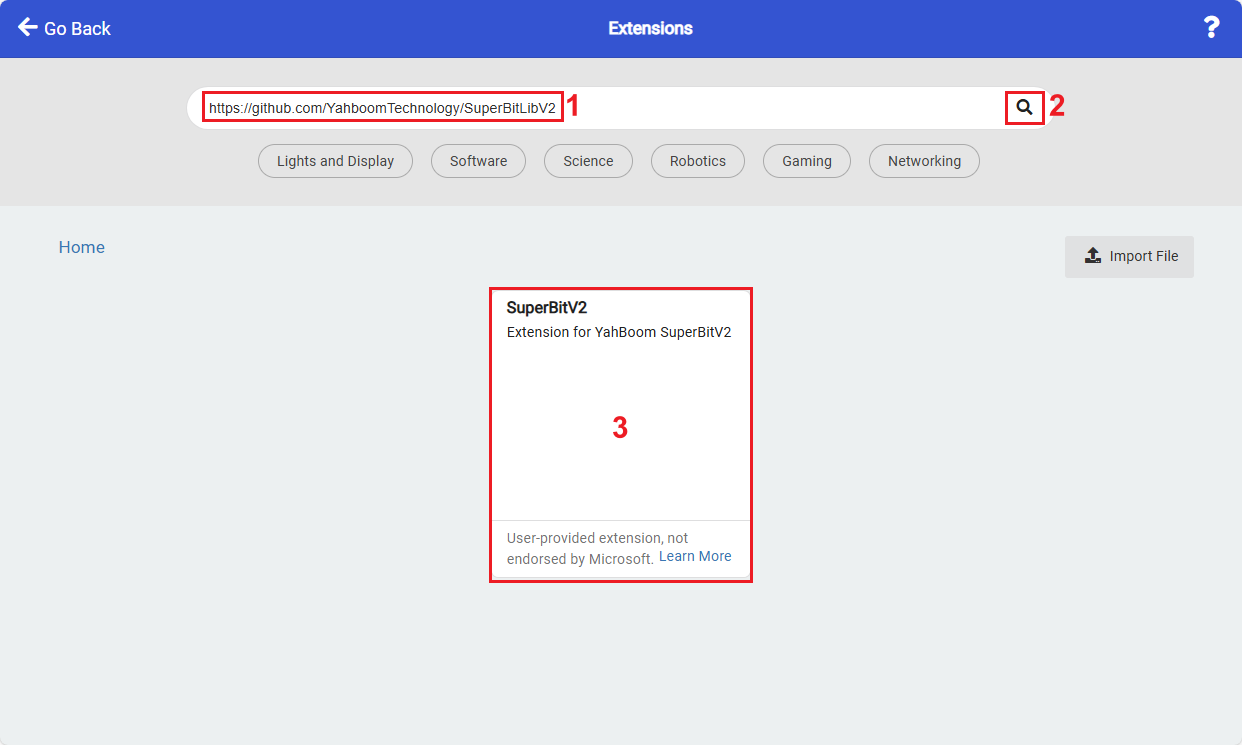
superbit kit expansion package: https://github.com/YahboomTechnology/SuperBitLibV2 Handle expansion package: https://github.com/YahboomTechnology/GHBitLib
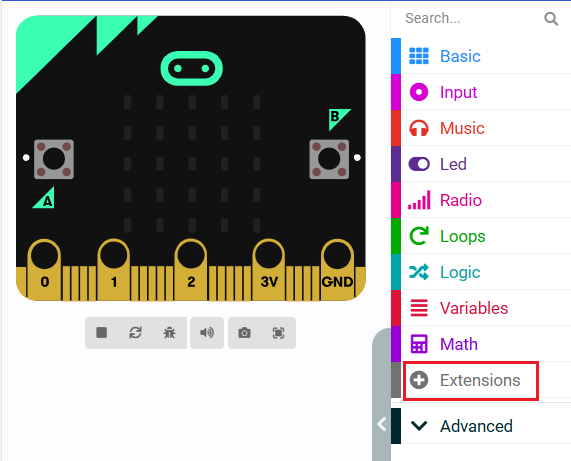
4.1 Add expansion package
4.2 Building blocks used
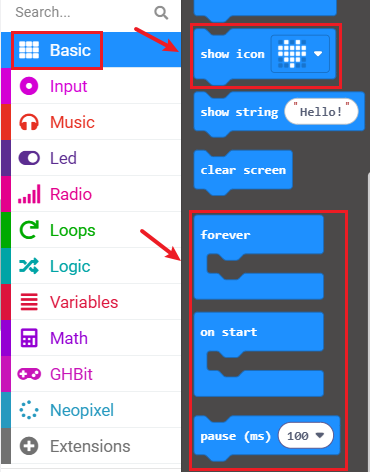
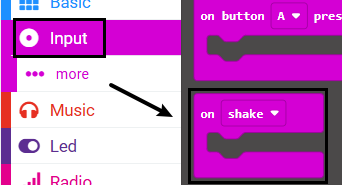
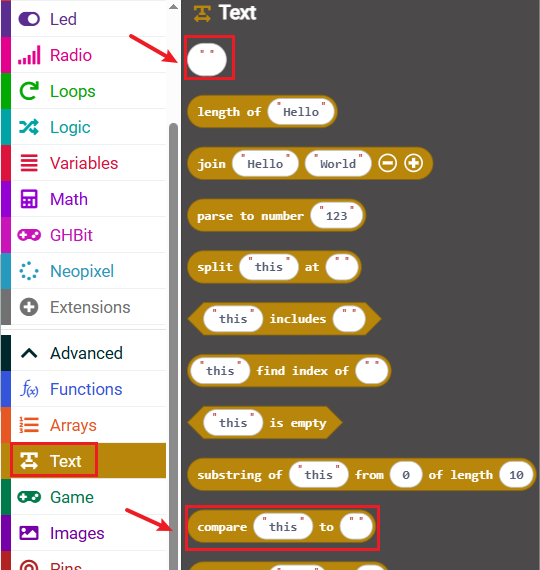
The location of the building blocks required for this programming is shown in the figure below.
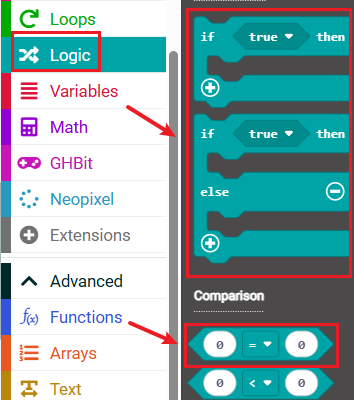
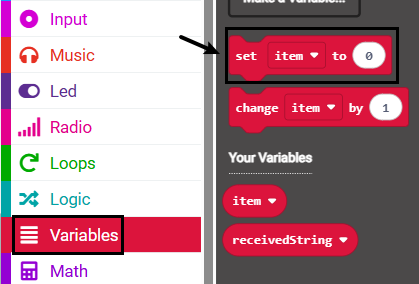
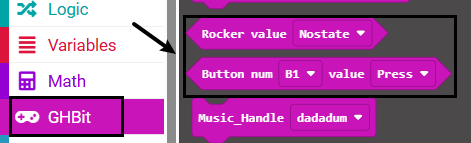
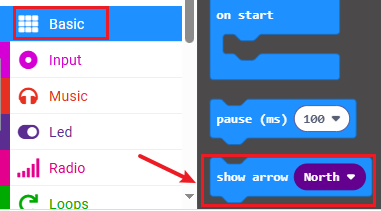
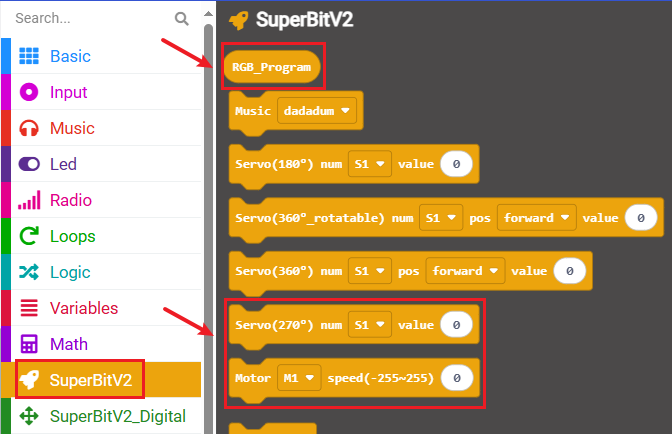
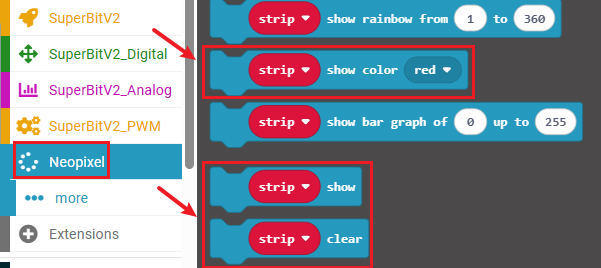
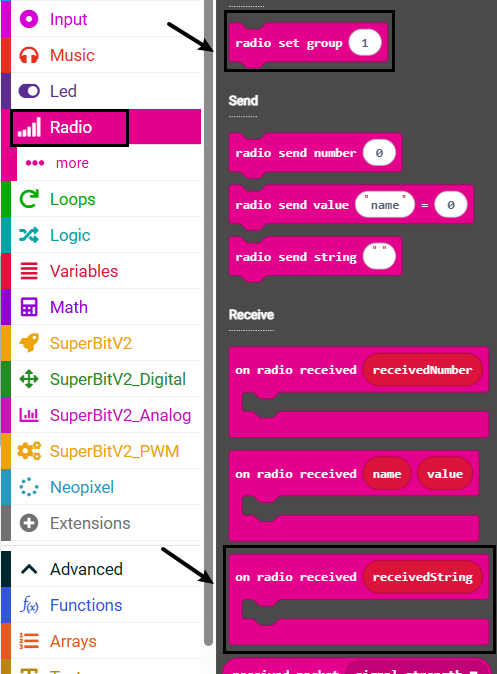
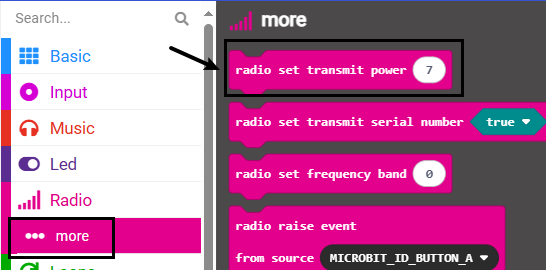
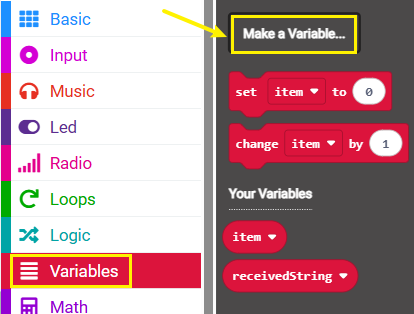
4.3 Add new variables
① Find the [Variable] option in the building block bar ---- [Set variable]
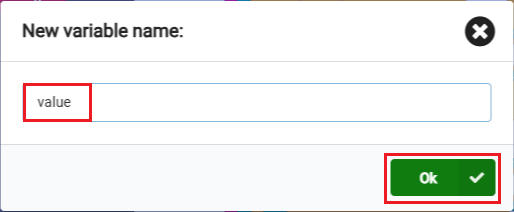
② Enter the variable name to complete the new variable.
4.4 Combined blocks
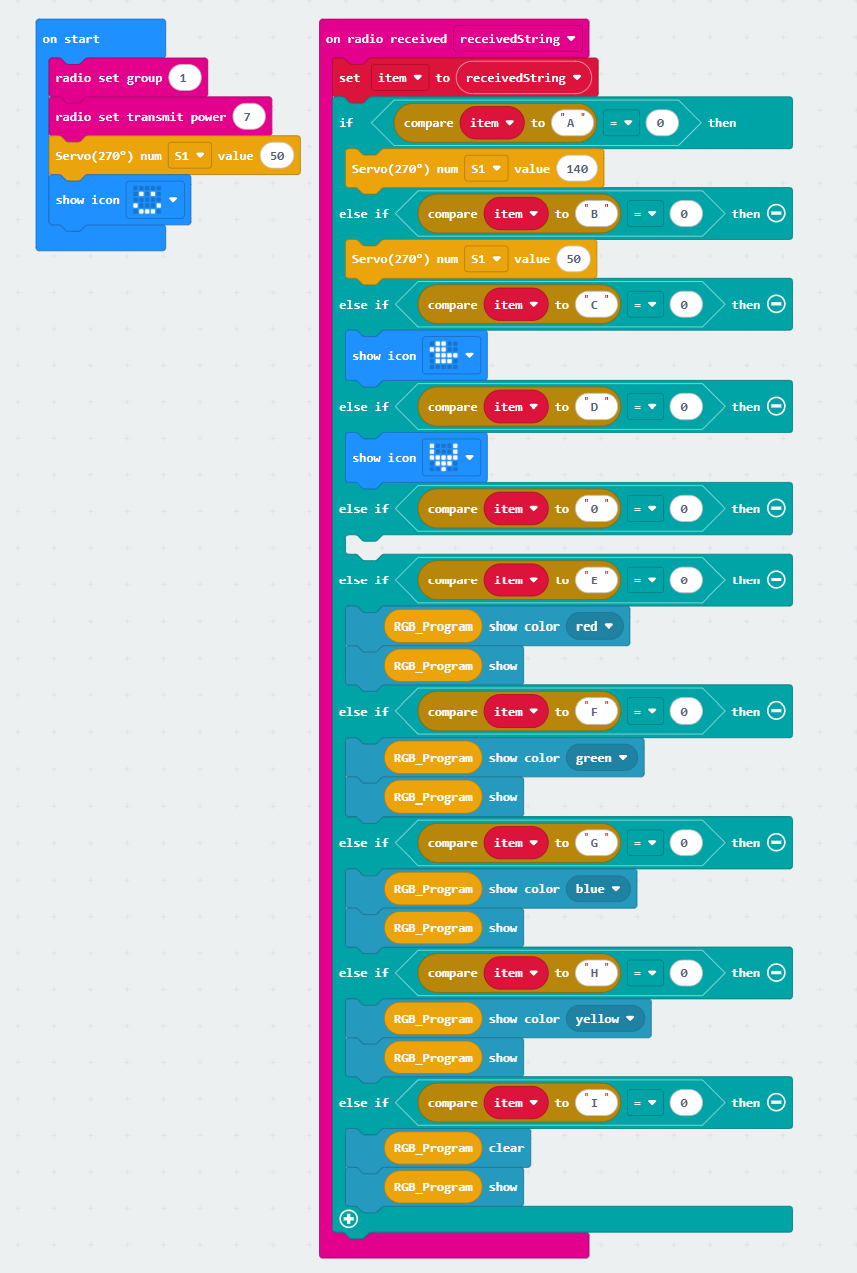
The summary program of microbit on Changing Face is shown in the figure below
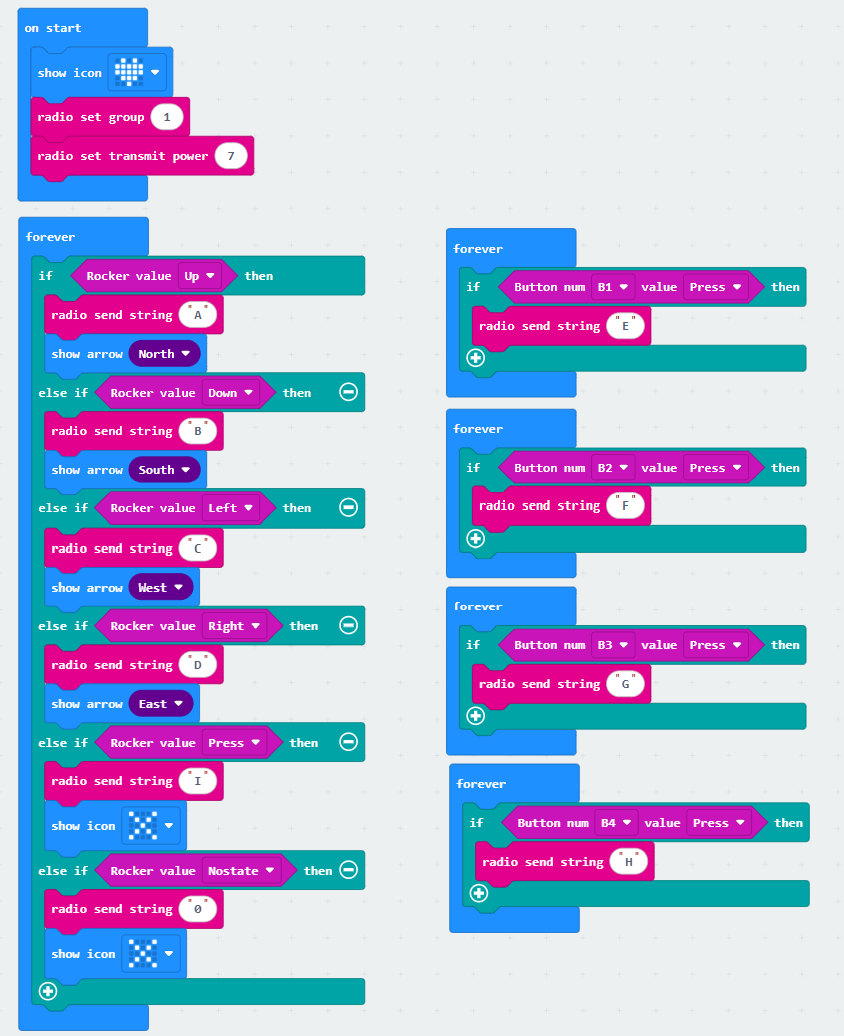
The program of Handle rocker control is as follows
The program of Handle gravity control is as follows
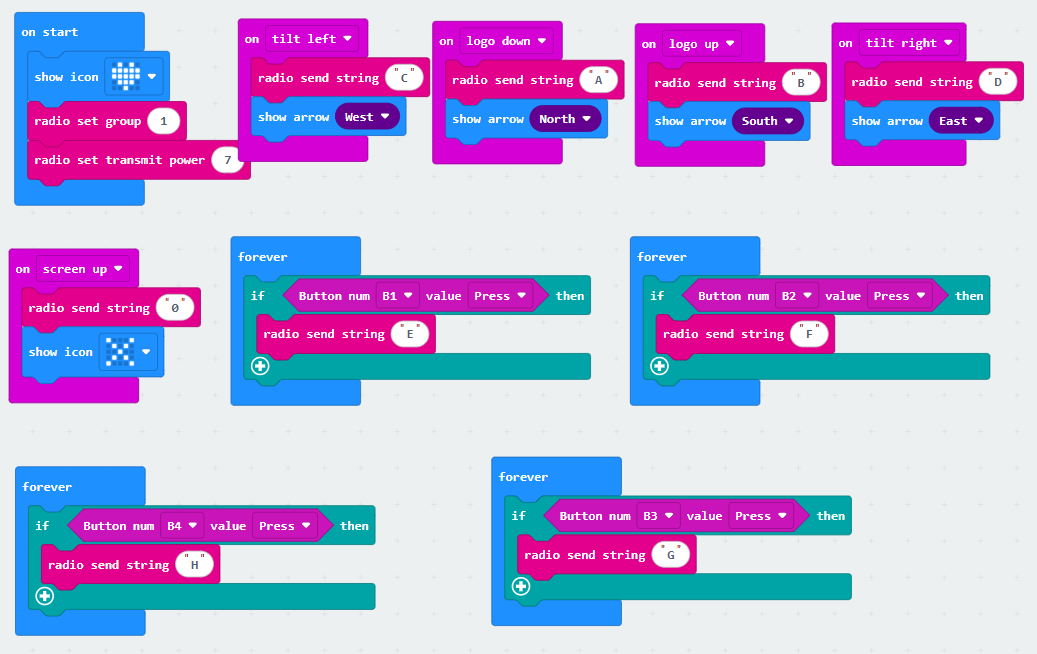
You can also directly open the microbit-handle-control-Changing-Face.hex, microbit-Handle-rocker-control.hex, microbit-Handle-gravity-control.hex files provided in this experiment and drag them into the browser that opens the URL, and the program diagram of this project source code will be automatically opened
5. Experimental phenomenon
We need to download the Changing Face program to the micro:bit motherboard of Changing Face, turn on the power switch of Changing Face, and we can see a smiley face pattern displayed on the micro:bit dot matrix;
Download the handle remote control program to the micro:bit motherboard of the handle, turn on the power switch of the handle, and we can see that the micro:bit dot matrix will initialize to display a heart pattern, and then display an "X" pattern, indicating that the handle is in the default state and no data is sent.
The two will automatically pair, and then we can start remote control of Changing Face.
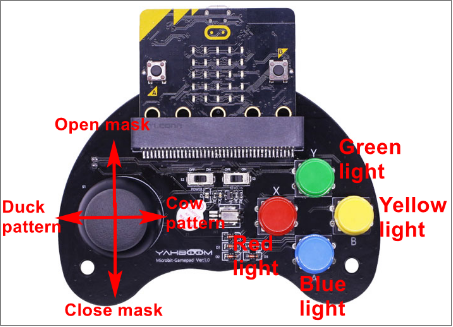
The handle functions are as follows.