Welcome to MicroROS-Pi5 repository
当製品の日本語版マニュアル資料は、こちらからご取得ください。
3. Quick start keyboard control
Quick start keyboard control
Note: The ROS_DOMAIN_ID of the Raspberry Pi and the microROS control board need to be consistent. You can check [MicroROS Control Board Parameter Configuration] to set the microROS control board ROS_DOMAIN_ID. Check the tutorial [Connect MicroROS Agent] to determine whether the IDs are consistent.
1. Program function description
After the car is connected to the agent, it will publish sensor data such as radar and imu. You can run commands in the supporting virtual machine/Raspberry Pi 5 to query this information. You can also publish control data of sensors such as speed and buzzer.
2. Query car information
2.1. Start and connect to the agent
After the Raspberry Pi is successfully powered on, open the terminal and enter the following command to open the agent.
sh ~/start_agent_rpi5.sh

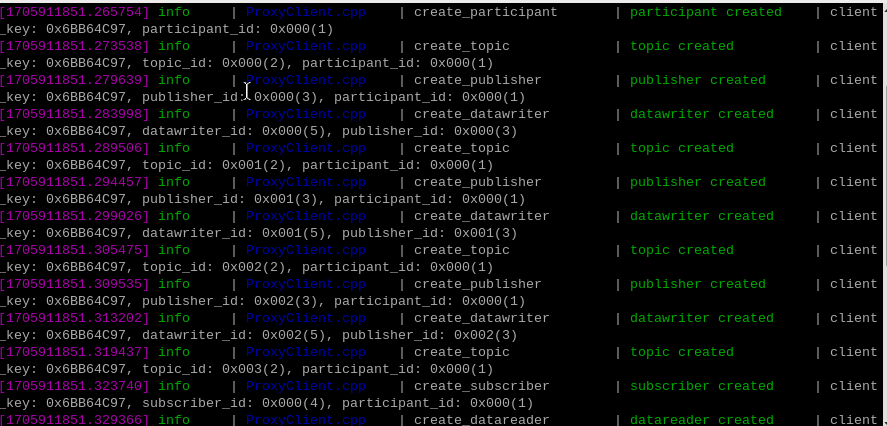
Press the reset button on the microROS control board and wait for the car to connect to the agent. The connection is successful as shown in the figure below.
2.2. Enter the car docker
Open another terminal and enter the following command to enter docker:
xxxxxxxxxxsh ros2_humble.sh
When the following interface appears, you have successfully entered docker. Now you can control the car through commands.

Enter the following command in the terminal to query the agent node:
xxxxxxxxxxros2 node list

3. Start the keyboard control program
Enter the following command in the docker terminal to control the car using the keyboard.
xxxxxxxxxxros2 run yahboomcar_ctrl yahboom_keyboard
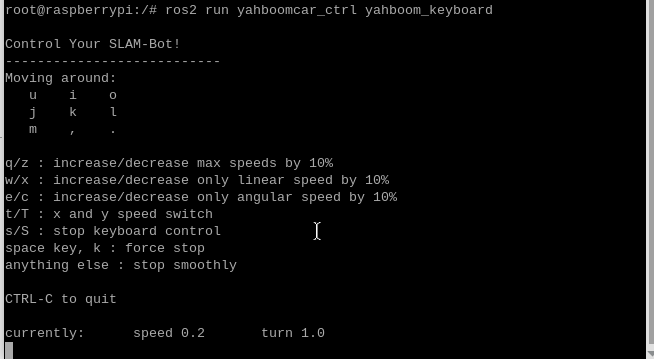
Enter the following command in the docker terminal to control the car using the keyboard.
| keyboard keys | Key Function |
|---|---|
| 【i】 | Go forward |
| 【,】 | move back |
| 【l】 | Right rotation |
| 【j】 | left rotation |
| 【u】 | Turn left |
| 【o】 | Turn right |
| 【m】 | Reverse left |
| 【.】 | Reverse to the right |