Welcome to MicroROS-Pi5 repository
当製品の日本語版マニュアル資料は、こちらからご取得ください。
6. QR code motion control
QR code motion control
Note: The ROS_DOMAIN_ID of the Raspberry Pi and the microROS control board need to be consistent. You can check [MicroROS Control Board Parameter Configuration] to set the microROS control board ROS_DOMAIN_ID. Check the tutorial [Connect MicroROS Agent] to determine whether the IDs are consistent.
1、Introduction to gameplay
This course mainly uses the robot's camera to obtain the camera's picture, identify the QR code information, and control the robot's movement based on the QR code information.
2、Program code reference path
After entering the docker container, the location of the source code of this function is as follows.
/root/yahboomcar_ws/src/yahboomcar_astra/yahboomcar_astra/
3、Program start
3.1、Start command
After entering the docker container, enter in the terminal.
xxxxxxxxxxros2 run yahboomcar_astra qrTracker
Successfully displayed camera footage
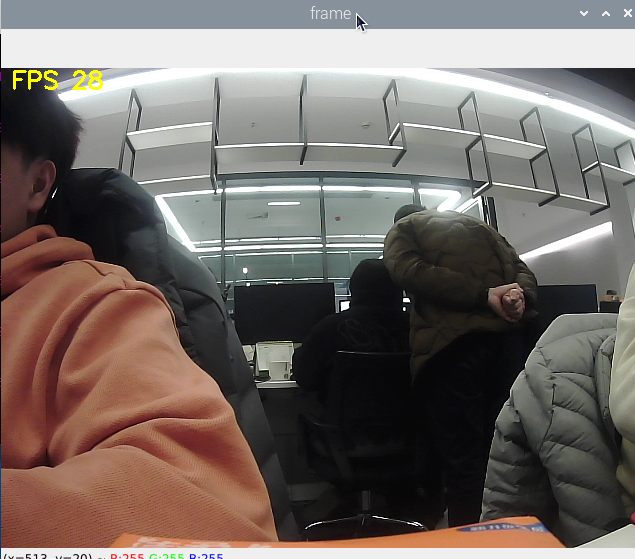
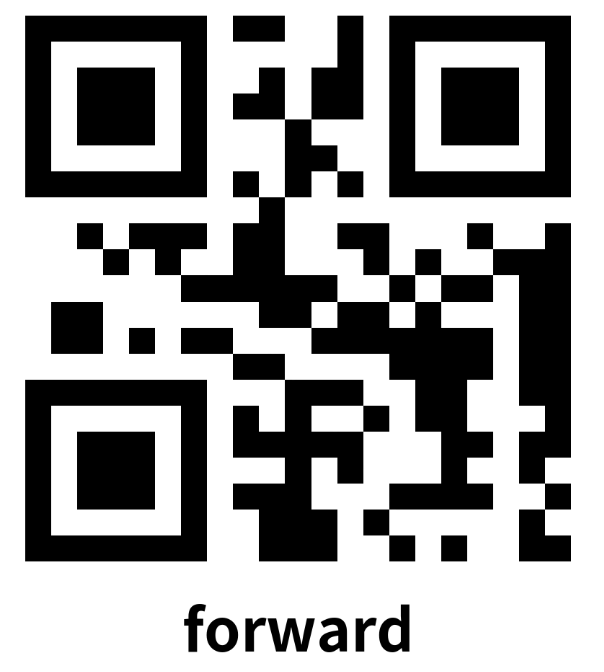
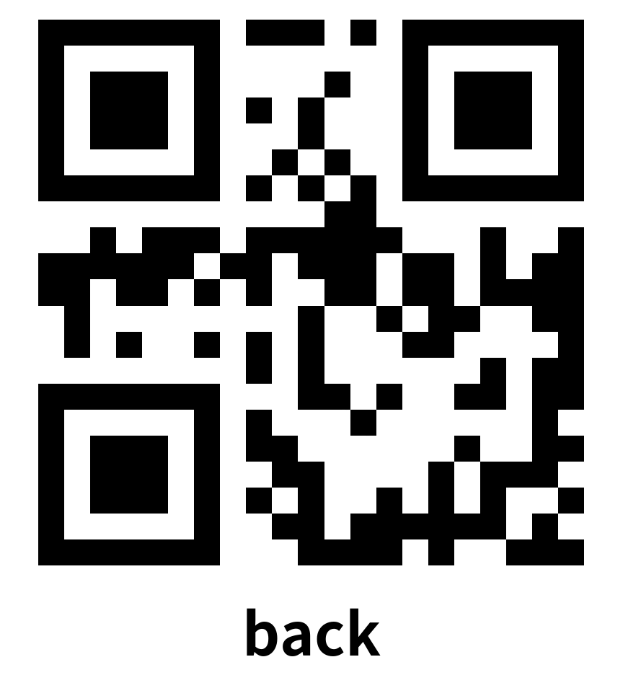
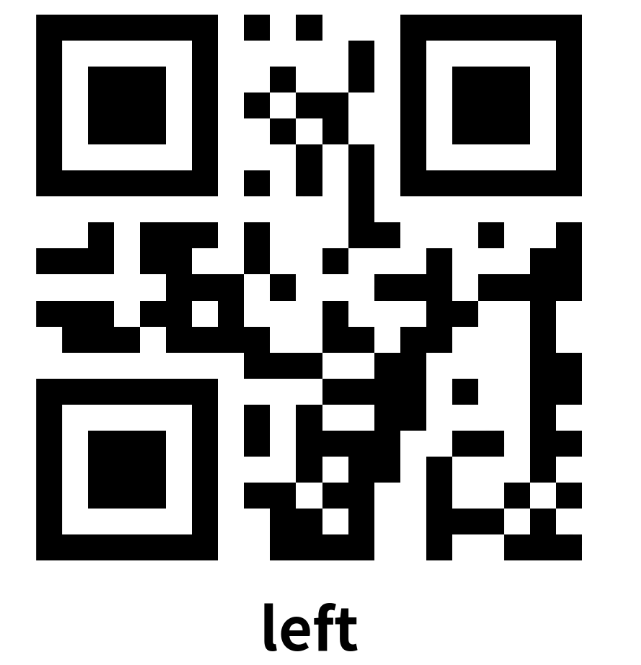
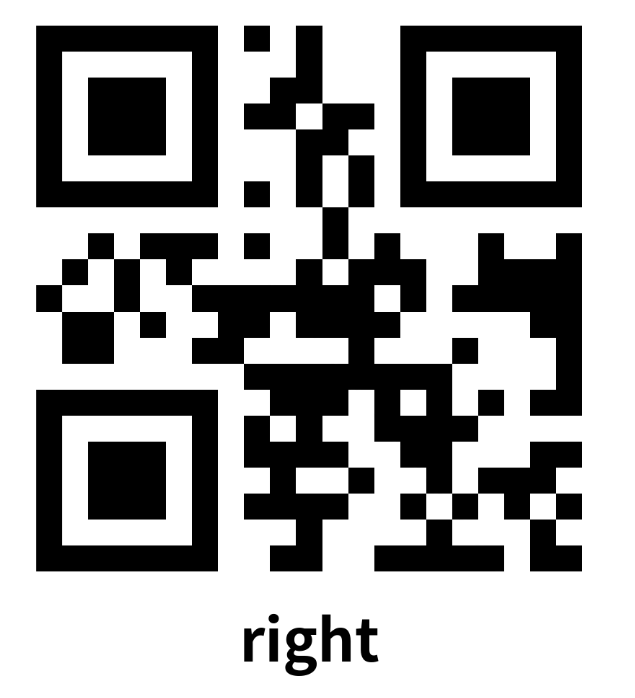
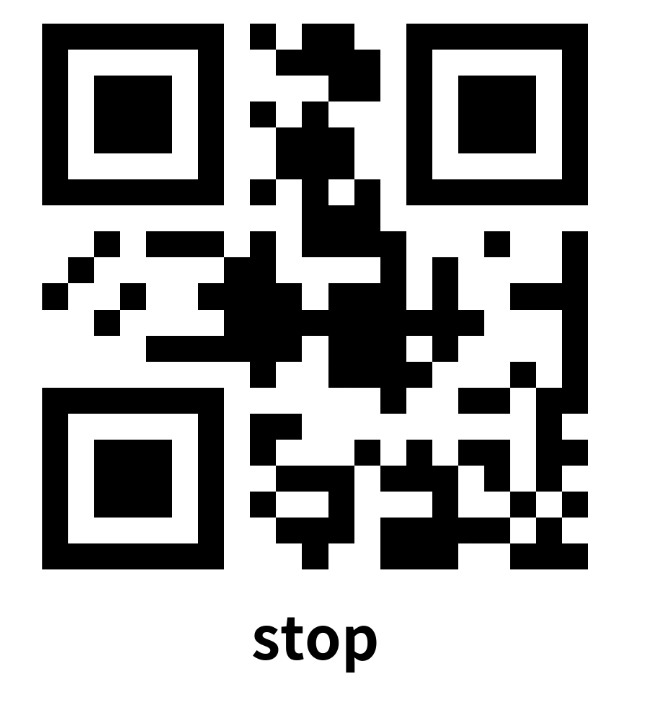
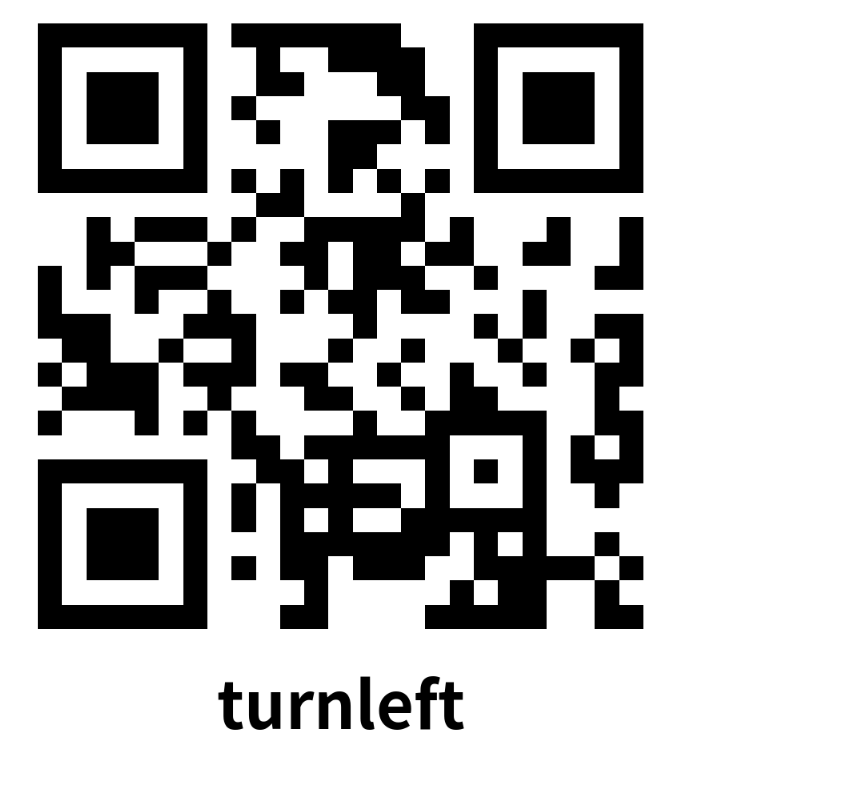
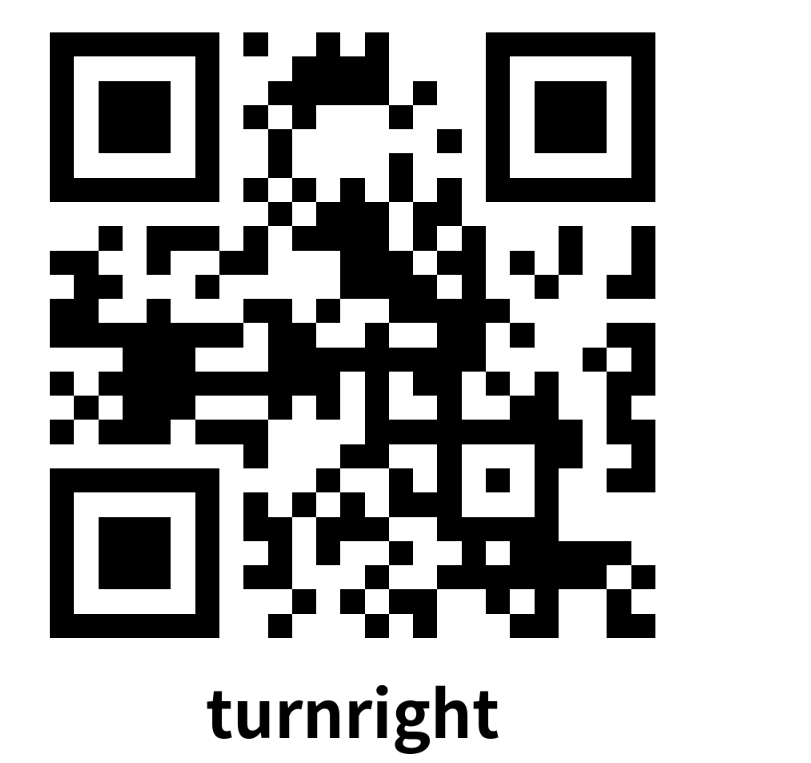
Turn on the QR code recognition and execute the command. The QR code that can be recognized in the current routine is QRCode, and the information is "forward" which means moving forward, "back" which means going backward, "left" which means moving left, "right" which means moving right, and "stop" which means stopping. "turnleft" means left rotation, "turnright" means right rotation, and "stop" means stop.
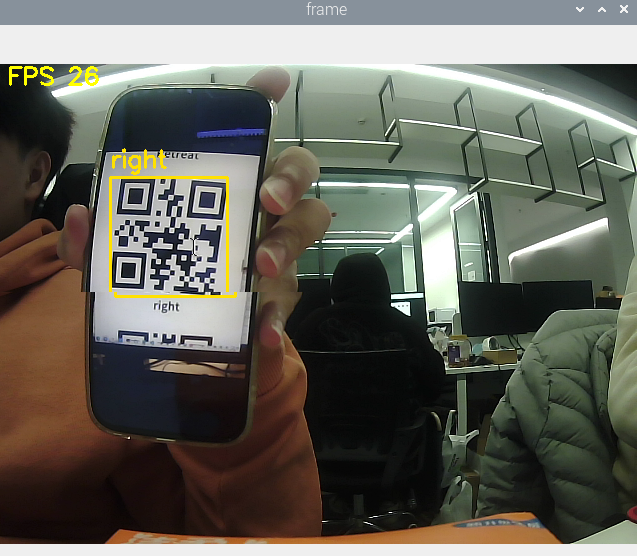
Press q to turn off the camera.
4、core code
Import the QR code parsing library pybar
xxxxxxxxxximport pyzbar.pyzbar as pyzbarfrom PIL import ImageIf pybar is not installed on your system, please open a terminal and run the following command to install it.
The factory docker environment has been configured, and this step is suitable for self-development.
xxxxxxxxxxpip3 install pyzbarsudo apt install libzbar-dev
Analyze the grayscale image and extract the information and image position of the QR code in the image. If there is no QR code in the image, the information is None.
x
def detect_qrcode(image): # 转为灰度图像 Convert to grayscale image gray = cv2.cvtColor(image, cv2.COLOR_BGR2GRAY) barcodes = pyzbar.decode(gray) for barcode in barcodes: # 提取二维码的数据和边界框的位置 The data of the QR code and the position of the bounding box are extracted (x, y, w, h) = barcode.rect barcodeData = barcode.data.decode("utf-8") barcodeType = barcode.type # print("[INFO] Found {} barcode: {}".format(barcodeType, barcodeData)) car_control(barcodeData) return barcodeData, (x, y, w, h) return None, (0, 0, 0, 0)Control the robot movement according to the string command of info.
xdef robot_action(self,data): if data == "forward": self.pub_vel(0.3,0.0,0.0) elif data == "back": self.pub_vel(-0.3,0.0,0.0) elif data == "left": self.pub_vel(0.0,0.0,1.0) elif data == "right": self.pub_vel(0.0,0.0,-1.0) elif data == "stop": self.pub_vel(0.0,0.0,0.0) elif data == "turnright": self.pub_vel(0.3,0.0,-0.5) elif data == "turnleft": self.pub_vel(0.3,0.0,0.5) elif data == "stop": self.pub_vel(0.0,0.0,0.0)
Image processing program
xxxxxxxxxxret, frame = capture.read() action = cv2.waitKey(10) & 0xFF payload, (x, y, w, h) = QRdetect.detect_qrcode(frame.copy()) if payload != None: cv2.rectangle(frame, (x, y), (x + w, y + h), (0, 225, 255), 2) cv2.putText(frame, payload, (x, y - 10), cv2.FONT_HERSHEY_SIMPLEX, 0.8, (0, 225, 255), 2) QRdetect.robot_action(payload) else: QRdetect.pub_vel(0.0,0.0,0.0)
Appendix (QR code picture):