yahboom
HomeLearn
Solution
Blog
Online Store
About Us
EN/中文
MicroROS-Pi5📖
01. Introduction
  • 0.Unpacking and reviewing video
  • 1. ReadMe - learning route
  • 2. Introduction to lidar
  • 3. Introduction to microROS control board
  • 4. FAQ
  • 5. About charging
02. Assembly course
  • Assembly steps
03. Preparation
  • First Trial
  • 1. Write firmware
  • 2. MicroROS control board parameter configuration
  • 3. Connect to MicroROS agent
  • 4. Connect to WIFI in hotspot mode
04. Quick start control course
  • 1. Self start handle control
  • 2. Close the self-starting handle control process
  • 3. Quick start keyboard control
  • 4. Map navigation and APP control
05. Robot basic course
  • 1. Robot information release
  • 2. Robot keyboard control
  • 3. Robot handle control
  • 4. Robot state estimation
  • 5. Linear speed calibration
  • 6. Angular velocity calibration
  • 7. Robot URDF model
06. ROS+OpenCV course
  • 1. Getting started with Opencv CV
  • 2. Geometric transformation
  • 3. Image processing and drawing
  • 4. Open Source CV image beautification
  • 5. QR code creation and recognition
  • 6. AR vision
  • 7. ROS+Opencv application
07. Mediapipe course
  • 1. Hand detection
  • 2. Posture detection
  • 3. Overall detection
  • 4. Face detection
  • 5. Face recognition
  • 6. Face effects
  • 7. 3D object recognition
  • 8. Brush
  • 9. Finger control
  • 10 .Gesture recognition
08. Robot visual interaction
  • 1. Monocular camera calibration
  • 2. Color tracking
  • 3. Object recognition and tracking
  • 4. Face recognition tracking
  • 5. Autonomous driving line patrol
  • 6. QR code motion control
  • 7. Gesture control of basic movement of the car
  • 8. Control the car movement with your palm
  • 9. Gesture control car action group
  • 10. Palm control of the two-dimensional gimbal servo
09. Lidar course
  • 1. Lidar avoid
  • 2. Lidar following
  • 3. Lidar guard
  • 4. Lidar patrol
  • 5. Gmapping mapping
  • 6. Cartographer mapping
  • 7. Navigation2 navigation avoid
  • 8. ROS Robot APP mapping
  • 9. ROS Robot APP navigation
10. Multi-machine course
  • 1. Multi-machine handle control
  • 2. Multi-machine keyboard control
  • 3. Multi-machine navigation
11. Linux basic course
  • 1. Introduction to Linux system
  • 2. Ubuntu file system
  • 3. Ubuntu common commands
  • 4. Ubuntu common editors
  • 5. Ubuntu software operation commands
  • 6. Virtual machine installation
  • 7. SSH remote control
  • 8. VNC remote control
  • 9. Transfer files remotely
  • 10. Driver library and communication
  • 11. Static IP and hotspot mode
  • 12. Bind device ID
  • 13. Capacity expansion and resource allocation
  • 14. Update system software sources
  • 15. Set root user password
  • 16. sudo free password
  • 17. Connect to WiFi network
  • 18. View system version
  • 19. Customized service management
  • 20. Back up system image
12. RPi basic setting course
  • 1. Update and upgrade operating system
  • 2. Introduction to raspi-config tool
  • 3. config.txt file description
  • 4. Network Configuration
  • 5. remote access
  • 6. Transfer files remotely
  • 7. Set display resolution and rotation
  • 8. Set screen to sleep
  • 9. Get real-time temperature of Raspberry Pi
  • 10. Play audio and video
  • 11. Using USB camera
  • 12. Using MIPI camera
13. Docker course
  • 1. Overview and installation
  • 2. Common commands
  • 3. Docker images deeply understand and publish images
  • 4. Docker hardware interaction and data processing
  • 5. Enter the robot's docker container
14. ROS2 basic course
  • 1. Introduction to ROS2
  • 2. ROS2 install Humble
  • 3. ROS2 development environment
  • 4. ROS2 workspace
  • 5. ROS2 function package
  • 6. ROS2 node
  • 7.ROS2 topic communication
  • 8.ROS2 service communication
  • 9.ROS2 action communication
  • 10.ROS2 custom interface message
  • 11.ROS2 parameter service case
  • 12.ROS2 meta-function package
  • 13.ROS2 distributed communication
  • 14.ROS2 DDS
  • 15.ROS2 time related API
  • 16.ROS2 common command tools
  • 17.ROS2 rviz2 use
  • 18.ROS2 rqt toolbox
  • 19.ROS2 Launch startup file configuration
  • 20.ROS2 recording and playback tool
  • 21.ROS2 URDF model
  • 22.ROS2 Gazebo simulation platform
  • 23.ROS2 TF2 coordinate transformation
15. microROS control board development environment
  • 1. Introduction to microROS control board
  • 2. Set up ESP32-IDF development environment
  • 3. ESP32-IDF configuration tool
  • 4. Install ESP32-microros components
  • 5. Install and start microROS agent
  • 6. Flash-tool burning firmware
16. ESP32 basic course
  • 1. Turn on the LED light
  • 2. Button function
  • 3. Drive the buzzer
  • 4. Serial communication
  • 5. Battery voltage detection
  • 6. Drive PWM servo
  • 7. Drive motor
  • 8. Read motor encoder data
  • 9. PID controls car speed
  • 10. Read IMU data
  • 11. Read radar data
  • 12. Flash access data
  • 13. Partition table and memory
  • 14. Bluetooth communication
  • 15. WiFi networking
  • 16. Robot kinematics analysis
  • 17.ROS-WiFi camera module
17. microROS basic course
  • 1. Publish topic
  • 2. Subscribe topic
  • 3. Multi-topic subscribe and publish
  • 4. Subscribe buzzer topics
  • 5. Subscribe PWM servo topics
  • 6. Subscribe speed control topics
  • 7. Release speed topic
  • 8. Release IMU data topic
  • 9. Publish lidar data topics
  • 10. Customized transmission method
Download
  • Mapping_APP(iOS_Android)
  • Source code
  • Hardware information
  • VM image file
  • RPi5 imgae file
  • Instruction Manual
  • 3D Model File
  • ROS2_Basic_VM
Download ZIP
FAQ
  • 1、1.USB camera abnormal termination

Welcome to MicroROS-Pi5 repository

当製品の日本語版マニュアル資料は、こちらからご取得ください。

16.ROS2 common command tools

16. ROS2 Common Command Tools

1. Package Management Tool ros2 pkg

1.1. ros2 pkg create

Function: Creates a package. When creating a package, you must specify the package name, compilation method, dependencies, etc.

Format:

xxxxxxxxxx
ros2 pkg create <package_name> --build-type <build-type> --dependencies <dependencies>

In the ros2 command:

  • pkg: Indicates the functions associated with the package;
  • create: Indicates the creation of a package;
  • package_name: Required: The name of the new package;
  • build-type: Required: Indicates whether the newly created package is C++ or Python. If using C++ or C, follow ament_cmake; if using Python, follow ament_python;
  • dependencies: Optional: Indicates the package's dependencies. C++ packages must include rclcpp; Python packages must include rclpy, as well as other required dependencies.

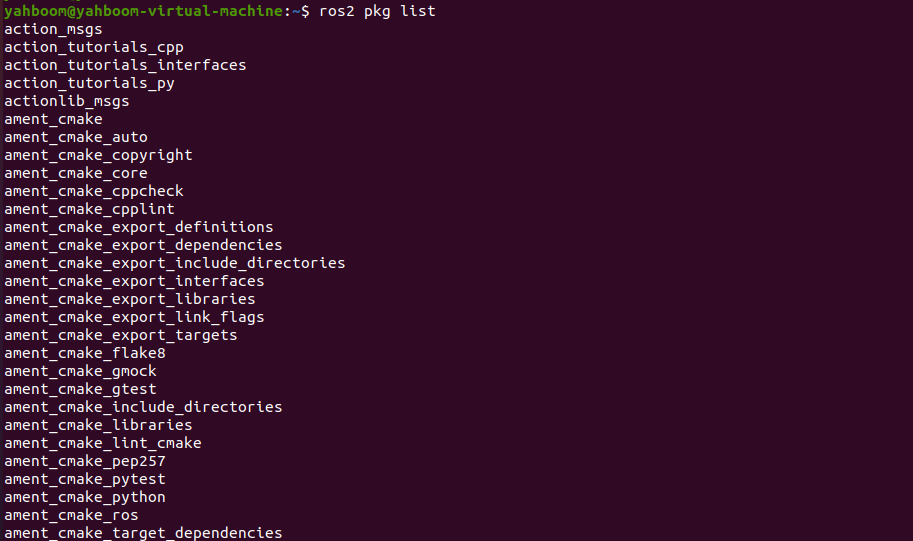
1.2, ros2 pkg list

Function: View the list of packages in the system

Format:

xxxxxxxxxx
ros2 pkg list

image-20230427154146879

1.3. ros2 pkg executables

Function: View all executable files in a package

Format:

xxxxxxxxxx
ros2 pkg executables pkg_name

image-20230427154419005

2. Node Run ros2 run

Function: Run the node program in the package

Format:

xxxxxxxxxx
ros2 run pkg_name node_name
  • pkg_name: Package name
  • node_name: The name of the executable program
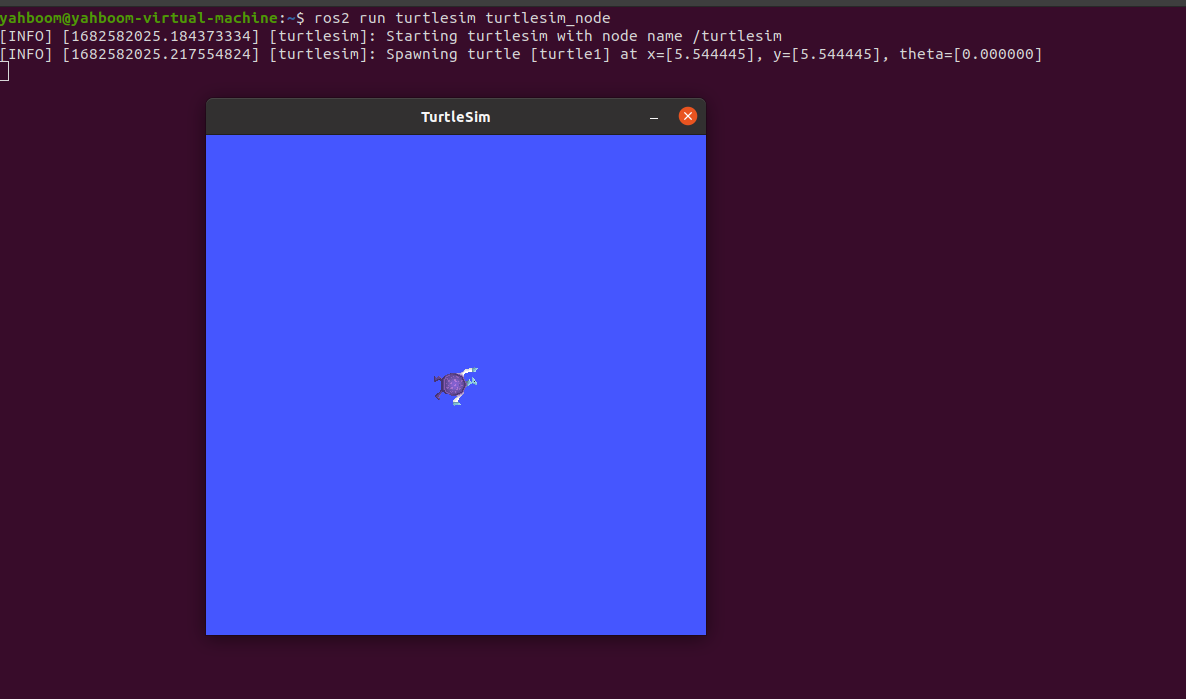
image-20230427155359745

3. Node-Related Tools: ros2 node

3.1. ros2 node list

Function: Lists all node names in the current domain

Format:

xxxxxxxxxx
ros2 node list

image-20230427155655753

3.2. ros2 node info

Function: View detailed node information, including subscriptions, published messages, enabled services, and actions.

Format:

xxxxxxxxxx
ros2 node info node_name
  • node_name: The name of the node to be viewed.
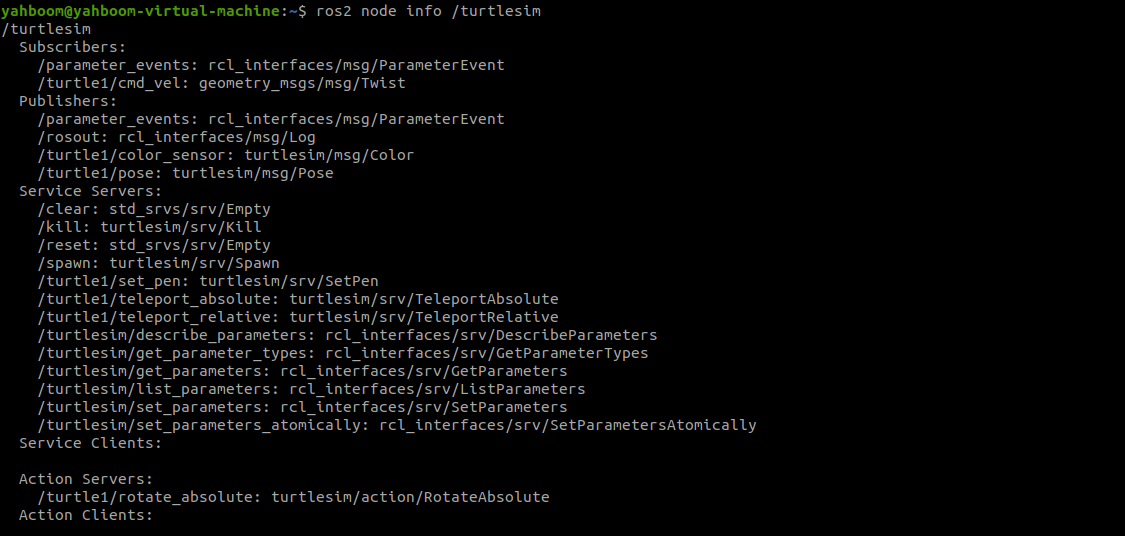
image-20230427160001101

4. Topic-Related Tools: ros2 topic

4.1. ros2 topic list

Function: List all topics in the current domain

Format:

xxxxxxxxxx
ros2 topic list

image-20230427160351051

4.2. ros2 topic info

Function: Display topic message type and number of subscribers/publishers

Format:

xxxxxxxxxx
ros2 topic info topic_name
  • topic_name: The name of the topic to be queried.

image-20230427160625594

4.3, ros2 topic type

Function: View the message type of a topic

Format:

xxxxxxxxxx
ros2 topic type topic_name
  • topic_name: The name of the topic type to be queried.

image-20230427161056536

4.4, ros2 topic hz

Function: Display the average publishing frequency of a topic.

Format:

xxxxxxxxxx
ros2 topic hz topic_name
  • topic_name: The name of the topic whose frequency you want to query.
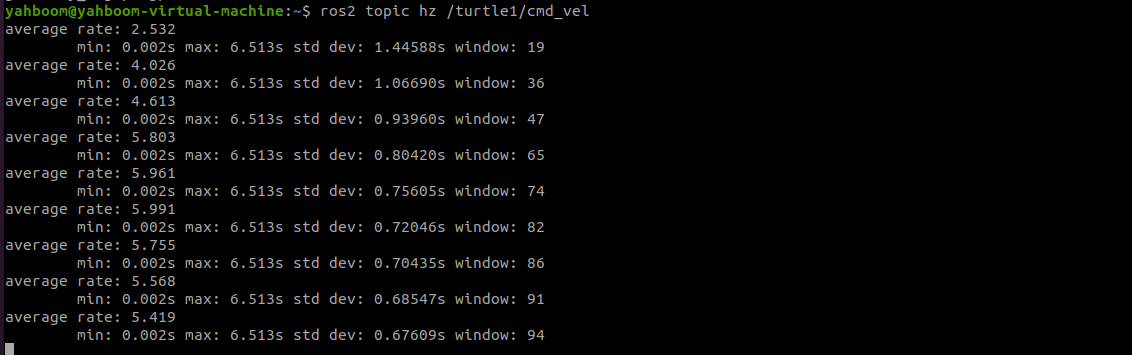
image-20230427161721650

4.5, ros2 topic echo

Function: Print topic messages on the terminal, similar to a subscriber.

Format: ros2 topic echo topic_name

  • topic_name: The name of the topic whose messages you want to print.
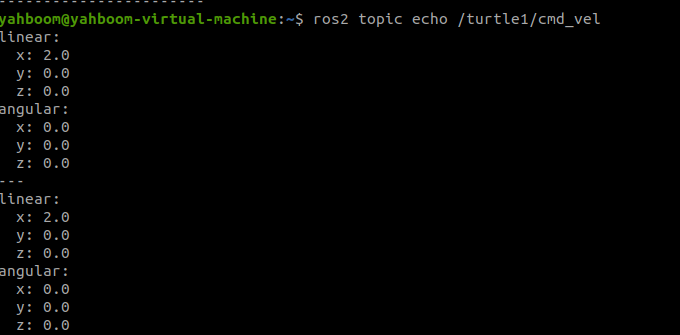
image-20230427162312888

4.5, ros2 topic pub

Function: Publish a message on a specified topic on the terminal.

Format:

xxxxxxxxxx
ros2 topic pub topic_name message_type message_content
  • topic_name: The name of the topic whose messages you want to publish.
  • message_type: The data type of the topic.
  • message_content: Message content

The default is to publish at a 1Hz frequency. The following parameters can be set:

  • Parameter -1 to publish only once, ros2 topic pub -1 topic_name message_type message_content
  • Parameter -t count to publish count times, ros2 topic pub -t count topic_name message_type message_content
  • Parameter -r count to publish at a count Hz frequency, ros2 topic pub -r count topic_name message_type message_content

Example:

  • Publish velocity commands via the command line
  • Note that there is a space after each colon; otherwise, a format error will be displayed.
xxxxxxxxxx
ros2 topic pub turtle1/cmd_vel geometry_msgs/msg/Twist "{linear: {x: 0.5, y: 0.0, z: 0.0}, angular: {x: 0.0, y: 0.0, z: 0.2}}"
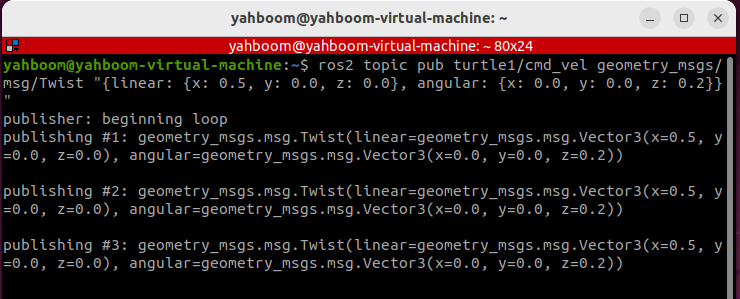
image-20250905163149992

5. Interface-Related Tools: ros2 interface

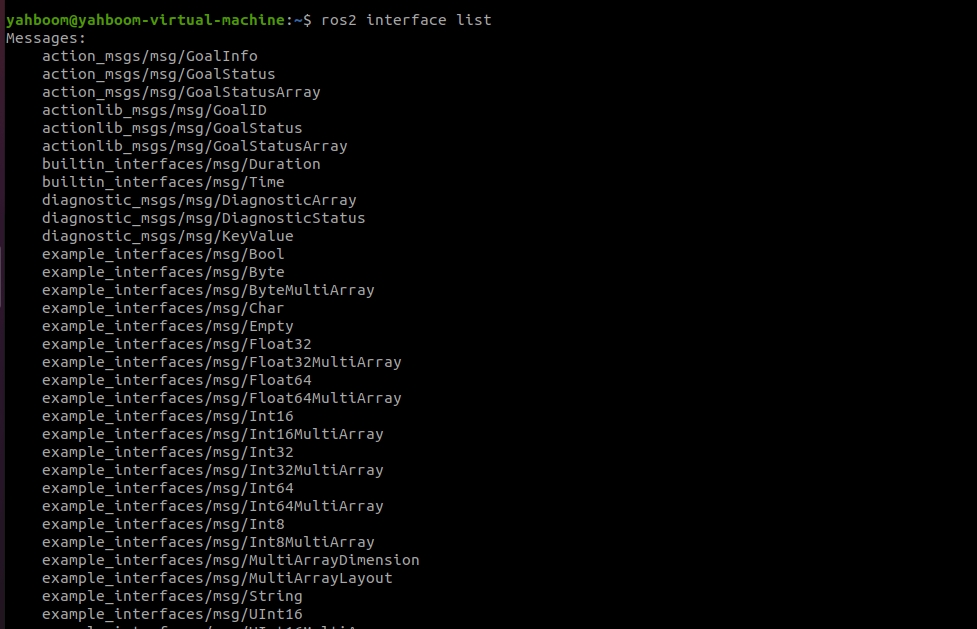
5.1. ros2 interface list

Function: Lists all interfaces in the current system, including topics, services, and actions.

Format:

xxxxxxxxxx
ros2 interface list

image-20230427164755075

5.2. ros2 interface show

Function: Displays the detailed information of a specified interface

Format:

xxxxxxxxxx
ros2 interface show interface_name
  • interface_name: The name of the interface to be displayed
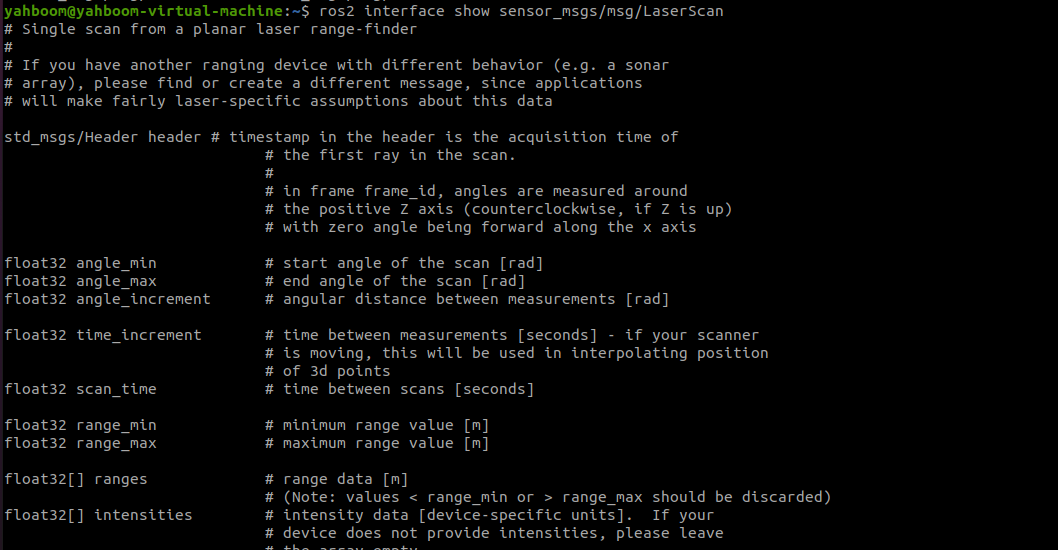
image-20230427165057647

6. Service-Related Tools ros2 service

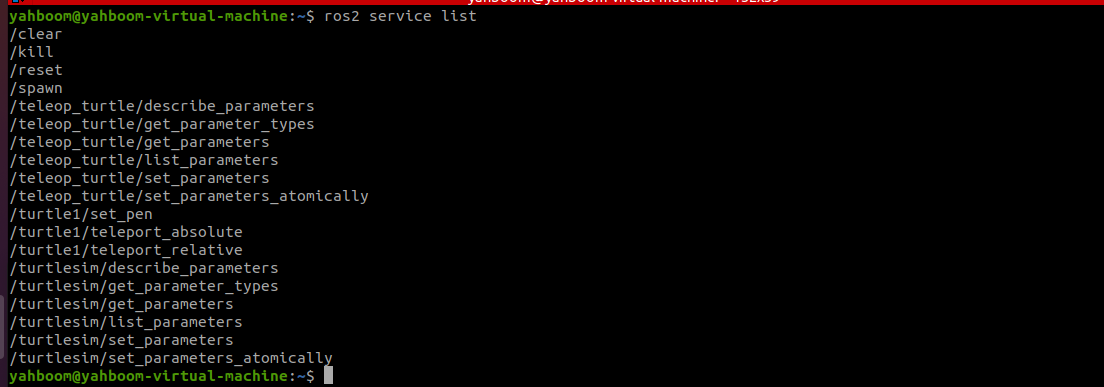
6.1. ros2 service list

Function: Lists all services in the current domain

Format:

xxxxxxxxxx
ros2 interface show interface_name

image-20230427172236875

6.2, ros2 service call

Function: Call a specified service

Format:

xxxxxxxxxx
ros2 interface call service_name service_Type arguments
  • service_name: The service to be called
  • service_type: The service data type
  • arguments: The parameters required to provide the service

For example, to call the turtle spawn service

xxxxxxxxxx
ros2 service call /spawn turtlesim/srv/Spawn "{x: 2, y: 2, theta: 0.2, name: 'turtle10'}"
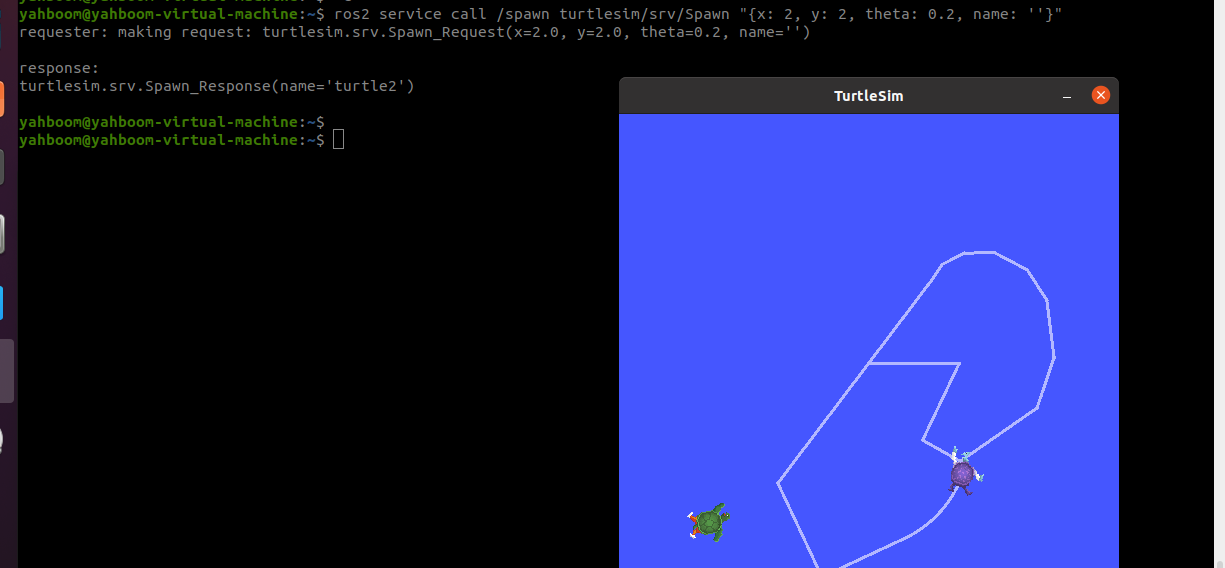
image-20230427173625631

ROS2 time related API
ROS2 rviz2 use

COMPANY

  • About us
  • Team Style
  • Blog

LEARNING & EXPLORATION

  • Tutorials
  • Edge AI hardware
  • Educational robots
  • Embedded intelligent hardware

WHERE TO BUY

  • Yahboom Online Store
  • Amazon
  • Alibaba
  • AliExpress
  • Mercado

TECHNOLOGY SUPPORT

  • Email: support@yahboom.com

BE A DISTRIBUTOR

  • Email: sales@yahboom.com
QR Code
QR Code

Copyright © 2017-2026 Yahboom. All Rights Reserved.

EN/中文