Welcome to MicroROS-Pi5 repository
当製品の日本語版マニュアル資料は、こちらからご取得ください。
8. VNC remote control
VNC remote control
8.1、Install VNC service
Note: The VNC service has been installed on the car system, please do not configure it again.
Enter the following commands to install
sudo apt install vinosudo ln -s ../vino-server.service /usr/lib/systemd/user/graphical•session.target.wantsgsettings set org.gnome.Vino prompt-enabled falsegsettings set org.gnome.Vino require-encryption falseModify the corresponding file,
xxxxxxxxxxsudo vim /usr/share/glib-2.0/schemas/org.gnome.Vino.gschema.xmlCopy the following content into the file, paying attention to the corresponding format.
xxxxxxxxxx<key name='enabled' type='b'><summary>Enable remote access to the desktop</summary><description>If true, allows remote access to the desktop via the RFBprotocol. Users on remote machines may then connect to thedesktop using a VNC viewer</description><default>false</default></key>
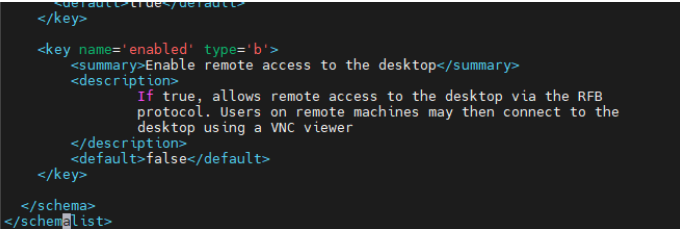
Compile it,
xxxxxxxxxxsudo glib-compile-schemas /usr/share/glib-2.0/schemas
Enter the following command to query the UUID of the IP:
xxxxxxxxxxnmcli connection show
Copy and paste the UUID between the single quotes [‘ ’] in the following command and execute it,
xxxxxxxxxxdconf write /org/gnome/settings-daemon/plugins/sharing/vino-server/enabled-connections "['e27c8ddd-b660-4e0b-a70d-78a39fd5c9c3 ']"export DISPLAY=:0Set the VCN login password (the password here is ‘mima’),
xxxxxxxxxxgsettings set org.gnome.Vino authentication-methods "['vnc']"gsettings set org.gnome.Vino vnc-password $(echo -n 'mima'|base64)8.2、Start VNC
8.2.1、Manually open
Terminal input,
xxxxxxxxxx/usr/lib/vino/vino-server8.2.2、Set up auto-start
Terminal input
xxxxxxxxxxgsettings set org.gnome.Vino enabled truemkdir -p ~/.config/autostartsudo vim ~/.config/autostart/vino-server.desktopCopy the following content into the file,
xxxxxxxxxx[Desktop Entry]Type=ApplicationName=Vino VNC serverExec=/usr/lib/vino/vino-serverNoDisplay=true
Save and exit.
8.3、VNC remote login
VCN download address:Download the combined RealVNC Connect installer - RealVNC®
Download and install VNC Viewer software on Windows or Linux.
The PC and motherboard need to be in the same LAN, open VNC Viewer.
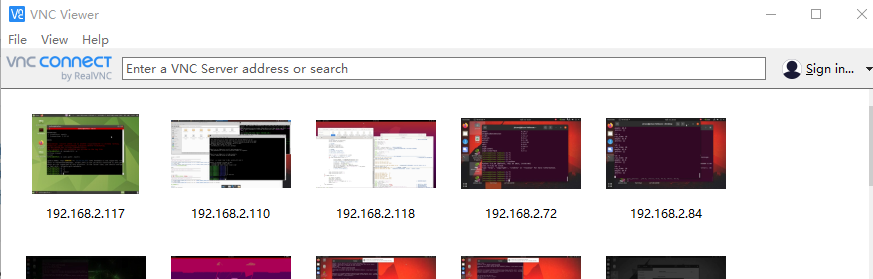
Enter the IP address of the motherboard and press Enter to connect. After the connection is successful, you will be prompted to enter the password. Just enter the login password of the motherboard. After successful login, you can remotely see the desktop of the motherboard and perform graphical interface operations.