yahboom
HomeLearn
Solution
Blog
Online Store
About Us
EN/中文
RDK X5 Board📖
1.Introduction to RDK X5 board
  • 1.Introduction to RDK X5 board
  • 2.Write system file
  • 3.Hardware interface description
  • 4.Install case and other accessories
  • 5.Use 7-inch display
2.Basic settings course
  • 1.Network configuration
  • 2.Remote login
  • 3.Update system
  • 4.srpi-config user guide
  • 5.config. txt configuration file
  • 6.Self-startup setting
  • 7.RDK exclusive command usage
  • 8.Linux command usage
  • 9.GPIO readwrite operation
  • 10.Image classification algorithm
  • 11.Use USB camera
  • 12.Use MIPI camera
  • 13.Binocular camera depth algorithm
3.Basic development course
C language
  • 1.Camera image display
  • 2.Local save camera images
  • 3.Camera image encoding
  • 4.Video file decoding
  • 5.RTSP streaming decoding
  • 6.VPS scaling example
  • 7.Target detection algorithm-fcos
  • 8.Target detection algorithm-YOLOv5s
  • 9.Using CAN
Python
  • 0.ReadMe
  • 1.Using GPIO
  • 2.Using PWM
  • 3.Using Serial port
  • 4.Using I2C
  • 5.Using SPI
4.ROS expansion board
Python basic control
  • 0.Bind PCB port devices
  • 1.Install the Rosmaster driver library
  • 2.Buzzer whistle
  • 3.Control PWM servo
  • 4.RGB colorful light bar special effects display
  • 5.Control the forward and reverse rotation of the motor
  • 6.Control the movement of the robot
  • 7.Control Serial Servo
  • 8.Update firmware of expansion board
  • 9.Drive OLED
ROS2 robot control
  • 1.Function package usage process
  • 2.Robot information release
  • 3.Robot keyboard control
  • 4.Robot state estimation
  • 5.Robot calibration
  • 6.URDF model
5.T-MINI PLUS Lidar
  • 0.Preparation before use(Must read)
  • 1.Environment setup
  • 2.T-MINI PLUS LiDAR drive
  • 3.Handheld LiDAR mapping
6.AI VIEW Depth camera
AI VIEW Depth camera use
  • 1.AI VIEW Depth camera use
  • 2.Camera internal parameter calibration
  • 3.Color tracking
  • 4.KCF object tracking
Mediapipe functions
  • 1.Hand detection
  • 2.Attitude detection
  • 3.Overall inspection
  • 4.Facial detection
  • 5.Facial recognition
OpenCV series courses
  • 1.ROS+opencv application
  • 2.QR code creation and recognition
  • 3.AR vision
7.Offline AI model course
Offline-LLM-Text-Interaction
  • 0.AI-Large-Model-Image-Description
  • 1.AI-Large-Model-Environment-Deployment
  • 2.LLM-Conversation-Platform-Installation
  • 3.Meta-AI-Llama3.2-Model
  • 4.Alibaba-Cloud-Qwen3-Model
  • 5.Microsoft-Phi-4-mini-Model
  • 6.DeepSeek-DeepSeek-R1-Model
  • 7.Alibaba-Cloud-Qwen2.5vl-Vision-Multimodal-Model
  • 8.Google-Gemma3-Vision-Multimodal-Model
  • 9.Llava-Vision-Multimodal-Model
  • 10.MiniCPM-V-Vision-Multimodal-Model
  • 11.Multimodal-Text-to-Image-Application
  • 12.Multimodal-Video-Analysis-Application
  • 13.Multimodal-Visual-Understanding-Application
  • 14.Multimodal-Visual-Localization-Application
  • 15.Multimodal-Table-Scanning-Application
  • 16.Multimodal-Autonomous-Agent-Application
Offline-LLM-Voice-Interaction
  • 0.Voice-Interaction-Hardware-Connection-Must-Read
  • 1.Offline-Speech-to-Text-ASR
  • 2.Offline-Text-to-Speech-TTS
  • 3.AI-Large-Model-Voice-Interaction
  • 4.Multimodal-Visual-Understanding-Voice-Interaction
  • 5.Multimodal-Text-to-Image-Application
  • 6.Multimodal-Video-Analysis-Application
  • 7.Multimodal-Visual-Localization-Application
  • 8.Multimodal-Table-Scanning-Application
  • 9.Multimodal-Autonomous-Agent-Application
  • 10.AI-Large-Model-Offline-Voice-Assistant
8.Online AI model course
Online-LLM-Text-Interaction
  • 1.OpenRouter-Large-Model-API-Aggregation-Platform
  • 2.Multimodal-Visual-Understanding-Application
  • 3.Multimodal-Visual-Localization-Application
  • 4.Multimodal-Table-Scanning-Application
  • 5.Multimodal-Autonomous-Agent-Application
Online-LLM-Voice-Interaction
  • 0.Voice-Interaction-Hardware-Connection-Must-Read
  • 1.Online-Speech-to-Text-ASR
  • 2.Online-Text-to-Speech-TTS
  • 3.AI-Large-Model-Voice-Interaction
  • 4.Multimodal-Visual-Voice-Interaction
  • 5.Multimodal-Visual-Localization-Application
  • 6.Multimodal-Table-Scanning-Application
  • 7.Multimodal-Autonomous-Agent-Application
  • 8.AI-Large-Model-Online-Voice-Assistant
9.YOLO26 tutorials
  • 01.YOLO environment construction
  • 02.CLI use
  • 03.Object detection
  • 04.Instance segmentation
  • 05.Pose estimation
  • 06.Image classification
  • 07.Oriented bounding box object detection
  • 08.Model conversion
  • 09.Dataset annotation
  • 10.Model training conversion
  • 11.Model prediction
10.OpenClaw Deployment and Basic Usagenew
  • 01.OpenClaw Quick Start
  • 02.OpenClaw Deployment
  • 03.OpenClaw WhatsApp Plugin Application
  • 04.OpenClaw WebChat Interaction
  • 05.OpenClaw TUI Interaction
  • 06.OpenClaw Tools Introduction
  • 07.OpenClawGate Gateway User Manual
  • 08.OpenClaw Features Overview
  • 09.OpenClawClawHub Introduction (Skill Installation)
  • 10.OpenClaw Application - File Management
  • 11.OpenClaw Application - Camera
  • 12.OpenClaw Application - Browser Control
  • 13.OpenClaw Application - Script Execution
  • 14.OpenClaw Application - AI Programming (Peripheral & GPIO Control)
  • 15.OpenClaw Application - Dedicated AI Assistant
  • 16.OpenClaw Web Search Capability Configuration
11.OpenClaw Advanced Developmentnew
1.Preparation Before Use
  • 01. Peripheral Hardware Configuration
  • 02. OpenClaw API-KEY Configuration
  • 03. OpenClaw Model Switching
  • 04. OpenClaw Prompts
  • 05. AI Voice Interaction Configuration
  • 06. Three Dialogue Configuration Tests
2.OpenClaw AI Programming Peripheral Control
  • 1. Servo Control
  • 2. RGB Strip
  • 3. OLED Display
  • 4. Temperature and Humidity Sensor
  • 5. Camera Application
  • 6. AI Script Peripheral Control
3.OpenClaw Peripheral Integration Applications
  • 1. Plant Care Assistant
  • 2. AI Calorie Estimation
  • 3. AI Rock Paper Scissors Game
  • 4. AI Pet
  • 5. AI Weather Station
  • 6. Temperature and Humidity Dashboard
  • 7. Scheduled Tasks
12.ROS2 basic course
  • 1.Introduction to ROS2
  • 2.ROS2 install Humble
  • 3.ROS2 development environment
  • 4.ROS2 workspace
  • 5.ROS2 function package
  • 6.ROS2 node
  • 7.ROS2 topic communication
  • 8.ROS2 service communication
  • 9.ROS2 action communication
  • 10.ROS2 custom interface message
  • 11.ROS2 parameter service case
  • 12.ROS2 meta-function package
  • 13.ROS2 distributed communication
  • 14.ROS2 DDS
  • 15.ROS2 time related API
  • 16.ROS2 common command tools
  • 17.ROS2 rviz2 use
  • 18.ROS2 rqt toolbox
  • 19.ROS2 Launch startup file configuration
  • 20.ROS2 recording and playback tool
  • 21.ROS2 URDF model
  • 22.ROS2 Gazebo simulation platform
  • 23.ROS2 TF2 coordinate transformation
Download
  • System_File
  • Code
  • Tools
Download ZIP

Welcome to RDK X5 Board repository

2.LLM-Conversation-Platform-Installation

Open WebUI

Open WebUIEnvironmental requirementsDocker setupOfficial installation of DockerAlibaba Cloud installation of DockerOpen WebUI installationOpen WebUI operationAdministrator accountRegister and log inUse interfaceModel dialogueSwitch modelCommon ProblemsClose Open WebUICommon ErrorsUnable to start Open WebUIService connection timed out

Users who use the AI large model image have already set up the environment, and all the setup-related operations in the tutorial do not need to be performed. You can jump directly to running.

Demonstration Environment

Development Board: RDK X5

SD (TF) Card: 64G

RDK X5 (8G RAM): Runs models with 8B and below parameters
RDK X5 (4G RAM): Runs models with 3B and below parameters

Open WebUI is an open source project that aims to provide a simple and easy-to-use user interface (UI) for managing and monitoring open source software and services.

xxxxxxxxxx
There is a high probability that there will be no response or timeout in the dialogue when using Open WebUI. You can try to restart Open WebUI or use the Ollama tool to run the model instead!

Environmental requirements

Host and Conda installation of Open WebUI: requires Node.js >= 20.10, Python = 3.11:

Environment Setup MethodDifficulty (relative)
HostHigh
CondaMedium
DockerLow

The tutorial demonstrates the installation of Open WebUI with Docker.

Docker setup

Official installation of Docker

If Docker is not installed, you can use a script to install Docker with one click.

xxxxxxxxxx
The image we provide has Docker installed, so you don't need to install it yourself!
Domestic users may not be able to install Docker through the official method. We recommend using Alibaba Cloud to install Docker or using our image directly.
  • Update the local package list

xxxxxxxxxx
sudo apt update
  • Download and run the script

Download the get-docker.sh file and save it in the current directory.

xxxxxxxxxx
sudo apt install curl
xxxxxxxxxx
curl -fsSL https://get.docker.com -o get-docker.sh

Run the get-docker.sh script file with sudo permission.

xxxxxxxxxx
sudo sh get-docker.sh

Alibaba Cloud installation of Docker

If you cannot install it yourself, please use the image we provide.

  • Update the local package list

xxxxxxxxxx
sudo apt update
  • Install necessary software

xxxxxxxxxx
sudo apt install apt-transport-https ca-certificates curl gnupg2 lsb-release software-properties-common
  • Add the GPG key for the software source

xxxxxxxxxx
curl -fsSL https://mirrors.aliyun.com/docker-ce/linux/debian/gpg | sudo gpg --dearmor -o /usr/share/keyrings/docker-archive-keyring.gpg
  • Add Alibaba Cloud mirror software source

xxxxxxxxxx
echo "deb [arch=arm64 signed-by=/usr/share/keyrings/docker-archive-keyring.gpg] https://mirrors.aliyun.com/docker-ce/linux/debian bookworm stable" | sudo tee /etc/apt/sources.list.d/docker.list > /dev/null
  • Install Docker

xxxxxxxxxx
sudo apt update
sudo apt install docker-ce docker-ce-cli containerd.io docker-compose-plugin

Open WebUI installation

For systems with Docker installed, you can directly enter the following command in the terminal:

xxxxxxxxxx
sudo docker pull ghcr.io/open-webui/open-webui:main
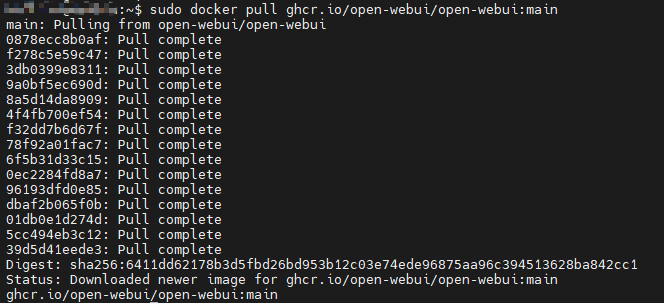
image-20250919173610598

Open WebUI operation

Enter the following command in the terminal to start the specified Docker:

xxxxxxxxxx
sudo docker run --network=host -v open-webui:/app/backend/data -e OLLAMA_BASE_URL=http://127.0.0.1:11434 --name open-webui --restart always ghcr.io/open-webui/open-webui:main
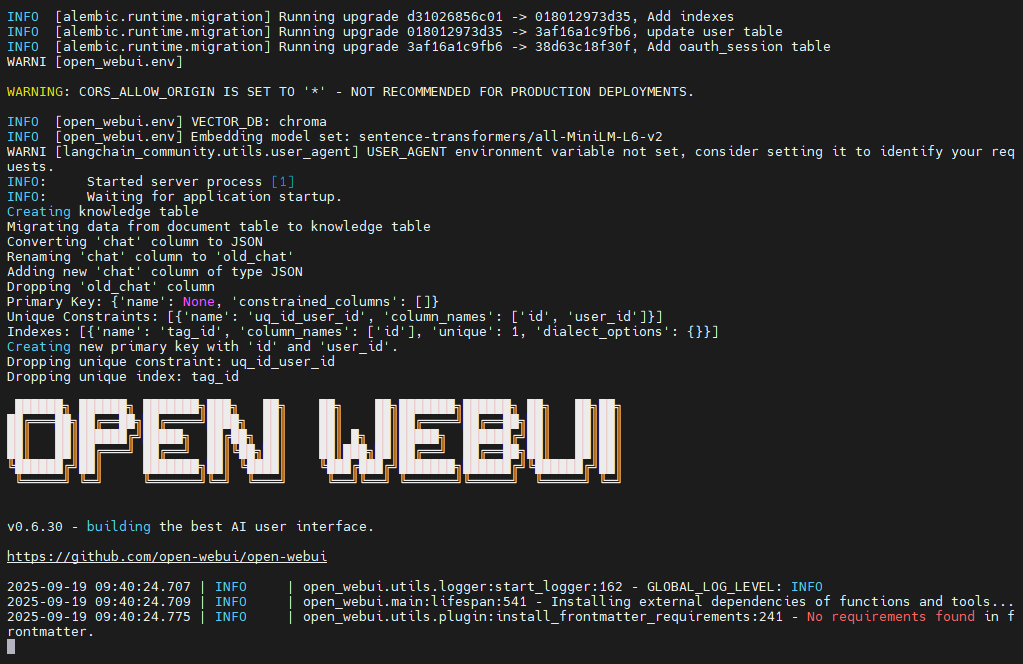
image-20250919174151022

After successful startup, use the following URL in your browser to access it:

xxxxxxxxxx
http://localhost:8080/

Or use the motherboard IP:8080

Administrator account

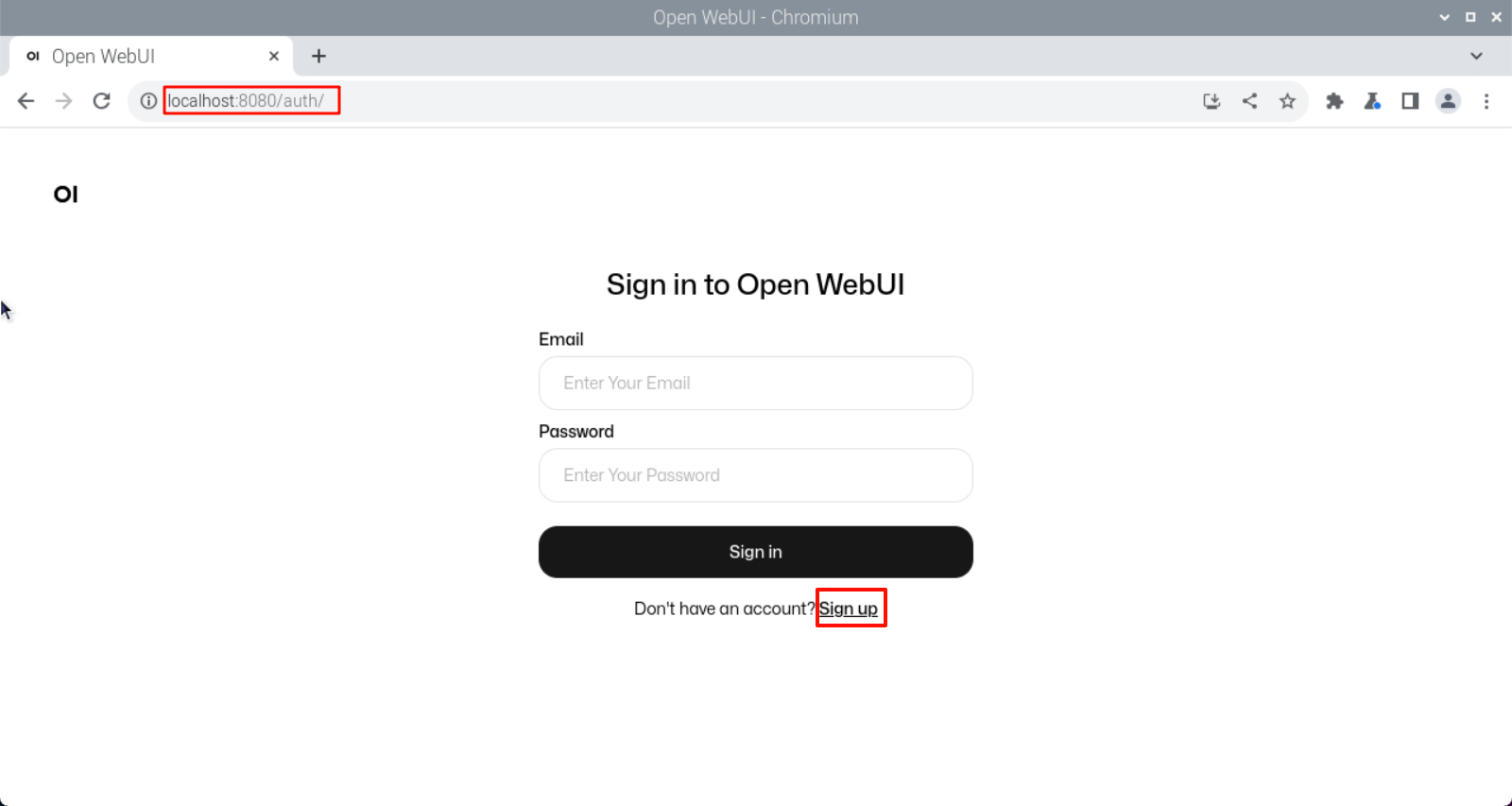
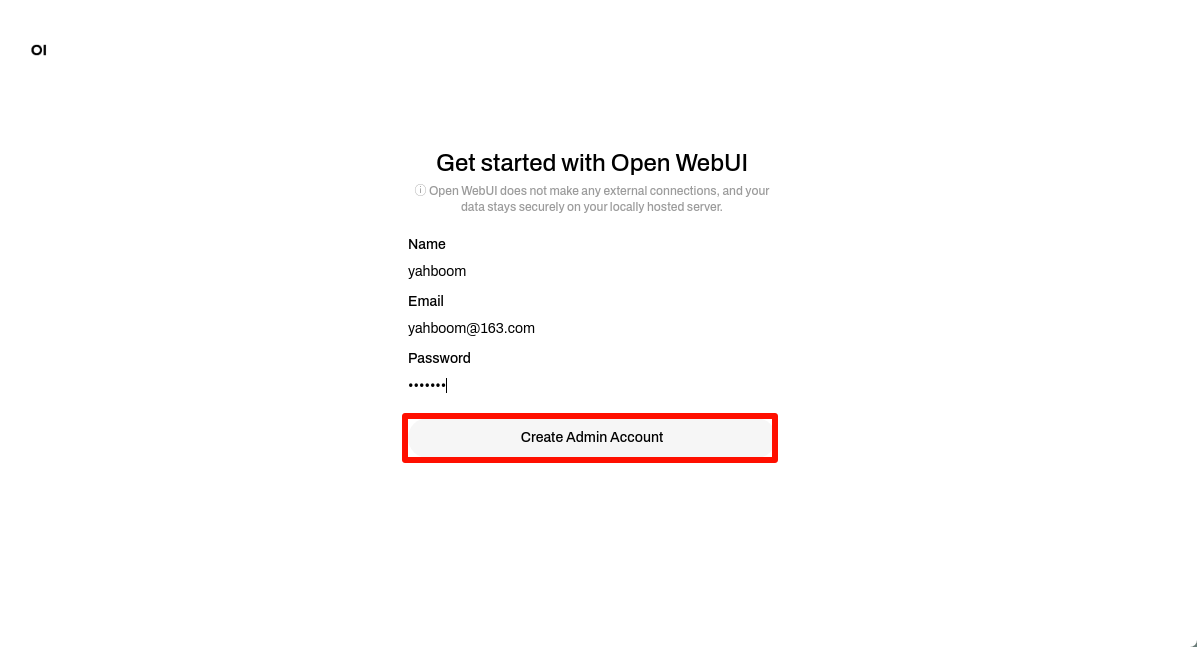
When you use it for the first time, you need to register an account yourself. This account is an administrator account, and the information can be filled in as required!

xxxxxxxxxx
Since all the content of our image has been set up and tested, users can log in directly with the account we registered:
Username: yahboom
Email: yahboom@163.com
Password: yahboom

Register and log in
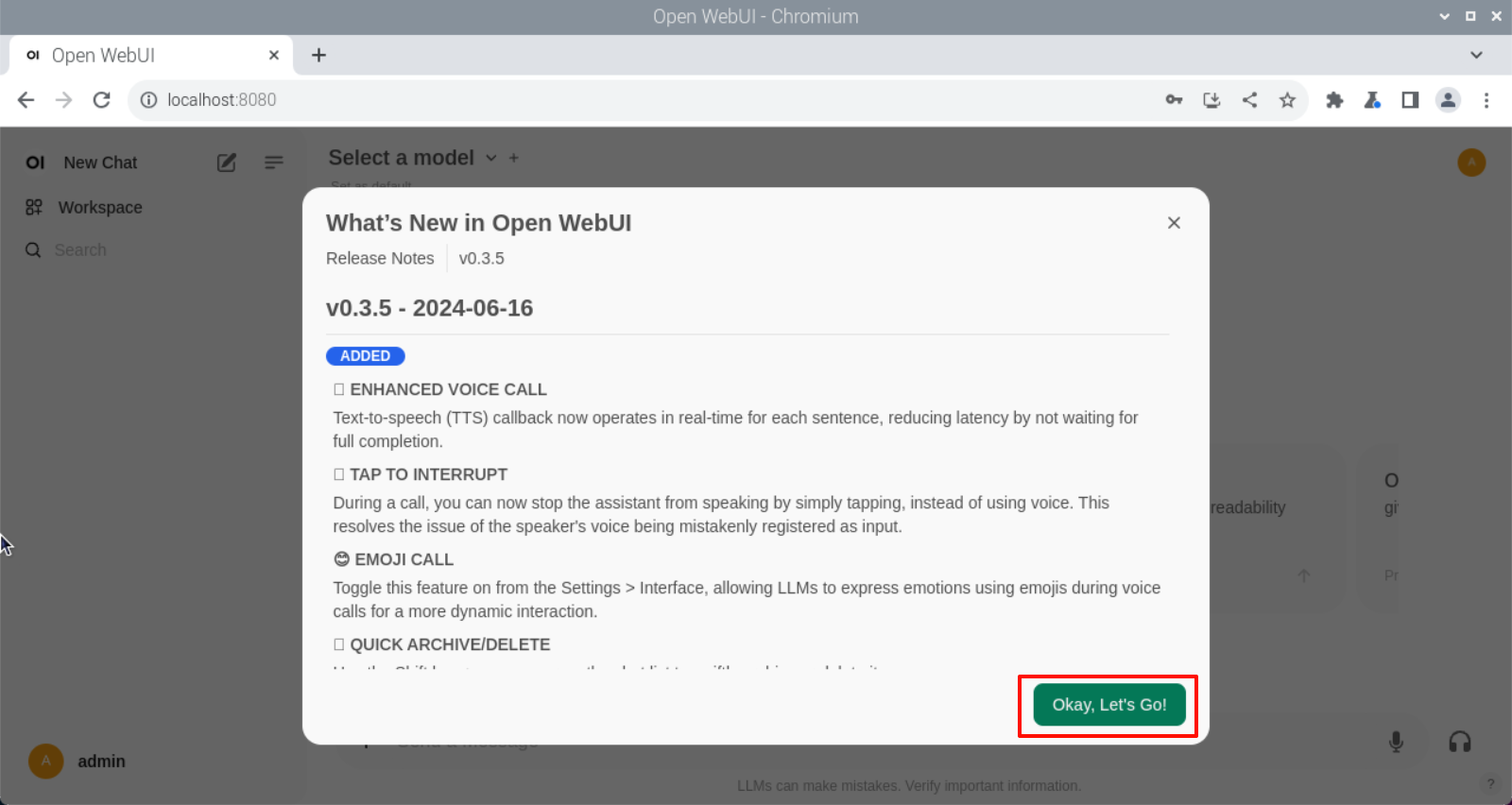
image-20240625170215739

image-20250111142854678

image-20240625170428401

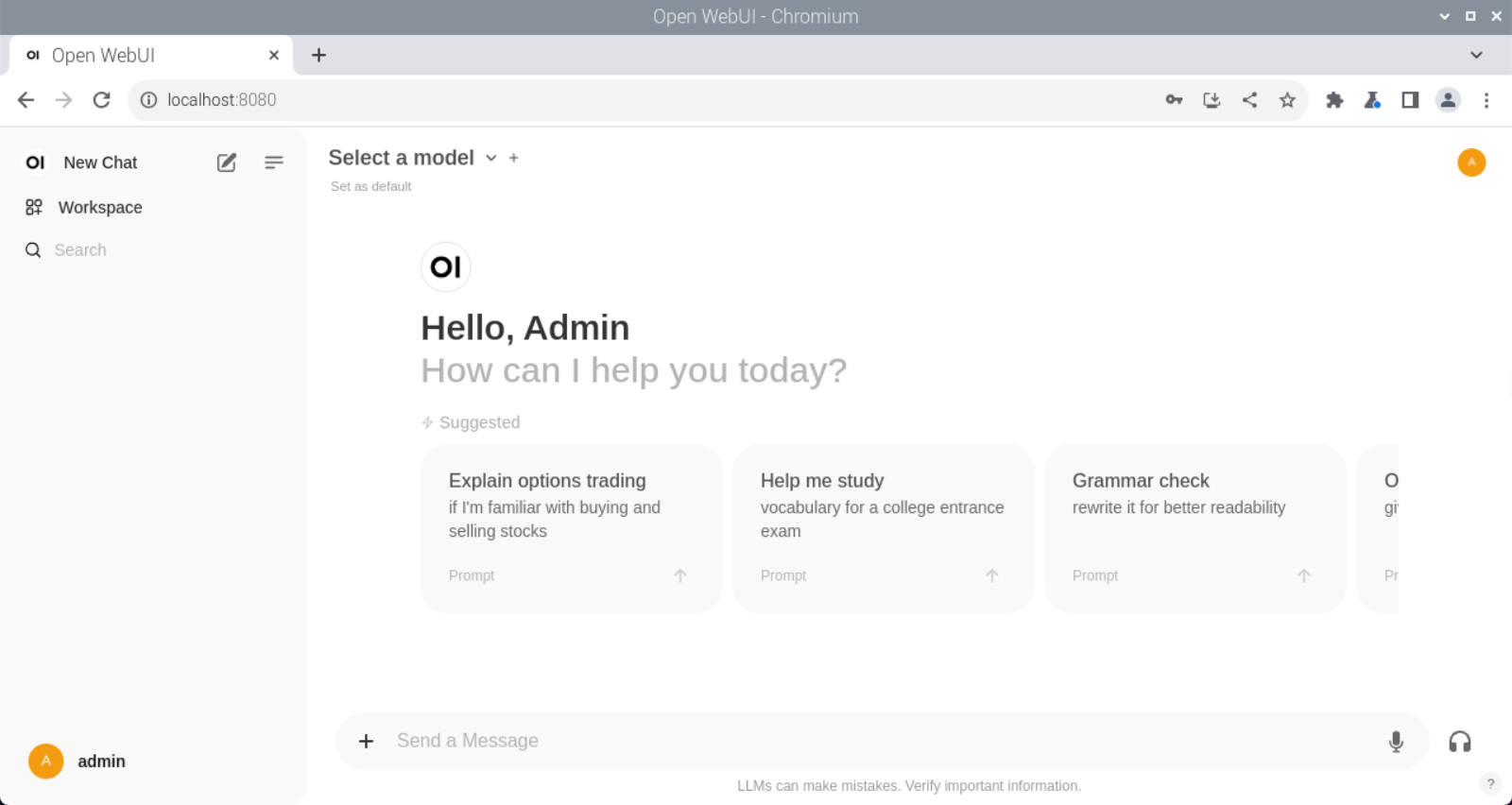
Use interface

image-20240625170507487

Model dialogue

Dialogue with Open WebUI will be slower than running directly with the Ollama tool, and may even experience timeout service connection failures. This is related to the motherboard's memory and cannot be avoided!

xxxxxxxxxx
Users with ideas can switch to other Linux environments to build Ollama tools and Open WebUI tools for dialogue.

Switch model

Click Select a model to select a specified model for dialogue.

xxxxxxxxxx
The model pulled by ollama will be automatically added to the Open WebUI model options. Refresh the webpage and the new model will appear!
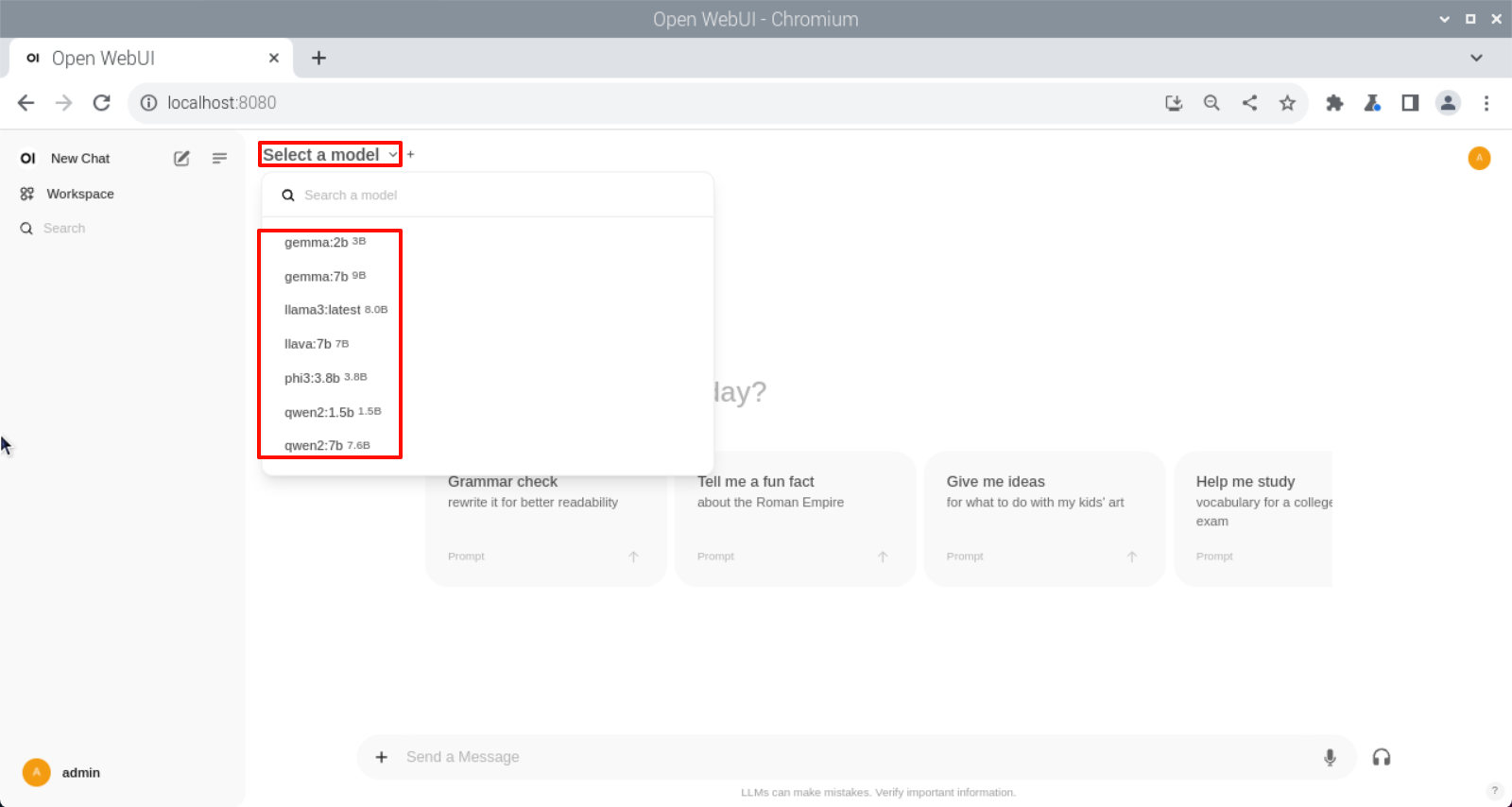
image-20240626172454687

Common Problems

Close Open WebUI

Close the auto-starting Open WebUI.

  • View running Docker

xxxxxxxxxx
docker ps
  • Close the running Docker

xxxxxxxxxx
docker stop [CONTAINER ID]  # Example docker stop 5f42ee9cf784
  • View stopped containers

xxxxxxxxxx
docker ps -a
  • Clean up stopped containers

xxxxxxxxxx
docker rm [CONTAINER ID]    # Example docker rm 5f42ee9cf784

Clean up all stopped containers:

xxxxxxxxxx
docker container prune

Common Errors

Unable to start Open WebUI

  • docker: Error response from daemon: Conflict. The container name "/open-webui" is already in use by container "cfc05c84f8e38b290337e7178c76fd1c49076f94b11ed3d49d9448be72b7f20f". You have to remove (or rename) that container to be able to reuse that name.

Solution: Close Open WebUI once and restart it!

Service connection timed out

  • Open WebUI: Server Connection Error

Close Open WebUI once and restart it, then ask the question again or switch to the Ollama tool to run the model and ask the question!

AI-Large-Model-Environment-Deployment
Meta-AI-Llama3.2-Model

COMPANY

  • About us
  • Team Style
  • Blog

LEARNING & EXPLORATION

  • Tutorials
  • Edge AI hardware
  • Educational robots
  • Embedded intelligent hardware

WHERE TO BUY

  • Yahboom Online Store
  • Amazon
  • Alibaba
  • AliExpress
  • Mercado

TECHNOLOGY SUPPORT

  • Email: support@yahboom.com

BE A DISTRIBUTOR

  • Email: sales@yahboom.com
QR Code

Copyright © 2017-2026 Yahboom. All Rights Reserved.

EN/中文