yahboom
HomeLearn
Solution
Blog
Online Store
About Us
EN/中文
RDK X5 Board📖
1.Introduction to RDK X5 board
  • 1.Introduction to RDK X5 board
  • 2.Write system file
  • 3.Hardware interface description
  • 4.Install case and other accessories
  • 5.Use 7-inch display
2.Basic settings course
  • 1.Network configuration
  • 2.Remote login
  • 3.Update system
  • 4.srpi-config user guide
  • 5.config. txt configuration file
  • 6.Self-startup setting
  • 7.RDK exclusive command usage
  • 8.Linux command usage
  • 9.GPIO readwrite operation
  • 10.Image classification algorithm
  • 11.Use USB camera
  • 12.Use MIPI camera
  • 13.Binocular camera depth algorithm
3.Basic development course
C language
  • 1.Camera image display
  • 2.Local save camera images
  • 3.Camera image encoding
  • 4.Video file decoding
  • 5.RTSP streaming decoding
  • 6.VPS scaling example
  • 7.Target detection algorithm-fcos
  • 8.Target detection algorithm-YOLOv5s
  • 9.Using CAN
Python
  • 0.ReadMe
  • 1.Using GPIO
  • 2.Using PWM
  • 3.Using Serial port
  • 4.Using I2C
  • 5.Using SPI
4.ROS expansion board
Python basic control
  • 0.Bind PCB port devices
  • 1.Install the Rosmaster driver library
  • 2.Buzzer whistle
  • 3.Control PWM servo
  • 4.RGB colorful light bar special effects display
  • 5.Control the forward and reverse rotation of the motor
  • 6.Control the movement of the robot
  • 7.Control Serial Servo
  • 8.Update firmware of expansion board
  • 9.Drive OLED
ROS2 robot control
  • 1.Function package usage process
  • 2.Robot information release
  • 3.Robot keyboard control
  • 4.Robot state estimation
  • 5.Robot calibration
  • 6.URDF model
5.T-MINI PLUS Lidar
  • 0.Preparation before use(Must read)
  • 1.Environment setup
  • 2.T-MINI PLUS LiDAR drive
  • 3.Handheld LiDAR mapping
6.AI VIEW Depth camera
AI VIEW Depth camera use
  • 1.AI VIEW Depth camera use
  • 2.Camera internal parameter calibration
  • 3.Color tracking
  • 4.KCF object tracking
Mediapipe functions
  • 1.Hand detection
  • 2.Attitude detection
  • 3.Overall inspection
  • 4.Facial detection
  • 5.Facial recognition
OpenCV series courses
  • 1.ROS+opencv application
  • 2.QR code creation and recognition
  • 3.AR vision
7.Offline AI model course
Offline-LLM-Text-Interaction
  • 0.AI-Large-Model-Image-Description
  • 1.AI-Large-Model-Environment-Deployment
  • 2.LLM-Conversation-Platform-Installation
  • 3.Meta-AI-Llama3.2-Model
  • 4.Alibaba-Cloud-Qwen3-Model
  • 5.Microsoft-Phi-4-mini-Model
  • 6.DeepSeek-DeepSeek-R1-Model
  • 7.Alibaba-Cloud-Qwen2.5vl-Vision-Multimodal-Model
  • 8.Google-Gemma3-Vision-Multimodal-Model
  • 9.Llava-Vision-Multimodal-Model
  • 10.MiniCPM-V-Vision-Multimodal-Model
  • 11.Multimodal-Text-to-Image-Application
  • 12.Multimodal-Video-Analysis-Application
  • 13.Multimodal-Visual-Understanding-Application
  • 14.Multimodal-Visual-Localization-Application
  • 15.Multimodal-Table-Scanning-Application
  • 16.Multimodal-Autonomous-Agent-Application
Offline-LLM-Voice-Interaction
  • 0.Voice-Interaction-Hardware-Connection-Must-Read
  • 1.Offline-Speech-to-Text-ASR
  • 2.Offline-Text-to-Speech-TTS
  • 3.AI-Large-Model-Voice-Interaction
  • 4.Multimodal-Visual-Understanding-Voice-Interaction
  • 5.Multimodal-Text-to-Image-Application
  • 6.Multimodal-Video-Analysis-Application
  • 7.Multimodal-Visual-Localization-Application
  • 8.Multimodal-Table-Scanning-Application
  • 9.Multimodal-Autonomous-Agent-Application
  • 10.AI-Large-Model-Offline-Voice-Assistant
8.Online AI model course
Online-LLM-Text-Interaction
  • 1.OpenRouter-Large-Model-API-Aggregation-Platform
  • 2.Multimodal-Visual-Understanding-Application
  • 3.Multimodal-Visual-Localization-Application
  • 4.Multimodal-Table-Scanning-Application
  • 5.Multimodal-Autonomous-Agent-Application
Online-LLM-Voice-Interaction
  • 0.Voice-Interaction-Hardware-Connection-Must-Read
  • 1.Online-Speech-to-Text-ASR
  • 2.Online-Text-to-Speech-TTS
  • 3.AI-Large-Model-Voice-Interaction
  • 4.Multimodal-Visual-Voice-Interaction
  • 5.Multimodal-Visual-Localization-Application
  • 6.Multimodal-Table-Scanning-Application
  • 7.Multimodal-Autonomous-Agent-Application
  • 8.AI-Large-Model-Online-Voice-Assistant
9.YOLO26 tutorials
  • 01.YOLO environment construction
  • 02.CLI use
  • 03.Object detection
  • 04.Instance segmentation
  • 05.Pose estimation
  • 06.Image classification
  • 07.Oriented bounding box object detection
  • 08.Model conversion
  • 09.Dataset annotation
  • 10.Model training conversion
  • 11.Model prediction
10.OpenClaw Deployment and Basic Usagenew
  • 01.OpenClaw Quick Start
  • 02.OpenClaw Deployment
  • 03.OpenClaw WhatsApp Plugin Application
  • 04.OpenClaw WebChat Interaction
  • 05.OpenClaw TUI Interaction
  • 06.OpenClaw Tools Introduction
  • 07.OpenClawGate Gateway User Manual
  • 08.OpenClaw Features Overview
  • 09.OpenClawClawHub Introduction (Skill Installation)
  • 10.OpenClaw Application - File Management
  • 11.OpenClaw Application - Camera
  • 12.OpenClaw Application - Browser Control
  • 13.OpenClaw Application - Script Execution
  • 14.OpenClaw Application - AI Programming (Peripheral & GPIO Control)
  • 15.OpenClaw Application - Dedicated AI Assistant
  • 16.OpenClaw Web Search Capability Configuration
11.OpenClaw Advanced Developmentnew
1.Preparation Before Use
  • 01. Peripheral Hardware Configuration
  • 02. OpenClaw API-KEY Configuration
  • 03. OpenClaw Model Switching
  • 04. OpenClaw Prompts
  • 05. AI Voice Interaction Configuration
  • 06. Three Dialogue Configuration Tests
2.OpenClaw AI Programming Peripheral Control
  • 1. Servo Control
  • 2. RGB Strip
  • 3. OLED Display
  • 4. Temperature and Humidity Sensor
  • 5. Camera Application
  • 6. AI Script Peripheral Control
3.OpenClaw Peripheral Integration Applications
  • 1. Plant Care Assistant
  • 2. AI Calorie Estimation
  • 3. AI Rock Paper Scissors Game
  • 4. AI Pet
  • 5. AI Weather Station
  • 6. Temperature and Humidity Dashboard
  • 7. Scheduled Tasks
12.ROS2 basic course
  • 1.Introduction to ROS2
  • 2.ROS2 install Humble
  • 3.ROS2 development environment
  • 4.ROS2 workspace
  • 5.ROS2 function package
  • 6.ROS2 node
  • 7.ROS2 topic communication
  • 8.ROS2 service communication
  • 9.ROS2 action communication
  • 10.ROS2 custom interface message
  • 11.ROS2 parameter service case
  • 12.ROS2 meta-function package
  • 13.ROS2 distributed communication
  • 14.ROS2 DDS
  • 15.ROS2 time related API
  • 16.ROS2 common command tools
  • 17.ROS2 rviz2 use
  • 18.ROS2 rqt toolbox
  • 19.ROS2 Launch startup file configuration
  • 20.ROS2 recording and playback tool
  • 21.ROS2 URDF model
  • 22.ROS2 Gazebo simulation platform
  • 23.ROS2 TF2 coordinate transformation
Download
  • System_File
  • Code
  • Tools
Download ZIP

Welcome to RDK X5 Board repository

05.OpenClaw TUI Interaction

4. OpenClaw TUI Interaction

TUI (Text User Interface) is OpenClaw's "command line chat window". When you can't easily open the web console on Jetson, or you're connected via SSH remotely, you can use TUI to complete most daily interactions in the terminal: conversations, model switching, status checking, session management, skill invocation, etc.
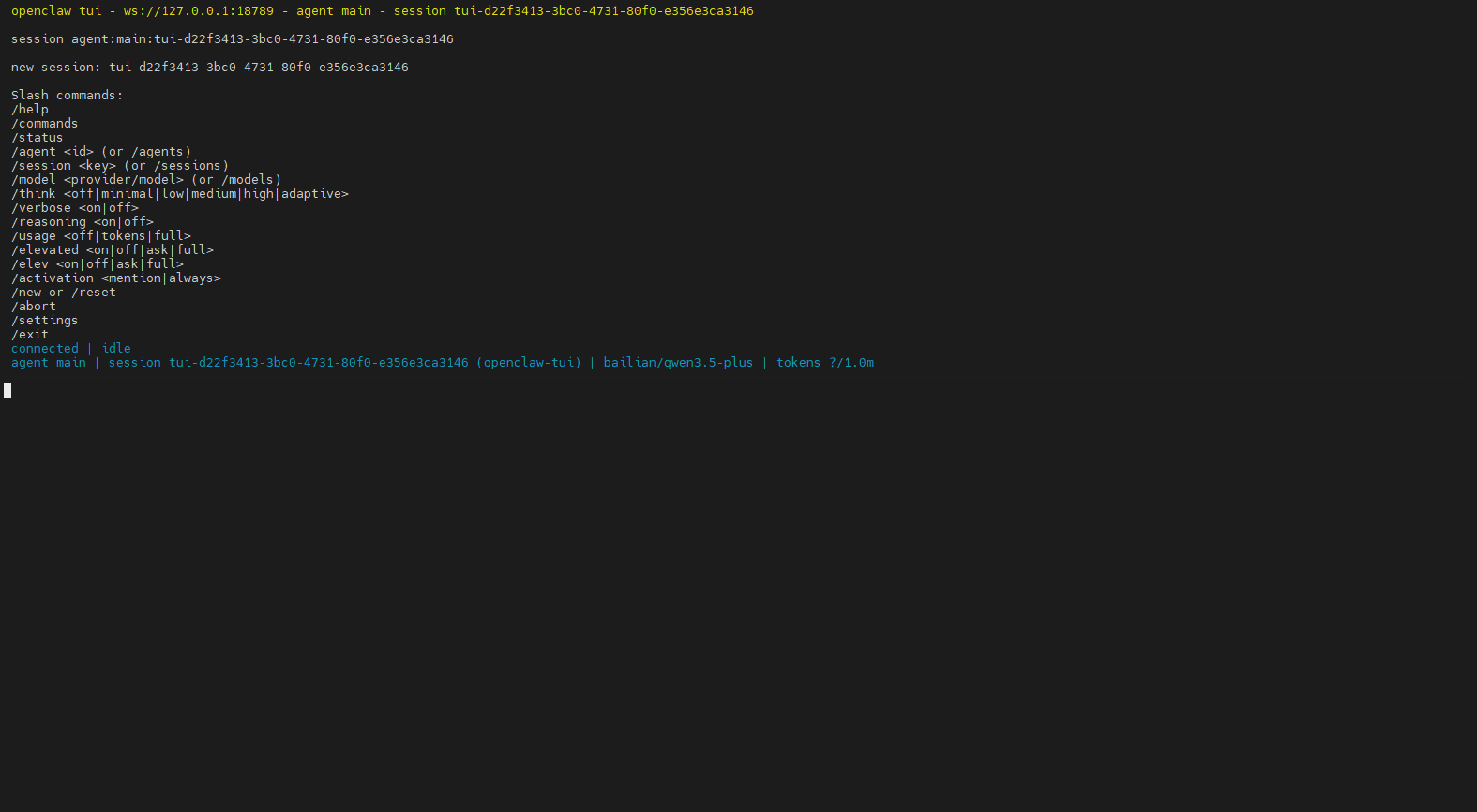
OpenClaw TUI 界面(可替换为你的截图)

1. How to Enter TUI

Execute in terminal:

openclaw tui

If you have already started openclaw gateway (e.g., gateway/server) in another terminal, you can directly execute openclaw tui to enter the interactive interface

2. What is the TUI Interface

You can understand TUI as a "chat box with commands":

  • Top: Conversation history (your messages, model replies, tool/skill outputs)
  • Bottom: Input box (enter questions or send slash commands)
  • Send method: Press Enter after typing

Recommended first-time actions:

xxxxxxxxxx
/status

3. Slash Commands

Slash commands generally need to be sent as standalone messages starting with /, used to control sessions and run operations.

CommandFunctionWhen to UseExample
/helpView help and command listWhen you don't know available commands/help
/statusCheck current statusWhen suspecting disconnection, want to see context usage/status
/newStart new conversation line (new session)Topic switching, avoid context interference/new
/resetReset session (equivalent to restarting, same effect as new)Conversation goes off track, want to clear context/reset
/model / /models listView/switch modelsWhen wanting faster or stronger models/models list
/think mediumSet thinking depthDaily recommendation: use low or disable/think medium
/stopStop current taskWhen stuck, want to stop immediately/stop
/context detailView currently injected contextTroubleshoot "why it remembers/forgets certain content"/context detail
/compactCompress earlier history into summaryConversation too long, context nearly full/compact
/skill <name>Run a specific skillWhen you know skill name and want to run directly/skill web_search

Two additional "daily usage" recommendations:

  • Write only one slash command per message for best reliability
  • To quickly browse all commands, use /help or /commands

4. Sessions and Memory

In OpenClaw, these two concepts have clear divisions:

  • Session: Manages "where this conversation has progressed". When you use /new, /reset in TUI, you're essentially switching/reopening sessions.
  • Memory: Manages "content that should be retained long-term across sessions". It writes to disk (Markdown) and retrieves back to current session when needed.

4.1 Where are Session Files

Sessions are saved to disk in JSONL format, common locations (actual installation path may vary):

  • Index: ~/.openclaw/agents/<agentId>/sessions/sessions.json
  • Transcripts: ~/.openclaw/agents/<agentId>/sessions/<SessionId>.jsonl

A more convenient way for actual troubleshooting is to first execute:

xxxxxxxxxx
openclaw status

It usually provides the store path and recent session information.

4.2 How to "Use" Memory

You can understand Memory as "letting the robot take notes":

  • memory/YYYY-MM-DD.md: Daily process records, suitable for recording progress, temporary decisions
  • MEMORY.md: Long-term stable information (preferences, fixed rules, project constraints, etc.)

Practical recommendations:

  • To make a conclusion available across sessions: directly tell the robot "write this to MEMORY.md"
  • Before /new to switch to new topic: first use /compact or write key decisions to Memory, then switch sessions

5. Quick Start Workflow

  1. Enter TUI: openclaw tui
  2. Confirm status: /status
  3. Select model: /models list → /model <number or name>
  4. Daily conversation: directly enter questions and press Enter
  5. Topic switching: /new
  6. Context too long: /compact
  7. Key conclusions need long-term retention: have robot write to Memory

6. Common Troubleshooting

6.1 No Response After Entering Commands

  • Confirm commands are sent as standalone lines (don't mix with regular text)
  • First use /help to see which commands are supported in current version

6.2 Feeling "It's Starting to Talk Nonsense or Can't Understand" or Being Interfered by History

  • Start new session: /new or /reset
  • Check what context was injected: /context detail

6.3 Responses Getting Slower

  • Reduce thinking depth: /think low or /think minimal
  • Compress history: /compact
OpenClaw WebChat Interaction
OpenClaw Tools Introduction

COMPANY

  • About us
  • Team Style
  • Blog

LEARNING & EXPLORATION

  • Tutorials
  • Edge AI hardware
  • Educational robots
  • Embedded intelligent hardware

WHERE TO BUY

  • Yahboom Online Store
  • Amazon
  • Alibaba
  • AliExpress
  • Mercado

TECHNOLOGY SUPPORT

  • Email: support@yahboom.com

BE A DISTRIBUTOR

  • Email: sales@yahboom.com
QR Code

Copyright © 2017-2026 Yahboom. All Rights Reserved.

EN/中文