yahboom
HomeLearn
Solution
Blog
Online Store
About Us
EN/中文
RDK X5 Board📖
1.Introduction to RDK X5 board
  • 1.Introduction to RDK X5 board
  • 2.Write system file
  • 3.Hardware interface description
  • 4.Install case and other accessories
  • 5.Use 7-inch display
2.Basic settings course
  • 1.Network configuration
  • 2.Remote login
  • 3.Update system
  • 4.srpi-config user guide
  • 5.config. txt configuration file
  • 6.Self-startup setting
  • 7.RDK exclusive command usage
  • 8.Linux command usage
  • 9.GPIO readwrite operation
  • 10.Image classification algorithm
  • 11.Use USB camera
  • 12.Use MIPI camera
  • 13.Binocular camera depth algorithm
3.Basic development course
C language
  • 1.Camera image display
  • 2.Local save camera images
  • 3.Camera image encoding
  • 4.Video file decoding
  • 5.RTSP streaming decoding
  • 6.VPS scaling example
  • 7.Target detection algorithm-fcos
  • 8.Target detection algorithm-YOLOv5s
  • 9.Using CAN
Python
  • 0.ReadMe
  • 1.Using GPIO
  • 2.Using PWM
  • 3.Using Serial port
  • 4.Using I2C
  • 5.Using SPI
4.ROS expansion board
Python basic control
  • 0.Bind PCB port devices
  • 1.Install the Rosmaster driver library
  • 2.Buzzer whistle
  • 3.Control PWM servo
  • 4.RGB colorful light bar special effects display
  • 5.Control the forward and reverse rotation of the motor
  • 6.Control the movement of the robot
  • 7.Control Serial Servo
  • 8.Update firmware of expansion board
  • 9.Drive OLED
ROS2 robot control
  • 1.Function package usage process
  • 2.Robot information release
  • 3.Robot keyboard control
  • 4.Robot state estimation
  • 5.Robot calibration
  • 6.URDF model
5.T-MINI PLUS Lidar
  • 0.Preparation before use(Must read)
  • 1.Environment setup
  • 2.T-MINI PLUS LiDAR drive
  • 3.Handheld LiDAR mapping
6.AI VIEW Depth camera
AI VIEW Depth camera use
  • 1.AI VIEW Depth camera use
  • 2.Camera internal parameter calibration
  • 3.Color tracking
  • 4.KCF object tracking
Mediapipe functions
  • 1.Hand detection
  • 2.Attitude detection
  • 3.Overall inspection
  • 4.Facial detection
  • 5.Facial recognition
OpenCV series courses
  • 1.ROS+opencv application
  • 2.QR code creation and recognition
  • 3.AR vision
7.Offline AI model course
Offline-LLM-Text-Interaction
  • 0.AI-Large-Model-Image-Description
  • 1.AI-Large-Model-Environment-Deployment
  • 2.LLM-Conversation-Platform-Installation
  • 3.Meta-AI-Llama3.2-Model
  • 4.Alibaba-Cloud-Qwen3-Model
  • 5.Microsoft-Phi-4-mini-Model
  • 6.DeepSeek-DeepSeek-R1-Model
  • 7.Alibaba-Cloud-Qwen2.5vl-Vision-Multimodal-Model
  • 8.Google-Gemma3-Vision-Multimodal-Model
  • 9.Llava-Vision-Multimodal-Model
  • 10.MiniCPM-V-Vision-Multimodal-Model
  • 11.Multimodal-Text-to-Image-Application
  • 12.Multimodal-Video-Analysis-Application
  • 13.Multimodal-Visual-Understanding-Application
  • 14.Multimodal-Visual-Localization-Application
  • 15.Multimodal-Table-Scanning-Application
  • 16.Multimodal-Autonomous-Agent-Application
Offline-LLM-Voice-Interaction
  • 0.Voice-Interaction-Hardware-Connection-Must-Read
  • 1.Offline-Speech-to-Text-ASR
  • 2.Offline-Text-to-Speech-TTS
  • 3.AI-Large-Model-Voice-Interaction
  • 4.Multimodal-Visual-Understanding-Voice-Interaction
  • 5.Multimodal-Text-to-Image-Application
  • 6.Multimodal-Video-Analysis-Application
  • 7.Multimodal-Visual-Localization-Application
  • 8.Multimodal-Table-Scanning-Application
  • 9.Multimodal-Autonomous-Agent-Application
  • 10.AI-Large-Model-Offline-Voice-Assistant
8.Online AI model course
Online-LLM-Text-Interaction
  • 1.OpenRouter-Large-Model-API-Aggregation-Platform
  • 2.Multimodal-Visual-Understanding-Application
  • 3.Multimodal-Visual-Localization-Application
  • 4.Multimodal-Table-Scanning-Application
  • 5.Multimodal-Autonomous-Agent-Application
Online-LLM-Voice-Interaction
  • 0.Voice-Interaction-Hardware-Connection-Must-Read
  • 1.Online-Speech-to-Text-ASR
  • 2.Online-Text-to-Speech-TTS
  • 3.AI-Large-Model-Voice-Interaction
  • 4.Multimodal-Visual-Voice-Interaction
  • 5.Multimodal-Visual-Localization-Application
  • 6.Multimodal-Table-Scanning-Application
  • 7.Multimodal-Autonomous-Agent-Application
  • 8.AI-Large-Model-Online-Voice-Assistant
9.YOLO26 tutorials
  • 01.YOLO environment construction
  • 02.CLI use
  • 03.Object detection
  • 04.Instance segmentation
  • 05.Pose estimation
  • 06.Image classification
  • 07.Oriented bounding box object detection
  • 08.Model conversion
  • 09.Dataset annotation
  • 10.Model training conversion
  • 11.Model prediction
10.OpenClaw Deployment and Basic Usagenew
  • 01.OpenClaw Quick Start
  • 02.OpenClaw Deployment
  • 03.OpenClaw WhatsApp Plugin Application
  • 04.OpenClaw WebChat Interaction
  • 05.OpenClaw TUI Interaction
  • 06.OpenClaw Tools Introduction
  • 07.OpenClawGate Gateway User Manual
  • 08.OpenClaw Features Overview
  • 09.OpenClawClawHub Introduction (Skill Installation)
  • 10.OpenClaw Application - File Management
  • 11.OpenClaw Application - Camera
  • 12.OpenClaw Application - Browser Control
  • 13.OpenClaw Application - Script Execution
  • 14.OpenClaw Application - AI Programming (Peripheral & GPIO Control)
  • 15.OpenClaw Application - Dedicated AI Assistant
  • 16.OpenClaw Web Search Capability Configuration
11.OpenClaw Advanced Developmentnew
1.Preparation Before Use
  • 01. Peripheral Hardware Configuration
  • 02. OpenClaw API-KEY Configuration
  • 03. OpenClaw Model Switching
  • 04. OpenClaw Prompts
  • 05. AI Voice Interaction Configuration
  • 06. Three Dialogue Configuration Tests
2.OpenClaw AI Programming Peripheral Control
  • 1. Servo Control
  • 2. RGB Strip
  • 3. OLED Display
  • 4. Temperature and Humidity Sensor
  • 5. Camera Application
  • 6. AI Script Peripheral Control
3.OpenClaw Peripheral Integration Applications
  • 1. Plant Care Assistant
  • 2. AI Calorie Estimation
  • 3. AI Rock Paper Scissors Game
  • 4. AI Pet
  • 5. AI Weather Station
  • 6. Temperature and Humidity Dashboard
  • 7. Scheduled Tasks
12.ROS2 basic course
  • 1.Introduction to ROS2
  • 2.ROS2 install Humble
  • 3.ROS2 development environment
  • 4.ROS2 workspace
  • 5.ROS2 function package
  • 6.ROS2 node
  • 7.ROS2 topic communication
  • 8.ROS2 service communication
  • 9.ROS2 action communication
  • 10.ROS2 custom interface message
  • 11.ROS2 parameter service case
  • 12.ROS2 meta-function package
  • 13.ROS2 distributed communication
  • 14.ROS2 DDS
  • 15.ROS2 time related API
  • 16.ROS2 common command tools
  • 17.ROS2 rviz2 use
  • 18.ROS2 rqt toolbox
  • 19.ROS2 Launch startup file configuration
  • 20.ROS2 recording and playback tool
  • 21.ROS2 URDF model
  • 22.ROS2 Gazebo simulation platform
  • 23.ROS2 TF2 coordinate transformation
Download
  • System_File
  • Code
  • Tools
Download ZIP

Welcome to RDK X5 Board repository

1. Plant Care Assistant

OpenClaw Plant Care Butler Tutorial

Before starting, please complete [01-Peripheral hardware configuration], [02-openclaw API-KEY configuration], [03-openclaw switching model], [04-OpenClaw prompt words], [05-AI voice interaction configuration], [06-Three dialogue scheme configuration tests] in the Preparation before use directory. If you are currently only using TUI/WhatsApp, you can skip 05 first. This article assumes that the basic environment has been prepared and only the plant care project itself will be launched.

1. Tutorial Objectives

This article demonstrates OpenClaw's multi-peripheral collaboration capabilities through a plant care scenario.

  • Learn how to combine temperature and humidity, OLED, RGB and cameras into a plant care assistant
  • Converse with OpenClaw through WhatsApp, TUI, and voice code

2. Hardware preparation

  • OpenClaw main control board
  • DHT temperature and humidity sensor
  • OLED display
  • RGB light strip/RGB lamp bead module
  • CSI camera
  • [Optional] AI voice module + speaker
  • Wiring diagram

image-20260528201034862

3. Software preparation

Code entry that will be used in the tutorial

  • Camera photo command: /home/sunrise/hardware_hal_demo/camera
  • Visual analysis script: /home/sunrise/.openclaw/workspace/skills/sunrise-vision/scripts/csi_describe
  • Voice entrance: /home/sunrise/voice_to_openclaw/src/main.py

This project essentially does not rely on a single "big project script", but lets OpenClaw orchestrate multiple basic tools:

  • dht is responsible for reading the ambient temperature and humidity
  • oled is responsible for displaying care information
  • rgb is responsible for status reminders
  • camera and csi_describe are responsible for observing the appearance of plants

4. Test the basic capabilities of the project

Before starting the current project, please complete a basic dialogue self-test of openclaw tui; if you have not done so yet, please read [06-Three dialogue scheme configuration tests] first. After passing, use TUI to verify the basic capabilities in the project.

Terminal input:

openclaw tui
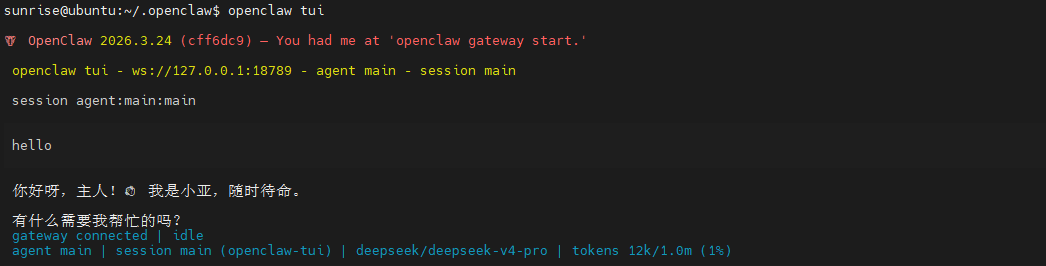
image-20260527164855215

After confirming that OpenClaw can communicate normally, you can try the following types of commands in sequence:

  • Read current temperature and humidity
  • Display "Plant OK" on OLED
  • Change RGB lights to green
  • Take a picture for me

If these individual capabilities can be run through, it means that the main links required for the project have been prepared.

5. Three options for talking to OpenClaw

SolutionSuitable scenarioAdvantagesSuggested positioning
WhatsAppRemote care, classroom demonstrationsEasy access, suitable for remote status viewingShowcase "remote natural language care"
TUILocal debugging, project joint debuggingThe most direct and easiest to troubleshootRun through multiple peripheral links first
Voice codeVoice companionship, complete AI experienceCloser to the real assistant experienceAs the final demonstration solution

If the AI voice module + speaker is optional, Feishu dialogue, tui, and WhatsApp dialogue need to broadcast the content of openclaw's reply. You can run the following program on the terminal. The AI voice module dialogue does not need to be run repeatedly

  • Modify whether to open broadcast parameters
xxxxxxxxxx
/home/sunrise/voice_to_openclaw/.env
xxxxxxxxxx
ENABLE_TTS=true #This parameter is to control whether to broadcast. After modification, save it and run the following program on the terminal.
  • Terminal input
xxxxxxxxxx
cd ~/voice_to_openclaw
source .venv/bin/activate
python -m src.openclaw_session_tts

image-20260527162942497

5.1 WhatsApp solution

For WhatsApp access and robot creation steps, please refer directly to [06-Configuration Test of Three Dialogue Schemes]. This section only retains examples of conversations that would be appropriate for a plant care project.

After successfully creating the robot, you can remotely query the plant status in WhatsApp, for example:

  • Take photos to see the current status of plants and perform plant care
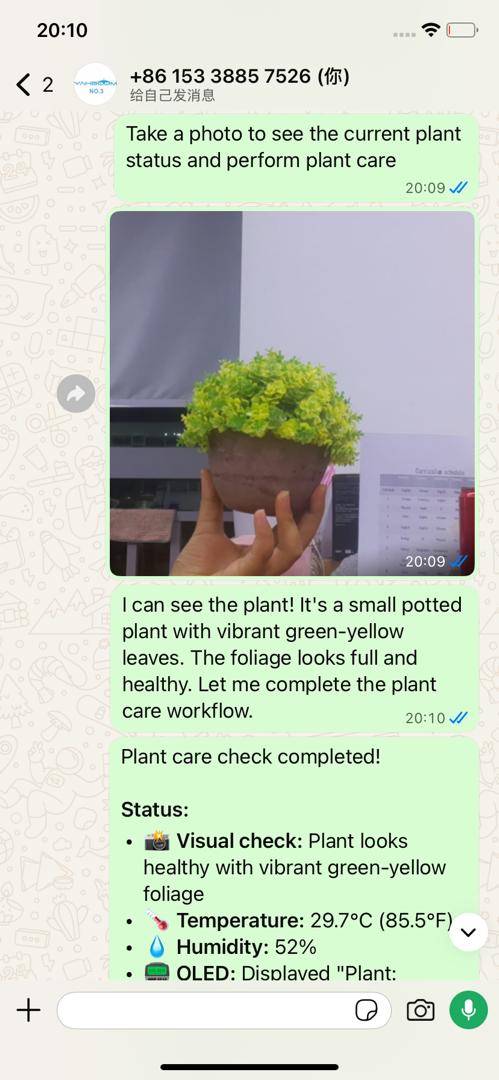
image-20260428152248217

5.2 TUI scheme

If you have completed the TUI self-test in Part 6, enter the terminal text dialogue directly:

xxxxxxxxxx
openclaw tui

Then you can directly enter project-related instructions, such as:

  • Plant care

image-20260428152754923

5.3 Voice code scheme

xxxxxxxxxx
Requires optional ai voice interaction module + speaker

For voice module installation, environment configuration and basic wake-up process, please refer directly to [05-AI Voice Interaction Configuration]. After waking up, you can directly say the control content, such as:

  • Help me check the status of the plants and whether it is suitable for watering now
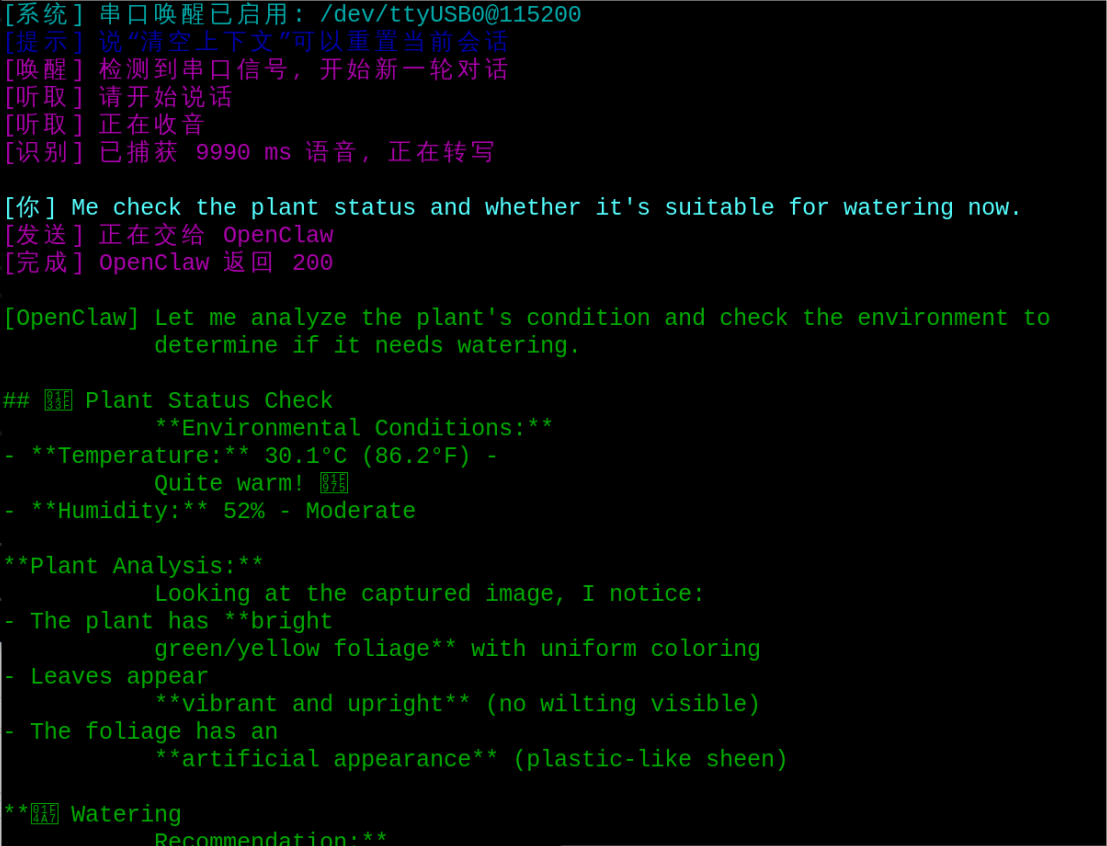
image-20260428153945795

6. Project implementation

Note: The following are all dialogue demonstrations in openclaw tui mode. You can also choose WhatsApp or voice mode to complete it.

6.1 Scenario 1: Environment reading

Experimental goals

Read the current temperature and humidity around the plants to complete the most basic environmental perception.

Effect description

OpenClaw will call DHT to read the current environment data and feedback the temperature and humidity in natural language.

Example instructions

  • Read the current temperature and humidity near the plant
  • What is the current ambient temperature and humidity?
  • Help me check if the area around the potted plants is dry.

6.2 Scenario 2: Status Judgment

Experimental goals

Let OpenClaw give you a brief plant care recommendation after getting the environmental data.

Effect description

In addition to directly reporting values, OpenClaw can also summarize conclusions such as "dry", "hot" and "normal" in a way that is closer to daily language.

Example instructions

  • Determine plant status based on current temperature and humidity
  • Is it a good time to water?

6.3 Scene 3: Sound and light reminder

Experimental goals

When the environmental conditions are not ideal, use OLED and RGB to give more intuitive reminders.

Effect description

For example, it lights up green when the environment is normal, lights up yellow when it is hot, and lights up red when it is abnormal; at the same time, simple prompt information is displayed on the OLED, so that it is not just "speaking", but has clear peripheral feedback.

Example instructions

  • If the environment is normal, the green light will turn on
  • If it's too hot, turn on the yellow light and remind me
  • Display "Plant Needs Care" on OLED

Expandable gameplay

  • Linked buzzer for stronger reminder
  • Made into a desktop care status light
  • Add scheduled polling and automatic refresh

6.4 Scene 4: Taking photos and observing

Experimental goals

Use a camera to capture the current scene of the plant and let OpenClaw give a brief description.

Effect description

This link is suitable for observing the leaves, flower pot surface or overall growth. The focus of the current tutorial is "take a look and describe it" rather than automatically judging the disease, so it is more suitable for teaching demonstrations and lightweight auxiliary observation.

Example instructions

  • Take a photo of the plant
  • See how the leaves are doing
  • Describe the current plant scene after taking the photo
AI Script Peripheral Control
AI Calorie Estimation

COMPANY

  • About us
  • Team Style
  • Blog

LEARNING & EXPLORATION

  • Tutorials
  • Edge AI hardware
  • Educational robots
  • Embedded intelligent hardware

WHERE TO BUY

  • Yahboom Online Store
  • Amazon
  • Alibaba
  • AliExpress
  • Mercado

TECHNOLOGY SUPPORT

  • Email: support@yahboom.com

BE A DISTRIBUTOR

  • Email: sales@yahboom.com
QR Code

Copyright © 2017-2026 Yahboom. All Rights Reserved.

EN/中文