yahboom
HomeLearn
Solution
Blog
Online Store
About Us
EN/中文
RDK X5 Robot📖
01. RDK-X5-Robot Introduction
  • 1.Introduction
  • 2.Common Problem Analysis
  • 3.Battery and charger usage precautions
  • 4.TF card expand capacity
02. Assembly Tutorial
  • Assembly Tutorial
  • Assembly Video-1
  • Assembly Video-2
  • Assembly Video-3
  • Assembly Video-4
03. Remote Control Course
  • 1.Mobile APP remote control
  • 2.USB Wireless Controller Remote Control
04. ROS Driver Board Course
  • 1. Introduction of extension board
  • 2. Set up STM32 development environment
  • 3. Key control buzzer sound
  • 4. FreeRTOS application
  • 5. Serial communication
  • 6. SBUS model remote control
  • 7. CAN bus communication
  • 8. RGB color light strip
  • 9. Timer interrupt control PWM servo
  • 10. Control serial steering gear
  • 11. Nine-axis attitude sensor to obtain data
  • 12. Control motor forward and reverse
  • 13. The timer captures encoder data
  • 14. Theory of robot kinematics analysis
  • 15. PID control robot motion
05. Basic Control Course
  • 1.Update expansion board firmware
  • 2.Install Python driver library
  • 3.Set the car type
  • 4.Open and close APP program control
  • 5.Turn hotspot mode on and off
  • 6.Buzzer sound
  • 7.Control the motor to rotate forward and reverse
  • 8.Controlling robot movement
  • 9.OLED display
  • 10.Control fans and lighting effects
06. Development Environment
  • 1. Virtual machine installation and use
  • 2. Linux Basics
  • 3. Remote connection
  • 4. Multi-machine communication configuration
  • 5. Bind device ID
  • 6. Image installation and backup
07. ROS2 Basic Course
  • 1. Introduction to ROS2
  • 2. ROS2 install Humble
  • 3. ROS2 development environment
  • 4. ROS2 workspace
  • 5. ROS2 function package
  • 6. ROS2 node
  • 7. ROS2 topic communication
  • 8. ROS2 service communication
  • 9. ROS2 action communication
  • 10. ROS2 custom interface message
  • 11. ROS2 parameter service case
  • 12. ROS2 meta-function package
  • 13. ROS2 distributed communication
  • 14. ROS2 DDS
  • 15. ROS2 time related API
  • 16. ROS2 common command tools
  • 17. ROS2 rviz2 use
  • 18. ROS2 rqt toolbox
  • 19. ROS2 Launch startup file configuration
  • 20. ROS2 recording and playback tool
  • 21. ROS2 URDF model
  • 22. ROS2 Gazebo simulation platform
  • 23. ROS2 TF2 coordinate transformation
08. Robot Chassis Control Course
  • 1. PID algorithm theory
  • 2. Robot information release
  • 3. Robot control
  • 4. Robot state estimation
  • 5. Robot calibration
  • 6. Robot trajectory tracking
  • 7. URDF Model
09. LiDAR Course
  • 1. Introduction and use of lidar
  • 2. Lidar obstacle avoidance
  • 3. Lidar tracking
  • 4. Lidar guard
  • 5. Lidar patrol
  • 6. gmapping mapping algorithm
  • 7. Cartographer mapping algorithm
  • 8. Navigation and obstacle avoidance
  • 9. App Mapping and Navigation
10. OpenCV Course
  • 1. Getting started with OpenCV
  • 2. OpenCV geometric transformation
  • 3. OpenCV Image Processing
  • 4. OpenCV image beautification
  • 5. QR code creation and recognition
11. Mipi Camera Course
  • 1. Camera driver
  • 2. Adjust the color HSV value
  • 3. Color recognition
  • 4. Color Tracking
  • 5. Color Follow
  • 6. QR code instructions
  • 7. Face Detection
  • 8. Object Detection
  • 9. Visual line patrol-OpenCV
  • 10. Visual line patrol-deep learning
  • 11. Human body tracking
  • 12. Gesture control
12. Depth Camera Course
  • 1. Use of Depth Camera
  • 2. Camera intrinsic calibration
  • 3. ROS+OpenCV Basics
  • 4. AR Vision
  • 5. Color Tracking
  • 6. Object Tracking
  • 7. RTAB-Map 3D Mapping Navigation
13. Multi-robot Synchronous Control
  • Multi-vehicle synchronous control
Remote login control
  • 1. VNC and SSH remote login
  • 2. Jupyter lab login and case code running
Download
  • System_File
  • Code
  • VM_File
  • Software_Tools
  • Hardware_Info
  • Firmware
  • Instruction_Manual
  • ROS2_Basic_VM
Download ZIP

Welcome to RDK X5 Robot repository

4.Open and close APP program control

Open and close APP program control

Open and close APP program control4.1. What is the APP control program that starts automatically when the system starts?4.2, temporary shutdown4.3, Permanent shutdown4.4, Set startup4.5. Temporary startup program

4.1. What is the APP control program that starts automatically when the system starts?

In order to facilitate the experience of the APP function of the car, a program is added to the system. This program integrates the APP control function, so it is called "APP control program". When the mainboard system is turned on, this program will automatically start, so it is called "APP control program that starts automatically when the system starts".

The APP control program that starts automatically when the system starts is just for the convenience of experiencing the APP function of the mobile phone. In actual development, it is necessary to close the APP control program, otherwise it will occupy the device and cause unpredictable errors. Therefore, please close the APP control program before developing the program.

There are two ways to close the APP control program that starts automatically when the system starts. One is to close it only once, and it will start automatically the next time it starts, which is called temporary closure. The other way is that it will not start automatically the next time it starts after closing, unless it is manually reopened, which is called permanent closure.

Factory default user name: sunrise password: yahboom

xxxxxxxxxx
The system supports root and sunrise user login, the password is yahboom. It is recommended to use sunrise user, because the RDK motherboard needs to use administrator privileges to call the MIPI camera, and all sunrise users need to use the sudo command to run camera-related programs

4.2, temporary shutdown

If there is a display screen and mouse and keyboard, log in to the desktop after connecting.

If there is no display screen and mouse and keyboard, please use the computer in the same LAN to open the VNC Viewer software to remotely log in to the desktop to enter the desktop.

After entering the desktop, you will see a terminal. Click the X symbol in the upper right corner to close the terminal to close the APP control program. Sometimes you may be prompted to close the terminal to close the running program. Select Confirm to close it.
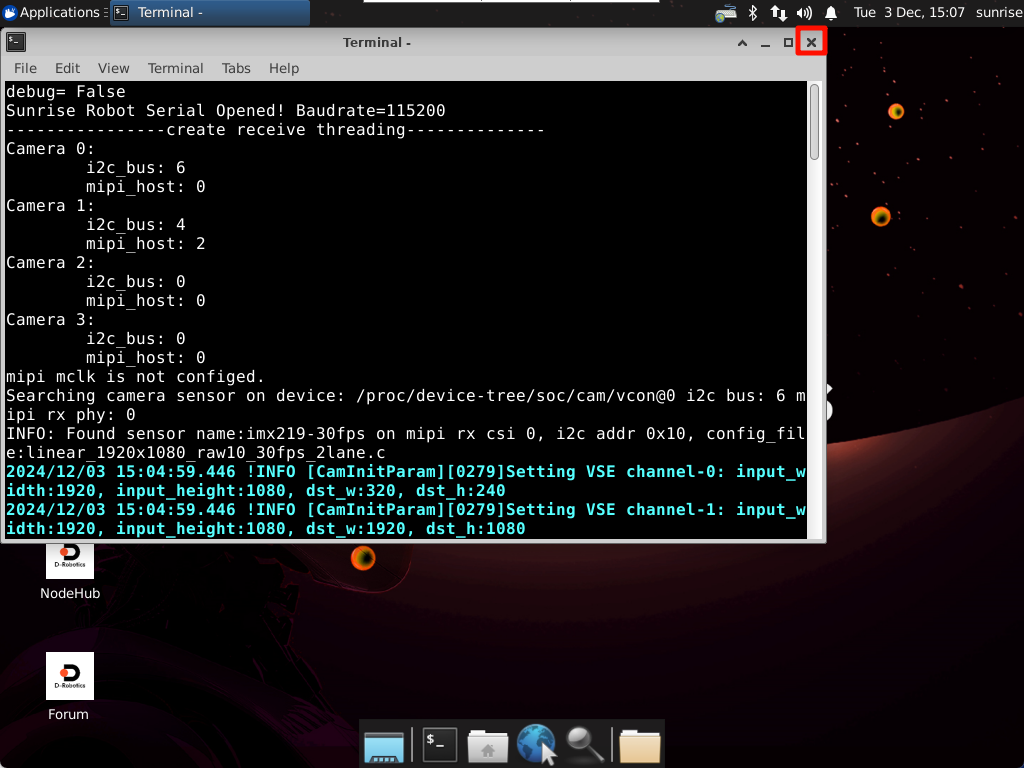
image-20241203150734822

If there is no desktop environment, open the terminal and run the following command to shut it down:

xxxxxxxxxx
sh /home/sunrise/sunriseRobot/app_SunriseRobot/kill_program.sh

4.3, Permanent shutdown

First, shut down the running APP control program in the way of temporary shutdown.

Open the application of the Ubuntu system and follow the steps below to permanently shut down the APP control program.
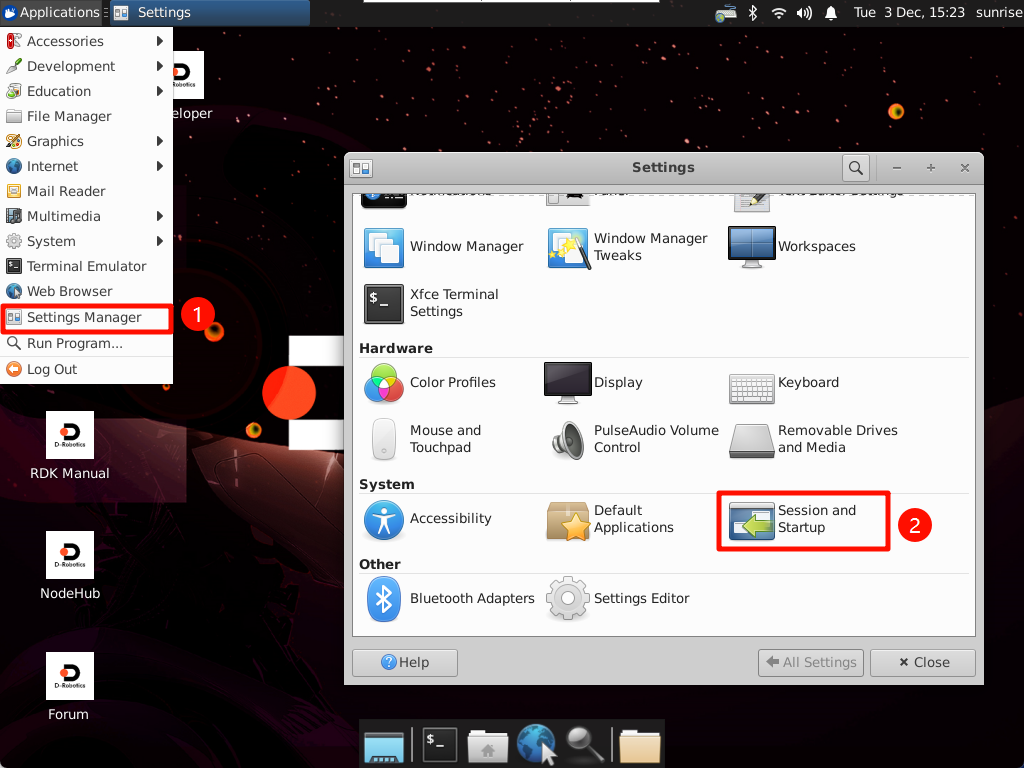
image-20241203152339398

Checking the corresponding auto-start program is to set the startup auto-start APP control program, and not checking it is to turn off the startup auto-start APP program:
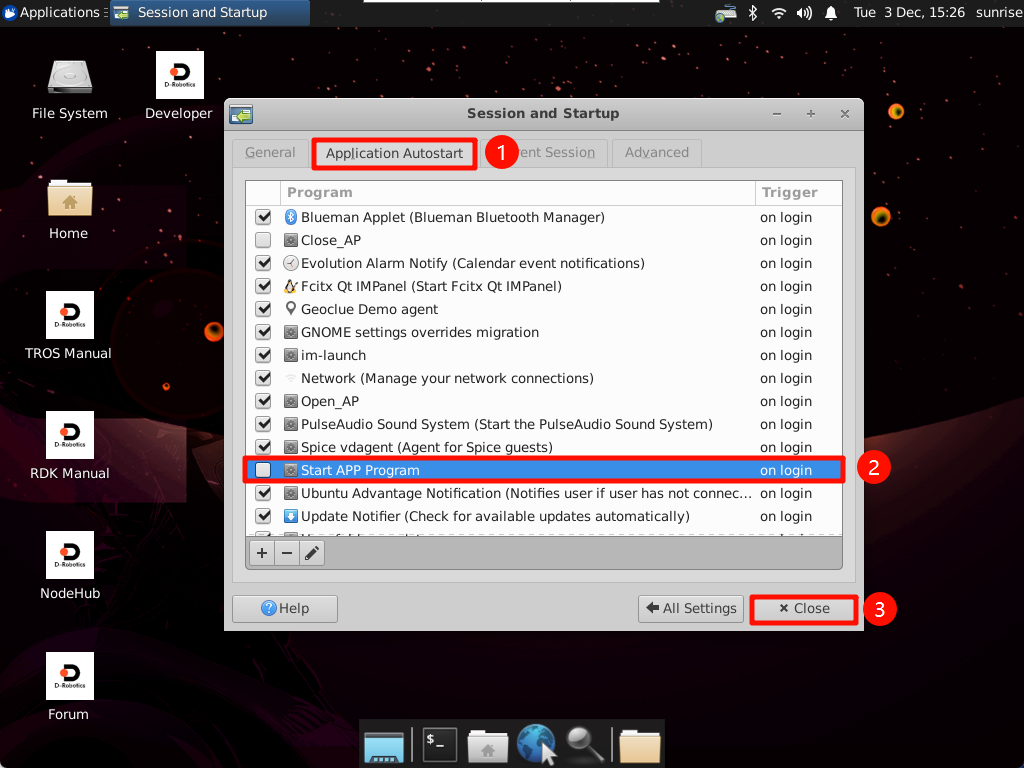
image-20241203152721551

Restart the system after the modification is completed!

4.4, Set startup

Open the application of the Ubuntu system and follow the steps below to permanently open the APP control program.
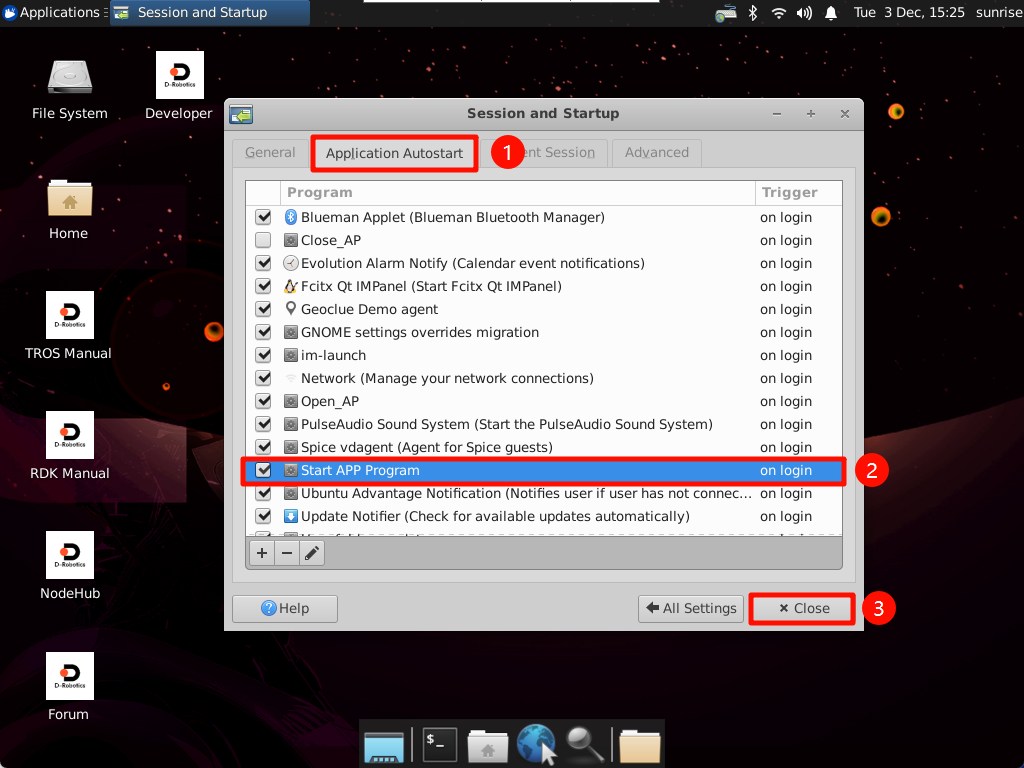
image-20241203152339398

image-20241203152609616

Restart the system after the modification is completed!

4.5. Temporary startup program

If you need to manually run the APP control program, please open the Ubuntu terminal first, and then enter the following command:

xxxxxxxxxx
sudo python3 /home/sunrise/sunriseRobot/app_SunriseRobot/app_SunriseRobot.py
Set the car type
Turn hotspot mode on and off

COMPANY

  • About us
  • Team Style
  • Blog

LEARNING & EXPLORATION

  • Tutorials
  • Edge AI hardware
  • Educational robots
  • Embedded intelligent hardware

WHERE TO BUY

  • Yahboom Online Store
  • Amazon
  • Alibaba
  • AliExpress
  • Mercado

TECHNOLOGY SUPPORT

  • Email: support@yahboom.com

BE A DISTRIBUTOR

  • Email: sales@yahboom.com
QR Code

Copyright © 2017-2026 Yahboom. All Rights Reserved.

EN/中文