yahboom
HomeTutorialsProduct
Solution
Blog
Online Store
About Us
EN/中文
Store
RDK X5 Robot📖
01. RDK-X5-Robot Introduction
  • 1.Introduction
  • 2.Common Problem Analysis
  • 3.Battery and charger usage precautions
  • 4.TF card expand capacity
02. Assembly Tutorial
  • Assembly Tutorial
  • Assembly Video-1
  • Assembly Video-2
  • Assembly Video-3
  • Assembly Video-4
03. Remote Control Course
  • 1.Mobile APP remote control
  • 2.USB Wireless Controller Remote Control
04. ROS Driver Board Course
  • 1. Introduction of extension board
  • 2. Set up STM32 development environment
  • 3. Key control buzzer sound
  • 4. FreeRTOS application
  • 5. Serial communication
  • 6. SBUS model remote control
  • 7. CAN bus communication
  • 8. RGB color light strip
  • 9. Timer interrupt control PWM servo
  • 10. Control serial steering gear
  • 11. Nine-axis attitude sensor to obtain data
  • 12. Control motor forward and reverse
  • 13. The timer captures encoder data
  • 14. Theory of robot kinematics analysis
  • 15. PID control robot motion
05. Basic Control Course
  • 1.Update expansion board firmware
  • 2.Install Python driver library
  • 3.Set the car type
  • 4.Open and close APP program control
  • 5.Turn hotspot mode on and off
  • 6.Buzzer sound
  • 7.Control the motor to rotate forward and reverse
  • 8.Controlling robot movement
  • 9.OLED display
  • 10.Control fans and lighting effects
06. Development Environment
  • 1. Virtual machine installation and use
  • 2. Linux Basics
  • 3. Remote connection
  • 4. Multi-machine communication configuration
  • 5. Bind device ID
  • 6. Image installation and backup
07. ROS2 Basic Course
  • 1. Introduction to ROS2
  • 2. ROS2 install Humble
  • 3. ROS2 development environment
  • 4. ROS2 workspace
  • 5. ROS2 function package
  • 6. ROS2 node
  • 7. ROS2 topic communication
  • 8. ROS2 service communication
  • 9. ROS2 action communication
  • 10. ROS2 custom interface message
  • 11. ROS2 parameter service case
  • 12. ROS2 meta-function package
  • 13. ROS2 distributed communication
  • 14. ROS2 DDS
  • 15. ROS2 time related API
  • 16. ROS2 common command tools
  • 17. ROS2 rviz2 use
  • 18. ROS2 rqt toolbox
  • 19. ROS2 Launch startup file configuration
  • 20. ROS2 recording and playback tool
  • 21. ROS2 URDF model
  • 22. ROS2 Gazebo simulation platform
  • 23. ROS2 TF2 coordinate transformation
08. Robot Chassis Control Course
  • 1. PID algorithm theory
  • 2. Robot information release
  • 3. Robot control
  • 4. Robot state estimation
  • 5. Robot calibration
  • 6. Robot trajectory tracking
  • 7. URDF Model
09. LiDAR Course
  • 1. Introduction and use of lidar
  • 2. Lidar obstacle avoidance
  • 3. Lidar tracking
  • 4. Lidar guard
  • 5. Lidar patrol
  • 6. gmapping mapping algorithm
  • 7. Cartographer mapping algorithm
  • 8. Navigation and obstacle avoidance
  • 9. App Mapping and Navigation
10. OpenCV Course
  • 1. Getting started with OpenCV
  • 2. OpenCV geometric transformation
  • 3. OpenCV Image Processing
  • 4. OpenCV image beautification
  • 5. QR code creation and recognition
11. Mipi Camera Course
  • 1. Camera driver
  • 2. Adjust the color HSV value
  • 3. Color recognition
  • 4. Color Tracking
  • 5. Color Follow
  • 6. QR code instructions
  • 7. Face Detection
  • 8. Object Detection
  • 9. Visual line patrol-OpenCV
  • 10. Visual line patrol-deep learning
  • 11. Human body tracking
  • 12. Gesture control
12. Depth Camera Course
  • 1. Use of Depth Camera
  • 2. Camera intrinsic calibration
  • 3. ROS+OpenCV Basics
  • 4. AR Vision
  • 5. Color Tracking
  • 6. Object Tracking
  • 7. RTAB-Map 3D Mapping Navigation
13. Multi-robot Synchronous Control
  • Multi-vehicle synchronous control
Remote login control
  • 1. VNC and SSH remote login
  • 2. Jupyter lab login and case code running
Download
  • System_File
  • Code
  • VM_File
  • Software_Tools
  • Hardware_Info
  • Firmware
  • Instruction_Manual
  • ROS2_Basic_VM
Download ZIP

Welcome to RDK X5 Robot repository

5.Turn hotspot mode on and off

Turn on and off hotspot mode

Turn on and off hotspot mode5.1. What is hotspot mode5.2. Temporary shutdown5.3, Permanently close5.4, Set up startup5.5. Temporary startup

5.1. What is hotspot mode

In order to facilitate the experience of getting started right away, the robot is turned on by default in "hotspot mode", that is, the factory image will start transmitting WiFi hotspot signals, which is convenient for users to connect to the mobile APP.

WiFi hotspot name: RDK-X5-Robot Password: 12345678

In hotspot mode, the robot IP address is: 192.168.8.88

5.2. Temporary shutdown

If there is a display screen and mouse and keyboard, log in to the desktop after connecting.

If there is no display screen and mouse and keyboard, please use a computer in the same LAN to open the VNC Viewer software to remotely log in to the desktop to enter the desktop.

If there is no desktop environment, open the terminal and run the following command to close it:

xxxxxxxxxx
sh /home/sunrise/sunriseRobot/app_SunriseRobot/close_AP.sh

Note: When closing the hotspot, the network will be disconnected. If you use remote login, please consider connecting the network cable first.

5.3, Permanently close

Open the application of the Ubuntu system and follow the steps below to permanently close the hotspot.

xxxxxxxxxx
Since the system will disable the network card driver when the hotspot is turned on, you need to uncheck Open_AP and check Close_AP
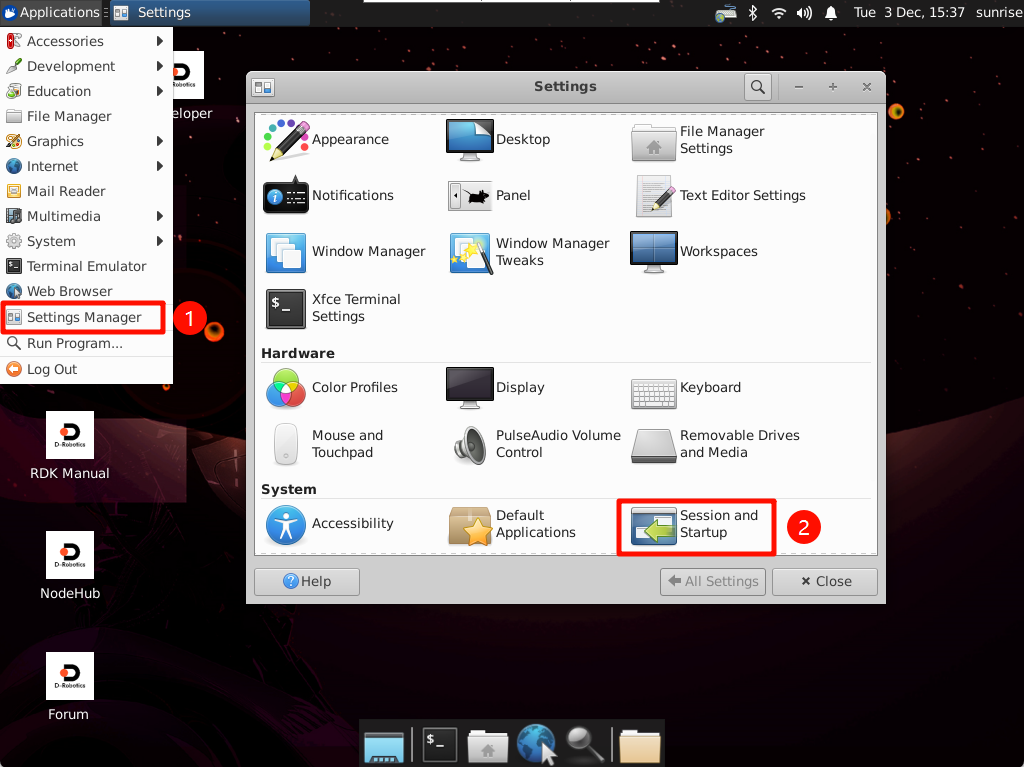
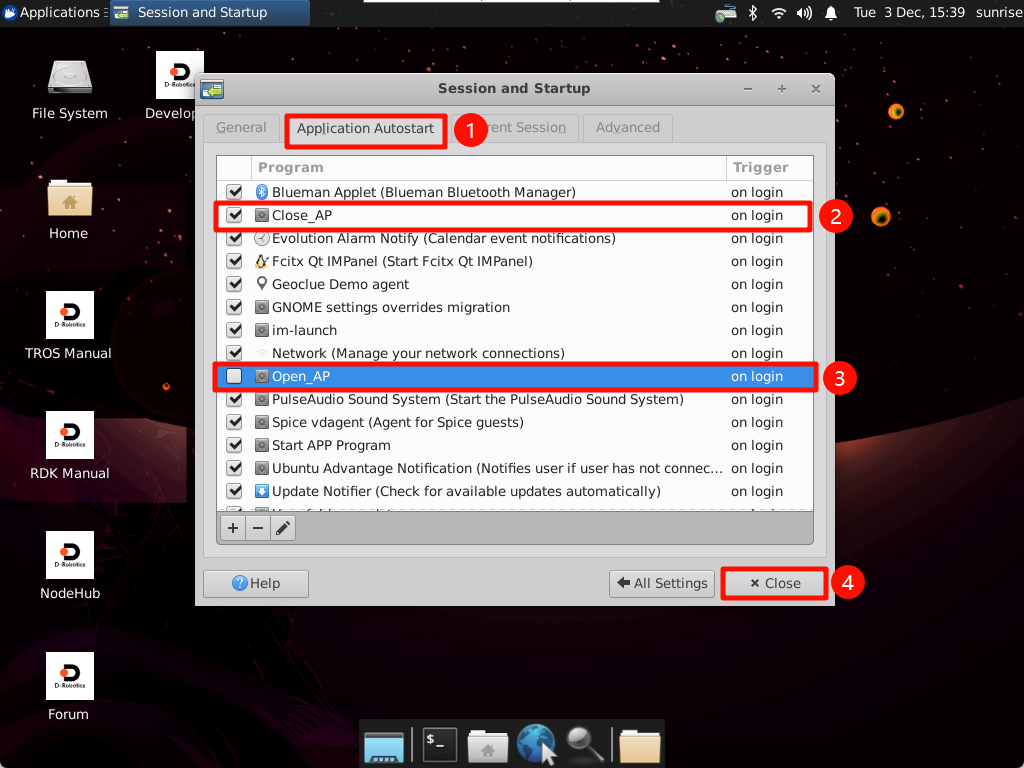
image-20241203153838584

image-20241203154017294

Restart the system after the modification is completed!

5.4, Set up startup

Open the Ubuntu system application and follow the steps below to permanently turn on the hotspot.

xxxxxxxxxx
Since the system will disable the network card driver when the hotspot is turned on, you need to check Open_AP and uncheck Close_AP
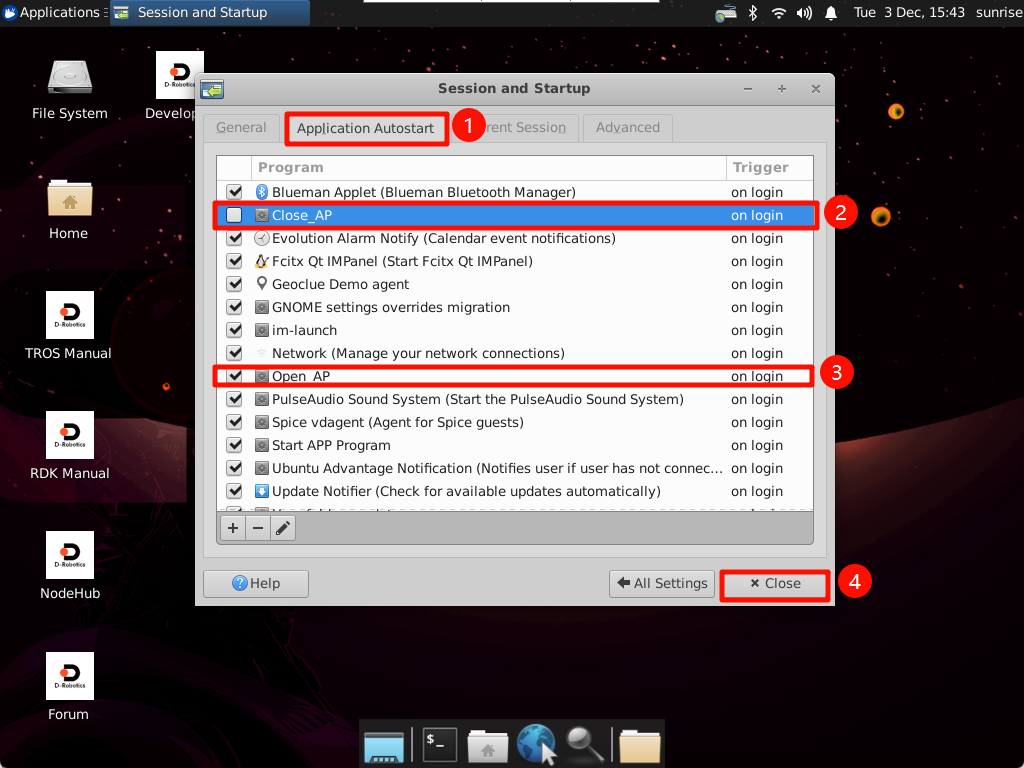
image-20241203153838584

image-20241203154345405

Restart the system after the modification is completed!

5.5. Temporary startup

If you need to manually open the hotspot signal, please open the Ubuntu terminal first, and then enter the following command:

xxxxxxxxxx
sh /home/sunrise/sunriseRobot/app_SunriseRobot/open_AP.sh

Note: Opening the hotspot will disconnect the router WiFi. If you use wireless WiFi remote login, please reconnect the robot hotspot signal and then log in remotely.

Open and close APP program control
Buzzer sound

COMPANY

  • About us
  • Team Style
  • Blog

LEARNING & EXPLORATION

  • Tutorials
  • Edge AI hardware
  • Educational robots
  • Embedded intelligent hardware

WHERE TO BUY

  • Yahboom Online Store
  • Amazon
  • Alibaba
  • AliExpress
  • Mercado

TECHNOLOGY SUPPORT

  • Email: support@yahboom.com

BE A DISTRIBUTOR

  • Email: sales@yahboom.com
QR Code

Copyright © 2017-2026 Yahboom. All Rights Reserved.

EN/中文