Welcome to Jetson AGX Thor repository
10. OpenClaw Switching Models
Switching Models in OpenClaw
Switching Models in OpenClaw1. Download the Model2. Set the Default Model3. Restart the OpenClaw Gateway4. Check Default Model Configuration5. Check Individual Plugin Model Configuration
Sometimes it's necessary to switch to different models to test performance and functionality. The following demonstrates how to switch local models using Ollama.
1. Download the Model
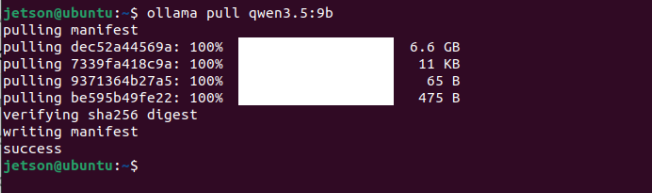
Open the terminal and enter the following command to download the model you want to test. Here, we take ollama downloading qwen3.5:9b as an example:
xxxxxxxxxxollama pull qwen3.5:9b
2. Set the Default Model
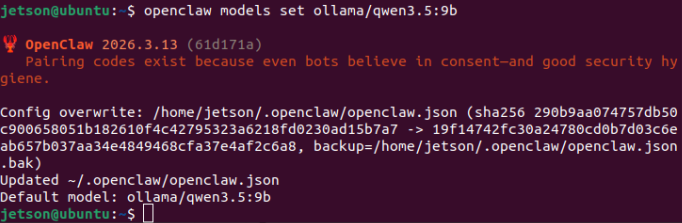
Run the command to set the default model:
xxxxxxxxxxopenclaw models set ollama/qwen3.5:9b
3. Restart the OpenClaw Gateway
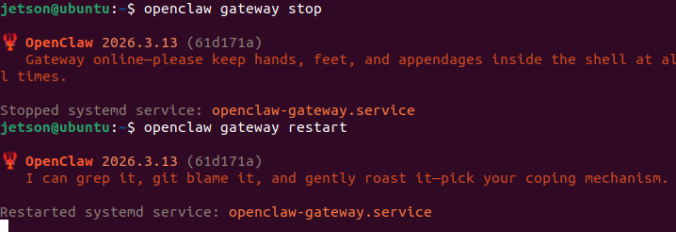
First, stop the gateway:
xxxxxxxxxxopenclaw gateway Stop
Restart the gateway
xxxxxxxxxxOpenClaw gateway restart
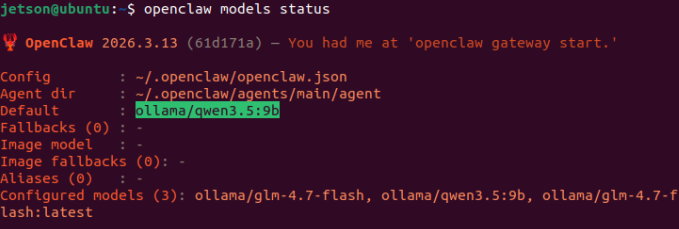
4. Check Default Model Configuration
Check the default model settings for OpenClaw. If you see "ollama/qwen3.5:9b" displayed under "Default," the setting is successful.
xxxxxxxxxxOpenClaw models status
5. Check Individual Plugin Model Configuration
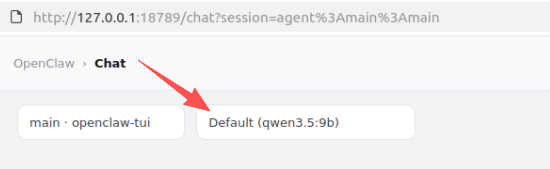
Generally, if a default model is set, it will be automatically used during interaction. However, sometimes if a plugin model is specified in WebChat, it will not automatically switch to the default model. In this case, you need to manually change the model to the default model.
First, open WebChat.
xxxxxxxxxxopenclaw dashboard