Welcome to RDK X3 Robot repository
1. Camera driver
1. Camera driver
1. Camera driver1.1 Introduction1.2 Core Content analysis1.3 API interface of Mipi_Camera1.3 Operation steps
1.1 Introduction
This course mainly uses the CSI camera of the RDK X3 board to obtain the camera picture and display it on the jupyterlab control.
Use the RDX-X3 board camera need to import Mipi_Camera library, this file has been integrated into the SunriseRobotLib library surface, as long as the installation of SunriseRobotLib library can import Mipi_Camera to drive the camera.
1.2 Core Content analysis
Import the Mipi_Camera library from SunriseRobotLib and then print the associated API functions.
xfrom RobotLib import Mipi_Camerahelp(Mipi_Camera)
Create the Mipi_Camera object and set the camera resolution to 320*240. The g_camera.isOpened function returns the camera status, True if it is opened successfully, False if it fails.
xwidth=320height=240g_camera = Mipi_Camera(width, height, debug=True)if g_camera.isOpened():print("Open Camera OK")else:print("Fail To Open Camera")
If a frame image is read from the camera, ret=True, ret=False, frame indicates the image that is currently read.
xxxxxxxxxxret, frame = g_camera.read()
If yes, release the camera to avoid errors when other routines access the camera.
xxxxxxxxxxg_camera.release()
1.3 API interface of Mipi_Camera
xxxxxxxxxxclass Mipi_Camera(builtins.object)| Mipi_Camera(width=320, height=240, debug=False)|| # V2.0.1|| Methods defined here:|| __del__(self)|| __init__(self, width=320, height=240, debug=False)| Initialize self. See help(type(self)) for accurate signature.|| get_frame(self)| # 获取摄像头的一帧图片| # Gets a frame of the camera|| get_frame_jpg(self, text='', color=(0, 255, 0))| # 获取摄像头的jpg图片| # Gets the JPG image of the camera|| isOpened(self)| # 摄像头是否打开成功| # Check whether the camera is enabled successfully|| read(self)| # 获取摄像头的一帧图片| # Gets a frame of the camera|| release(self)| # 释放摄像头设备总线| # Release the camera
1.3 Operation steps
Open the jupyterLab client and find the code path:
x/root/Robot/Samples/2_AI/01_camera/camera.ipynb
Click Run All Cells, and then drag to the bottom to see the generated controls.

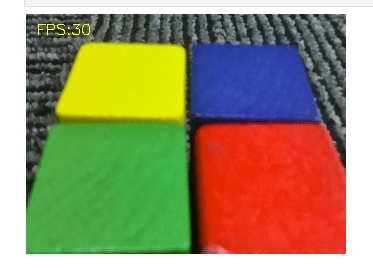
The program will always capture the camera image and update it to the image control.
When you need to end the camera, click the Stop button to stop and release the camera.
