yahboom
HomeLearn
Solution
Blog
Online Store
About Us
EN/中文
ROSMASTER R2📖
1.Preparation and First Trial
  • 1.1 Accessories introduction
  • 1.2 Precautions for battery
  • 1.3 First Trial
2.Assembly steps
  • Installaction Video
3.ROS1-Remote control course
  • 3.1 APP remote control
  • 3.2 Model aircraft remote control
  • 3.3 Handle remote control
4.ROS1-Hardware course
  • 4.1 About expansion board_V3.0
  • 4.1 About expansion board_V1.0
  • 4.2 STM32 Development environment
  • 4.3 Button to control the buzzer to whistle
  • 4.4 FreeRTOS application
  • 4.5 Serial communication
  • 4.6 SBUS model aircraft remote control
  • 4.7 CAN bus communication
  • 4.8 RGB colorful light bar
  • 4.9 Timer interrupt to control PWM servo
  • 4.10 Control serial port servos
  • 4.11 Nine-axis attitude sensor to obtain data
  • 4.12 Control motor
  • 4.13 Timer captures the encoder data
  • 4.14.1 Kinematic Analysis of Mecanum Wheel
  • 4.14.2 Kinematics Analysis of Ackermann Car
  • 4.15 PID control robot movement
5.ROS1-Basic course
  • 5.1 Update the firmware
  • 5.2 Turn off the self-starting process at startup
  • 5.3 Install the Rosmaster driver library
  • 5.4 Buzzer whistle
  • 5.5 Control PWM servo
  • 5.6 RGB colorful light bar special effects display
  • 5.7 Control motor
  • 5.8 Control robot movement
  • 5.9 Control Serial Servo
6.ROS1-Linux operating system
  • 6.1 Virtual machine installation and use
  • 6.2 Linux basics
  • 6.3 Remote control
  • 6.4 Multi-machine communication configuration
  • 6.5 Static IP and hotspot mode
  • 6.6 Bind the device ID
  • 6.7 Web page real-time monitoring
  • 6.8 Expansion tutorial
  • 6.9.1 Jetson Nano write sytem
  • 6.9.2 Jetson Xavier NX write system
  • 6.9.3 Jetson TX2 NX write system
  • 6.9.4 Raspberry Pi write system
7.ROS1-Docker-pi5
  • 1、Docker overview and docker installation
  • 2、Common commands for docker image containers
  • 3、Docker images deeply understand and publish images
  • 4、Docker hardware interaction and data processing
  • 5、Enter the bot's docker container
  • 6、Robot development environment construction in Docker
  • 7、How customers can update docker images in the future
8.ROS1-ROS basic course
  • 1.ROS introduction
  • 2.ROS installation
  • 3.ROS common command tools
  • 4.ROS workspace
  • 5.ROS function package
  • 6.ROS node
  • 7.ROS topic publisher
  • 8.ROS topic subscribers
  • 9.ROS service client
  • 10.ROS service server
  • 11.ROS action client
  • 12.ROS action server
  • 13.ROS custom message reception
  • 14.ROS-launch file
  • 15.ROS-TF transformation
  • 16.ROS parameter service
  • 17.ROS-rviz use
  • 18.ROS-rqt tool usage
  • 19.Topic message recording and playback
  • 20.urdf model introduction
  • 21.gazebo introduction
  • 22.ROS distributed communication
9.ROS1-OpenCV courses
  • 9.1 Getting started with Open Source CV
  • 9.2 Geometric transformation
  • 9.3 Image processing and drawing text line segments
  • 9.4 Image beautification
  • 9.5 Opencv application
  • 9.6 AR vision
  • 9.7 AR QR code
  • 9.8 ROS+Opencv foundation
  • 9.9 ROS+Opencv application
  • 9.10 Data transformation and point cloud
  • 9.11 MediaPipe development
10.ROS1-Robot control course
  • 10.1 PID algorithm theory
  • 10.2 Robot PID debugging
  • 10.3 Robot information release
  • 10.4 Robot keyboard control
  • 10.5 Robot handle control
  • 10.6 Robot state estimation
  • 10.7 Robot calibration
  • 10.8 Robot URDF model
11.ROS1-Depth camera course
  • 11.1 How to use the Astra camera
  • 11.2 Astra camera calibration
  • 11.3 Astra Color Tracking
  • 11.4 Astra Object Tracking
  • 11.5 Visual tracking autopilot
  • 11.6 Pure visual 2D mapping and navigation
  • 11.7 RTAB-Map 3D mapping navigation
  • 11.8 ORB_SLAM2 basics
  • 11.9 ORB_SLAM2_Octomap
12.ROS1-Lidar course
  • 11.1 Lidar basic-SLAM
  • 11.1 Lidar basic-EAI
  • 11.2 Lidar avoiding
  • 11.3 Lidar guard
  • 11.4 Lidar follow
  • 11.5 Patrol game
  • 11.6 gmapping mapping
  • 11.7 hector mapping
  • 11.8 karto mapping
  • 11.9 cartographer mapping
  • 11.10 rrt_exploration mappin
  • 11.11 AMCL
  • 11.12 Navigation and avoiding
  • 11.13 APP mapping and navigation
  • 11.14 TEB path planning algorithm
13.ROS1-Multi-robot control course
  • 13.1 Multi-machine handle control
  • 13.2 Multi-machine navigation
  • 13.3 Multi-machine formation
  • 13.4 Multi-machine surround
14.ROS1-Deep learning courses
  • 14.1 KNN recognizes handwritten digits
  • 14.2 Basic use of TensorFlow
  • 14.3 Basic use of PyTorch(jetson)
  • 14.4 yolov5 model training(jetson)
  • 14.5 yolov5+tensorrt acceleration(jetson)
  • 14.6 yolov4-tiny
15.ROS1-Voice control courses
  • 15.0 How to use old voice module in new image
  • 15.1 Introduction of voice control module-NEW
  • 15.2 Voice control module port binding-NEW
  • 15.1 Introduction of voice control module-Old
  • 15.2 Voice control module port binding-Old
  • 15.3 Voice control car movement
  • 15.4 Voice control Autopilot
  • 14.5 Voice control color recognition
  • 15.6 Voice control color tracking
  • 15.7 Voice control multi-point navigation
16.ROS1-Model training Autopilot
  • 16.0 ReadMe
  • 16.1 yolov5 to train traffic signs
  • 16.2 TensorRt acceleration identification mark
  • 16.3 Road sign indication function description
  • 16.4 Collect data
  • 16.5 Training model
  • 16.6 Model transformation and application
  • 16.7 AI Autopilot
17. ROS2-Remote control course
  • 1. APP remote control
  • 2. Model aircraft remote control
  • 3. Handle remote control
18.ROS2-Hardware course
  • 1. Expansion board introduction_V3.0
  • 1. Expansion board introduction_V1.0
  • 2. STM32 development environment build
  • 3. Key control buzzer sounding
  • 4. FreeRTOS applications
  • 5. Serial communication
  • 6. SBUS model airplane remote control
  • 7. CAN bus communication
  • 8. RGB colorful light bar
  • 9. Timer interrupt control PWM servos
  • 10. Control serial servos
  • 11. Nine-axis attitude sensor acquires data
  • 12. Control motor forward and reverse
  • 13. Timer Capture Encoder Data
  • 14. Theory of Robot Kinematics Analysis
  • 14.1.Mecanum wheel
  • 14.2.Ackerman
  • 14.3.4WD
  • 15. PID control of robot motion
19. ROS2-Basic course
  • 1. Update the firmware of the expansion board
  • 2.Close the large self-starting program at boot
  • 3. Install Rosmaster driver library
  • 4. Buzzer sounding
  • 5. Control PWM servo
  • 6. RGB colorful light bar special effects show
  • 7. Control motor forward and reverse
  • 8. Controlling robot motion
  • 9. Control serial servos
20. ROS2-Linux operating systemnew
  • 01. Virtual Machines
  • 02. Linux Basics
  • 03. Remote control
  • 04. Multi-computer communication configuration
  • 05. Static ip and hotspot mode
  • 06. Bind device ID
  • 07.Webpage real-time monitoring
  • 08. Expansion Tutorial
  • 09-1.Jetson Nano write system file
  • 09-2. Raspberry Pi write system file
  • 09-3.Orin write system
  • 10.Jetpack old system upgraded to SUPER systemnew
21.ROS2 -Docker(Nano Pi)
  • 1. docker overview and docker installation
  • 2. docker image container common command
  • 3. docker image in-depth understanding and publishing images
  • 4. docker hardware interaction and data processing
  • 5. Enter the docker container of the robot
  • 6. docker in the robot development environment build
  • 7. Customer's method of updating docker images in the future
22.ROS2- ROS2 Basic Tutorial
  • 1.Introduction to ROS2
  • 2.ROS2 install Humble
  • 3.ROS2 development environment
  • 4.ROS2 workspace
  • 5.ROS2 function package
  • 6.ROS2 node
  • 7.ROS2 topic communication
  • 8.ROS2 service communication
  • 9.ROS2 action communication
  • 10.ROS2 custom interface message
  • 11.ROS2 parameter service case
  • 12.ROS2 meta-function package
  • 13.ROS2 distributed communication
  • 14.ROS2 DDS
  • 15.ROS2 time related API
  • 16.ROS2 common command tools
  • 17.ROS2 rviz2 use
  • 18.ROS2 Rqt Toolbox
  • 19.ROS2 Launch startup file configuration
  • 20.ROS2 recording and playback tool
  • 21.ROS2 URDF model
  • 22.ROS2 Gazebo simulation platform
  • 23.ROS2 TF2 coordinate transformation
23. ROS2-Robot control course
  • 1. PID algorithm theory
  • 2. Robot information release
  • 3. Robot control
  • 4. Robot state estimation
  • 5. Robot calibration
  • 6. URDF model
24. ROS2-Lidar course
  • 1-1. Introduction and use of SLAM lidar
  • 1-2. Introduction and use of 4ROS lidar
  • 2. Lidar obstacle avoidance fun gameplay
  • 3. Lidar tracking fun gameplay
  • 4. Patrol function play
  • 5. gmapping map building algorithm
  • 6. cartographer building algorithm
  • 7. Navigation and obstacle avoidance
  • 8. Rosmaster_R2 using the app to build maps
  • 9. Rosmaster_R2 navigating with the app
25. ROS2-OpenCV courses
  • 1. opencv basic course
  • 2. ROS+opencv application
  • 3. QR code creation and recognition
  • 4. AR Vision
  • 5. mediapipe fun gameplay
  • 6. Patrol line autopilot
26. ROS2-Depth camera courses
  • 1. Depth camera use
  • 2. Camera calibration
  • 3. Color tracking
  • 4. KCF object tracking
  • 5. ORB_SLAM2 Basics
  • 6. ORB_SLAM2 PCL mapping
  • 7. ORB_SLAM2 Octomap mapping
  • 8. RTAB-Map 3D mapping navigation
27.ROS2- Voice control courses
  • 0. How to use old voice module in new image
  • 1.1 Introduction to the module-New
  • 1.2 Voice Control Module Port Binding-New
  • 1.3 Introduction to the module-Old
  • 2. Voice control car movement
  • 3. Voice control autopilot
  • 4. Voice control color recognition
  • 5. Voice control color tracking
  • 6. Voice control multi-point navigation
28.Deep learning courses(SUPER)
  • 1.KNN recognizes handwritten digitsnew
  • 2.Basic use of TensorFlownew
  • 3.Basic use of PyTorch(jetson)new
  • 4.YOLOv11Model conversion(SUPER)new
  • 5.YOLOv11Dataset annotation(SUPER)new
  • 6.YOLOv11Model conversion + tensorrt acceleration(SUPER)new
  • 7.YOLOv11Object recognition(SUPER)new
29. ROS2-Multi-robot control
  • 1. Multi-robot control
  • 2. Multi-robot navigation
LLM tutorial
1.Development environment
  • 0. Model usage instructions
  • 1.Environments deployment
  • 2.Dialogue platform installation
2.Jetson Nano B01
  • 1.Qwen2 model
  • 2.TinyLlama model
  • 3.Phi-3 model
  • 4.Gemma model
  • 5.Orca Mini model
  • 6.StarCoder2 model
  • 7.DeepSeek-R1 model
  • 8.Expand LLaVA-Phi3
3.Jetson Orin NXNANO
  • 1.Llama3 model
  • 2.Qwen2 model
  • 3.Phi-3 model
  • 4.Gemma model
  • 5.WizardLM2 model
  • 6.Codellama model
  • 7.DeepSeek-R1 model
  • 8.Orca Mini model
  • 9.StarCoder2 model
  • 10.TinyLlama model
  • 11.Expand LLaVA
  • 12.Expand LLaVA-Phi3
4.Raspberry Pi 5B
  • 1.Meta AI Llama3 model
  • 2.Qwen2 model
  • 3.Phi-3 model
  • 4.Gemma model
  • 5.WizardLM2 model
  • 6.Meta AI Codellama model
  • 7.DeepSeek-R1 model
  • 8.Expand LLaVA
FAQ
  • 1.Using your own Jetson board, car cannot start normally
Download
  • RemoteCtrl_APP(iOS/Android)
  • Mapping_APP(iOS_Android)
  • Instruction Manual
  • SystemFile_ROS1
  • SystemFile_ROS2
  • SystemFile_ROS2_OrinNANOSUPER
  • SystemFile_ROS2_OrinNXSUPER
  • VM software
  • Code
  • Jetson_Boot_USB.tar.gz
  • Autopilot Annex
  • Other_Annex_File
  • LLM_SystemFile
  • ROS2_Basic_VM
Download ZIP

Welcome to ROSMASTER R2 repository

2、Common commands for docker image containers

2. Common commands for docker image containers


2. Common commands for docker image containers2.1. Do not use sudo command2.2. Help command2.3. Mirror command2.4. Container command2.5. Other commonly used commands2.6. Command summary

The operating environment and software and hardware reference configuration are as follows:

  • Reference model: ROSMASTER X3

  • Robot hardware configuration: Arm series main control, Silan A1 lidar, AstraPro Plus depth camera

  • Robot system: Ubuntu (no version required) + docker (version 20.10.21 and above)

  • PC virtual machine: Ubuntu (18.04) + ROS (Melodic)

  • Usage scenario: Use on a relatively clean 2D plane


2.1. Do not use sudo command

Normally, to operate docker commands, you need to prefix sudo, as follows:

xxxxxxxxxx
sudo docker version

But after adding the docker user group, you don't need to add the sudo prefix. How to add the docker user group (run the command in the host running docker):

xxxxxxxxxx
sudo groupadd docker # Add docker user group
sudo gpasswd -a $USER docker # Add the current user to the docker user group, where $USER can automatically resolve to the currently logged in user
newgrp docker # Update docker user group

After adding the above command, use the [docker images] command to test. If no error is reported, it means that the sudo command is no longer needed. If the following error is reported:

xxxxxxxxxx
pi@ubuntu:~$ docker images
WARNING: Error loading config file: /home/pi/.docker/config.json: open /home/pi/.docker/config.json: permission denied

Then execute the following command on the host machine to solve the problem:

xxxxxxxxxx
sudo chown "$USER":"$USER" /home/"$USER"/.docker -R
sudo chmod g+rwx "/home/$USER/.docker" -R


2.2. Help command

xxxxxxxxxx
docker info # Display Docker system information, including the number of images and containers. .
docker --help # help


2.3. Mirror command

  1. docker pull download image

xxxxxxxxxx
# Download image
jetson@ubuntu:~$ docker pull ubuntu
Using default tag: latest # Do not write tag, the default is latest
latest: Pulling from library/ubuntu
cd741b12a7ea: Pull complete # Layered download
Digest: sha256:67211c14fa74f070d27cc59d69a7fa9aeff8e28ea118ef3babc295a0428a6d21
Status: Downloaded newer image for ubuntu:latest
docker.io/library/ubuntu:latest #Real location


  1. docker images list images

xxxxxxxxxx
# List the images on the local host
jetson@ubuntu:~$ docker images
REPOSITORY TAG IMAGE ID CREATED SIZE
yahboomtechnology/ros-melodic 1.4.1 f8c914ba3cff 7 weeks ago 23.1GB
hello-world latest 46331d942d63 13 months ago 9.14kB

# explain
REPOSITORY mirrored warehouse source
TAG The tag of the image
IMAGE ID ID of the image
CREATED Image creation time
SIZE image size

# The same warehouse source can have multiple TAGs, representing different versions of the warehouse source. We use REPOSITORY: TAG to define different images. If you do not define the tag version of the image, docker will use the lastest image by default!

#optional
-a: List all local images
-q: only display image id
--digests: Display summary information of the image


  1. docker search search image

xxxxxxxxxx
# Search for images
jetson@ubuntu:~$ docker search ros2
NAME DESCRIPTION STARS OFFICIAL AUTOMATED
osrf/ros2 **Experimental** Docker Images for ROS2 deve… 60 [OK]
tiryoh/ros2-desktop-vnc A Docker image to provide HTML5 VNC interfac… 11
althack/ros2 An assortment of development containers for … 7
tiryoh/ros2 unofficial ROS2 image 6
athackst/ros2 [Deprecated-> use althack/ros2] 5
uobflightlabstarling/starling-mavros2 ROS2 version of MAVROS 2
theosakamg7/ros2_java_docker Image base 1 [OK]

# docker search The name of a certain image corresponds to the image in the DockerHub warehouse
#optional
--filter=stars=50: List the images whose collection number is not less than the specified value.


  1. docker rmi deletes the image

xxxxxxxxxx
# Delete image
docker rmi -f image id # Delete a single
docker rmi -f Image name: tag Image name: tag # Delete multiple
docker rmi -f $(docker images -qa) # Delete all


2.4. Container command

A container can only be created if you have a mirror. We use the ubuntu mirror to test here. Download the mirror:

xxxxxxxxxx
docker pull ubuntu


  1. docker run runs the image to start the container

xxxxxxxxxx
# Order
docker run [OPTIONS] IMAGE [COMMAND][ARG...]
# Common parameter descriptions
--name="Name" # Specify a name for the container
-d # Run the container in background mode and return the container id!
-i # Run the container in interactive mode, used with -t
-t #Reassign a terminal to the container, usually used with -i
-P # Random port mapping (uppercase)
-p #Specify port mapping (summary), generally there are four ways to write it
ip:hostPort:containerPort
ip::containerPort
hostPort:containerPort (commonly used)
containerPort

#test
jetson@ubuntu:~$ docker images
REPOSITORY TAG IMAGE ID CREATED SIZE
yahboomtechnology/ros-melodic 1.4.1 f8c914ba3cff 7 weeks ago 23.1GB
ubuntu latest bab8ce5c00ca 6 weeks ago 69.2MB
hello-world latest 46331d942d63 13 months ago 9.14kB

#Use ubuntu to start the container in interactive mode and execute the /bin/bash command in the container!
jetson@ubuntu:~$ docker run -it ubuntu:latest /bin/bash
root@c54bf9efae47:/# ls
bin boot dev etc home lib media mnt opt proc root run sbin srv sys tmp usr var
root@c54bf9efae47:/# exit # Use exit to exit the container and return to the host
exit
jetson@ubuntu:~$


  1. docker ps lists all running containers

xxxxxxxxxx
# Order
docker ps [OPTIONS]
# Common parameter descriptions
-a # List all currently running containers + historically run containers
-l # Display recently created containers
-n=? # Display the last n created containers
-q # Silent mode, only the container number is displayed.

#test
jetson@ubuntu:~$ docker ps -a
CONTAINER ID IMAGE COMMAND CREATED STATUS PORTS NAMES
c54bf9efae47 ubuntu:latest "/bin/bash" 2 hours ago Up 4 seconds funny_hugle
3b9c01839579 hello-world "/hello" 3 hours ago Exited (0) 3 hours ago jovial_brown


  1. Exit the container

xxxxxxxxxx
exit # Container stops exiting
ctrl+P+Q # Container exits without stopping


  1. Enter the running container from multiple terminals

xxxxxxxxxx
# Command 1
docker exec -it container id bashShell

# test
jetson@ubuntu:~$ docker ps -a
CONTAINER ID IMAGE COMMAND CREATED STATUS PORTS NAMES
c54bf9efae47 ubuntu:latest "/bin/bash" 2 hours ago Up 4 seconds funny_hugle
3b9c01839579 hello-world "/hello" 3 hours ago Exited (0) 3 hours ago jovial_brown
jetson@ubuntu:~$ docker exec -it c5 /bin/bash # The container ID can be abbreviated, as long as it can uniquely identify the container.
root@c54bf9efae47:/#

# Command 2
docker attach container id

# test
jetson@ubuntu:~$ docker ps -a
CONTAINER ID IMAGE COMMAND CREATED STATUS PORTS NAMES
c54bf9efae47 ubuntu:latest "/bin/bash" 2 hours ago Up 35 seconds funny_hugle
3b9c01839579 hello-world "/hello" 3 hours ago Exited (0) 3 hours ago jovial_brown
jetson@ubuntu:~$ docker attach c5 # The ID of the container can be abbreviated, as long as it can uniquely identify the container.
root@c54bf9efae47:/#

# the difference
# exec opens a new terminal in the container and can start a new process
# attach directly enters the terminal of the container startup command and will not start a new process.


  1. Start and stop the container

xxxxxxxxxx
docker start (container id or container name) # Start the container
docker restart (container id or container name) # Restart the container
docker stop (container id or container name) # Stop the container
docker kill (container id or container name) #Force stop the container


  1. Delete the container

xxxxxxxxxx
docker rm container id # Delete the specified container
docker rm -f $(docker ps -a -q) # Delete all containers
docker ps -a -q|xargs docker rm # Delete all containers


2.5. Other commonly used commands

  1. View the process information running in the container and support ps command parameters.

xxxxxxxxxx
# Order
docker top container id

# test
jetson@ubuntu:~$ docker ps -a
CONTAINER ID IMAGE COMMAND CREATED STATUS PORTS NAMES
c54bf9efae47 ubuntu:latest "/bin/bash" 2 hours ago Up 2 minutes funny_hugle
3b9c01839579 hello-world "/hello" 3 hours ago Exited (0) 3 hours ago jovial_brown
jetson@ubuntu:~$ docker top c5
UID PID PPID C STIME TTY TIME CMD
root 9667 9647 0 14:20 pts/0 00:00:00 /bin/bash


  1. View the metadata of the container/image

xxxxxxxxxx
# Order
docker inspect container id

#Test to view container metadata
jetson@ubuntu:~$ docker ps -a
CONTAINER ID IMAGE COMMAND CREATED STATUS PORTS NAMES
c54bf9efae47 ubuntu:latest "/bin/bash" 2 hours ago Up 4 minutes funny_hugle
3b9c01839579 hello-world "/hello" 3 hours ago Exited (0) 3 hours ago jovial_brown
jetson@ubuntu:~$ docker inspect c54bf9efae47
[
     {
     # The complete id, the container id above is the first few digits of the intercepted id.
         "Id": "c54bf9efae471071391202a8718b346d9af76cb1ff17741e206280603d6f0056",
         "Created": "2023-04-24T04:19:46.232822024Z",
         "Path": "/bin/bash",
         "Args": [],
         "State": {
             "Status": "running",
             "Running": true,
             "Paused": false,
             "Restarting": false,
             "OOMKilled": false,
             "Dead": false,
             "Pid": 9667,
             "ExitCode": 0,
             "Error": "",
             "StartedAt": "2023-04-24T06:20:58.508213216Z",
             "FinishedAt": "2023-04-24T06:19:45.096483592Z"
         },
. . . .


#Test to view image metadata
jetson@ubuntu:~$ docker images
REPOSITORY TAG IMAGE ID CREATED SIZE
ubuntu latest bab8ce5c00ca 6 weeks ago 69.2MB
hello-world latest 46331d942d63 13 months ago 9.14kB
jetson@ubuntu:~$ docker inspect bab8ce5c00ca
[
     {
         "Id": "sha256:bab8ce5c00ca3ef91e0d3eb4c6e6d6ec7cffa9574c447fd8d54a8d96e7c1c80e",
         "RepoTags": [
             "ubuntu:latest"
         ],
         "RepoDigests": [
             "ubuntu@sha256:67211c14fa74f070d27cc59d69a7fa9aeff8e28ea118ef3babc295a0428a6d21"
         ],
         "Parent": "",
         "Comment": "",
         "Created": "2023-03-08T04:32:41.063980445Z",
         "Container": "094fd0c521be8c84d81524e4a5e814e88a2839899c56f654484d32d171c7195b",
         "ContainerConfig": {
             "Hostname": "094fd0c521be",
             .............
             "Labels": {
                 "org.opencontainers.image.ref.name": "ubuntu",
                 "org.opencontainers.image.version": "22.04"
             }
         },
         "DockerVersion": "20.10.12",
         "Author": "",
         "Config": {
             "Hostname": "",
             .........
             "Labels": {
                 "org.opencontainers.image.ref.name": "ubuntu",
                 "org.opencontainers.image.version": "22.04"
             }
         },
         "Architecture": "arm64",
         "Variant": "v8",
         "Os": "linux",
         "Size": 69212233,
         "VirtualSize": 69212233,
         "GraphDriver": {
             "Data": {
                 "MergedDir": "/var/lib/docker/overlay2/8418b919a02d38a64ab86060969b37b435977e9bbdeb6b0840d4eb698280e796/merged",
                 "UpperDir": "/var/lib/docker/overlay2/8418b919a02d38a64ab86060969b37b435977e9bbdeb6b0840d4eb698280e796/diff",
                 "WorkDir": "/var/lib/docker/overlay2/8418b919a02d38a64ab86060969b37b435977e9bbdeb6b0840d4eb698280e796/work"
             },
             "Name": "overlay2"
         },
         "RootFS": {
             "Type": "layers",
             "Layers": [
                 "sha256:874b048c963ab55b06939c39d59303fb975d323822a4ea48a02ac8dc635ea371"
             ]
         },
         "Metadata": {
             "LastTagTime": "0001-01-01T00:00:00Z"
         }
     }
]


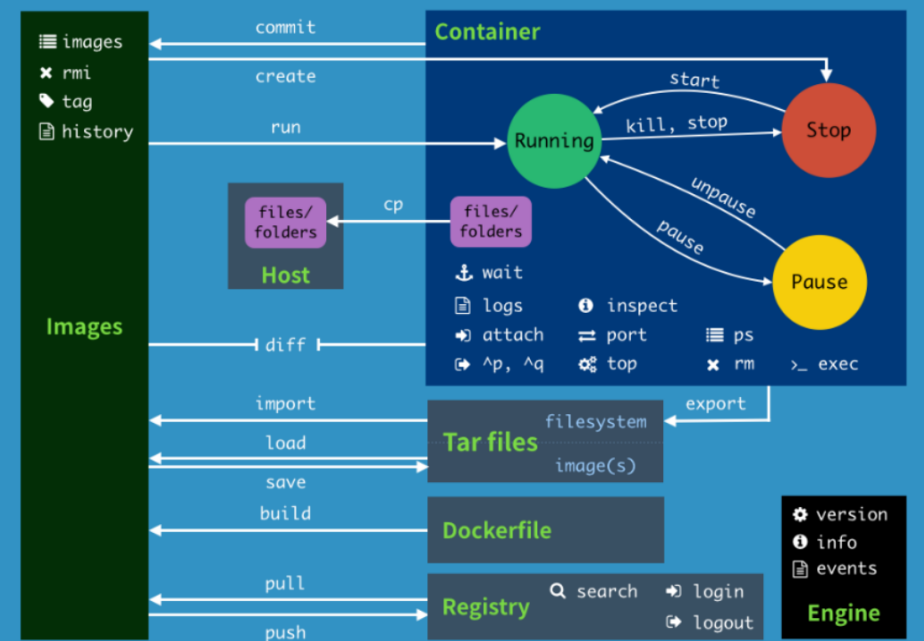
2.6. Command summary

image-20230424144541215

Docker overview and docker installation
Docker images deeply understand and publish images

COMPANY

  • About us
  • Team Style
  • Blog

LEARNING & EXPLORATION

  • Tutorials
  • Edge AI hardware
  • Educational robots
  • Embedded intelligent hardware

WHERE TO BUY

  • Yahboom Online Store
  • Amazon
  • Alibaba
  • AliExpress
  • Mercado

TECHNOLOGY SUPPORT

  • Email: support@yahboom.com

BE A DISTRIBUTOR

  • Email: sales@yahboom.com
QR Code
QR Code

Copyright © 2017-2026 Yahboom. All Rights Reserved.

EN/中文