yahboom
HomeTutorialsProduct
Solution
Blog
Online Store
About Us
EN/中文
Store
Transbot SE📖
01.Introduction to Transbot SE
  • 01. Introduction to Transbot SE
  • 02. Precautions for use and battery safety
  • 03. First Trial
02.First Trial
  • 2.1.APP control
  • 2.2.USB wireless handle control(Optional)
  • 2.3.Handle video control Transbot(Optional)
  • 2.4.Network configuration tutorial in hotspot mode
03.Hardware control course
  • 3.1.About expansion board and update firmware
  • 3.2.Close self-starting process
  • 3.3.Install Transbot library
  • 3.4.Control buzzer and button
  • 3.5.Control PWM servo
  • 3.6.Control bus servo
  • 3.7.Control motor
  • 3.8.Control robot movement
04.Linux operating system
  • 1. Virtual machine installation and use
  • 2. Linux basics
  • 3. Remote control
  • 4. Multi-machine communication configuration
  • 5. Static IP and hotspot mode
  • 6. Web page real-time monitoring
  • 7. Expansion tutorial
  • 8. Write system images
05.Docker couse(For Pi5)
  • 1.Docker overview and docker installation
  • 2.Common commands for docker image containers
  • 3.Docker images deeply understand and publish images
  • 4.Docker hardware interaction and data processing
  • 5.Start the transbot se container
06.ROS basic course
  • 1.ROS introduction
  • 2.Project file structure
  • 3.Common commands and tools
  • 4.Publisher
  • 5.Subscribers
  • 6.Customize topic messages and use
  • 7.Client
  • 8.Server
  • 9.Custom service messages and usage
  • 10.TF release and monitoring
07.OpenCV courses
  • 1. Getting started with Open Source CV
  • 2. Open Source CV geometric transformation
  • 3. Open Source CV image processing and drawing text line segments
  • 4. Open Source CV image beautification
  • 5. Opencv application
  • 6. AR vision
  • 7. AR QR code
  • 8. ROS+Opencv foundation
  • 9. ROS+Opencv application
  • 10. MediaPipe development
08.ROS robot course
  • 1.PID algorithm
  • 2.Basic communication
  • 3.Keyboard control
  • 4.Handle control(Optional)
  • 5.Robot state estimation
  • 6.Data calibration
09.ROS simple camera course
  • 1.HD camera calibration
  • 2.HD camera color tracking
  • 3.HD camera color tracking (robotic arm)
  • 4.HD camera object tracking
  • 5. KCF target tracking
  • 6.HD camera face tracking
  • 7.HD camera robotic arm carrying
  • 8.HD camera Autopilot
10.ROS robotic arm control tutorial
  • 1.MoveIt configuration
  • 2.MoveIt control the real machine
  • 3.MoveIt moves randomly
  • 4.MoveIt kinematics design
  • 5.MoveIt cartesian path
  • 6.MoveIt avoiding
  • 7.MoveIt scene design
  • 8.MoveIt trajectory planning
  • 9.Mediapipe palm control car
  • 10.Mediapipe gesture control robotic arm
  • 11.Mediapipe gesture control car
  • 12.Mediapipe arm attitude control robotic arm
11.ROS multi-robot control(Optional)
  • 1. Multi-robot control(Optional)
  • 2. Multi-robot queue performance(Optional)
  • 3. Multi-robot robot arm dancing(Optional)
12.Deep learning courses
  • 1.KNN recognizes handwritten digits
  • 2.Basic use of TensorFlow
  • 3.Basic use of PyTorch(jetson)
  • 4.yolov5 model training(jetson)
  • 5.yolov5+tensorrt acceleration(jetson)
  • 6.yolov4-tiny
13.Installation Video
  • Part18
  • Part1-6
  • Part7-12
  • Part13.1-13.3.3
  • Part13.4.1-17
14.FAQnew
  • 1.Using your own Jetson board,Transbot-SE cannot start normally
Download
  • APP(iOS/Android)
  • System_File-Pi5
  • System_File-Pi4
  • System_File-Jetson
  • VM_File
  • Appendix
  • Code
  • InstructionManual
  • Jetson_Boot_USB.tar.gz
  • Hardware_Info
Download ZIP

Welcome to Transbot SE repository

5.Start the transbot se container

Start the Transbot_se container

Start the Transbot_se containerPreliminary preparationStart DockerPrecautionsExample: USB camera

The ROS environment of Raspberry Pi 5 and the hardware control case of transbot se are both located in Docker. Every time we run a case, we need to confirm that it is in the docker container of transbot se.

xxxxxxxxxx
Starting docker yourself is necessary to run a single case or personal development.

Preliminary preparation

Note: The startup program must be closed to run a single case!

For a tutorial on closing the large boot program, please refer to the tutorial [Transbot SE expansion board control tutorial: closing the large self-starting program].

xxxxxxxxxx
[Preparation before development: Close the startup program]: The tutorial provides temporary/permanent shutdown of the startup program and shutdown/restoration of the startup Docker script operation!

For first time use, it is recommended to temporarily close the startup program. For simple developers, you can try to permanently close the startup program.

xxxxxxxxxx
If the recovery of the large startup program fails permanently, you can follow the tutorial to reverse the recovery or burn the system yourself to restore the factory state.

Start Docker

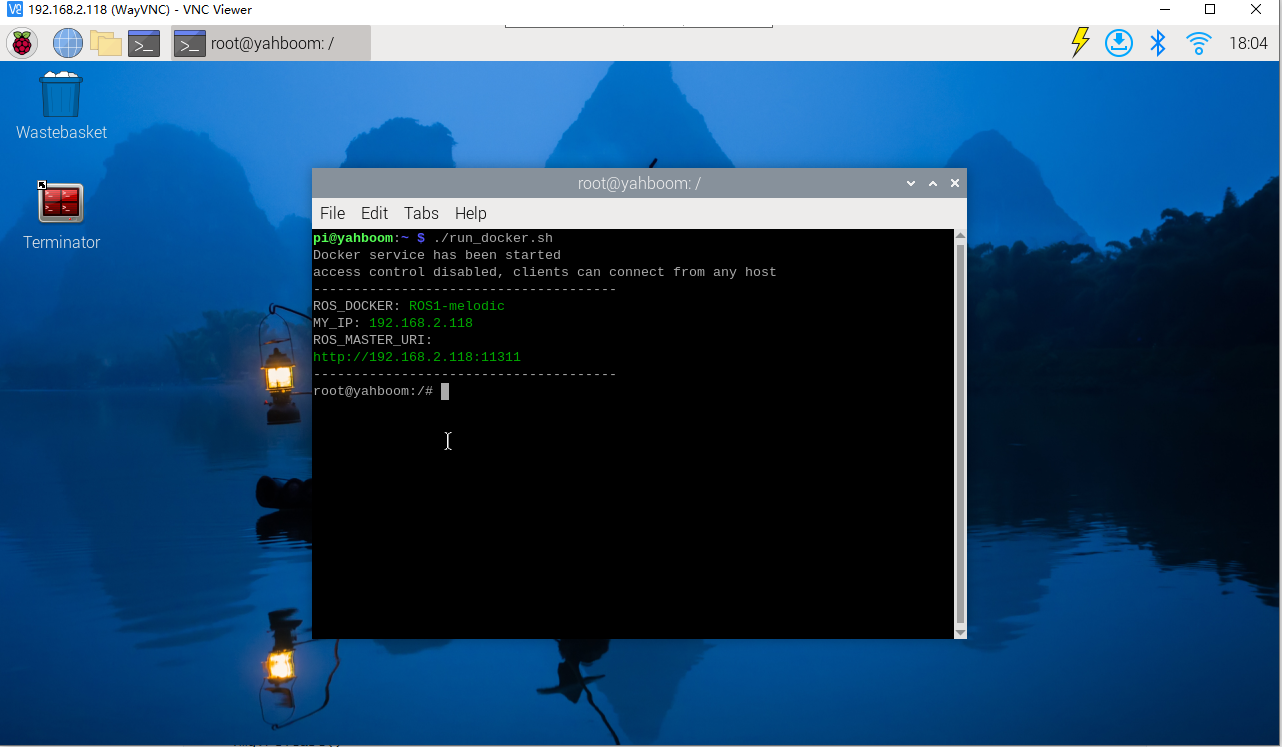
We provide the script file run_docker.sh for running the docker image corresponding to transbot se in the home directory on the Raspberry Pi 5 motherboard.

xxxxxxxxxx
#!/bin/bash
​
# Wait for the Docker service to start
while true; do
     if systemctl is-active --quiet docker; then
         echo "Docker service has been started"
         break
     else
         echo "The Docker service has not started, waiting..."
         sleep 1
     fi
done
​
​
xhost+
docker run -it \
--net=host \
--env="DISPLAY" \
--env="QT_X11_NO_MITSHM=1" \
-v /tmp/.X11-unix:/tmp/.X11-unix \
--security-opt apparmor:unconfined \
-v /home/pi/temp:/root/temp \
--device=/dev/ttyAMA0 \
--device=/dev/video0 \
--device=/dev/input \
--device=/dev/video1 \
yahboomtechnology/ros-melodic:Transbot_Se_V1 /bin/bash

Start command

xxxxxxxxxx
./run_docker.sh

image-20240401190203964

Precautions

If the hardware device is not connected correctly, starting docker may fail!

Example: USB camera

If the camera is not connected or the one identified is not /dev/video0, Docker may not be able to enter correctly or the camera case will report an error.

If we need to cancel the hardware mapping of the USB camera, we can delete the corresponding --device=/dev/video0 \ information in the startup script.

​x
#!/bin/bash
​
# Wait for the Docker service to start
while true; do
     if systemctl is-active --quiet docker; then
         echo "Docker service has been started"
         break
     else
         echo "The Docker service has not started, waiting..."
         sleep 1
     fi
done
​
​
xhost +
docker run -it \
--net=host \
--env="DISPLAY" \
--env="QT_X11_NO_MITSHM=1" \
-v /tmp/.X11-unix:/tmp/.X11-unix \
--security-opt apparmor:unconfined \
-v /home/pi/temp:/root/temp \
--device=/dev/ttyAMA0 \
--device=/dev/input \
--device=/dev/video1 \
yahboomtechnology/ros-melodic:Transbot_Se_V1 /bin/bash
Docker hardware interaction and data processing
ROS introduction

COMPANY

  • About us
  • Team Style
  • Blog

LEARNING & EXPLORATION

  • Tutorials
  • Edge AI hardware
  • Educational robots
  • Embedded intelligent hardware

WHERE TO BUY

  • Yahboom Online Store
  • Amazon
  • Alibaba
  • AliExpress
  • Mercado

TECHNOLOGY SUPPORT

  • Email: support@yahboom.com

BE A DISTRIBUTOR

  • Email: sales@yahboom.com
QR Code

Copyright © 2017-2026 Yahboom. All Rights Reserved.

EN/中文