Welcome to Transbot SE repository
2.MoveIt control the real machine
2、MoveIt control the real machine
2、MoveIt control the real machine2.1. Simulation start2.2. Control the real machine2.3.matters needing attention2.3.1.Start the MoveIT
MoveIt website:http://docs.ros.org/en/melodic/api/moveit_tutorials/html/index.html
2.1. Simulation start
Just control the robot in simulation under MoveIT simulation. It is not recommended to use the main control board as the host, the main control board will have incomplete interface display and freeze.
roslaunch transbot_se_moveit_config demo.launch # recommended virtual machine、
2.2. Control the real machine
Controlling the real machine is to control the real robot in combination with MoveIT.
Multi-device communication needs to be configured, for details, please refer to the [Multi-device Communication Configuration] chapter.
Please operate with caution! ! !
xxxxxxxxxxroscore # virtual machineroslaunch transbot_se_moveit_config demo.launch # virtual machinerosrun transbot_se_moveit_config 03_machine_move.py # robot Node diagram is as follows:
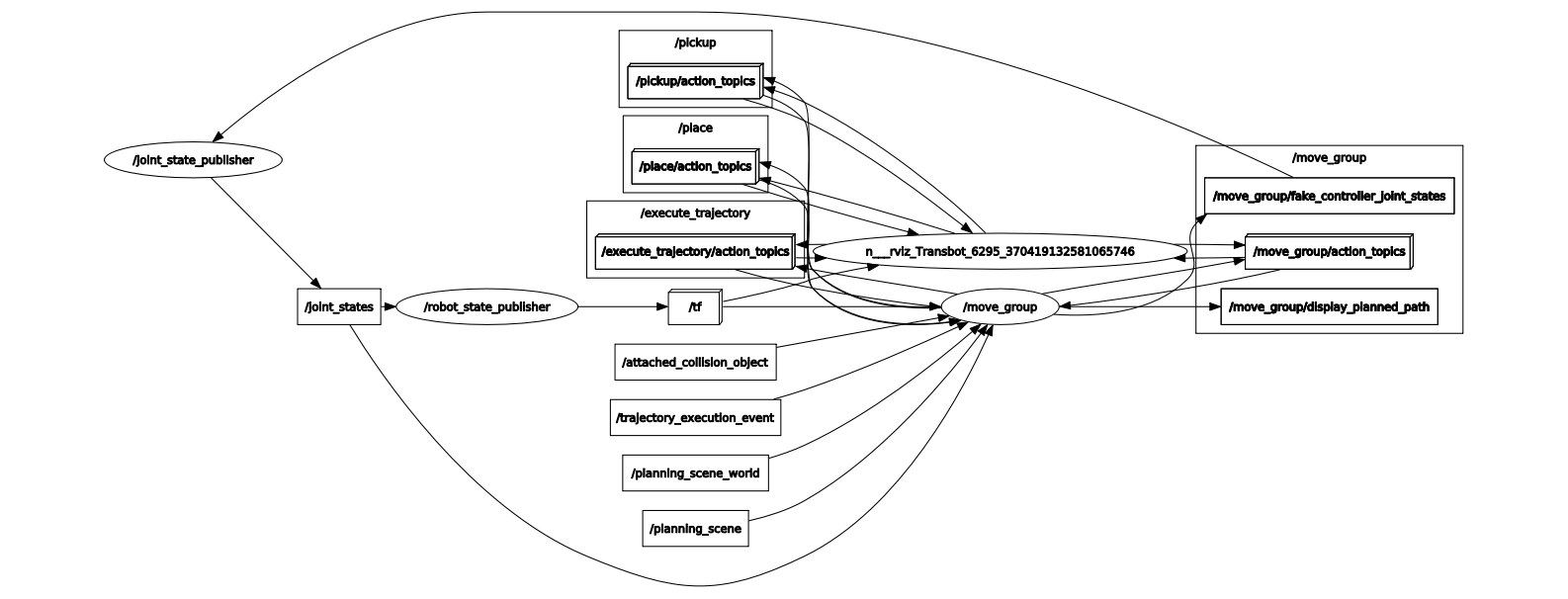
The corresponding relationship between the robot arm servo and the joint: from the lowest end of the robot arm to the end of the gripper.
| Robotic Arm Servo | joint | joint |
|---|---|---|
| The first servo | arm_ Joint | joint1 |
| The second servo | arm1_ Joint | joint2 |
| The third servo | arm2_ Joint | joint3 |
2.3.matters needing attention
Note: There may be problems, not necessarily.
2.3.1.Start the MoveIT
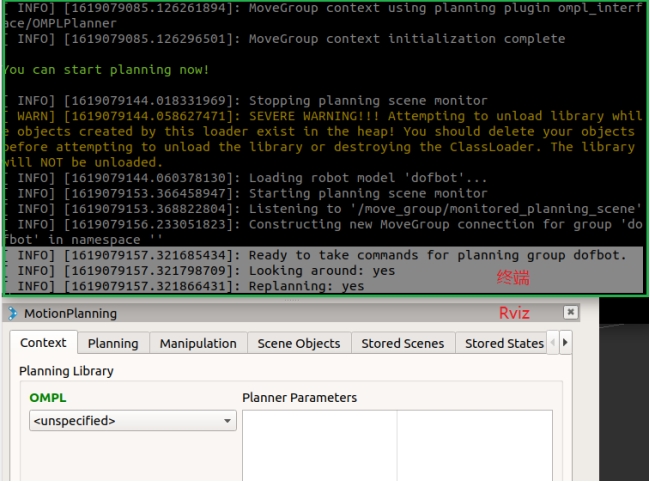
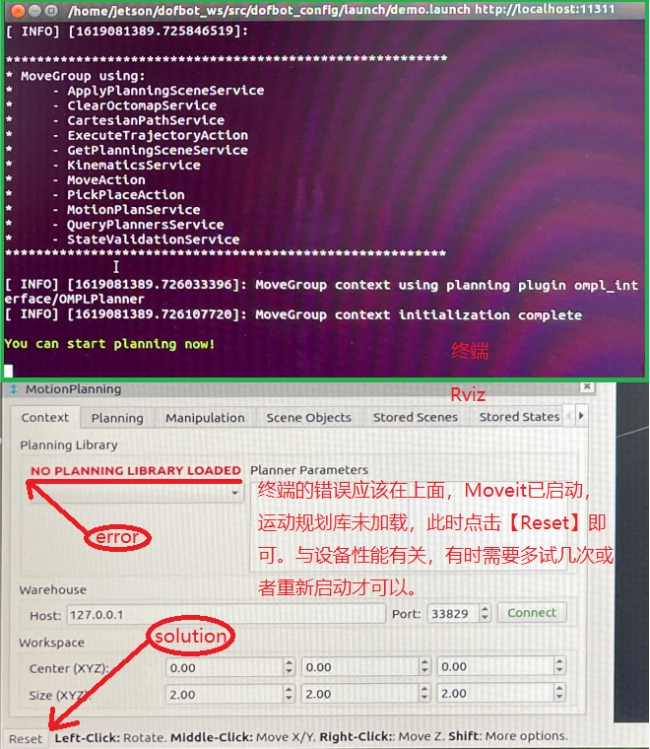
The MoveIt simulation environment starts slowly, wait patiently and observe the terminal. An error as shown in the figure below occurs. The solution is shown in the figure. If the terminal reports an error and the motion planning library is not loaded, click [Reset] in the lower left corner to reload. At first, during the loading process, don't click [Reset] in a hurry. If you click it before it is loaded, the system will be reloaded, so it can't be started.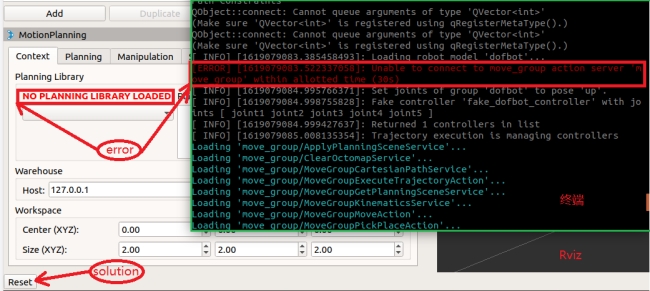
As shown in the figure below, if [Replanning: yes] appears on the terminal, and green [OMPL] appears below the Planning Library, the startup is successful.