Welcome to Transbot SE repository
3.2.Close self-starting process
Turn off APP control process that start automatically at boot
Turn off APP control process that start automatically at boot1. What is a APP control process that starts automatically at boot?2. jetson motherboard2.1. Temporarily close large programs2. Temporarily close APP control process2.2. Permanently close large programs2.3. Set up the startup program2.4. Temporarily start a large program3. Raspberry Pi 53.1 Temporarily close large programs3.2 Permanently close large programsTurn off self-starting in dockerTurn off docker auto-start in Raspberry Pi 5 (this step will close the auto-start docker terminal. After closing, you need to start docker manually)3.3 Set up a large program to start automatically at boot3.5 Temporarily start a large program
1. What is a APP control process that starts automatically at boot?
In order to easily experience the functions of Transbot SE's APP and controller, Transbot SE has added a program to the default system of Ubuntu 18.04. This program integrates the control functions and gameplay of the APP and controller, so it is called a "big program", and it is When Transbot SE is turned on, this program will start automatically, so it is called the "self-starting large program at startup".
Large programs are automatically launched at startup just to facilitate the experience of mobile APP and controller functions. In actual development, large programs need to be closed, otherwise they will occupy the device and cause unpredictable errors. Therefore, before developing a program, please manually close the large auto-start program at startup.
There are two ways to close the large self-starting program at startup. One is to close it only once and it will start automatically the next time you turn on the computer. This is called temporary shutdown. The other way is to close it and it will not start automatically again the next time you turn on the computer unless you manually restart it. Turning on is called permanent turning off.
Note: The large program of Transbot SE is only for APP and controller remote control experience, and the program source code is not open source.
Transbot SE Jetson nano factory system default user name: jetson Password: yahboom,
Transbot SE Raspberry Pi 4B factory system default username: pi Password: yahboom
Transbot SE Raspberry Pi 5 factory system default username: pi Password: yahboom
2. jetson motherboard
2.1. Temporarily close large programs
2. Temporarily close APP control process
If you have a display screen, mouse and keyboard, log in to the desktop after connecting.
If there is no display screen, mouse and keyboard, please use a computer in the same LAN to open the VNC Viewer software and log in to the desktop remotely to enter the desktop.
For detailed operations on the VNC remote login method, please refer to the following web page. The configuration content has been configured. Jump directly to step 6 to connect.
Username: jetson
Password:yahboom
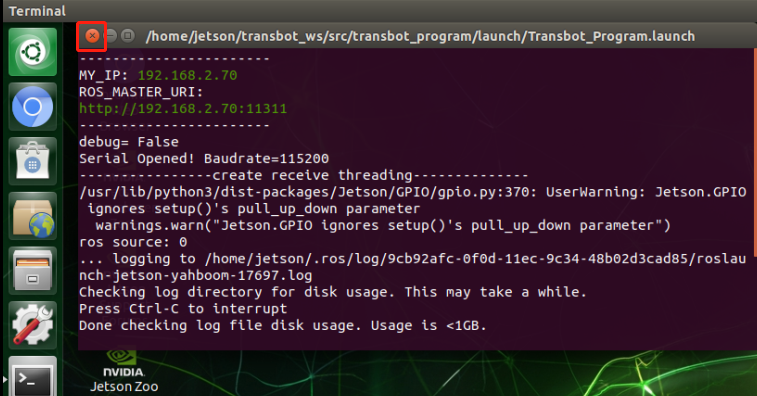
After entering the desktop, you will see a terminal. Just click the X symbol in the upper left corner to close the terminal to close the large program. Sometimes you may be prompted that closing the terminal will close the running program. Just select Confirm to close.
2.2. Permanently close large programs
First, close the large running program by temporarily closing it.
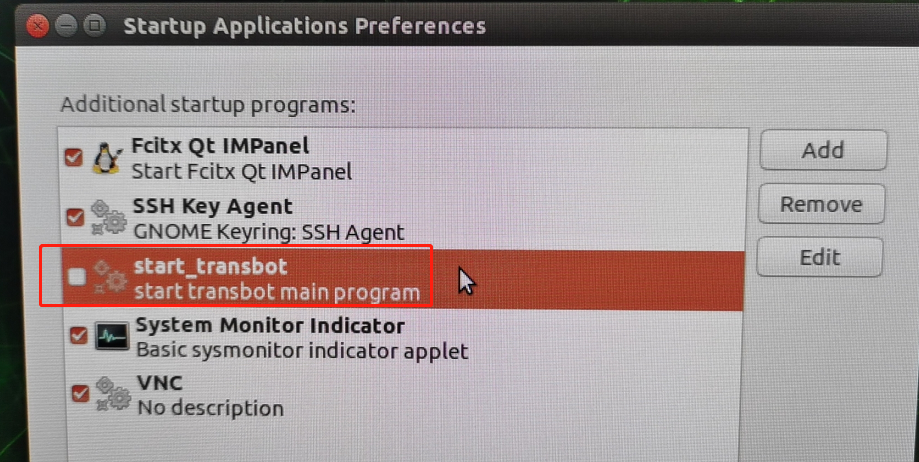
After opening the Ubuntu system application, search for Startup Applications, and uncheck the box in front of start_transbot, as shown in the figure below, to permanently close the large program.
2.3. Set up the startup program
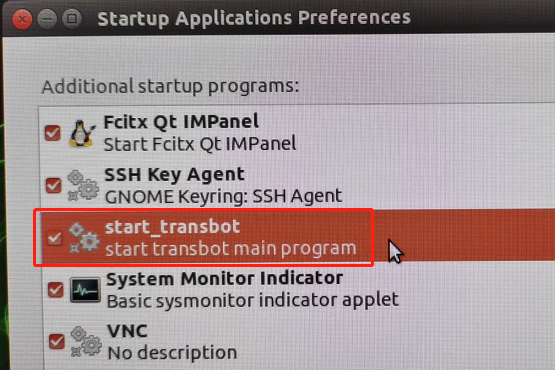
Open the Ubuntu system application, search for Startup Applications, and check the box in front of start_transbot, as shown in the figure below, then Transbot SE will automatically start the large program next time it is turned on.
2.4. Temporarily start a large program
If you need to manually run the Transbot SE program, please open the Ubuntu terminal first, and then enter the following command:
bash /home/jetson/Transbot/transbot/start_transbot.sh3. Raspberry Pi 5
3.1 Temporarily close large programs
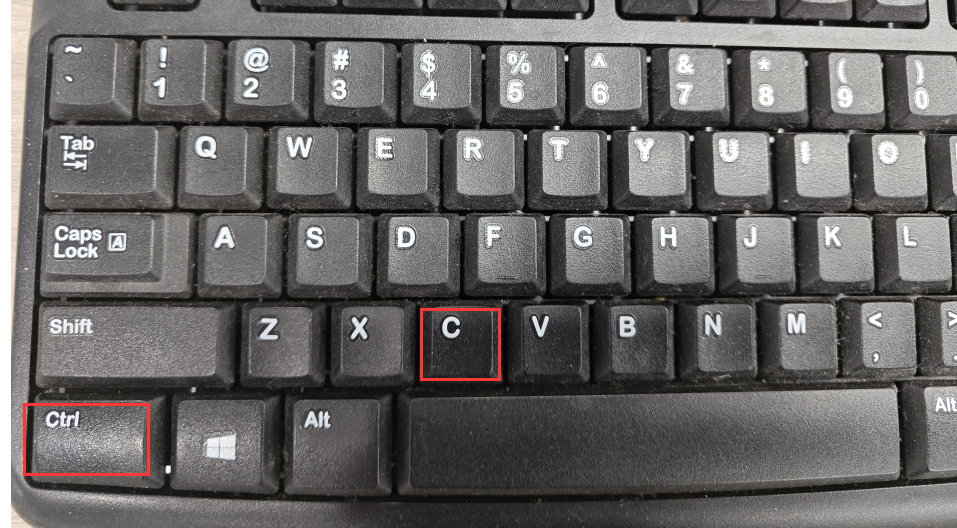
After logging in with vnc, click on the terminal displayed on the desktop and hold down the Ctrl+c keys on the keyboard to close the program. After successful closing, as shown below
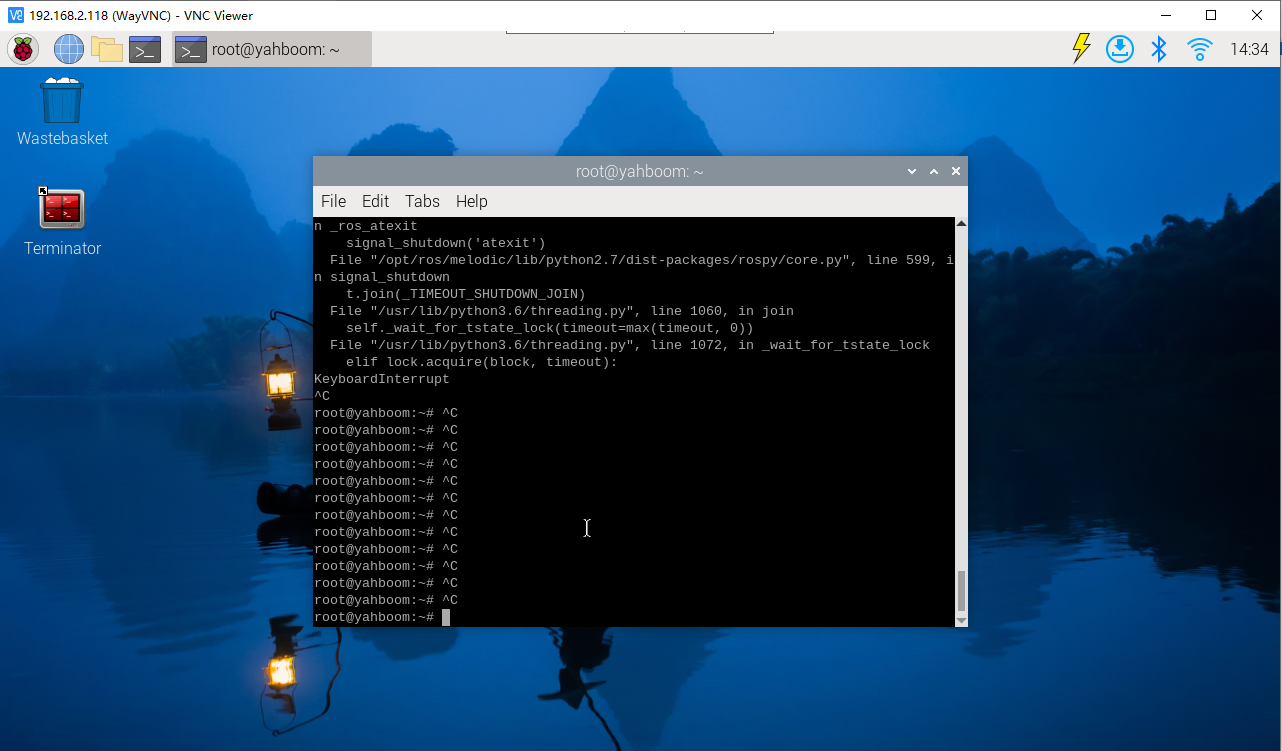
Note: Temporarily closing only closes the large program of this terminal. If you want to run other chapters of the tutorial, you must permanently close the large program
3.2 Permanently close large programs
Turn off self-starting in docker
If you want to prevent large programs from automatically starting when you turn on the computer, you need to complete 3.1 Temporary shutdown first, then enter the following command and press Enter
xxxxxxxxxxcd
xxxxxxxxxxgedit.bashrc
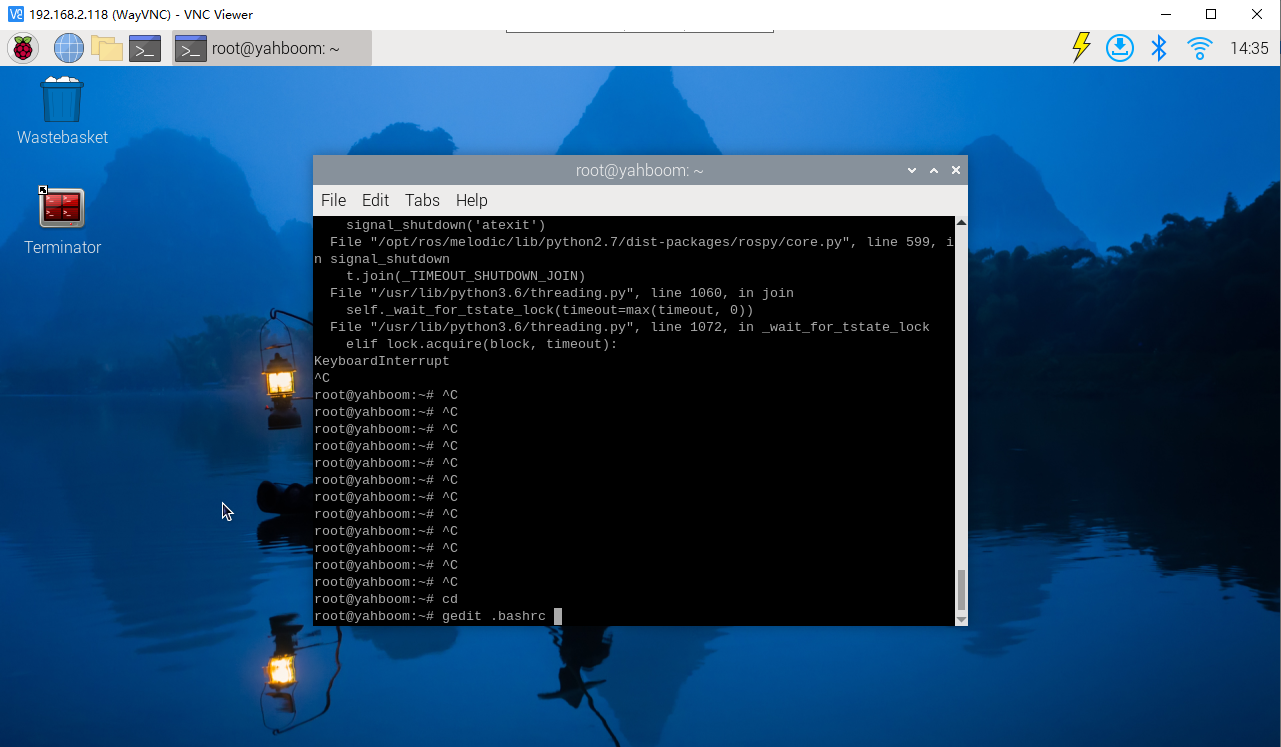
After entering the above command, enter the modification interface, scroll to the bottom, and comment out the auto-start related code, as shown in the figure
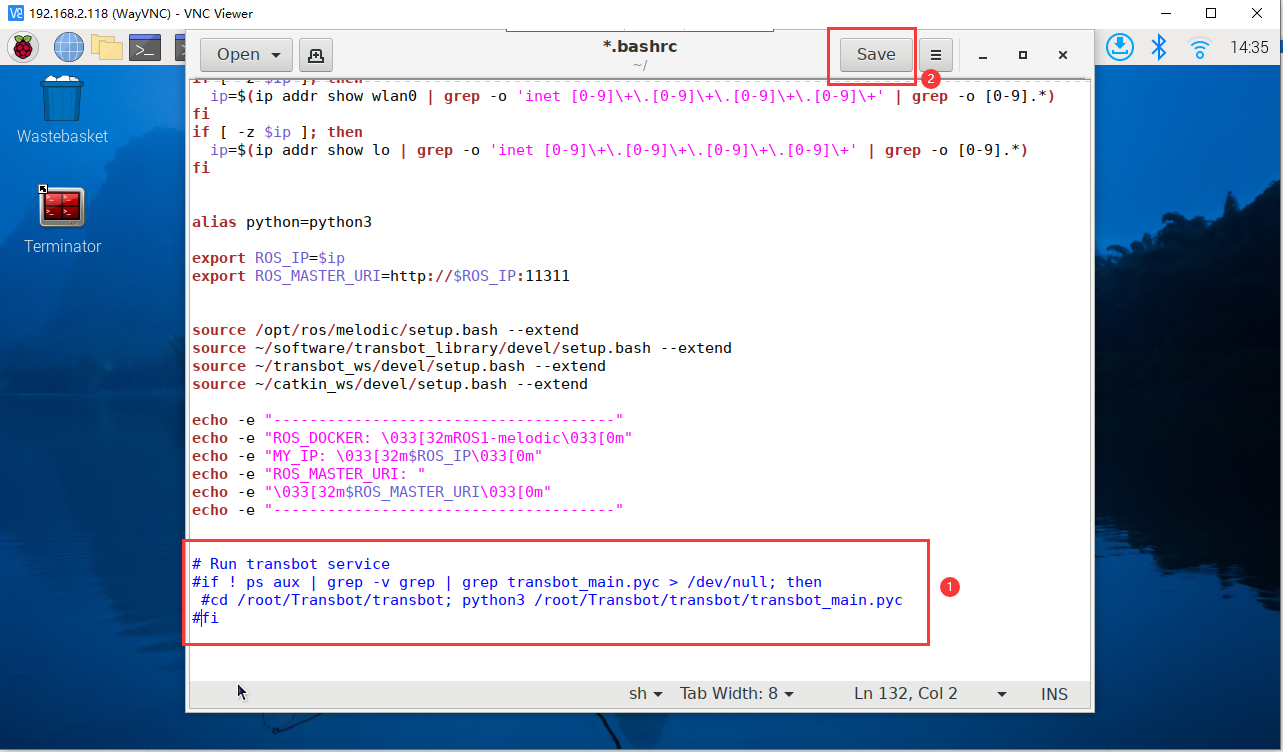
After modification, click save to save, and click the “X” in the upper right corner to exit.
Open another terminal and enter the following command
xxxxxxxxxxdocker ps
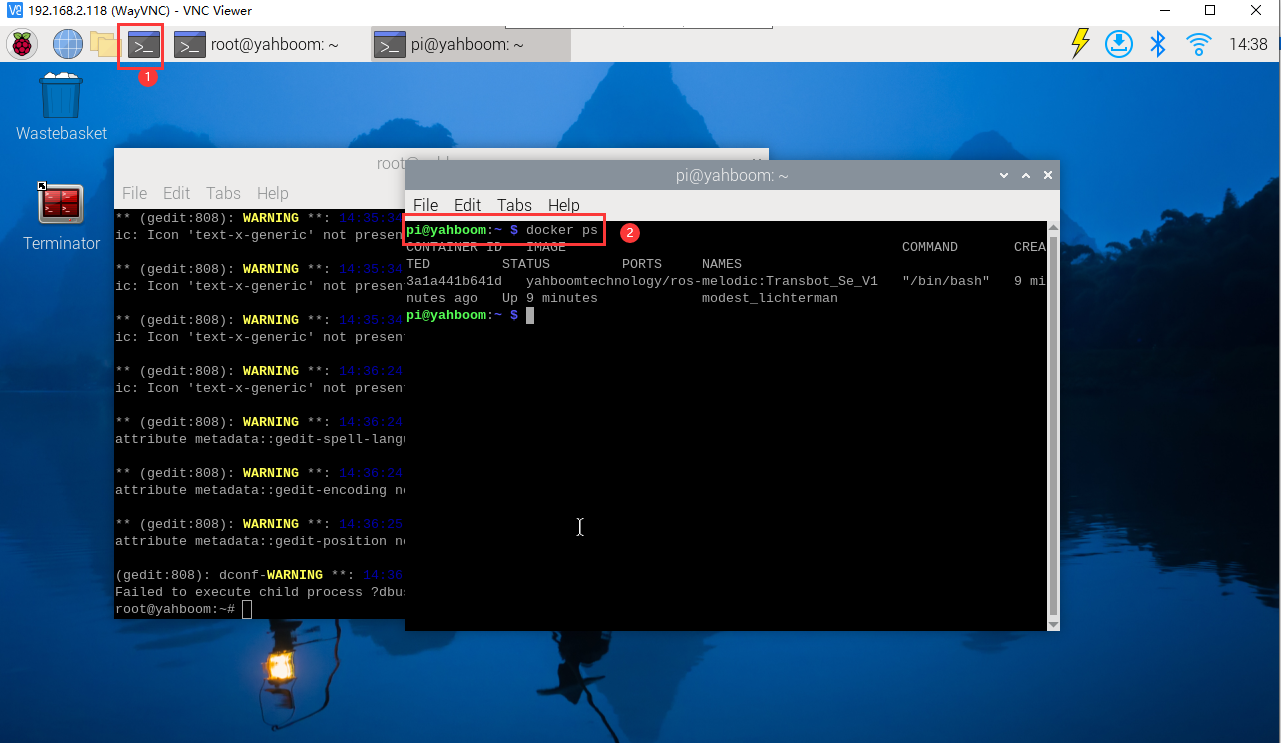
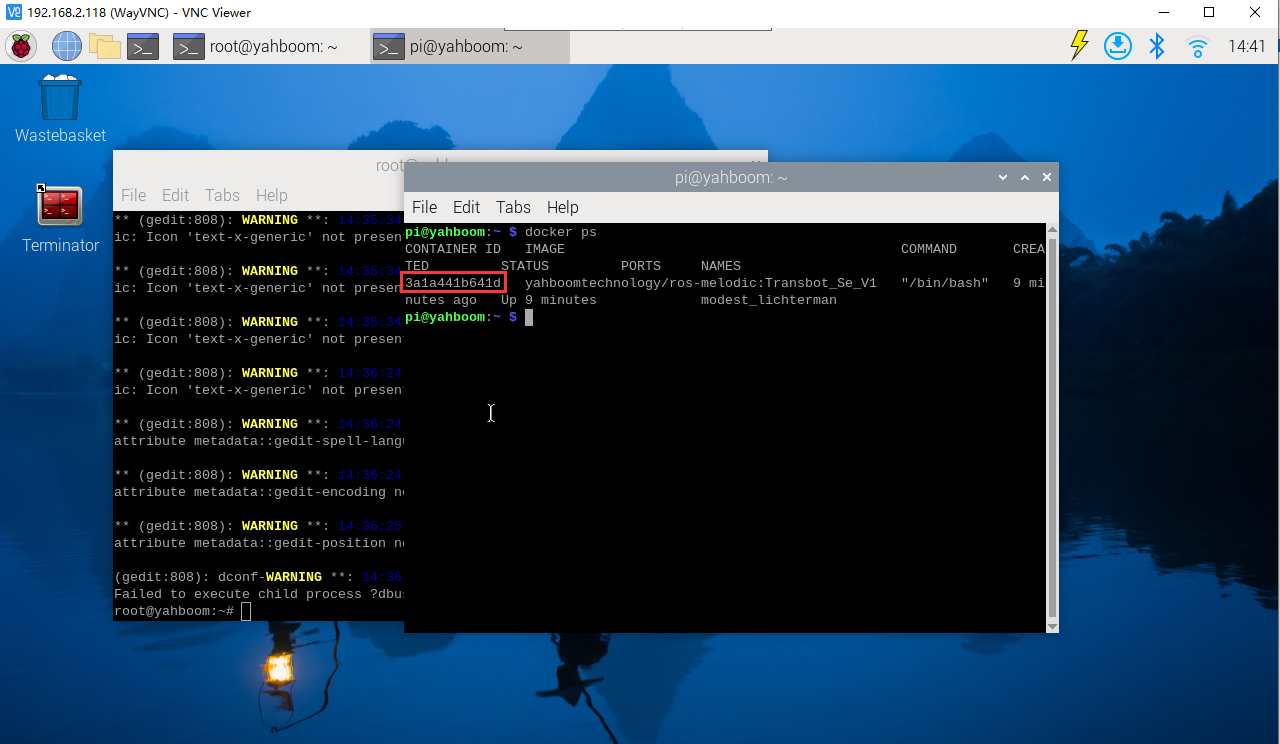
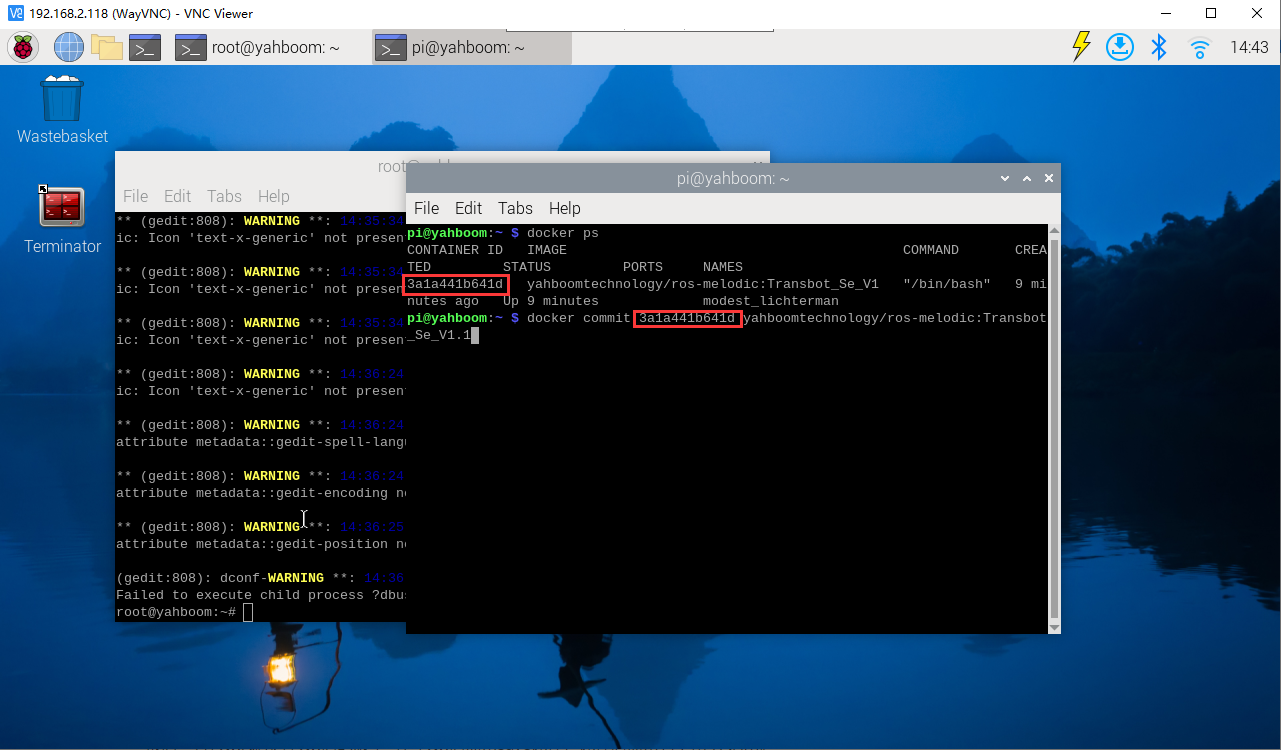
Enter the following command to submit the new docker and modify the docker version number. The ID number 3a1a441b641d in the command needs to be modified according to your actual terminal display.
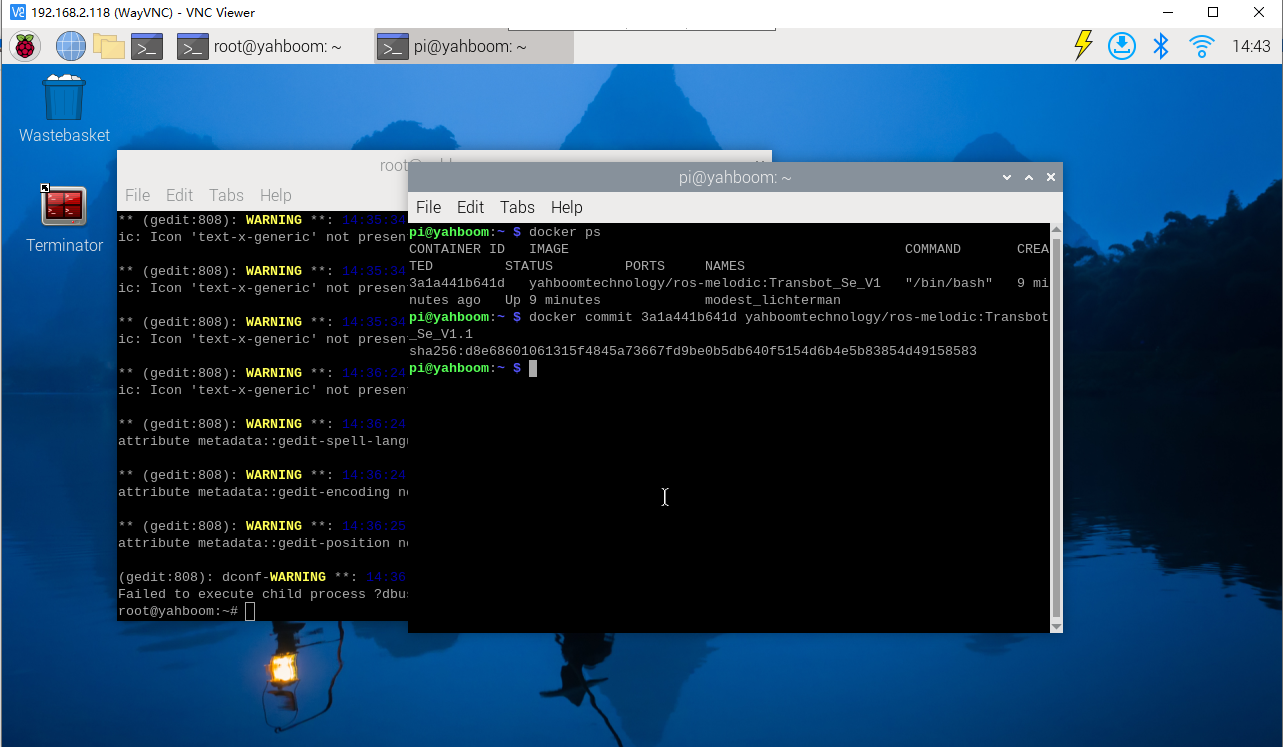
xxxxxxxxxxdocker commit 3a1a441b641d yahboomtechnology/ros-melodic:Transbot_Se_V1.1
After entering, press Enter to submit.
Modify docker startup script
xxxxxxxxxxgedit run_docker.sh
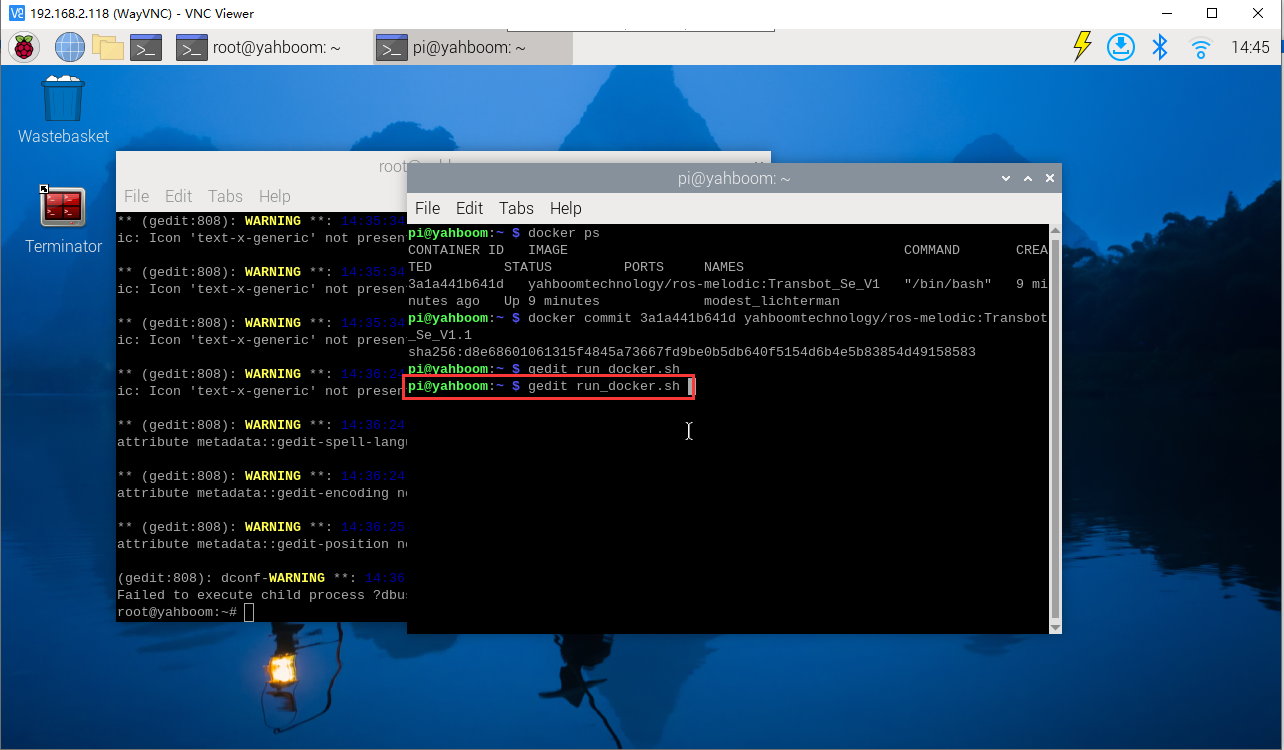
Modify the last line to the version number you just modified. After modification, click save to save. After saving, click the "X" in the upper right corner to exit.
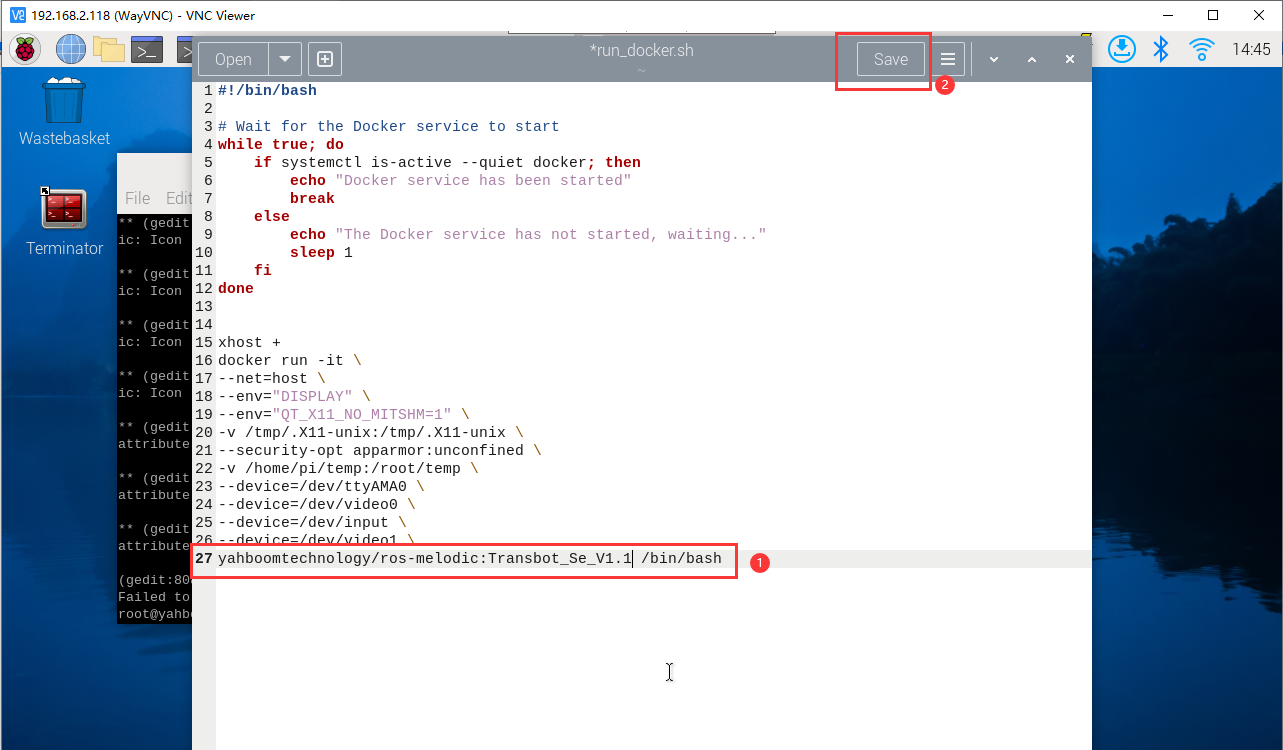
At this point, the large program auto-start has been turned off, and you don’t need to do the following steps.
Turn off docker auto-start in Raspberry Pi 5 (this step will close the auto-start docker terminal. After closing, you need to start docker manually)
Close the Raspberry Pi 5docker self-starting program
xxxxxxxxxxsudo rm -rf /home/pi/.config/autostart/run_docker.desktop
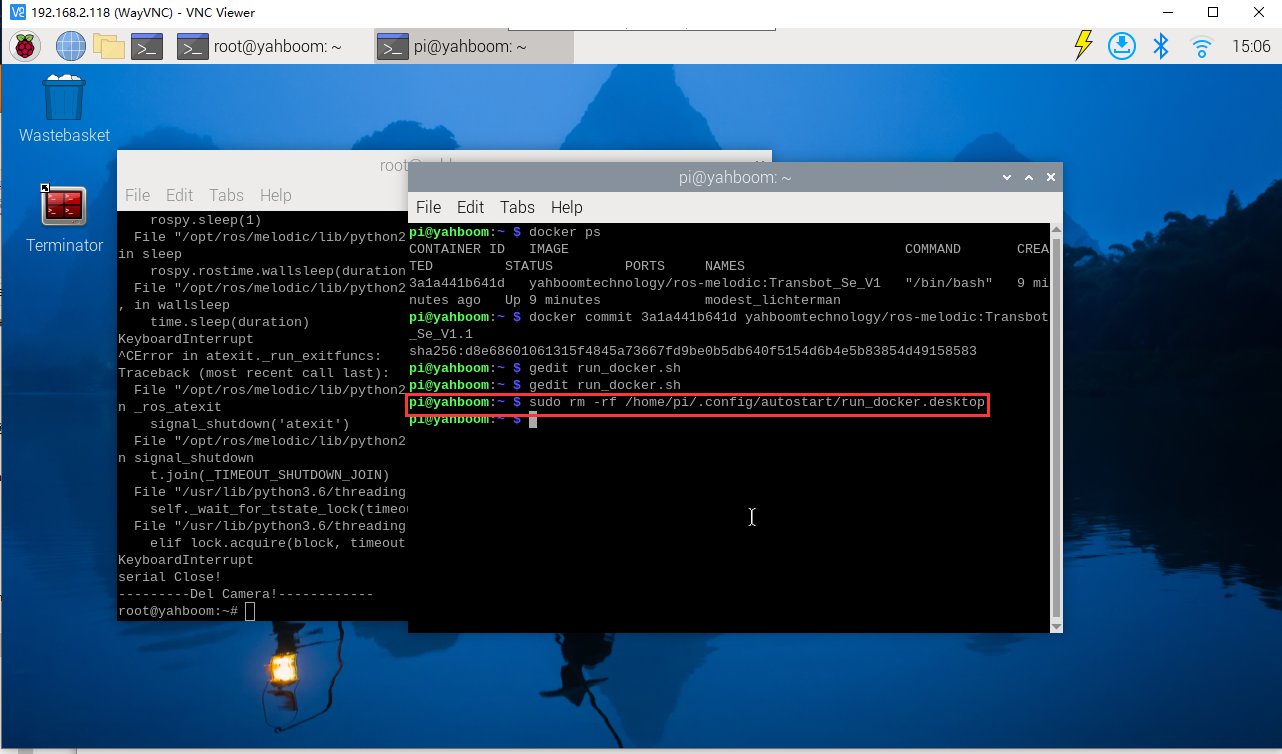
At this time, docker auto-start and transbot large program auto-start are turned off.
Attachment:
If you want to start a docker manually, you can enter the following command to start
xxxxxxxxxx./run_docker.sh
Note: When using this command, a new docker will be opened every time. They are not the same environment.
3.3 Set up a large program to start automatically at boot
Modify docker startup script
Enter the following command
xxxxxxxxxxgedit run_docker.sh
Modify the last line to the previous version number. After modification, click save to save. After saving, click the "X" in the upper right corner to exit.
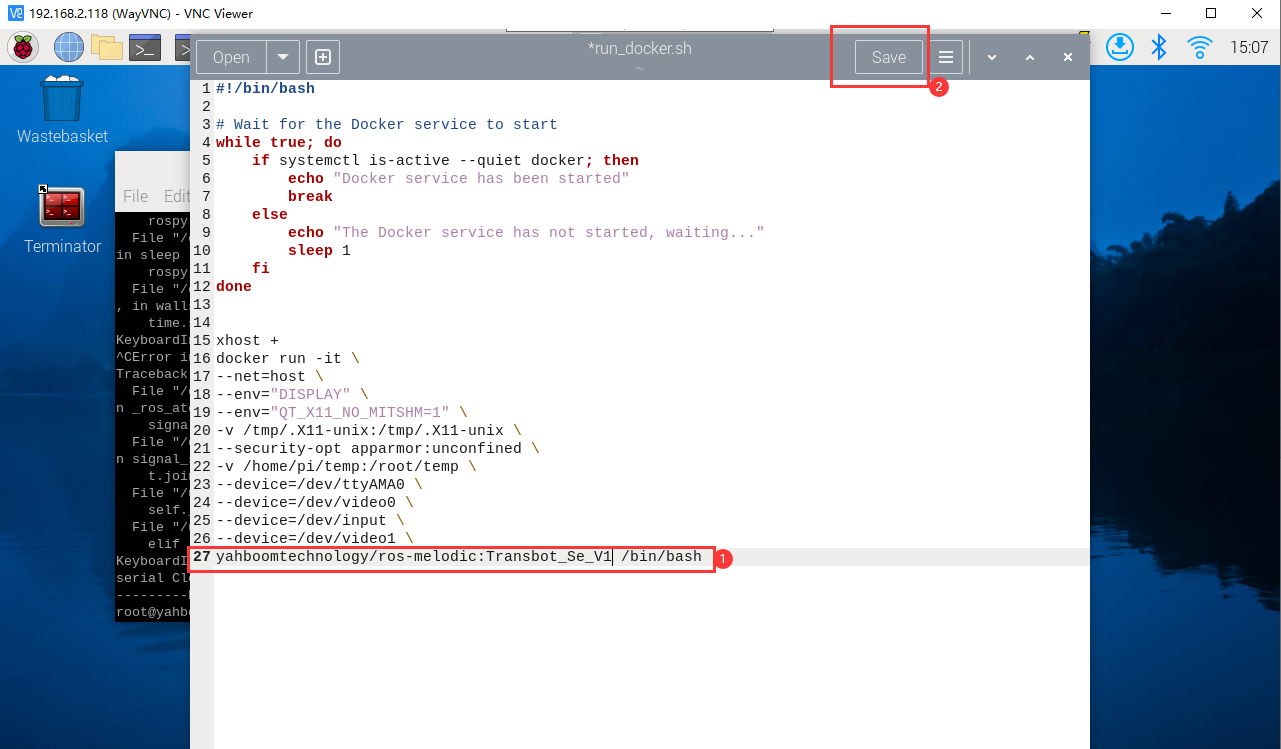
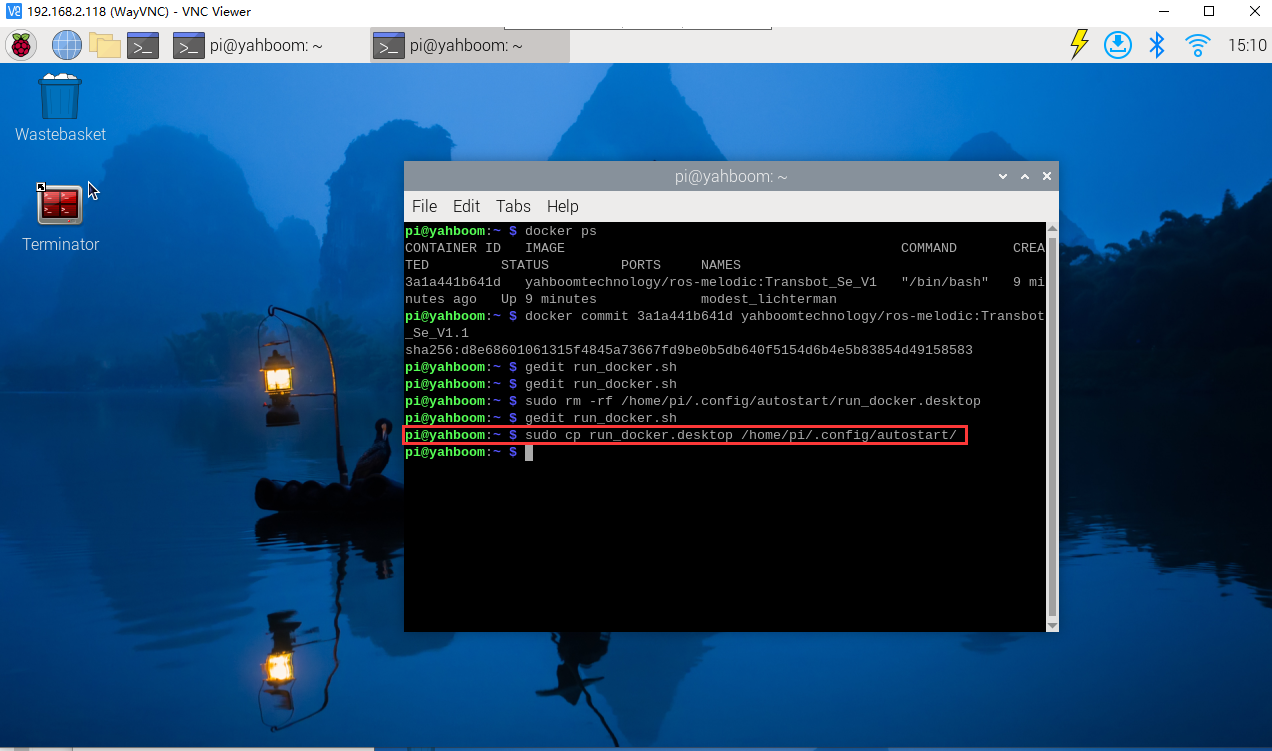
If you turned off docker auto-start in Raspberry Pi 5 in the previous step, or if no docker terminal pops up after booting, you need to execute the following command
xxxxxxxxxxsudo cp run_docker.desktop /home/pi/.config/autostart/
3.5 Temporarily start a large program
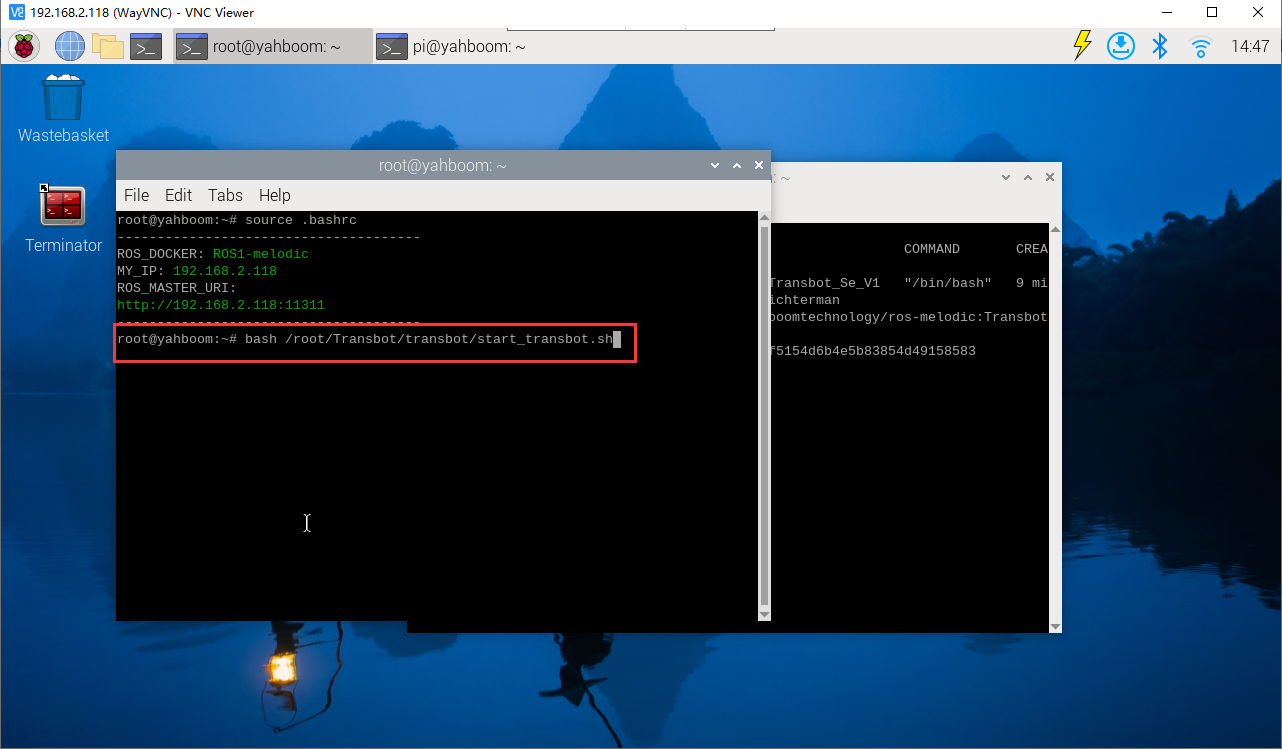
Confirm that it is in the docker environment, as shown below. Enter the following command
xxxxxxxxxxbash /root/Transbot/transbot/start_transbot.sh