Welcome to Transbot SE repository
10.TF release and monitoring
10 TF release and monitoring
10 TF release and monitoring 10.1 tf function package 10.1.1 tf is a function package that allows users to track multiple coordinate systems over time. It uses a tree data structure to buffer and maintain the coordinate transformation relationship between multiple coordinate systems according to time, which can help developers at any time., to complete coordinate transformations such as points and vectors between coordinate systems. 10.1.2 Use steps 10.2 Programming implementation of tf coordinate system broadcasting and monitoring** 10.2.1 Create and compile function packages 10.2.2 how to implement a tf broadcaster 10.2.3 How to implement a tf listener 10.2.4 C++ language implements tf broadcaster 10.2.4 C++ language implements tf listener 10.2.5 Modify CMakelist.txt and compile 10.2.6 Demonstration of startup and running effects 10.2.7 Python language implements tf broadcaster 10.2.8 Python language implements tf listener 10.2.9 Display of startup and running effects
10.1 tf function package
10.1.1 tf is a function package that allows users to track multiple coordinate systems over time. It uses a tree data structure to buffer and maintain the coordinate transformation relationship between multiple coordinate systems according to time, which can help developers at any time., to complete coordinate transformations such as points and vectors between coordinate systems.
10.1.2 Use steps
- monitor tf transformation
Receive and cache all coordinate system transformation data published in the system, and query the required coordinate transformation relationship from it.
- broadcast tf transformation
Broadcasts the coordinate transformation relationship between coordinate systems to the system. There may be multiple broadcasts of tf transforms of different parts in the system. Each broadcast can directly insert the coordinate transformation relationship into the tf tree without synchronization.
10.2 Programming implementation of tf coordinate system broadcasting and monitoring**
10.2.1 Create and compile function packages
cd ~/catkin_ws/srccatkin_create_pkg learning_tf rospy roscpp turtlesim tfcd ..catkin_make
10.2.2 how to implement a tf broadcaster
- define tf broadcaster(TransformBroadcaster);
- initialize tf data, create coordinate transformation value;
- publish coordinate transformation(sendTransform);
10.2.3 How to implement a tf listener
- define TF listener(TransformListener);
- find coordinate transformation(waitForTransform, lookupTransform)
10.2.4 C++ language implements tf broadcaster
- In the src folder of the function package learning_tf, create a c++ file(the file suffix is .cpp) and name it turtle_tf_broadcaster.cpp
- copy and paste the program code below into the turtle_tf_broadcaster.cpp file
x
std::string turtle_name;
void poseCallback(const turtlesim::PoseConstPtr & msg) { static tf::TransformBroadcaster br; // create a broadcaster for tf
// initialize tf data tf::Transform transform; transform.setOrigin(tf::Vector3(msg -> x, msg -> y, 0.0)); //set xyz coordinates tf::Quaternion q; q.setRPY(0, 0, msg -> theta); //Set Euler angle: rotate with x-axis, y-axis, z-axis transform.setRotation(q);
br.sendTransform(tf::StampedTransform(transform, ros::Time::now() "world", turtle_name)); // broadcast tf data between world and turtle coordinate system }
int main(int argc, char** argv) { ros::init(argc, argv, "turtle_world_tf_broadcaster"); // initialize the ROS node
if (argc != 2) { ROS_ERROR("Missing a parameter as the name of the turtle!"); return - 1; } turtle_name = argv [ 1 ]; // input argument as turtle name
// Subscribe to the turtle's pose topic/pose ros::NodeHandle node; ros::Subscriber sub = node.subscribe(turtle_name + "/pose", 10, & poseCallback);
// loop waiting for the callback function ros::spin();
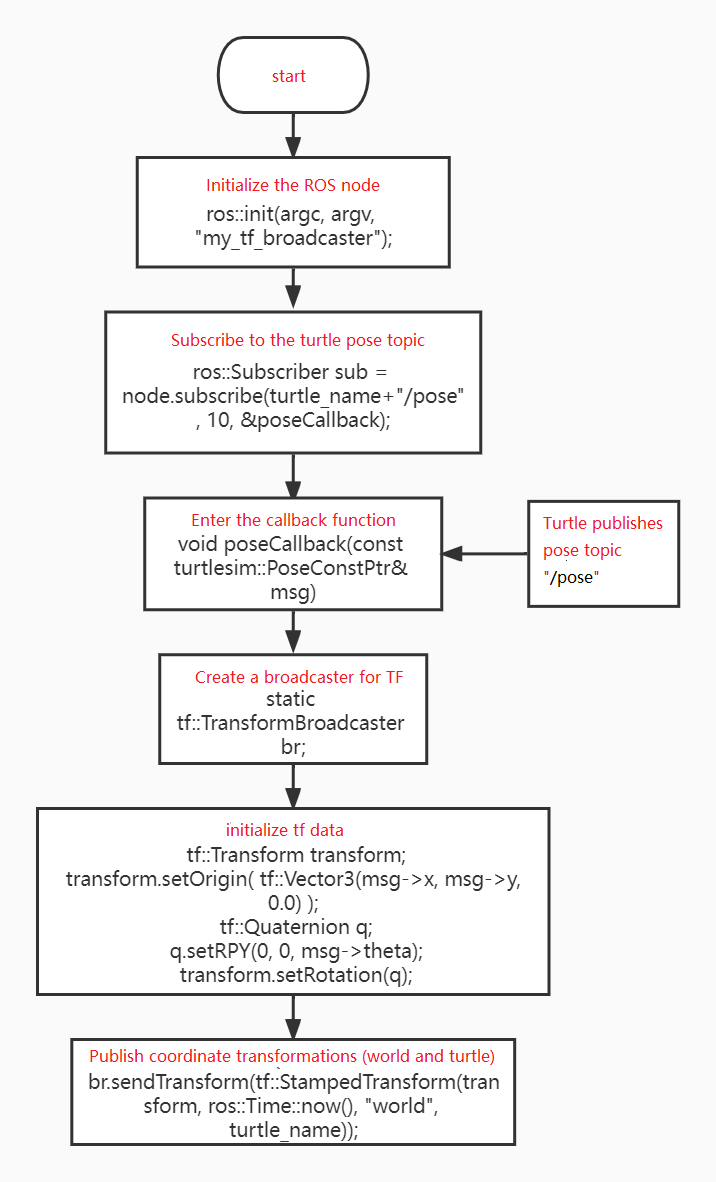
return 0; }; - program flow chart
- code analysis
First of all, first subscribe to the /pose pose topic of the little turtle. If there is a topic published, then enter the callback function. In the callback function, the tf broadcaster is first created, and then the tf data is initialized. The value of the data is the data transmitted by the subscription/pose topic. Finally, the transformation of the small turtle to the world coordinates is released through br.sendTransform. Here is the function sendTransform. There are 4 parameters, the first parameter represents the coordinate transformation of type tf::Transform(that is, the tf data initialized before) the second parameter is the timestamp, the third and fourth are the source coordinate system of the transformation and target coordinate system.
10.2.4 C++ language implements tf listener
- In the src folder of the function package learning_tf, create a c++ file(the file suffix is .cpp) and name it turtle_tf_listener.cpp
- copy and paste the program code below into the turtle_tf_listener.cpp file
xxxxxxxxxx/** * This routine monitors tf data, and calculates and issues the speed command of turtle2 turtle2->turtle1 = world->turtle*world->turtle2 */
int main(int argc, char** argv) { ros::init(argc, argv, "turtle1_turtle2_listener"); // initialize the ROS node
ros::NodeHandle node; // create node handle
// Request service to generate turtle2 ros::service::waitForService("/spawn"); ros::ServiceClient add_turtle = node.serviceClient < turtlesim::Spawn >("/spawn"); turtlesim::Spawn srv; add_turtle.call(srv);
// Create a publisher that issues turtle2 speed control commands ros::Publisher vel = node.advertise < geometry_msgs::Twist >("/turtle2/cmd_vel", 10);
tf::TransformListener listener; // Create a listener for tf
ros::Rate rate(10.0);
while (node.ok()) { // Get tf data between turtle1 and turtle2 coordinate systems tf::StampedTransform transform; try { listener.waitForTransform("/turtle2", "/turtle1", ros::Time(0) ros::Duration(3.0)); listener.lookupTransform("/turtle2", "/turtle1", ros::Time(0) transform); } catch (tf::TransformException & ex) { ROS_ERROR("%s", ex.what()); ros::Duration(1.0). sleep(); continue; }
// According to the positional relationship between turtle1 and turtle2 coordinate systems, through mathematical formulas, the angular velocity and linear velocity are obtained, and the speed control command of turtle2 is issued geometry_msgs::Twist turtle2_vel_msg;
turtle2_vel_msg.angular.z = 6.0 * atan2(transform.getOrigin(). y() transform.getOrigin(). x()); turtle2_vel_msg.linear.x = 0.8 * sqrt(pow(transform.getOrigin(). x() 2) + pow(transform.getOrigin(). y() 2)); vel.publish(turtle2_vel_msg);
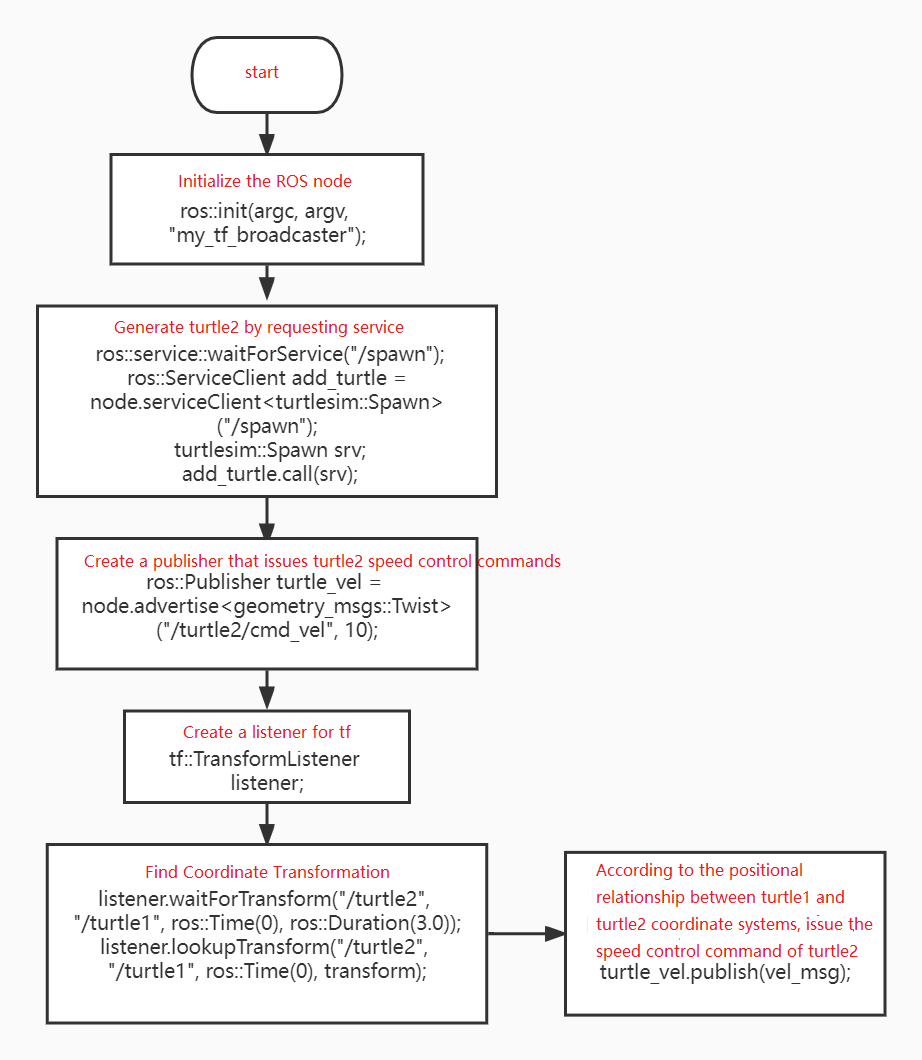
rate.sleep(); } return 0; }; - program flow chart
- code analysis
First, generate another small turtle turtle2 through a service call, and then create a turtle2 speed control publisher; then create a listener to monitor and find the left transformation of turtle1 and tuetle2, which involves two functions waitForTransform and lookupTransform
waitForTransform(target_frame, source_frame, time, timeout): The two frames represent the target coordinate system and the source coordinate system respectively, time represents the time to wait for the transformation between the two coordinate systems, because the coordinate transformation is a blocking program, so you need to set the timeout, indicating overtime time.
lookupTransform(target_frame,source_frame,time,transform): Given the source coordinate system(source_frame) and the target coordinate system(target_frame) get the coordinate transformation(transform) of the specified time(time) between the two coordinate systems.
After lookupTransform, we get the result of the coordinate transformation, transform, and then get the values of x and y through transform.getOrigin().y() transform.getOrigin().x() and then get the angular velocity angular.z and line through mathematical operations Speed linear.x, finally released, let turtle2 do the movement.
10.2.5 Modify CMakelist.txt and compile
- modify and modify CMakelist.txt
Modify the CMakelist.txt under the function package and add the following content
xxxxxxxxxxadd_executable(turtle_tf_listener src/turtle_tf_listener.cpp)target_link_libraries(turtle_tf_listener ${catkin_LIBRARIES})add_executable(turtle_tf_broadcaster src/turtle_tf_broadcaster.cpp)target_link_libraries(turtle_tf_broadcaster ${catkin_LIBRARIES})
- compile
xxxxxxxxxxcd ~/catkin_wscatkin_makesource devel/setup.bash #Environment variables need to be configured, otherwise the system cannot find the running program
10.2.6 Demonstration of startup and running effects
- start
xxxxxxxxxxroscorerosrun turtlesim turtlesim_noderosrun learning_tf turtle_tf_broadcaster __name := turtle1_tf_broadcaster /turtle1rosrun learning_tf turtle_tf_broadcaster __name := turtle2_tf_broadcaster /turtle2rosrun learning_tf turtle_tf_listenerrosrun turtlesim turtle_teleop_key #Open the turtle keyboard control program to control the turtle movement
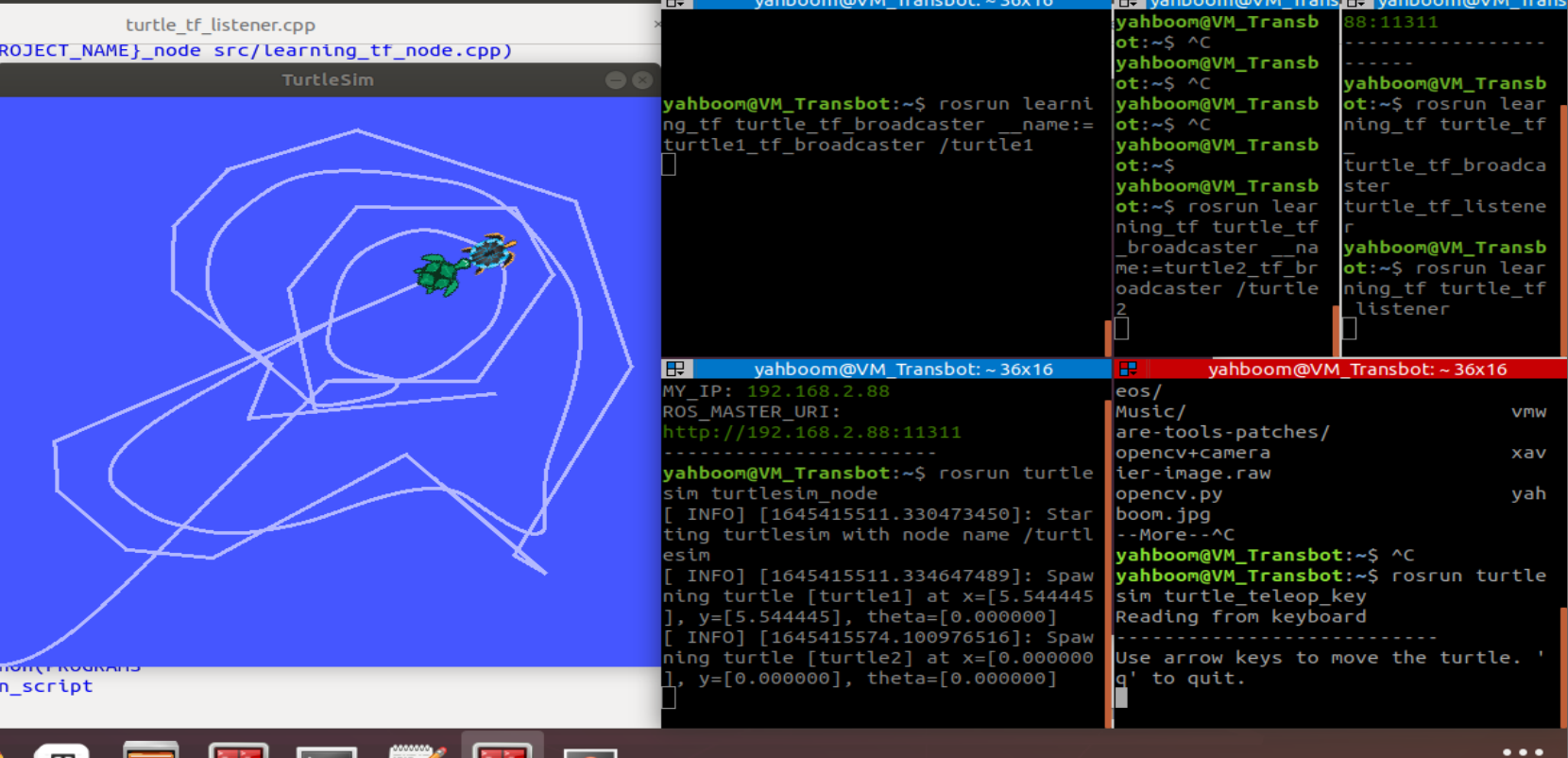
- effect display
- program description
After starting roscore, open the small turtle node, and a small turtle will appear in the terminal; then we publish two tf transformations, turtle1->world, turtle2->world, because to know the change between turtle2 and turtle1, then You need to know the transformation between them and the world; then, open the tf listener program, you will find that the terminal has generated another small turtle, turtle2, and turtle2 will move to turtle1; then, we open the keyboard control, by pressing the arrow keys to control the movement of turtle1, and then turtle2 will chase turtle1 to move.
10.2.7 Python language implements tf broadcaster
- In the function package learning_tf, create a folder script, switch to this directory, and create a new .py file named turtle_tf_broadcaster.py
- copy and paste the program code below into the turtle_tf_broadcaster.py file
xxxxxxxxxx# !/usr/bin/env python# -*- coding: utf-8 -*-import roslibroslib.load_manifest('learning_tf')import rospyimport tfimport turtlesim.msgdef handle_turtle_pose(msg, turtlename):br = tf.TransformBroadcaster() #define a tf broadcast# Broadcast tf transformation between world and input named turtlebr.sendTransform((msg.x, msg.y, 0)tf.transformations.quaternion_from_euler(0, 0, msg.theta)rospy.Time.now()turtlename,"world")if __name__ == '__main__' :rospy.init_node('turtle1_turtle2_tf_broadcaster') ros nodeturtlename = rospy.get_param('~turtle') the turtle's name from the parameter server#Subscribe/pose topic data, which is turtle's pose informationrospy.Subscriber('/%s/pose' % turtlename,turtlesim.msg.Pose,handle_turtle_pose,turtlename)rospy.spin()
- program flow chart
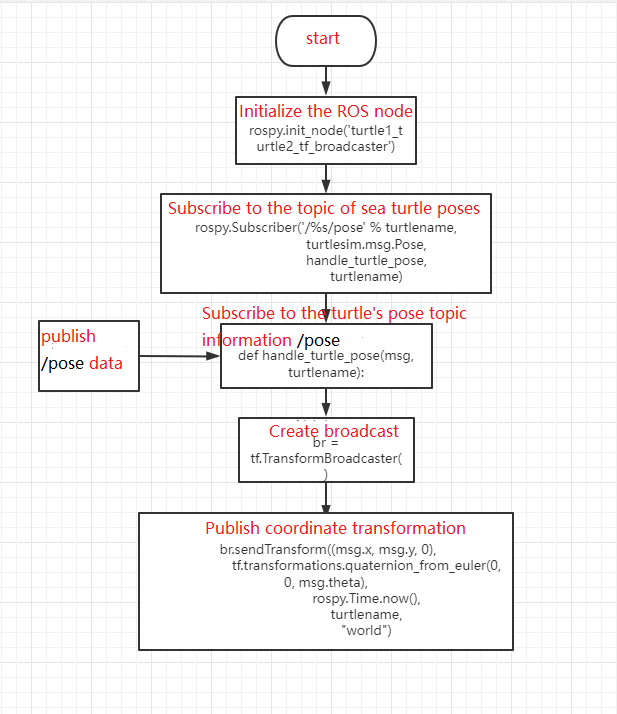
10.2.8 Python language implements tf listener
- In the script folder of the function package learning_tf, create a python file(the file suffix is .py) and name it turtle_tf_listener.py
- copy and paste the program code below into the turtle_tf_listener.py file
xxxxxxxxxx# !/usr/bin/env python # -*- coding: utf-8 -*-
import  rospy import  math import  tf import  geometry_msgs.msg import  turtlesim.srv
if  __name__  ==  '__main__' :     rospy.init_node ' #Initialize(turtle_tf_listener') ros node
    listener = tf.TransformListener() #Initialize a listener
    rospy.wait_for_service('spawn')     #Call the service to spawn another turtle turtle2     spawner  =  rospy.ServiceProxy('spawn', turtlesim.srv.Spawn)     spawner(8, 6, 0, 'turtle2')     #declare a publisher to publish the speed of turtle2     turtle_vel  =  rospy.Publisher('turtle2/cmd_vel', geometry_msgs.msg.Twist, queue_size = 1)
rate = rospy.Rate(10.0) while not rospy.is_shutdown(): try : #Find tf changes between turtle2 and turtle1 (trans, rot) = listener.lookupTransform('/turtle2', '/turtle1', rospy.Time(0)) except (tf.LookupException, tf.ConnectivityException, tf.ExtrapolationException): continue #Through mathematical calculation, calculate the linear velocity and angular velocity, and then publish it angular = 6.0 * math.atan2(trans [ 1 ], trans [ 0 ]) linear = 0.8 * math.sqrt(trans [ 0 ] ** 2 + trans [ 1 ] ** 2) cmd = geometry_msgs.msg.Twist() cmd.linear.x = linear cmd.angular.z = angular turtle_vel.publish(cmd) rate.sleep() - program flow chart
10.2.9 Display of startup and running effects
- write a launch file
In the function package directory, create a new folder launch, switch to launch, create a new launch file, name it start_tf_demo_py.launch, and copy the following content into it,
xxxxxxxxxx< launch ><!-- Turtle Node-->< node pkg = "turtlesim" type = "turtlesim_node" name = "sim" /><!--Broadcast turtle1->world-->< node name = "turtle1_tf_broadcaster" pkg = "learning_tf" type = "turtle_tf_broadcaster.py" respawn = "false" output = "screen" >< param name = "turtle" type = "string" value = "turtle1" /></ node ><!--broadcast turtle2->world-->< node name = "turtle2_tf_broadcaster" pkg = "learning_tf" type = "turtle_tf_broadcaster.py" respawn = "false" output = "screen" >< param name = "turtle" type = "string" value = "turtle2" /></ node ><!--Monitor-->< node pkg = "learning_tf" type = "turtle_tf_listener.py" name = "listener" /><!--Turtle keyboard control node-->< node pkg = "turtlesim" type = "turtle_teleop_key" name = "teleop" output = "screen" /></ launch >
- start
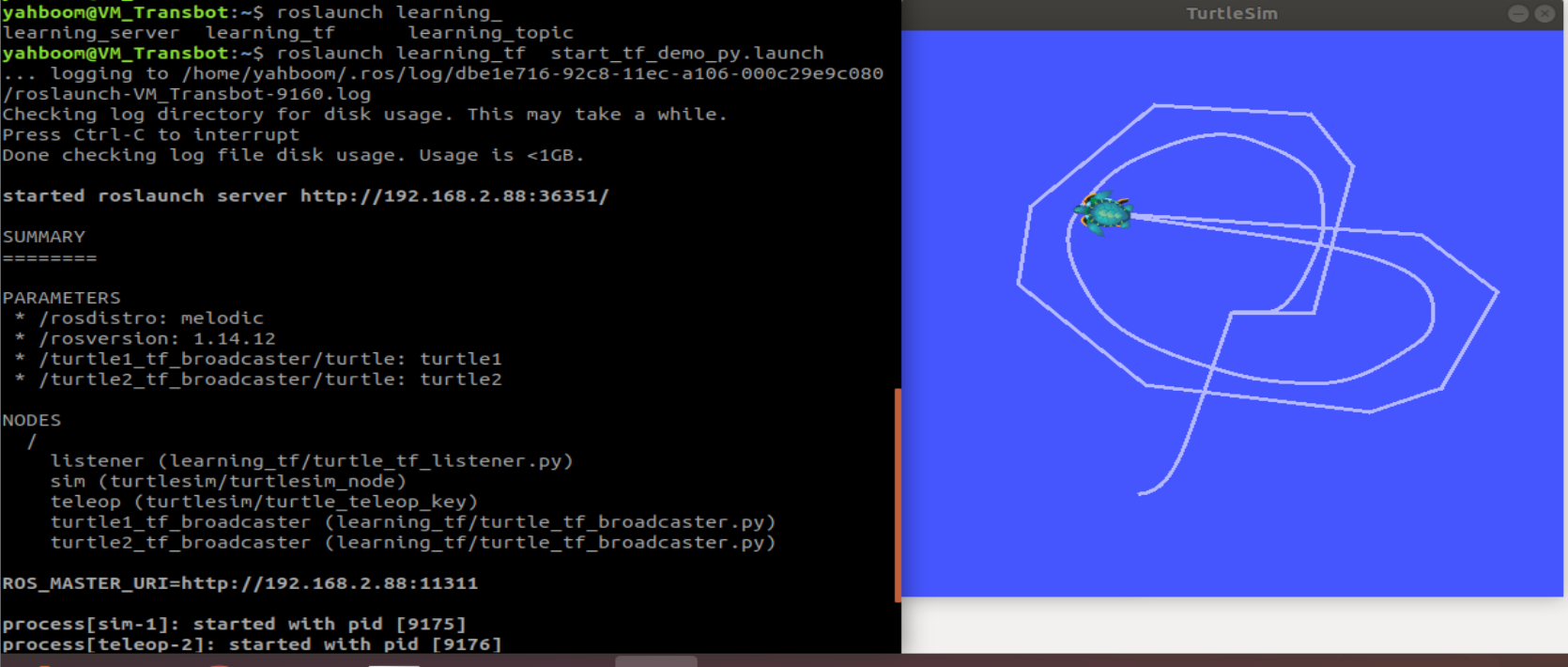
xxxxxxxxxxroslaunch learning_tf start_tf_demo_py.launch After the program runs, click the mouse on the window to run launch, press the arrow keys, turtle2 will move with turtle1.
- the operation result is as follows