Welcome to Raspberry Pi 5 repository
3.Python virtual environment
Python Virtual Environment
Python Virtual EnvironmentPython Virtual EnvironmentCreate Virtual EnvironmentActivate Virtual EnvironmentInstall Third-Party PackagesExit Virtual EnvironmentThonny EditorSwitch Virtual Environment Python Version
If you are using the factory image we provided, manual installation and configuration are not required.
In earlier versions of the operating system, you could install programs using Python's pip tool:
pip install buildhat
However, in newer versions of the Raspberry Pi OS system, this is not allowed. If you try to install Python packages system-wide, you will receive an error similar to the following:
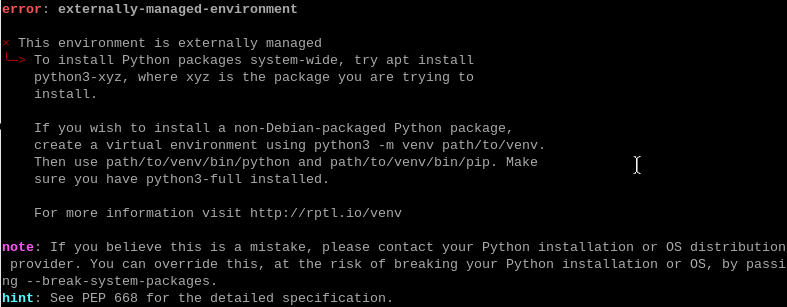
xxxxxxxxxxIn the Jupyter Lab environment setup, we used another method to eliminate this warning. However, here we only introduce how to set up a Python virtual environment.
Python Virtual Environment
To use a virtual environment, you need to create a container to store the environment.
Create Virtual Environment
Create and enter the Demo_Project folder, then use Python's built-in module venv to create a virtual environment named env:
xxxxxxxxxxmkdir Demo_Projectcd Demo_Projectpython -m venv env

After successful operation, an env folder will be added under the folder.
Activate Virtual Environment
This directory contains a complete Python distribution. Activate the virtual environment and make this Python version the currently used version:
xxxxxxxxxxsource env/bin/activate

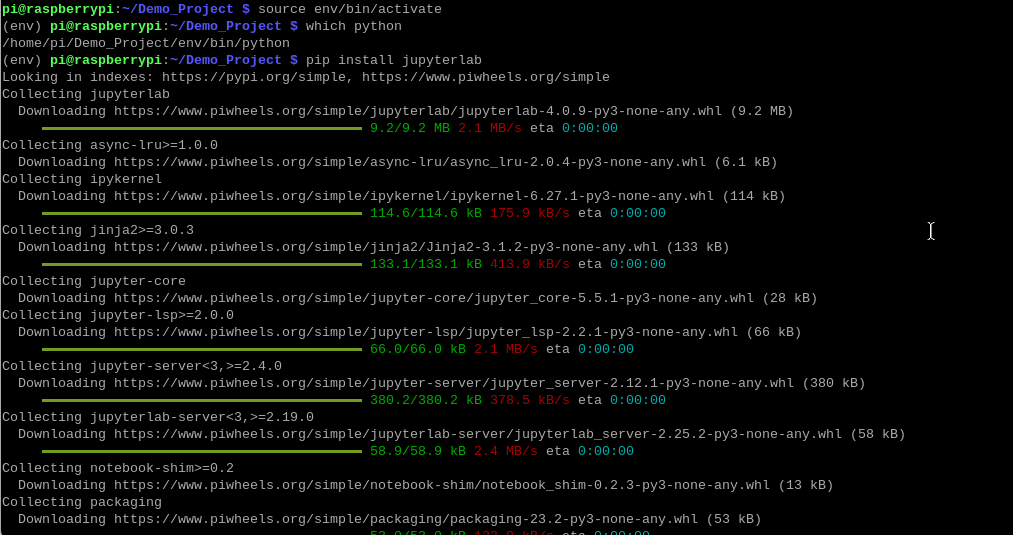
At this point, we will no longer use the system Python, but instead use the Python version contained in the virtual environment:
Any changes made here will not affect your system Python;
Any new modules installed in the environment will not affect the system Python.
Install Third-Party Packages
xxxxxxxxxxpip install jupyterlab
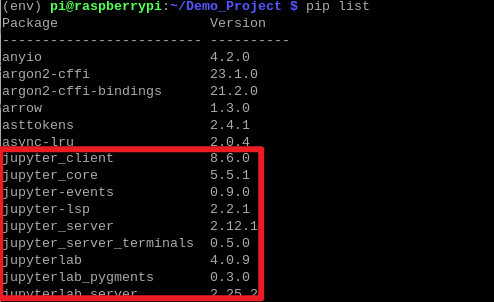
View modules installed in the current Python version:
xxxxxxxxxxpip list
Exit Virtual Environment
xxxxxxxxxxdeactivate

Thonny Editor
When using Python on Raspberry Pi, Thonny is the system's default editor, and the interpreter uses system Python.
Switch Virtual Environment Python Version
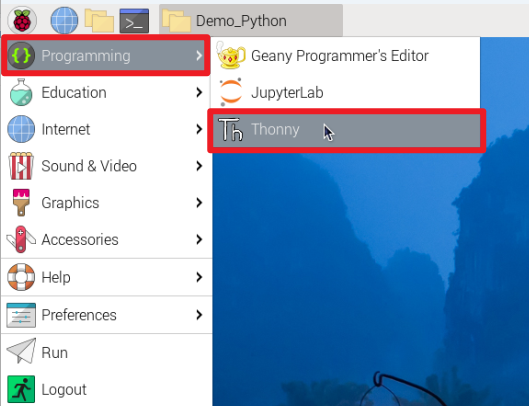
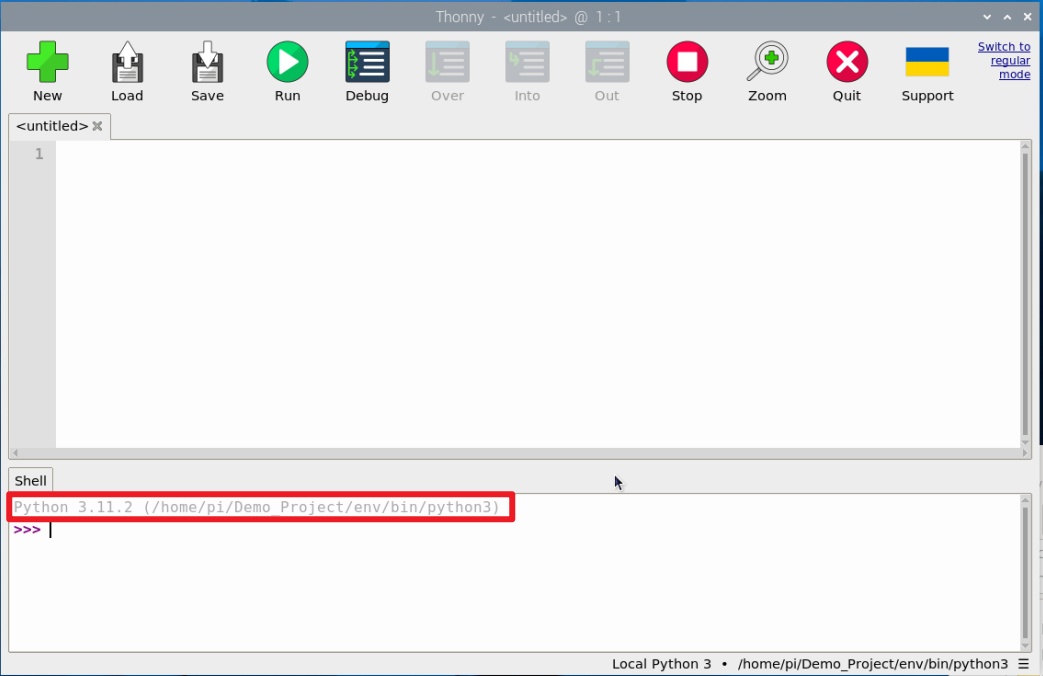
Click the interpreter menu in the lower right corner of the Thonny interface to switch to the Python virtual environment: Add according to the virtual environment path.
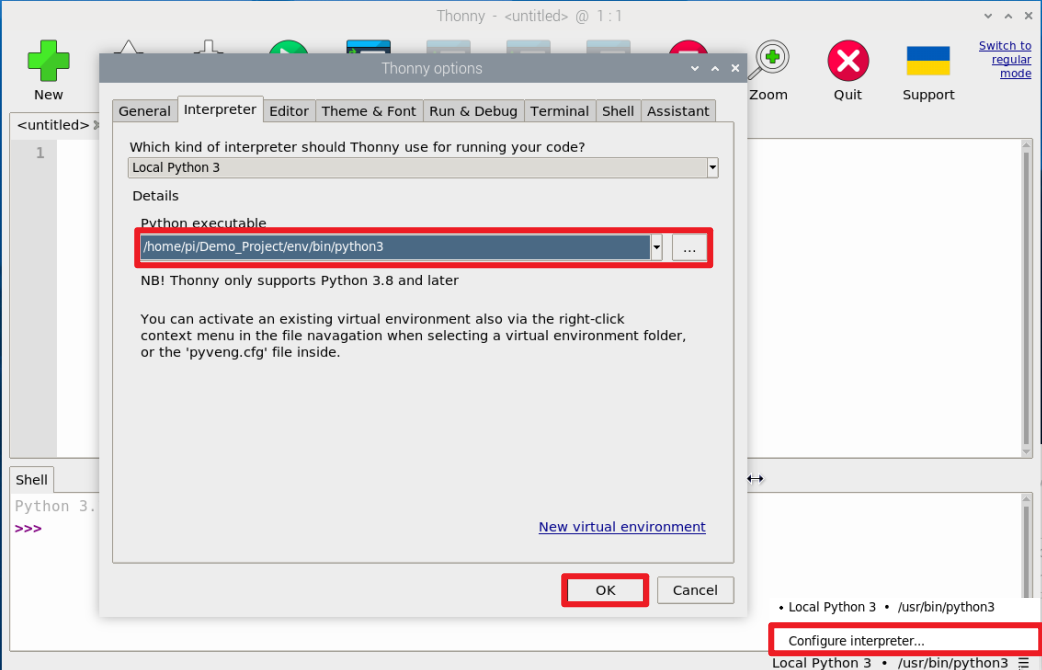
Configuration successful: