yahboom
HomeTutorialsProduct
Solution
Blog
Online Store
About Us
EN/中文
Store
Raspberry Pi 5📖
00.Quick Start (Must See)
  • 1.Quick Start (Must See)
  • 2.TF card expand capacity
  • 3.Raspberry Pi 5 - 1GB Version Must - See Before Use
01.Introduction to Raspberry PI 5
  • 1. Introduction to Raspberry PI 5
  • 2. Raspberry PI system installation and backup
  • 3. Powering the Raspberry PI 5
  • 4. Startup of Raspberry PI 5
  • 5. Installation and introduction of shell and active radiator
  • 6. GPIO and 40-pin pins
  • 7. Tips for using Raspberry PI 5
  • 8. Raspberry PI PCIe connector
  • 9. MIPI CSI DSI connector
  • 10. UART connector
  • 11. Real-time clock
  • 12. Power over Ethernet (PoE) connector
02.Introduction to common mirror systems
  • 1. Official Raspberry PI system
  • 2. Ubuntu
03.Basic settings of Raspberry Pi
  • 1. Update and upgrade operating system
  • 2.Introduction to raspi-config tool
  • 3.config.txt file description
  • 4.Network Configuration
  • 5.remote access
  • 6.Transfer files remotely
  • 7.Set display resolution and rotation
  • 8.Set screen to sleep
  • 9.Get real-time temperature of Raspberry Pi
  • 10.Play audio and video
  • 11.Using USB camera
  • 12.Using MIPI camera
04.Basic programming course
1. C language programming
  • 1. C language environment construction
  • 2. Print Hello World
2. Python programming
  • 1.Python usage
  • 2.Use APT to install Python packages
  • 3.Python virtual environment
  • 4.GPIO Zero
  • 5.Pin output high and low levels
  • 6.Pin reads high and low levels
  • 7.Pin output PWM
3.Jupyter lab programming
  • 1.Jupyter Lab environment construction
  • 2.Basic use of Jupyter Lab
  • 3.Jupyter Lab plug-in installation
  • 4.Basic use of Jupyter Widgets
05.Advanced AI course
1.Open Source CV environment setup
  • Open Source CV environment setup
2.Getting started with Open Source CV
  • 1. Introduction to Open Source CV
  • 2. Read and display Open Source CV images
  • 3. Open Source CV image writing
  • 4. Open Source CV image quality
  • 5.Open Source CV pixel operation
3.Open Source CV Geometric Transformations
  • 1. Image resizing
  • 2. Cut the image
  • 3. Image translation
  • 4. Image mirroring
  • 5. Affine transformation
  • 6. Rotate the image
  • 7. Perspective transformation
4.Text Picture Drawing Open Source CV image processing and drawing text line segments
  • 1、Grey Processing
  • 2、image binaryzation
  • 3、edge detection
  • 4、Line segment drawing
  • 5、Rectangle and circle drawing
  • 6、Text image drawing
5.Advanced AI gameplay
  • 1. Human pose estimation
  • 2. target detection
  • 3.yolov5
  • 4. Camera display
  • 5. QR code
  • 6. face detection
  • 7. Color recognition
6.YOLOv11 development
  • 1. YOLOv11 environment construction
  • 2. CLI Usage
  • 3. Object Detection
  • 4. Instance Segmentation
  • 5. Pose Estimation
  • 6. Image Classification
  • 7. Oriented Bounding Boxes Object Detection
  • 8. Model conversion
  • 9. Dataset Annotation
  • 10. Model training_conversion
  • 11. Model prediction
7.YOLO26 development
  • 01.YOLO26 environment
  • 02.CLI use
  • 03.Object detection
  • 04.Instance segmentation
  • 05.Pose estimation
  • 06.Image classification
  • 07.Oriented bounding box object detection
  • 08.Model conversion
  • 09.Dataset annotation
  • 10.Model training - conversion
  • 11.Model prediction
06.Mediapipe course
  • 1. Face special effects
  • 2. Face detection
  • 3. Three-dimensional object recognition
  • 4. Paintbrush
  • 5. Finger control
  • 6. Gesture recognition
07.Docker Tutorial
  • 1.Overview and installation
  • 2.Common commands
  • 3.Understand and publish images
  • 4.Hardware interaction data processing
  • 5.Enter docker container
  • 6.Update docker images
  • 7. docker container to install ROS using accessories
08.ROS1 advanced tutorial
1.ROS1 basic course
  • 1.ROS introduction
  • 2.ROS installation
  • 3.ROS common command tools
  • 4.ROS workspace
  • 5.ROS function package
  • 6.ROS node
  • 7.ROS topic publisher
  • 8.ROS topic subscribers
  • 9.ROS service client
  • 10.ROS service server
  • 11.ROS action client
  • 12.ROS action server
  • 13.ROS custom message reception
  • 14.ROS-launch file
  • 15.ROS-TF transformation
  • 16.ROS parameter service
  • 17.ROS-rviz use
  • 18.ROS-rqt tool usage
  • 19.Topic message recording and playback
  • 20.urdf model introduction
  • 21.gazebo introduction
  • 22.ROS distributed communication
2.ROS1 vision application
  • 0.Precautions
  • 1.AR vision
  • 2.AR QR code
  • 3.ROS+Opencv basics
  • 4.Face recognition
  • 5.harris corner detection
  • 6.Target tracking algorithm
  • 7.Contour moment
  • 8.Polygon outline
  • 9.Discrete fourier transform algorithm
  • 10.Edge detection algorithm
  • 11.Face detection algorithm
  • 12.Optical flow detection algorithm
  • 13.Contour detection
  • 14.General contour detection
  • 15.Feature point tracking
  • 16.HLS color filtering
  • 17.Hough circle detection
  • 18.Hough linear detection
  • 19.HSV color filtering
  • 20.LK optical flow algorithm
  • 21.detection algorithm
  • 22.Phase dependent displacement detection
  • 23.Image pyramid sampling algorithm
  • 24.RGB color filtering
  • 25.Clear background detection algorithm
  • 26.Simplified optical flow algorithm
  • 27.Simple filter
  • 28.Threshold image processing
  • 29.Watershed segmentation algorithm
09.ROS2 advanced tutorial
1.ROS2 basic course
  • 1. Introduction to ROS2
  • 2.ROS2 install Humble
  • 3.ROS2 development environment
  • 4.ROS2 workspace
  • 5.ROS2 function package
  • 6.ROS2 node
  • 7.ROS2 topic communication
  • 8.ROS2 service communication
  • 9.ROS2 action communication
  • 10.ROS2 custom interface message
  • 11.ROS2 parameter service case
  • 12.ROS2 meta-function package
  • 13.ROS2 distributed communication
  • 14.ROS2 DDS
  • 15.ROS2 time related API
  • 16.ROS2 common command tools
  • 17.ROS2 rviz2 use
  • 18.ROS2 rqt toolbox
  • 19.ROS2 Launch startup file configuration
  • 20.ROS2 recording and playback tool
  • 21.ROS2 URDF model
  • 22.ROS2 Gazebo simulation platform
  • 23.ROS2 TF2 coordinate transformation
2.ROS2 vision application
  • 0.Precautions
  • 1.Opencv basic course
  • 2.ROS+opencv application
  • 3.QR code creation and recognition
  • 4.AR vision
  • 5.Interesting gameplay of mediapipe
10.Offline AI model coursenew
Offline large model (Text Interaction)
  • 0. AI large model image description
  • 1. Deployment of large AI model environments
  • 2. Switch Chinese input method
  • 3. Installation of large model dialogue platform
  • 4. Meta AI Llama 3.2 model
  • 5. Alibaba Cloud Qwen3 Model
  • 6. Microsoft Phi-4-mini model
  • 7. DeepSeek DeepSeek-R1 model
  • 8. Alibaba Cloud Qwen2.5vl Visual Multimodal Large Model
  • 9. Google Gemma3 Visual Multimodal Large Model
  • 10. Llava Visual Multimodal Large Model
  • 11.MiniCPM-V Visual Multimodal Large Model
  • 12. Multimodal Visual Understanding Applications
  • 13. Multimodal Text-Based Image Application
  • 14. Multimodal Video Analysis Application
  • 15. Multimodal visual positioning applications
  • 16. Multimodal table scanning application
  • 17. Multimodal Autonomous Agent Application
Offline large model (Voice Interaction)
  • 0. Voice Interaction Hardware Connection (Must Read)
  • 1. Offline speech-to-text (ASR)
  • 2. Offline Text-to-Speech (TTS)
  • 3. AI large model voice interaction
  • 4. Multimodal visual understanding and voice interaction
  • 5. Multimodal Text-Based Image Application
  • 6. Multimodal Video Analysis Application
  • 7. Multimodal visual positioning applications
  • 8. Multimodal table scanning application
  • 9. Multimodal Autonomous Agent Applications
  • 10. AI large model offline voice assistant
11.Online AI model coursenew
Online large model (text interaction)
  • 1.OpenRouter Large Model API Aggregation Platform
  • 2. Multimodal Visual Understanding Applications
  • 3. Multimodal visual positioning applications
  • 4. Multimodal table scanning application
  • 5. Multimodal Autonomous Agent Applications
Online large model (voice interaction)
  • 0. Voice Interaction Hardware Connection (Must Read)
  • 1. Online speech-to-text (ASR)
  • 2. Online Text-to-Speech (TTS)
  • 3. AI large model voice interaction
  • 4. Multimodal visual and voice interaction
  • 5. Multimodal visual positioning applications
  • 6. Multimodal table scanning application
  • 7. Multimodal Autonomous Agent Applications
  • 8. AI large model online voice assistant
12.OpenClaw Deployment and Basic Usagenew
  • 01. OpenClaw Deployment
  • 02. OpenClaw WhatsApp Plugin Application
  • 03. OpenClaw WebChat Interaction
  • 04. OpenClaw TUI Interaction
  • 05. OpenClaw Tools Introduction
  • 06. OpenClawGate Gateway User Manual
  • 07. OpenClaw Features Overview
  • 08. OpenClawHub Introduction (Skill Installation)
  • 09. OpenClaw Application - File Management
  • 10. OpenClaw Application - Camera
  • 11. OpenClaw Application - Browser Control
  • 12. OpenClaw Application - Script Execution
  • 13. OpenClaw Application - AI Programming (Peripheral & GPIO Control)
  • 14. OpenClaw Application - Dedicated AI Assistant
13.OpenClaw Advanced Developmentnew
1.Preparation Before Use
  • 01. Peripheral Hardware Configuration
  • 02. OpenClaw API-KEY Configuration
  • 03. OpenClaw Model Switching
  • 04. OpenClaw Prompts
  • 05. AI Voice Interaction Configuration
  • 06. 3D Configuration Tests
2.OpenClaw AI Programming Peripheral Control
  • 1. Servo Control
  • 2. RGB Strip
  • 3. OLED Display
  • 4. Temperature and Humidity Sensor
  • 5. Camera Application
  • 6. AI Script Peripheral Control
3.OpenClaw Peripheral Integration Applications
  • 1. Plant Care Assistant
  • 2. AI Calorie Estimation
  • 3. AI Rock Paper Scissors Game
  • 4. AI Pet
  • 5. AI Weather Station
  • 6. Temperature and Humidity Dashboard
  • 7. Scheduled Tasks
Download
  • SystemFile
  • Code
  • SoftWare
  • 3D_Model_File
  • GuideManual
Download ZIP

Welcome to Raspberry Pi 5 repository

04. OpenClaw TUI Interaction

TUI

Quick Start

  1. Star Gateway. (Usually Gateway has auto-started, no need to run this command)
openclaw gateway
  1. Open TUI.
xxxxxxxxxx
openclaw tui
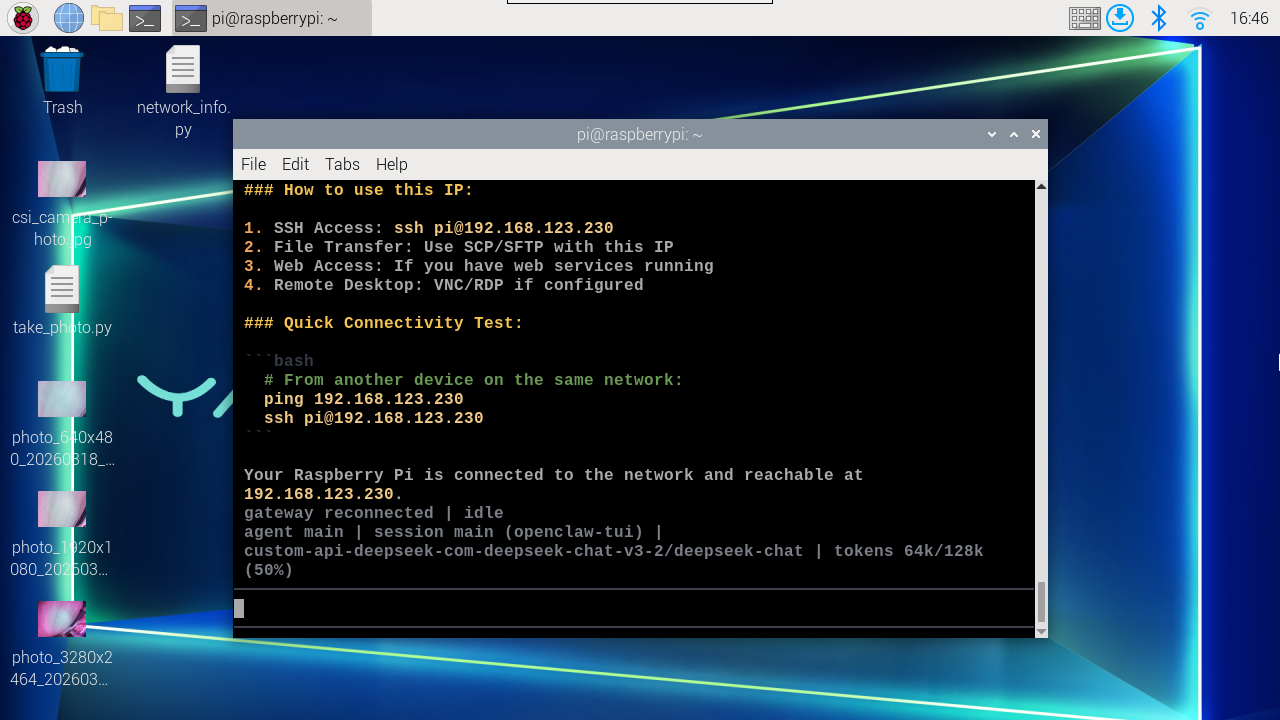
  1. Type message and press Enter.

image-20260312184705891

Remote Gateway:

xxxxxxxxxx
openclaw tui --url ws://<host>:<port> --token <gateway-token>

If your Gateway uses password authentication, use --password.

What You See

  • Title bar: connection URL, current agent, current session.
  • Chat log: user messages, assistant replies, system notifications, tool cards.
  • Status line: connection/run state (connecting, running, streaming, idle, error).
  • Footer: connection status + agent + session + model + think/verbose/reasoning + token count + delivery status.
  • Input: text editor with autocomplete.

Mental Model: Agent + Session

  • Agent is a unique identifier (e.g., main, research). Gateway exposes list.

  • Sessions belong to the current agent.

  • Session keys are stored as agent::.

    • If you type /session main, TUI expands it to agent:<currentAgent>:main.
    • If you type /session agent:other:main, you explicitly switch to that agent's session.
  • Session scope:

    • per-sender (default): multiple sessions per agent.
    • global: TUI always uses global session (selector may be empty).
  • Current agent + session is always visible in footer.

Sending + Delivery

  • Messages are sent to Gateway; not delivered to provider by default.

  • Enable delivery:

    • /deliver on
    • or settings panel
    • or start with openclaw tui --deliver

Selectos + Overlays

  • Model selector: lists available models and sets session override.
  • Agent selector: choose different agent.
  • Session selector: shows only current agent's sessions.
  • Settings: toggle delivery, tool output expansion, and thinking visibility.

Keyoard Shortcuts

  • Enter: send message
  • Esc: abort active run
  • Ctrl+C: clear input (press twice to exit)
  • Ctrl+D: exit
  • Ctrl+L: model selector
  • Ctrl+G: agent selector
  • Ctrl+P: session selector
  • Ctrl+O: toggle tool output expansion
  • Ctrl+T: toggle thinking visibility (reload history)

Slash Commands

Core:

  • /help
  • /status
  • /agent <id> (or /agents)
  • /session <key> (or /sessions)
  • /model <provider/model> (or /models)

Session control:

  • /think <off|minimal|low|medium|high>
  • /verbose <on|full|off>
  • /reasoning <on|off|stream>
  • /usage <off|tokens|full>
  • /elevated <on|off|ask|full> (alias: /elev)
  • /activation <mention|always>
  • /deliver <on|off>

Session lifecycle:

  • /new or /reset (reset session)
  • /abort (abort active run)
  • /settings
  • /exit

Other Gateway slash commands (e.g., /context) are forwarded to Gateway and displayed as system output. See Slash Commands.

Local Shell Commands

  • Lines prefixed with ! run local shell commands on the TUI host.
  • TUI prompts once per session to allow local execution; refusal disables ! for that session.
  • Commands run in TUI working directory in a fresh non-interactive shell (no persistent cd/environment variables).
  • Standalone ! is sent as regular message; leading space doesn't trigger local execution.

Tool Output

  • Tool calls display as cards with parameters + results.
  • Ctrl+O toggles between collapsed/expanded view.
  • While tool is running, partial updates stream to the same card.

History + Streaming

  • On connect, TUI loads recent history (default 200 messages).
  • Streaming responses update in-place until complete.
  • TUI also listens to agent tool events for richer tool cards.

Connection Details

  • TUI registers with Gateway as mode: "tui".
  • Reconnects show system message; event gaps appear in log.

Options

  • --url <url>: Gateway WebSocket URL (default from config or ws://127.0.0.1:<port>)
  • --token <token>: Gateway token (if required)
  • --password <password>: Gateway password (if required)
  • --session <key>: session key (default: main, or global if scope is global)
  • --deliver: deliver assistant replies to provider (default off)
  • --thinking <level>: override thinking level for sends
  • --timeout-ms <ms>: agent timeout in milliseconds (default from agents.defaults.timeoutSeconds)
  • --history-limit <n>: number of history entries to load (default 200)

Troubleshooting

No output after sending message:

  • Run /status in TUI to confirm Gateway is connected and idle/busy.
  • Check Gateway logs: openclaw logs --follow.
  • Confirm agent can run: openclaw status and openclaw models status.
  • If you expect messages to appear in chat channels, enable delivery (/deliver on or --deliver).

Troubleshooting

  • disconnected: ensure Gateway is running and your --url/--token/--password are correct.
  • No agents in selector: check openclaw agents list and your routing configuration.
  • Session selector empty: you might be in global scope or don't have sessions yet.


For more TI content, refer to: TUI - OpenClaw

OpenClaw WebChat Interaction
OpenClaw Tools Introduction

COMPANY

  • About us
  • Team Style
  • Blog

LEARNING & EXPLORATION

  • Tutorials
  • Edge AI hardware
  • Educational robots
  • Embedded intelligent hardware

WHERE TO BUY

  • Yahboom Online Store
  • Amazon
  • Alibaba
  • AliExpress
  • Mercado

TECHNOLOGY SUPPORT

  • Email: support@yahboom.com

BE A DISTRIBUTOR

  • Email: sales@yahboom.com
QR Code

Copyright © 2017-2026 Yahboom. All Rights Reserved.

EN/中文