Welcome to Raspberry Pi 5 repository
8.Polygon outline
8.Polygon outline
Due to the influence of noise and lighting, the outline of an object will have an irregular shape. The irregular outline shape is not conducive to the analysis of image content.At this time, the contour of the object needs to be fitted into a regular geometric shape. The image contour can be fitted into a rectangle, polygon, etc. according to the needs.
8.1 Use
Source code launch file path:/opt/ros/noetic/share/opencv_apps/launch
Step 1: Start the camera
roslaunch dofbot_visual opencv_apps.launch img_flip:=false
img_flip parameter: whether the image needs to be flipped horizontally, the default is false.
The [usb_cam-test.launch] file opens the [web_video_server] node by default, and you can directly use the [IP:8080] web page to view images in real time.
Step 2: Start the corner detection function of Opencv_apps
xxxxxxxxxxroslaunch opencv_apps convex_hull.launch # Polygonal outlineEach functional case will have a parameter [debug_view], Boolean type, whether to use Opencv to display images, which is displayed by default.
If no display is required, set it to [False], for example
xxxxxxxxxxroslaunch opencv_apps contour_moments.launch debug_view:=FalseHowever, after starting in this way, some cases cannot be displayed in other ways, because in the source code, some [debug_view] is set to [False], which will turn off image processing.
8.2 Display method
rqt_image_view
Enter the following command to select the corresponding topic
xxxxxxxxxxrqt_image_view
opencv
The system displays it by default, no need to do anything.
Web viewing
(Same as under LAN) Enter IP+port in the browser, for example:
xxxxxxxxxx192.168.2.116:8080
For specific IP, use your current virtual machine IP.
8.3 Effect display
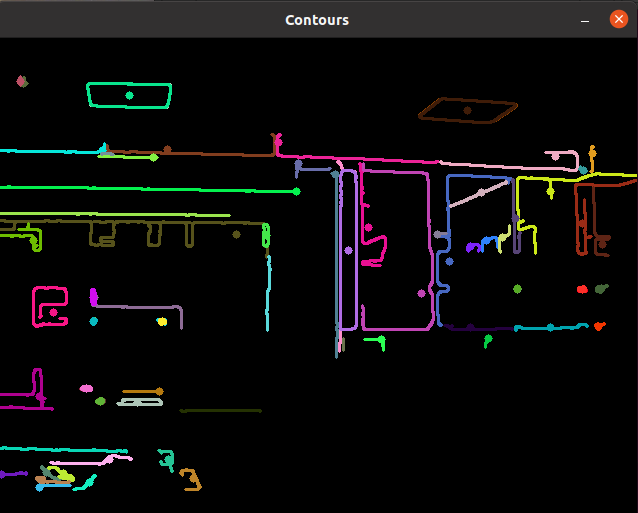
Combine the images captured by the camera into a polygonal outline.