Welcome to Raspberry Pi 5 repository
01. OpenClaw Deployment
1. OpenClaw Deployment
1. Quick Installation
Note: The Yahboom image already has the OpenClaw environment installed, so you don't need to run the command below.
curl -fsSL https://openclaw.ai/install.sh | bash
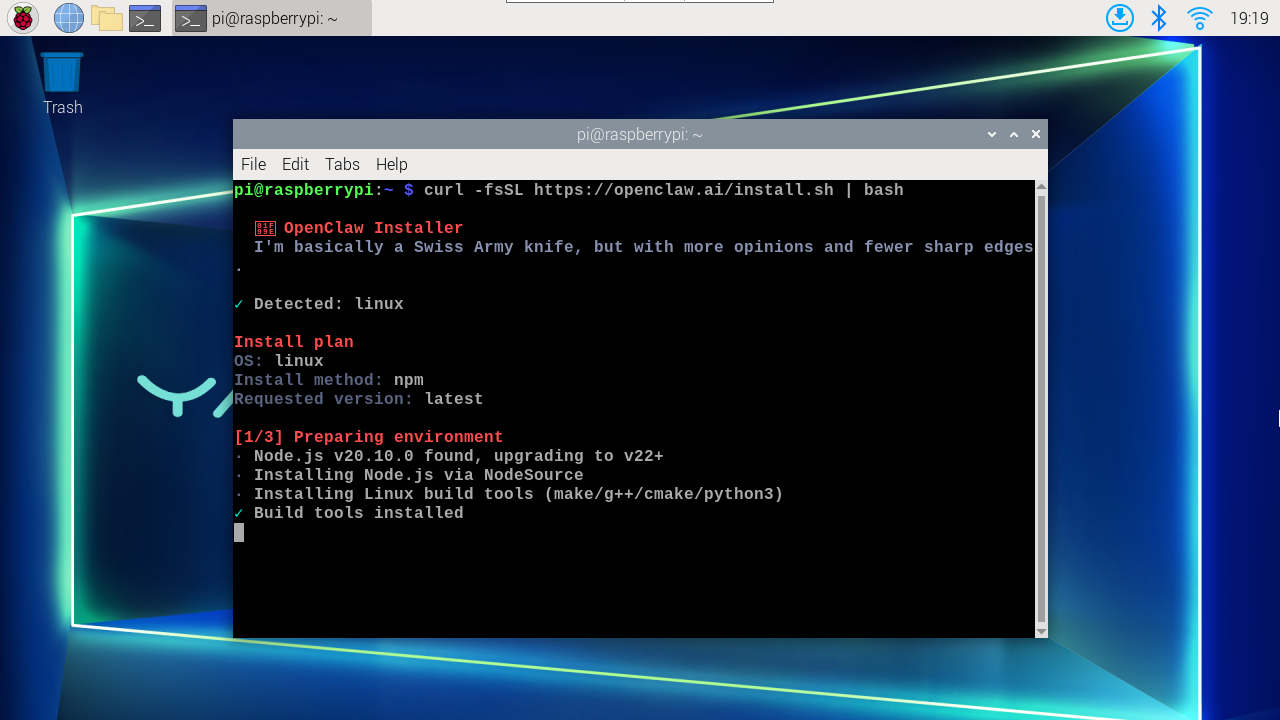
After running, wait patiently for the installation to complete. After installation, you will enter configuration mode.
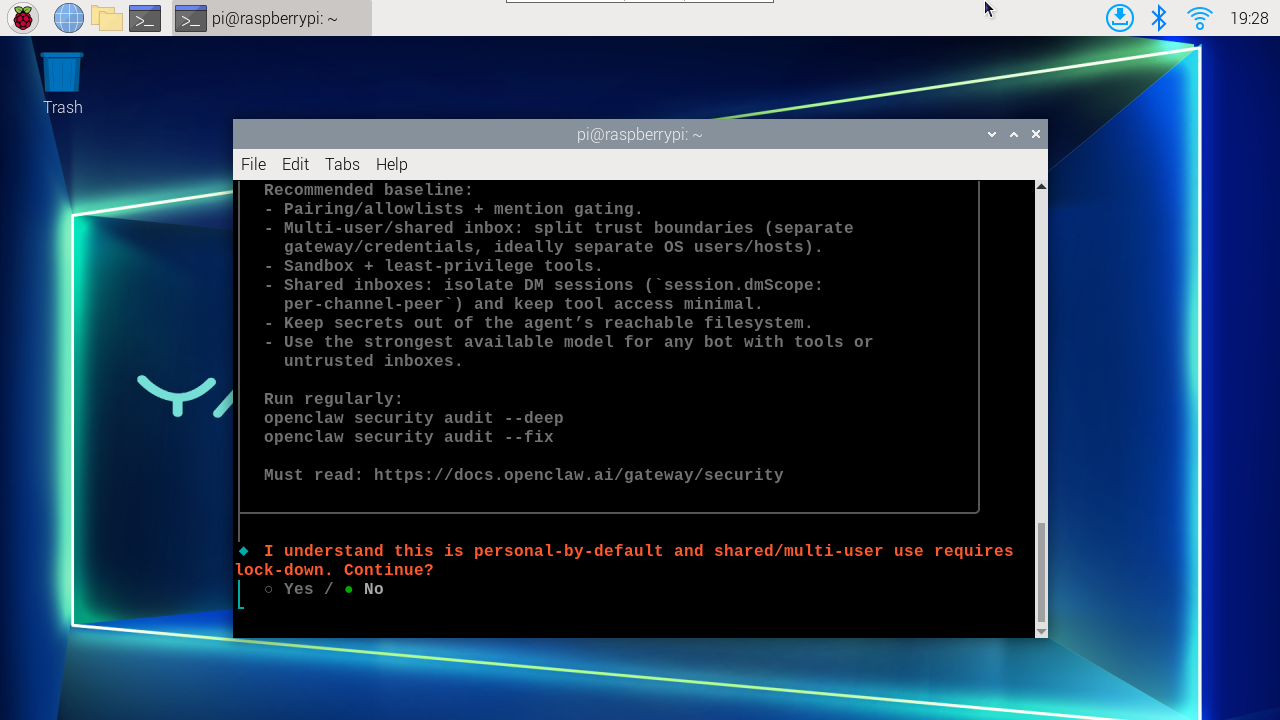
2. Configuration
- Users using our image need to enter the following command in the terminal to enter configuration mode
xxxxxxxxxxopenclaw onboard --install-daemon
Select Yes
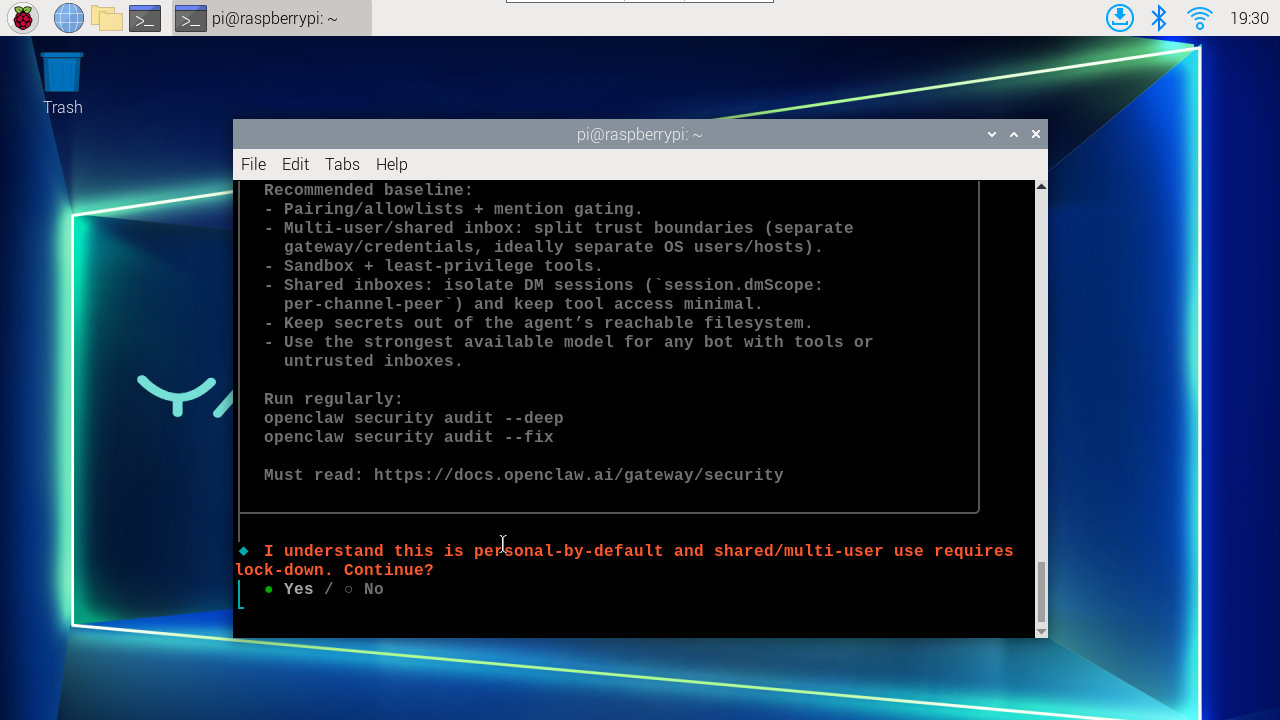
Select QuickStart.
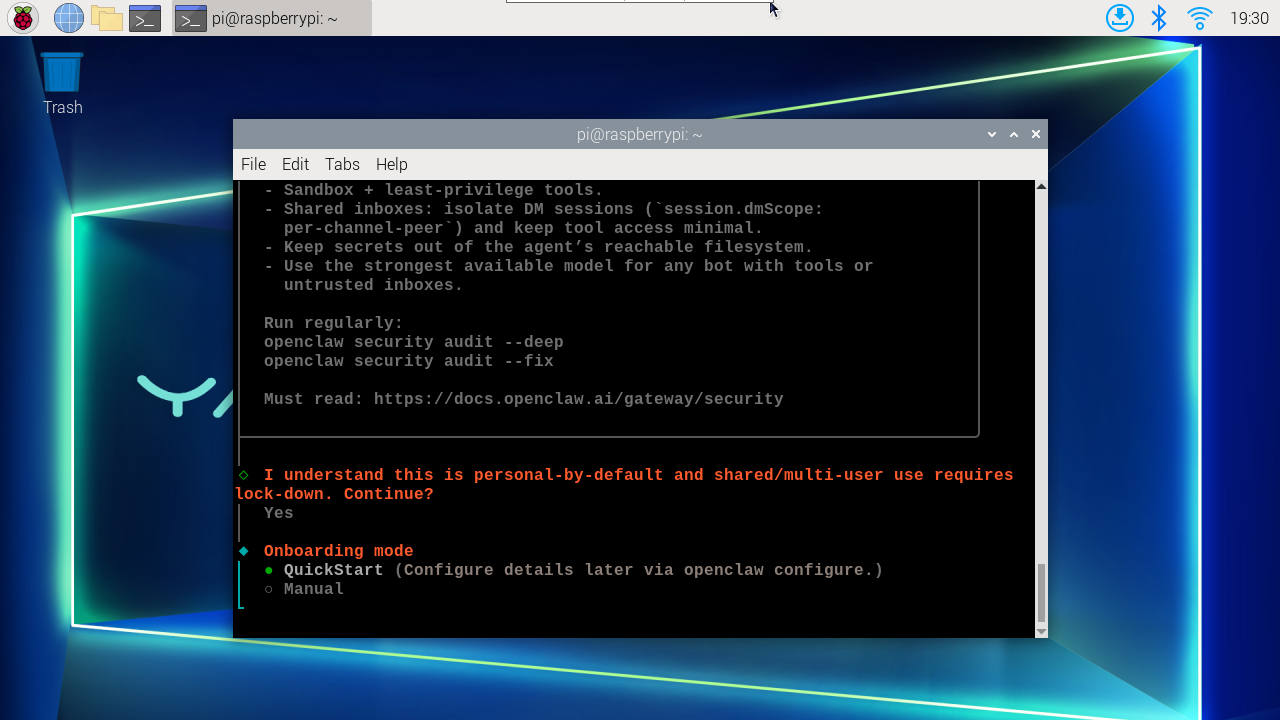
On the model selection screen, select the model you want to use. (This step must be configured, otherwise normal interaction won't be possible)
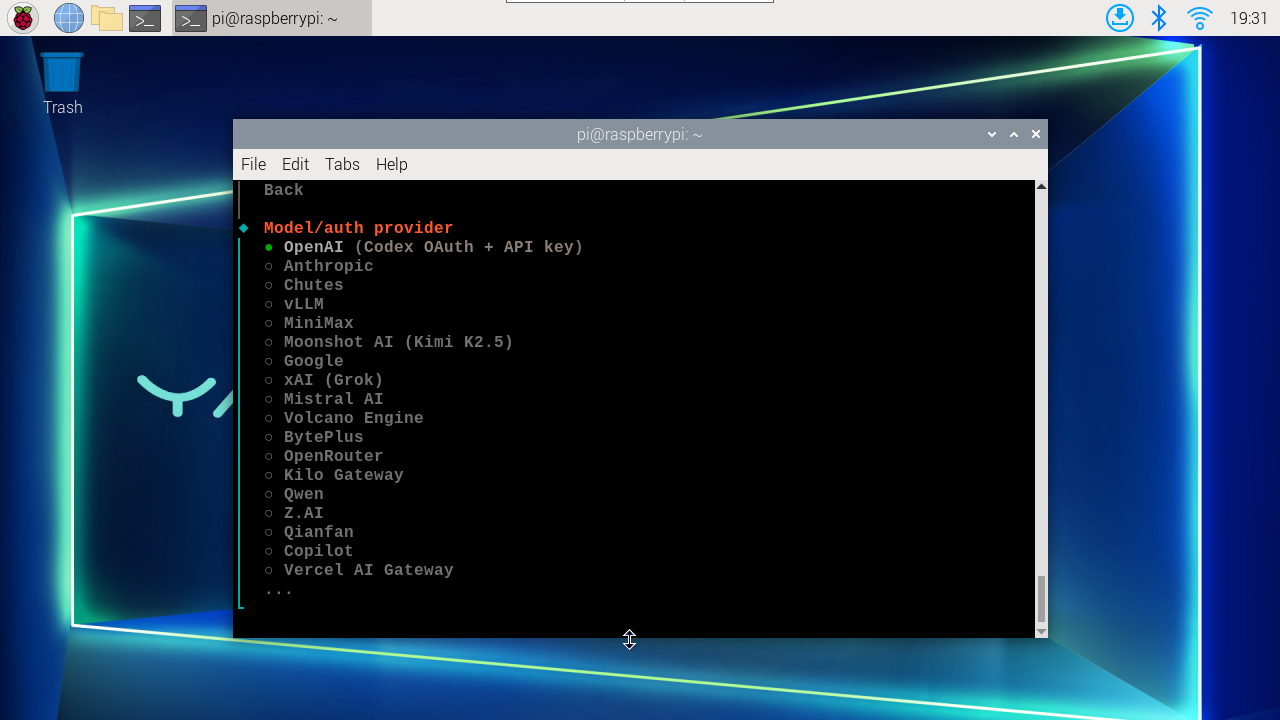
Different models have different configuration methods. Follow the operation guide to authorize and fill in the API Key.
Deepseek Model Example
Below will take the Deepseek model which is not in the list as an example. You need to configure the API Key in advance on the DeepSeek Open Platform, which will be needed later. (Deepseek requires recharge before normal use)
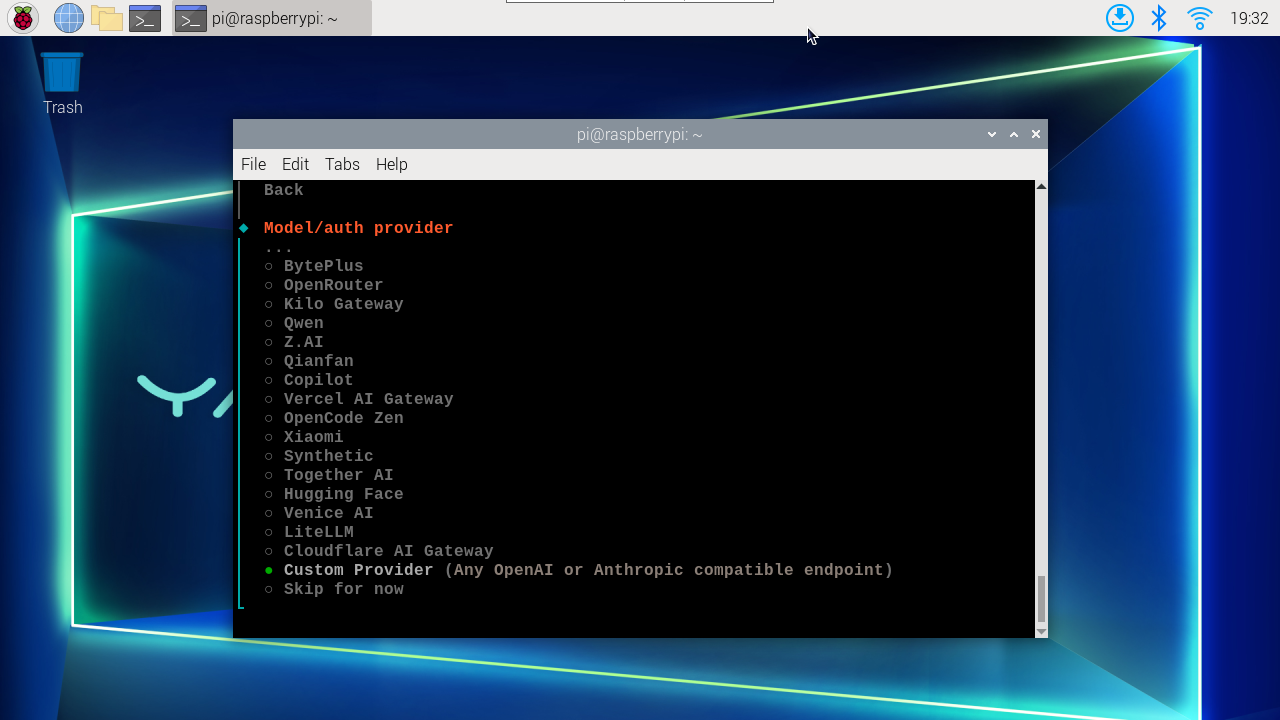
Select Custom Provider
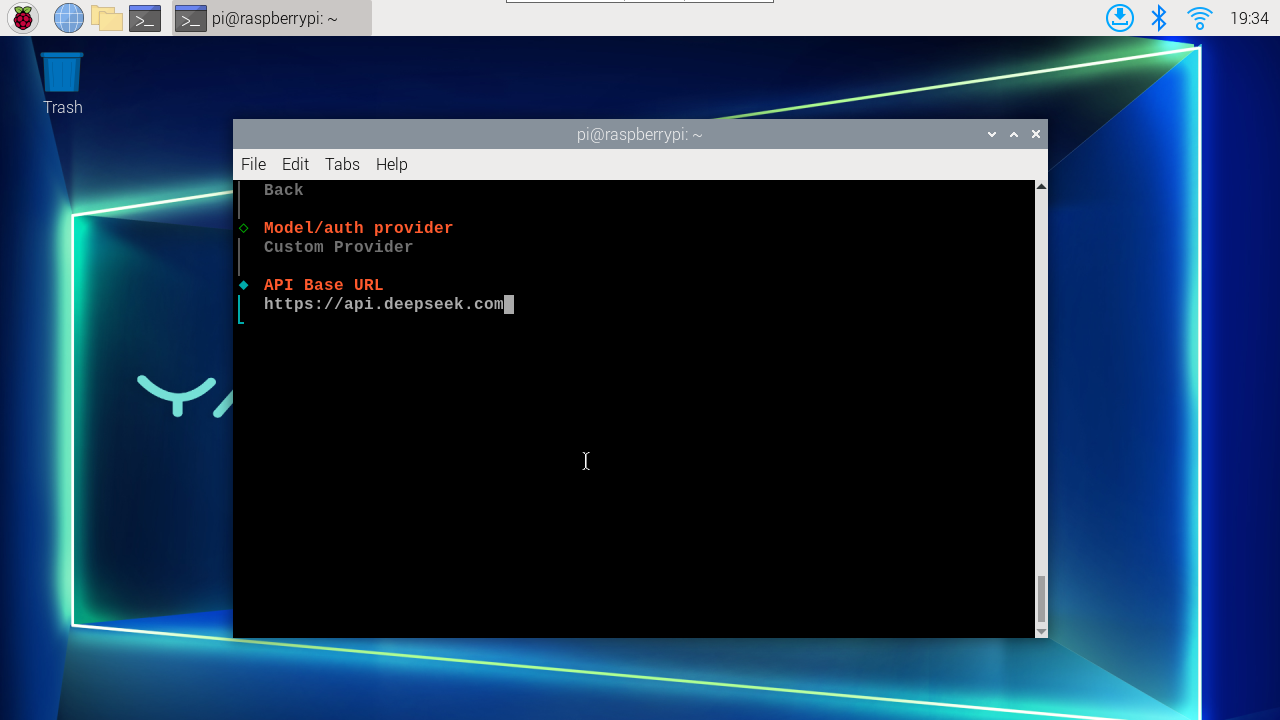
Enter the following URL in API Base URL
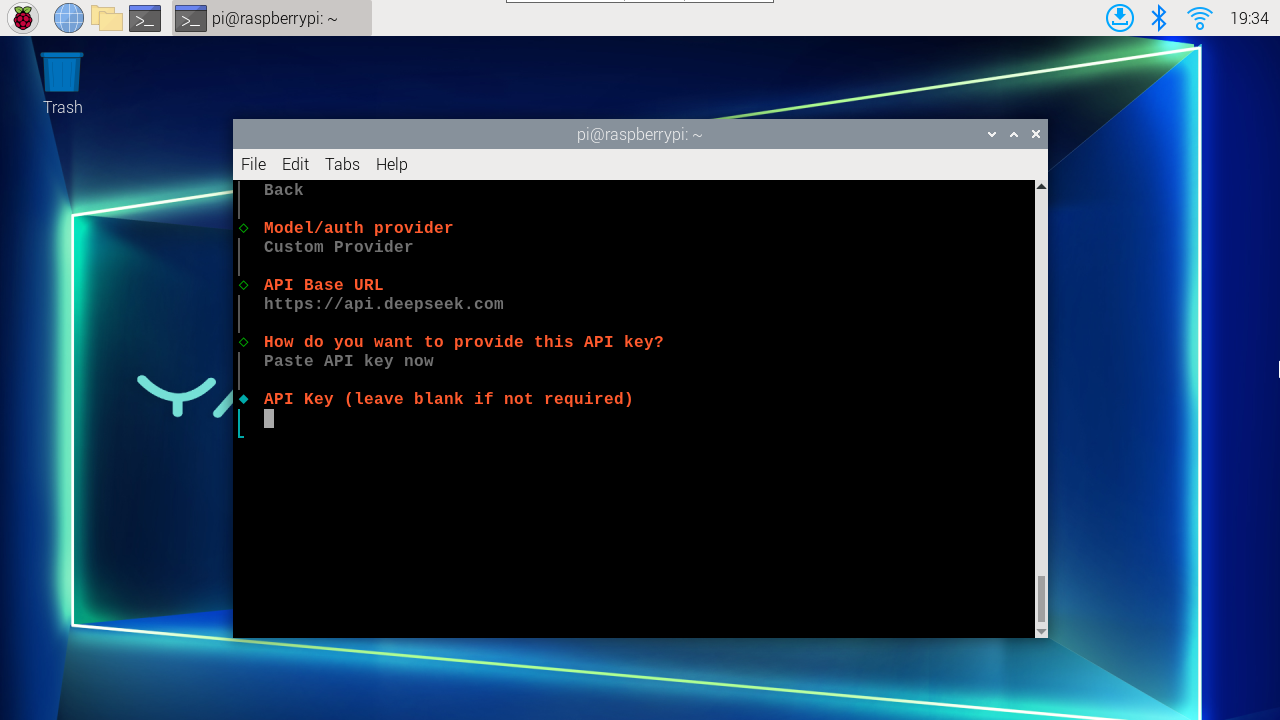
Select Paste API Key now, and enter the API Key you generated on Deepseek
Select OpenAI-compatible
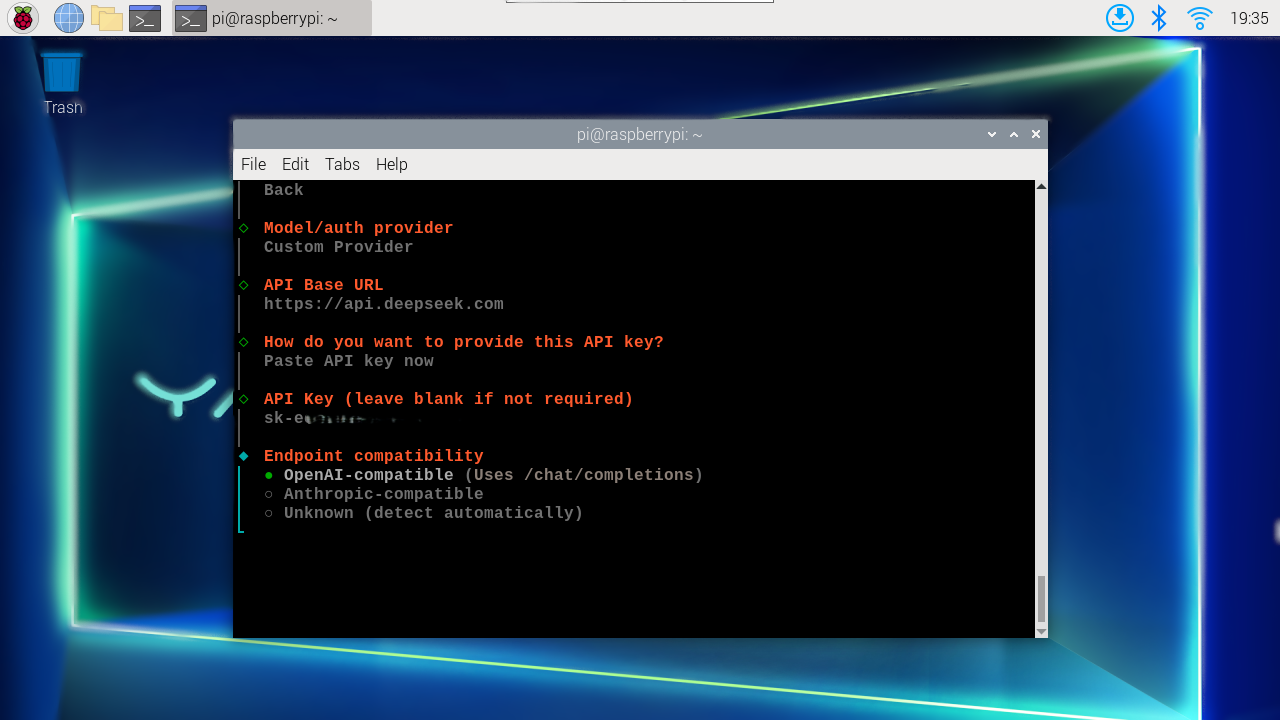
Model ID: deepseek-chat, press Enter after input
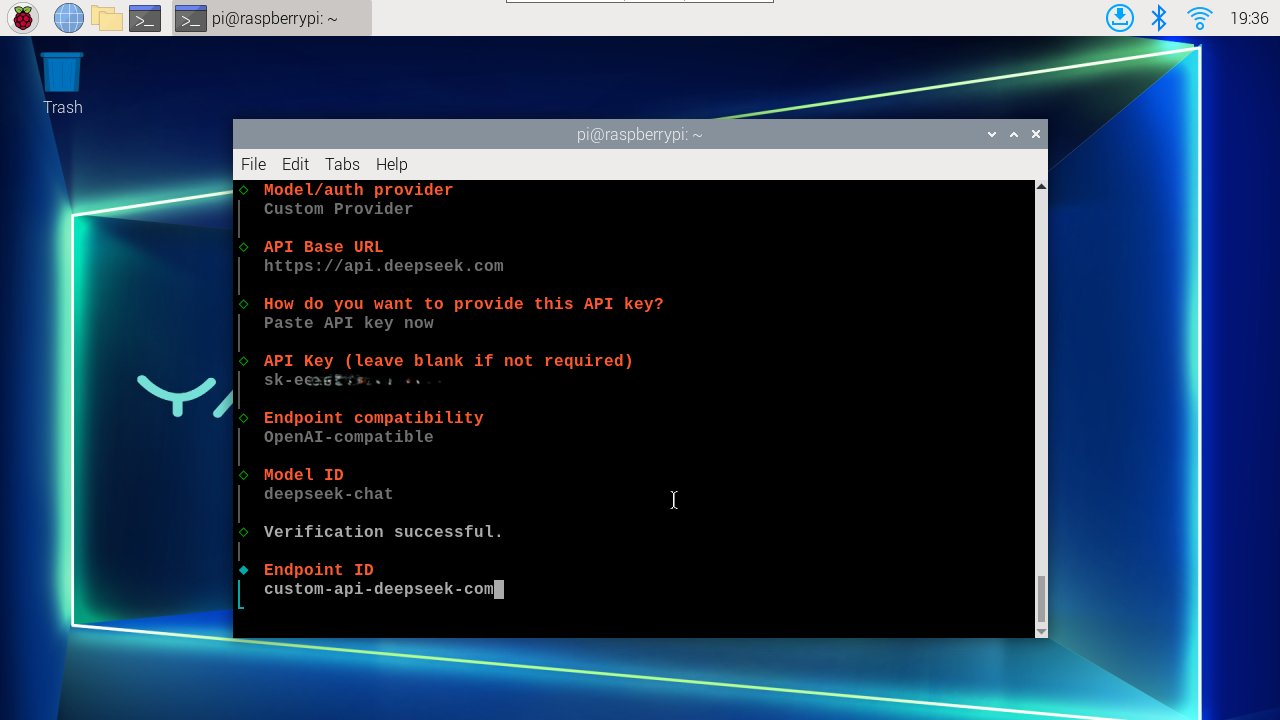
Endpoint ID: DeepSeek Chat (V3.2), press Enter after input
Model alias (optional) can be left empty, just press Enter to skip
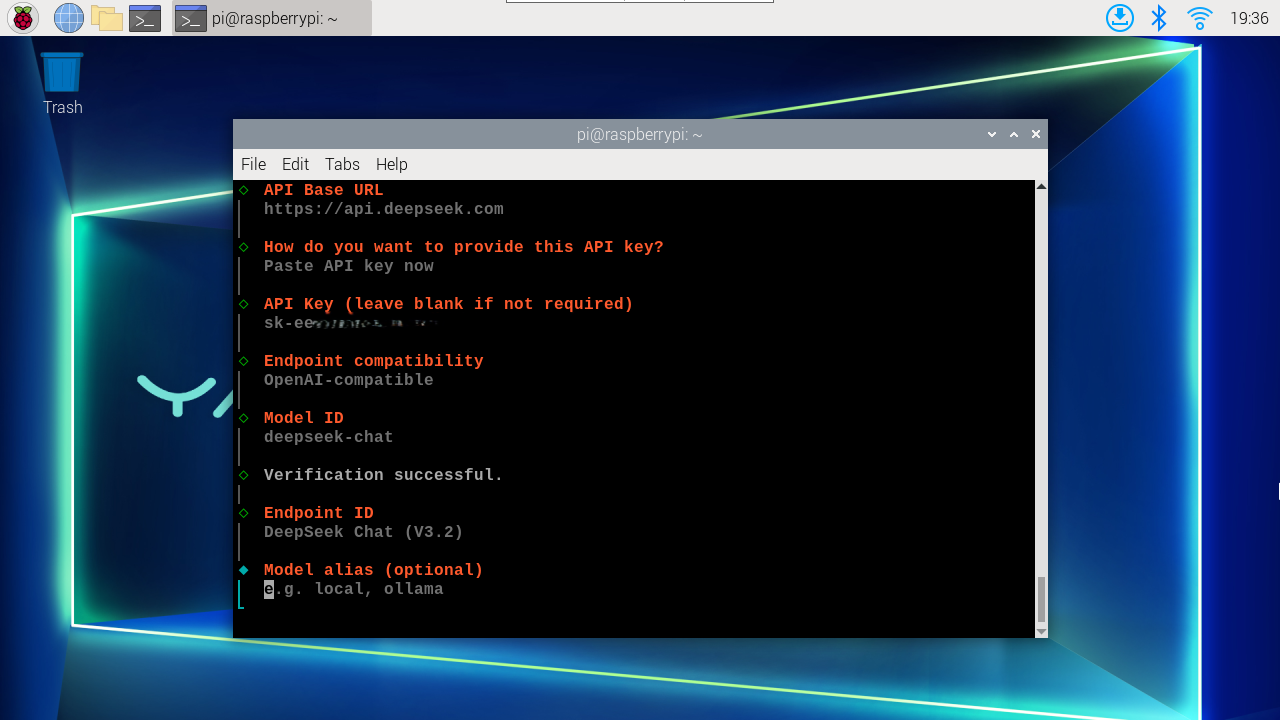
The above are the steps to configure the Deepseek model.
OpenRouter Model Example
Below will take the OpenRouter model as an example. You need to register and configure the API Key in advance on OpenRouter, which will be needed later. Below is an example using a free model (for better experience, please recharge and choose models with better performance)
Select OpenRouter
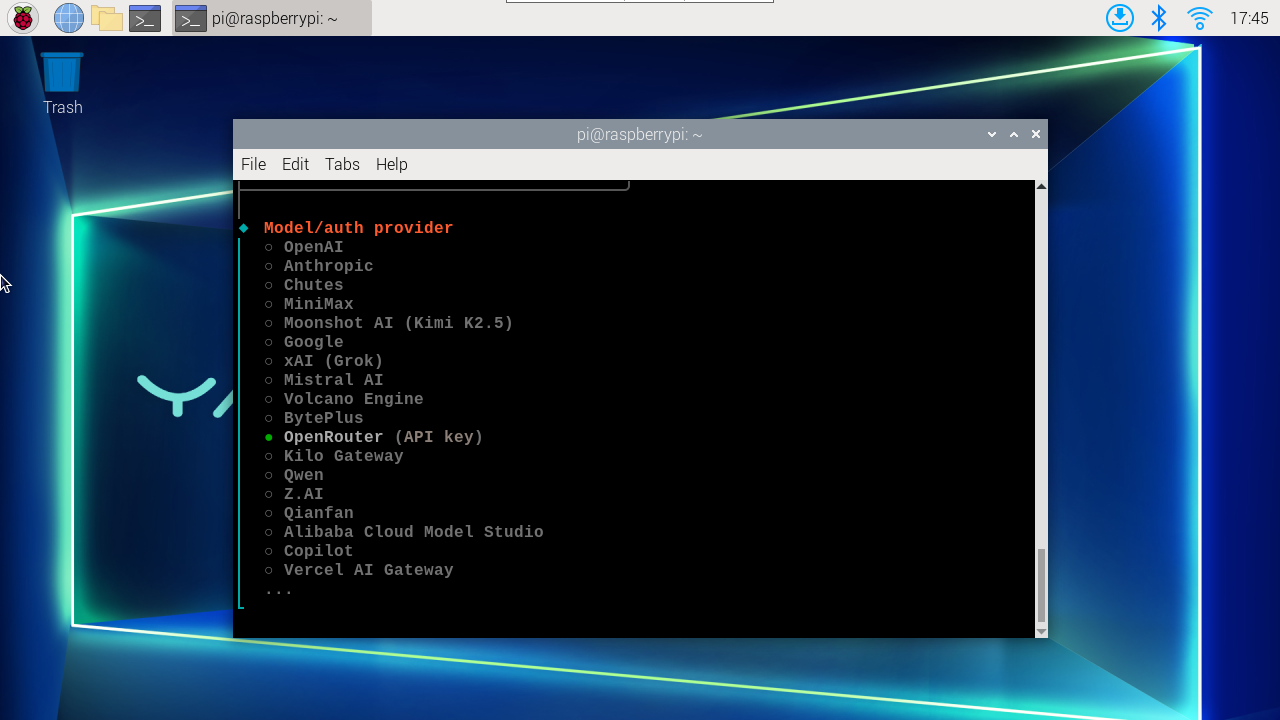
Select Paste API key now
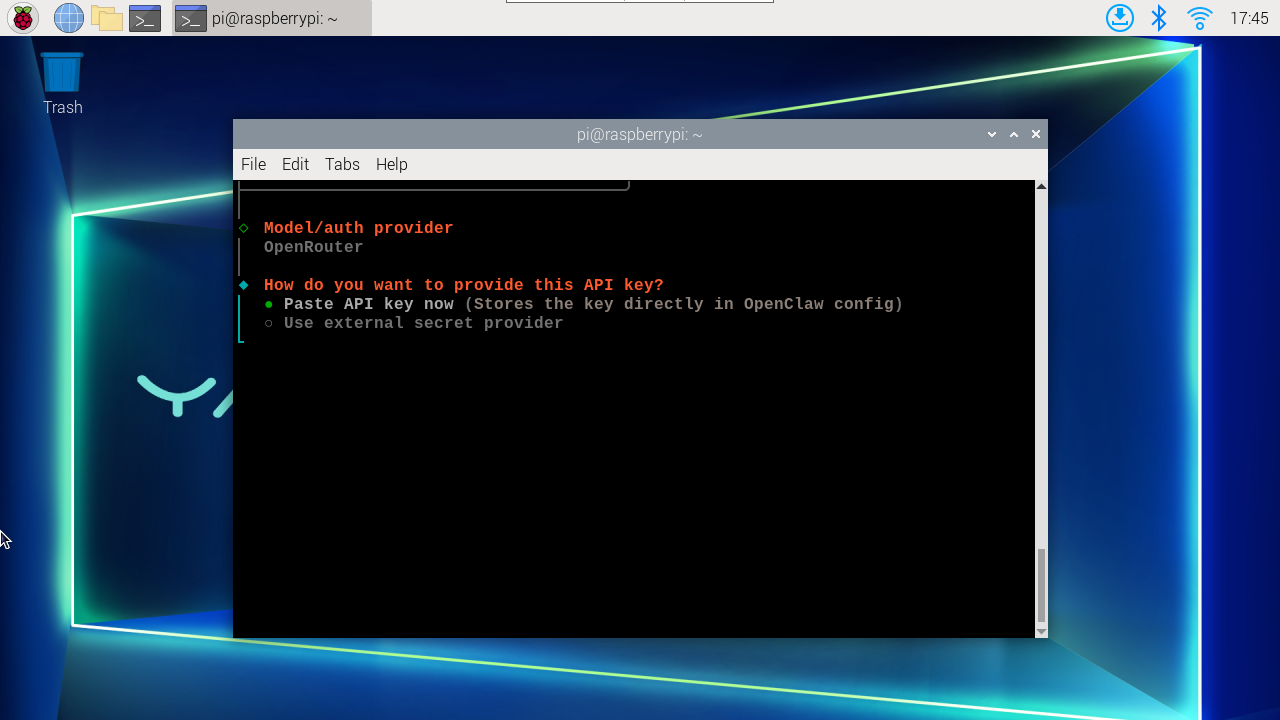
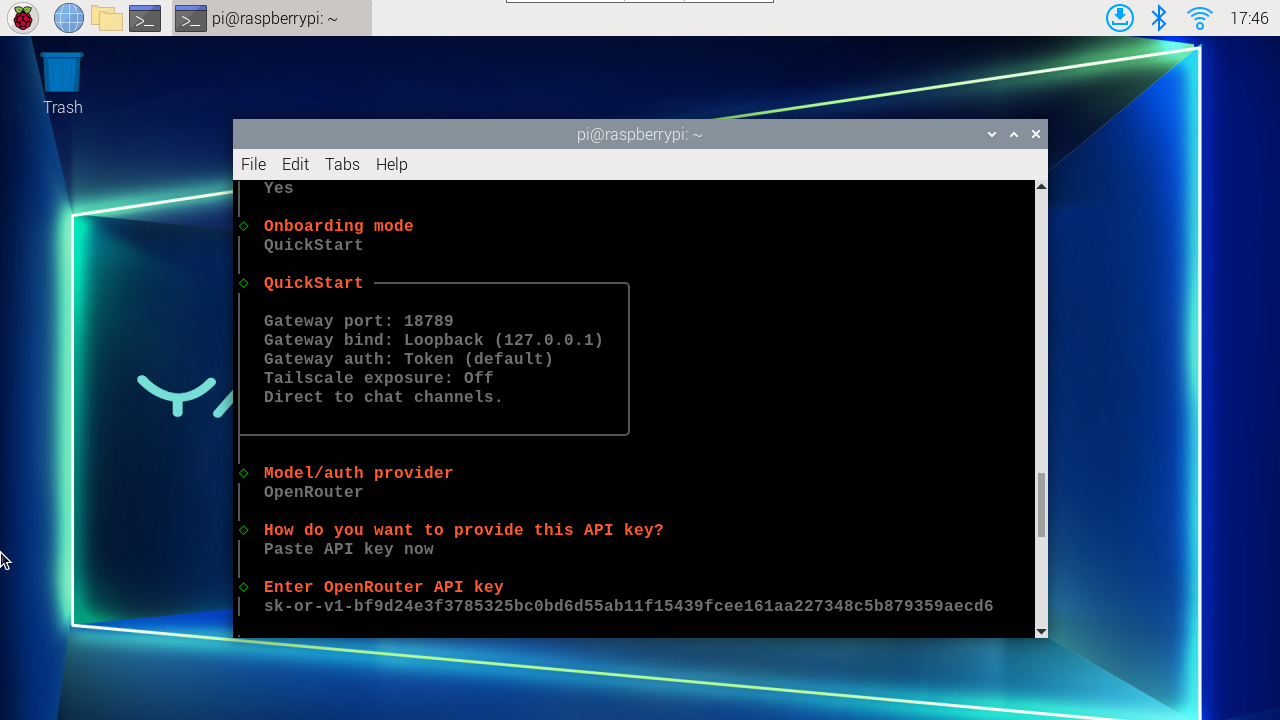
Enter the OpenRouter API key
Find free models, as shown in the figure below. You can also find other free models yourself.
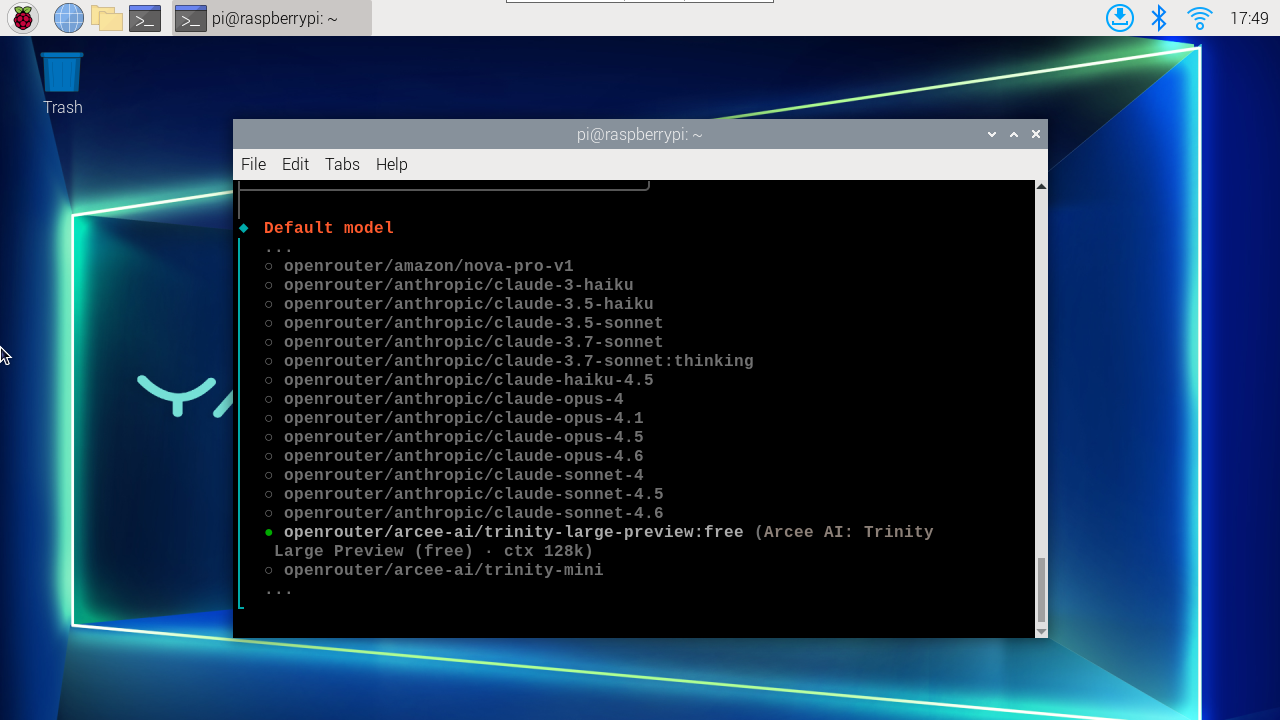
The above are the steps to configure the OpenRouter model.
Skip the message channel for now, configure it later
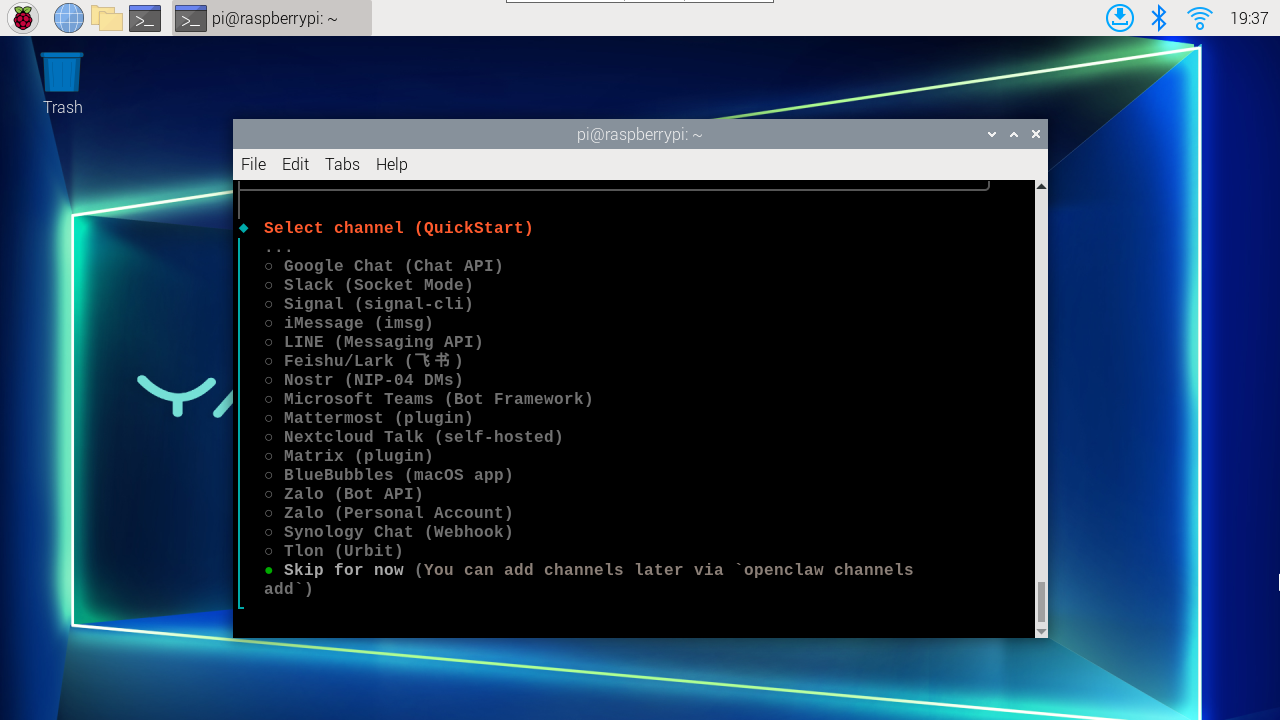
Also skip Search provider
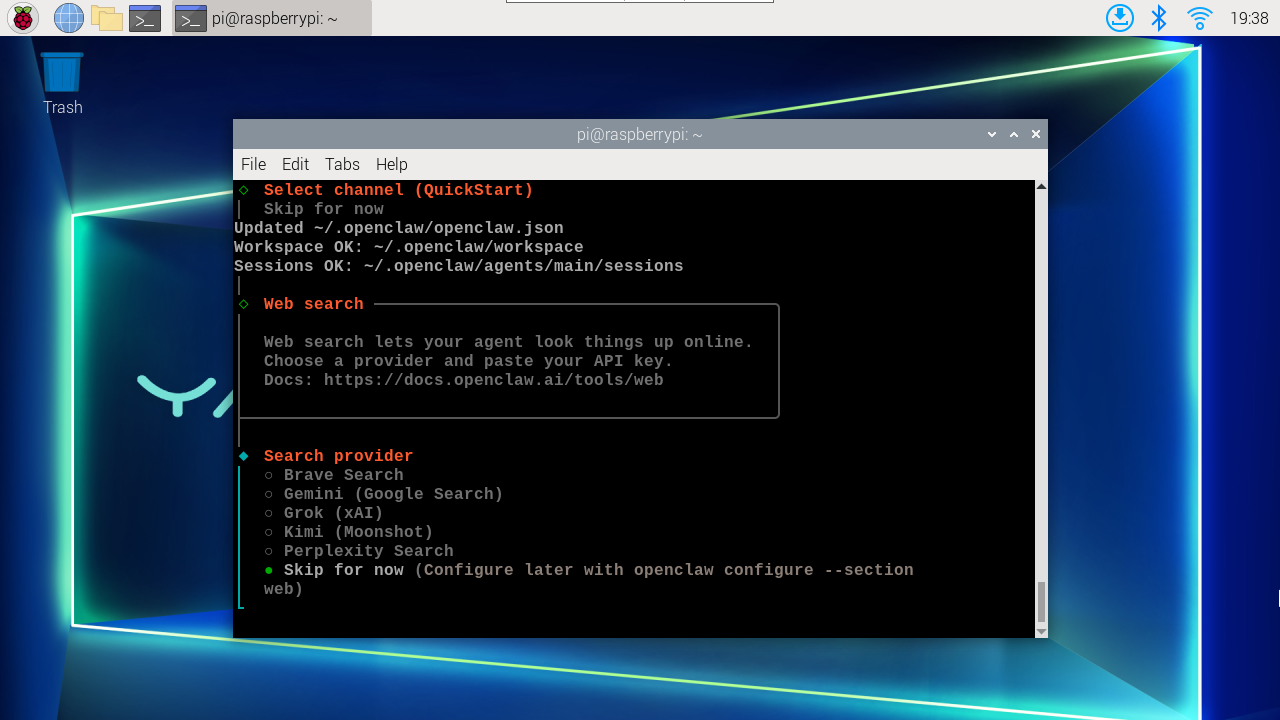
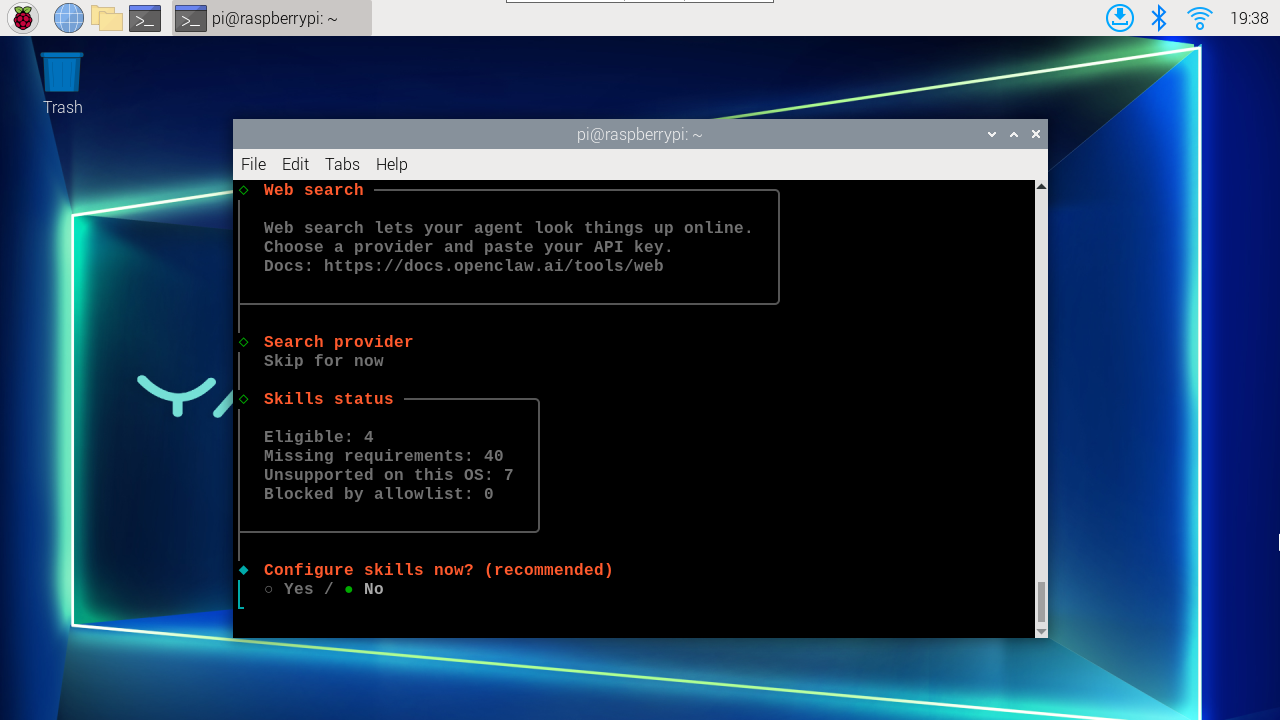
Also skip Skills, install them later as needed
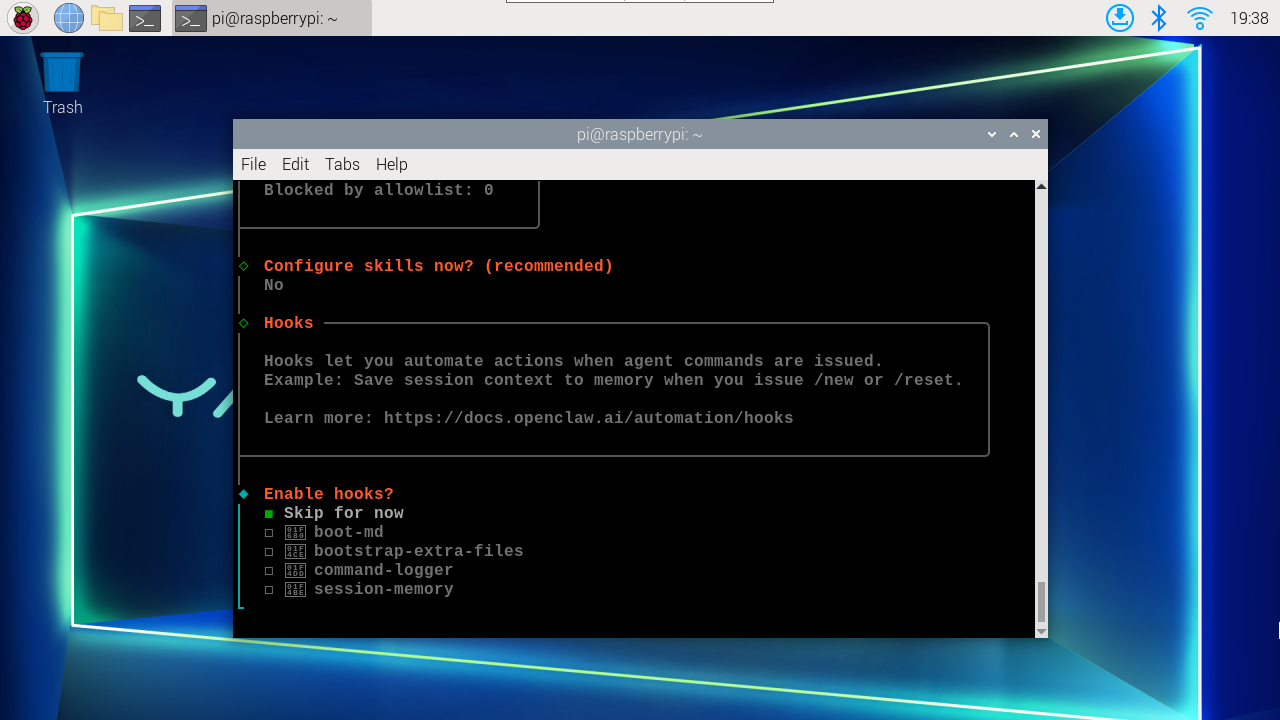
Also skip hooks, select Skip for now, then press space to select, then press Enter
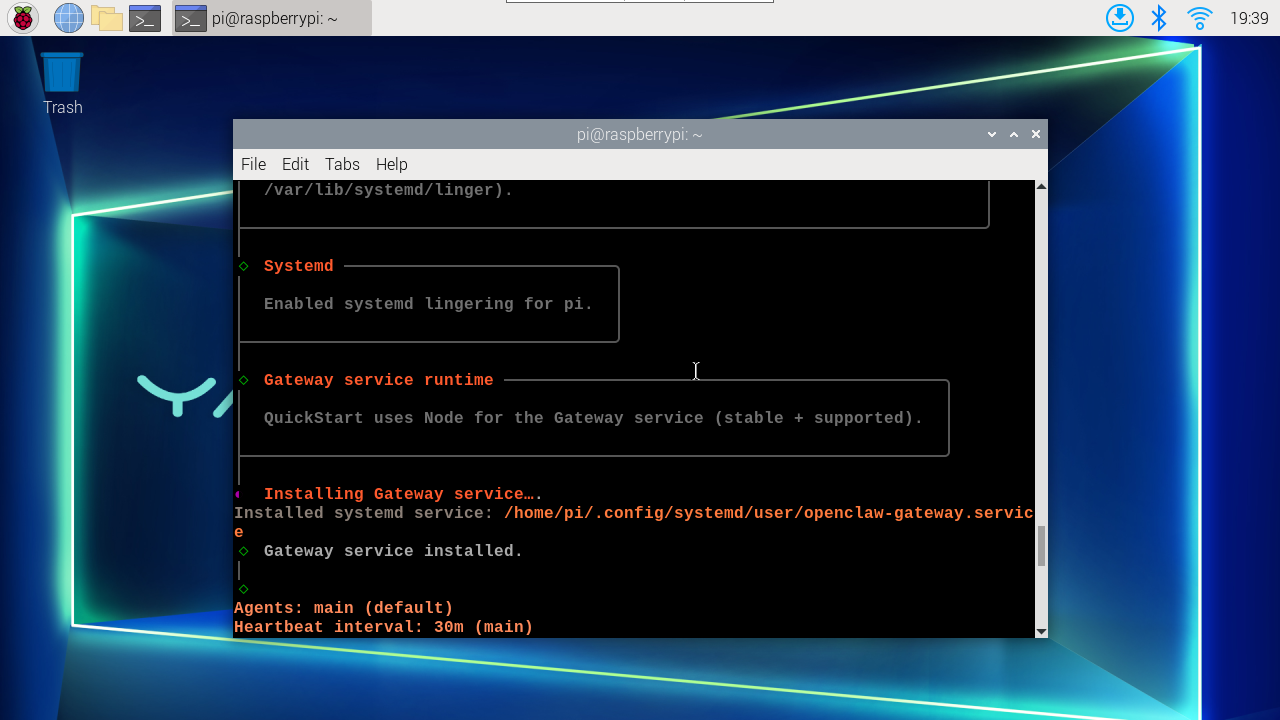
Wait for gateway installation and startup
You can choose TUI interaction interface or Web UI, this depends on personal preference. Here we take TUI as an example
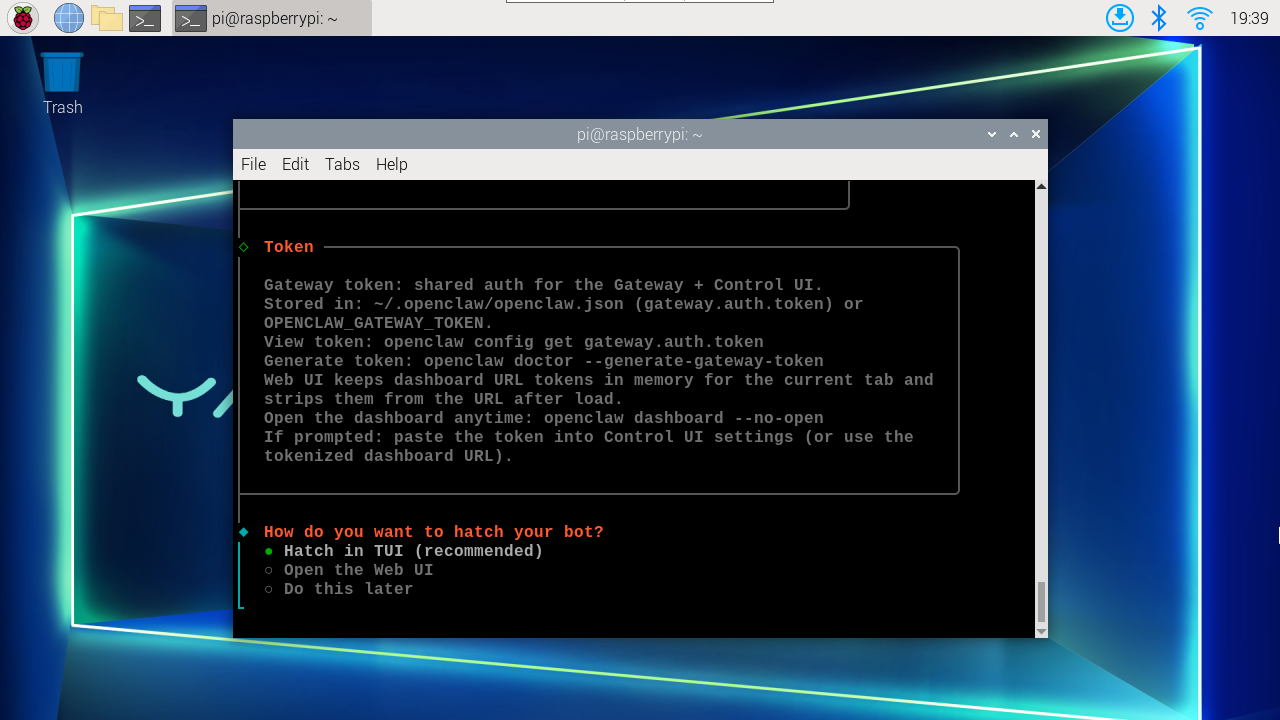
After entering TUI, you will enter the interaction interface. At this time, you can input the interaction content you want.
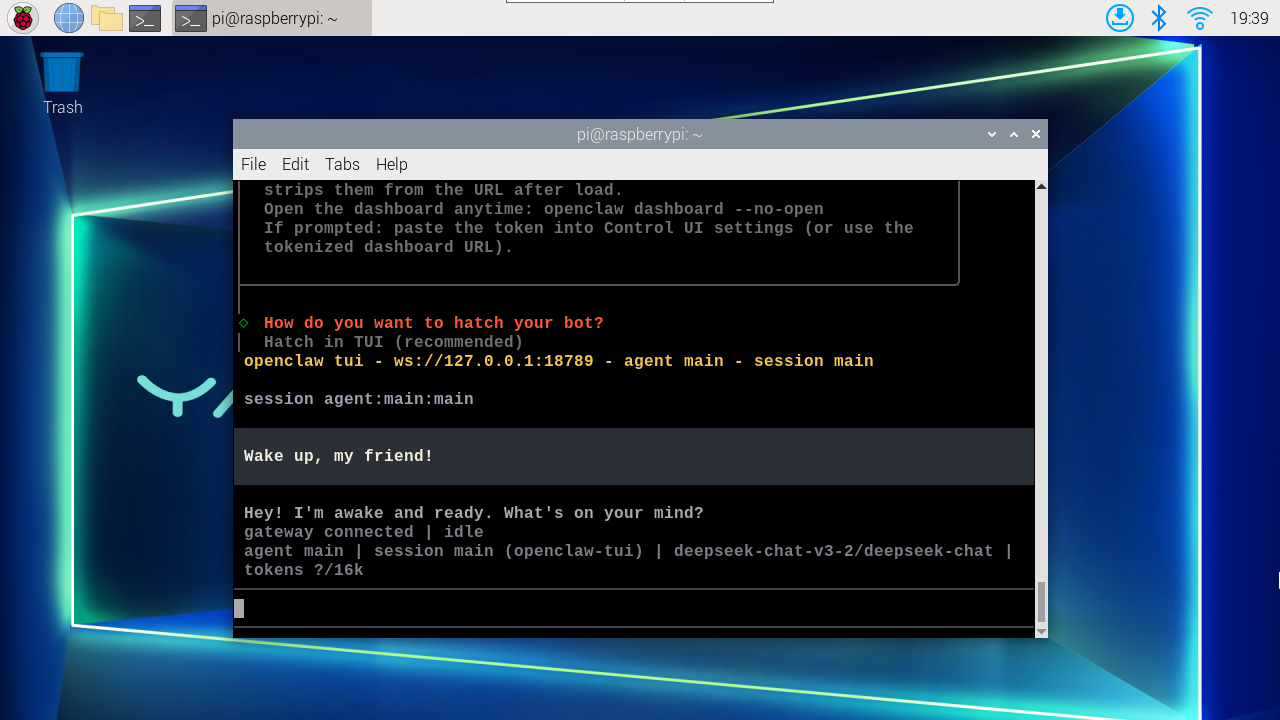
3. Post-Installation
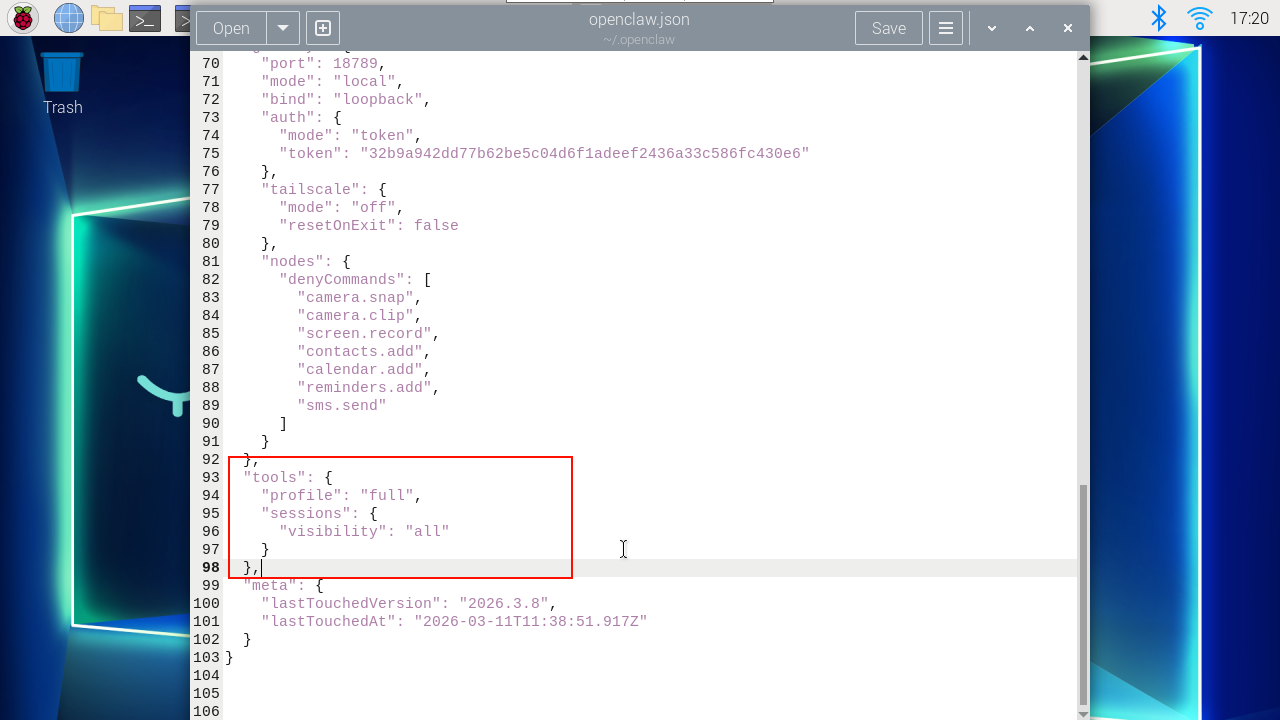
Through interaction, you can find that it can only chat but cannot normally call tools. The fix is to add this content to openclaw.json:
xxxxxxxxxx"tools": {"profile": "full","sessions": {"visibility": "all"}},
Modify openclaw.json
xxxxxxxxxxgedit /home/pi/.openclaw/openclaw.json
Deepseek's context is 128K, we need to change it to 128000, restart the gateway after modification
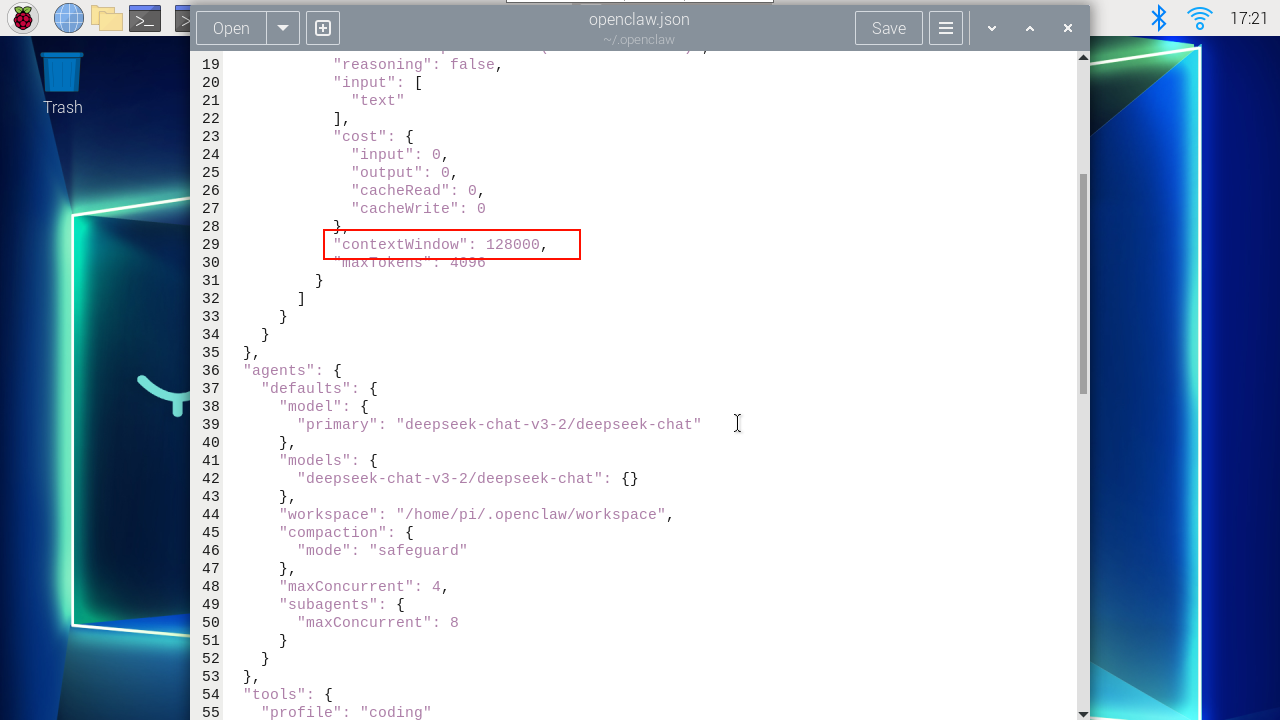
After modification, press ctrl+s to save, or click "save" in the upper right corner to save. Then exit.
Restart gateway
xxxxxxxxxxopenclaw gateway restar
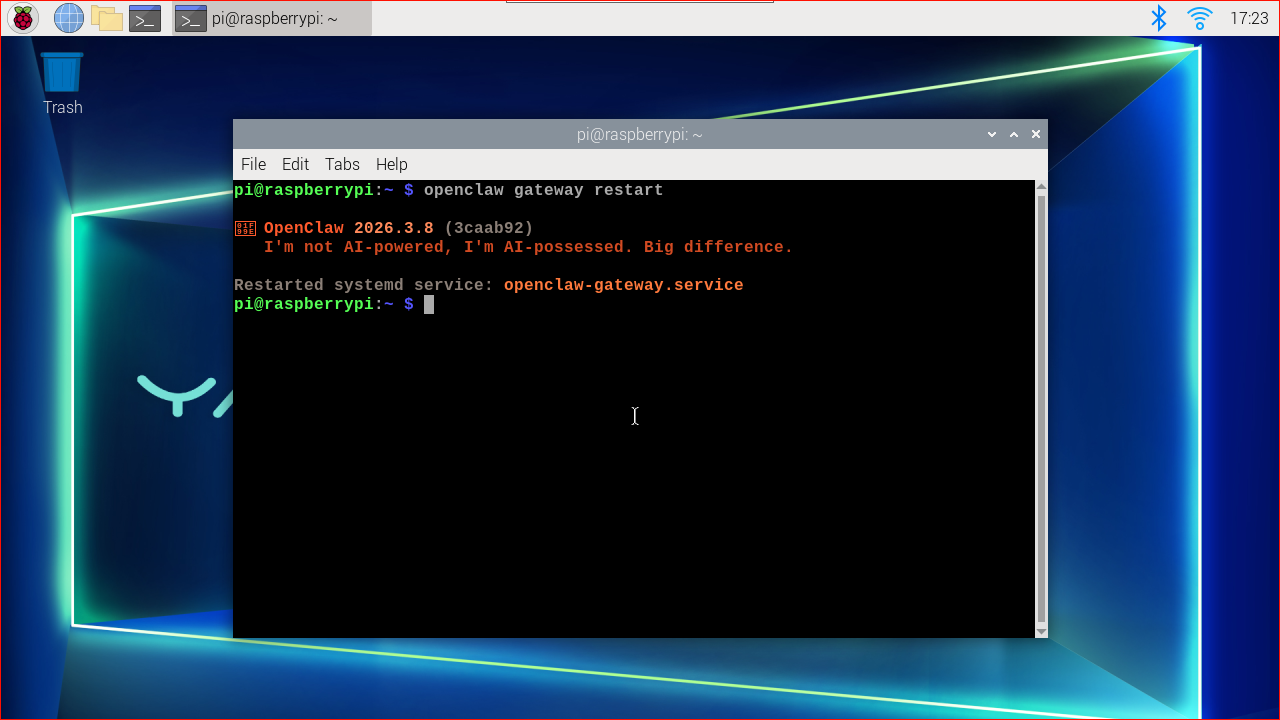
After completing the above steps, you can use tools normally.