yahboom
HomeLearn
Solution
Blog
Online Store
About Us
EN/中文
Raspberry Pi 5📖
00.Quick Start (Must See)
  • 1.Quick Start (Must See)
  • 2.TF card expand capacity
  • 3.Raspberry Pi 5 - 1GB Version Must - See Before Use
01.Introduction to Raspberry PI 5
  • 1. Introduction to Raspberry PI 5
  • 2. Raspberry PI system installation and backup
  • 3. Powering the Raspberry PI 5
  • 4. Startup of Raspberry PI 5
  • 5. Installation and introduction of shell and active radiator
  • 6. GPIO and 40-pin pins
  • 7. Tips for using Raspberry PI 5
  • 8. Raspberry PI PCIe connector
  • 9. MIPI CSI DSI connector
  • 10. UART connector
  • 11. Real-time clock
  • 12. Power over Ethernet (PoE) connector
02.Introduction to common mirror systems
  • 1. Official Raspberry PI system
  • 2. Ubuntu
03.Basic settings of Raspberry Pi
  • 1. Update and upgrade operating system
  • 2.Introduction to raspi-config tool
  • 3.config.txt file description
  • 4.Network Configuration
  • 5.remote access
  • 6.Transfer files remotely
  • 7.Set display resolution and rotation
  • 8.Set screen to sleep
  • 9.Get real-time temperature of Raspberry Pi
  • 10.Play audio and video
  • 11.Using USB camera
  • 12.Using MIPI camera
04.Basic programming course
1. C language programming
  • 1. C language environment construction
  • 2. Print Hello World
2. Python programming
  • 1.Python usage
  • 2.Use APT to install Python packages
  • 3.Python virtual environment
  • 4.GPIO Zero
  • 5.Pin output high and low levels
  • 6.Pin reads high and low levels
  • 7.Pin output PWM
3.Jupyter lab programming
  • 1.Jupyter Lab environment construction
  • 2.Basic use of Jupyter Lab
  • 3.Jupyter Lab plug-in installation
  • 4.Basic use of Jupyter Widgets
05.Advanced AI course
5.Advanced AI gameplay
  • 1. Human pose estimation
  • 2. target detection
  • 3.yolov5
  • 4. Camera display
  • 5. QR code
  • 6. face detection
  • 7. Color recognition
2.Getting started with Open Source CV
  • 1. Introduction to Open Source CV
  • 2. Read and display Open Source CV images
  • 3. Open Source CV image writing
  • 4. Open Source CV image quality
  • 5.Open Source CV pixel operation
3.Open Source CV Geometric Transformations
  • 1. Image resizing
  • 2. Cut the image
  • 3. Image translation
  • 4. Image mirroring
  • 5. Affine transformation
  • 6. Rotate the image
  • 7. Perspective transformation
4.Text Picture Drawing Open Source CV image processing and drawing text line segments
  • 1、Grey Processing
  • 2、image binaryzation
  • 3、edge detection
  • 4、Line segment drawing
  • 5、Rectangle and circle drawing
  • 6、Text image drawing
1.Open Source CV environment setup
  • Open Source CV environment setup
6.YOLOv11 development
  • 1. YOLOv11 environment construction
  • 2. CLI Usage
  • 3. Object Detection
  • 4. Instance Segmentation
  • 5. Pose Estimation
  • 6. Image Classification
  • 7. Oriented Bounding Boxes Object Detection
  • 8. Model conversion
  • 9. Dataset Annotation
  • 10. Model training_conversion
  • 11. Model prediction
7.YOLO26 development
  • 01.YOLO26 environment
  • 02.CLI use
  • 03.Object detection
  • 04.Instance segmentation
  • 05.Pose estimation
  • 06.Image classification
  • 07.Oriented bounding box object detection
  • 08.Model conversion
  • 09.Dataset annotation
  • 10.Model training - conversion
  • 11.Model prediction
06.Mediapipe course
  • 1. Face special effects
  • 2. Face detection
  • 3. Three-dimensional object recognition
  • 4. Paintbrush
  • 5. Finger control
  • 6. Gesture recognition
07.Docker Tutorial
  • 1.Overview and installation
  • 2.Common commands
  • 3.Understand and publish images
  • 4.Hardware interaction data processing
  • 5.Enter docker container
  • 6.Update docker images
  • 7. docker container to install ROS using accessories
08.ROS1 advanced tutorial
1.ROS1 basic course
  • 1.ROS introduction
  • 2.ROS installation
  • 3.ROS common command tools
  • 4.ROS workspace
  • 5.ROS function package
  • 6.ROS node
  • 7.ROS topic publisher
  • 8.ROS topic subscribers
  • 9.ROS service client
  • 10.ROS service server
  • 11.ROS action client
  • 12.ROS action server
  • 13.ROS custom message reception
  • 14.ROS-launch file
  • 15.ROS-TF transformation
  • 16.ROS parameter service
  • 17.ROS-rviz use
  • 18.ROS-rqt tool usage
  • 19.Topic message recording and playback
  • 20.urdf model introduction
  • 21.gazebo introduction
  • 22.ROS distributed communication
2.ROS1 vision application
  • 0.Precautions
  • 1.AR vision
  • 2.AR QR code
  • 3.ROS+Opencv basics
  • 4.Face recognition
  • 5.harris corner detection
  • 6.Target tracking algorithm
  • 7.Contour moment
  • 8.Polygon outline
  • 9.Discrete fourier transform algorithm
  • 10.Edge detection algorithm
  • 11.Face detection algorithm
  • 12.Optical flow detection algorithm
  • 13.Contour detection
  • 14.General contour detection
  • 15.Feature point tracking
  • 16.HLS color filtering
  • 17.Hough circle detection
  • 18.Hough linear detection
  • 19.HSV color filtering
  • 20.LK optical flow algorithm
  • 21.detection algorithm
  • 22.Phase dependent displacement detection
  • 23.Image pyramid sampling algorithm
  • 24.RGB color filtering
  • 25.Clear background detection algorithm
  • 26.Simplified optical flow algorithm
  • 27.Simple filter
  • 28.Threshold image processing
  • 29.Watershed segmentation algorithm
09.ROS2 advanced tutorial
1.ROS2 basic course
  • 1. Introduction to ROS2
  • 2.ROS2 install Humble
  • 3.ROS2 development environment
  • 4.ROS2 workspace
  • 5.ROS2 function package
  • 6.ROS2 node
  • 7.ROS2 topic communication
  • 8.ROS2 service communication
  • 9.ROS2 action communication
  • 10.ROS2 custom interface message
  • 11.ROS2 parameter service case
  • 12.ROS2 meta-function package
  • 13.ROS2 distributed communication
  • 14.ROS2 DDS
  • 15.ROS2 time related API
  • 16.ROS2 common command tools
  • 17.ROS2 rviz2 use
  • 18.ROS2 rqt toolbox
  • 19.ROS2 Launch startup file configuration
  • 20.ROS2 recording and playback tool
  • 21.ROS2 URDF model
  • 22.ROS2 Gazebo simulation platform
  • 23.ROS2 TF2 coordinate transformation
2.ROS2 vision application
  • 0.Precautions
  • 1.Opencv basic course
  • 2.ROS+opencv application
  • 3.QR code creation and recognition
  • 4.AR vision
  • 5.Interesting gameplay of mediapipe
10.Offline AI model coursenew
Offline large model (Text Interaction)
  • 0. AI large model image description
  • 1. Deployment of large AI model environments
  • 2. Switch Chinese input method
  • 3. Installation of large model dialogue platform
  • 4. Meta AI Llama 3.2 model
  • 5. Alibaba Cloud Qwen3 Model
  • 6. Microsoft Phi-4-mini model
  • 7. DeepSeek DeepSeek-R1 model
  • 8. Alibaba Cloud Qwen2.5vl Visual Multimodal Large Model
  • 9. Google Gemma3 Visual Multimodal Large Model
  • 10. Llava Visual Multimodal Large Model
  • 11.MiniCPM-V Visual Multimodal Large Model
  • 12. Multimodal Visual Understanding Applications
  • 13. Multimodal Text-Based Image Application
  • 14. Multimodal Video Analysis Application
  • 15. Multimodal visual positioning applications
  • 16. Multimodal table scanning application
  • 17. Multimodal Autonomous Agent Application
Offline large model (Voice Interaction)
  • 0. Voice Interaction Hardware Connection (Must Read)
  • 1. Offline speech-to-text (ASR)
  • 2. Offline Text-to-Speech (TTS)
  • 3. AI large model voice interaction
  • 4. Multimodal visual understanding and voice interaction
  • 5. Multimodal Text-Based Image Application
  • 6. Multimodal Video Analysis Application
  • 7. Multimodal visual positioning applications
  • 8. Multimodal table scanning application
  • 9. Multimodal Autonomous Agent Applications
  • 10. AI large model offline voice assistant
11.Online AI model coursenew
Online large model (text interaction)
  • 1.OpenRouter Large Model API Aggregation Platform
  • 2. Multimodal Visual Understanding Applications
  • 3. Multimodal visual positioning applications
  • 4. Multimodal table scanning application
  • 5. Multimodal Autonomous Agent Applications
Online large model (voice interaction)
  • 0. Voice Interaction Hardware Connection (Must Read)
  • 1. Online speech-to-text (ASR)
  • 2. Online Text-to-Speech (TTS)
  • 3. AI large model voice interaction
  • 4. Multimodal visual and voice interaction
  • 5. Multimodal visual positioning applications
  • 6. Multimodal table scanning application
  • 7. Multimodal Autonomous Agent Applications
  • 8. AI large model online voice assistant
12.OpenClaw Deployment and Basic Usagenew
  • 01. OpenClaw Deployment
  • 02. OpenClaw WhatsApp Plugin Application
  • 03. OpenClaw WebChat Interaction
  • 04. OpenClaw TUI Interaction
  • 05. OpenClaw Tools Introduction
  • 06. OpenClawGate Gateway User Manual
  • 07. OpenClaw Features Overview
  • 08. OpenClawHub Introduction (Skill Installation)
  • 09. OpenClaw Application - File Management
  • 10. OpenClaw Application - Camera
  • 11. OpenClaw Application - Browser Control
  • 12. OpenClaw Application - Script Execution
  • 13. OpenClaw Application - AI Programming (Peripheral & GPIO Control)
  • 14. OpenClaw Application - Dedicated AI Assistant
13.OpenClaw Advanced Developmentnew
1.Preparation Before Use
  • 01. Peripheral Hardware Configuration
  • 02. OpenClaw API-KEY Configuration
  • 03. OpenClaw Model Switching
  • 04. OpenClaw Prompts
  • 05. AI Voice Interaction Configuration
  • 06. 3D Configuration Tests
2.OpenClaw AI Programming Peripheral Control
  • 1. Servo Control
  • 2. RGB Strip
  • 3. OLED Display
  • 4. Temperature and Humidity Sensor
  • 5. Camera Application
  • 6. AI Script Peripheral Control
3.OpenClaw Peripheral Integration Applications
  • 1. Plant Care Assistant
  • 2. AI Calorie Estimation
  • 3. AI Rock Paper Scissors Game
  • 4. AI Pet
  • 5. AI Weather Station
  • 6. Temperature and Humidity Dashboard
  • 7. Scheduled Tasks
Download
  • SystemFile
  • Code
  • SoftWare
  • 3D_Model_File
  • GuideManual
Download ZIP

Welcome to Raspberry Pi 5 repository

08. OpenClawHub Introduction (Skill Installation)

ClawHub

ClawHub is OpenClaw's public Skills registry. It's a free service: all Skills are public and open, everyone can view, share, and reuse them. Skills are just folders containing a SKILL.md file (and supporting text files). You can browse Skills in the web app, or use the CLI to search, install, update, and publish Skills. Website: clawhub.com

Target Audience (Beginner Friendly)

If you want to add new features to OpenClaw agents, ClawHub is the easiest way to find and install Skills. You don't need to understand how the backend works. You can:

  • Search Skills using natural language.
  • Install Skills into your workspace.
  • Update Skills later with a single command.
  • Back up your own Skills by publishing them.

Quick Start (Non-Technical)

  1. Install CLI (see next section).

  2. Search for what you need: (requires internet access in China)

    clawhub search "find"
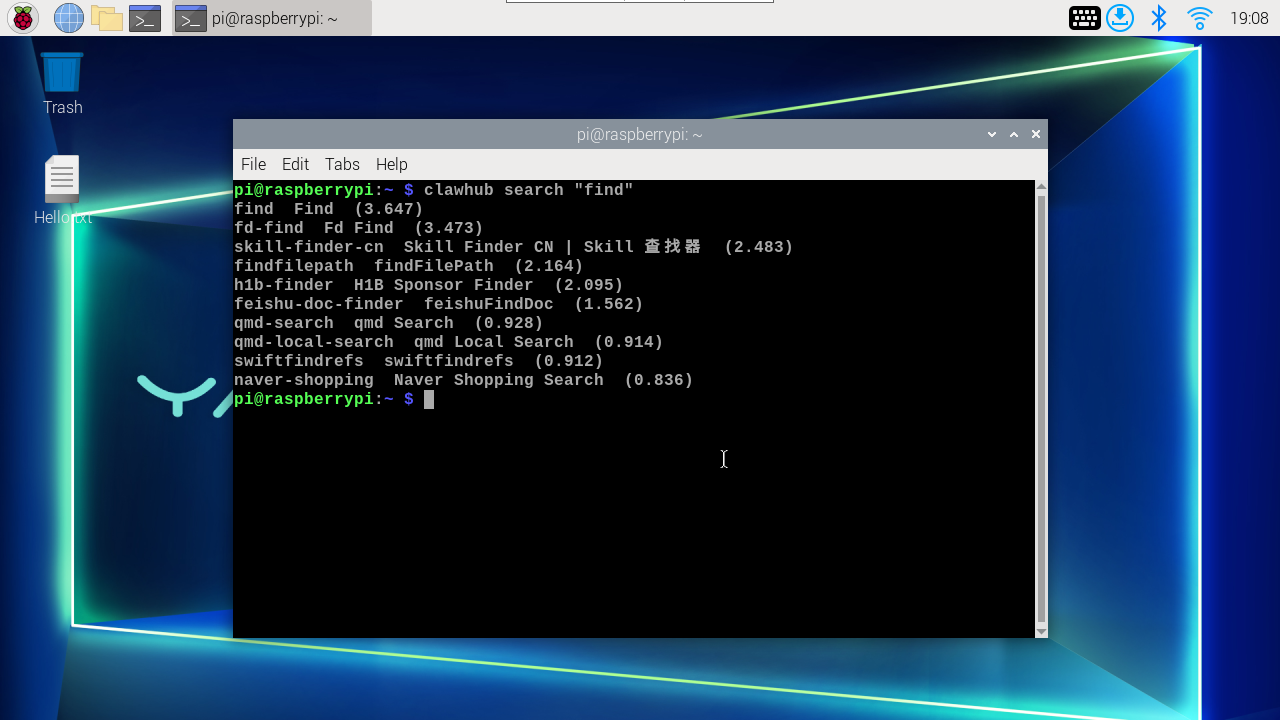
    image-20260312190825699

  3. Install a Skill:

    Syntax: clawhub install <skill-slug>

    xxxxxxxxxx
    clawhub install find
  4. Start a new OpenClaw session to load new Skills.

Install CLI

Choose one:

xxxxxxxxxx
npm i -g clawhub
pnpm add -g clawhub

Position in OpenClaw

By default, CLI installs Skills to ./skills in the current working directory. If OpenClaw workspace is configured, clawhub falls back to that workspace unless you override via --workdir (or CLAWHUB_WORKDIR). OpenClaw loads workspace Skills from <workspace>/skills and takes effect in the next session. If you're already using ~/.openclaw/skills or built-in Skills, workspace Skills have higher priority. For more details on Skills loading, sharing, and permission control, see Skills.

Service Features

  • Public browsing of Skills and their SKILL.md content.
  • Search based on embeddings (vector search), not just keyword matching.
  • Version management supporting semantic versioning, changelogs, and tags (including latest).
  • Download each version in zip format.
  • Stars and comments for community feedback.
  • Review hooks for approval and auditing.
  • CLI-friendly API for automation and scripting.

CLI Commands and Parameters

Global options (apply to all commands):

  • --workdir <dir>: Working directory (default: current directory; falls back to OpenClaw workspace).
  • --dir <dir>: Skills directory, relative to working directory (default: skills).
  • --site <url>: Website base URL (browser login).
  • --registry <url>: Registry API base URL.
  • --no-input: Disable prompts (non-interactive mode).
  • -V, --cli-version: Print CLI version.

Authentication:

  • clawhub login (browser flow) or clawhub login --token <token>
  • clawhub logout
  • clawhub whoami

Options:

  • --token <token>: Paste API token.
  • --label <label>: Label for browser login token storage (default: CLI token).
  • --no-browser: Don't open browser (requires --token).

Search:

  • clawhub search "query"
  • --limit <n>: Maximum results.

Install:

  • clawhub install <slug>
  • --version <version>: Install specific version.
  • --force: Overwrite if folder exists.

Update:

  • clawhub update <slug>
  • clawhub update --all
  • --version <version>: Update to specific version (single slug only).
  • --force: Force overwrite when local files don't match any published version.

List:

  • clawhub list (reads .clawhub/lock.json)

Publish:

  • clawhub publish <path>
  • --slug <slug>: Skills identifier.
  • --name <name>: Display name.
  • --version <version>: Semantic version.
  • --changelog <text>: Changelog text (can be empty).
  • --tags <tags>: Comma-separated tags (default: latest).

Delete/Restore (owner/admin only):

  • clawhub delete <slug> --yes
  • clawhub undelete <slug> --yes

Sync (scan local Skills + publish new/updated Skills):

  • clawhub sync
  • --root <dir...>: Additional scan root directories.
  • --all: Upload everything without prompts.
  • --dry-run: Show what would be uploaded.
  • --bump <type>: Version bump type patch|minor|major (default: patch).
  • --changelog <text>: Changelog for non-interactive updates.
  • --tags <tags>: Comma-separated tags (default: latest).
  • --concurrency <n>: Registry check concurrency (default: 4).

Common Agent Workflows

Search Skills

xxxxxxxxxx
clawhub search "postgres backups"

Download New Skills

xxxxxxxxxx
clawhub install my-skill-pack

Update Installed Skills

xxxxxxxxxx
clawhub update --all

Back Up Your Skills (Publish or Sync)

For a single Skills folder:

xxxxxxxxxx
clawhub publish ./my-skill --slug my-skill --name "My Skill" --version 1.0.0 --tags latest

Scan and back up multiple Skills at once:

xxxxxxxxxx
clawhub sync --all

Advanced Details (Technical)

Version Management and Tags

  • Each publish creates a new semantic version SkillVersion.
  • Tags (like latest) point to a version; moving tags enables rollbacks.
  • Changelogs are attached to each version and can be empty when syncing or publishing updates.

Local Changes vs Registry Versions

During updates, content hashes are used to compare local Skills content with registry versions. If local files don't match any published version, CLI asks for confirmation before overwriting (or requires --force in non-interactive mode).

Sync Scanning and Fallback Roots

clawhub sync first scans the current working directory. If no Skills are found, it falls back to known legacy locations (e.g., ~/openclaw/skills and ~/.openclaw/skills). This design is to find legacy Skills installations without extra flags.

Storage and Lock Files

  • Installed Skills are recorded in .clawhub/lock.json in the working directory.
  • Authentication tokens are stored in ClawHub CLI config (overridable via CLAWHUB_CONFIG_PATH).

Telemetry (Install Counts)

When you run clawhub sync while logged in, CLI sends a minimal snapshot for counting installations. You can disable this completely:

xxxxxxxxxx
export CLAWHUB_DISABLE_TELEMETRY=1

Environment Variables

  • CLAWHUB_SITE: Override website URL.
  • CLAWHUB_REGISTRY: Override registry API URL.
  • CLAWHUB_CONFIG_PATH: Override where CLI stores tokens/config.
  • CLAWHUB_WORKDIR: Override default working directory.
  • CLAWHUB_DISABLE_TELEMETRY=1: Disable telemetry for sync.

For more ClawHub content, refer to: ClawHub - OpenClaw

OpenClaw Features Overview
OpenClaw Application - File Management

COMPANY

  • About us
  • Team Style
  • Blog

LEARNING & EXPLORATION

  • Tutorials
  • Edge AI hardware
  • Educational robots
  • Embedded intelligent hardware

WHERE TO BUY

  • Yahboom Online Store
  • Amazon
  • Alibaba
  • AliExpress
  • Mercado

TECHNOLOGY SUPPORT

  • Email: support@yahboom.com

BE A DISTRIBUTOR

  • Email: sales@yahboom.com
QR Code

Copyright © 2017-2026 Yahboom. All Rights Reserved.

EN/中文