Welcome to Jetson AGX Thor repository
0.Development Environment Setup
Development Environment Setup
Development Environment SetupI. ComfyUI Development Environment Setup1. Install ComfyUI2. Start ComfyUI3. Exporting the ComfyUI API JSON FileII. Setting Up the Workspace Virtual Environment2. Install Speech-to-Text Tools3. Install Text-to-Speech Tools
If using the factory image, the development environment is pre-installed; please skip the installation steps.
I. ComfyUI Development Environment Setup
Note: The following installation process must be performed in the same terminal.
1. Install ComfyUI
Download ComfyUI source code
xxxxxxxxxxcd ~/git clone https://github.com/Comfy-Org/ComfyUI.git
Create a new venv virtual environment
xxxxxxxxxxcd ~/ComfyUIpython -m venv venv
Activate the virtual environment
xxxxxxxxxxsource ~/ComfyUI/venv/bin/activate
Modify the environment dependency file, commenting out torch, torchvision, and torchaudio.
xxxxxxxxxxvim ~/ComfyUI/requirements.txt
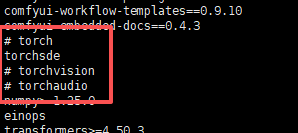
Then install the environment dependencies.
xxxxxxxxxxpip install -r requirements.txt
Install torch, torchvision, and torchaudio from jetson-ai-lab.io
xxxxxxxxxxpip install --pre torch, torchvision, torchaudio --index-url https://pypi.jetson-ai-lab.io/sbsa/cu130
2. Start ComfyUI
Open the terminal and activate the virtual environment
xxxxxxxxxxsource ~/ComfyUI/venv/bin/activate
Due to network issues, accessing the Huggingface website may be inaccessible in China. Adding the HF_ENDPOINT variable can speed up access.
Run the following command in your terminal to add the HF_ENDPOINT variable (optional):
xxxxxxxxxxexport HF_ENDPOINT=https://hf-mirror.com
Run the following commands to launch the ComfyUI application:
xxxxxxxxxxcd ~/ComfyUIpython main.py
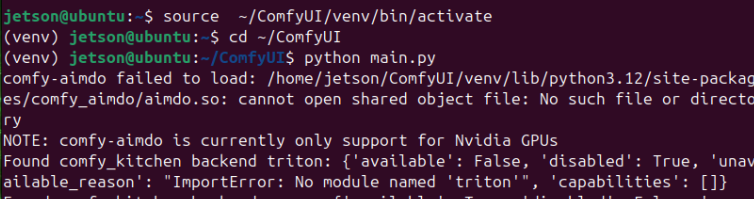
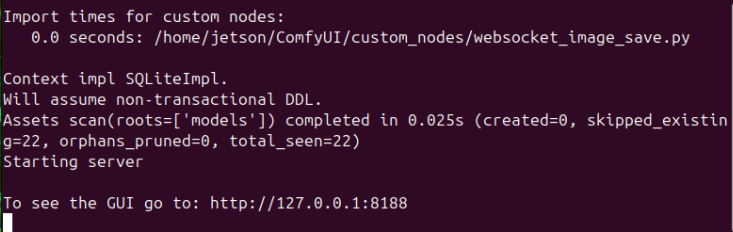
If the application launches successfully, the ComfyUI URL will be printed to the console: http://127.0.0.1:8188
Open the ComfyUI URL in your system's web browser.
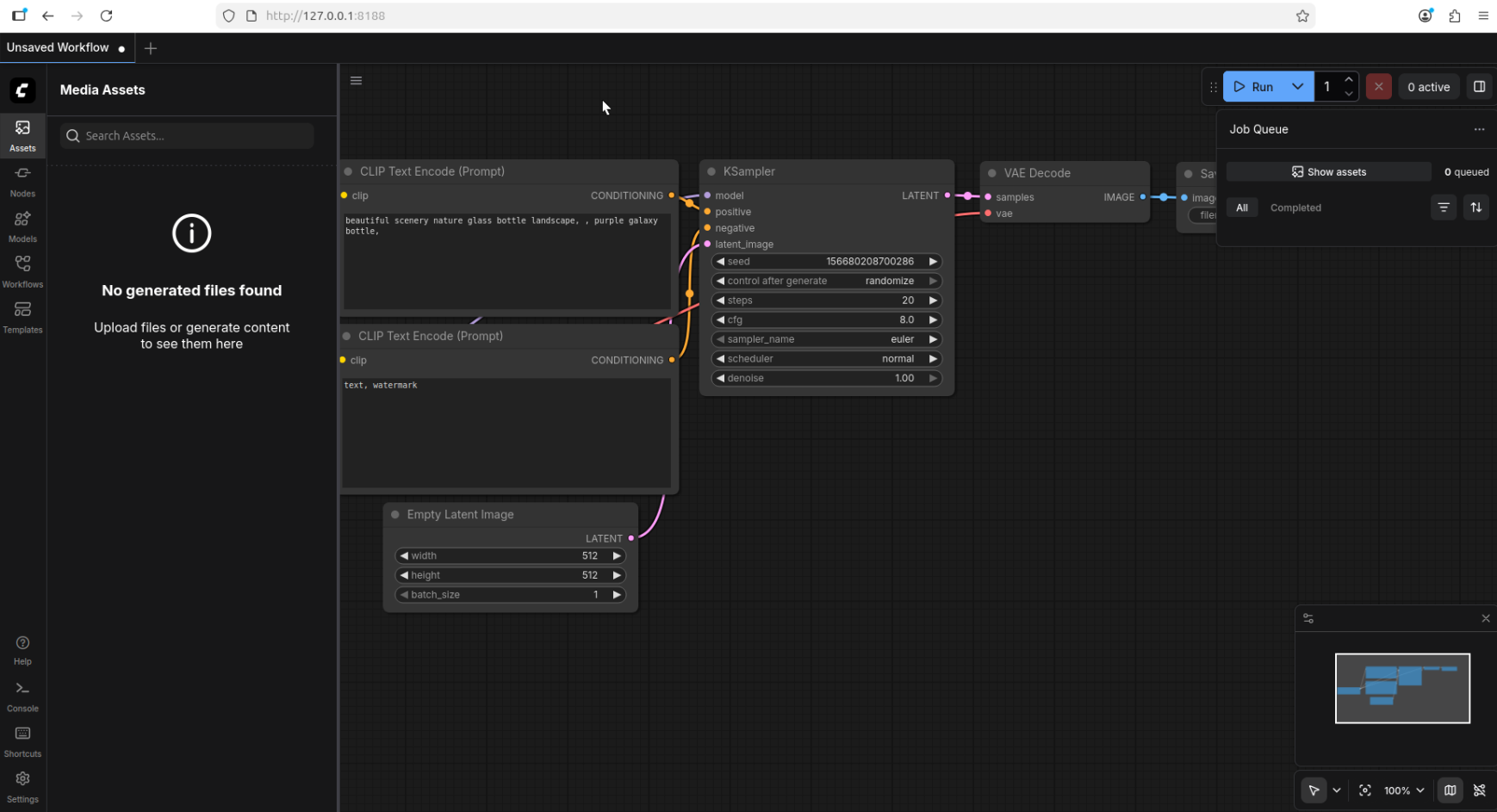
3. Exporting the ComfyUI API JSON File
Click the menu icon in the top-left corner, then click [New] to create a blank workflow. Design your workflow according to your specific needs, and then save it.
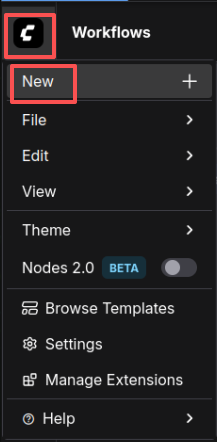
Alternatively, select a workflow with the appropriate functionality from the [Templates] section. 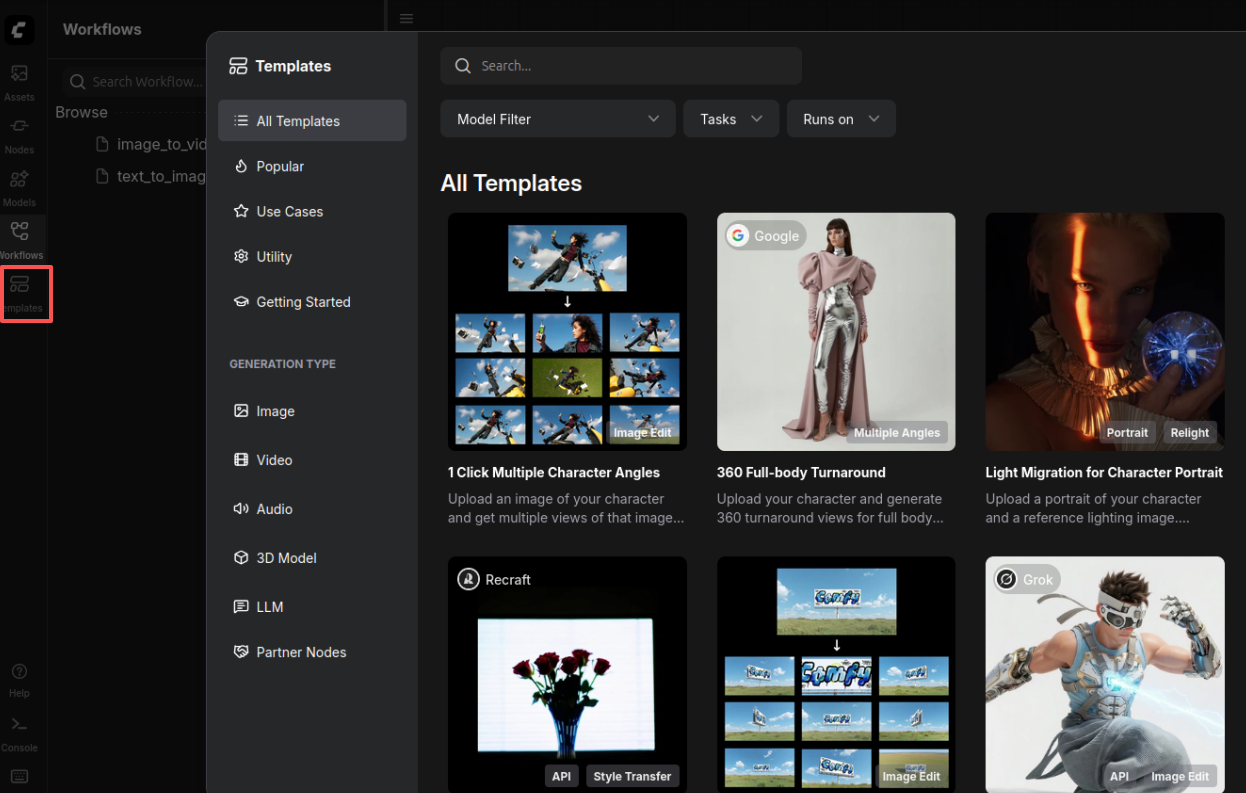
Using the text-to-image workflow as an example here: click on [Workflows], then select [text_to_image.json].
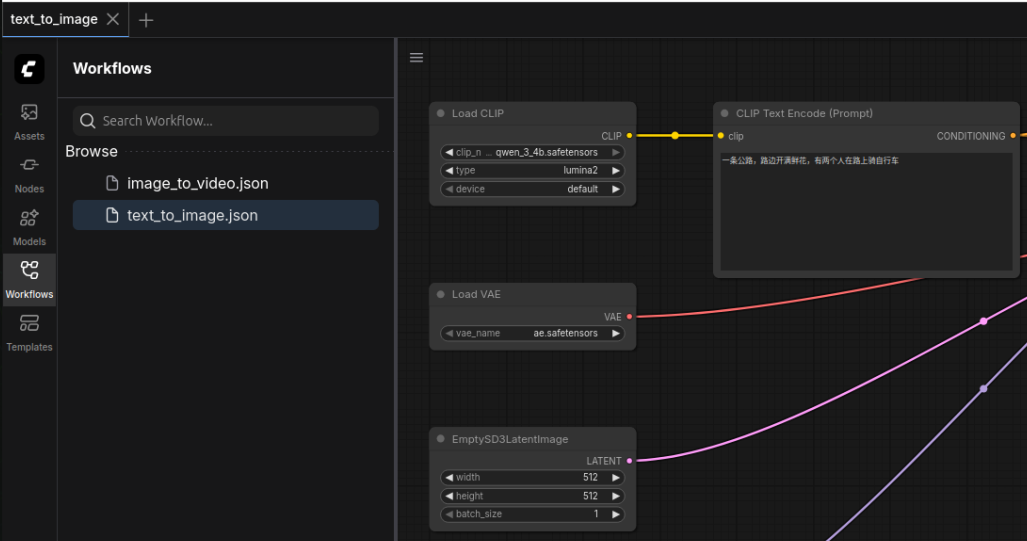
Click the three-line menu button, then select [Export (API)].
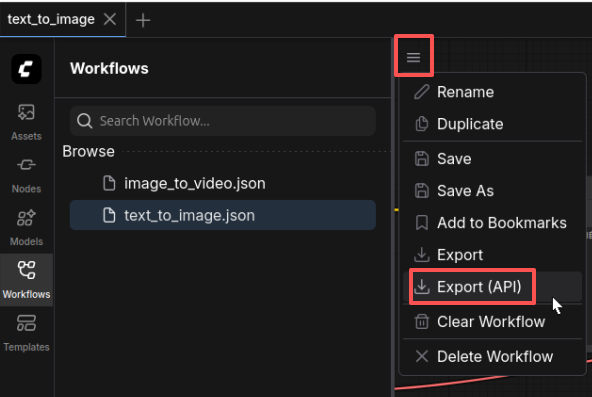
Click [Confirm].
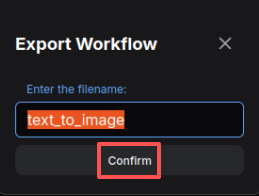
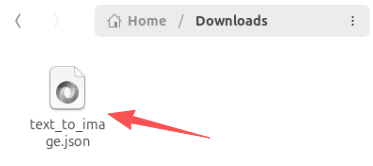
You can find the JSON file in your system's [Downloads] directory.
II. Setting Up the Workspace Virtual Environment
Note: Open a new terminal window; all of the following installation commands should be executed within this same terminal session. ### 1. Set Up Virtual Environment
Open the terminal and create a new virtual environment for your workspace:
xxxxxxxxxxcd ~/showingpython -m venv venvs
Activate the virtual environment:
xxxxxxxxxxsource ~/showing/venvs/bin/activate
Install dependencies:
xxxxxxxxxxsudo apt install libgtk2.0-devsudo apt install portaudio19-devsudo apt install screensudo apt install ffmpegsudo apt install ninja-buildsudo apt install libopenblas-devsudo apt install alsa-utils curl jq
xxxxxxxxxxpip install torch torchvision torchaudio --index-url https://pypi.jetson-ai-lab.io/sbsa/cu130pip install soundfilepip install screeninfopip install websocket-clientpip install flaskpip install openai-whisper sounddevice numpypip install transformerspip install opencv-python-headlesspip install soundfilepip install opencv-python pillow websocket-client requests pyserial numpypip install wheel setuptools pybind11 packagingpip install pathvalidatepip install unicode_rbnf
2. Install Speech-to-Text Tools
Download the source code:
xxxxxxxxxxcd ~/showinggit clone --recursive https://github.com/OpenNMT/CTranslate2.gitcd CTranslate2
Compile the source code:
xxxxxxxxxxmkdir build && cd buildcmake .. \-DCMAKE_BUILD_TYPE=Release \-DWITH_CUDA=ON \-DWITH_CUDNN=ON \-DWITH_MKL=OFF \-DWITH_OPENBLAS=ON \-DCMAKE_CUDA_ARCHITECTURES=110 \-DBUILD_CLI=OFF \-DOPENMP_RUNTIME=COMP \-G Ninjaninja -j"$(nproc)"cmake -DCMAKE_INSTALL_PREFIX=$HOME/.local .ninja install
Install the Python Driver Library
xxxxxxxxxxexport CPLUS_INCLUDE_PATH=$HOME/.local/include:${CPLUS_INCLUDE_PATH}export LIBRARY_PATH=$HOME/.local/lib:${LIBRARY_PATH}export LD_LIBRARY_PATH=$HOME/.local/lib:${LD_LIBRARY_PATH}export CMAKE_PREFIX_PATH=$HOME/.local:${CMAKE_PREFIX_PATH}cd ../pythonpython setup.py bdist_wheelpip install dist/*.whlpip install faster-whisper
3. Install Text-to-Speech Tools
Install Tools
xxxxxxxxxxpip install g2pw sentence_streampip install piper-tts==1.4.1
Speech Model Download Link:
xxxxxxxxxxhttps://huggingface.co/rhasspy/piper-voices/tree/main